# ugrep
**Repository Path**: CHANyp/ugrep
## Basic Information
- **Project Name**: ugrep
- **Description**: ugrep 模式匹配
- **Primary Language**: Unknown
- **License**: BSD-3-Clause
- **Default Branch**: master
- **Homepage**: None
- **GVP Project**: No
## Statistics
- **Stars**: 0
- **Forks**: 0
- **Created**: 2023-06-04
- **Last Updated**: 2023-06-07
## Categories & Tags
**Categories**: Uncategorized
**Tags**: None
## README
[![build status][ci-image]][ci-url] [![license][bsd-3-image]][bsd-3-url]
Ugrep is like grep, but faster, user-friendly, and equipped with must-have features. Ugrep's speed and features beat grep, ripgrep, silver searcher, ack, sift, etc.
The ugrep tools include the following powerful commands:
- **ug** for interactive use with a .ugrep configuration file with your preferences located in the working directory or home directory (run 'ug --save-config' to create a .ugrep file you can edit)
- **ug+** for interactive use, also searches pdfs, documents, e-books, image metadata
- **ugrep** for batch use
- **ugrep+** for batch use, also searches pdfs, documents, e-books, image metadata
*Option -Q opens a query TUI to search files as you type!*
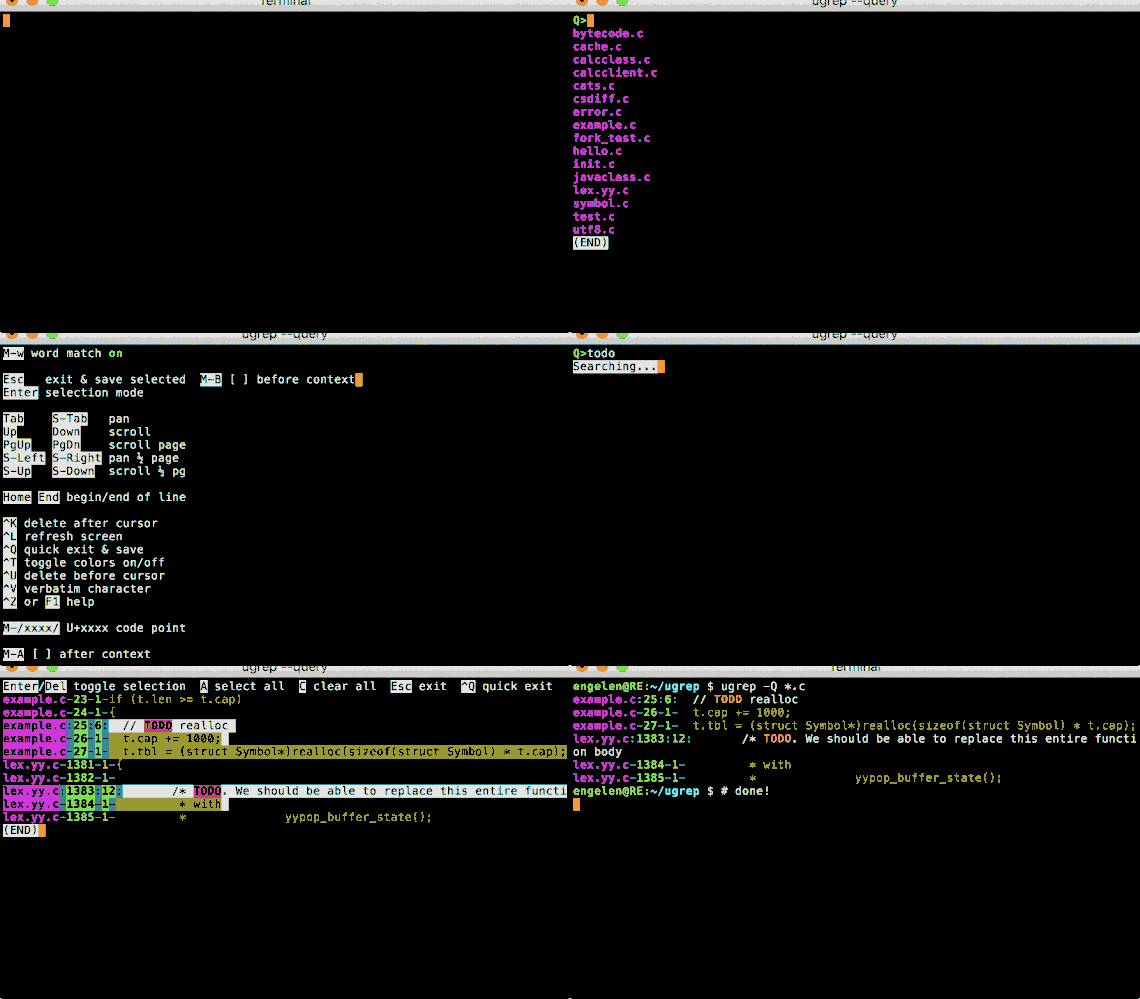 - Written in clean and efficient C++11 for advanced features and speed, thoroughly tested
- Portable (Linux, Unix, MacOS, Windows, etc), includes binaries for Windows in the [releases](https://github.com/Genivia/ugrep/releases)
- Supports all GNU/BSD grep standard options; ugrep is a faster [compatible replacement](#grep) for GNU/BSD grep
- Matches Unicode patterns by default in UTF-8, UTF-16, UTF-32 encoded files
- Matches multiple lines with `\n` and `\R` regex patterns
- Built-in help: `ugrep --help WHAT` displays options related to `WHAT` you are looking for
💡**ProTip** try `--help help`, `--help regex` and `--help globs`.
- User-friendly with sensible defaults and customizable [configuration files](#config) used by the `ug` command intended for interactive use that loads a .ugrep configuration file with your preferences
ug PATTERN ... ugrep --config PATTERN ...
💡**ProTip** `ug --save-config ...options...` saves a .ugrep config file in the working directory.
- Interactive [query TUI](#query), press F1 or CTRL-Z for help and TAB/SHIFT-TAB to navigate to dirs and files
ug -Q ug -Q -e PATTERN
💡**ProTip** `-Q` replaces `PATTERN` on the command line to type your patterns interactively instead. Specify `-e PATTERN` to search and edit the `PATTERN` in the TUI. For quicker search responses to keypresses, try `-Q1` (fast, 100ms delay) to `-Q5` (default 500ms delay).
- Find approximate pattern matches with [fuzzy search](#fuzzy), within the specified Levenshtein distance
ug -Z PATTERN ... ug -Z3 PATTTERN ...
💡**ProTip** `-Zn` matches up to `n` extra, missing or replaced characters, `-Z+n` matches up to `n` extra characters, `-Z-n` matches with up to `n` missing characters and `-Z~n` matches up to `n` replaced characters. `-Z` defaults to `-Z1`.
- Search with Google-like [Boolean query patterns](#bool) using `--bool` patterns with `AND` (or just space), `OR` (or a bar `|`), `NOT` (or a dash `-`), using quotes to match exactly, and grouping with `( )`; or with options `-e` (as an "or"), `--and`, `--andnot`, and `--not` regex patterns
ug --bool 'A B C' ... ug -e 'A' --and 'B' --and 'C' ...
ug --bool 'A|B C' ... ug -e 'A' -e 'B' --and 'C' ...
ug --bool 'A -B -C' ... ug -e 'A' --andnot 'B' --andnot 'C' ...
ug --bool 'A -(B|C)'... ug -e 'A' --andnot 'B' --andnot 'C' ...
ug --bool '"abc" "def"' ... ug -e '\Qabc\E' --and '\Qdef\E' ...
where `A`, `B` and `C` are arbitrary regex patterns (use option `-F` to search strings)
💡**ProTip** specify `--files --bool` to apply the Boolean query to files as a whole: a file matches if all Boolean conditions are satisfied by matching patterns file-wide. Otherwise, Boolean conditions apply to single lines by default, since grep utilities are generally line-based pattern matchers. Option `--stats` displays the query in human-readable form after the search completes.
- Fzf-like search with regex (or fixed strings with `-F`), fuzzy matching with up to 4 extra characters with `-Z+4` and words only with `-w`, using `--files --bool` for file-wide Boolean searches
ug -Q1 --files --bool -l -w -Z+4 --sort=best
💡**ProTip** `-l` lists the matching files in the TUI, press `TAB` then `ALT-y` to view a file, `SHIFT-TAB` and `Alt-l` to go back to view the list of matching files ordered by best match
- Search the contents of [archives](#archives) (cpio, jar, tar, pax, zip) and [compressed files](#archives) (zip, gz, Z, bz, bz2, lzma, xz, lz4, zstd)
ug -z PATTERN ... ug -z --zmax=2 PATTERN ...
💡**ProTip** specify `-z --zmax=2` to search compressed files and archives nested within archives, e.g. to search zip files stored in (compressed) tar files. The `--zmax` argument may range from 1 (default) to 99 for up to 99 decompression and de-archiving steps, far more than you will ever need! Larger `--zmax` slows searching.
- Search pdf, doc, docx, e-book, and more with `ug+` [using filters](#filter) associated with filename extensions:
ug+ PATTERN ...
ug --filter='pdf:pdftotext % -' PATTERN ...
ug --filter='doc:antiword %' PATTERN ...
ug --filter='odt,docx,epub,rtf:pandoc --wrap=preserve -t markdown % -o -' PATTERN ...
ug --filter='odt,doc,docx,rtf,xls,xlsx,ppt,pptx:soffice --headless --cat %' PATTERN ...
ug --filter='pem:openssl x509 -text,cer,crt,der:openssl x509 -text -inform der' PATTERN ...
ug --filter='latin1:iconv -f LATIN1 -t UTF-8' PATTERN ...
ug --filter='7z:7z x -so -si' PATTERN ...
💡**ProTip** the `ug+` command is the same as the `ug` command, but also uses filters to search PDFs, documents, and image metadata, when the [`pdftotext`](https://pypi.org/project/pdftotext), [`antiword`](https://github.com/rsdoiel/antiword), [`pandoc`](https://pandoc.org), and [`exiftool`](https://exiftool.sourceforge.net) are installed (optionally, not used when not installed).
- Search [binary files](#binary) and display hexdumps with binary pattern matches (Unicode text or `-U` for byte patterns)
ug --hexdump -U BYTEPATTERN ... ug --hexdump TEXTPATTERN ...
ug -X -U BYTEPATTERN ... ug -X TEXTPATTERN ...
ug -W -U BYTEPATTERN ... ug -W TEXTPATTERN ...
💡**ProTip** `--hexdump=4chC1` displays `4` columns of hex without a character column `c`, no hex spacing `h`, and with one extra hex line `C1` before and after a match. Option `-X` is the same as `--hexdump=2C` with `2` columns of hex and the whole matching line as `C` context in hex.
- Include files to search by [filename extensions](#magic) or exclude them with `^`
ug -O EXT PATTERN ... ug -O ^EXT PATTERN ...
- Include files to search by [file types or file "magic bytes"](#magic) or exclude them with `^`
ug -t TYPE PATTERN ... ug -t ^TYPE PATTERN ...
ug -M 'MAGIC' PATTERN ... ug -M '^MAGIC' PATTERN ...
- Include files and directories to search that match [gitignore-style globs](#globs) or exclude them with `^`
ug -g 'FILEGLOB' PATTERN ... ug -g '^FILEGLOB' PATTERN ...
ug -g 'DIRGLOB/' PATTERN ... ug -g '^DIRGLOB/' PATTERN ...
ug -g 'PATH/FILEGLOB' PATTERN ... ug -g '^PATH/FILEGLOB' PATTERN ...
ug -g 'PATH/DIRGLOB/' PATTERN ... ug -g '^PATH/DIRGLOB/' PATTERN ...
- Include [hidden files (dotfiles) and directories](#hidden) to search (omitted by default)
ug -. PATTERN ... ug -g'.*,.*/' PATTERN ...
- Exclude files specified by [.gitignore](#ignore) etc.
ug --ignore-files PATTERN ... ug --ignore-files=.ignore PATTERN ...
- Search patterns excluding [negative patterns](#not) ("match this but not that")
ug -e PATTERN -N NOTPATTERN ... ug -e '[0-9]+' -N 123 ...
- Use [predefined regex patterns](#source) to search source code, javascript, XML, JSON, HTML, PHP, markdown, etc.
ug PATTERN -f c++/zap_comments -f c++/zap_strings ...
ug PATTERN -f php/zap_html ...
ug -f js/functions ... | ug PATTERN ...
- Sort matching files by [name, best match, size, and time](#sort)
ug --sort PATTERN ... ug --sort=size PATTERN ...
ug --sort=changed PATTERN ... ug --sort=created PATTERN ...
ug -Z --sort=best PATTERN ...
- Output results in [CSV, JSON, XML](#json), and [user-specified formats](#format)
ug --csv PATTERN ... ug --json PATTERN ...
ug --xml PATTERN ... ug --format='file=%f line=%n match=%O%~' PATTERN ...
💡**ProTip** `ug --help format` displays help on format `%` fields.
- Search with PCRE's Perl-compatible regex patterns and display or replace [subpattern matches](#replace)
ug -P PATTERN ... ug -P --format='%1 and %2%~' 'PATTERN(SUB1)(SUB2)' ...
- Replace patterns in the output with [-P and --replace](#replace) replacement text, optionally containing `%` [formatting fields](#format), using `-y` to pass the rest of the file through:
ug --replace='TEXT' PATTERN ... ug -y --replace='TEXT' PATTERN ...
ug --replace='(%m:%o)' PATTERN ... ug -y --replace='(%m:%o)' PATTERN ...
ug -P --replace='%1' PATTERN ... ug -y -P --replace='%1' PATTERN ...
💡**ProTip** `ug --help format` displays help on format `%` fields to optionally use with `--replace`.
- Search files with a specific [encoding](#encoding) format such as ISO-8859-1 thru 16, CP 437, CP 850, MACROMAN, KOI8, etc.
ug --encoding=LATIN1 PATTERN ...
Table of contents
-----------------
- [Download and install](#install)
- [Performance comparisons](#speed)
- [Using ugrep within Vim](#vim)
- [Using ugrep within Emacs](#emacs)
- [Using ugrep to replace GNU/BSD grep](#grep)
- [Equivalence to GNU/BSD grep](#equivalence)
- [Short and quick command aliases](#aliases)
- [Notable improvements over grep](#improvements)
- [Tutorial](#tutorial)
- [Examples](#examples)
- [Advanced examples](#advanced)
- [Displaying helpful info](#help)
- [Configuration files](#config)
- [Interactive search with -Q](#query)
- [Recursively list matching files with -l, -R, -r, --depth, -g, -O, and -t](#recursion)
- [Boolean query patterns with --bool (-%), --and, --not](#bool)
- [Search this but not that with -v, -e, -N, -f, -L, -w, -x](#not)
- [Search non-Unicode files with --encoding](#encoding)
- [Matching multiple lines of text](#multiline)
- [Displaying match context with -A, -B, -C, and -y](#context)
- [Searching source code using -f, -O, and -t](#source)
- [Searching compressed files and archives with -z](#archives)
- [Find files by file signature and shebang "magic bytes" with -M, -O and -t](#magic)
- [Fuzzy search with -Z](#fuzzy)
- [Search hidden files with -.](#hidden)
- [Using filter utilities to search documents with --filter](#filter)
- [Searching and displaying binary files with -U, -W, and -X](#binary)
- [Ignore binary files with -I](#nobinary)
- [Ignoring .gitignore-specified files with --ignore-files](#ignore)
- [Using gitignore-style globs to select directories and files to search](#globs)
- [Including or excluding mounted file systems from searches](#fs)
- [Counting the number of matches with -c and -co](#count)
- [Displaying file, line, column, and byte offset info with -H, -n, -k, -b, and -T](#fields)
- [Displaying colors with --color and paging the output with --pager](#color)
- [Output matches in JSON, XML, CSV, C++](#json)
- [Customize output with --format](#format)
- [Replacing matches with -P --replace and --format using backreferences](#replace)
- [Limiting the number of matches with -1,-2...-9, -K, -m, and --max-files](#max)
- [Matching empty patterns with -Y](#empty)
- [Case-insensitive matching with -i and -j](#case)
- [Sort files by name, best match, size, and time](#sort)
- [Tips for advanced users](#tips)
- [More examples](#more)
- [Man page](#man)
- [Regex patterns](#patterns)
- [POSIX regular expression syntax](#posix-syntax)
- [POSIX and Unicode character classes](#posix-classes)
- [POSIX and Unicode character categories](#posix-categories)
- [Perl regular expression syntax](#perl-syntax)
- [Troubleshooting](#bugs)
Download and install
--------------------
### Homebrew for MacOS (and Linux)
Install the latest ugrep commands with [Homebrew](https://brew.sh):
$ brew install ugrep
This installs the `ugrep` and `ug` commands, where `ug` is the same as `ugrep`
but also loads the configuration file .ugrep when present in the working
directory or home directory.
### Windows
Practical hints on using `ugrep.exe` and `ug.exe` for interactive use on the
Windows command line:
- when quoting patterns and arguments on the command line, do not use single
`'` quotes but use `"` instead; most Windows command utilities consider
the single `'` quotes part of the command-line argument!
- file and directory globs specified with option `-g/GLOB` may behave more
intuitively than a `GLOB` command line argument, especially when directory
recursion is enabled;
- when specifying an empty pattern `""` to match all input, this may be ignored
by some Windows command interpreters such as Powershell, in that case use
option `--match` instead;
- to match newlines in patterns, you may want to use `\R` instead of `\n` to
match any Unicode newlines, such as `\r\n` pairs and single `\r` and `\n`.
Install with [Chocolatey](https://community.chocolatey.org/packages/ugrep)
`choco install ugrep`
Or install with [Scoop](https://scoop.sh) `scoop install ugrep`
Or download the full-featured `ugrep.exe` executable as release artifact from
. Then copy `ugrep.exe` to `ug.exe`
if you also want the `ug` command intended for interactive use, which loads the
.ugrep configuration file when present in the working directory or home
directory.
Add `ugrep.exe` and `ug.exe` to your execution path: go to *Settings* and
search for "Path" in *Find a Setting*. Select *environment variables* ->
*Path* -> *New* and add the directory where you placed the `ugrep.exe` and
`ug.exe` executables.
### Alpine Linux
$ apk add ugrep ugrep-doc
Check for version info.
### Arch Linux
$ pacman -S ugrep
Check for version info.
### CentOS
First enable the [EPEL repository](https://docs.fedoraproject.org/en-US/epel/),
then you can install ugrep.
$ dnf install ugrep
Check for version info.
### Debian
$ apt-get install ugrep
Check for version info. To build and try
`ugrep` locally, see "All platforms" build steps further below.
### Fedora
$ dnf install ugrep
Check for version info.
### FreeBSD
$ pkg install ugrep
Check for version info.
### Haiku
$ pkgman install cmd:ugrep
Check for
version info. To build and try `ugrep` locally, see "All platforms" build
steps further below.
### NetBSD
You can use the standard NetBSD package installer (pkgsrc):
### RHEL
First enable the [EPEL repository](https://docs.fedoraproject.org/en-US/epel/),
then you can install ugrep.
$ dnf install ugrep
Check for version info.
### Other platforms: step 1 download
Clone `ugrep` with
$ git clone https://github.com/Genivia/ugrep
Or visit to download a specific
release.
### Other platforms: step 2 consider optional dependencies
You can always add these later, when you need these features:
- Option `-P` (Perl regular expressions) requires either the PCRE2 library
(preferred) or the Boost.Regex library. If PCRE2 is not installed,
install PCRE2 with e.g. `sudo apt-get install -y libpcre2-dev` or
[download PCRE2](https://www.pcre.org) and follow the installation
instructions. Alternatively,
[download Boost.Regex](https://www.boost.org/users/download) and run
`./bootstrap.sh` and `sudo ./b2 --with-regex install`. See
[Boost: getting started](https://www.boost.org/doc/libs/1_72_0/more/getting_started/unix-variants.html).
- Option `-z` (compressed files and archives search) requires the
[zlib](https://www.zlib.net) library installed. It is installed on most
systems. If not, install it, e.g. with `sudo apt-get install -y libz-dev`.
To search `.bz` and `.bz2` files, install the
[bzip2](https://www.sourceware.org/bzip2) library, e.g. with
`sudo apt-get install -y libbz2-dev`. To search `.lzma` and `.xz` files,
install the [lzma](https://tukaani.org/xz) library, e.g. with
`sudo apt-get install -y liblzma-dev`. To search `.lz4` files, install the
[lz4](https://github.com/lz4/lz4) library, e.g. with
`sudo apt-get install -y liblz4-dev`. To search `.zst` files, install the
[zstd](http://facebook.github.io/zstd) library, e.g. with
`sudo apt-get install -y libzstd-dev`
**Note:** even if your system has command line utilities, such as `bzip2`, that
does not necessarily mean that the development libraries such as `libbz2` are
installed. The *development libraries* should be installed.
After installing one or more of these libraries, re-execute the commands to
rebuild `ugrep`:
$ cd ugrep
$ ./build.sh
**Note:** some Linux systems may not be configured to load dynamic libraries
from `/usr/local/lib`, causing a library load error when running `ugrep`. To
correct this, add `export LD_LIBRARY_PATH="$LD_LIBRARY_PATH:/usr/local/lib"` to
your `~/.bashrc` file. Or run `sudo ldconfig /usr/local/lib`.
### Other platforms: step 3 build
Build `ugrep` on Unix-like systems with colors enabled by default:
$ cd ugrep
$ ./build.sh
This builds the `ugrep` executable in the `ugrep/src` directory with
`./configure` and `make -j`, verified with `make test`. When all tests pass,
the `ugrep` executable is copied to `ugrep/bin/ugrep` and the symlink
`ugrep/bin/ug -> ugrep/bin/ugrep` is added for the `ug` command.
Note that `ug` is the same as `ugrep` but also loads the configuration file
.ugrep when present in the working directory or home directory. This means
that you can define your default options for `ug` in .ugrep.
To build `ugrep` with specific hard defaults enabled, such as a pager:
$ cd ugrep
$ ./build.sh --enable-pager
Options to select defaults for builds include:
- `--enable-hidden` always search hidden files and directories
- `--enable-pager` always use a pager to display output on terminals
- `--enable-pretty` colorize output to terminals and add filename headings
- `--disable-auto-color` disable automatic colors, requires ugrep option `--color=auto` to show colors
- `--disable-mmap` disable memory mapped files
- `--disable-sse2` disable SSE2 and AVX optimizations
- `--disable-avx` disable AVX optimizations, but compile with SSE2 when supported
- `--disable-neon` disable ARM NEON/AArch64 optimizations
- `--with-grep-path` the default `-f` path if `GREP_PATH` is not defined
- `--with-grep-colors` the default colors if `GREP_COLORS` is not defined
- `--help` display build options
After the build completes, copy `ugrep/bin/ugrep` and `ugrep/bin/ug` to a
convenient location, for example in your `~/bin` directory. Or, if you may want
to install the `ugrep` and `ug` commands and man pages:
$ sudo make install
This also installs the pattern files with predefined patterns for option `-f`
at `/usr/local/share/ugrep/patterns/`. Option `-f` first checks the working
directory for the presence of pattern files, if not found checks environment
variable `GREP_PATH` to load the pattern files, and if not found reads the
installed predefined pattern files.
### Troubleshooting
#### Git and timestamps
Unfortunately, git clones do not preserve timestamps which means that you may
run into "WARNING: 'aclocal-1.15' is missing on your system." or that
autoheader was not found when running `make`.
To work around this problem, run:
$ autoreconf -fi
$ ./build.sh
#### Compiler warnings
GCC 8 and greater may produce warnings of the sort *"note: parameter passing
for argument ... changed in GCC 7.1"*. These warnings should be ignored.
### Dockerfile for developers
A Dockerfile is included to build `ugrep` in a Ubuntu container.
Developers may want to use sanitizers to verify the **ugrep** code when making
significant changes, for example to detect data races with the
[ThreadSanitizer](https://clang.llvm.org/docs/ThreadSanitizer.html):
$ ./build.sh CXXFLAGS='-fsanitize=thread -O1 -g'
We checked `ugrep` with the clang AddressSanitizer, MemorySanitizer,
ThreadSanitizer, and UndefinedBehaviorSanitizer. These options incur
significant runtime overhead and should not be used for the final build.
🔝 [Back to table of contents](#toc)
Performance comparisons
-----------------------
Performance comparisons should represent what users can expect the performance
to be in practice. There should not be any shenanigans to trick the system to
perform more optimally or to degrade an important aspect of the search to make
one grep tool look better than another.
**ugrep** is a no-nonsense fast search tool that utilizes a worker pool of
threads with clever lock-free job queue stealing for optimized load balancing.
A new hashing technique is used to identify possible matches to speed up
multi-pattern matches. In addition, regex matching is optimized with AVX/SSE
and ARM NEON/AArch64 instructions. Compressed files are decompressed
concurrently while searching to further increase performance. Asynchronous IO
is implemented for efficient input and output.
**ugrep** performs very well overall and particularly well when searching
compressed files and archives. This means that at its core, the search
engine's performance of ugrep excellent if not the best among grep tools
available.
### Benchmarks
The following benchmark tests span a range of practical use cases:
Test | Command | Description
---- | ---------------------------------------------------------------- | -----------------------------------------------------
T1 | `GREP -c quartz enwik8` | count "quartz" in a 100MB file (word with low frequency letters)
T2 | `GREP -c sternness enwik8` | count "sternness" in a 100MB file (word with high frequency letters)
T3 | `GREP -c 'Sherlock Holmes' en.txt` | count "Sherlock Holmes" in a huge [13GB decompressed file](http://opus.nlpl.eu/download.php?f=OpenSubtitles/v2018/mono/OpenSubtitles.raw.en.gz)
T4 | `GREP -cw -e char -e int -e long -e size_t -e void big.cpp` | count 5 short words in a 35MB C++ source code file
T5 | `GREP -Eon 'serialize_[a-zA-Z0-9_]+Type' big.cpp` | search and display C++ serialization functions in a 35MB source code file
T6 | `GREP -Fon -f words1+1000 enwik8` | search 1000 words of length 1 or longer in a 100MB Wikipedia file
T7 | `GREP -Fon -f words2+1000 enwik8` | search 1000 words of length 2 or longer in a 100MB Wikipedia file
T8 | `GREP -Fon -f words4+1000 enwik8` | search 1000 words of length 4 or longer in a 100MB Wikipedia file
T9 | `GREP -Fon -f words8+1000 enwik8` | search 1000 words of length 8 or longer in a 100MB Wikipedia file
T10 | `GREP -ro '#[[:space:]]*include[[:space:]]+"[^"]+"' -Oh,hpp,cpp` | multi-threaded recursive search of `#include "..."` in the directory tree from the Qt 5.9.2 root, restricted to `.h`, `.hpp`, and `.cpp` files
T11 | `GREP -ro '#[[:space:]]*include[[:space:]]+"[^"]+"' -Oh,hpp,cpp` | same as T10 but single-threaded
T12 | `GREP -z -Fc word word*.gz` | count `word` in 6 compressed files of 1MB to 3MB each
Note: T10 and T11 use `ugrep` option `-Oh,hpp,cpp` to restrict the search to
files with extensions `.h`, `.hpp`, and `.cpp`, which is formulated with
GNU/BSD/PCRGE grep as `--include='*.h' --include='*.hpp' --include='*.cpp'`,
with silver searcher as `-G '.*\.(h|hpp|cpp)'` requiring `--search-binary` to
search compressed files (a bug), and with ripgrep as `--glob='*.h'
--glob='*.hpp' --glob='*.cpp'`.
The corpora used in the tests are available for
[download](https://www.genivia.com/files/corpora.zip).
### Performance results
The following performance tests were conducted with a new and common MacBook
Pro using clang 12.0.0 -O2 on a 2.9 GHz Intel Core i7, 16 GB 2133 MHz LPDDR3
MacOS 10.15.7 machine with the grep tools listed in the table installed (e.g.
MacOS BSD grep 2.5.1). The best times of 30 runs is shown under minimal
machine load. When comparing tools, the same match counts were produced.
These results are reproducible on similar machines.
Results are shown in real time (wall clock time) seconds elapsed. Best times
are shown in **boldface** and *n/a* means that the running time exceeded 1
minute or the selected options are not supported (T12: option `-z`) or the
input file is too large (T3: 13GB file) resulting in an error.
GREP | T1 | T2 | T3 | T4 | T5 | T6 | T7 | T8 | T9 | T10 | T11 | T12 |
--------------- | -------- | -------- | -------- | -------- | -------- | -------- | -------- | -------- | -------- | -------- | -------- | -------- |
ugrep | **0.02** | **0.03** | **6.05** | **0.07** | **0.02** | **0.98** | **0.97** | **0.87** | **0.26** | **0.10** | **0.19** | **0.02** |
hyperscan grep | 0.09 | 0.10 | **4.35** | 0.11 | 0.04 | 7.78 | 3.39 | 1.41 | 1.17 | *n/a* | *n/a* | *n/a* |
ripgrep | 0.06 | 0.10 | 7.50 | 0.19 | 0.06 | 2.20 | 2.07 | 2.01 | 2.14 | 0.12 | 0.36 | 0.03 |
silver searcher | 0.10 | 0.11 | *n/a* | 0.16 | 0.21 | *n/a* | *n/a* | *n/a* | *n/a* | 0.45 | 0.32 | 0.09 |
GNU grep 3.3 | 0.08 | 0.15 | 11.21 | 0.18 | 0.16 | 2.70 | 2.64 | 2.42 | 2.26 | *n/a* | 0.26 | *n/a* |
PCREGREP 8.42 | 0.17 | 0.17 | *n/a* | 0.26 | 0.08 | *n/a* | *n/a* | *n/a* | *n/a* | *n/a* | 2.37 | *n/a* |
BSD grep 2.5.1 | 0.81 | 1.60 | *n/a* | 1.85 | 0.83 | *n/a* | *n/a* | *n/a* | *n/a* | *n/a* | 3.35 | 0.60 |
Note T3: [Hyperscan simplegrep](https://github.com/intel/hyperscan/tree/master/examples)
was compiled with optimizations enabled. Hyperscan results for T3 are somewhat
better than ugrep as expected because hyperscan simplegrep has one advantage
here: it does not maintain line numbers and other line-related information. By
contrast, line information should be tracked (as in ugrep) to determine if
matches are on the same line or not, as required by option `-c`. Hyperscan
simplegrep returns more matches than other greps due to its "all matches
reported" pattern matching behavior.
Note T4-T9: Hyperscan simplegrep does not support command line options. Option
`-w` was emulated using the pattern `\b(char|int|long|size_t|void)\b`. Option
`-f` was emulated as follows:
paste -d'|' -s words1+1000 > pattern.txt
/usr/bin/time ./simplegrep `cat pattern.txt` enwik8 | ./null
Note T10+T11: [silver searcher 2.2.0](https://github.com/ggreer/the_silver_searcher)
runs slower with multiple threads (T10 0.45s) than single-threaded (T11 0.32s),
which was reported as an issue to the maintainers.
Note: ugrep option `-c` does not shortcut the search by skipping over the rest
of the line after a first match, by contrast to other grep to speed up
matching. The reason is that ugrep supports multi-line matches by default,
which means that the remainder of the line should always be searched to produce
accurate results.
Output is sent to a `null` utility to eliminate terminal display overhead
(`> /dev/null` cannot be used as some greps detect it to remove all output).
The `null` utility source code:
#include
#include
#include
int main() { char buf[65536]; while (read(0, buf, 65536) > 0) continue; }
Performance results may depend on warm/cold runs, compilers, libraries,
the OS, the CPU type, and file system latencies. However, comparable
competitive results were obtained on many other types of machines.
🔝 [Back to table of contents](#toc)
Using ugrep within Vim
----------------------
First, let's define the `:grep` command in Vim to search files recursively. To
do so, add the following lines to your `.vimrc` located in the root directory:
if executable('ugrep')
set grepprg=ugrep\ -RInk\ -j\ -u\ --tabs=1\ --ignore-files
set grepformat=%f:%l:%c:%m,%f+%l+%c+%m,%-G%f\\\|%l\\\|%c\\\|%m
endif
This specifies `-j` [case insensitive searches](#case) with the Vim `:grep`
command. For case sensitive searches, remove `\ -j` from `grepprg`. Multiple
matches on the same line are listed in the quickfix window separately. If this
is not desired, remove `\ -u` from `grepprg`. With this change, only the first
match on a line is shown. Option `--ignore-files` skips files specified in
`.gitignore` files, when present. To limit the depth of recursive searches to
the current directory only, append `\ -1` to `grepprg`.
You can now invoke the Vim `:grep` command in Vim to search files on a
specified `PATH` for `PATTERN` matches:
:grep PATTERN [PATH]
If you omit `PATH`, then the working directory is searched. Use `%` as `PATH`
to search only the currently opened file in Vim:
:grep PATTERN %
The `:grep` command shows the results in a
[quickfix](http://vimdoc.sourceforge.net/htmldoc/quickfix.html#:grep) window
that allows you to quickly jump to the matches found.
To open a quickfix window with the latest list of matches:
:copen
Double-click on a line in this window (or select a line and press ENTER) to
jump to the file and location in the file of the match. Enter commands `:cn`
and `:cp` to jump to the next or previous match, respectively. To update the
search results in the quickfix window, just grep them. For example, to
recursively search C++ source code marked `FIXME` in the working directory:
:grep -tc++ FIXME
To close the quickfix window:
:cclose
You can use **ugrep** options with the `:grep` command, for example to
select single- and multi-line comments in the current file:
:grep -f c++/comments %
Only the first line of a multi-line comment is shown in quickfix, to save
space. To show all lines of a multi-line match, remove `%-G` from
`grepformat`.
A popular Vim tool is [ctrlp.vim](http://kien.github.io/ctrlp.vim), which is
installed with:
$ cd ~/.vim
$ git clone https://github.com/kien/ctrlp.vim.git bundle/ctrlp.vim
CtrlP uses **ugrep** by adding the following lines to your `.vimrc`:
if executable('ugrep')
set runtimepath^=~/.vim/bundle/ctrlp.vim
let g:ctrlp_match_window='bottom,order:ttb'
let g:ctrlp_user_command='ugrep "" %s -Rl -I --ignore-files -3'
endif
where `-I` skips binary files, option `--ignore-files` skips files specified in
`.gitignore` files, when present, and option `-3` restricts searching
directories to three levels (the working directory and up to two levels below).
Start Vim then enter the command:
:helptags ~/.vim/bundle/ctrlp.vim/doc
To view the CtrlP documentation in Vim, enter the command:
:help ctrlp.txt
🔝 [Back to table of contents](#toc)
Using ugrep within Emacs
------------------------
Thanks to [Manuel Uberti](https://github.com/emacs-mirror/emacs/commits?author=manuel-uberti),
you can now use **ugrep** in Emacs. To use **ugrep** instead of GNU grep
within Emacs, add the following line to your `.emacs.d/init.el` file:
(setq-default xref-search-program ‘ugrep)
This means that Emacs commands such as `project-find-regexp` that rely on
[Xref](https://www.gnu.org/software/emacs/manual/html_node/emacs/Xref.html) can
now leverage the power of **ugrep**.
Furthermore, it is possible to use `grep` in the [Emacs grep
commands](https://www.gnu.org/software/emacs/manual/html_node/emacs/Grep-Searching.html).
For instance, you can run `lgrep` with `ugrep` by customizing `grep-template`
to something like the following:
(setq-default grep-template "ugrep --color=always -0Iinr -e ")
If you do not have Emacs version 29 (or greater) you can download and build
Emacs from the [Emacs master branch](https://github.com/emacs-mirror/emacs),
or enable Xref integration with **ugrep** manually:
(with-eval-after-load 'xref
(push '(ugrep . "xargs -0 ugrep --null -ns -e ")
xref-search-program-alist)
(setq-default xref-search-program 'ugrep))
🔝 [Back to table of contents](#toc)
Using ugrep to replace GNU/BSD grep
-----------------------------------
Out-of-the-box **ugrep** supports all standard GNU/BSD grep command-line
options and improves many of them too. For details see [notable improvements
over grep](#improvements).
If you want to stick exactly to GNU/BSD grep ASCII/LATIN1 non-UTF Unicode
patterns, use `ugrep -U` to disable full Unicode pattern matching.
In fact, executing `ugrep` with options `-U`, `-Y`, `-.` and `--sort` makes it
behave exactly like `egrep`, matching only ASCII/LATIN1 non-UTF Unicode
patterns, permitting empty patterns to match and search hidden files instead of
ignoring them, respectively. See [grep equivalence](#equivalence).
- You can create [convenient grep aliases](#aliases) with or without options
`-U`, `-Y`, `-.` and `--sort` or include other options as desired.
- Or you can create `grep`, `egrep` and `fgrep` executables by copying `ugrep`
to those names. When the `ugrep` (or `ugrep.exe`) executable is copied as
`grep` (`grep.exe`), `egrep` (`egrep.exe`), `fgrep` (`fgrep.exe`), then
option `-U`, `-Y` and `-.` are automatically enabled together with either
`-G` for `grep`, `-E` for `egrep` and `-F` for `fgrep`. In addition, when
copied as `zgrep`, `zegrep` and `zfgrep`, option `-z` is enabled. For
example, when `ugrep` is copied as `zegrep`, options `-z`, `-E`, `-Y`, `-.`
and `--sort` are enabled.
- Likewise, symlinks and hard links to `ugrep` work fine too to create `grep`,
`egrep` and `fgrep` replacements. For example, to create a symlink `egrep`:
sudo ln -s `which ugrep` /opt/local/bin/egrep
The `/opt/local/bin` is just an example and may or may not be in your `$path`
and may or may not be found when executing `egrep` depending on your `$path`.
### Equivalence to GNU/BSD grep
**ugrep** is equivalent to GNU/BSD grep when the following options are used:
grep = ugrep -G -U -Y -. --sort -Dread -dread
egrep = ugrep -E -U -Y -. --sort -Dread -dread
fgrep = ugrep -F -U -Y -. --sort -Dread -dread
zgrep = ugrep -z -G -U -Y -. --sort -Dread -dread
zegrep = ugrep -z -E -U -Y -. --sort -Dread -dread
zfgrep = ugrep -z -F -U -Y -. --sort -Dread -dread
where:
- `-U` disables Unicode wide-character pattern matching, so for example the
pattern `\xa3` matches byte A3 instead of the Unicode code point U+00A3
represented by the UTF-8 sequence C2 A3. By default in ugrep, `\xa3` matches
U+00A3. We do not recommend to use `-U` for text pattern searches, only for
binary searches or to search latin-1 (iso-8859-1) files without reporting
these files as binary (since ugrep v3.5.0).
- `-Y` enables empty matches, so for example the pattern `a*` matches every
line instead of a sequence of `a`'s. By default in ugrep, the pattern `a*`
matches a sequence of `a`'s. Moreover, in ugrep the pattern `a*b*c*` matches
what it is supposed to match by default. See [improvements](#improvements).
- `-.` searches hidden files (dotfiles). By default, hidden files are ignored,
like most Unix utilities.
- `--sort` specifies output sorted by pathname, showing sorted matching files
first followed by sorted recursive matches in subdirectories. Otherwise,
matching files are reported in no particular order to improve performance;
- `-Dread` and `-dread` are the GNU/BSD grep defaults but are not recommended,
see [improvements](#improvements) for an explanation.
🔝 [Back to table of contents](#toc)
### Short and quick command aliases
Commonly-used aliases to add to `.bashrc` to increase productivity:
alias uq = 'ug -Q' # short & quick query TUI (interactive, uses .ugrep config)
alias ux = 'ug -UX' # short & quick binary pattern search (uses .ugrep config)
alias uz = 'ug -z' # short & quick compressed files and archives search (uses .ugrep config)
alias ugit = 'ug -R --ignore-files' # works like git-grep & define your preferences in .ugrep config
alias grep = 'ugrep -G' # search with basic regular expressions (BRE)
alias egrep = 'ugrep -E' # search with extended regular expressions (ERE)
alias fgrep = 'ugrep -F' # find string(s)
alias pgrep = 'ugrep -P' # search with Perl regular expressions
alias xgrep = 'ugrep -W' # search (ERE) and output text or hex for binary
alias zgrep = 'ugrep -zG' # search compressed files and archives with BRE
alias zegrep = 'ugrep -zE' # search compressed files and archives with ERE
alias zfgrep = 'ugrep -zF' # find string(s) in compressed files and/or archives
alias zpgrep = 'ugrep -zP' # search compressed files and archives with Perl regular expressions
alias zxgrep = 'ugrep -zW' # search (ERE) compressed files/archives and output text or hex for binary
alias xdump = 'ugrep -X ""' # hexdump files without searching
To search PDF and office documents automatically, add a filter option to the
aliased `ugrep` command:
--filter="pdf:pdftotext % -,odt,doc,docx,rtf,xls,xlsx,ppt,pptx:soffice --headless --cat %"
This requires the utilities [`pdftotext`](https://pypi.org/project/pdftotext)
and [`soffice`](https://www.libreoffice.org) to be installed. See
[Using filter utilities to search documents with --filter](#filter).
🔝 [Back to table of contents](#toc)
### Notable improvements over grep
- **ugrep** starts an interactive query TUI with option `-Q`.
- **ugrep** matches patterns across multiple lines when patterns match `\n`.
- **ugrep** matches full Unicode by default (disabled with option `-U`).
- **ugrep** supports fuzzy (approximate) matching with option `-Z`.
- **ugrep** supports gitignore with option `--ignore-files`.
- **ugrep** supports user-defined global and local configuration files.
- **ugrep** supports Boolean patterns with AND, OR and NOT (option `--bool`).
- **ugrep** searches compressed files and archives with option `-z`.
- **ugrep** searches cpio, jar, pax, tar and zip archives with option `-z`.
- **ugrep** searches cpio, jar, pax, tar and zip archives recursively stored
within archives with `-z` and `--zmax=NUM` for up to `NUM` levels deep.
- **ugrep** searches pdf, doc, docx, xls, xlsx, epub, and more with `--filter`
using third-party format conversion utilities as plugins.
- **ugrep** searches a directory when the FILE argument is a directory, like
most Unix/Linux utilities; use option `-r` to search directories recursively.
- **ugrep** does not match hidden files by default like most Unix/Linux
utilities (hidden dotfile file matching is enabled with `-.`).
- **ugrep** regular expression patterns are more expressive than GNU grep and
BSD grep POSIX ERE and support Unicode pattern matching. Extended regular
expression (ERE) syntax is the default (i.e. option `-E` as egrep, whereas
`-G` enables BRE).
- **ugrep** spawns threads to search files concurrently to improve search
speed (disabled with option `-J1`).
- **ugrep** produces hexdumps with `-W` (output binary matches in hex with text
matches output as usual) and `-X` (output all matches in hex).
- **ugrep** can output matches in JSON, XML, CSV and user-defined formats (with
option `--format`).
- **ugrep** option `-f` uses `GREP_PATH` environment variable or the predefined
patterns installed in `/usr/local/share/ugrep/patterns`. If `-f` is
specified and also one or more `-e` patterns are specified, then options
`-F`, `-x`, and `-w` do not apply to `-f` patterns. This is to avoid
confusion when `-f` is used with predefined patterns that may no longer work
properly with these options.
- **ugrep** options `-O`, `-M`, and `-t` specify file extensions, file
signature magic byte patterns, and predefined file types, respectively. This
allows searching for certain types of files in directory trees, for example
with recursive search options `-R` and `-r`. Options `-O`, `-M`, and `-t`
also applies to archived files in cpio, jar, pax, tar, and zip files.
- **ugrep** option `-k`, `--column-number` to display the column number, taking
tab spacing into account by expanding tabs, as specified by option `--tabs`.
- **ugrep** option `-P` (Perl regular expressions) supports backreferences
(with `--format`) and lookbehinds, which uses the PCRE2 or Boost.Regex
library for fast Perl regex matching with a PCRE-like syntax.
- **ugrep** option `-b` with option `-o` or with option `-u`, ugrep displays
the exact byte offset of the pattern match instead of the byte offset of the
start of the matched line reported by GNU/BSD grep.
- **ugrep** option `-u`, `--ungroup` to not group multiple matches per line.
This option displays a matched input line again for each additional pattern
match on the line. This option is particularly useful with option `-c` to
report the total number of pattern matches per file instead of the number of
lines matched per file.
- **ugrep** option `-Y` enables matching empty patterns. Grepping with
empty-matching patterns is weird and gives different results with GNU grep
versus BSD grep. Empty matches are not output by **ugrep** by default, which
avoids making mistakes that may produce "random" results. For example, with
GNU/BSD grep, pattern `a*` matches every line in the input, and actually
matches `xyz` three times (the empty transitions before and between the `x`,
`y`, and `z`). Allowing empty matches requires **ugrep** option `-Y`.
Patterns that start with `^` or end with `$`, such as `^\h*$`, match empty.
These patterns automatically enable option `-Y`.
- **ugrep** option `-D, --devices=ACTION` is `skip` by default, instead of
`read`. This prevents unexpectedly hanging on named pipes in directories
that are recursively searched, as may happen with GNU/BSD grep that `read`
devices by default.
- **ugrep** option `-d, --directories=ACTION` is `skip` by default, instead of
`read`. By default, directories specified on the command line are searched,
but not recursively deeper into subdirectories.
- **ugrep** offers *negative patterns* `-N PATTERN`, which are patterns of the
form `(?^X)` that skip all `X` input, thus removing `X` from the search.
For example, negative patterns can be used to skip strings and comments when
searching for identifiers in source code and find matches that aren't in
strings and comments. Predefined `zap` patterns use negative patterns, for
example, use `-f cpp/zap_comments` to ignore pattern matches in C++ comments.
- **ugrep** does not the `GREP_OPTIONS` environment variable, because the
behavior of **ugrep** must be portable and predictable on every system. Also
GNU grep abandoned `GREP_OPTIONS` for this reason. Please use the `ug`
command that loads the .ugrep configuration file located in the working
directory or in the home directory when present, or use shell aliases to
create new commands with specific search options.
🔝 [Back to table of contents](#toc)
Tutorial
--------
### Examples
To perform a search using a configuration file `.ugrep` placed in the working
directory or home directory (note that `ug` is the same as `ugrep --config`):
ug PATTERN FILE...
To save a `.ugrep` configuration file to the working directory, then edit this
file in your home directory to customize your preferences for `ug` defaults:
ug --save-config
To search the working directory and recursively deeper for `main` (note that
`-r` recurse symlinks is enabled by default if no file arguments are
specified):
ug main
Same, but only search C++ source code files recursively, ignoring all other
files:
ug -tc++ main
Same, using the interactive query TUI, starting with the initial search pattern
`main` (note that `-Q` with an initial pattern requires option `-e` because
patterns are normally specified interactively and all command line arguments
are considered files/directories):
ug -Q -tc++ -e main
To search for `#define` (and `# define` etc) using a regex pattern in C++ files
(note that patterns should be quoted to prevent shell globbing of `*` and `?`):
ug -tc++ '#[\t ]*define'
To search for `main` as a word (`-w`) recursively without following symlinks
(`-r`) in directory `myproject`, showing the matching line (`-n`) and column
(`-k`) numbers next to the lines matched:
ug -r -nkw main myproject
Same, but only search `myproject` without recursing deeper (note that directory
arguments are searched at one level by default):
ug -nkw main myproject
Same, but search `myproject` and one subdirectory level deeper (two levels)
with `-2`:
ug -2 -nkw main myproject
Same, but only search C++ files in `myproject` and its subdirectories with
`-tc++`:
ug -tc++ -2 -nkw main myproject
Same, but also search inside archives (e.g. zip and tar files) and compressed
files with `-z`:
ug -z -tc++ -2 -nkw main myproject
Search recursively the working directory for `main` while ignoring gitignored
files (e.g. assuming `.gitignore` is in the working directory or below):
ug --ignore-files -tc++ -nkw main
To list all files in the working directory and deeper that are not ignored by
`.gitignore` file(s):
ug --ignore-files -l ''
To display the list of file name extensions and "magic bytes" (shebangs)
that are searched corresponding to `-t` arguments:
ug -tlist
To list all shell files recursively, based on extensions and shebangs with `-l`
(note that `''` matches any non-empty file):
ug -l -tShell ''
🔝 [Back to table of contents](#toc)
### Advanced examples
To search for `main` in source code while ignoring strings and comment blocks
we can use *negative patterns* with option `-N` to skip unwanted matches in
C/C++ quoted strings and comment blocks:
ug -r -nkw -e 'main' -N '"(\\.|\\\r?\n|[^\\\n"])*"|//.*|/\*([^*]|\n|(\*+([^*/]|\n)))*\*+\/' myproject
This is a lot of work to type in correctly! If you are like me, I don't want
to spend time fiddling with regex patterns when I am working on something more
important. There is an easier way by using **ugrep**'s predefined patterns
(`-f`) that are installed with the `ugrep` tool:
ug -r -nkw 'main' -f c/zap_strings -f c/zap_comments myproject
This query also searches through other files than C/C++ source code, like
READMEs, Makefiles, and so on. We're also skipping symlinks with `-r`. So
let's refine this query by selecting C/C++ files only using option `-tc,c++`
and include symlinks to files and directories with `-R`:
ug -R -tc,c++ -nkw 'main' -f c/zap_strings -f c/zap_comments myproject
What if we are only looking for the identifier `main` but not as a function
`main(`? We can use a negative pattern for this to skip unwanted `main\h*(`
pattern matches:
ug -R -tc,c++ -nkw -e 'main' -N 'main\h*\(' -f c/zap_strings -f c/zap_comments myproject
This uses the `-e` and `-N` options to explicitly specify a pattern and a
negative pattern, respectively, which is essentially forming the pattern
`main|(?^main\h*\()`, where `\h` matches space and tab. In general, negative
patterns are useful to filter out pattern matches we are not interested in.
As another example, we may want to search for the word `FIXME` in C/C++ comment
blocks. To do so we can first select the comment blocks with **ugrep**'s
predefined `c/comments` pattern AND THEN select lines with `FIXME` using a
pipe:
ug -R -tc,c++ -nk -f c/comments myproject | ug -w 'FIXME'
Filtering results with pipes is generally easier than using AND-OR logic that
some search tools use. This approach follows the Unix spirit to keep utilities
simple and use them in combination for more complex tasks.
Say we want to produce a sorted list of all identifiers found in Java source
code while skipping strings and comments:
ug -R -tjava -f java/names myproject | sort -u
This matches Java Unicode identifiers using the regex
`\p{JavaIdentifierStart}\p{JavaIdentifierPart}*` defined in
`patterns/java/names`.
With traditional grep and grep-like tools it takes great effort to recursively
search for the C/C++ source file that defines function `qsort`, requiring
something like this:
ug -R --include='*.c' --include='*.cpp' '^([ \t]*[[:word:]:*&]+)+[ \t]+qsort[ \t]*\([^;\n]+$' myproject
Fortunately, with **ugrep** we can simply select all function definitions in
files with extension `.c` or `.cpp` by using option `-Oc,cpp` and by using a
predefined pattern `functions` that is installed with the tool to produce
all function definitions. Then we select the one we want:
ug -R -Oc,cpp -nk -f c/functions | ug 'qsort'
Note that we could have used `-tc,c++` to select C/C++ files, but this also
includes header files when we want to only search `.c` and `.cpp` files.
We can also skip files and directories from being searched that are defined in
`.gitignore`. To do so we use `--ignore-files` to exclude any files and
directories from recursive searches that match the globs in `.gitignore`, when
one ore more`.gitignore` files are found:
ug -R -tc++ --ignore-files -f c++/defines
This searches C++ files (`-tc++`) in the working directory for `#define`
lines (`-f c++/defines`), while skipping files and directories declared in
`.gitignore`. If you find this too long to type then define an alias to search
GitHub directories:
alias ugit='ugrep -R --ignore-files'
ugit -tc++ -f c++/defines
To highlight matches when pushed through a chain of pipes we should use
`--color=always`:
ugit --color=always -tc++ -f c++/defines | ugrep -w 'FOO.*'
This returns a color-highlighted list of all `#define FOO...` macros in C/C++
source code files, skipping files defined in `.gitignore`.
Note that the complement of `--exclude` is not `--include`, because exclusions
always take precedence over inclusions, so we cannot reliably list the files
that are ignored with `--include-from='.gitignore'`. Only files explicitly
specified with `--include` and directories explicitly specified with
`--include-dir` are visited. The `--include-from` from lists globs that are
considered both files and directories to add to `--include` and
`--include-dir`, respectively. This means that when directory names and
directory paths are not explicitly listed in this file then it will not be
visited using `--include-from`.
Because ugrep checks if the input is valid UTF-encoded Unicode (unless `-U` is
used), it is possible to use it as a filter to ignore non-UTF output produced
by a program:
program | ugrep -I ''
If the program produces valid output then the output is passed through,
otherwise the output is filtered out option `-I`. If the output is initially
valid for a very large portion but is followed by invalid output, then ugrep
may initially show the output up to but excluding the invalid output after
which further output is blocked.
To filter lines that are valid ASCII or UTF-encoded, while removing lines that
are not:
program | ugrep '[\p{Unicode}--[\n]]+'
Note that `\p{Unicode}` matches `\n` but we don't want to matche the whole
file! Just lines with `[\p{Unicode}--[\n]]+`.
🔝 [Back to table of contents](#toc)
### Displaying helpful info
The ugrep man page:
man ugrep
To show a help page:
ug --help
To show options that mention `WHAT`:
ug --help WHAT
To show a list of `-t TYPES` option values:
ug -tlist
In the interactive query TUI, press F1 or CTRL-Z for help and options:
ug -Q
🔝 [Back to table of contents](#toc)
### Configuration files
--config[=FILE], ---[FILE]
Use configuration FILE. The default FILE is `.ugrep'. The working
directory is checked first for FILE, then the home directory. The
options specified in the configuration FILE are parsed first,
followed by the remaining options specified on the command line.
--save-config[=FILE]
Save configuration FILE. By default `.ugrep' is saved. If FILE is
a `-', write the configuration to standard output.
#### The ug command versus the ugrep command
The `ug` command is intended for context-dependent interactive searching and is
equivalent to the `ugrep --config` command to load the configuration file
`.ugrep` when present in the working directory or, when not found, in the home
directory:
ug PATTERN ...
ugrep --config PATTERN ...
The `ug` command also sorts files by name per directory searched. A
configuration file contains `NAME=VALUE` pairs per line, where `NAME` is the
name of a long option (without `--`) and `=VALUE` is an argument, which is
optional and may be omitted depending on the option. Empty lines and lines
starting with a `#` are ignored:
# Color scheme
colors=cx=hb:ms=hiy:mc=hic:fn=hi+y+K:ln=hg:cn=hg:bn=hg:se=
# Disable searching hidden files and directories
no-hidden
# ignore files specified in .ignore and .gitignore in recursive searches
ignore-files=.ignore
ignore-files=.gitignore
Command line options are parsed in the following order: first the (default or
named) configuration file is loaded, then the remaining options and
arguments on the command line are parsed.
Option `--stats` displays the configuration file used after searching.
#### Named configuration files
Named configuration files are intended to streamline custom search tasks, by
reducing the number of command line options to just one `---FILE` to use the
collection of options specified in `FILE`. The `--config=FILE` option and its
abbreviated form `---FILE` load the specified configuration file located in the
working directory or, when not found, located in the home directory:
ug ---FILE PATTERN ...
ugrep ---FILE PATTERN ...
An error is produced when `FILE` is not found or cannot be read.
Named configuration files can be used to define a collection of options that
are specific to the requirements of a task in the development workflow of a
project. For example to report unresolved issues by checking the source code
and documentation for comments with FIXME and TODO items. Such named
configuration file can be localized to a project by placing it in the project
directory, or it can be made global by placing it in the home directory. For
visual feedback, a color scheme specific to this task can be specified with
option `colors` in the configuration `FILE` to help identify the output
produced by a named configuration as opposed to the default configuration.
#### Saving a configuration file
The `--save-config` option saves a `.ugrep` configuration file to the
working directory. The file contains a strict subset of options that are
deemed reasonably safe with respect to the search results reported.
The `--save-config=FILE` option saves the configuration to the specified `FILE`.
The configuration is written to standard output when `FILE` is a `-`.
🔝 [Back to table of contents](#toc)
### Interactive search with -Q
-Q[DELAY], --query[=DELAY]
Query mode: user interface to perform interactive searches. This
mode requires an ANSI capable terminal. An optional DELAY argument
may be specified to reduce or increase the response time to execute
searches after the last key press, in increments of 100ms, where
the default is 5 (0.5s delay). No whitespace may be given between
-Q and its argument DELAY. Initial patterns may be specified with
-e PATTERN, i.e. a PATTERN argument requires option -e. Press F1
or CTRL-Z to view the help screen. Press F2 or CTRL-Y to invoke a
command to view or edit the file shown at the top of the screen.
The command can be specified with option --view, or defaults to
environment variable PAGER if defined, or EDITOR. Press Tab and
Shift-Tab to navigate directories and to select a file to search.
Press Enter to select lines to output. Press ALT-l for option -l
to list files, ALT-n for -n, etc. Non-option commands include
ALT-] to increase fuzziness and ALT-} to increase context. Enables
--heading. See also options --confirm and --view.
--no-confirm
Do not confirm actions in -Q query mode. The default is confirm.
--view[=COMMAND]
Use COMMAND to view/edit a file in query mode when pressing CTRL-Y.
This option starts a user interface to enter search patterns interactively:
- Press F1 or CTRL-Z to view a help screen and to enable or disable options.
- Press Alt with a key corresponding to a ugrep option letter or digit to
enable or disable the ugrep option. For example, pressing Alt-c enables
option `-c` to count matches. Pressing Alt-c again disables `-c`. Options
can be toggled with the Alt key while searching or when viewing the help
screen. If Alt/Meta keys are not supported (e.g. X11 xterm), then press
CTRL-O followed by the key corresponding to the option.
- Press Alt-g to enter or edit option `-g` file and directory matching globs, a
comma-separated list of gitignore-style glob patterns. Presssing ESC returns
control to the query pattern prompt (the globs are saved). When a glob is
preceded by a `!` or a `^`, skips files whose name matches the glob When a
glob contains a `/`, full pathnames are matched. Otherwise basenames are
matched. When a glob ends with a `/`, directories are matched.
- The query TUI prompt switches between `Q>` (normal), `F>` (fixed strings),
`G>` (basic regex), `P>` (Perl matching), and `Z>` (fuzzy matching).
When the `--glob=` prompt is shown, a comma-separated list of gitignore-style
glob patterns may be entered. Presssing ESC returns control to the pattern
prompt.
- Press Enter to switch to selection mode to select lines to output when ugrep
exits. Normally, ugrep in query mode does not output any results unless
results are selected. While in selection mode, select or deselect lines with
Enter or Del, or press A to select all results.
- The file listed or shown at the top of the screen, or beneath the cursor in
selection mode, is edited by pressing F2 or CTRL-Y. A file viewer or editor
may be specified with `--view=COMMAND`. Otherwise, the `PAGER` or `EDITOR`
environment variables are used to invoke the command with CTRL-Y. Filenames
must be enabled and visible in the output to use this feature.
- Press TAB to chdir one level down into the directory of the file listed
or viewed at the top of the screen. If no directory exists, the file itself
is selected to search. Press Shift-TAB to go back up one level.
- Press CTRL-T to toggle colors on and off. Normally ugrep in query mode uses
colors and other markup to highlight results. When colors are turned off,
selected results are also not colored in the output produced by ugrep when
ugrep exits. When colors are turned on (the default), selected results are
colored depending on the `--color` option.
- The query engine is optimized to limit system load by performing on-demand
searches to produce results only for the visible parts shown in the
interface. That is, results are shown on demand, when scrolling down and
when exiting when all results are selected. When the search pattern is
modified, the previous search query is cancelled when incomplete. This
effectively limits the load on the system to maintain a high degree of
responsiveness of the query engine to user input. Because the search results
are produced on demand, occasionally you may notice a flashing "Searching..."
message when searching files.
- To display results faster, specify a low `DELAY` value such as 1. However,
lower values may increase system load as a result of repeatedly initiating
and cancelling searches by each key pressed.
- To avoid long pathnames to obscure the view, `--heading` is enabled by
default. Press Alt-+ to switch headings off.
Query TUI key mapping:
key(s) | function
----------------------- | -------------------------------------------------
`Alt-key` | toggle ugrep command-line option corresponding to `key`
`Alt-/`xxxx`/` | insert Unicode hex code point U+xxxx
`Esc` `Ctrl-[` `Ctrl-C` | go back or exit
`Ctrl-Q` | quick exit and output the results selected in selection mode
`Tab` | chdir to the directory of the file shown at the top of the screen or select file
`Shift-Tab` | chdir one level up or deselect file
`Enter` | enter selection mode and toggle selected lines to output on exit
`Up` `Ctrl-P` | move up
`Down` `Ctrl-N` | move down
`Left` `Ctrl-B` | move left
`Right` `Ctrl-F` | move right
`PgUp` `Ctrl-G` | move display up by a page
`PgDn` `Ctrl-D` | move display down by a page
`Alt-Up` | move display up by 1/2 page (MacOS `Shift-Up`)
`Alt-Down` | move display down by 1/2 page (MacOS `Shift-Down`)
`Alt-Left` | move display left by 1/2 page (MacOS `Shift-Left`)
`Alt-Right` | move display right by 1/2 page (MacOS `Shift-Right`)
`Home` `Ctrl-A` | move cursor to the beginning of the line
`End` `Ctrl-E` | move cursor to the end of the line
`Ctrl-K` | delete after cursor
`Ctrl-L` | refresh screen
`Ctrl-O`+`key` | toggle ugrep command-line option corresponding to `key`, same as `Alt-key`
`Ctrl-R` `F4` | jump to bookmark
`Ctrl-S` | scroll to the next file
`Ctrl-T` | toggle colors on/off
`Ctrl-U` | delete before cursor
`Ctrl-V` | verbatim character
`Ctrl-W` | scroll back one file
`Ctrl-X` `F3` | set bookmark
`Ctrl-Y` `F2` | edit file shown at the top of the screen or under the cursor
`Ctrl-Z` `F1` | view help and options
`Ctrl-^` | chdir back to the starting working directory
`Ctrl-\` | terminate process
To interactively search the files in the working directory and below:
ug -Q
Same, but restricted to C++ files only and ignoring `.gitignore` files:
ug -Q -tc++ --ignore-files
To interactively search all makefiles in the working directory and below:
ug -Q -g 'Makefile*' -g 'makefile*'
Same, but for up to 2 directory levels (working and one subdirectory level):
ug -Q -2 -g 'Makefile*' -g 'makefile*'
To interactively view the contents of `main.cpp` and search it, where `-y`
shows any nonmatching lines as context:
ug -Q -y main.cpp
To interactively search `main.cpp`, starting with the search pattern `TODO` and
a match context of 5 lines (context can be interactively enabled and disabled,
this also overrides the default context size of 2 lines):
ug -Q -C5 -e TODO main.cpp
To view and search the contents of an archive (e.g. zip, tarball):
ug -Q -z archive.tar.gz
To interactively select files from `project.zip` to decompress with `unzip`,
using ugrep query selection mode (press Enter to select lines):
unzip project.zip `zipinfo -1 project.zip | ugrep -Q`
🔝 [Back to table of contents](#toc)
### Recursively list matching files with -l, -R, -r, --depth, -g, -O, and -t
-L, --files-without-match
Only the names of files not containing selected lines are written
to standard output. Pathnames are listed once per file searched.
If the standard input is searched, the string ``(standard input)''
is written. If --tree is specified, outputs directories in a
tree-like format.
-l, --files-with-matches
Only the names of files containing selected lines are written to
standard output. ugrep will only search a file until a match has
been found, making searches potentially less expensive. Pathnames
are listed once per file searched. If the standard input is
searched, the string ``(standard input)'' is written. If --tree is
specified, outputs directories in a tree-like format.
-R, --dereference-recursive
Recursively read all files under each directory. Follow all
symbolic links, unlike -r. See also option --sort.
-r, --recursive
Recursively read all files under each directory, following symbolic
links only if they are specified on the command line. Note that
when no FILE arguments are specified and input is read from a
terminal, recursive searches are performed as if -r is specified.
See also option --sort.
--depth=[MIN,][MAX], -1, -2, -3, ... -9, --10, --11, --12, ...
Restrict recursive searches from MIN to MAX directory levels deep,
where -1 (--depth=1) searches the specified path without recursing
into subdirectories. Note that -3 -5, -3-5, and -35 search 3 to 5
levels deep. Enables -r if -R or -r is not specified.
-g GLOBS, --glob=GLOBS
Search only files whose name matches the specified comma-separated
list of GLOBS, same as --include='glob' for each `glob' in GLOBS.
When a `glob' is preceded by a `!' or a `^', skip files whose name
matches `glob', same as --exclude='glob'. When `glob' contains a
`/', full pathnames are matched. Otherwise basenames are matched.
When `glob' ends with a `/', directories are matched, same as
--include-dir='glob' and --exclude-dir='glob'. A leading `/'
matches the working directory. This option may be repeated and may
be combined with options -M, -O and -t to expand searches. See
`ugrep --help globs' and `man ugrep' section GLOBBING for details.
-O EXTENSIONS, --file-extension=EXTENSIONS
Search only files whose filename extensions match the specified
comma-separated list of EXTENSIONS, same as --include='*.ext' for
each `ext' in EXTENSIONS. When `ext' is preceded by a `!' or a
`^', skip files whose filename extensions matches `ext', same as
--exclude='*.ext'. This option may be repeated and may be combined
with options -g, -M and -t to expand the recursive search.
-t TYPES, --file-type=TYPES
Search only files associated with TYPES, a comma-separated list of
file types. Each file type corresponds to a set of filename
extensions passed to option -O and filenames passed to option -g.
For capitalized file types, the search is expanded to include files
with matching file signature magic bytes, as if passed to option
-M. When a type is preceded by a `!' or a `^', excludes files of
the specified type. This option may be repeated.
--stats
Output statistics on the number of files and directories searched,
and the inclusion and exclusion constraints applied.
If no FILE arguments are specified and input is read from a terminal, recursive
searches are performed as if `-r` is specified. To force reading from standard
input, specify `-` as the FILE argument.
To recursively list all non-empty files in the working directory, following
symbolic links:
ug -r -l ''
To list all non-empty files in the working directory but not deeper (since a
FILE argument is given, in this case `.` for the working directory):
ug -l '' .
To list all non-empty files in directory `mydir` but not deeper (since a FILE
argument is given):
ug -l '' mydir
To list all non-empty files in directory `mydir` and deeper while following
symlinks:
ug -R -l '' mydir
To recursively list all non-empty files on the path specified, while visiting
subdirectories only, i.e. directories `mydir/` and subdirectories at one
level deeper `mydir/*/` are visited (note that `-2 -l` can be abbreviated to
`-l2`):
ug -2 -l '' mydir
To recursively list all non-empty files in directory `mydir`, not following any
symbolic links (except when on the command line such as `mydir`):
ug -rl '' mydir
To recursively list all Makefiles matching the text `CPP`:
ug -l -tmake 'CPP'
To recursively list all `Makefile.*` matching `bin_PROGRAMS`:
ug -l -g'Makefile.*' 'bin_PROGRAMS'
To recursively list all non-empty files with extension .sh, with `-Osh`:
ug -l -Osh ''
To recursively list all shell scripts based on extensions and shebangs with
`-tShell`:
ug -l -tShell ''
To recursively list all shell scripts based on extensions only with `-tshell`:
ug -l -tshell ''
🔝 [Back to table of contents](#toc)
### Boolean query patterns with --bool (-%), --and, --not
--bool, -%
Specifies Boolean query patterns. A Boolean query pattern is
composed of `AND', `OR', `NOT' operators and grouping with `(' `)'.
Spacing between subpatterns is the same as `AND', `|' is the same
as `OR' and a `-' is the same as `NOT'. The `OR' operator binds
more tightly than `AND'. For example, --bool 'A|B C|D' matches
lines with (`A' or `B') and (`C' or `D'), --bool 'A -B' matches
lines with `A' and not `B'. Operators `AND', `OR', `NOT' require
proper spacing. For example, --bool 'A OR B AND C OR D' matches
lines with (`A' or `B') and (`C' or `D'), --bool 'A AND NOT B'
matches lines with `A' without `B'. Quoted subpatterns are matched
literally as strings. For example, --bool 'A "AND"|"OR"' matches
lines with `A' and also either `AND' or `OR'. Parenthesis are used
for grouping. For example, --bool '(A B)|C' matches lines with `A'
and `B', or lines with `C'. Note that all subpatterns in a Boolean
query pattern are regular expressions, unless -F is specified.
Options -E, -F, -G, -P and -Z can be combined with --bool to match
subpatterns as strings or regular expressions (-E is the default.)
This option does not apply to -f FILE patterns. Option --stats
displays the search patterns applied. See also options --and,
--andnot, --not, --files and --lines.
--files
Apply Boolean queries to match files, the opposite of --lines. A
file matches if all Boolean conditions are satisfied by the lines
matched in the file. For example, --files -e A --and -e B -e C
--andnot -e D matches a file if some lines match `A' and some lines
match (`B' or `C') and no line in the file matches `D'. May also
be specified as --files --bool 'A B|C -D'. Option -v cannot be
specified with --files. See also options --and, --andnot, --not,
--bool and --lines.
--lines
Apply Boolean queries to match lines, the opposite of --files.
This is the default Boolean query mode to match specific lines.
--and [[-e] PATTERN] ... -e PATTERN
Specify additional patterns to match. Patterns must be specified
with -e. Each -e PATTERN following this option is considered an
alternative pattern to match, i.e. each -e is interpreted as an OR
pattern. For example, -e A -e B --and -e C -e D matches lines with
(`A' or `B') and (`C' or `D'). Note that multiple -e PATTERN are
alternations that bind more tightly together than --and. Option
--stats displays the search patterns applied. See also options
--not, --andnot, and --bool.
--andnot [[-e] PATTERN] ...
Combines --and --not. See also options --and, --not, and --bool.
--not [-e] PATTERN
Specifies that PATTERN should not match. Note that -e A --not -e B
matches lines with `A' or lines without a `B'. To match lines with
`A' that have no `B', specify -e A --andnot -e B. Option --stats
displays the search patterns applied. See also options --and,
--andnot, and --bool.
--stats
Output statistics on the number of files and directories searched,
and the inclusion and exclusion constraints applied.
Note that the `--and`, `--not`, and `--andnot` options require `-e PATTERN`.
The `--bool` option makes all patterns Boolean-based, supporting the following
logical operations listed from the highest level of precedence to the lowest:
operator | alternative | result
-------- | ----------- | -------
`"x"` | | match `x` literally and exactly as specified (using the standard regex escapes `\Q` and `\E`)
`( )` | | Boolean expression grouping
`-x` | `NOT x` | inverted match, i.e. matches if `x` does not match
`x\|y` | `x OR y` | matches lines with `x` or `y`
`x y` | `x AND y` | matches lines with both `x` and `y`
- `x` and `y` are subpatterns that do not start with the special symbols `|`,
`-`, and `(` (use quotes or a `\` escape to match these);
- `-` and `NOT` are the same and take precedence over `OR`, which means that
`-x|y` == `(-x)|y` for example.
- `|` and `OR` are the same and take precedence over `AND`, which means that
`x y|z` == `x (y|z)` for example;
The `--stats` option displays the Boolean queries in human-readable form
converted to CNF (Conjunctive Normal Form), after the search is completed.
To show the CNF without a search, read from standard input terminated by an
EOF, like `echo | ugrep --bool '...' --stats`.
Subpatterns are color-highlighted in the output, except those negated with
`NOT` (a `NOT` subpattern may still show up in a matching line when using an
OR-NOT pattern like `x|-y`). Note that subpatterns may overlap. In that
case only the first matching subpattern is color-highlighted.
Multiple lines may be matched when subpatterns match newlines. There is one
exception however: subpatterns ending with `(?=X)` lookaheads may not match
when `X` spans multiple lines.
Empty patterns match any line (grep standard). Therefore, `--bool 'x|""|y'`
matches everything and `x` and `y` are not color-highlighted. Option `-y`
should be used to show every line as context, for example `-y 'x|y'`.
Fzf-like interactive querying (Boolean search with fixed strings with fuzzy
matching to allow e.g. up to 4 extra characters matched with `-Z+4` in words
with `-w`), press TAB and ALT-y to view a file with matches. Press SHIFT-TAB
and ALT-l to go back to the list of matching files:
ug -Q1 --bool -l -w -F -Z+4 --sort=best
To recursively find all files containing both `hot` and `dog` anywhere in the
file with option `--files`:
ug --files --bool 'hot dog'
ug --files -e hot --and dog
To find lines containing both `hot` and `dog` in `myfile.txt`:
ug --bool 'hot dog' myfile.txt
ug -e hot --and dog myfile.txt
To find lines containing `place` and then also `hotdog` or `taco` (or both) in
`myfile.txt`:
ug --bool 'hotdog|taco place' myfile.txt
ug -e hotdog -e taco --and place myfile.txt
Same, but exclude lines matching `diner`:
ug --bool 'hotdog|taco place -diner' myfile.txt
ug -e hotdog -e taco --and place --andnot diner myfile.txt
To find lines with `diner` or lines that match both `fast` and `food` but not `bad` in `myfile.txt`:
ug --bool 'diner|(fast food -bad)' myfile.txt
To find lines with `fast food` (exactly) or lines with `diner` but not `bad` or `old` in `myfile.txt`:
ug --bool '"fast food"|diner -bad -old' myfile.txt
Same, but using a different Boolean expression that has the same meaning:
ug --bool '"fast food"|diner -(bad|old)' myfile.txt
To find lines with `diner` implying `good` in `myfile.txt` (that is, show lines
with `good` without `diner` and show lines with `diner` but only those with
`good`, which is logically implied!):
ug --bool 'good|-diner' myfile.txt
ug -e good --not diner myfile.txt
To find lines with `foo` and `-bar` and `"baz"` in `myfile.txt` (not that `-`
and `"` should be matched using `\` escapes and with `--and -e -bar`):
ug --bool 'foo \-bar \"baz\"' myfile.txt
ug -e foo --and -e -bar --and '"baz"' myfile.txt
To search `myfile.cpp` for lines with `TODO` or `FIXME` but not both on the
same line, like XOR:
ug --bool 'TODO|FIXME -(TODO FIXME)' myfile.cpp
ug -e TODO -e FIXME --and --not TODO --not FIXME myfile.cpp
🔝 [Back to table of contents](#toc)
### Search this but not that with -v, -e, -N, -f, -L, -w, -x
-e PATTERN, --regexp=PATTERN
Specify a PATTERN used during the search of the input: an input
line is selected if it matches any of the specified patterns.
Note that longer patterns take precedence over shorter patterns.
This option is most useful when multiple -e options are used to
specify multiple patterns, when a pattern begins with a dash (`-'),
to specify a pattern after option -f or after the FILE arguments.
-f FILE, --file=FILE
Read newline-separated patterns from FILE. White space in patterns
is significant. Empty lines in FILE are ignored. If FILE does not
exist, the GREP_PATH environment variable is used as path to FILE.
If that fails, looks for FILE in /usr/local/share/ugrep/pattern.
When FILE is a `-', standard input is read. This option may be
repeated.
-L, --files-without-match
Only the names of files not containing selected lines are written
to standard output. Pathnames are listed once per file searched.
If the standard input is searched, the string ``(standard input)''
is written.
-N PATTERN, --neg-regexp=PATTERN
Specify a negative PATTERN used during the search of the input: an
input line is selected only if it matches the specified patterns
unless it matches the negative PATTERN. Same as -e (?^PATTERN).
Negative pattern matches are essentially removed before any other
patterns are matched. Note that longer patterns take precedence
over shorter patterns. This option may be repeated.
-v, --invert-match
Selected lines are those not matching any of the specified
patterns.
-w, --word-regexp
The PATTERN is searched for as a word, such that the matching text
is preceded by a non-word character and is followed by a non-word
character. Word characters are letters, digits, and the
underscore. With option -P, word characters are Unicode letters,
digits, and underscore. This option has no effect if -x is also
specified. If a PATTERN is specified, or -e PATTERN or -N PATTERN,
then this option has no effect on -f FILE patterns to allow -f FILE
patterns to narrow or widen the scope of the PATTERN search.
-x, --line-regexp
Select only those matches that exactly match the whole line, as if
the patterns are surrounded by ^ and $. If a PATTERN is specified,
or -e PATTERN or -N PATTERN, then this option does not apply to
-f FILE patterns to allow -f FILE patterns to narrow or widen the
scope of the PATTERN search.
See also [Boolean query patterns with --bool (-%), --and, --not](#bool) for
more powerful Boolean query options than the traditional GNU/BSD grep options.
To display lines in file `myfile.sh` but not lines matching `^[ \t]*#`:
ug -v '^[ \t]*#' myfile.sh
To search `myfile.cpp` for lines with `FIXME` and `urgent`, but not `Scotty`:
ugrep FIXME myfile.cpp | ugrep urgent | ugrep -v Scotty
Same, but using `--bool` for Boolean queries:
ug --bool 'FIXME urgent -Scotty' myfile.cpp
To search for decimals using pattern `\d+` that do not start with `0` using
negative pattern `0\d+` and excluding `555`:
ug -e '\d+' -N '0\d+' -N 555 myfile.cpp
To search for words starting with `disp` without matching `display` in file
`myfile.py` by using a "negative pattern" `-N '/'` where `-N`
specifies an additional negative pattern to skip matches:
ug -e '\' myfile.py
To search for lines with the word `display` in file `myfile.py` skipping this
word in strings and comments, where `-f` specifies patterns in files which are
predefined patterns in this case:
ug -n -w 'display' -f python/zap_strings -f python/zap_comments myfile.py
To display lines that are not blank lines:
ug -x -e '.*' -N '\h*' myfile.py
Same, but using `-v` and `-x` with `\h*`, i.e. pattern `^\h*$`:
ug -v -x '\h*' myfile.py
To recursively list all Python files that do not contain the word `display`,
allowing the word to occur in strings and comments:
ug -RL -tPython -w 'display' -f python/zap_strings -f python/zap_comments
🔝 [Back to table of contents](#toc)
### Search non-Unicode files with --encoding
--encoding=ENCODING
The encoding format of the input. The default ENCODING is binary
and UTF-8 which are the same. Note that option -U specifies binary
PATTERN matching (text matching is the default.)
Binary, ASCII and UTF-8 files do not require this option to search them. Also
UTF-16 and UTF-32 files do not require this option to search them, assuming
that UTF-16 and UTF-32 files start with a UTF BOM
([byte order mark](https://en.wikipedia.org/wiki/Byte_order_mark)) as usual.
Other file encodings require option `--encoding=ENCODING`:
encoding | parameter
---------------------- | --------------
ASCII | *n/a*
UTF-8 | *n/a*
UTF-16 with BOM | *n/a*
UTF-32 with BOM | *n/a*
UTF-16 BE w/o BOM | `UTF-16` or `UTF-16BE`
UTF-16 LE w/o BOM | `UTF-16LE`
UTF-32 w/o BOM | `UTF-32` or `UTF-32BE`
UTF-32 w/o BOM | `UTF-32LE`
Latin-1 | `LATIN1` or `ISO-8859-1`
ISO-8859-1 | `ISO-8859-1`
ISO-8859-2 | `ISO-8859-2`
ISO-8859-3 | `ISO-8859-3`
ISO-8859-4 | `ISO-8859-4`
ISO-8859-5 | `ISO-8859-5`
ISO-8859-6 | `ISO-8859-6`
ISO-8859-7 | `ISO-8859-7`
ISO-8859-8 | `ISO-8859-8`
ISO-8859-9 | `ISO-8859-9`
ISO-8859-10 | `ISO-8859-10`
ISO-8859-11 | `ISO-8859-11`
ISO-8859-13 | `ISO-8859-13`
ISO-8859-14 | `ISO-8859-14`
ISO-8859-15 | `ISO-8859-15`
ISO-8859-16 | `ISO-8859-16`
MAC (CR=newline) | `MAC`
MacRoman (CR=newline) | `MACROMAN`
EBCDIC | `EBCDIC`
DOS code page 437 | `CP437`
DOS code page 850 | `CP850`
DOS code page 858 | `CP858`
Windows code page 1250 | `CP1250`
Windows code page 1251 | `CP1251`
Windows code page 1252 | `CP1252`
Windows code page 1253 | `CP1253`
Windows code page 1254 | `CP1254`
Windows code page 1255 | `CP1255`
Windows code page 1256 | `CP1256`
Windows code page 1257 | `CP1257`
Windows code page 1258 | `CP1258`
KOI8-R | `KOI8-R`
KOI8-U | `KOI8-U`
KOI8-RU | `KOI8-RU`
Note that regex patterns are always specified in UTF-8 (includes ASCII). To
search binary files with binary patterns, see
[searching and displaying binary files with -U, -W, and -X](#binary).
To recursively list all files that are ASCII (i.e. 7-bit):
ug -RL '[^[:ascii:]]'
To recursively list all files that are non-ASCII, i.e. UTF-8, UTF-16, and
UTF-32 files with non-ASCII Unicode characters (U+0080 and up):
ug -Rl '[^[:ascii:]]'
To check if a file contains non-ASCII Unicode (U+0080 and up):
ug -q '[^[:ascii:]]' myfile && echo "contains Unicode"
To remove invalid Unicode characters from a file (note that `-o` does not work
because binary data is detected and rejected and newlines are added, but
`--format="%o%` does not check for binary and copies the match "as is"):
ug "\p{Unicode}" --format="%o" badfile.txt
To recursively list files with invalid UTF content (i.e. invalid UTF-8 byte
sequences or files that contain any UTF-8/16/32 code points that are outside
the valid Unicode range) by matching any code point with `.` and by using a
negative pattern `-N '\p{Unicode}'`:
ug -Rl -e '.' -N '\p{Unicode}'
To display lines containing laughing face emojis:
ug '[😀-😏]' emojis.txt
The same results are obtained using `\x{hhhh}` to select a Unicode character
range:
ug '[\x{1F600}-\x{1F60F}]' emojis.txt
To display lines containing the names Gödel (or Goedel), Escher, or Bach:
ug 'G(ö|oe)del|Escher|Bach' GEB.txt wiki.txt
To search for `lorem` in lower or upper case in a UTF-16 file that is marked
with a UTF-16 BOM:
ug -iw 'lorem' utf16lorem.txt
To search utf16lorem.txt when this file has no UTF-16 BOM, using `--encoding`:
ug --encoding=UTF-16 -iw 'lorem' utf16lorem.txt
To search file `spanish-iso.txt` encoded in ISO-8859-1:
ug --encoding=ISO-8859-1 -w 'año' spanish-iso.txt
🔝 [Back to table of contents](#toc)
### Matching multiple lines of text
-o, --only-matching
Output only the matching part of lines. Output additional matches
on the same line with `+' as the field separator. When multiple
lines match a pattern, output the matching lines with `|' as the
field separator. If -A, -B or -C is specified, fits the match and
its context on a line within the specified number of columns.
Multiple lines may be matched by patterns that match newline characters. Use
option `-o` to output the match only, not the full lines(s) that match.
To match a `\n` line break, include `\n` in the pattern to match the LF
character. If you want to match `\r\n` and `\n` line breaks, use `\r?\n` or
simply use `\R` to match any Unicode line break `\r\n`, `\r`, `\v`, `\f`, `\n`,
U+0085, U+2028 and U+2029.
To match C/C++ `/*...*/` multi-line comments:
ug '/\*([^*]|\n|(\*+([^*/]|\n)))*\*+\/' myfile.cpp
To match C/C++ comments using the predefined `c/comments` patterns with
`-f c/comments`, restricted to the matching part only with option `-o`:
ug -of c/comments myfile.cpp
Same as `sed -n '/begin/,/end/p'`: to match all lines between a line containing
`begin` and the first line after that containing `end`, using lazy repetition:
ug -o '.*begin(.|\n)*?end.*' myfile.txt
🔝 [Back to table of contents](#toc)
### Displaying match context with -A, -B, -C, -y, and --width
-A NUM, --after-context=NUM
Output NUM lines of trailing context after matching lines. Places
a --group-separator between contiguous groups of matches. If -o is
specified, output the match with context to fit NUM columns after
the match or shortens the match. See also options -B, -C and -y.
-B NUM, --before-context=NUM
Output NUM lines of leading context before matching lines. Places
a --group-separator between contiguous groups of matches. If -o is
specified, output the match with context to fit NUM columns before
the match or shortens the match. See also options -A, -C and -y.
-C NUM, --context=NUM
Output NUM lines of leading and trailing context surrounding each
matching line. Places a --group-separator between contiguous
groups of matches. If -o is specified, output the match with
context to fit NUM columns before and after the match or shortens
the match. See also options -A, -B and -y.
-y, --any-line
Any line is output (passthru). Non-matching lines are output as
context with a `-' separator. See also options -A, -B, and -C.
--width[=NUM]
Truncate the output to NUM visible characters per line. The width
of the terminal window is used if NUM is not specified. Note that
double wide characters in the output may result in wider lines.
-o, --only-matching
Output only the matching part of lines. Output additional matches
on the same line with `+' as the field separator. When multiple
lines match a pattern, output the matching lines with `|' as the
field separator. If -A, -B or -C is specified, fits the match and
its context on a line within the specified number of columns.
To display two lines of context before and after a matching line:
ug -C2 'FIXME' myfile.cpp
To show three lines of context after a matched line:
ug -A3 'FIXME.*' myfile.cpp:
To display one line of context before each matching line with a C function
definition (C names are non-Unicode):
ug -B1 -f c/functions myfile.c
To display one line of context before each matching line with a C++ function
definition (C++ names may be Unicode):
ug -B1 -f c++/functions myfile.cpp
To display any non-matching lines as context for matching lines with `-y`:
ug -y -f c++/functions myfile.cpp
To display a hexdump of a matching line with one line of hexdump context:
ug -C1 -UX '\xaa\xbb\xcc' a.out
Context within a line is displayed with option `-o` with a context option:
ug -o -C20 'pattern' myfile.cpp
Same, but with pretty output with headings, line numbers and column numbers
(`-k`) and showing context:
ug --pretty -oC20 'pattern' myfile.cpp
🔝 [Back to table of contents](#toc)
### Searching source code using -f, -g, -O, and -t
-f FILE, --file=FILE
Read newline-separated patterns from FILE. White space in patterns
is significant. Empty lines in FILE are ignored. If FILE does not
exist, the GREP_PATH environment variable is used as path to FILE.
If that fails, looks for FILE in /usr/local/share/ugrep/pattern.
When FILE is a `-', standard input is read. This option may be
repeated.
--ignore-files[=FILE]
Ignore files and directories matching the globs in each FILE that
is encountered in recursive searches. The default FILE is
`.gitignore'. Matching files and directories located in the
directory of a FILE's location and in directories below are ignored
by temporarily extending the --exclude and --exclude-dir globs, as
if --exclude-from=FILE is locally enforced. Globbing syntax is the
same as the --exclude-from=FILE gitignore syntax; directories are
excluded when the glob ends in a `/', same as git. Files and
directories explicitly specified as command line arguments are
never ignored. This option may be repeated with additional files.
-g GLOBS, --glob=GLOBS
Search only files whose name matches the specified comma-separated
list of GLOBS, same as --include='glob' for each `glob' in GLOBS.
When a `glob' is preceded by a `!' or a `^', skip files whose name
matches `glob', same as --exclude='glob'. When `glob' contains a
`/', full pathnames are matched. Otherwise basenames are matched.
When `glob' ends with a `/', directories are matched, same as
--include-dir='glob' and --exclude-dir='glob'. A leading `/'
matches the working directory. This option may be repeated and may
be combined with options -M, -O and -t to expand searches. See
`ugrep --help globs' and `man ugrep' section GLOBBING for details.
-O EXTENSIONS, --file-extension=EXTENSIONS
Search only files whose filename extensions match the specified
comma-separated list of EXTENSIONS, same as --include='*.ext' for
each `ext' in EXTENSIONS. When `ext' is preceded by a `!' or a
`^', skip files whose filename extensions matches `ext', same as
--exclude='*.ext'. This option may be repeated and may be combined
with options -g, -M and -t to expand the recursive search.
-t TYPES, --file-type=TYPES
Search only files associated with TYPES, a comma-separated list of
file types. Each file type corresponds to a set of filename
extensions passed to option -O and filenames passed to option -g.
For capitalized file types, the search is expanded to include files
with matching file signature magic bytes, as if passed to option
-M. When a type is preceded by a `!' or a `^', excludes files of
the specified type. This option may be repeated.
--stats
Output statistics on the number of files and directories searched,
and the inclusion and exclusion constraints applied.
The file types are listed with `ugrep -tlist`. The list is based on
established filename extensions and "magic bytes". If you have a file type
that is not listed, use options `-O` and/or `-M`. You may want to define an
alias, e.g. `alias ugft='ugrep -Oft'` as a shorthand to search files with
filename suffix `.ft`.
To recursively display function definitions in C/C++ files (`.h`, `.hpp`, `.c`,
`.cpp` etc.) with line numbers with `-tc++`, `-o`, `-n`, and `-f c++/functions`:
ug -on -tc++ -f c++/functions
To recursively display function definitions in `.c` and `.cpp` files with line
numbers with `-Oc,cpp`, `-o`, `-n`, and `-f c++/functions`:
ug -on -Oc,cpp -f c++/functions
To recursively list all shell files with `-tShell` to match filename extensions
and files with shell shebangs, except files with suffix `.sh`:
ug -l -tShell -O^sh ''
To recursively list all non-shell files with `-t^Shell`:
ug -l -t^Shell ''
To recursively list all shell files with shell shebangs that have no shell
filename extensions:
ug -l -tShell -t^shell ''
To search for lines with `FIXME` in C/C++ comments, excluding `FIXME` in
multi-line strings:
ug -n 'FIXME' -f c++/zap_strings myfile.cpp
To read patterns `TODO` and `FIXME` from standard input to match lines in the
input, while excluding matches in C++ strings:
ug -on -f - -f c++/zap_strings myfile.cpp <
### Searching compressed files and archives with -z
-z, --decompress
Decompress files to search, when compressed. Archives (.cpio,
.pax, .tar and .zip) and compressed archives (e.g. .taz, .tgz,
.tpz, .tbz, .tbz2, .tb2, .tz2, .tlz, .txz, .tzst) are searched and
matching pathnames of files in archives are output in braces. If
-g, -O, -M, or -t is specified, searches files stored in archives
whose filenames match globs, match filename extensions, match file
signature magic bytes, or match file types, respectively.
Supported compression formats: gzip (.gz), compress (.Z), zip,
bzip2 (requires suffix .bz, .bz2, .bzip2, .tbz, .tbz2, .tb2, .tz2),
lzma and xz (requires suffix .lzma, .tlz, .xz, .txz),
lz4 (requires suffix .lz4),
zstd (requires suffix .zst, .zstd, .tzst).
--zmax=NUM
When used with option -z (--decompress), searches the contents of
compressed files and archives stored within archives by up to NUM
recursive expansions. The default --zmax=1 only permits searching
uncompressed files stored in cpio, pax, tar and zip archives;
compressed files and archives are detected as binary files and are
effectively ignored. Specify --zmax=2 to search compressed files
and archives stored in cpio, pax, tar and zip archives. NUM may
range from 1 to 99 for up to 99 decompression and de-archiving
steps. Increasing NUM values gradually degrades performance.
Files compressed with gzip (`.gz`), compress (`.Z`), bzip2 (`.bz`, `.bz2`,
`.bzip2`), lzma (`.lzma`), xz (`.xz`), lz4 (`.lz4`) and zstd (`.zst`, `.zstd`)
are searched with option `-z`. This option does not require files to be
compressed. Uncompressed files are searched also.
Other compression formats can be searched with **ugrep** [filters](#filter).
Archives (cpio, jar, pax, tar, and zip) are searched with option `-z`. Regular
files in an archive that match are output with the archive pathnames enclosed
in `{` and `}` braces. Supported tar formats are v7, ustar, gnu, oldgnu, and
pax. Supported cpio formats are odc, newc, and crc. Not supported is the
obsolete non-portable old binary cpio format. Archive formats cpio, tar, and
pax are automatically recognized with option `-z` based on their content,
independent of their filename suffix.
By default, uncompressed archives stored within zip archives are also searched:
all cpio, pax, and tar files in zip archives are automatically recognized and
searched. However, by default compressed files stored within archives are not
recognized, e.g. zip files stored within tar files are not searched but rather
all compressed files and archives are searched as if they are binary files
without decompressing them.
Specify `--zmax=NUM` to search archives that contain compressed files and
archives for up to `NUM` levels deep. The value of `NUM` may range from 1 to
99 for up to 99 decompression and de-archiving steps to expand up to 99 nested
archives. Larger `--zmax=NUM` values degrade performance. It is unlikely you
will ever need 99 as `--zmax=2` suffices for most practical use cases, such as
searching zip files stored in tar files.
When option `-z` is used with options `-g`, `-O`, `-M`, or `-t`, archives and
compressed and uncompressed files that match the filename selection criteria
(glob, extension, magic bytes, or file type) are searched only. For example,
`ugrep -r -z -tc++` searches C++ files such as `main.cpp` and zip and tar
archives that contain C++ files such as `main.cpp`. Also included in the
search are compressed C++ files such as `main.cpp.gz` and `main.cpp.xz` when
present. Also any cpio, pax, tar, and zip archives when present are searched
for C++ files that they contain, such as `main.cpp`. Use option `--stats` to
see a list of the glob patterns applied to filter file pathnames in the
recursive search and when searching archive contents.
When option `-z` is used with options `-g`, `-O`, `-M`, or `-t` to search cpio,
jar, pax, tar, and zip archives, archived files that match the filename selection
criteria are searched only.
The gzip, compress, and zip formats are automatically detected, which is useful
when reading gzip-compressed data from standard input, e.g. input redirected
from a pipe. Other compression formats require a filename suffix: `.bz`,
`.bz2`, or `.bzip2` for bzip2, `.lzma` for lzma, `.xz` for xz, `.lz4` for lz4
and `.zst` or `.zstd` for zstd. Also the compressed tar archive shorthands
`.taz`, `.tgz` and `.tpz` for gzip, `.tbz`, `.tbz2`, `.tb2`, and `.tz2` for
bzip2, `.tlz` for lzma, `.txz` for xz, and `.tzst` for zstd are recognized. To
search these formats with ugrep from standard input, use option
`--label='stdin.bz2'` for bzip2, `--label='stdin.lzma'` for lzma,
`--label='stdin.xz'` for xz, `--label='stdin.lz4` for lz4 and
`--label='stdin.zst` for zstd. The name `stdin` is arbitrary and may be
omitted:
format | filename suffix | tar/pax archive short suffix | suffix required? | ugrep from stdin | lib required |
--------- | ----------------------- | ------------------------------- | ---------------- | ---------------- | ------------ |
gzip | `.gz` | `.taz`, `.tgz`, `.tpz` | no | automatic | libz |
compress | `.Z` | `.taZ`, `.tZ` | no | automatic | *built-in* |
zip | `.zip`, `.zipx`, `.ZIP` | | no | automatic | libz |
bzip2 | `.bz`, `.bz2`, `.bzip2` | `.tb2`, `.tbz`, `.tbz2`, `.tz2` | yes | `--label=.bz2` | libbz2 |
lzma | `.lzma` | `.tlz` | yes | `--label=.lzma` | liblzma |
xz | `.xz` | `.txz` | yes | `--label=.xz` | liblzma |
lz4 | `.lz4` | | yes | `--label=.lz4` | liblz4 |
zstd | `.zst`, `.zstd` | `.tzst` | yes | `--label=.zst` | libzstd |
The gzip, bzip2, xz, lz4 and zstd formats support concatenated compressed
files. Concatenated compressed files are searched as one file.
Supported zip compression methods are stored (0), deflate (8), bzip2 (12), lzma
(14), xz (95) and zstd (93). The bzip2, lzma, xz and zstd methods require
ugrep to be compiled with the corresponding compression libraries.
Searching encrypted zip archives is not supported (perhaps in future releases,
depending on requests for enhancements).
Option `-z` uses threads for task parallelism to speed up searching larger
files by running the decompressor concurrently with a search of the
decompressed stream.
To list all non-empty files stored in a `package.zip` archive, including the
contents of all cpio, pax, tar and zip files that are stored in it:
ug --zmax=2 -z -l '' package.zip
Same, but only list the Python source code files, including scripts that invoke
Python, with option `-tPython` (`ugrep -tlist` for details):
ug --zmax=2 -z -l -tPython '' package.zip
To search Python applications distributed as a tar file with their dependencies
includes as wheels (zip files with Python code), searching for the word
`my_class` in `app.tgz`:
ug --zmax=2 -z -tPython -w my_class app.tgz
To recursively search C++ files including compressed files for the word
`my_function`, while skipping C and C++ comments:
ug -z -r -tc++ -Fw my_function -f cpp/zap_comments
To search bzip2, lzma, xz, lz4 and zstd compressed data on standard input,
option `--label` may be used to specify the extension corresponding to the
compression format to force decompression when the bzip2 extension is not
available to ugrep, for example:
cat myfile.bz2 | ugrep -z --label='stdin.bz2' 'xyz'
To search file `main.cpp` in `project.zip` for `TODO` and `FIXME` lines:
ug -z -g main.cpp -w -e 'TODO' -e 'FIXME' project.zip
To search tarball `project.tar.gz` for C++ files with `TODO` and `FIXME` lines:
ug -z -tc++ -w -e 'TODO' -e 'FIXME' project.tar.gz
To search files matching the glob `*.txt` in `project.zip` for the word
`license` in any case (note that the `-g` glob argument must be quoted):
ug -z -g '*.txt' -w -i 'license' project.zip
To display and page through all C++ files in tarball `project.tgz`:
ug --pager -z -tc++ '' project.tgz
To list the files matching the gitignore-style glob `/**/projects/project1.*`
in `projects.tgz`, by selecting files containing in the archive the text
`December 12`:
ug -z -l -g '/**/projects/project1.*' -F 'December 12' projects.tgz
To view the META-INF/MANIFEST.MF data in a jar file with `-Ojar` and `-OMF` to
select the jar file and the MF file therein (`-Ojar` is required, otherwise the
jar file will be skipped though we could read it from standard input instead):
ug -z -h -OMF,jar '' my.jar
To extract C++ files that contain `FIXME` from `project.tgz`, we use `-m1`
with `--format="'%z '"` to generate a space-separated list of pathnames of file
located in the archive that match the word `FIXME`:
tar xzf project.tgz `ugrep -z -l -tc++ --format='%z ' -w FIXME project.tgz`
To perform a depth-first search with `find`, then use `cpio` and `ugrep` to
search the files:
find . -depth -print | cpio -o | ugrep -z 'xyz'
🔝 [Back to table of contents](#toc)
### Find files by file signature and shebang "magic bytes" with -M, -O and -t
--ignore-files[=FILE]
Ignore files and directories matching the globs in each FILE that
is encountered in recursive searches. The default FILE is
`.gitignore'. Matching files and directories located in the
directory of a FILE's location and in directories below are ignored
by temporarily extending the --exclude and --exclude-dir globs, as
if --exclude-from=FILE is locally enforced. Globbing syntax is the
same as the --exclude-from=FILE gitignore syntax; directories are
excluded when the glob ends in a `/', same as git. Files and
directories explicitly specified as command line arguments are
never ignored. This option may be repeated with additional files.
-M MAGIC, --file-magic=MAGIC
Only files matching the signature pattern MAGIC are searched. The
signature \"magic bytes\" at the start of a file are compared to
the MAGIC regex pattern. When matching, the file will be searched.
When MAGIC is preceded by a `!' or a `^', skip files with matching
MAGIC signatures. This option may be repeated and may be combined
with options -O and -t to expand the search. Every file on the
search path is read, making searches potentially more expensive.
-O EXTENSIONS, --file-extension=EXTENSIONS
Search only files whose filename extensions match the specified
comma-separated list of EXTENSIONS, same as --include='*.ext' for
each `ext' in EXTENSIONS. When `ext' is preceded by a `!' or a
`^', skip files whose filename extensions matches `ext', same as
--exclude='*.ext'. This option may be repeated and may be combined
with options -g, -M and -t to expand the recursive search.
-t TYPES, --file-type=TYPES
Search only files associated with TYPES, a comma-separated list of
file types. Each file type corresponds to a set of filename
extensions passed to option -O and filenames passed to option -g.
For capitalized file types, the search is expanded to include files
with matching file signature magic bytes, as if passed to option
-M. When a type is preceded by a `!' or a `^', excludes files of
the specified type. This option may be repeated.
-g GLOBS, --glob=GLOBS
Search only files whose name matches the specified comma-separated
list of GLOBS, same as --include='glob' for each `glob' in GLOBS.
When a `glob' is preceded by a `!' or a `^', skip files whose name
matches `glob', same as --exclude='glob'. When `glob' contains a
`/', full pathnames are matched. Otherwise basenames are matched.
When `glob' ends with a `/', directories are matched, same as
--include-dir='glob' and --exclude-dir='glob'. A leading `/'
matches the working directory. This option may be repeated and may
be combined with options -M, -O and -t to expand searches. See
`ugrep --help globs' and `man ugrep' section GLOBBING for details.
--stats
Output statistics on the number of files and directories searched,
and the inclusion and exclusion constraints applied.
To recursively list all files that start with `#!` shebangs:
ug -l -M'#!' ''
To recursively list all files that start with `#` but not with `#!` shebangs:
ug -l -M'#' -M'^#!' ''
To recursively list all Python files (extension `.py` or a shebang) with
`-tPython`:
ug -l -tPython ''
To recursively list all non-shell files with `-t^Shell`:
ug -l -t^Shell ''
To recursively list Python files (extension `.py` or a shebang) that have
import statements, including hidden files with `-.`:
ug -l. -tPython -f python/imports
🔝 [Back to table of contents](#toc)
### Fuzzy search with -Z
-Z[best][+-~][MAX], --fuzzy=[best][+-~][MAX]
Fuzzy mode: report approximate pattern matches within MAX errors.
The default is -Z1: one deletion, insertion or substitution is
allowed. If `+`, `-' and/or `~' is specified, then `+' allows
insertions, `-' allows deletions and `~' allows substitutions. For
example, -Z+~3 allows up to three insertions or substitutions, but
no deletions. If `best' is specified, then only the best matching
lines are output with the lowest cost per file. Option -Zbest
requires two passes over a file and cannot be used with standard
input or Boolean queries. Option --sort=best orders matching files
by best match. The first character of an approximate match always
matches a character at the beginning of the pattern. To fuzzy
match the first character, replace it with a `.' or `.?'. Option
-U applies fuzzy matching to ASCII and bytes instead of Unicode
text. No whitespace may be given between -Z and its argument.
The beginning of a pattern always matches the first character of an approximate
match as a practical strategy to prevent many false "randomized" matches for
short patterns. This also greatly improves search speed. Make the first
character optional to optionally match it, e.g. `p?attern` or use a dot as
the start of the pattern to match any wide character (but this is slow).
Line feed (`\n`) and NUL (`\0`) characters are never deleted or substituted to
ensure that fuzzy matches do not extend the pattern match beyond the number of
lines specified by the regex pattern.
Option `-U` (`--binary`) restricts fuzzy matches to ASCII and binary only with
edit distances measured in bytes. Otherwise, fuzzy pattern matching is
performed with Unicode patterns and edit distances are measured in Unicode
characters.
Option `--sort=best` orders files by best match. Files with at least one exact
match anywhere in the file are shown first, followed by files with approximate
matches in increasing minimal edit distance order. That is, ordered by the
minimum error (edit distance) found among all approximate matches per file.
To recursively search for approximate matches of the word `foobar` with `-Z`,
i.e. approximate matching with one error, e.g. `Foobar`, `foo_bar`, `foo bar`,
`fobar`:
ug -Z 'foobar'
Same, but matching words only with `-w` and ignoring case with `-i`:
ug -Z -wi 'foobar'
Same, but permit up to 2 insertions with `-Z+2`, no deletions/substitutions
(matches up to 2 extra characters, such as `foos bar`), insertions-only offers
the fastest fuzzy matching method:
ug -Z+3 -wi 'foobar'
Same, but sort matches from best (at least one exact match or fewest fuzzy
match errors) to worst:
ug -Z+3 -wi --sort=best 'foobar'
**Note:** because sorting by best match requires two passes over the input
files, the efficiency of concurrent searching is significantly reduced.
Same, but with customized formatting to show the edit distance "cost" of the
approximate matches with format field `%Z` and `%F` to show the pathname:
ug -Z+3 -wi --format='%F%Z:%O%~' --sort=best 'foobar'
Same, but this time count the matches with option `-c` and display them with a
custom format using `%m`, where `%Z` is the *average* cost per match:
ug -c -Z+3 -wi --format='%F%Z:%m%~' --sort=best 'foobar'
**Note:** options `-c` and `-l` do not report a meaningful `%Z` value in the
`--format` output, because `%Z` is the edit distance cost of a single match.
🔝 [Back to table of contents](#toc)
### Search hidden files with -.
--hidden, -.
Search hidden files and directories.
To recursively search the working directory, including hidden files and
directories, for the word `login` in shell scripts:
ug -. -tShell 'login'
🔝 [Back to table of contents](#toc)
### Using filter utilities to search documents with --filter
--filter=COMMANDS
Filter files through the specified COMMANDS first before searching.
COMMANDS is a comma-separated list of `exts:command [option ...]',
where `exts' is a comma-separated list of filename extensions and
`command' is a filter utility. Files matching one of `exts' are
filtered. When `exts' is a `*', all files are filtered. One or
more `option' separated by spacing may be specified, which are
passed verbatim to the command. A `%' as `option' expands into the
pathname to search. For example, --filter='pdf:pdftotext % -'
searches PDF files. The `%' expands into a `-' when searching
standard input. When a `%' is not specified, a filter utility
should read from standard input and write to standard output.
Option --label=.ext may be used to specify extension `ext' when
searching standard input. This option may be repeated.
--filter-magic-label=LABEL:MAGIC
Associate LABEL with files whose signature "magic bytes" match the
MAGIC regex pattern. Only files that have no filename extension
are labeled, unless +LABEL is specified. When LABEL matches an
extension specified in --filter=COMMANDS, the corresponding command
is invoked. This option may be repeated.
The `--filter` option associates one or more filter utilities with specific
filename extensions. A filter utility is selected based on the filename
extension and executed by forking a process: the utility's standard input
reads the open input file and the utility's standard output is searched. When
a `%` is specified as an option to the utility, the `%` is expanded to the
pathname of the file to open and read by the utility.
When a specified utility is not found on the system, an error message is
displayed. When a utility fails to produce output, e.g. when the specified
options for the utility are invalid, the search is silently skipped.
Common filter utilities are `cat` (concat, pass through), `head` (select first
lines or bytes) `tr` (translate), `iconv` and `uconv` (convert), and more
advanced utilities, such as:
- [`pdftotext`](https://pypi.org/project/pdftotext) to convert pdf to text
- [`antiword`](https://github.com/rsdoiel/antiword) to convert doc to text
- [`pandoc`](https://pandoc.org) to convert .docx, .epub, and other document
formats
- [`exiftool`](https://exiftool.sourceforge.net) to read meta information
embedded in image and video media formats.
- [`soffice`](https://www.libreoffice.org) to convert office documents
- [`csvkit`](https://pypi.org/project/csvkit) to convert spreadsheets
- [`openssl`](https://wiki.openssl.org/index.php/Command_Line_Utilities) to
convert certificates and key files to text and other formats
The `ugrep+` and `ug+` commands use the `pdftotext`, `antiword`, `pandoc` and
`exiftool` filters, when installed, to search pdfs, documents, e-books, and
image metadata.
Also decompressors may be used as filter utilities, such as `unzip`, `gunzip`,
`bunzip2`, `unlzma`, `unxz`, `lzop` and `7z` that decompress files to standard
output when option `--stdout` is specified. For example:
ug --filter='lzo:lzop -d --stdout -' ...
ug --filter='gz:gunzip -d --stdout -' ...
ug --filter='7z:7z x -so %' ...
The `--filter='lzo:lzop -d --stdout -'` option decompresses files with
extension `lzo` to standard output with `--stdout` with the compressed stream
being read from standard input with `-`. The `--filter='7z:7z x -so -si`
option decompresses files with extension `7z` to standard output `-so` while
reading standard input `-si` with the compressed file contents.
Note that **ugrep** option `-z` is typically faster to search compressed files
compared to `--filter`.
The `--filter` option may also be used to run a user-defined shell script to
filter files. For example, to invoke an action depending on the filename
extension of the `%` argument. Another use case is to pass a file to more than
one filter, which can be accomplished with a shell script containing the line
`tool1 $1; tool2 $1`. This filters the file argument `$1` with `tool1`
followed by `tool2` to produce combined output to search for pattern matches.
Likewise, we can use a script with the line `tool1 $1 | tool2` to stack two
filters `tool1` and `tool2`.
The `--filter` option may also be used as a predicate to skip certain files
from the search. As the most basic example, consider the `false` utility that
exits with a nonzero exit code without reading input or producing output.
Therefore, `--filter='swp: false'` skips all `.swp` files from recursive
searches. The same can be done more efficiently with `-O^swp`. However,
the `--filter` option could invoke a script that determines if the filename
passed as a `%` argument meets certain constraints. If the constraint is met
the script copies standard input to standard output with `cat`. If not, the
script exits.
**Warning:** option `--filter` should not be used with utilities that modify
files. Otherwise searches may be unpredicatable. In the worst case files may
be lost, for example when the specified utility replaces or deletes the file
passed to the command with `--filter` option `%`.
To recursively search files including PDF files in the working directory
without recursing into subdirectories (with `-1`), for matches of `drink me`
using the `pdftotext` filter to convert PDF to text without preserving page
breaks:
ug -r -1 --filter='pdf:pdftotext -nopgbrk % -' 'drink me'
To recursively search text files for `eat me` while converting non-printable
characters in .txt and .md files using the `cat -v` filter:
ug -r -ttext --filter='txt,md:cat -v' 'eat me'
The same, but specifying the .txt and .md filters separately:
ug -r -ttext --filter='txt:cat -v, md:cat -v' 'eat me'
To search the first 8K of a text file:
ug --filter='txt:head -c 8192' 'eat me' wonderland.txt
To recursively search and list the files that contain the word `Alice`,
including .docx and .epub documents using the `pandoc` filter:
ug -rl -w --filter='docx,epub:pandoc --wrap=preserve -t markdown % -o -' 'Alice'
**Important:** the `pandoc` utility requires an input file and will not read
standard input. Option `%` expands into the full pathname of the file to
search. The output format specified is `markdown`, which is close enough to
text to be searched.
To recursively search and list the files that contain the word `Alice`,
including .odt, .doc, .docx, .rtf, .xls, .xlsx, .ppt, .pptx documents using the
`soffice` filter:
ug -rl -w --filter='odt,doc,docx,rtf,xls,xlsx,ppt,pptx:soffice --headless --cat %' 'Alice'
**Important:** the `soffice` utility will not output any text when one or more
LibreOffice GUIs are open. Make sure to quit all LibreOffice apps first. This
looks like a bug, but the LibreOffice developers do not appear to fix this
any time soon (unless perhaps more people complain?)
To recursively search and display rows of .csv, .xls, and .xlsx spreadsheets
that contain `10/6` using the `in2csv` filter of csvkit:
ug -r -Ocsv,xls,xlsx --filter='xls,xlsx:in2csv %' '10/6'
To search .docx, .xlsx, and .pptx files converted to XML for a match with
`10/6` using `unzip` as a filter:
ug -lr -Odocx,xlsx,pptx --filter='docx,xlsx,pptx:unzip -p %' '10/6'
**Important:** unzipping docx, xlxs, pptx files produces extensive XML output
containing meta information and binary data such as images. By contrast,
**ugrep** option `-z` with `-Oxml` selects the XML components only:
ug -z -lr -Odocx,xlsx,pptx,xml '10/6'
**Note:** docx, xlsx, and pptx are zip files containing multiple components.
When selecting the XML components with option `-Oxml` in docx, xlsx, and pptx
documents, we should also specify `-Odocx,xlsx,pptx` to search these type of
files, otherwise these files will be ignored.
To recurssively search X509 certificate files for lines with `Not After` (e.g.
to find expired certificates), using `openssl` as a filter:
ug -r 'Not After' -Ocer,der,pem --filter='pem:openssl x509 -text,cer,crt,der:openssl x509 -text -inform der'
Note that `openssl` warning messages are displayed on standard error. If
a file cannot be converted it is probably in a different format. This can
be resolved by writing a shell script that executes `openssl` with options
based on the file content. Then write a script with `ugrep --filter`.
To search PNG files by filename extension with `-tpng` using `exiftool`:
ug -r -i 'copyright' -tpng --filter='*:exiftool %'
Same, but also include files matching PNG "magic bytes" with `-tPng` and
`--filter-magic-label='+png:\x89png\x0d\x0a\x1a\x0a'` to select the `png`
filter:
ug -r -i 'copyright' -tPng --filter='png:exiftool %' --filter-magic-label='+png:\x89png\x0d\x0a\x1a\x0a'
Note that `+png` overrides any filename extension match for `--filter`.
Otherwise, without a `+`, the filename extension, when present, takes priority
over labelled magic patterns to invoke the corresponding filter command.
The `LABEL` used with `--filter-magic-label` and `--filter` has no specific
meaning; any name or string that does not contain a `:` or `,` may be used.
🔝 [Back to table of contents](#toc)
### Searching and displaying binary files with -U, -W, and -X
-U, --binary
Disables Unicode matching for binary file matching, forcing PATTERN
to match bytes, not Unicode characters. For example, -U '\xa3'
matches byte A3 (hex) instead of the Unicode code point U+00A3
represented by the UTF-8 sequence C2 A3. See also --dotall.
-W, --with-hex
Output binary matches in hexadecimal, leaving text matches alone.
This option is equivalent to the --binary-files=with-hex option
with --hexdump=2C. To omit the matching line from the hex output,
combine option --hexdump with option -W. See also option -U.
-X, --hex
Output matches in hexadecimal. This option is equivalent to the
--binary-files=hex option with --hexdump=2C. To omit the matching
line from the hex output, use option --hexdump instead of -X. See
also option -U.
--hexdump=[1-8][a][bch][A[NUM]][B[NUM]][C[NUM]]
Output matches in 1 to 8 columns of 8 hexadecimal octets. The
default is 2 columns or 16 octets per line. Option `a' outputs a
`*' for all hex lines that are identical to the previous hex line,
`b' removes all space breaks, `c' removes the character column, `h'
removes hex spacing, `A' includes up to NUM hex lines after the
match, `B' includes up to NUM hex lines before the match and `C'
includes up to NUM hex lines. When NUM is omitted, the matching
line is included in the output. See also options -U, -W and -X.
--dotall
Dot `.' in regular expressions matches anything, including newline.
Note that `.*' matches all input and should not be used.
Note that `--hexdump` differs from `-X` by omitting the matching line from the
hex output, showing only the matching pattern using a minimal number of hex
lines. Option `-X` is the same as `--hexdump=2C` to display the matching line
as hex `C` context.
To search a file for ASCII words, displaying text lines as usual while binary
content is shown in hex with `-U` and `-W`:
ug -UW '\w+' myfile
To hexdump an entire file as a match with `-X`:
ug -X '' myfile
To hexdump an entire file with `-X`, displaying line numbers and byte offsets
with `-nb` (here with `-y` to display all line numbers):
ug -Xynb '' myfile
To hexdump lines containing one or more \0 in a (binary) file using a
non-Unicode pattern with `-U` and `-X`:
ug -UX '\x00+' myfile
Same, but hexdump the entire file as context with `-y` (note that this
line-based option does not permit matching patterns with newlines):
ug -UX -y '\x00+' myfile
Same, compacted to 32 bytes per line without the character column:
ug -UX -y '\x00+' myfile
To match the binary pattern `A3..A3.` (hex) in a binary file without
Unicode pattern matching (which would otherwise match `\xaf` as a Unicode
character U+00A3 with UTF-8 byte sequence C2 A3) and display the results
in compact hex with `--hexdump` with pager `less -R`:
ug --pager --hexdump -U '\xa3[\x00-\xff]{2}\xa3[\x00-\xff]' a.out
Same, but using option `--dotall` to let `.` match any byte, including
newline that is not matched by dot (the default as required by grep):
ug --dotall --pager --hexdump -U '\xa3.{2}\xa3.' a.out
To list all files containing a RPM signature, located in the `rpm` directory and
recursively below (see for example
[list of file signatures](https://en.wikipedia.org/wiki/List_of_file_signatures)):
ug -RlU '\A\xed\xab\xee\xdb' rpm
🔝 [Back to table of contents](#toc)
### Ignore binary files with -I
-I Ignore matches in binary files. This option is equivalent to the
--binary-files=without-match option.
To recursively search without following symlinks and ignoring binary files:
ug -rl -I 'xyz'
To ignore specific binary files with extensions such as .exe, .bin, .out, .a,
use `--exclude` or `--exclude-from`:
ug -rl --exclude-from=ignore_binaries 'xyz'
where `ignore_binaries` is a file containing a glob on each line to ignore
matching files, e.g. `*.exe`, `*.bin`, `*.out`, `*.a`. Because the command is
quite long to type, an alias for this is recommended, for example `ugs` (ugrep
source):
alias ugs="ugrep --exclude-from=~/ignore_binaries"
ugs -rl 'xyz'
🔝 [Back to table of contents](#toc)
### Ignoring .gitignore-specified files with --ignore-files
--ignore-files[=FILE]
Ignore files and directories matching the globs in each FILE that
is encountered in recursive searches. The default FILE is
`.gitignore'. Matching files and directories located in the
directory of a FILE's location and in directories below are ignored
by temporarily extending the --exclude and --exclude-dir globs, as
if --exclude-from=FILE is locally enforced. Globbing syntax is the
same as the --exclude-from=FILE gitignore syntax; directories are
excluded when the glob ends in a `/', same as git. Files and
directories explicitly specified as command line arguments are
never ignored. This option may be repeated with additional files.
Option `--ignore-files` looks for `.gitignore`, or the specified `FILE`, in
recursive searches. When `.gitignore`, or the specified `FILE`, is found while
traversing directory tree branches down, the `.gitignore` file is used to
temporarily extend the previous exclusions with the additional globs in
`.gitignore` to apply the combined exclusions to the directory tree rooted at
the `.gitignore` location. Use `--stats` to show the selection criteria
applied to the search results and the locations of each `FILE` found. To avoid
confusion, files and directories specified as command-line arguments to
**ugrep** are never ignored.
Note that exclude glob patterns take priority over include glob patterns when
specified with command line options. By contrast, negated glob patterns
specified with `!` in `--ignore-files` files take priority. This effectively
overrides the exclusions and resolves conflicts in favor of listing matching
files that are explicitly specified as exceptions and should be included in the
search.
See also [Using gitignore-style globs to select directories and files to search](#globs).
To recursively search without following symlinks, while ignoring files and
directories ignored by .gitignore (when present), use option `--ignore-files`.
Note that `-r` is the default when no FILE arguments are specified, we use it
here to make the examples easier to follow.
ug -rl --ignore-files 'xyz'
Same, but includes hidden files with `-.` rather than ignoring them:
ug -rl. --ignore-files 'xyz'
To recursively list all files that are not ignored by .gitignore (when present)
with `--ignore-files`:
ug -rl --ignore-files ''
Same, but list shell scripts that are not ignored by .gitignore, when present:
ug -rl -tShell '' --ignore-files
To recursively list all files that are not ignored by .gitignore and are also
not excluded by `.git/info/exclude`:
ug -rl '' --ignore-files --exclude-from=.git/info/exclude
Same, but by creating a symlink to `.git/info/exclude` to make the exclusions
implicit:
ln -s .git/info/exclude .ignore
ug -rl '' --ignore-files --ignore-files=.ignore
🔝 [Back to table of contents](#toc)
### Using gitignore-style globs to select directories and files to search
-g GLOBS, --glob=GLOBS
Search only files whose name matches the specified comma-separated
list of GLOBS, same as --include='glob' for each `glob' in GLOBS.
When a `glob' is preceded by a `!' or a `^', skip files whose name
matches `glob', same as --exclude='glob'. When `glob' contains a
`/', full pathnames are matched. Otherwise basenames are matched.
When `glob' ends with a `/', directories are matched, same as
--include-dir='glob' and --exclude-dir='glob'. A leading `/'
matches the working directory. This option may be repeated and may
be combined with options -M, -O and -t to expand searches. See
`ugrep --help globs' and `man ugrep' section GLOBBING for details.
--exclude=GLOB
Skip files whose name matches GLOB using wildcard matching, same as
-g ^GLOB. GLOB can use **, *, ?, and [...] as wildcards, and \\ to
quote a wildcard or backslash character literally. When GLOB
contains a `/', full pathnames are matched. Otherwise basenames
are matched. When GLOB ends with a `/', directories are excluded
as if --exclude-dir is specified. Otherwise files are excluded.
Note that --exclude patterns take priority over --include patterns.
GLOB should be quoted to prevent shell globbing. This option may
be repeated.
--exclude-dir=GLOB
Exclude directories whose name matches GLOB from recursive
searches, same as -g ^GLOB/. GLOB can use **, *, ?, and [...] as
wildcards, and \\ to quote a wildcard or backslash character
literally. When GLOB contains a `/', full pathnames are matched.
Otherwise basenames are matched. Note that --exclude-dir patterns
take priority over --include-dir patterns. GLOB should be quoted
to prevent shell globbing. This option may be repeated.
--exclude-from=FILE
Read the globs from FILE and skip files and directories whose name
matches one or more globs. A glob can use **, *, ?, and [...] as
wildcards, and \ to quote a wildcard or backslash character
literally. When a glob contains a `/', full pathnames are matched.
Otherwise basenames are matched. When a glob ends with a `/',
directories are excluded as if --exclude-dir is specified.
Otherwise files are excluded. A glob starting with a `!' overrides
previously-specified exclusions by including matching files. Lines
starting with a `#' and empty lines in FILE are ignored. When FILE
is a `-', standard input is read. This option may be repeated.
--ignore-files[=FILE]
Ignore files and directories matching the globs in each FILE that
is encountered in recursive searches. The default FILE is
`.gitignore'. Matching files and directories located in the
directory of a FILE's location and in directories below are ignored
by temporarily overriding the --exclude and --exclude-dir globs,
as if --exclude-from=FILE is locally enforced. Globbing is the
same as --exclude-from=FILE and supports gitignore syntax, but
directories are not automatically excluded from searches (use a
glob ending with a `/' to identify directories to ignore, same as
git). Files and directories explicitly specified as command line
arguments are never ignored. This option may be repeated.
--include=GLOB
Search only files whose name matches GLOB using wildcard matching,
same as -g GLOB. GLOB can use **, *, ?, and [...] as wildcards,
and \\ to quote a wildcard or backslash character literally. When
GLOB contains a `/', full pathnames are matched. Otherwise
basenames are matched. When GLOB ends with a `/', directories are
included as if --include-dir is specified. Otherwise files are
included. Note that --exclude patterns take priority over
--include patterns. GLOB should be quoted to prevent shell
globbing. This option may be repeated.
--include-dir=GLOB
Only directories whose name matches GLOB are included in recursive
searches, same as -g GLOB/. GLOB can use **, *, ?, and [...] as
wildcards, and \\ to quote a wildcard or backslash character
literally. When GLOB contains a `/', full pathnames are matched.
Otherwise basenames are matched. Note that --exclude-dir patterns
take priority over --include-dir patterns. GLOB should be quoted
to prevent shell globbing. This option may be repeated.
--include-from=FILE
Read the globs from FILE and search only files and directories
whose name matches one or more globs. A glob can use **, *, ?, and
[...] as wildcards, and \ to quote a wildcard or backslash
character literally. When a glob contains a `/', full pathnames
are matched. Otherwise basenames are matched. When a glob ends
with a `/', directories are included as if --include-dir is
specified. Otherwise files are included. A glob starting with a
`!' overrides previously-specified inclusions by excluding matching
files. Lines starting with a `#' and empty lines in FILE are
ignored. When FILE is a `-', standard input is read. This option
may be repeated.
-O EXTENSIONS, --file-extension=EXTENSIONS
Search only files whose filename extensions match the specified
comma-separated list of EXTENSIONS, same as --include='*.ext' for
each `ext' in EXTENSIONS. When `ext' is preceded by a `!' or a
`^', skip files whose filename extensions matches `ext', same as
--exclude='*.ext'. This option may be repeated and may be combined
with options -g, -M and -t to expand the recursive search.
--stats
Output statistics on the number of files and directories searched,
and the inclusion and exclusion constraints applied.
See also [Including or excluding mounted file systems from searches](#fs).
Gitignore-style glob syntax and conventions:
pattern | matches
---------- | ------------------------------------------------------------------
`*` | anything except `/`
`?` | any one character except `/`
`[abc-e]` | one character `a`,`b`,`c`,`d`,`e`
`[^abc-e]` | one character not `a`,`b`,`c`,`d`,`e`,`/`
`[!abc-e]` | one character not `a`,`b`,`c`,`d`,`e`,`/`
`/` | when used at the start of a glob, matches working directory
`**/` | zero or more directories
`/**` | when at the end of a glob, matches everything after the `/`
`\?` | a `?` or any other character specified after the backslash
When a glob pattern contains a path separator `/`, the full pathname is
matched. Otherwise the basename of a file or directory is matched in recursive
searches. For example, `*.h` matches `foo.h` and `bar/foo.h`. `bar/*.h`
matches `bar/foo.h` but not `foo.h` and not `bar/bar/foo.h`.
When a glob pattern begins with a `/`, files and directories are matched at the
working directory, not recursively. For example, use a leading `/` to force
`/*.h` to match `foo.h` but not `bar/foo.h`.
When a glob pattern ends with a `/`, directories are matched instead of files,
same as `--include-dir`.
When a glob starts with a `!` as specified with `-g!GLOB`, or specified in a
`FILE` with `--include-from=FILE` or `--exclude-from=FILE`, it is negated.
To view a list of inclusions and exclusions that were applied to a search, use
option `--stats`.
To list only readable files with names starting with `foo` in the working
directory, that contain `xyz`, without producing warning messages with `-s` and
`-l`:
ug -sl 'xyz' foo*
The same, but using deep recursion with inclusion constraints (note that
`-g'/foo*` is the same as `--include='/foo*'` and `-g'/foo*/'` is the same as
`--include-dir='/foo*'`, i.e. immediate subdirectories matching `/foo*` only):
ug -rl 'xyz' -g'/foo*' -g'/foo*/'
Note that `-r` is the default, we use it here to make the examples easier to
follow.
To exclude directory `bak` located in the working directory:
ug -rl 'xyz' -g'^/bak/'
To exclude all directoies `bak` at any directory level deep:
ug -rl 'xyz' -g'^bak/'
To only list files in the working directory and its subdirectory `doc`,
that contain `xyz` (note that `-g'/doc/'` is the same as
`--include-dir='/doc'`, i.e. immediate subdirectory `doc` only):
ug -rl 'xyz' -g'/doc/'
To only list files that are on a subdirectory path `doc` that includes
subdirectory `html` anywhere, that contain `xyz`:
ug -rl 'xyz' -g'doc/**/html/'
To only list files in the working directory and in the subdirectories `doc`
and `doc/latest` but not below, that contain `xyz`:
ug -rl 'xyz' -g'/doc/' -g'/doc/latest/'
To recursively list .cpp files in the working directory and any subdirectory
at any depth, that contain `xyz`:
ug -rl 'xyz' -g'*.cpp'
The same, but using a .gitignore-style glob that matches pathnames (globs with
`/`) instead of matching basenames (globs without `/`) in the recursive search:
ug -rl 'xyz' -g'**/*.cpp'
Same, but using option `-Ocpp` to match file name extensions:
ug -rl -Ocpp 'xyz'
To recursively list all files in the working directory and below that are not
ignored by a specific .gitignore file:
ug -rl '' --exclude-from=.gitignore
To recursively list all files in the working directory and below that are not
ignored by one or more .gitignore files, when any are present:
ug -rl '' --ignore-files
🔝 [Back to table of contents](#toc)
### Including or excluding mounted file systems from searches
--exclude-fs=MOUNTS
Exclude file systems specified by MOUNTS from recursive searches,
MOUNTS is a comma-separated list of mount points or pathnames of
directories on file systems. Note that --exclude-fs mounts take
priority over --include-fs mounts. This option may be repeated.
--include-fs=MOUNTS
Only file systems specified by MOUNTS are included in recursive
searches. MOUNTS is a comma-separated list of mount points or
pathnames of directories on file systems. --include-fs=. restricts
recursive searches to the file system of the working directory
only. Note that --exclude-fs mounts take priority over
--include-fs mounts. This option may be repeated.
These options control recursive searches across file systems by comparing
device numbers. Mounted devices and symbolic links to files and directories
located on mounted file systems may be included or excluded from recursive
searches by specifying a mount point or a pathname of any directory on the file
system to specify the applicable file system.
Note that a list of mounted file systems is typically stored in `/etc/mtab`.
To restrict recursive searches to the file system of the working directory
only, without crossing into other file systems (similar to `find` option `-x`):
ug -rl --include-fs=. 'xyz'
To exclude the file systems mounted at `/dev` and `/proc` from recursive
searches:
ug -rl --exclude-fs=/dev,/proc 'xyz'
To only include the file system associated with drive `d:` in recursive
searches:
ug -rl --include-fs=d:/ 'xyz'
To exclude `fuse` and `tmpfs` type file systems from recursive searches:
exfs=`ugrep -w -e fuse -e tmpfs /etc/mtab | ugrep -P '^\S+ (\S+)' --format='%,%1'`
ug -rl --exclude-fs="$exfs" 'xyz'
🔝 [Back to table of contents](#toc)
### Counting the number of matches with -c and -co
-c, --count
Only a count of selected lines is written to standard output. If
-o or -u is specified, counts the number of patterns matched. If
-v is specified, counts the number of non-matching lines. If
--tree is specified, outputs directories in a tree-like format.
To count the number of lines in a file:
ug -c '' myfile.txt
To count the number of lines with `TODO`:
ug -c -w 'TODO' myfile.cpp
To count the total number of `TODO` in a file, use `-c` and `-o`:
ug -co -w 'TODO' myfile.cpp
To count the number of ASCII words in a file:
ug -co '[[:word:]]+' myfile.txt
To count the number of ASCII and Unicode words in a file:
ug -co '\w+' myfile.txt
To count the number of Unicode characters in a file:
ug -co '\p{Unicode}' myfile.txt
To count the number of zero bytes in a file:
ug -UX -co '\x00' image.jpg
🔝 [Back to table of contents](#toc)
### Displaying file, line, column, and byte offset info with -H, -n, -k, -b, and -T
-b, --byte-offset
The offset in bytes of a matched line is displayed in front of the
respective matched line. When used with option -u, displays the
offset in bytes of each pattern matched. Byte offsets are exact
for ASCII, UTF-8, and raw binary input. Otherwise, the byte offset
in the UTF-8 converted input is displayed.
-H, --with-filename
Always print the filename with output lines. This is the default
when there is more than one file to search.
-k, --column-number
The column number of a matched pattern is displayed in front of the
respective matched line, starting at column 1. Tabs are expanded
when columns are counted, see option --tabs.
-n, --line-number
Each output line is preceded by its relative line number in the
file, starting at line 1. The line number counter is reset for
each file processed.
-T, --initial-tab
Add a tab space to separate the file name, line number, column
number, and byte offset with the matched line.
To display the file name `-H`, line `-n`, and column `-k` numbers of matches in
`myfile.cpp`, with spaces and tabs to space the columns apart with `-T`:
ug -THnk 'main' myfile.cpp
To display the line with `-n` of word `main` in `myfile.cpp`:
ug -nw 'main' myfile.cpp
To display the entire file `myfile.cpp` with line `-n` numbers:
ug -n '' myfile.cpp
To recursively search for C++ files with `main`, showing the line and column
numbers of matches with `-n` and `-k`:
ug -r -nk -tc++ 'main'
To display the byte offset of matches with `-b`:
ug -r -b -tc++ 'main'
To display the line and column numbers of matches in XML with `--xml`:
ug -r -nk --xml -tc++ 'main'
🔝 [Back to table of contents](#toc)
### Displaying colors with --color and paging the output with --pager
--color[=WHEN], --colour[=WHEN]
Mark up the matching text with the expression stored in the
GREP_COLOR or GREP_COLORS environment variable. The possible
values of WHEN can be `never', `always', or `auto', where `auto'
marks up matches only when output on a terminal. The default is
`auto'.
--colors=COLORS, --colours=COLORS
Use COLORS to mark up text. COLORS is a colon-separated list of
one or more parameters `sl=' (selected line), `cx=' (context line),
`mt=' (matched text), `ms=' (match selected), `mc=' (match
context), `fn=' (file name), `ln=' (line number), `cn=' (column
number), `bn=' (byte offset), `se=' (separator). Parameter values
are ANSI SGR color codes or `k' (black), `r' (red), `g' (green),
`y' (yellow), `b' (blue), `m' (magenta), `c' (cyan), `w' (white).
Upper case specifies background colors. A `+' qualifies a color as
bright. A foreground and a background color may be combined with
font properties `n' (normal), `f' (faint), `h' (highlight), `i'
(invert), `u' (underline). Parameter `hl' enables file name
hyperlinks. Parameter `rv' reverses the `sl=' and `cx=' parameters
when option -v is specified. Selectively overrides GREP_COLORS.
--tag[=TAG[,END]]
Disables colors to mark up matches with TAG. END marks the end of
a match if specified, otherwise TAG. The default is `___'.
--pager[=COMMAND]
When output is sent to the terminal, uses COMMAND to page through
the output. The default COMMAND is `less -R'. Enables --heading
and --line-buffered.
--pretty
When output is sent to a terminal, enables --color, --heading, -n,
--sort, --tree and -T when not explicitly disabled.
To change the color palette, set the `GREP_COLORS` environment variable or use
`--colors=COLORS`. The value is a colon-separated list of ANSI SGR parameters
that defaults to `cx=33:mt=1;31:fn=1;35:ln=1;32:cn=1;32:bn=1;32:se=36`:
param | result
----- | ------------------------------------------------------------------------
`sl=` | SGR substring for selected lines
`cx=` | SGR substring for context lines
`rv` | Swaps the `sl=` and `cx=` capabilities when `-v` is specified
`mt=` | SGR substring for matching text in any matching line
`ms=` | SGR substring for matching text in a selected line. The substring mt= by default
`mc=` | SGR substring for matching text in a context line. The substring mt= by default
`fn=` | SGR substring for file names
`ln=` | SGR substring for line numbers
`cn=` | SGR substring for column numbers
`bn=` | SGR substring for byte offsets
`se=` | SGR substring for separators
Multiple SGR codes may be specified for a single parameter when separated by a
semicolon, e.g. `mt=1;31` specifies bright red. The following SGR codes are
available on most color terminals:
code | c | effect | code | c | effect
---- | - | -------------------------- | ---- | -- | ----------------------------
0 | n | normal font and color | 2 | f | faint (not widely supported)
1 | h | highlighted bold font | 21 | H | highlighted bold off
4 | u | underline | 24 | U | underline off
7 | i | invert video | 27 | I | invert off
30 | k | black text | 90 | +k | bright gray text
31 | r | red text | 91 | +r | bright red text
32 | g | green text | 92 | +g | bright green text
33 | y | yellow text | 93 | +y | bright yellow text
34 | b | blue text | 94 | +b | bright blue text
35 | m | magenta text | 95 | +m | bright magenta text
36 | c | cyan text | 96 | +c | bright cyan text
37 | w | white text | 97 | +w | bright white text
40 | K | black background | 100 | +K | bright gray background
41 | R | dark red background | 101 | +R | bright red background
42 | G | dark green background | 102 | +G | bright green background
43 | Y | dark yellow backgrounda | 103 | +Y | bright yellow background
44 | B | dark blue background | 104 | +B | bright blue background
45 | M | dark magenta background | 105 | +M | bright magenta background
46 | C | dark cyan background | 106 | +C | bright cyan background
47 | W | dark white background | 107 | +W | bright white background
See Wikipedia [ANSI escape code - SGR parameters](https://en.wikipedia.org/wiki/ANSI_escape_code#SGR_parameters)
For quick and easy color specification, the corresponding single-letter color
names may be used in place of numeric SGR codes. Semicolons are not required
to separate color names. Color names and numeric codes may be mixed.
For example, to display matches in underlined bright green on bright selected
lines, aiding in visualizing white space in matches and file names:
export GREP_COLORS='sl=1:cx=33:ms=1;4;32;100:mc=1;4;32:fn=1;32;100:ln=1;32:cn=1;32:bn=1;32:se=36'
The same, but with single-letter color names:
export GREP_COLORS='sl=h:cx=y:ms=hug+K:mc=hug:fn=hg+K:ln=hg:cn=hg:bn=hg:se=c'
Another color scheme that works well:
export GREP_COLORS='cx=hb:ms=hiy:mc=hic:fn=hi+y+K:ln=hg:cn=hg:bn=hg:se='
Modern Windows command interpreters support ANSI escape codes. Named or
numeric colors can be set with `SET GREP_COLORS`, for example:
SET GREP_COLORS=sl=1;37:cx=33:mt=1;31:fn=1;35:ln=1;32:cn=1;32:bn=1;32:se=36
To disable colors on Windows:
SET GREP_COLORS=""
Color intensities may differ per platform and per terminal program used, which
affects readability.
Option `-y` outputs every line of input, including non-matching lines as
context. The use of color helps distinguish matches from non-matching context.
To copy silver searcher's color palette:
export GREP_COLORS='mt=30;43:fn=1;32:ln=1;33:cn=1;33:bn=1;33'
To produce color-highlighted results (`--color` is redundance since it is the
default):
ug --color -r -n -k -tc++ 'FIXME.*'
To page through the results with pager (`less -R` by default):
ug --pager -r -n -k -tc++ 'FIXME'
To display a hexdump of a zip file itself (i.e. without decompressing), with
color-highlighted matches of the zip magic bytes `PK\x03\x04` (`--color` is
redundant since it is the default):
ug --color -y -UX 'PK\x03\x04' some.zip
To use predefined patterns to list all `#include` and `#define` in C++ files:
ug --pretty -r -n -tc++ -f c++/includes -f c++/defines
Same, but overriding the color of matches as inverted yellow (reverse video)
and headings with yellow on blue using `--pretty`:
ug --pretty --colors="ms=yi:fn=hyB" -r -n -tc++ -f c++/includes -f c++/defines
To list all `#define FOO...` macros in C++ files, color-highlighted:
ug --color=always -r -n -tc++ -f c++/defines | ug 'FOO.*'
Same, but restricted to `.cpp` files only:
ug --color=always -r -n -Ocpp -f c++/defines | ug 'FOO.*'
To search tarballs for matching names of PDF files (assuming bash is our shell):
for tb in *.tar *.tar.gz *.tgz; do echo "$tb"; tar tfz "$tb" | ugrep '.*\.pdf$'; done
🔝 [Back to table of contents](#toc)
### Output matches in JSON, XML, CSV, C++
--cpp Output file matches in C++. See also options --format and -u.
--csv Output file matches in CSV. If -H, -n, -k, or -b is specified,
additional values are output. See also options --format and -u.
--json Output file matches in JSON. If -H, -n, -k, or -b is specified,
additional values are output. See also options --format and -u.
--xml Output file matches in XML. If -H, -n, -k, or -b is specified,
additional values are output. See also options --format and -u.
To recursively search for lines with `TODO` and display C++ file matches in
JSON with line number properties:
ug -tc++ -n --json 'TODO'
To recursively search for lines with `TODO` and display C++ file matches in
XML with line and column number attributes:
ug -tc++ -nk --xml 'TODO'
To recursively search for lines with `TODO` and display C++ file matches in CSV
format with file pathname, line number, and column number fields:
ug -tc++ --csv -Hnk 'TODO'
To extract a table from an HTML file and put it in C/C++ source code using
`-o`:
ug -o --cpp '
- Written in clean and efficient C++11 for advanced features and speed, thoroughly tested
- Portable (Linux, Unix, MacOS, Windows, etc), includes binaries for Windows in the [releases](https://github.com/Genivia/ugrep/releases)
- Supports all GNU/BSD grep standard options; ugrep is a faster [compatible replacement](#grep) for GNU/BSD grep
- Matches Unicode patterns by default in UTF-8, UTF-16, UTF-32 encoded files
- Matches multiple lines with `\n` and `\R` regex patterns
- Built-in help: `ugrep --help WHAT` displays options related to `WHAT` you are looking for
💡**ProTip** try `--help help`, `--help regex` and `--help globs`.
- User-friendly with sensible defaults and customizable [configuration files](#config) used by the `ug` command intended for interactive use that loads a .ugrep configuration file with your preferences
ug PATTERN ... ugrep --config PATTERN ...
💡**ProTip** `ug --save-config ...options...` saves a .ugrep config file in the working directory.
- Interactive [query TUI](#query), press F1 or CTRL-Z for help and TAB/SHIFT-TAB to navigate to dirs and files
ug -Q ug -Q -e PATTERN
💡**ProTip** `-Q` replaces `PATTERN` on the command line to type your patterns interactively instead. Specify `-e PATTERN` to search and edit the `PATTERN` in the TUI. For quicker search responses to keypresses, try `-Q1` (fast, 100ms delay) to `-Q5` (default 500ms delay).
- Find approximate pattern matches with [fuzzy search](#fuzzy), within the specified Levenshtein distance
ug -Z PATTERN ... ug -Z3 PATTTERN ...
💡**ProTip** `-Zn` matches up to `n` extra, missing or replaced characters, `-Z+n` matches up to `n` extra characters, `-Z-n` matches with up to `n` missing characters and `-Z~n` matches up to `n` replaced characters. `-Z` defaults to `-Z1`.
- Search with Google-like [Boolean query patterns](#bool) using `--bool` patterns with `AND` (or just space), `OR` (or a bar `|`), `NOT` (or a dash `-`), using quotes to match exactly, and grouping with `( )`; or with options `-e` (as an "or"), `--and`, `--andnot`, and `--not` regex patterns
ug --bool 'A B C' ... ug -e 'A' --and 'B' --and 'C' ...
ug --bool 'A|B C' ... ug -e 'A' -e 'B' --and 'C' ...
ug --bool 'A -B -C' ... ug -e 'A' --andnot 'B' --andnot 'C' ...
ug --bool 'A -(B|C)'... ug -e 'A' --andnot 'B' --andnot 'C' ...
ug --bool '"abc" "def"' ... ug -e '\Qabc\E' --and '\Qdef\E' ...
where `A`, `B` and `C` are arbitrary regex patterns (use option `-F` to search strings)
💡**ProTip** specify `--files --bool` to apply the Boolean query to files as a whole: a file matches if all Boolean conditions are satisfied by matching patterns file-wide. Otherwise, Boolean conditions apply to single lines by default, since grep utilities are generally line-based pattern matchers. Option `--stats` displays the query in human-readable form after the search completes.
- Fzf-like search with regex (or fixed strings with `-F`), fuzzy matching with up to 4 extra characters with `-Z+4` and words only with `-w`, using `--files --bool` for file-wide Boolean searches
ug -Q1 --files --bool -l -w -Z+4 --sort=best
💡**ProTip** `-l` lists the matching files in the TUI, press `TAB` then `ALT-y` to view a file, `SHIFT-TAB` and `Alt-l` to go back to view the list of matching files ordered by best match
- Search the contents of [archives](#archives) (cpio, jar, tar, pax, zip) and [compressed files](#archives) (zip, gz, Z, bz, bz2, lzma, xz, lz4, zstd)
ug -z PATTERN ... ug -z --zmax=2 PATTERN ...
💡**ProTip** specify `-z --zmax=2` to search compressed files and archives nested within archives, e.g. to search zip files stored in (compressed) tar files. The `--zmax` argument may range from 1 (default) to 99 for up to 99 decompression and de-archiving steps, far more than you will ever need! Larger `--zmax` slows searching.
- Search pdf, doc, docx, e-book, and more with `ug+` [using filters](#filter) associated with filename extensions:
ug+ PATTERN ...
ug --filter='pdf:pdftotext % -' PATTERN ...
ug --filter='doc:antiword %' PATTERN ...
ug --filter='odt,docx,epub,rtf:pandoc --wrap=preserve -t markdown % -o -' PATTERN ...
ug --filter='odt,doc,docx,rtf,xls,xlsx,ppt,pptx:soffice --headless --cat %' PATTERN ...
ug --filter='pem:openssl x509 -text,cer,crt,der:openssl x509 -text -inform der' PATTERN ...
ug --filter='latin1:iconv -f LATIN1 -t UTF-8' PATTERN ...
ug --filter='7z:7z x -so -si' PATTERN ...
💡**ProTip** the `ug+` command is the same as the `ug` command, but also uses filters to search PDFs, documents, and image metadata, when the [`pdftotext`](https://pypi.org/project/pdftotext), [`antiword`](https://github.com/rsdoiel/antiword), [`pandoc`](https://pandoc.org), and [`exiftool`](https://exiftool.sourceforge.net) are installed (optionally, not used when not installed).
- Search [binary files](#binary) and display hexdumps with binary pattern matches (Unicode text or `-U` for byte patterns)
ug --hexdump -U BYTEPATTERN ... ug --hexdump TEXTPATTERN ...
ug -X -U BYTEPATTERN ... ug -X TEXTPATTERN ...
ug -W -U BYTEPATTERN ... ug -W TEXTPATTERN ...
💡**ProTip** `--hexdump=4chC1` displays `4` columns of hex without a character column `c`, no hex spacing `h`, and with one extra hex line `C1` before and after a match. Option `-X` is the same as `--hexdump=2C` with `2` columns of hex and the whole matching line as `C` context in hex.
- Include files to search by [filename extensions](#magic) or exclude them with `^`
ug -O EXT PATTERN ... ug -O ^EXT PATTERN ...
- Include files to search by [file types or file "magic bytes"](#magic) or exclude them with `^`
ug -t TYPE PATTERN ... ug -t ^TYPE PATTERN ...
ug -M 'MAGIC' PATTERN ... ug -M '^MAGIC' PATTERN ...
- Include files and directories to search that match [gitignore-style globs](#globs) or exclude them with `^`
ug -g 'FILEGLOB' PATTERN ... ug -g '^FILEGLOB' PATTERN ...
ug -g 'DIRGLOB/' PATTERN ... ug -g '^DIRGLOB/' PATTERN ...
ug -g 'PATH/FILEGLOB' PATTERN ... ug -g '^PATH/FILEGLOB' PATTERN ...
ug -g 'PATH/DIRGLOB/' PATTERN ... ug -g '^PATH/DIRGLOB/' PATTERN ...
- Include [hidden files (dotfiles) and directories](#hidden) to search (omitted by default)
ug -. PATTERN ... ug -g'.*,.*/' PATTERN ...
- Exclude files specified by [.gitignore](#ignore) etc.
ug --ignore-files PATTERN ... ug --ignore-files=.ignore PATTERN ...
- Search patterns excluding [negative patterns](#not) ("match this but not that")
ug -e PATTERN -N NOTPATTERN ... ug -e '[0-9]+' -N 123 ...
- Use [predefined regex patterns](#source) to search source code, javascript, XML, JSON, HTML, PHP, markdown, etc.
ug PATTERN -f c++/zap_comments -f c++/zap_strings ...
ug PATTERN -f php/zap_html ...
ug -f js/functions ... | ug PATTERN ...
- Sort matching files by [name, best match, size, and time](#sort)
ug --sort PATTERN ... ug --sort=size PATTERN ...
ug --sort=changed PATTERN ... ug --sort=created PATTERN ...
ug -Z --sort=best PATTERN ...
- Output results in [CSV, JSON, XML](#json), and [user-specified formats](#format)
ug --csv PATTERN ... ug --json PATTERN ...
ug --xml PATTERN ... ug --format='file=%f line=%n match=%O%~' PATTERN ...
💡**ProTip** `ug --help format` displays help on format `%` fields.
- Search with PCRE's Perl-compatible regex patterns and display or replace [subpattern matches](#replace)
ug -P PATTERN ... ug -P --format='%1 and %2%~' 'PATTERN(SUB1)(SUB2)' ...
- Replace patterns in the output with [-P and --replace](#replace) replacement text, optionally containing `%` [formatting fields](#format), using `-y` to pass the rest of the file through:
ug --replace='TEXT' PATTERN ... ug -y --replace='TEXT' PATTERN ...
ug --replace='(%m:%o)' PATTERN ... ug -y --replace='(%m:%o)' PATTERN ...
ug -P --replace='%1' PATTERN ... ug -y -P --replace='%1' PATTERN ...
💡**ProTip** `ug --help format` displays help on format `%` fields to optionally use with `--replace`.
- Search files with a specific [encoding](#encoding) format such as ISO-8859-1 thru 16, CP 437, CP 850, MACROMAN, KOI8, etc.
ug --encoding=LATIN1 PATTERN ...
Table of contents
-----------------
- [Download and install](#install)
- [Performance comparisons](#speed)
- [Using ugrep within Vim](#vim)
- [Using ugrep within Emacs](#emacs)
- [Using ugrep to replace GNU/BSD grep](#grep)
- [Equivalence to GNU/BSD grep](#equivalence)
- [Short and quick command aliases](#aliases)
- [Notable improvements over grep](#improvements)
- [Tutorial](#tutorial)
- [Examples](#examples)
- [Advanced examples](#advanced)
- [Displaying helpful info](#help)
- [Configuration files](#config)
- [Interactive search with -Q](#query)
- [Recursively list matching files with -l, -R, -r, --depth, -g, -O, and -t](#recursion)
- [Boolean query patterns with --bool (-%), --and, --not](#bool)
- [Search this but not that with -v, -e, -N, -f, -L, -w, -x](#not)
- [Search non-Unicode files with --encoding](#encoding)
- [Matching multiple lines of text](#multiline)
- [Displaying match context with -A, -B, -C, and -y](#context)
- [Searching source code using -f, -O, and -t](#source)
- [Searching compressed files and archives with -z](#archives)
- [Find files by file signature and shebang "magic bytes" with -M, -O and -t](#magic)
- [Fuzzy search with -Z](#fuzzy)
- [Search hidden files with -.](#hidden)
- [Using filter utilities to search documents with --filter](#filter)
- [Searching and displaying binary files with -U, -W, and -X](#binary)
- [Ignore binary files with -I](#nobinary)
- [Ignoring .gitignore-specified files with --ignore-files](#ignore)
- [Using gitignore-style globs to select directories and files to search](#globs)
- [Including or excluding mounted file systems from searches](#fs)
- [Counting the number of matches with -c and -co](#count)
- [Displaying file, line, column, and byte offset info with -H, -n, -k, -b, and -T](#fields)
- [Displaying colors with --color and paging the output with --pager](#color)
- [Output matches in JSON, XML, CSV, C++](#json)
- [Customize output with --format](#format)
- [Replacing matches with -P --replace and --format using backreferences](#replace)
- [Limiting the number of matches with -1,-2...-9, -K, -m, and --max-files](#max)
- [Matching empty patterns with -Y](#empty)
- [Case-insensitive matching with -i and -j](#case)
- [Sort files by name, best match, size, and time](#sort)
- [Tips for advanced users](#tips)
- [More examples](#more)
- [Man page](#man)
- [Regex patterns](#patterns)
- [POSIX regular expression syntax](#posix-syntax)
- [POSIX and Unicode character classes](#posix-classes)
- [POSIX and Unicode character categories](#posix-categories)
- [Perl regular expression syntax](#perl-syntax)
- [Troubleshooting](#bugs)
Download and install
--------------------
### Homebrew for MacOS (and Linux)
Install the latest ugrep commands with [Homebrew](https://brew.sh):
$ brew install ugrep
This installs the `ugrep` and `ug` commands, where `ug` is the same as `ugrep`
but also loads the configuration file .ugrep when present in the working
directory or home directory.
### Windows
Practical hints on using `ugrep.exe` and `ug.exe` for interactive use on the
Windows command line:
- when quoting patterns and arguments on the command line, do not use single
`'` quotes but use `"` instead; most Windows command utilities consider
the single `'` quotes part of the command-line argument!
- file and directory globs specified with option `-g/GLOB` may behave more
intuitively than a `GLOB` command line argument, especially when directory
recursion is enabled;
- when specifying an empty pattern `""` to match all input, this may be ignored
by some Windows command interpreters such as Powershell, in that case use
option `--match` instead;
- to match newlines in patterns, you may want to use `\R` instead of `\n` to
match any Unicode newlines, such as `\r\n` pairs and single `\r` and `\n`.
Install with [Chocolatey](https://community.chocolatey.org/packages/ugrep)
`choco install ugrep`
Or install with [Scoop](https://scoop.sh) `scoop install ugrep`
Or download the full-featured `ugrep.exe` executable as release artifact from
. Then copy `ugrep.exe` to `ug.exe`
if you also want the `ug` command intended for interactive use, which loads the
.ugrep configuration file when present in the working directory or home
directory.
Add `ugrep.exe` and `ug.exe` to your execution path: go to *Settings* and
search for "Path" in *Find a Setting*. Select *environment variables* ->
*Path* -> *New* and add the directory where you placed the `ugrep.exe` and
`ug.exe` executables.
### Alpine Linux
$ apk add ugrep ugrep-doc
Check for version info.
### Arch Linux
$ pacman -S ugrep
Check for version info.
### CentOS
First enable the [EPEL repository](https://docs.fedoraproject.org/en-US/epel/),
then you can install ugrep.
$ dnf install ugrep
Check for version info.
### Debian
$ apt-get install ugrep
Check for version info. To build and try
`ugrep` locally, see "All platforms" build steps further below.
### Fedora
$ dnf install ugrep
Check for version info.
### FreeBSD
$ pkg install ugrep
Check for version info.
### Haiku
$ pkgman install cmd:ugrep
Check for
version info. To build and try `ugrep` locally, see "All platforms" build
steps further below.
### NetBSD
You can use the standard NetBSD package installer (pkgsrc):
### RHEL
First enable the [EPEL repository](https://docs.fedoraproject.org/en-US/epel/),
then you can install ugrep.
$ dnf install ugrep
Check for version info.
### Other platforms: step 1 download
Clone `ugrep` with
$ git clone https://github.com/Genivia/ugrep
Or visit to download a specific
release.
### Other platforms: step 2 consider optional dependencies
You can always add these later, when you need these features:
- Option `-P` (Perl regular expressions) requires either the PCRE2 library
(preferred) or the Boost.Regex library. If PCRE2 is not installed,
install PCRE2 with e.g. `sudo apt-get install -y libpcre2-dev` or
[download PCRE2](https://www.pcre.org) and follow the installation
instructions. Alternatively,
[download Boost.Regex](https://www.boost.org/users/download) and run
`./bootstrap.sh` and `sudo ./b2 --with-regex install`. See
[Boost: getting started](https://www.boost.org/doc/libs/1_72_0/more/getting_started/unix-variants.html).
- Option `-z` (compressed files and archives search) requires the
[zlib](https://www.zlib.net) library installed. It is installed on most
systems. If not, install it, e.g. with `sudo apt-get install -y libz-dev`.
To search `.bz` and `.bz2` files, install the
[bzip2](https://www.sourceware.org/bzip2) library, e.g. with
`sudo apt-get install -y libbz2-dev`. To search `.lzma` and `.xz` files,
install the [lzma](https://tukaani.org/xz) library, e.g. with
`sudo apt-get install -y liblzma-dev`. To search `.lz4` files, install the
[lz4](https://github.com/lz4/lz4) library, e.g. with
`sudo apt-get install -y liblz4-dev`. To search `.zst` files, install the
[zstd](http://facebook.github.io/zstd) library, e.g. with
`sudo apt-get install -y libzstd-dev`
**Note:** even if your system has command line utilities, such as `bzip2`, that
does not necessarily mean that the development libraries such as `libbz2` are
installed. The *development libraries* should be installed.
After installing one or more of these libraries, re-execute the commands to
rebuild `ugrep`:
$ cd ugrep
$ ./build.sh
**Note:** some Linux systems may not be configured to load dynamic libraries
from `/usr/local/lib`, causing a library load error when running `ugrep`. To
correct this, add `export LD_LIBRARY_PATH="$LD_LIBRARY_PATH:/usr/local/lib"` to
your `~/.bashrc` file. Or run `sudo ldconfig /usr/local/lib`.
### Other platforms: step 3 build
Build `ugrep` on Unix-like systems with colors enabled by default:
$ cd ugrep
$ ./build.sh
This builds the `ugrep` executable in the `ugrep/src` directory with
`./configure` and `make -j`, verified with `make test`. When all tests pass,
the `ugrep` executable is copied to `ugrep/bin/ugrep` and the symlink
`ugrep/bin/ug -> ugrep/bin/ugrep` is added for the `ug` command.
Note that `ug` is the same as `ugrep` but also loads the configuration file
.ugrep when present in the working directory or home directory. This means
that you can define your default options for `ug` in .ugrep.
To build `ugrep` with specific hard defaults enabled, such as a pager:
$ cd ugrep
$ ./build.sh --enable-pager
Options to select defaults for builds include:
- `--enable-hidden` always search hidden files and directories
- `--enable-pager` always use a pager to display output on terminals
- `--enable-pretty` colorize output to terminals and add filename headings
- `--disable-auto-color` disable automatic colors, requires ugrep option `--color=auto` to show colors
- `--disable-mmap` disable memory mapped files
- `--disable-sse2` disable SSE2 and AVX optimizations
- `--disable-avx` disable AVX optimizations, but compile with SSE2 when supported
- `--disable-neon` disable ARM NEON/AArch64 optimizations
- `--with-grep-path` the default `-f` path if `GREP_PATH` is not defined
- `--with-grep-colors` the default colors if `GREP_COLORS` is not defined
- `--help` display build options
After the build completes, copy `ugrep/bin/ugrep` and `ugrep/bin/ug` to a
convenient location, for example in your `~/bin` directory. Or, if you may want
to install the `ugrep` and `ug` commands and man pages:
$ sudo make install
This also installs the pattern files with predefined patterns for option `-f`
at `/usr/local/share/ugrep/patterns/`. Option `-f` first checks the working
directory for the presence of pattern files, if not found checks environment
variable `GREP_PATH` to load the pattern files, and if not found reads the
installed predefined pattern files.
### Troubleshooting
#### Git and timestamps
Unfortunately, git clones do not preserve timestamps which means that you may
run into "WARNING: 'aclocal-1.15' is missing on your system." or that
autoheader was not found when running `make`.
To work around this problem, run:
$ autoreconf -fi
$ ./build.sh
#### Compiler warnings
GCC 8 and greater may produce warnings of the sort *"note: parameter passing
for argument ... changed in GCC 7.1"*. These warnings should be ignored.
### Dockerfile for developers
A Dockerfile is included to build `ugrep` in a Ubuntu container.
Developers may want to use sanitizers to verify the **ugrep** code when making
significant changes, for example to detect data races with the
[ThreadSanitizer](https://clang.llvm.org/docs/ThreadSanitizer.html):
$ ./build.sh CXXFLAGS='-fsanitize=thread -O1 -g'
We checked `ugrep` with the clang AddressSanitizer, MemorySanitizer,
ThreadSanitizer, and UndefinedBehaviorSanitizer. These options incur
significant runtime overhead and should not be used for the final build.
🔝 [Back to table of contents](#toc)
Performance comparisons
-----------------------
Performance comparisons should represent what users can expect the performance
to be in practice. There should not be any shenanigans to trick the system to
perform more optimally or to degrade an important aspect of the search to make
one grep tool look better than another.
**ugrep** is a no-nonsense fast search tool that utilizes a worker pool of
threads with clever lock-free job queue stealing for optimized load balancing.
A new hashing technique is used to identify possible matches to speed up
multi-pattern matches. In addition, regex matching is optimized with AVX/SSE
and ARM NEON/AArch64 instructions. Compressed files are decompressed
concurrently while searching to further increase performance. Asynchronous IO
is implemented for efficient input and output.
**ugrep** performs very well overall and particularly well when searching
compressed files and archives. This means that at its core, the search
engine's performance of ugrep excellent if not the best among grep tools
available.
### Benchmarks
The following benchmark tests span a range of practical use cases:
Test | Command | Description
---- | ---------------------------------------------------------------- | -----------------------------------------------------
T1 | `GREP -c quartz enwik8` | count "quartz" in a 100MB file (word with low frequency letters)
T2 | `GREP -c sternness enwik8` | count "sternness" in a 100MB file (word with high frequency letters)
T3 | `GREP -c 'Sherlock Holmes' en.txt` | count "Sherlock Holmes" in a huge [13GB decompressed file](http://opus.nlpl.eu/download.php?f=OpenSubtitles/v2018/mono/OpenSubtitles.raw.en.gz)
T4 | `GREP -cw -e char -e int -e long -e size_t -e void big.cpp` | count 5 short words in a 35MB C++ source code file
T5 | `GREP -Eon 'serialize_[a-zA-Z0-9_]+Type' big.cpp` | search and display C++ serialization functions in a 35MB source code file
T6 | `GREP -Fon -f words1+1000 enwik8` | search 1000 words of length 1 or longer in a 100MB Wikipedia file
T7 | `GREP -Fon -f words2+1000 enwik8` | search 1000 words of length 2 or longer in a 100MB Wikipedia file
T8 | `GREP -Fon -f words4+1000 enwik8` | search 1000 words of length 4 or longer in a 100MB Wikipedia file
T9 | `GREP -Fon -f words8+1000 enwik8` | search 1000 words of length 8 or longer in a 100MB Wikipedia file
T10 | `GREP -ro '#[[:space:]]*include[[:space:]]+"[^"]+"' -Oh,hpp,cpp` | multi-threaded recursive search of `#include "..."` in the directory tree from the Qt 5.9.2 root, restricted to `.h`, `.hpp`, and `.cpp` files
T11 | `GREP -ro '#[[:space:]]*include[[:space:]]+"[^"]+"' -Oh,hpp,cpp` | same as T10 but single-threaded
T12 | `GREP -z -Fc word word*.gz` | count `word` in 6 compressed files of 1MB to 3MB each
Note: T10 and T11 use `ugrep` option `-Oh,hpp,cpp` to restrict the search to
files with extensions `.h`, `.hpp`, and `.cpp`, which is formulated with
GNU/BSD/PCRGE grep as `--include='*.h' --include='*.hpp' --include='*.cpp'`,
with silver searcher as `-G '.*\.(h|hpp|cpp)'` requiring `--search-binary` to
search compressed files (a bug), and with ripgrep as `--glob='*.h'
--glob='*.hpp' --glob='*.cpp'`.
The corpora used in the tests are available for
[download](https://www.genivia.com/files/corpora.zip).
### Performance results
The following performance tests were conducted with a new and common MacBook
Pro using clang 12.0.0 -O2 on a 2.9 GHz Intel Core i7, 16 GB 2133 MHz LPDDR3
MacOS 10.15.7 machine with the grep tools listed in the table installed (e.g.
MacOS BSD grep 2.5.1). The best times of 30 runs is shown under minimal
machine load. When comparing tools, the same match counts were produced.
These results are reproducible on similar machines.
Results are shown in real time (wall clock time) seconds elapsed. Best times
are shown in **boldface** and *n/a* means that the running time exceeded 1
minute or the selected options are not supported (T12: option `-z`) or the
input file is too large (T3: 13GB file) resulting in an error.
GREP | T1 | T2 | T3 | T4 | T5 | T6 | T7 | T8 | T9 | T10 | T11 | T12 |
--------------- | -------- | -------- | -------- | -------- | -------- | -------- | -------- | -------- | -------- | -------- | -------- | -------- |
ugrep | **0.02** | **0.03** | **6.05** | **0.07** | **0.02** | **0.98** | **0.97** | **0.87** | **0.26** | **0.10** | **0.19** | **0.02** |
hyperscan grep | 0.09 | 0.10 | **4.35** | 0.11 | 0.04 | 7.78 | 3.39 | 1.41 | 1.17 | *n/a* | *n/a* | *n/a* |
ripgrep | 0.06 | 0.10 | 7.50 | 0.19 | 0.06 | 2.20 | 2.07 | 2.01 | 2.14 | 0.12 | 0.36 | 0.03 |
silver searcher | 0.10 | 0.11 | *n/a* | 0.16 | 0.21 | *n/a* | *n/a* | *n/a* | *n/a* | 0.45 | 0.32 | 0.09 |
GNU grep 3.3 | 0.08 | 0.15 | 11.21 | 0.18 | 0.16 | 2.70 | 2.64 | 2.42 | 2.26 | *n/a* | 0.26 | *n/a* |
PCREGREP 8.42 | 0.17 | 0.17 | *n/a* | 0.26 | 0.08 | *n/a* | *n/a* | *n/a* | *n/a* | *n/a* | 2.37 | *n/a* |
BSD grep 2.5.1 | 0.81 | 1.60 | *n/a* | 1.85 | 0.83 | *n/a* | *n/a* | *n/a* | *n/a* | *n/a* | 3.35 | 0.60 |
Note T3: [Hyperscan simplegrep](https://github.com/intel/hyperscan/tree/master/examples)
was compiled with optimizations enabled. Hyperscan results for T3 are somewhat
better than ugrep as expected because hyperscan simplegrep has one advantage
here: it does not maintain line numbers and other line-related information. By
contrast, line information should be tracked (as in ugrep) to determine if
matches are on the same line or not, as required by option `-c`. Hyperscan
simplegrep returns more matches than other greps due to its "all matches
reported" pattern matching behavior.
Note T4-T9: Hyperscan simplegrep does not support command line options. Option
`-w` was emulated using the pattern `\b(char|int|long|size_t|void)\b`. Option
`-f` was emulated as follows:
paste -d'|' -s words1+1000 > pattern.txt
/usr/bin/time ./simplegrep `cat pattern.txt` enwik8 | ./null
Note T10+T11: [silver searcher 2.2.0](https://github.com/ggreer/the_silver_searcher)
runs slower with multiple threads (T10 0.45s) than single-threaded (T11 0.32s),
which was reported as an issue to the maintainers.
Note: ugrep option `-c` does not shortcut the search by skipping over the rest
of the line after a first match, by contrast to other grep to speed up
matching. The reason is that ugrep supports multi-line matches by default,
which means that the remainder of the line should always be searched to produce
accurate results.
Output is sent to a `null` utility to eliminate terminal display overhead
(`> /dev/null` cannot be used as some greps detect it to remove all output).
The `null` utility source code:
#include
#include
#include
int main() { char buf[65536]; while (read(0, buf, 65536) > 0) continue; }
Performance results may depend on warm/cold runs, compilers, libraries,
the OS, the CPU type, and file system latencies. However, comparable
competitive results were obtained on many other types of machines.
🔝 [Back to table of contents](#toc)
Using ugrep within Vim
----------------------
First, let's define the `:grep` command in Vim to search files recursively. To
do so, add the following lines to your `.vimrc` located in the root directory:
if executable('ugrep')
set grepprg=ugrep\ -RInk\ -j\ -u\ --tabs=1\ --ignore-files
set grepformat=%f:%l:%c:%m,%f+%l+%c+%m,%-G%f\\\|%l\\\|%c\\\|%m
endif
This specifies `-j` [case insensitive searches](#case) with the Vim `:grep`
command. For case sensitive searches, remove `\ -j` from `grepprg`. Multiple
matches on the same line are listed in the quickfix window separately. If this
is not desired, remove `\ -u` from `grepprg`. With this change, only the first
match on a line is shown. Option `--ignore-files` skips files specified in
`.gitignore` files, when present. To limit the depth of recursive searches to
the current directory only, append `\ -1` to `grepprg`.
You can now invoke the Vim `:grep` command in Vim to search files on a
specified `PATH` for `PATTERN` matches:
:grep PATTERN [PATH]
If you omit `PATH`, then the working directory is searched. Use `%` as `PATH`
to search only the currently opened file in Vim:
:grep PATTERN %
The `:grep` command shows the results in a
[quickfix](http://vimdoc.sourceforge.net/htmldoc/quickfix.html#:grep) window
that allows you to quickly jump to the matches found.
To open a quickfix window with the latest list of matches:
:copen
Double-click on a line in this window (or select a line and press ENTER) to
jump to the file and location in the file of the match. Enter commands `:cn`
and `:cp` to jump to the next or previous match, respectively. To update the
search results in the quickfix window, just grep them. For example, to
recursively search C++ source code marked `FIXME` in the working directory:
:grep -tc++ FIXME
To close the quickfix window:
:cclose
You can use **ugrep** options with the `:grep` command, for example to
select single- and multi-line comments in the current file:
:grep -f c++/comments %
Only the first line of a multi-line comment is shown in quickfix, to save
space. To show all lines of a multi-line match, remove `%-G` from
`grepformat`.
A popular Vim tool is [ctrlp.vim](http://kien.github.io/ctrlp.vim), which is
installed with:
$ cd ~/.vim
$ git clone https://github.com/kien/ctrlp.vim.git bundle/ctrlp.vim
CtrlP uses **ugrep** by adding the following lines to your `.vimrc`:
if executable('ugrep')
set runtimepath^=~/.vim/bundle/ctrlp.vim
let g:ctrlp_match_window='bottom,order:ttb'
let g:ctrlp_user_command='ugrep "" %s -Rl -I --ignore-files -3'
endif
where `-I` skips binary files, option `--ignore-files` skips files specified in
`.gitignore` files, when present, and option `-3` restricts searching
directories to three levels (the working directory and up to two levels below).
Start Vim then enter the command:
:helptags ~/.vim/bundle/ctrlp.vim/doc
To view the CtrlP documentation in Vim, enter the command:
:help ctrlp.txt
🔝 [Back to table of contents](#toc)
Using ugrep within Emacs
------------------------
Thanks to [Manuel Uberti](https://github.com/emacs-mirror/emacs/commits?author=manuel-uberti),
you can now use **ugrep** in Emacs. To use **ugrep** instead of GNU grep
within Emacs, add the following line to your `.emacs.d/init.el` file:
(setq-default xref-search-program ‘ugrep)
This means that Emacs commands such as `project-find-regexp` that rely on
[Xref](https://www.gnu.org/software/emacs/manual/html_node/emacs/Xref.html) can
now leverage the power of **ugrep**.
Furthermore, it is possible to use `grep` in the [Emacs grep
commands](https://www.gnu.org/software/emacs/manual/html_node/emacs/Grep-Searching.html).
For instance, you can run `lgrep` with `ugrep` by customizing `grep-template`
to something like the following:
(setq-default grep-template "ugrep --color=always -0Iinr -e ")
If you do not have Emacs version 29 (or greater) you can download and build
Emacs from the [Emacs master branch](https://github.com/emacs-mirror/emacs),
or enable Xref integration with **ugrep** manually:
(with-eval-after-load 'xref
(push '(ugrep . "xargs -0 ugrep --null -ns -e ")
xref-search-program-alist)
(setq-default xref-search-program 'ugrep))
🔝 [Back to table of contents](#toc)
Using ugrep to replace GNU/BSD grep
-----------------------------------
Out-of-the-box **ugrep** supports all standard GNU/BSD grep command-line
options and improves many of them too. For details see [notable improvements
over grep](#improvements).
If you want to stick exactly to GNU/BSD grep ASCII/LATIN1 non-UTF Unicode
patterns, use `ugrep -U` to disable full Unicode pattern matching.
In fact, executing `ugrep` with options `-U`, `-Y`, `-.` and `--sort` makes it
behave exactly like `egrep`, matching only ASCII/LATIN1 non-UTF Unicode
patterns, permitting empty patterns to match and search hidden files instead of
ignoring them, respectively. See [grep equivalence](#equivalence).
- You can create [convenient grep aliases](#aliases) with or without options
`-U`, `-Y`, `-.` and `--sort` or include other options as desired.
- Or you can create `grep`, `egrep` and `fgrep` executables by copying `ugrep`
to those names. When the `ugrep` (or `ugrep.exe`) executable is copied as
`grep` (`grep.exe`), `egrep` (`egrep.exe`), `fgrep` (`fgrep.exe`), then
option `-U`, `-Y` and `-.` are automatically enabled together with either
`-G` for `grep`, `-E` for `egrep` and `-F` for `fgrep`. In addition, when
copied as `zgrep`, `zegrep` and `zfgrep`, option `-z` is enabled. For
example, when `ugrep` is copied as `zegrep`, options `-z`, `-E`, `-Y`, `-.`
and `--sort` are enabled.
- Likewise, symlinks and hard links to `ugrep` work fine too to create `grep`,
`egrep` and `fgrep` replacements. For example, to create a symlink `egrep`:
sudo ln -s `which ugrep` /opt/local/bin/egrep
The `/opt/local/bin` is just an example and may or may not be in your `$path`
and may or may not be found when executing `egrep` depending on your `$path`.
### Equivalence to GNU/BSD grep
**ugrep** is equivalent to GNU/BSD grep when the following options are used:
grep = ugrep -G -U -Y -. --sort -Dread -dread
egrep = ugrep -E -U -Y -. --sort -Dread -dread
fgrep = ugrep -F -U -Y -. --sort -Dread -dread
zgrep = ugrep -z -G -U -Y -. --sort -Dread -dread
zegrep = ugrep -z -E -U -Y -. --sort -Dread -dread
zfgrep = ugrep -z -F -U -Y -. --sort -Dread -dread
where:
- `-U` disables Unicode wide-character pattern matching, so for example the
pattern `\xa3` matches byte A3 instead of the Unicode code point U+00A3
represented by the UTF-8 sequence C2 A3. By default in ugrep, `\xa3` matches
U+00A3. We do not recommend to use `-U` for text pattern searches, only for
binary searches or to search latin-1 (iso-8859-1) files without reporting
these files as binary (since ugrep v3.5.0).
- `-Y` enables empty matches, so for example the pattern `a*` matches every
line instead of a sequence of `a`'s. By default in ugrep, the pattern `a*`
matches a sequence of `a`'s. Moreover, in ugrep the pattern `a*b*c*` matches
what it is supposed to match by default. See [improvements](#improvements).
- `-.` searches hidden files (dotfiles). By default, hidden files are ignored,
like most Unix utilities.
- `--sort` specifies output sorted by pathname, showing sorted matching files
first followed by sorted recursive matches in subdirectories. Otherwise,
matching files are reported in no particular order to improve performance;
- `-Dread` and `-dread` are the GNU/BSD grep defaults but are not recommended,
see [improvements](#improvements) for an explanation.
🔝 [Back to table of contents](#toc)
### Short and quick command aliases
Commonly-used aliases to add to `.bashrc` to increase productivity:
alias uq = 'ug -Q' # short & quick query TUI (interactive, uses .ugrep config)
alias ux = 'ug -UX' # short & quick binary pattern search (uses .ugrep config)
alias uz = 'ug -z' # short & quick compressed files and archives search (uses .ugrep config)
alias ugit = 'ug -R --ignore-files' # works like git-grep & define your preferences in .ugrep config
alias grep = 'ugrep -G' # search with basic regular expressions (BRE)
alias egrep = 'ugrep -E' # search with extended regular expressions (ERE)
alias fgrep = 'ugrep -F' # find string(s)
alias pgrep = 'ugrep -P' # search with Perl regular expressions
alias xgrep = 'ugrep -W' # search (ERE) and output text or hex for binary
alias zgrep = 'ugrep -zG' # search compressed files and archives with BRE
alias zegrep = 'ugrep -zE' # search compressed files and archives with ERE
alias zfgrep = 'ugrep -zF' # find string(s) in compressed files and/or archives
alias zpgrep = 'ugrep -zP' # search compressed files and archives with Perl regular expressions
alias zxgrep = 'ugrep -zW' # search (ERE) compressed files/archives and output text or hex for binary
alias xdump = 'ugrep -X ""' # hexdump files without searching
To search PDF and office documents automatically, add a filter option to the
aliased `ugrep` command:
--filter="pdf:pdftotext % -,odt,doc,docx,rtf,xls,xlsx,ppt,pptx:soffice --headless --cat %"
This requires the utilities [`pdftotext`](https://pypi.org/project/pdftotext)
and [`soffice`](https://www.libreoffice.org) to be installed. See
[Using filter utilities to search documents with --filter](#filter).
🔝 [Back to table of contents](#toc)
### Notable improvements over grep
- **ugrep** starts an interactive query TUI with option `-Q`.
- **ugrep** matches patterns across multiple lines when patterns match `\n`.
- **ugrep** matches full Unicode by default (disabled with option `-U`).
- **ugrep** supports fuzzy (approximate) matching with option `-Z`.
- **ugrep** supports gitignore with option `--ignore-files`.
- **ugrep** supports user-defined global and local configuration files.
- **ugrep** supports Boolean patterns with AND, OR and NOT (option `--bool`).
- **ugrep** searches compressed files and archives with option `-z`.
- **ugrep** searches cpio, jar, pax, tar and zip archives with option `-z`.
- **ugrep** searches cpio, jar, pax, tar and zip archives recursively stored
within archives with `-z` and `--zmax=NUM` for up to `NUM` levels deep.
- **ugrep** searches pdf, doc, docx, xls, xlsx, epub, and more with `--filter`
using third-party format conversion utilities as plugins.
- **ugrep** searches a directory when the FILE argument is a directory, like
most Unix/Linux utilities; use option `-r` to search directories recursively.
- **ugrep** does not match hidden files by default like most Unix/Linux
utilities (hidden dotfile file matching is enabled with `-.`).
- **ugrep** regular expression patterns are more expressive than GNU grep and
BSD grep POSIX ERE and support Unicode pattern matching. Extended regular
expression (ERE) syntax is the default (i.e. option `-E` as egrep, whereas
`-G` enables BRE).
- **ugrep** spawns threads to search files concurrently to improve search
speed (disabled with option `-J1`).
- **ugrep** produces hexdumps with `-W` (output binary matches in hex with text
matches output as usual) and `-X` (output all matches in hex).
- **ugrep** can output matches in JSON, XML, CSV and user-defined formats (with
option `--format`).
- **ugrep** option `-f` uses `GREP_PATH` environment variable or the predefined
patterns installed in `/usr/local/share/ugrep/patterns`. If `-f` is
specified and also one or more `-e` patterns are specified, then options
`-F`, `-x`, and `-w` do not apply to `-f` patterns. This is to avoid
confusion when `-f` is used with predefined patterns that may no longer work
properly with these options.
- **ugrep** options `-O`, `-M`, and `-t` specify file extensions, file
signature magic byte patterns, and predefined file types, respectively. This
allows searching for certain types of files in directory trees, for example
with recursive search options `-R` and `-r`. Options `-O`, `-M`, and `-t`
also applies to archived files in cpio, jar, pax, tar, and zip files.
- **ugrep** option `-k`, `--column-number` to display the column number, taking
tab spacing into account by expanding tabs, as specified by option `--tabs`.
- **ugrep** option `-P` (Perl regular expressions) supports backreferences
(with `--format`) and lookbehinds, which uses the PCRE2 or Boost.Regex
library for fast Perl regex matching with a PCRE-like syntax.
- **ugrep** option `-b` with option `-o` or with option `-u`, ugrep displays
the exact byte offset of the pattern match instead of the byte offset of the
start of the matched line reported by GNU/BSD grep.
- **ugrep** option `-u`, `--ungroup` to not group multiple matches per line.
This option displays a matched input line again for each additional pattern
match on the line. This option is particularly useful with option `-c` to
report the total number of pattern matches per file instead of the number of
lines matched per file.
- **ugrep** option `-Y` enables matching empty patterns. Grepping with
empty-matching patterns is weird and gives different results with GNU grep
versus BSD grep. Empty matches are not output by **ugrep** by default, which
avoids making mistakes that may produce "random" results. For example, with
GNU/BSD grep, pattern `a*` matches every line in the input, and actually
matches `xyz` three times (the empty transitions before and between the `x`,
`y`, and `z`). Allowing empty matches requires **ugrep** option `-Y`.
Patterns that start with `^` or end with `$`, such as `^\h*$`, match empty.
These patterns automatically enable option `-Y`.
- **ugrep** option `-D, --devices=ACTION` is `skip` by default, instead of
`read`. This prevents unexpectedly hanging on named pipes in directories
that are recursively searched, as may happen with GNU/BSD grep that `read`
devices by default.
- **ugrep** option `-d, --directories=ACTION` is `skip` by default, instead of
`read`. By default, directories specified on the command line are searched,
but not recursively deeper into subdirectories.
- **ugrep** offers *negative patterns* `-N PATTERN`, which are patterns of the
form `(?^X)` that skip all `X` input, thus removing `X` from the search.
For example, negative patterns can be used to skip strings and comments when
searching for identifiers in source code and find matches that aren't in
strings and comments. Predefined `zap` patterns use negative patterns, for
example, use `-f cpp/zap_comments` to ignore pattern matches in C++ comments.
- **ugrep** does not the `GREP_OPTIONS` environment variable, because the
behavior of **ugrep** must be portable and predictable on every system. Also
GNU grep abandoned `GREP_OPTIONS` for this reason. Please use the `ug`
command that loads the .ugrep configuration file located in the working
directory or in the home directory when present, or use shell aliases to
create new commands with specific search options.
🔝 [Back to table of contents](#toc)
Tutorial
--------
### Examples
To perform a search using a configuration file `.ugrep` placed in the working
directory or home directory (note that `ug` is the same as `ugrep --config`):
ug PATTERN FILE...
To save a `.ugrep` configuration file to the working directory, then edit this
file in your home directory to customize your preferences for `ug` defaults:
ug --save-config
To search the working directory and recursively deeper for `main` (note that
`-r` recurse symlinks is enabled by default if no file arguments are
specified):
ug main
Same, but only search C++ source code files recursively, ignoring all other
files:
ug -tc++ main
Same, using the interactive query TUI, starting with the initial search pattern
`main` (note that `-Q` with an initial pattern requires option `-e` because
patterns are normally specified interactively and all command line arguments
are considered files/directories):
ug -Q -tc++ -e main
To search for `#define` (and `# define` etc) using a regex pattern in C++ files
(note that patterns should be quoted to prevent shell globbing of `*` and `?`):
ug -tc++ '#[\t ]*define'
To search for `main` as a word (`-w`) recursively without following symlinks
(`-r`) in directory `myproject`, showing the matching line (`-n`) and column
(`-k`) numbers next to the lines matched:
ug -r -nkw main myproject
Same, but only search `myproject` without recursing deeper (note that directory
arguments are searched at one level by default):
ug -nkw main myproject
Same, but search `myproject` and one subdirectory level deeper (two levels)
with `-2`:
ug -2 -nkw main myproject
Same, but only search C++ files in `myproject` and its subdirectories with
`-tc++`:
ug -tc++ -2 -nkw main myproject
Same, but also search inside archives (e.g. zip and tar files) and compressed
files with `-z`:
ug -z -tc++ -2 -nkw main myproject
Search recursively the working directory for `main` while ignoring gitignored
files (e.g. assuming `.gitignore` is in the working directory or below):
ug --ignore-files -tc++ -nkw main
To list all files in the working directory and deeper that are not ignored by
`.gitignore` file(s):
ug --ignore-files -l ''
To display the list of file name extensions and "magic bytes" (shebangs)
that are searched corresponding to `-t` arguments:
ug -tlist
To list all shell files recursively, based on extensions and shebangs with `-l`
(note that `''` matches any non-empty file):
ug -l -tShell ''
🔝 [Back to table of contents](#toc)
### Advanced examples
To search for `main` in source code while ignoring strings and comment blocks
we can use *negative patterns* with option `-N` to skip unwanted matches in
C/C++ quoted strings and comment blocks:
ug -r -nkw -e 'main' -N '"(\\.|\\\r?\n|[^\\\n"])*"|//.*|/\*([^*]|\n|(\*+([^*/]|\n)))*\*+\/' myproject
This is a lot of work to type in correctly! If you are like me, I don't want
to spend time fiddling with regex patterns when I am working on something more
important. There is an easier way by using **ugrep**'s predefined patterns
(`-f`) that are installed with the `ugrep` tool:
ug -r -nkw 'main' -f c/zap_strings -f c/zap_comments myproject
This query also searches through other files than C/C++ source code, like
READMEs, Makefiles, and so on. We're also skipping symlinks with `-r`. So
let's refine this query by selecting C/C++ files only using option `-tc,c++`
and include symlinks to files and directories with `-R`:
ug -R -tc,c++ -nkw 'main' -f c/zap_strings -f c/zap_comments myproject
What if we are only looking for the identifier `main` but not as a function
`main(`? We can use a negative pattern for this to skip unwanted `main\h*(`
pattern matches:
ug -R -tc,c++ -nkw -e 'main' -N 'main\h*\(' -f c/zap_strings -f c/zap_comments myproject
This uses the `-e` and `-N` options to explicitly specify a pattern and a
negative pattern, respectively, which is essentially forming the pattern
`main|(?^main\h*\()`, where `\h` matches space and tab. In general, negative
patterns are useful to filter out pattern matches we are not interested in.
As another example, we may want to search for the word `FIXME` in C/C++ comment
blocks. To do so we can first select the comment blocks with **ugrep**'s
predefined `c/comments` pattern AND THEN select lines with `FIXME` using a
pipe:
ug -R -tc,c++ -nk -f c/comments myproject | ug -w 'FIXME'
Filtering results with pipes is generally easier than using AND-OR logic that
some search tools use. This approach follows the Unix spirit to keep utilities
simple and use them in combination for more complex tasks.
Say we want to produce a sorted list of all identifiers found in Java source
code while skipping strings and comments:
ug -R -tjava -f java/names myproject | sort -u
This matches Java Unicode identifiers using the regex
`\p{JavaIdentifierStart}\p{JavaIdentifierPart}*` defined in
`patterns/java/names`.
With traditional grep and grep-like tools it takes great effort to recursively
search for the C/C++ source file that defines function `qsort`, requiring
something like this:
ug -R --include='*.c' --include='*.cpp' '^([ \t]*[[:word:]:*&]+)+[ \t]+qsort[ \t]*\([^;\n]+$' myproject
Fortunately, with **ugrep** we can simply select all function definitions in
files with extension `.c` or `.cpp` by using option `-Oc,cpp` and by using a
predefined pattern `functions` that is installed with the tool to produce
all function definitions. Then we select the one we want:
ug -R -Oc,cpp -nk -f c/functions | ug 'qsort'
Note that we could have used `-tc,c++` to select C/C++ files, but this also
includes header files when we want to only search `.c` and `.cpp` files.
We can also skip files and directories from being searched that are defined in
`.gitignore`. To do so we use `--ignore-files` to exclude any files and
directories from recursive searches that match the globs in `.gitignore`, when
one ore more`.gitignore` files are found:
ug -R -tc++ --ignore-files -f c++/defines
This searches C++ files (`-tc++`) in the working directory for `#define`
lines (`-f c++/defines`), while skipping files and directories declared in
`.gitignore`. If you find this too long to type then define an alias to search
GitHub directories:
alias ugit='ugrep -R --ignore-files'
ugit -tc++ -f c++/defines
To highlight matches when pushed through a chain of pipes we should use
`--color=always`:
ugit --color=always -tc++ -f c++/defines | ugrep -w 'FOO.*'
This returns a color-highlighted list of all `#define FOO...` macros in C/C++
source code files, skipping files defined in `.gitignore`.
Note that the complement of `--exclude` is not `--include`, because exclusions
always take precedence over inclusions, so we cannot reliably list the files
that are ignored with `--include-from='.gitignore'`. Only files explicitly
specified with `--include` and directories explicitly specified with
`--include-dir` are visited. The `--include-from` from lists globs that are
considered both files and directories to add to `--include` and
`--include-dir`, respectively. This means that when directory names and
directory paths are not explicitly listed in this file then it will not be
visited using `--include-from`.
Because ugrep checks if the input is valid UTF-encoded Unicode (unless `-U` is
used), it is possible to use it as a filter to ignore non-UTF output produced
by a program:
program | ugrep -I ''
If the program produces valid output then the output is passed through,
otherwise the output is filtered out option `-I`. If the output is initially
valid for a very large portion but is followed by invalid output, then ugrep
may initially show the output up to but excluding the invalid output after
which further output is blocked.
To filter lines that are valid ASCII or UTF-encoded, while removing lines that
are not:
program | ugrep '[\p{Unicode}--[\n]]+'
Note that `\p{Unicode}` matches `\n` but we don't want to matche the whole
file! Just lines with `[\p{Unicode}--[\n]]+`.
🔝 [Back to table of contents](#toc)
### Displaying helpful info
The ugrep man page:
man ugrep
To show a help page:
ug --help
To show options that mention `WHAT`:
ug --help WHAT
To show a list of `-t TYPES` option values:
ug -tlist
In the interactive query TUI, press F1 or CTRL-Z for help and options:
ug -Q
🔝 [Back to table of contents](#toc)
### Configuration files
--config[=FILE], ---[FILE]
Use configuration FILE. The default FILE is `.ugrep'. The working
directory is checked first for FILE, then the home directory. The
options specified in the configuration FILE are parsed first,
followed by the remaining options specified on the command line.
--save-config[=FILE]
Save configuration FILE. By default `.ugrep' is saved. If FILE is
a `-', write the configuration to standard output.
#### The ug command versus the ugrep command
The `ug` command is intended for context-dependent interactive searching and is
equivalent to the `ugrep --config` command to load the configuration file
`.ugrep` when present in the working directory or, when not found, in the home
directory:
ug PATTERN ...
ugrep --config PATTERN ...
The `ug` command also sorts files by name per directory searched. A
configuration file contains `NAME=VALUE` pairs per line, where `NAME` is the
name of a long option (without `--`) and `=VALUE` is an argument, which is
optional and may be omitted depending on the option. Empty lines and lines
starting with a `#` are ignored:
# Color scheme
colors=cx=hb:ms=hiy:mc=hic:fn=hi+y+K:ln=hg:cn=hg:bn=hg:se=
# Disable searching hidden files and directories
no-hidden
# ignore files specified in .ignore and .gitignore in recursive searches
ignore-files=.ignore
ignore-files=.gitignore
Command line options are parsed in the following order: first the (default or
named) configuration file is loaded, then the remaining options and
arguments on the command line are parsed.
Option `--stats` displays the configuration file used after searching.
#### Named configuration files
Named configuration files are intended to streamline custom search tasks, by
reducing the number of command line options to just one `---FILE` to use the
collection of options specified in `FILE`. The `--config=FILE` option and its
abbreviated form `---FILE` load the specified configuration file located in the
working directory or, when not found, located in the home directory:
ug ---FILE PATTERN ...
ugrep ---FILE PATTERN ...
An error is produced when `FILE` is not found or cannot be read.
Named configuration files can be used to define a collection of options that
are specific to the requirements of a task in the development workflow of a
project. For example to report unresolved issues by checking the source code
and documentation for comments with FIXME and TODO items. Such named
configuration file can be localized to a project by placing it in the project
directory, or it can be made global by placing it in the home directory. For
visual feedback, a color scheme specific to this task can be specified with
option `colors` in the configuration `FILE` to help identify the output
produced by a named configuration as opposed to the default configuration.
#### Saving a configuration file
The `--save-config` option saves a `.ugrep` configuration file to the
working directory. The file contains a strict subset of options that are
deemed reasonably safe with respect to the search results reported.
The `--save-config=FILE` option saves the configuration to the specified `FILE`.
The configuration is written to standard output when `FILE` is a `-`.
🔝 [Back to table of contents](#toc)
### Interactive search with -Q
-Q[DELAY], --query[=DELAY]
Query mode: user interface to perform interactive searches. This
mode requires an ANSI capable terminal. An optional DELAY argument
may be specified to reduce or increase the response time to execute
searches after the last key press, in increments of 100ms, where
the default is 5 (0.5s delay). No whitespace may be given between
-Q and its argument DELAY. Initial patterns may be specified with
-e PATTERN, i.e. a PATTERN argument requires option -e. Press F1
or CTRL-Z to view the help screen. Press F2 or CTRL-Y to invoke a
command to view or edit the file shown at the top of the screen.
The command can be specified with option --view, or defaults to
environment variable PAGER if defined, or EDITOR. Press Tab and
Shift-Tab to navigate directories and to select a file to search.
Press Enter to select lines to output. Press ALT-l for option -l
to list files, ALT-n for -n, etc. Non-option commands include
ALT-] to increase fuzziness and ALT-} to increase context. Enables
--heading. See also options --confirm and --view.
--no-confirm
Do not confirm actions in -Q query mode. The default is confirm.
--view[=COMMAND]
Use COMMAND to view/edit a file in query mode when pressing CTRL-Y.
This option starts a user interface to enter search patterns interactively:
- Press F1 or CTRL-Z to view a help screen and to enable or disable options.
- Press Alt with a key corresponding to a ugrep option letter or digit to
enable or disable the ugrep option. For example, pressing Alt-c enables
option `-c` to count matches. Pressing Alt-c again disables `-c`. Options
can be toggled with the Alt key while searching or when viewing the help
screen. If Alt/Meta keys are not supported (e.g. X11 xterm), then press
CTRL-O followed by the key corresponding to the option.
- Press Alt-g to enter or edit option `-g` file and directory matching globs, a
comma-separated list of gitignore-style glob patterns. Presssing ESC returns
control to the query pattern prompt (the globs are saved). When a glob is
preceded by a `!` or a `^`, skips files whose name matches the glob When a
glob contains a `/`, full pathnames are matched. Otherwise basenames are
matched. When a glob ends with a `/`, directories are matched.
- The query TUI prompt switches between `Q>` (normal), `F>` (fixed strings),
`G>` (basic regex), `P>` (Perl matching), and `Z>` (fuzzy matching).
When the `--glob=` prompt is shown, a comma-separated list of gitignore-style
glob patterns may be entered. Presssing ESC returns control to the pattern
prompt.
- Press Enter to switch to selection mode to select lines to output when ugrep
exits. Normally, ugrep in query mode does not output any results unless
results are selected. While in selection mode, select or deselect lines with
Enter or Del, or press A to select all results.
- The file listed or shown at the top of the screen, or beneath the cursor in
selection mode, is edited by pressing F2 or CTRL-Y. A file viewer or editor
may be specified with `--view=COMMAND`. Otherwise, the `PAGER` or `EDITOR`
environment variables are used to invoke the command with CTRL-Y. Filenames
must be enabled and visible in the output to use this feature.
- Press TAB to chdir one level down into the directory of the file listed
or viewed at the top of the screen. If no directory exists, the file itself
is selected to search. Press Shift-TAB to go back up one level.
- Press CTRL-T to toggle colors on and off. Normally ugrep in query mode uses
colors and other markup to highlight results. When colors are turned off,
selected results are also not colored in the output produced by ugrep when
ugrep exits. When colors are turned on (the default), selected results are
colored depending on the `--color` option.
- The query engine is optimized to limit system load by performing on-demand
searches to produce results only for the visible parts shown in the
interface. That is, results are shown on demand, when scrolling down and
when exiting when all results are selected. When the search pattern is
modified, the previous search query is cancelled when incomplete. This
effectively limits the load on the system to maintain a high degree of
responsiveness of the query engine to user input. Because the search results
are produced on demand, occasionally you may notice a flashing "Searching..."
message when searching files.
- To display results faster, specify a low `DELAY` value such as 1. However,
lower values may increase system load as a result of repeatedly initiating
and cancelling searches by each key pressed.
- To avoid long pathnames to obscure the view, `--heading` is enabled by
default. Press Alt-+ to switch headings off.
Query TUI key mapping:
key(s) | function
----------------------- | -------------------------------------------------
`Alt-key` | toggle ugrep command-line option corresponding to `key`
`Alt-/`xxxx`/` | insert Unicode hex code point U+xxxx
`Esc` `Ctrl-[` `Ctrl-C` | go back or exit
`Ctrl-Q` | quick exit and output the results selected in selection mode
`Tab` | chdir to the directory of the file shown at the top of the screen or select file
`Shift-Tab` | chdir one level up or deselect file
`Enter` | enter selection mode and toggle selected lines to output on exit
`Up` `Ctrl-P` | move up
`Down` `Ctrl-N` | move down
`Left` `Ctrl-B` | move left
`Right` `Ctrl-F` | move right
`PgUp` `Ctrl-G` | move display up by a page
`PgDn` `Ctrl-D` | move display down by a page
`Alt-Up` | move display up by 1/2 page (MacOS `Shift-Up`)
`Alt-Down` | move display down by 1/2 page (MacOS `Shift-Down`)
`Alt-Left` | move display left by 1/2 page (MacOS `Shift-Left`)
`Alt-Right` | move display right by 1/2 page (MacOS `Shift-Right`)
`Home` `Ctrl-A` | move cursor to the beginning of the line
`End` `Ctrl-E` | move cursor to the end of the line
`Ctrl-K` | delete after cursor
`Ctrl-L` | refresh screen
`Ctrl-O`+`key` | toggle ugrep command-line option corresponding to `key`, same as `Alt-key`
`Ctrl-R` `F4` | jump to bookmark
`Ctrl-S` | scroll to the next file
`Ctrl-T` | toggle colors on/off
`Ctrl-U` | delete before cursor
`Ctrl-V` | verbatim character
`Ctrl-W` | scroll back one file
`Ctrl-X` `F3` | set bookmark
`Ctrl-Y` `F2` | edit file shown at the top of the screen or under the cursor
`Ctrl-Z` `F1` | view help and options
`Ctrl-^` | chdir back to the starting working directory
`Ctrl-\` | terminate process
To interactively search the files in the working directory and below:
ug -Q
Same, but restricted to C++ files only and ignoring `.gitignore` files:
ug -Q -tc++ --ignore-files
To interactively search all makefiles in the working directory and below:
ug -Q -g 'Makefile*' -g 'makefile*'
Same, but for up to 2 directory levels (working and one subdirectory level):
ug -Q -2 -g 'Makefile*' -g 'makefile*'
To interactively view the contents of `main.cpp` and search it, where `-y`
shows any nonmatching lines as context:
ug -Q -y main.cpp
To interactively search `main.cpp`, starting with the search pattern `TODO` and
a match context of 5 lines (context can be interactively enabled and disabled,
this also overrides the default context size of 2 lines):
ug -Q -C5 -e TODO main.cpp
To view and search the contents of an archive (e.g. zip, tarball):
ug -Q -z archive.tar.gz
To interactively select files from `project.zip` to decompress with `unzip`,
using ugrep query selection mode (press Enter to select lines):
unzip project.zip `zipinfo -1 project.zip | ugrep -Q`
🔝 [Back to table of contents](#toc)
### Recursively list matching files with -l, -R, -r, --depth, -g, -O, and -t
-L, --files-without-match
Only the names of files not containing selected lines are written
to standard output. Pathnames are listed once per file searched.
If the standard input is searched, the string ``(standard input)''
is written. If --tree is specified, outputs directories in a
tree-like format.
-l, --files-with-matches
Only the names of files containing selected lines are written to
standard output. ugrep will only search a file until a match has
been found, making searches potentially less expensive. Pathnames
are listed once per file searched. If the standard input is
searched, the string ``(standard input)'' is written. If --tree is
specified, outputs directories in a tree-like format.
-R, --dereference-recursive
Recursively read all files under each directory. Follow all
symbolic links, unlike -r. See also option --sort.
-r, --recursive
Recursively read all files under each directory, following symbolic
links only if they are specified on the command line. Note that
when no FILE arguments are specified and input is read from a
terminal, recursive searches are performed as if -r is specified.
See also option --sort.
--depth=[MIN,][MAX], -1, -2, -3, ... -9, --10, --11, --12, ...
Restrict recursive searches from MIN to MAX directory levels deep,
where -1 (--depth=1) searches the specified path without recursing
into subdirectories. Note that -3 -5, -3-5, and -35 search 3 to 5
levels deep. Enables -r if -R or -r is not specified.
-g GLOBS, --glob=GLOBS
Search only files whose name matches the specified comma-separated
list of GLOBS, same as --include='glob' for each `glob' in GLOBS.
When a `glob' is preceded by a `!' or a `^', skip files whose name
matches `glob', same as --exclude='glob'. When `glob' contains a
`/', full pathnames are matched. Otherwise basenames are matched.
When `glob' ends with a `/', directories are matched, same as
--include-dir='glob' and --exclude-dir='glob'. A leading `/'
matches the working directory. This option may be repeated and may
be combined with options -M, -O and -t to expand searches. See
`ugrep --help globs' and `man ugrep' section GLOBBING for details.
-O EXTENSIONS, --file-extension=EXTENSIONS
Search only files whose filename extensions match the specified
comma-separated list of EXTENSIONS, same as --include='*.ext' for
each `ext' in EXTENSIONS. When `ext' is preceded by a `!' or a
`^', skip files whose filename extensions matches `ext', same as
--exclude='*.ext'. This option may be repeated and may be combined
with options -g, -M and -t to expand the recursive search.
-t TYPES, --file-type=TYPES
Search only files associated with TYPES, a comma-separated list of
file types. Each file type corresponds to a set of filename
extensions passed to option -O and filenames passed to option -g.
For capitalized file types, the search is expanded to include files
with matching file signature magic bytes, as if passed to option
-M. When a type is preceded by a `!' or a `^', excludes files of
the specified type. This option may be repeated.
--stats
Output statistics on the number of files and directories searched,
and the inclusion and exclusion constraints applied.
If no FILE arguments are specified and input is read from a terminal, recursive
searches are performed as if `-r` is specified. To force reading from standard
input, specify `-` as the FILE argument.
To recursively list all non-empty files in the working directory, following
symbolic links:
ug -r -l ''
To list all non-empty files in the working directory but not deeper (since a
FILE argument is given, in this case `.` for the working directory):
ug -l '' .
To list all non-empty files in directory `mydir` but not deeper (since a FILE
argument is given):
ug -l '' mydir
To list all non-empty files in directory `mydir` and deeper while following
symlinks:
ug -R -l '' mydir
To recursively list all non-empty files on the path specified, while visiting
subdirectories only, i.e. directories `mydir/` and subdirectories at one
level deeper `mydir/*/` are visited (note that `-2 -l` can be abbreviated to
`-l2`):
ug -2 -l '' mydir
To recursively list all non-empty files in directory `mydir`, not following any
symbolic links (except when on the command line such as `mydir`):
ug -rl '' mydir
To recursively list all Makefiles matching the text `CPP`:
ug -l -tmake 'CPP'
To recursively list all `Makefile.*` matching `bin_PROGRAMS`:
ug -l -g'Makefile.*' 'bin_PROGRAMS'
To recursively list all non-empty files with extension .sh, with `-Osh`:
ug -l -Osh ''
To recursively list all shell scripts based on extensions and shebangs with
`-tShell`:
ug -l -tShell ''
To recursively list all shell scripts based on extensions only with `-tshell`:
ug -l -tshell ''
🔝 [Back to table of contents](#toc)
### Boolean query patterns with --bool (-%), --and, --not
--bool, -%
Specifies Boolean query patterns. A Boolean query pattern is
composed of `AND', `OR', `NOT' operators and grouping with `(' `)'.
Spacing between subpatterns is the same as `AND', `|' is the same
as `OR' and a `-' is the same as `NOT'. The `OR' operator binds
more tightly than `AND'. For example, --bool 'A|B C|D' matches
lines with (`A' or `B') and (`C' or `D'), --bool 'A -B' matches
lines with `A' and not `B'. Operators `AND', `OR', `NOT' require
proper spacing. For example, --bool 'A OR B AND C OR D' matches
lines with (`A' or `B') and (`C' or `D'), --bool 'A AND NOT B'
matches lines with `A' without `B'. Quoted subpatterns are matched
literally as strings. For example, --bool 'A "AND"|"OR"' matches
lines with `A' and also either `AND' or `OR'. Parenthesis are used
for grouping. For example, --bool '(A B)|C' matches lines with `A'
and `B', or lines with `C'. Note that all subpatterns in a Boolean
query pattern are regular expressions, unless -F is specified.
Options -E, -F, -G, -P and -Z can be combined with --bool to match
subpatterns as strings or regular expressions (-E is the default.)
This option does not apply to -f FILE patterns. Option --stats
displays the search patterns applied. See also options --and,
--andnot, --not, --files and --lines.
--files
Apply Boolean queries to match files, the opposite of --lines. A
file matches if all Boolean conditions are satisfied by the lines
matched in the file. For example, --files -e A --and -e B -e C
--andnot -e D matches a file if some lines match `A' and some lines
match (`B' or `C') and no line in the file matches `D'. May also
be specified as --files --bool 'A B|C -D'. Option -v cannot be
specified with --files. See also options --and, --andnot, --not,
--bool and --lines.
--lines
Apply Boolean queries to match lines, the opposite of --files.
This is the default Boolean query mode to match specific lines.
--and [[-e] PATTERN] ... -e PATTERN
Specify additional patterns to match. Patterns must be specified
with -e. Each -e PATTERN following this option is considered an
alternative pattern to match, i.e. each -e is interpreted as an OR
pattern. For example, -e A -e B --and -e C -e D matches lines with
(`A' or `B') and (`C' or `D'). Note that multiple -e PATTERN are
alternations that bind more tightly together than --and. Option
--stats displays the search patterns applied. See also options
--not, --andnot, and --bool.
--andnot [[-e] PATTERN] ...
Combines --and --not. See also options --and, --not, and --bool.
--not [-e] PATTERN
Specifies that PATTERN should not match. Note that -e A --not -e B
matches lines with `A' or lines without a `B'. To match lines with
`A' that have no `B', specify -e A --andnot -e B. Option --stats
displays the search patterns applied. See also options --and,
--andnot, and --bool.
--stats
Output statistics on the number of files and directories searched,
and the inclusion and exclusion constraints applied.
Note that the `--and`, `--not`, and `--andnot` options require `-e PATTERN`.
The `--bool` option makes all patterns Boolean-based, supporting the following
logical operations listed from the highest level of precedence to the lowest:
operator | alternative | result
-------- | ----------- | -------
`"x"` | | match `x` literally and exactly as specified (using the standard regex escapes `\Q` and `\E`)
`( )` | | Boolean expression grouping
`-x` | `NOT x` | inverted match, i.e. matches if `x` does not match
`x\|y` | `x OR y` | matches lines with `x` or `y`
`x y` | `x AND y` | matches lines with both `x` and `y`
- `x` and `y` are subpatterns that do not start with the special symbols `|`,
`-`, and `(` (use quotes or a `\` escape to match these);
- `-` and `NOT` are the same and take precedence over `OR`, which means that
`-x|y` == `(-x)|y` for example.
- `|` and `OR` are the same and take precedence over `AND`, which means that
`x y|z` == `x (y|z)` for example;
The `--stats` option displays the Boolean queries in human-readable form
converted to CNF (Conjunctive Normal Form), after the search is completed.
To show the CNF without a search, read from standard input terminated by an
EOF, like `echo | ugrep --bool '...' --stats`.
Subpatterns are color-highlighted in the output, except those negated with
`NOT` (a `NOT` subpattern may still show up in a matching line when using an
OR-NOT pattern like `x|-y`). Note that subpatterns may overlap. In that
case only the first matching subpattern is color-highlighted.
Multiple lines may be matched when subpatterns match newlines. There is one
exception however: subpatterns ending with `(?=X)` lookaheads may not match
when `X` spans multiple lines.
Empty patterns match any line (grep standard). Therefore, `--bool 'x|""|y'`
matches everything and `x` and `y` are not color-highlighted. Option `-y`
should be used to show every line as context, for example `-y 'x|y'`.
Fzf-like interactive querying (Boolean search with fixed strings with fuzzy
matching to allow e.g. up to 4 extra characters matched with `-Z+4` in words
with `-w`), press TAB and ALT-y to view a file with matches. Press SHIFT-TAB
and ALT-l to go back to the list of matching files:
ug -Q1 --bool -l -w -F -Z+4 --sort=best
To recursively find all files containing both `hot` and `dog` anywhere in the
file with option `--files`:
ug --files --bool 'hot dog'
ug --files -e hot --and dog
To find lines containing both `hot` and `dog` in `myfile.txt`:
ug --bool 'hot dog' myfile.txt
ug -e hot --and dog myfile.txt
To find lines containing `place` and then also `hotdog` or `taco` (or both) in
`myfile.txt`:
ug --bool 'hotdog|taco place' myfile.txt
ug -e hotdog -e taco --and place myfile.txt
Same, but exclude lines matching `diner`:
ug --bool 'hotdog|taco place -diner' myfile.txt
ug -e hotdog -e taco --and place --andnot diner myfile.txt
To find lines with `diner` or lines that match both `fast` and `food` but not `bad` in `myfile.txt`:
ug --bool 'diner|(fast food -bad)' myfile.txt
To find lines with `fast food` (exactly) or lines with `diner` but not `bad` or `old` in `myfile.txt`:
ug --bool '"fast food"|diner -bad -old' myfile.txt
Same, but using a different Boolean expression that has the same meaning:
ug --bool '"fast food"|diner -(bad|old)' myfile.txt
To find lines with `diner` implying `good` in `myfile.txt` (that is, show lines
with `good` without `diner` and show lines with `diner` but only those with
`good`, which is logically implied!):
ug --bool 'good|-diner' myfile.txt
ug -e good --not diner myfile.txt
To find lines with `foo` and `-bar` and `"baz"` in `myfile.txt` (not that `-`
and `"` should be matched using `\` escapes and with `--and -e -bar`):
ug --bool 'foo \-bar \"baz\"' myfile.txt
ug -e foo --and -e -bar --and '"baz"' myfile.txt
To search `myfile.cpp` for lines with `TODO` or `FIXME` but not both on the
same line, like XOR:
ug --bool 'TODO|FIXME -(TODO FIXME)' myfile.cpp
ug -e TODO -e FIXME --and --not TODO --not FIXME myfile.cpp
🔝 [Back to table of contents](#toc)
### Search this but not that with -v, -e, -N, -f, -L, -w, -x
-e PATTERN, --regexp=PATTERN
Specify a PATTERN used during the search of the input: an input
line is selected if it matches any of the specified patterns.
Note that longer patterns take precedence over shorter patterns.
This option is most useful when multiple -e options are used to
specify multiple patterns, when a pattern begins with a dash (`-'),
to specify a pattern after option -f or after the FILE arguments.
-f FILE, --file=FILE
Read newline-separated patterns from FILE. White space in patterns
is significant. Empty lines in FILE are ignored. If FILE does not
exist, the GREP_PATH environment variable is used as path to FILE.
If that fails, looks for FILE in /usr/local/share/ugrep/pattern.
When FILE is a `-', standard input is read. This option may be
repeated.
-L, --files-without-match
Only the names of files not containing selected lines are written
to standard output. Pathnames are listed once per file searched.
If the standard input is searched, the string ``(standard input)''
is written.
-N PATTERN, --neg-regexp=PATTERN
Specify a negative PATTERN used during the search of the input: an
input line is selected only if it matches the specified patterns
unless it matches the negative PATTERN. Same as -e (?^PATTERN).
Negative pattern matches are essentially removed before any other
patterns are matched. Note that longer patterns take precedence
over shorter patterns. This option may be repeated.
-v, --invert-match
Selected lines are those not matching any of the specified
patterns.
-w, --word-regexp
The PATTERN is searched for as a word, such that the matching text
is preceded by a non-word character and is followed by a non-word
character. Word characters are letters, digits, and the
underscore. With option -P, word characters are Unicode letters,
digits, and underscore. This option has no effect if -x is also
specified. If a PATTERN is specified, or -e PATTERN or -N PATTERN,
then this option has no effect on -f FILE patterns to allow -f FILE
patterns to narrow or widen the scope of the PATTERN search.
-x, --line-regexp
Select only those matches that exactly match the whole line, as if
the patterns are surrounded by ^ and $. If a PATTERN is specified,
or -e PATTERN or -N PATTERN, then this option does not apply to
-f FILE patterns to allow -f FILE patterns to narrow or widen the
scope of the PATTERN search.
See also [Boolean query patterns with --bool (-%), --and, --not](#bool) for
more powerful Boolean query options than the traditional GNU/BSD grep options.
To display lines in file `myfile.sh` but not lines matching `^[ \t]*#`:
ug -v '^[ \t]*#' myfile.sh
To search `myfile.cpp` for lines with `FIXME` and `urgent`, but not `Scotty`:
ugrep FIXME myfile.cpp | ugrep urgent | ugrep -v Scotty
Same, but using `--bool` for Boolean queries:
ug --bool 'FIXME urgent -Scotty' myfile.cpp
To search for decimals using pattern `\d+` that do not start with `0` using
negative pattern `0\d+` and excluding `555`:
ug -e '\d+' -N '0\d+' -N 555 myfile.cpp
To search for words starting with `disp` without matching `display` in file
`myfile.py` by using a "negative pattern" `-N '/'` where `-N`
specifies an additional negative pattern to skip matches:
ug -e '\' myfile.py
To search for lines with the word `display` in file `myfile.py` skipping this
word in strings and comments, where `-f` specifies patterns in files which are
predefined patterns in this case:
ug -n -w 'display' -f python/zap_strings -f python/zap_comments myfile.py
To display lines that are not blank lines:
ug -x -e '.*' -N '\h*' myfile.py
Same, but using `-v` and `-x` with `\h*`, i.e. pattern `^\h*$`:
ug -v -x '\h*' myfile.py
To recursively list all Python files that do not contain the word `display`,
allowing the word to occur in strings and comments:
ug -RL -tPython -w 'display' -f python/zap_strings -f python/zap_comments
🔝 [Back to table of contents](#toc)
### Search non-Unicode files with --encoding
--encoding=ENCODING
The encoding format of the input. The default ENCODING is binary
and UTF-8 which are the same. Note that option -U specifies binary
PATTERN matching (text matching is the default.)
Binary, ASCII and UTF-8 files do not require this option to search them. Also
UTF-16 and UTF-32 files do not require this option to search them, assuming
that UTF-16 and UTF-32 files start with a UTF BOM
([byte order mark](https://en.wikipedia.org/wiki/Byte_order_mark)) as usual.
Other file encodings require option `--encoding=ENCODING`:
encoding | parameter
---------------------- | --------------
ASCII | *n/a*
UTF-8 | *n/a*
UTF-16 with BOM | *n/a*
UTF-32 with BOM | *n/a*
UTF-16 BE w/o BOM | `UTF-16` or `UTF-16BE`
UTF-16 LE w/o BOM | `UTF-16LE`
UTF-32 w/o BOM | `UTF-32` or `UTF-32BE`
UTF-32 w/o BOM | `UTF-32LE`
Latin-1 | `LATIN1` or `ISO-8859-1`
ISO-8859-1 | `ISO-8859-1`
ISO-8859-2 | `ISO-8859-2`
ISO-8859-3 | `ISO-8859-3`
ISO-8859-4 | `ISO-8859-4`
ISO-8859-5 | `ISO-8859-5`
ISO-8859-6 | `ISO-8859-6`
ISO-8859-7 | `ISO-8859-7`
ISO-8859-8 | `ISO-8859-8`
ISO-8859-9 | `ISO-8859-9`
ISO-8859-10 | `ISO-8859-10`
ISO-8859-11 | `ISO-8859-11`
ISO-8859-13 | `ISO-8859-13`
ISO-8859-14 | `ISO-8859-14`
ISO-8859-15 | `ISO-8859-15`
ISO-8859-16 | `ISO-8859-16`
MAC (CR=newline) | `MAC`
MacRoman (CR=newline) | `MACROMAN`
EBCDIC | `EBCDIC`
DOS code page 437 | `CP437`
DOS code page 850 | `CP850`
DOS code page 858 | `CP858`
Windows code page 1250 | `CP1250`
Windows code page 1251 | `CP1251`
Windows code page 1252 | `CP1252`
Windows code page 1253 | `CP1253`
Windows code page 1254 | `CP1254`
Windows code page 1255 | `CP1255`
Windows code page 1256 | `CP1256`
Windows code page 1257 | `CP1257`
Windows code page 1258 | `CP1258`
KOI8-R | `KOI8-R`
KOI8-U | `KOI8-U`
KOI8-RU | `KOI8-RU`
Note that regex patterns are always specified in UTF-8 (includes ASCII). To
search binary files with binary patterns, see
[searching and displaying binary files with -U, -W, and -X](#binary).
To recursively list all files that are ASCII (i.e. 7-bit):
ug -RL '[^[:ascii:]]'
To recursively list all files that are non-ASCII, i.e. UTF-8, UTF-16, and
UTF-32 files with non-ASCII Unicode characters (U+0080 and up):
ug -Rl '[^[:ascii:]]'
To check if a file contains non-ASCII Unicode (U+0080 and up):
ug -q '[^[:ascii:]]' myfile && echo "contains Unicode"
To remove invalid Unicode characters from a file (note that `-o` does not work
because binary data is detected and rejected and newlines are added, but
`--format="%o%` does not check for binary and copies the match "as is"):
ug "\p{Unicode}" --format="%o" badfile.txt
To recursively list files with invalid UTF content (i.e. invalid UTF-8 byte
sequences or files that contain any UTF-8/16/32 code points that are outside
the valid Unicode range) by matching any code point with `.` and by using a
negative pattern `-N '\p{Unicode}'`:
ug -Rl -e '.' -N '\p{Unicode}'
To display lines containing laughing face emojis:
ug '[😀-😏]' emojis.txt
The same results are obtained using `\x{hhhh}` to select a Unicode character
range:
ug '[\x{1F600}-\x{1F60F}]' emojis.txt
To display lines containing the names Gödel (or Goedel), Escher, or Bach:
ug 'G(ö|oe)del|Escher|Bach' GEB.txt wiki.txt
To search for `lorem` in lower or upper case in a UTF-16 file that is marked
with a UTF-16 BOM:
ug -iw 'lorem' utf16lorem.txt
To search utf16lorem.txt when this file has no UTF-16 BOM, using `--encoding`:
ug --encoding=UTF-16 -iw 'lorem' utf16lorem.txt
To search file `spanish-iso.txt` encoded in ISO-8859-1:
ug --encoding=ISO-8859-1 -w 'año' spanish-iso.txt
🔝 [Back to table of contents](#toc)
### Matching multiple lines of text
-o, --only-matching
Output only the matching part of lines. Output additional matches
on the same line with `+' as the field separator. When multiple
lines match a pattern, output the matching lines with `|' as the
field separator. If -A, -B or -C is specified, fits the match and
its context on a line within the specified number of columns.
Multiple lines may be matched by patterns that match newline characters. Use
option `-o` to output the match only, not the full lines(s) that match.
To match a `\n` line break, include `\n` in the pattern to match the LF
character. If you want to match `\r\n` and `\n` line breaks, use `\r?\n` or
simply use `\R` to match any Unicode line break `\r\n`, `\r`, `\v`, `\f`, `\n`,
U+0085, U+2028 and U+2029.
To match C/C++ `/*...*/` multi-line comments:
ug '/\*([^*]|\n|(\*+([^*/]|\n)))*\*+\/' myfile.cpp
To match C/C++ comments using the predefined `c/comments` patterns with
`-f c/comments`, restricted to the matching part only with option `-o`:
ug -of c/comments myfile.cpp
Same as `sed -n '/begin/,/end/p'`: to match all lines between a line containing
`begin` and the first line after that containing `end`, using lazy repetition:
ug -o '.*begin(.|\n)*?end.*' myfile.txt
🔝 [Back to table of contents](#toc)
### Displaying match context with -A, -B, -C, -y, and --width
-A NUM, --after-context=NUM
Output NUM lines of trailing context after matching lines. Places
a --group-separator between contiguous groups of matches. If -o is
specified, output the match with context to fit NUM columns after
the match or shortens the match. See also options -B, -C and -y.
-B NUM, --before-context=NUM
Output NUM lines of leading context before matching lines. Places
a --group-separator between contiguous groups of matches. If -o is
specified, output the match with context to fit NUM columns before
the match or shortens the match. See also options -A, -C and -y.
-C NUM, --context=NUM
Output NUM lines of leading and trailing context surrounding each
matching line. Places a --group-separator between contiguous
groups of matches. If -o is specified, output the match with
context to fit NUM columns before and after the match or shortens
the match. See also options -A, -B and -y.
-y, --any-line
Any line is output (passthru). Non-matching lines are output as
context with a `-' separator. See also options -A, -B, and -C.
--width[=NUM]
Truncate the output to NUM visible characters per line. The width
of the terminal window is used if NUM is not specified. Note that
double wide characters in the output may result in wider lines.
-o, --only-matching
Output only the matching part of lines. Output additional matches
on the same line with `+' as the field separator. When multiple
lines match a pattern, output the matching lines with `|' as the
field separator. If -A, -B or -C is specified, fits the match and
its context on a line within the specified number of columns.
To display two lines of context before and after a matching line:
ug -C2 'FIXME' myfile.cpp
To show three lines of context after a matched line:
ug -A3 'FIXME.*' myfile.cpp:
To display one line of context before each matching line with a C function
definition (C names are non-Unicode):
ug -B1 -f c/functions myfile.c
To display one line of context before each matching line with a C++ function
definition (C++ names may be Unicode):
ug -B1 -f c++/functions myfile.cpp
To display any non-matching lines as context for matching lines with `-y`:
ug -y -f c++/functions myfile.cpp
To display a hexdump of a matching line with one line of hexdump context:
ug -C1 -UX '\xaa\xbb\xcc' a.out
Context within a line is displayed with option `-o` with a context option:
ug -o -C20 'pattern' myfile.cpp
Same, but with pretty output with headings, line numbers and column numbers
(`-k`) and showing context:
ug --pretty -oC20 'pattern' myfile.cpp
🔝 [Back to table of contents](#toc)
### Searching source code using -f, -g, -O, and -t
-f FILE, --file=FILE
Read newline-separated patterns from FILE. White space in patterns
is significant. Empty lines in FILE are ignored. If FILE does not
exist, the GREP_PATH environment variable is used as path to FILE.
If that fails, looks for FILE in /usr/local/share/ugrep/pattern.
When FILE is a `-', standard input is read. This option may be
repeated.
--ignore-files[=FILE]
Ignore files and directories matching the globs in each FILE that
is encountered in recursive searches. The default FILE is
`.gitignore'. Matching files and directories located in the
directory of a FILE's location and in directories below are ignored
by temporarily extending the --exclude and --exclude-dir globs, as
if --exclude-from=FILE is locally enforced. Globbing syntax is the
same as the --exclude-from=FILE gitignore syntax; directories are
excluded when the glob ends in a `/', same as git. Files and
directories explicitly specified as command line arguments are
never ignored. This option may be repeated with additional files.
-g GLOBS, --glob=GLOBS
Search only files whose name matches the specified comma-separated
list of GLOBS, same as --include='glob' for each `glob' in GLOBS.
When a `glob' is preceded by a `!' or a `^', skip files whose name
matches `glob', same as --exclude='glob'. When `glob' contains a
`/', full pathnames are matched. Otherwise basenames are matched.
When `glob' ends with a `/', directories are matched, same as
--include-dir='glob' and --exclude-dir='glob'. A leading `/'
matches the working directory. This option may be repeated and may
be combined with options -M, -O and -t to expand searches. See
`ugrep --help globs' and `man ugrep' section GLOBBING for details.
-O EXTENSIONS, --file-extension=EXTENSIONS
Search only files whose filename extensions match the specified
comma-separated list of EXTENSIONS, same as --include='*.ext' for
each `ext' in EXTENSIONS. When `ext' is preceded by a `!' or a
`^', skip files whose filename extensions matches `ext', same as
--exclude='*.ext'. This option may be repeated and may be combined
with options -g, -M and -t to expand the recursive search.
-t TYPES, --file-type=TYPES
Search only files associated with TYPES, a comma-separated list of
file types. Each file type corresponds to a set of filename
extensions passed to option -O and filenames passed to option -g.
For capitalized file types, the search is expanded to include files
with matching file signature magic bytes, as if passed to option
-M. When a type is preceded by a `!' or a `^', excludes files of
the specified type. This option may be repeated.
--stats
Output statistics on the number of files and directories searched,
and the inclusion and exclusion constraints applied.
The file types are listed with `ugrep -tlist`. The list is based on
established filename extensions and "magic bytes". If you have a file type
that is not listed, use options `-O` and/or `-M`. You may want to define an
alias, e.g. `alias ugft='ugrep -Oft'` as a shorthand to search files with
filename suffix `.ft`.
To recursively display function definitions in C/C++ files (`.h`, `.hpp`, `.c`,
`.cpp` etc.) with line numbers with `-tc++`, `-o`, `-n`, and `-f c++/functions`:
ug -on -tc++ -f c++/functions
To recursively display function definitions in `.c` and `.cpp` files with line
numbers with `-Oc,cpp`, `-o`, `-n`, and `-f c++/functions`:
ug -on -Oc,cpp -f c++/functions
To recursively list all shell files with `-tShell` to match filename extensions
and files with shell shebangs, except files with suffix `.sh`:
ug -l -tShell -O^sh ''
To recursively list all non-shell files with `-t^Shell`:
ug -l -t^Shell ''
To recursively list all shell files with shell shebangs that have no shell
filename extensions:
ug -l -tShell -t^shell ''
To search for lines with `FIXME` in C/C++ comments, excluding `FIXME` in
multi-line strings:
ug -n 'FIXME' -f c++/zap_strings myfile.cpp
To read patterns `TODO` and `FIXME` from standard input to match lines in the
input, while excluding matches in C++ strings:
ug -on -f - -f c++/zap_strings myfile.cpp <
### Searching compressed files and archives with -z
-z, --decompress
Decompress files to search, when compressed. Archives (.cpio,
.pax, .tar and .zip) and compressed archives (e.g. .taz, .tgz,
.tpz, .tbz, .tbz2, .tb2, .tz2, .tlz, .txz, .tzst) are searched and
matching pathnames of files in archives are output in braces. If
-g, -O, -M, or -t is specified, searches files stored in archives
whose filenames match globs, match filename extensions, match file
signature magic bytes, or match file types, respectively.
Supported compression formats: gzip (.gz), compress (.Z), zip,
bzip2 (requires suffix .bz, .bz2, .bzip2, .tbz, .tbz2, .tb2, .tz2),
lzma and xz (requires suffix .lzma, .tlz, .xz, .txz),
lz4 (requires suffix .lz4),
zstd (requires suffix .zst, .zstd, .tzst).
--zmax=NUM
When used with option -z (--decompress), searches the contents of
compressed files and archives stored within archives by up to NUM
recursive expansions. The default --zmax=1 only permits searching
uncompressed files stored in cpio, pax, tar and zip archives;
compressed files and archives are detected as binary files and are
effectively ignored. Specify --zmax=2 to search compressed files
and archives stored in cpio, pax, tar and zip archives. NUM may
range from 1 to 99 for up to 99 decompression and de-archiving
steps. Increasing NUM values gradually degrades performance.
Files compressed with gzip (`.gz`), compress (`.Z`), bzip2 (`.bz`, `.bz2`,
`.bzip2`), lzma (`.lzma`), xz (`.xz`), lz4 (`.lz4`) and zstd (`.zst`, `.zstd`)
are searched with option `-z`. This option does not require files to be
compressed. Uncompressed files are searched also.
Other compression formats can be searched with **ugrep** [filters](#filter).
Archives (cpio, jar, pax, tar, and zip) are searched with option `-z`. Regular
files in an archive that match are output with the archive pathnames enclosed
in `{` and `}` braces. Supported tar formats are v7, ustar, gnu, oldgnu, and
pax. Supported cpio formats are odc, newc, and crc. Not supported is the
obsolete non-portable old binary cpio format. Archive formats cpio, tar, and
pax are automatically recognized with option `-z` based on their content,
independent of their filename suffix.
By default, uncompressed archives stored within zip archives are also searched:
all cpio, pax, and tar files in zip archives are automatically recognized and
searched. However, by default compressed files stored within archives are not
recognized, e.g. zip files stored within tar files are not searched but rather
all compressed files and archives are searched as if they are binary files
without decompressing them.
Specify `--zmax=NUM` to search archives that contain compressed files and
archives for up to `NUM` levels deep. The value of `NUM` may range from 1 to
99 for up to 99 decompression and de-archiving steps to expand up to 99 nested
archives. Larger `--zmax=NUM` values degrade performance. It is unlikely you
will ever need 99 as `--zmax=2` suffices for most practical use cases, such as
searching zip files stored in tar files.
When option `-z` is used with options `-g`, `-O`, `-M`, or `-t`, archives and
compressed and uncompressed files that match the filename selection criteria
(glob, extension, magic bytes, or file type) are searched only. For example,
`ugrep -r -z -tc++` searches C++ files such as `main.cpp` and zip and tar
archives that contain C++ files such as `main.cpp`. Also included in the
search are compressed C++ files such as `main.cpp.gz` and `main.cpp.xz` when
present. Also any cpio, pax, tar, and zip archives when present are searched
for C++ files that they contain, such as `main.cpp`. Use option `--stats` to
see a list of the glob patterns applied to filter file pathnames in the
recursive search and when searching archive contents.
When option `-z` is used with options `-g`, `-O`, `-M`, or `-t` to search cpio,
jar, pax, tar, and zip archives, archived files that match the filename selection
criteria are searched only.
The gzip, compress, and zip formats are automatically detected, which is useful
when reading gzip-compressed data from standard input, e.g. input redirected
from a pipe. Other compression formats require a filename suffix: `.bz`,
`.bz2`, or `.bzip2` for bzip2, `.lzma` for lzma, `.xz` for xz, `.lz4` for lz4
and `.zst` or `.zstd` for zstd. Also the compressed tar archive shorthands
`.taz`, `.tgz` and `.tpz` for gzip, `.tbz`, `.tbz2`, `.tb2`, and `.tz2` for
bzip2, `.tlz` for lzma, `.txz` for xz, and `.tzst` for zstd are recognized. To
search these formats with ugrep from standard input, use option
`--label='stdin.bz2'` for bzip2, `--label='stdin.lzma'` for lzma,
`--label='stdin.xz'` for xz, `--label='stdin.lz4` for lz4 and
`--label='stdin.zst` for zstd. The name `stdin` is arbitrary and may be
omitted:
format | filename suffix | tar/pax archive short suffix | suffix required? | ugrep from stdin | lib required |
--------- | ----------------------- | ------------------------------- | ---------------- | ---------------- | ------------ |
gzip | `.gz` | `.taz`, `.tgz`, `.tpz` | no | automatic | libz |
compress | `.Z` | `.taZ`, `.tZ` | no | automatic | *built-in* |
zip | `.zip`, `.zipx`, `.ZIP` | | no | automatic | libz |
bzip2 | `.bz`, `.bz2`, `.bzip2` | `.tb2`, `.tbz`, `.tbz2`, `.tz2` | yes | `--label=.bz2` | libbz2 |
lzma | `.lzma` | `.tlz` | yes | `--label=.lzma` | liblzma |
xz | `.xz` | `.txz` | yes | `--label=.xz` | liblzma |
lz4 | `.lz4` | | yes | `--label=.lz4` | liblz4 |
zstd | `.zst`, `.zstd` | `.tzst` | yes | `--label=.zst` | libzstd |
The gzip, bzip2, xz, lz4 and zstd formats support concatenated compressed
files. Concatenated compressed files are searched as one file.
Supported zip compression methods are stored (0), deflate (8), bzip2 (12), lzma
(14), xz (95) and zstd (93). The bzip2, lzma, xz and zstd methods require
ugrep to be compiled with the corresponding compression libraries.
Searching encrypted zip archives is not supported (perhaps in future releases,
depending on requests for enhancements).
Option `-z` uses threads for task parallelism to speed up searching larger
files by running the decompressor concurrently with a search of the
decompressed stream.
To list all non-empty files stored in a `package.zip` archive, including the
contents of all cpio, pax, tar and zip files that are stored in it:
ug --zmax=2 -z -l '' package.zip
Same, but only list the Python source code files, including scripts that invoke
Python, with option `-tPython` (`ugrep -tlist` for details):
ug --zmax=2 -z -l -tPython '' package.zip
To search Python applications distributed as a tar file with their dependencies
includes as wheels (zip files with Python code), searching for the word
`my_class` in `app.tgz`:
ug --zmax=2 -z -tPython -w my_class app.tgz
To recursively search C++ files including compressed files for the word
`my_function`, while skipping C and C++ comments:
ug -z -r -tc++ -Fw my_function -f cpp/zap_comments
To search bzip2, lzma, xz, lz4 and zstd compressed data on standard input,
option `--label` may be used to specify the extension corresponding to the
compression format to force decompression when the bzip2 extension is not
available to ugrep, for example:
cat myfile.bz2 | ugrep -z --label='stdin.bz2' 'xyz'
To search file `main.cpp` in `project.zip` for `TODO` and `FIXME` lines:
ug -z -g main.cpp -w -e 'TODO' -e 'FIXME' project.zip
To search tarball `project.tar.gz` for C++ files with `TODO` and `FIXME` lines:
ug -z -tc++ -w -e 'TODO' -e 'FIXME' project.tar.gz
To search files matching the glob `*.txt` in `project.zip` for the word
`license` in any case (note that the `-g` glob argument must be quoted):
ug -z -g '*.txt' -w -i 'license' project.zip
To display and page through all C++ files in tarball `project.tgz`:
ug --pager -z -tc++ '' project.tgz
To list the files matching the gitignore-style glob `/**/projects/project1.*`
in `projects.tgz`, by selecting files containing in the archive the text
`December 12`:
ug -z -l -g '/**/projects/project1.*' -F 'December 12' projects.tgz
To view the META-INF/MANIFEST.MF data in a jar file with `-Ojar` and `-OMF` to
select the jar file and the MF file therein (`-Ojar` is required, otherwise the
jar file will be skipped though we could read it from standard input instead):
ug -z -h -OMF,jar '' my.jar
To extract C++ files that contain `FIXME` from `project.tgz`, we use `-m1`
with `--format="'%z '"` to generate a space-separated list of pathnames of file
located in the archive that match the word `FIXME`:
tar xzf project.tgz `ugrep -z -l -tc++ --format='%z ' -w FIXME project.tgz`
To perform a depth-first search with `find`, then use `cpio` and `ugrep` to
search the files:
find . -depth -print | cpio -o | ugrep -z 'xyz'
🔝 [Back to table of contents](#toc)
### Find files by file signature and shebang "magic bytes" with -M, -O and -t
--ignore-files[=FILE]
Ignore files and directories matching the globs in each FILE that
is encountered in recursive searches. The default FILE is
`.gitignore'. Matching files and directories located in the
directory of a FILE's location and in directories below are ignored
by temporarily extending the --exclude and --exclude-dir globs, as
if --exclude-from=FILE is locally enforced. Globbing syntax is the
same as the --exclude-from=FILE gitignore syntax; directories are
excluded when the glob ends in a `/', same as git. Files and
directories explicitly specified as command line arguments are
never ignored. This option may be repeated with additional files.
-M MAGIC, --file-magic=MAGIC
Only files matching the signature pattern MAGIC are searched. The
signature \"magic bytes\" at the start of a file are compared to
the MAGIC regex pattern. When matching, the file will be searched.
When MAGIC is preceded by a `!' or a `^', skip files with matching
MAGIC signatures. This option may be repeated and may be combined
with options -O and -t to expand the search. Every file on the
search path is read, making searches potentially more expensive.
-O EXTENSIONS, --file-extension=EXTENSIONS
Search only files whose filename extensions match the specified
comma-separated list of EXTENSIONS, same as --include='*.ext' for
each `ext' in EXTENSIONS. When `ext' is preceded by a `!' or a
`^', skip files whose filename extensions matches `ext', same as
--exclude='*.ext'. This option may be repeated and may be combined
with options -g, -M and -t to expand the recursive search.
-t TYPES, --file-type=TYPES
Search only files associated with TYPES, a comma-separated list of
file types. Each file type corresponds to a set of filename
extensions passed to option -O and filenames passed to option -g.
For capitalized file types, the search is expanded to include files
with matching file signature magic bytes, as if passed to option
-M. When a type is preceded by a `!' or a `^', excludes files of
the specified type. This option may be repeated.
-g GLOBS, --glob=GLOBS
Search only files whose name matches the specified comma-separated
list of GLOBS, same as --include='glob' for each `glob' in GLOBS.
When a `glob' is preceded by a `!' or a `^', skip files whose name
matches `glob', same as --exclude='glob'. When `glob' contains a
`/', full pathnames are matched. Otherwise basenames are matched.
When `glob' ends with a `/', directories are matched, same as
--include-dir='glob' and --exclude-dir='glob'. A leading `/'
matches the working directory. This option may be repeated and may
be combined with options -M, -O and -t to expand searches. See
`ugrep --help globs' and `man ugrep' section GLOBBING for details.
--stats
Output statistics on the number of files and directories searched,
and the inclusion and exclusion constraints applied.
To recursively list all files that start with `#!` shebangs:
ug -l -M'#!' ''
To recursively list all files that start with `#` but not with `#!` shebangs:
ug -l -M'#' -M'^#!' ''
To recursively list all Python files (extension `.py` or a shebang) with
`-tPython`:
ug -l -tPython ''
To recursively list all non-shell files with `-t^Shell`:
ug -l -t^Shell ''
To recursively list Python files (extension `.py` or a shebang) that have
import statements, including hidden files with `-.`:
ug -l. -tPython -f python/imports
🔝 [Back to table of contents](#toc)
### Fuzzy search with -Z
-Z[best][+-~][MAX], --fuzzy=[best][+-~][MAX]
Fuzzy mode: report approximate pattern matches within MAX errors.
The default is -Z1: one deletion, insertion or substitution is
allowed. If `+`, `-' and/or `~' is specified, then `+' allows
insertions, `-' allows deletions and `~' allows substitutions. For
example, -Z+~3 allows up to three insertions or substitutions, but
no deletions. If `best' is specified, then only the best matching
lines are output with the lowest cost per file. Option -Zbest
requires two passes over a file and cannot be used with standard
input or Boolean queries. Option --sort=best orders matching files
by best match. The first character of an approximate match always
matches a character at the beginning of the pattern. To fuzzy
match the first character, replace it with a `.' or `.?'. Option
-U applies fuzzy matching to ASCII and bytes instead of Unicode
text. No whitespace may be given between -Z and its argument.
The beginning of a pattern always matches the first character of an approximate
match as a practical strategy to prevent many false "randomized" matches for
short patterns. This also greatly improves search speed. Make the first
character optional to optionally match it, e.g. `p?attern` or use a dot as
the start of the pattern to match any wide character (but this is slow).
Line feed (`\n`) and NUL (`\0`) characters are never deleted or substituted to
ensure that fuzzy matches do not extend the pattern match beyond the number of
lines specified by the regex pattern.
Option `-U` (`--binary`) restricts fuzzy matches to ASCII and binary only with
edit distances measured in bytes. Otherwise, fuzzy pattern matching is
performed with Unicode patterns and edit distances are measured in Unicode
characters.
Option `--sort=best` orders files by best match. Files with at least one exact
match anywhere in the file are shown first, followed by files with approximate
matches in increasing minimal edit distance order. That is, ordered by the
minimum error (edit distance) found among all approximate matches per file.
To recursively search for approximate matches of the word `foobar` with `-Z`,
i.e. approximate matching with one error, e.g. `Foobar`, `foo_bar`, `foo bar`,
`fobar`:
ug -Z 'foobar'
Same, but matching words only with `-w` and ignoring case with `-i`:
ug -Z -wi 'foobar'
Same, but permit up to 2 insertions with `-Z+2`, no deletions/substitutions
(matches up to 2 extra characters, such as `foos bar`), insertions-only offers
the fastest fuzzy matching method:
ug -Z+3 -wi 'foobar'
Same, but sort matches from best (at least one exact match or fewest fuzzy
match errors) to worst:
ug -Z+3 -wi --sort=best 'foobar'
**Note:** because sorting by best match requires two passes over the input
files, the efficiency of concurrent searching is significantly reduced.
Same, but with customized formatting to show the edit distance "cost" of the
approximate matches with format field `%Z` and `%F` to show the pathname:
ug -Z+3 -wi --format='%F%Z:%O%~' --sort=best 'foobar'
Same, but this time count the matches with option `-c` and display them with a
custom format using `%m`, where `%Z` is the *average* cost per match:
ug -c -Z+3 -wi --format='%F%Z:%m%~' --sort=best 'foobar'
**Note:** options `-c` and `-l` do not report a meaningful `%Z` value in the
`--format` output, because `%Z` is the edit distance cost of a single match.
🔝 [Back to table of contents](#toc)
### Search hidden files with -.
--hidden, -.
Search hidden files and directories.
To recursively search the working directory, including hidden files and
directories, for the word `login` in shell scripts:
ug -. -tShell 'login'
🔝 [Back to table of contents](#toc)
### Using filter utilities to search documents with --filter
--filter=COMMANDS
Filter files through the specified COMMANDS first before searching.
COMMANDS is a comma-separated list of `exts:command [option ...]',
where `exts' is a comma-separated list of filename extensions and
`command' is a filter utility. Files matching one of `exts' are
filtered. When `exts' is a `*', all files are filtered. One or
more `option' separated by spacing may be specified, which are
passed verbatim to the command. A `%' as `option' expands into the
pathname to search. For example, --filter='pdf:pdftotext % -'
searches PDF files. The `%' expands into a `-' when searching
standard input. When a `%' is not specified, a filter utility
should read from standard input and write to standard output.
Option --label=.ext may be used to specify extension `ext' when
searching standard input. This option may be repeated.
--filter-magic-label=LABEL:MAGIC
Associate LABEL with files whose signature "magic bytes" match the
MAGIC regex pattern. Only files that have no filename extension
are labeled, unless +LABEL is specified. When LABEL matches an
extension specified in --filter=COMMANDS, the corresponding command
is invoked. This option may be repeated.
The `--filter` option associates one or more filter utilities with specific
filename extensions. A filter utility is selected based on the filename
extension and executed by forking a process: the utility's standard input
reads the open input file and the utility's standard output is searched. When
a `%` is specified as an option to the utility, the `%` is expanded to the
pathname of the file to open and read by the utility.
When a specified utility is not found on the system, an error message is
displayed. When a utility fails to produce output, e.g. when the specified
options for the utility are invalid, the search is silently skipped.
Common filter utilities are `cat` (concat, pass through), `head` (select first
lines or bytes) `tr` (translate), `iconv` and `uconv` (convert), and more
advanced utilities, such as:
- [`pdftotext`](https://pypi.org/project/pdftotext) to convert pdf to text
- [`antiword`](https://github.com/rsdoiel/antiword) to convert doc to text
- [`pandoc`](https://pandoc.org) to convert .docx, .epub, and other document
formats
- [`exiftool`](https://exiftool.sourceforge.net) to read meta information
embedded in image and video media formats.
- [`soffice`](https://www.libreoffice.org) to convert office documents
- [`csvkit`](https://pypi.org/project/csvkit) to convert spreadsheets
- [`openssl`](https://wiki.openssl.org/index.php/Command_Line_Utilities) to
convert certificates and key files to text and other formats
The `ugrep+` and `ug+` commands use the `pdftotext`, `antiword`, `pandoc` and
`exiftool` filters, when installed, to search pdfs, documents, e-books, and
image metadata.
Also decompressors may be used as filter utilities, such as `unzip`, `gunzip`,
`bunzip2`, `unlzma`, `unxz`, `lzop` and `7z` that decompress files to standard
output when option `--stdout` is specified. For example:
ug --filter='lzo:lzop -d --stdout -' ...
ug --filter='gz:gunzip -d --stdout -' ...
ug --filter='7z:7z x -so %' ...
The `--filter='lzo:lzop -d --stdout -'` option decompresses files with
extension `lzo` to standard output with `--stdout` with the compressed stream
being read from standard input with `-`. The `--filter='7z:7z x -so -si`
option decompresses files with extension `7z` to standard output `-so` while
reading standard input `-si` with the compressed file contents.
Note that **ugrep** option `-z` is typically faster to search compressed files
compared to `--filter`.
The `--filter` option may also be used to run a user-defined shell script to
filter files. For example, to invoke an action depending on the filename
extension of the `%` argument. Another use case is to pass a file to more than
one filter, which can be accomplished with a shell script containing the line
`tool1 $1; tool2 $1`. This filters the file argument `$1` with `tool1`
followed by `tool2` to produce combined output to search for pattern matches.
Likewise, we can use a script with the line `tool1 $1 | tool2` to stack two
filters `tool1` and `tool2`.
The `--filter` option may also be used as a predicate to skip certain files
from the search. As the most basic example, consider the `false` utility that
exits with a nonzero exit code without reading input or producing output.
Therefore, `--filter='swp: false'` skips all `.swp` files from recursive
searches. The same can be done more efficiently with `-O^swp`. However,
the `--filter` option could invoke a script that determines if the filename
passed as a `%` argument meets certain constraints. If the constraint is met
the script copies standard input to standard output with `cat`. If not, the
script exits.
**Warning:** option `--filter` should not be used with utilities that modify
files. Otherwise searches may be unpredicatable. In the worst case files may
be lost, for example when the specified utility replaces or deletes the file
passed to the command with `--filter` option `%`.
To recursively search files including PDF files in the working directory
without recursing into subdirectories (with `-1`), for matches of `drink me`
using the `pdftotext` filter to convert PDF to text without preserving page
breaks:
ug -r -1 --filter='pdf:pdftotext -nopgbrk % -' 'drink me'
To recursively search text files for `eat me` while converting non-printable
characters in .txt and .md files using the `cat -v` filter:
ug -r -ttext --filter='txt,md:cat -v' 'eat me'
The same, but specifying the .txt and .md filters separately:
ug -r -ttext --filter='txt:cat -v, md:cat -v' 'eat me'
To search the first 8K of a text file:
ug --filter='txt:head -c 8192' 'eat me' wonderland.txt
To recursively search and list the files that contain the word `Alice`,
including .docx and .epub documents using the `pandoc` filter:
ug -rl -w --filter='docx,epub:pandoc --wrap=preserve -t markdown % -o -' 'Alice'
**Important:** the `pandoc` utility requires an input file and will not read
standard input. Option `%` expands into the full pathname of the file to
search. The output format specified is `markdown`, which is close enough to
text to be searched.
To recursively search and list the files that contain the word `Alice`,
including .odt, .doc, .docx, .rtf, .xls, .xlsx, .ppt, .pptx documents using the
`soffice` filter:
ug -rl -w --filter='odt,doc,docx,rtf,xls,xlsx,ppt,pptx:soffice --headless --cat %' 'Alice'
**Important:** the `soffice` utility will not output any text when one or more
LibreOffice GUIs are open. Make sure to quit all LibreOffice apps first. This
looks like a bug, but the LibreOffice developers do not appear to fix this
any time soon (unless perhaps more people complain?)
To recursively search and display rows of .csv, .xls, and .xlsx spreadsheets
that contain `10/6` using the `in2csv` filter of csvkit:
ug -r -Ocsv,xls,xlsx --filter='xls,xlsx:in2csv %' '10/6'
To search .docx, .xlsx, and .pptx files converted to XML for a match with
`10/6` using `unzip` as a filter:
ug -lr -Odocx,xlsx,pptx --filter='docx,xlsx,pptx:unzip -p %' '10/6'
**Important:** unzipping docx, xlxs, pptx files produces extensive XML output
containing meta information and binary data such as images. By contrast,
**ugrep** option `-z` with `-Oxml` selects the XML components only:
ug -z -lr -Odocx,xlsx,pptx,xml '10/6'
**Note:** docx, xlsx, and pptx are zip files containing multiple components.
When selecting the XML components with option `-Oxml` in docx, xlsx, and pptx
documents, we should also specify `-Odocx,xlsx,pptx` to search these type of
files, otherwise these files will be ignored.
To recurssively search X509 certificate files for lines with `Not After` (e.g.
to find expired certificates), using `openssl` as a filter:
ug -r 'Not After' -Ocer,der,pem --filter='pem:openssl x509 -text,cer,crt,der:openssl x509 -text -inform der'
Note that `openssl` warning messages are displayed on standard error. If
a file cannot be converted it is probably in a different format. This can
be resolved by writing a shell script that executes `openssl` with options
based on the file content. Then write a script with `ugrep --filter`.
To search PNG files by filename extension with `-tpng` using `exiftool`:
ug -r -i 'copyright' -tpng --filter='*:exiftool %'
Same, but also include files matching PNG "magic bytes" with `-tPng` and
`--filter-magic-label='+png:\x89png\x0d\x0a\x1a\x0a'` to select the `png`
filter:
ug -r -i 'copyright' -tPng --filter='png:exiftool %' --filter-magic-label='+png:\x89png\x0d\x0a\x1a\x0a'
Note that `+png` overrides any filename extension match for `--filter`.
Otherwise, without a `+`, the filename extension, when present, takes priority
over labelled magic patterns to invoke the corresponding filter command.
The `LABEL` used with `--filter-magic-label` and `--filter` has no specific
meaning; any name or string that does not contain a `:` or `,` may be used.
🔝 [Back to table of contents](#toc)
### Searching and displaying binary files with -U, -W, and -X
-U, --binary
Disables Unicode matching for binary file matching, forcing PATTERN
to match bytes, not Unicode characters. For example, -U '\xa3'
matches byte A3 (hex) instead of the Unicode code point U+00A3
represented by the UTF-8 sequence C2 A3. See also --dotall.
-W, --with-hex
Output binary matches in hexadecimal, leaving text matches alone.
This option is equivalent to the --binary-files=with-hex option
with --hexdump=2C. To omit the matching line from the hex output,
combine option --hexdump with option -W. See also option -U.
-X, --hex
Output matches in hexadecimal. This option is equivalent to the
--binary-files=hex option with --hexdump=2C. To omit the matching
line from the hex output, use option --hexdump instead of -X. See
also option -U.
--hexdump=[1-8][a][bch][A[NUM]][B[NUM]][C[NUM]]
Output matches in 1 to 8 columns of 8 hexadecimal octets. The
default is 2 columns or 16 octets per line. Option `a' outputs a
`*' for all hex lines that are identical to the previous hex line,
`b' removes all space breaks, `c' removes the character column, `h'
removes hex spacing, `A' includes up to NUM hex lines after the
match, `B' includes up to NUM hex lines before the match and `C'
includes up to NUM hex lines. When NUM is omitted, the matching
line is included in the output. See also options -U, -W and -X.
--dotall
Dot `.' in regular expressions matches anything, including newline.
Note that `.*' matches all input and should not be used.
Note that `--hexdump` differs from `-X` by omitting the matching line from the
hex output, showing only the matching pattern using a minimal number of hex
lines. Option `-X` is the same as `--hexdump=2C` to display the matching line
as hex `C` context.
To search a file for ASCII words, displaying text lines as usual while binary
content is shown in hex with `-U` and `-W`:
ug -UW '\w+' myfile
To hexdump an entire file as a match with `-X`:
ug -X '' myfile
To hexdump an entire file with `-X`, displaying line numbers and byte offsets
with `-nb` (here with `-y` to display all line numbers):
ug -Xynb '' myfile
To hexdump lines containing one or more \0 in a (binary) file using a
non-Unicode pattern with `-U` and `-X`:
ug -UX '\x00+' myfile
Same, but hexdump the entire file as context with `-y` (note that this
line-based option does not permit matching patterns with newlines):
ug -UX -y '\x00+' myfile
Same, compacted to 32 bytes per line without the character column:
ug -UX -y '\x00+' myfile
To match the binary pattern `A3..A3.` (hex) in a binary file without
Unicode pattern matching (which would otherwise match `\xaf` as a Unicode
character U+00A3 with UTF-8 byte sequence C2 A3) and display the results
in compact hex with `--hexdump` with pager `less -R`:
ug --pager --hexdump -U '\xa3[\x00-\xff]{2}\xa3[\x00-\xff]' a.out
Same, but using option `--dotall` to let `.` match any byte, including
newline that is not matched by dot (the default as required by grep):
ug --dotall --pager --hexdump -U '\xa3.{2}\xa3.' a.out
To list all files containing a RPM signature, located in the `rpm` directory and
recursively below (see for example
[list of file signatures](https://en.wikipedia.org/wiki/List_of_file_signatures)):
ug -RlU '\A\xed\xab\xee\xdb' rpm
🔝 [Back to table of contents](#toc)
### Ignore binary files with -I
-I Ignore matches in binary files. This option is equivalent to the
--binary-files=without-match option.
To recursively search without following symlinks and ignoring binary files:
ug -rl -I 'xyz'
To ignore specific binary files with extensions such as .exe, .bin, .out, .a,
use `--exclude` or `--exclude-from`:
ug -rl --exclude-from=ignore_binaries 'xyz'
where `ignore_binaries` is a file containing a glob on each line to ignore
matching files, e.g. `*.exe`, `*.bin`, `*.out`, `*.a`. Because the command is
quite long to type, an alias for this is recommended, for example `ugs` (ugrep
source):
alias ugs="ugrep --exclude-from=~/ignore_binaries"
ugs -rl 'xyz'
🔝 [Back to table of contents](#toc)
### Ignoring .gitignore-specified files with --ignore-files
--ignore-files[=FILE]
Ignore files and directories matching the globs in each FILE that
is encountered in recursive searches. The default FILE is
`.gitignore'. Matching files and directories located in the
directory of a FILE's location and in directories below are ignored
by temporarily extending the --exclude and --exclude-dir globs, as
if --exclude-from=FILE is locally enforced. Globbing syntax is the
same as the --exclude-from=FILE gitignore syntax; directories are
excluded when the glob ends in a `/', same as git. Files and
directories explicitly specified as command line arguments are
never ignored. This option may be repeated with additional files.
Option `--ignore-files` looks for `.gitignore`, or the specified `FILE`, in
recursive searches. When `.gitignore`, or the specified `FILE`, is found while
traversing directory tree branches down, the `.gitignore` file is used to
temporarily extend the previous exclusions with the additional globs in
`.gitignore` to apply the combined exclusions to the directory tree rooted at
the `.gitignore` location. Use `--stats` to show the selection criteria
applied to the search results and the locations of each `FILE` found. To avoid
confusion, files and directories specified as command-line arguments to
**ugrep** are never ignored.
Note that exclude glob patterns take priority over include glob patterns when
specified with command line options. By contrast, negated glob patterns
specified with `!` in `--ignore-files` files take priority. This effectively
overrides the exclusions and resolves conflicts in favor of listing matching
files that are explicitly specified as exceptions and should be included in the
search.
See also [Using gitignore-style globs to select directories and files to search](#globs).
To recursively search without following symlinks, while ignoring files and
directories ignored by .gitignore (when present), use option `--ignore-files`.
Note that `-r` is the default when no FILE arguments are specified, we use it
here to make the examples easier to follow.
ug -rl --ignore-files 'xyz'
Same, but includes hidden files with `-.` rather than ignoring them:
ug -rl. --ignore-files 'xyz'
To recursively list all files that are not ignored by .gitignore (when present)
with `--ignore-files`:
ug -rl --ignore-files ''
Same, but list shell scripts that are not ignored by .gitignore, when present:
ug -rl -tShell '' --ignore-files
To recursively list all files that are not ignored by .gitignore and are also
not excluded by `.git/info/exclude`:
ug -rl '' --ignore-files --exclude-from=.git/info/exclude
Same, but by creating a symlink to `.git/info/exclude` to make the exclusions
implicit:
ln -s .git/info/exclude .ignore
ug -rl '' --ignore-files --ignore-files=.ignore
🔝 [Back to table of contents](#toc)
### Using gitignore-style globs to select directories and files to search
-g GLOBS, --glob=GLOBS
Search only files whose name matches the specified comma-separated
list of GLOBS, same as --include='glob' for each `glob' in GLOBS.
When a `glob' is preceded by a `!' or a `^', skip files whose name
matches `glob', same as --exclude='glob'. When `glob' contains a
`/', full pathnames are matched. Otherwise basenames are matched.
When `glob' ends with a `/', directories are matched, same as
--include-dir='glob' and --exclude-dir='glob'. A leading `/'
matches the working directory. This option may be repeated and may
be combined with options -M, -O and -t to expand searches. See
`ugrep --help globs' and `man ugrep' section GLOBBING for details.
--exclude=GLOB
Skip files whose name matches GLOB using wildcard matching, same as
-g ^GLOB. GLOB can use **, *, ?, and [...] as wildcards, and \\ to
quote a wildcard or backslash character literally. When GLOB
contains a `/', full pathnames are matched. Otherwise basenames
are matched. When GLOB ends with a `/', directories are excluded
as if --exclude-dir is specified. Otherwise files are excluded.
Note that --exclude patterns take priority over --include patterns.
GLOB should be quoted to prevent shell globbing. This option may
be repeated.
--exclude-dir=GLOB
Exclude directories whose name matches GLOB from recursive
searches, same as -g ^GLOB/. GLOB can use **, *, ?, and [...] as
wildcards, and \\ to quote a wildcard or backslash character
literally. When GLOB contains a `/', full pathnames are matched.
Otherwise basenames are matched. Note that --exclude-dir patterns
take priority over --include-dir patterns. GLOB should be quoted
to prevent shell globbing. This option may be repeated.
--exclude-from=FILE
Read the globs from FILE and skip files and directories whose name
matches one or more globs. A glob can use **, *, ?, and [...] as
wildcards, and \ to quote a wildcard or backslash character
literally. When a glob contains a `/', full pathnames are matched.
Otherwise basenames are matched. When a glob ends with a `/',
directories are excluded as if --exclude-dir is specified.
Otherwise files are excluded. A glob starting with a `!' overrides
previously-specified exclusions by including matching files. Lines
starting with a `#' and empty lines in FILE are ignored. When FILE
is a `-', standard input is read. This option may be repeated.
--ignore-files[=FILE]
Ignore files and directories matching the globs in each FILE that
is encountered in recursive searches. The default FILE is
`.gitignore'. Matching files and directories located in the
directory of a FILE's location and in directories below are ignored
by temporarily overriding the --exclude and --exclude-dir globs,
as if --exclude-from=FILE is locally enforced. Globbing is the
same as --exclude-from=FILE and supports gitignore syntax, but
directories are not automatically excluded from searches (use a
glob ending with a `/' to identify directories to ignore, same as
git). Files and directories explicitly specified as command line
arguments are never ignored. This option may be repeated.
--include=GLOB
Search only files whose name matches GLOB using wildcard matching,
same as -g GLOB. GLOB can use **, *, ?, and [...] as wildcards,
and \\ to quote a wildcard or backslash character literally. When
GLOB contains a `/', full pathnames are matched. Otherwise
basenames are matched. When GLOB ends with a `/', directories are
included as if --include-dir is specified. Otherwise files are
included. Note that --exclude patterns take priority over
--include patterns. GLOB should be quoted to prevent shell
globbing. This option may be repeated.
--include-dir=GLOB
Only directories whose name matches GLOB are included in recursive
searches, same as -g GLOB/. GLOB can use **, *, ?, and [...] as
wildcards, and \\ to quote a wildcard or backslash character
literally. When GLOB contains a `/', full pathnames are matched.
Otherwise basenames are matched. Note that --exclude-dir patterns
take priority over --include-dir patterns. GLOB should be quoted
to prevent shell globbing. This option may be repeated.
--include-from=FILE
Read the globs from FILE and search only files and directories
whose name matches one or more globs. A glob can use **, *, ?, and
[...] as wildcards, and \ to quote a wildcard or backslash
character literally. When a glob contains a `/', full pathnames
are matched. Otherwise basenames are matched. When a glob ends
with a `/', directories are included as if --include-dir is
specified. Otherwise files are included. A glob starting with a
`!' overrides previously-specified inclusions by excluding matching
files. Lines starting with a `#' and empty lines in FILE are
ignored. When FILE is a `-', standard input is read. This option
may be repeated.
-O EXTENSIONS, --file-extension=EXTENSIONS
Search only files whose filename extensions match the specified
comma-separated list of EXTENSIONS, same as --include='*.ext' for
each `ext' in EXTENSIONS. When `ext' is preceded by a `!' or a
`^', skip files whose filename extensions matches `ext', same as
--exclude='*.ext'. This option may be repeated and may be combined
with options -g, -M and -t to expand the recursive search.
--stats
Output statistics on the number of files and directories searched,
and the inclusion and exclusion constraints applied.
See also [Including or excluding mounted file systems from searches](#fs).
Gitignore-style glob syntax and conventions:
pattern | matches
---------- | ------------------------------------------------------------------
`*` | anything except `/`
`?` | any one character except `/`
`[abc-e]` | one character `a`,`b`,`c`,`d`,`e`
`[^abc-e]` | one character not `a`,`b`,`c`,`d`,`e`,`/`
`[!abc-e]` | one character not `a`,`b`,`c`,`d`,`e`,`/`
`/` | when used at the start of a glob, matches working directory
`**/` | zero or more directories
`/**` | when at the end of a glob, matches everything after the `/`
`\?` | a `?` or any other character specified after the backslash
When a glob pattern contains a path separator `/`, the full pathname is
matched. Otherwise the basename of a file or directory is matched in recursive
searches. For example, `*.h` matches `foo.h` and `bar/foo.h`. `bar/*.h`
matches `bar/foo.h` but not `foo.h` and not `bar/bar/foo.h`.
When a glob pattern begins with a `/`, files and directories are matched at the
working directory, not recursively. For example, use a leading `/` to force
`/*.h` to match `foo.h` but not `bar/foo.h`.
When a glob pattern ends with a `/`, directories are matched instead of files,
same as `--include-dir`.
When a glob starts with a `!` as specified with `-g!GLOB`, or specified in a
`FILE` with `--include-from=FILE` or `--exclude-from=FILE`, it is negated.
To view a list of inclusions and exclusions that were applied to a search, use
option `--stats`.
To list only readable files with names starting with `foo` in the working
directory, that contain `xyz`, without producing warning messages with `-s` and
`-l`:
ug -sl 'xyz' foo*
The same, but using deep recursion with inclusion constraints (note that
`-g'/foo*` is the same as `--include='/foo*'` and `-g'/foo*/'` is the same as
`--include-dir='/foo*'`, i.e. immediate subdirectories matching `/foo*` only):
ug -rl 'xyz' -g'/foo*' -g'/foo*/'
Note that `-r` is the default, we use it here to make the examples easier to
follow.
To exclude directory `bak` located in the working directory:
ug -rl 'xyz' -g'^/bak/'
To exclude all directoies `bak` at any directory level deep:
ug -rl 'xyz' -g'^bak/'
To only list files in the working directory and its subdirectory `doc`,
that contain `xyz` (note that `-g'/doc/'` is the same as
`--include-dir='/doc'`, i.e. immediate subdirectory `doc` only):
ug -rl 'xyz' -g'/doc/'
To only list files that are on a subdirectory path `doc` that includes
subdirectory `html` anywhere, that contain `xyz`:
ug -rl 'xyz' -g'doc/**/html/'
To only list files in the working directory and in the subdirectories `doc`
and `doc/latest` but not below, that contain `xyz`:
ug -rl 'xyz' -g'/doc/' -g'/doc/latest/'
To recursively list .cpp files in the working directory and any subdirectory
at any depth, that contain `xyz`:
ug -rl 'xyz' -g'*.cpp'
The same, but using a .gitignore-style glob that matches pathnames (globs with
`/`) instead of matching basenames (globs without `/`) in the recursive search:
ug -rl 'xyz' -g'**/*.cpp'
Same, but using option `-Ocpp` to match file name extensions:
ug -rl -Ocpp 'xyz'
To recursively list all files in the working directory and below that are not
ignored by a specific .gitignore file:
ug -rl '' --exclude-from=.gitignore
To recursively list all files in the working directory and below that are not
ignored by one or more .gitignore files, when any are present:
ug -rl '' --ignore-files
🔝 [Back to table of contents](#toc)
### Including or excluding mounted file systems from searches
--exclude-fs=MOUNTS
Exclude file systems specified by MOUNTS from recursive searches,
MOUNTS is a comma-separated list of mount points or pathnames of
directories on file systems. Note that --exclude-fs mounts take
priority over --include-fs mounts. This option may be repeated.
--include-fs=MOUNTS
Only file systems specified by MOUNTS are included in recursive
searches. MOUNTS is a comma-separated list of mount points or
pathnames of directories on file systems. --include-fs=. restricts
recursive searches to the file system of the working directory
only. Note that --exclude-fs mounts take priority over
--include-fs mounts. This option may be repeated.
These options control recursive searches across file systems by comparing
device numbers. Mounted devices and symbolic links to files and directories
located on mounted file systems may be included or excluded from recursive
searches by specifying a mount point or a pathname of any directory on the file
system to specify the applicable file system.
Note that a list of mounted file systems is typically stored in `/etc/mtab`.
To restrict recursive searches to the file system of the working directory
only, without crossing into other file systems (similar to `find` option `-x`):
ug -rl --include-fs=. 'xyz'
To exclude the file systems mounted at `/dev` and `/proc` from recursive
searches:
ug -rl --exclude-fs=/dev,/proc 'xyz'
To only include the file system associated with drive `d:` in recursive
searches:
ug -rl --include-fs=d:/ 'xyz'
To exclude `fuse` and `tmpfs` type file systems from recursive searches:
exfs=`ugrep -w -e fuse -e tmpfs /etc/mtab | ugrep -P '^\S+ (\S+)' --format='%,%1'`
ug -rl --exclude-fs="$exfs" 'xyz'
🔝 [Back to table of contents](#toc)
### Counting the number of matches with -c and -co
-c, --count
Only a count of selected lines is written to standard output. If
-o or -u is specified, counts the number of patterns matched. If
-v is specified, counts the number of non-matching lines. If
--tree is specified, outputs directories in a tree-like format.
To count the number of lines in a file:
ug -c '' myfile.txt
To count the number of lines with `TODO`:
ug -c -w 'TODO' myfile.cpp
To count the total number of `TODO` in a file, use `-c` and `-o`:
ug -co -w 'TODO' myfile.cpp
To count the number of ASCII words in a file:
ug -co '[[:word:]]+' myfile.txt
To count the number of ASCII and Unicode words in a file:
ug -co '\w+' myfile.txt
To count the number of Unicode characters in a file:
ug -co '\p{Unicode}' myfile.txt
To count the number of zero bytes in a file:
ug -UX -co '\x00' image.jpg
🔝 [Back to table of contents](#toc)
### Displaying file, line, column, and byte offset info with -H, -n, -k, -b, and -T
-b, --byte-offset
The offset in bytes of a matched line is displayed in front of the
respective matched line. When used with option -u, displays the
offset in bytes of each pattern matched. Byte offsets are exact
for ASCII, UTF-8, and raw binary input. Otherwise, the byte offset
in the UTF-8 converted input is displayed.
-H, --with-filename
Always print the filename with output lines. This is the default
when there is more than one file to search.
-k, --column-number
The column number of a matched pattern is displayed in front of the
respective matched line, starting at column 1. Tabs are expanded
when columns are counted, see option --tabs.
-n, --line-number
Each output line is preceded by its relative line number in the
file, starting at line 1. The line number counter is reset for
each file processed.
-T, --initial-tab
Add a tab space to separate the file name, line number, column
number, and byte offset with the matched line.
To display the file name `-H`, line `-n`, and column `-k` numbers of matches in
`myfile.cpp`, with spaces and tabs to space the columns apart with `-T`:
ug -THnk 'main' myfile.cpp
To display the line with `-n` of word `main` in `myfile.cpp`:
ug -nw 'main' myfile.cpp
To display the entire file `myfile.cpp` with line `-n` numbers:
ug -n '' myfile.cpp
To recursively search for C++ files with `main`, showing the line and column
numbers of matches with `-n` and `-k`:
ug -r -nk -tc++ 'main'
To display the byte offset of matches with `-b`:
ug -r -b -tc++ 'main'
To display the line and column numbers of matches in XML with `--xml`:
ug -r -nk --xml -tc++ 'main'
🔝 [Back to table of contents](#toc)
### Displaying colors with --color and paging the output with --pager
--color[=WHEN], --colour[=WHEN]
Mark up the matching text with the expression stored in the
GREP_COLOR or GREP_COLORS environment variable. The possible
values of WHEN can be `never', `always', or `auto', where `auto'
marks up matches only when output on a terminal. The default is
`auto'.
--colors=COLORS, --colours=COLORS
Use COLORS to mark up text. COLORS is a colon-separated list of
one or more parameters `sl=' (selected line), `cx=' (context line),
`mt=' (matched text), `ms=' (match selected), `mc=' (match
context), `fn=' (file name), `ln=' (line number), `cn=' (column
number), `bn=' (byte offset), `se=' (separator). Parameter values
are ANSI SGR color codes or `k' (black), `r' (red), `g' (green),
`y' (yellow), `b' (blue), `m' (magenta), `c' (cyan), `w' (white).
Upper case specifies background colors. A `+' qualifies a color as
bright. A foreground and a background color may be combined with
font properties `n' (normal), `f' (faint), `h' (highlight), `i'
(invert), `u' (underline). Parameter `hl' enables file name
hyperlinks. Parameter `rv' reverses the `sl=' and `cx=' parameters
when option -v is specified. Selectively overrides GREP_COLORS.
--tag[=TAG[,END]]
Disables colors to mark up matches with TAG. END marks the end of
a match if specified, otherwise TAG. The default is `___'.
--pager[=COMMAND]
When output is sent to the terminal, uses COMMAND to page through
the output. The default COMMAND is `less -R'. Enables --heading
and --line-buffered.
--pretty
When output is sent to a terminal, enables --color, --heading, -n,
--sort, --tree and -T when not explicitly disabled.
To change the color palette, set the `GREP_COLORS` environment variable or use
`--colors=COLORS`. The value is a colon-separated list of ANSI SGR parameters
that defaults to `cx=33:mt=1;31:fn=1;35:ln=1;32:cn=1;32:bn=1;32:se=36`:
param | result
----- | ------------------------------------------------------------------------
`sl=` | SGR substring for selected lines
`cx=` | SGR substring for context lines
`rv` | Swaps the `sl=` and `cx=` capabilities when `-v` is specified
`mt=` | SGR substring for matching text in any matching line
`ms=` | SGR substring for matching text in a selected line. The substring mt= by default
`mc=` | SGR substring for matching text in a context line. The substring mt= by default
`fn=` | SGR substring for file names
`ln=` | SGR substring for line numbers
`cn=` | SGR substring for column numbers
`bn=` | SGR substring for byte offsets
`se=` | SGR substring for separators
Multiple SGR codes may be specified for a single parameter when separated by a
semicolon, e.g. `mt=1;31` specifies bright red. The following SGR codes are
available on most color terminals:
code | c | effect | code | c | effect
---- | - | -------------------------- | ---- | -- | ----------------------------
0 | n | normal font and color | 2 | f | faint (not widely supported)
1 | h | highlighted bold font | 21 | H | highlighted bold off
4 | u | underline | 24 | U | underline off
7 | i | invert video | 27 | I | invert off
30 | k | black text | 90 | +k | bright gray text
31 | r | red text | 91 | +r | bright red text
32 | g | green text | 92 | +g | bright green text
33 | y | yellow text | 93 | +y | bright yellow text
34 | b | blue text | 94 | +b | bright blue text
35 | m | magenta text | 95 | +m | bright magenta text
36 | c | cyan text | 96 | +c | bright cyan text
37 | w | white text | 97 | +w | bright white text
40 | K | black background | 100 | +K | bright gray background
41 | R | dark red background | 101 | +R | bright red background
42 | G | dark green background | 102 | +G | bright green background
43 | Y | dark yellow backgrounda | 103 | +Y | bright yellow background
44 | B | dark blue background | 104 | +B | bright blue background
45 | M | dark magenta background | 105 | +M | bright magenta background
46 | C | dark cyan background | 106 | +C | bright cyan background
47 | W | dark white background | 107 | +W | bright white background
See Wikipedia [ANSI escape code - SGR parameters](https://en.wikipedia.org/wiki/ANSI_escape_code#SGR_parameters)
For quick and easy color specification, the corresponding single-letter color
names may be used in place of numeric SGR codes. Semicolons are not required
to separate color names. Color names and numeric codes may be mixed.
For example, to display matches in underlined bright green on bright selected
lines, aiding in visualizing white space in matches and file names:
export GREP_COLORS='sl=1:cx=33:ms=1;4;32;100:mc=1;4;32:fn=1;32;100:ln=1;32:cn=1;32:bn=1;32:se=36'
The same, but with single-letter color names:
export GREP_COLORS='sl=h:cx=y:ms=hug+K:mc=hug:fn=hg+K:ln=hg:cn=hg:bn=hg:se=c'
Another color scheme that works well:
export GREP_COLORS='cx=hb:ms=hiy:mc=hic:fn=hi+y+K:ln=hg:cn=hg:bn=hg:se='
Modern Windows command interpreters support ANSI escape codes. Named or
numeric colors can be set with `SET GREP_COLORS`, for example:
SET GREP_COLORS=sl=1;37:cx=33:mt=1;31:fn=1;35:ln=1;32:cn=1;32:bn=1;32:se=36
To disable colors on Windows:
SET GREP_COLORS=""
Color intensities may differ per platform and per terminal program used, which
affects readability.
Option `-y` outputs every line of input, including non-matching lines as
context. The use of color helps distinguish matches from non-matching context.
To copy silver searcher's color palette:
export GREP_COLORS='mt=30;43:fn=1;32:ln=1;33:cn=1;33:bn=1;33'
To produce color-highlighted results (`--color` is redundance since it is the
default):
ug --color -r -n -k -tc++ 'FIXME.*'
To page through the results with pager (`less -R` by default):
ug --pager -r -n -k -tc++ 'FIXME'
To display a hexdump of a zip file itself (i.e. without decompressing), with
color-highlighted matches of the zip magic bytes `PK\x03\x04` (`--color` is
redundant since it is the default):
ug --color -y -UX 'PK\x03\x04' some.zip
To use predefined patterns to list all `#include` and `#define` in C++ files:
ug --pretty -r -n -tc++ -f c++/includes -f c++/defines
Same, but overriding the color of matches as inverted yellow (reverse video)
and headings with yellow on blue using `--pretty`:
ug --pretty --colors="ms=yi:fn=hyB" -r -n -tc++ -f c++/includes -f c++/defines
To list all `#define FOO...` macros in C++ files, color-highlighted:
ug --color=always -r -n -tc++ -f c++/defines | ug 'FOO.*'
Same, but restricted to `.cpp` files only:
ug --color=always -r -n -Ocpp -f c++/defines | ug 'FOO.*'
To search tarballs for matching names of PDF files (assuming bash is our shell):
for tb in *.tar *.tar.gz *.tgz; do echo "$tb"; tar tfz "$tb" | ugrep '.*\.pdf$'; done
🔝 [Back to table of contents](#toc)
### Output matches in JSON, XML, CSV, C++
--cpp Output file matches in C++. See also options --format and -u.
--csv Output file matches in CSV. If -H, -n, -k, or -b is specified,
additional values are output. See also options --format and -u.
--json Output file matches in JSON. If -H, -n, -k, or -b is specified,
additional values are output. See also options --format and -u.
--xml Output file matches in XML. If -H, -n, -k, or -b is specified,
additional values are output. See also options --format and -u.
To recursively search for lines with `TODO` and display C++ file matches in
JSON with line number properties:
ug -tc++ -n --json 'TODO'
To recursively search for lines with `TODO` and display C++ file matches in
XML with line and column number attributes:
ug -tc++ -nk --xml 'TODO'
To recursively search for lines with `TODO` and display C++ file matches in CSV
format with file pathname, line number, and column number fields:
ug -tc++ --csv -Hnk 'TODO'
To extract a table from an HTML file and put it in C/C++ source code using
`-o`:
ug -o --cpp '.*
' index.html > table.cpp
🔝 [Back to table of contents](#toc)
### Customized output with --format
--format=FORMAT
Output FORMAT-formatted matches. For example --format='%f:%n:%O%~'
outputs matching lines `%O' with filename `%f` and line number `%n'
followed by a newline `%~'. If -P is specified, FORMAT may include
`%1' to `%9', `%[NUM]#' and `%[NAME]#' to output group captures. A
`%%' outputs `%'. See `ugrep --help format' and `man ugrep'
section FORMAT for details. When option -o is specified, option -u
is also enabled. Context options -A, -B, -C and -y are ignored.
-P, --perl-regexp
Interpret PATTERN as a Perl regular expression.
Use option `-P` to use group captures and backreferences. Capturing groups in
regex patterns are parenthesized expressions `(pattern)`. The first group is
referenced in `FORMAT` by `%1`, the second by `%2` and so on. Named captures
are of the form `(?pattern)` and are referenced in `FORMAT` by
`%[NAME]#`.
The following output formatting options may be used. The `FORMAT` string
`%`-fields are listed in a table further below:
option | result
----------------------- | ------------------------------------------------------
`--format-begin=FORMAT` | `FORMAT` beginning the search
`--format-open=FORMAT` | `FORMAT` opening a file and a match was found
`--format=FORMAT` | `FORMAT` for each match in a file
`--format-close=FORMAT` | `FORMAT` closing a file and a match was found
`--format-end=FORMAT` | `FORMAT` ending the search
The following tables show the formatting options corresponding to `--csv`,
`--json`, and `--xml`.
#### `--csv`
option | format string (within quotes)
---------------- | -----------------------------
`--format-open` | `'%+'`
`--format` | `'%[,]$%H%N%K%B%V%~%u'`
#### `--json`
option | format string (within quotes)
---------------- | -----------------------------
`--format-begin` | `'['`
`--format-open` | `'%,%~ {%~ %[,%~ ]$%["file": ]H"matches": ['`
`--format` | `'%,%~ { %[, ]$%["line": ]N%["column": ]K%["offset": ]B"match": %J }%u'`
`--format-close` | `'%~ ]%~ }'`
`--format-end` | `'%~]%~'`
#### `--xml`
option | format string (within quotes)
---------------- | -----------------------------
`--format-begin` | `'%~'`
`--format-open` | `' %~'`
`--format` | `' %X%~%u'`
`--format-close` | `' %~'`
`--format-end` | `'%~'`
### `--only-line-number`
option | format string (within quotes)
---------------- | -----------------------------
`--format-open` | `'%+'`
`--format` | `'%F%n%s%K%B%~%u'`
The following fields may be used in the `FORMAT` string:
field | output
----------------------- | ------------------------------------------------------
`%F` | if option `-H` is used: the file pathname and separator
`%[ARG]F` | if option `-H` is used: `ARG`, the file pathname and separator
`%f` | the file pathname
`%a` | the file basename without directory path
`%p` | the directory path to the file
`%z` | the pathname in a (compressed) archive, without `{` and `}`
`%H` | if option `-H` is used: the quoted pathname and separator, `\"` and `\\` replace `"` and `\`
`%[ARG]H` | if option `-H` is used: `ARG`, the quoted pathname and separator, `\"` and `\\` replace `"` and `\`
`%h` | the quoted file pathname, `\"` and `\\` replace `"` and `\`
`%N` | if option `-n` is used: the line number and separator
`%[ARG]N` | if option `-n` is used: `ARG`, the line number and separator
`%n` | the line number of the match
`%K` | if option `-k` is used: the column number and separator
`%[ARG]K` | if option `-k` is used: `ARG`, the column number and separator
`%k` | the column number of the match
`%B` | if option `-b` is used: the byte offset and separator
`%[ARG]B` | if option `-b` is used: `ARG`, the byte offset and separator
`%b` | the byte offset of the match
`%T` | if option `-T` is used: `ARG` and a tab character
`%[ARG]T` | if option `-T` is used: `ARG` and a tab character
`%t` | a tab character
`%[SEP]$` | set field separator to `SEP` for the rest of the format fields
`%[ARG]<` | if the first match: `ARG`
`%[ARG]>` | if not the first match: `ARG`
`%,` | if not the first match: a comma, same as `%[,]>`
`%:` | if not the first match: a colon, same as `%[:]>`
`%;` | if not the first match: a semicolon, same as `%[;]>`
`%│` | if not the first match: a vertical bar, same as `%[│]>`
`%S` | if not the first match: separator, see also `%[SEP]$`
`%[ARG]S` | if not the first match: `ARG` and separator, see also `%[SEP]$`
`%s` | the separator, see also `%[ARG]S` and `%[SEP]$`
`%~` | a newline character
`%+` | if option `--heading` is used: `%F` and a newline character, suppress all `%F` afterward
`%m` | the number of matches, sequential (or number of matching files with `--format-end`)
`%M` | the number of matching lines (or number of matching files with `--format-end`)
`%O` | the matching line is output as is (a raw string of bytes)
`%o` | the match is output as is (a raw string of bytes)
`%Q` | the matching line as a quoted string, `\"` and `\\` replace `"` and `\`
`%q` | the match as a quoted string, `\"` and `\\` replace `"` and `\`
`%C` | the matching line formatted as a quoted C/C++ string
`%c` | the match formatted as a quoted C/C++ string
`%J` | the matching line formatted as a quoted JSON string
`%j` | the match formatted as a quoted JSON string
`%V` | the matching line formatted as a quoted CSV string
`%v` | the match formatted as a quoted CSV string
`%X` | the matching line formatted as XML character data
`%x` | the match formatted as XML character data
`%w` | the width of the match, counting (wide) characters
`%d` | the size of the match, counting bytes
`%e` | the ending byte offset of the match
`%Z` | the edit distance cost of an approximate match with option `-Z`
`%u` | select unique lines only unless option -u is used
`%1` `%2` ... `%9` | the first regex group capture of the match, and so on up to group `%9`, requires option `-P`
`%[NUM]#` | the regex group capture `NUM`; requires option `-P`
`%[NUM]b` | the byte offset of the group capture `NUM`; requires option `-P`
`%[NUM]e` | the ending byte offset of the group capture `NUM`; requires option `-P`
`%[NUM]d` | the byte length of the group capture `NUM`; requires option `-P`
`%[NUM1\|NUM2\|...]#` | the first group capture `NUM` that matched; requires option `-P`
`%[NUM1\|NUM2\|...]b` | the byte offset of the first group capture `NUM` that matched; requires option `-P`.
`%[NUM1\|NUM2\|...]e` | the ending byte offset of the first group capture `NUM` that matched; requires option `-P`.
`%[NUM1\|NUM2\|...]d` | the byte length of the first group capture `NUM` that matched; requires option `-P`.
`%[NAME]#` | the `NAME`d group capture; requires option `-P` and capturing pattern `(?PATTERN)`
`%[NAME]b` | the byte offset of the `NAME`d group capture; requires option `-P` and capturing pattern `(?PATTERN)`.
`%[NAME]e` | the ending byte offset of the `NAME`d group capture; requires option `-P` and capturing pattern `(?PATTERN)`.
`%[NAME]d` | the byte length of the `NAME`d group capture; requires option `-P` and capturing pattern `(?PATTERN)`.
`%[NAME1\|NAME2\|...]#` | the first `NAME`d group capture that matched; requires option `-P` and capturing pattern `(?PATTERN)`
`%[NAME1\|NAME2\|...]b` | the byte offset of the first `NAME`d group capture that matched; requires option `-P` and capturing pattern `(?PATTERN)`
`%[NAME1\|NAME2\|...]e` | the ending byte offset of the first `NAME`d group capture that matched; requires option `-P` and capturing pattern `(?PATTERN)`
`%[NAME1\|NAME2\|...]d` | the byte length of the first `NAME`d group capture that matched; requires option `-P` and capturing pattern `(?PATTERN)`
`%G` | list of group capture indices/names of the match (see note)
`%[TEXT1\|TEXT2\|...]G` | list of TEXT indexed by group capture indices that matched; requires option `-P`
`%g` | the group capture index of the match or 1 (see note)
`%[TEXT1\|TEXT2\|...]g` | the first TEXT indexed by the first group capture index that matched; requires option `-P`
`%%` | the percentage sign
Note:
- Formatted output is written without a terminating newline, unless `%~` or `\n`
is explicitly specified in the format string.
- The `[ARG]` part of a field is optional and may be omitted. When present,
the argument must be placed in `[]` brackets, for example `%[,]F` to output a
comma, the pathname, and a separator, when option `-H` is used.
- Fields `%[SEP]$` and `%u` are switches and do not write anything to the
output.
- The separator used by `%F`, `%H`, `%N`, `%K`, `%B`, `%S`, and `%G` may be
changed by preceding the field with a `%[SEP]$`. When `[SEP]` is not
provided, reverts the separator to the default separator or the separator
specified by `--separator`.
- Formatted output is written for each matching pattern, which means that a
line may be output multiple times when patterns match more than once on the
same line. When field `%u` is found anywhere in the specified format string,
matching lines are output only once unless option `-u`, `--ungroup`
is used or when a newline is matched.
- The group capture index value output by `%g` corresponds to the index of the
sub-pattern matched among the alternations in the pattern when option `-P` is
not used. For example `foo|bar` matches `foo` with index 1 and `bar` with
index 2. With option `-P`, the index corresponds to the number of the first
group captured in the specified pattern.
- The strings specified in the list `%[TEXT1|TEXT2|...]G` and
`%[TEXT1|TEXT2|...]g` should correspond to the group capture index (see the
note above), i.e. `TEXT1` is output for index 1, `TEXT2` is output for index
2, and so on. If the list is too short, the index value is output or the
name of a named group capture is output.
- Option `-T` and `--pretty` add right-justifying spacing to fields `%N` and
`%K` if no leading `[ARG]` part is specified.
- Field `%+` may be used in `--format-open` to output the pathname heading and
a newline break, respectively. Field `%+` suppresses `%a`, `%F`, `%f`,
`%H`, `%h` and `%p` output.
To output matching lines faster by omitting the header output and binary match
checks, using `--format` with field `%O` (output matching line as is) and field
`%~` (output newline):
ug --format='%O%~' 'href=' index.html
Same, but also displaying the line and column numbers:
ug --format='%n%k: %O%~' 'href=' index.html
Same, but display a line at most once when matching multiple patterns, unless
option `-u` is used:
ug --format='%u%n%k: %O%~' 'href=' index.html
To string together a list of unique line numbers of matches, separated by
commas with field `%,`:
ug --format='%u%,%n' 'href=' index.html
To output the matching part of a line only with field `%o` (or option `-o` with
field `%O`):
ug --format='%o%~' "href=[\"'][^\"'][\"']" index.html
To string together the pattern matches as CSV-formatted strings with field `%v`
separated by commas with field `%,`:
ug --format='%,%v' "href=[\"'][^\"'][\"']" index.html
To output matches in CSV (comma-separated values), the same as option `--csv`
(works with options `-H`, `-n`, `-k`, `-b` to add CSV values):
ug --format='"%[,]$%H%N%K%B%V%~%u"' 'href=' index.html
To output matches in AckMate format:
ug --format=":%f%~%n;%k %w:%O%~" 'href=' index.html
To output the sub-pattern indices 1, 2, and 3 on the left to the match for the
three patterns `foo`, `bar`, and `baz` in file `foobar.txt`:
ug --format='%g: %o%~' 'foo|bar|baz' foobar.txt
Same, but using a file `foos` containing three lines with `foo`, `bar`, and
`baz`, where option `-F` is used to match strings instead of regex:
ug -F -f foos --format='%g: %o%~' foobar.txt
To output `one`, `two`, and `a word` for the sub-patterns `[fF]oo`, `[bB]ar`,
and any other word `\w+`, respectively, using argument `[one|two|a word]` with
field `%g` indexed by sub-pattern (or group captures with option `-P`):
ug --format='%[one|two|a word]g%~' '([fF]oo)|([bB]ar)|(\w+)' foobar.txt
To output a list of group capture indices with `%G` separated by the word `and`
instead of the default colons with `%[ and ]$`, followed by the matching line:
ug -P --format='%[ and ]$%G%$%s%O%~' '(foo)|(ba((r)|(z)))' foobar.txt
Same, but showing names instead of numbers:
ug -P --format='%[ and ]$%[foo|ba|r|z]G%$%s%O%~' '(foo)|(ba(?:(r)|(z)))' foobar.txt
Note that option `-P` is required for general use of group captures for
sub-patterns. Named sub-pattern matches may be used with PCRE2 and shown in
the output:
ug -P --format='%[ and ]$%G%$%s%O%~' '(?Pfoo)|(?Pba(?:(?Pr)|(?Pz)))' foobar.txt
🔝 [Back to table of contents](#toc)
### Replacing matches with -P --replace and --format using backreferences
--replace=FORMAT
Replace matching patterns in the output by the specified FORMAT
with `%' fields. If -P is specified, FORMAT may include `%1' to
`%9', `%[NUM]#' and `%[NAME]#' to output group captures. A `%%'
outputs `%' and `%~' outputs a newline. See option --format,
`ugrep --help format' and `man ugrep' section FORMAT for details.
-y, --any-line
Any line is output (passthru). Non-matching lines are output as
context with a `-' separator. See also options -A, -B, and -C.
-P, --perl-regexp
Interpret PATTERN as a Perl regular expression.
--format=FORMAT
Output FORMAT-formatted matches. For example --format='%f:%n:%O%~'
outputs matching lines `%O' with filename `%f` and line number `%n'
followed by a newline `%~'. If -P is specified, FORMAT may include
`%1' to `%9', `%[NUM]#' and `%[NAME]#' to output group captures. A
`%%' outputs `%'. See `ugrep --help format' and `man ugrep'
section FORMAT for details. When option -o is specified, option -u
is also enabled. Context options -A, -B, -C and -y are ignored.
See [customized output with --format](#format) for details on the `FORMAT`
fields.
For option `-o`, the replacement is not automatically followed by a newline to
allow for more flexibility in replacements. To output a newline, use `%~` in
the `FORMAT` string.
Use option `-P` to use group captures and backreferences. Capturing groups in
regex patterns are parenthesized expressions `(pattern)` and the first is
referenced in `FORMAT` by `%1`, the second by `%2` and so on. Named captures
are of the form `(?pattern)` and are referenced in `FORMAT` by
`%[NAME]#`.
To display pattern matches with their sequential match number using
`--replace='%m:%o'` where `%m` is the sequential match number and `%o` is the
pattern matched:
ug --replace='%m:%o' pattern myfile.txt
Same, but passing the file through with option `-y`, while applying the
replacements to the output:
ug -y --replace='%m:%o' pattern myfile.txt
To extract table cells from an HTML file using Perl matching (`-P`) to support
group captures with lazy quantifier `(.*?)`, and translate the matches to a
comma-separated list with format `%,%1` (conditional comma and group capture):
ug -P -o '(.*?) | ' --replace='%,%1' index.html
Same, but using `--format='%,%1'` instead and we do not need `-o` (note that
`--replace` color-highlights matches shown on a terminal but `--format` does
not):
ug -P '(.*?) | ' --format='%,%1' index.html
Same, but displaying the formatted matches line-by-line, with `--replace` or
with `--format`:
ug -P -o '(.*?) | ' --replace='%,%1' index.html
ug -P '(.*?) | ' --format='%1%~' index.html
To collect all `href` URLs from all HTML and PHP files down the working
directory, then sort them:
ug -r -thtml,php -P '<[^<>]+href\h*=\h*.([^\x27"]+).' --format='%1%~' | sort -u
Same, but much easier by using the predefined `html/href` pattern:
ug -r -thtml,php -P -f html/href --format='%1%~' | sort -u
Same, but in this case select `