# ClawTweaks
**Repository Path**: Esu297/ClawTweaks
## Basic Information
- **Project Name**: ClawTweaks
- **Description**: 镜像
- **Primary Language**: Unknown
- **License**: AGPL-3.0
- **Default Branch**: release/v0.3.98.0
- **Homepage**: None
- **GVP Project**: No
## Statistics
- **Stars**: 0
- **Forks**: 0
- **Created**: 2026-09-08
- **Last Updated**: 2026-09-08
## Categories & Tags
**Categories**: Uncategorized
**Tags**: None
## README
# ClawTweaks - CTW (Intel Only)







A Game Bar widget for MSI Claw handheld gaming PCs. Built on the foundation of [GoTweaks](https://github.com/corando98/GoTweaks) (a Lenovo Legion Go widget), ClawTweaks replaces AMD-specific features with Intel equivalents, adds MSI Claw-specific hardware support, and introduces a wide range of new features alongside a streamlined UI.
> ### Supported Devices
> | Device | Status |
> |--------|--------|
> | MSI Claw A1M (Meteor Lake) | ✅ Supported |
> | **MSI Claw 8 AI+ A2VM** (Lunar Lake, MS-1T52) | ✅ Supported |
> | **MSI Claw 7 AI+ A2VM / A2VMX** (Lunar Lake, MS-1T42) | ✅ Supported |
> | MSI Claw A8 EX (AMD Z2E) | 🚫 not supported |
> | MSI Claw 8 EX (Panther Lake) | ✅ Supported |
>
> **The installer will abort with an error message if run on an unsupported device.**
> **Before installing CTW - MSI Center M must be installed and running on your device**
>
> **📍 Center M needed as a base** — ClawTweaks is designed to completely disable/hide Center M (with one click). But Center is needed - Mostly for OEM Button and controller virtualization support. If you are coming from 3rd party Center M Replacements make sure to unistall everything and re-install center M properly.
>
### Core Features
| Feature | Description |
|---|
| OSD |
Overlay presets that don't break VRR — with handy extras like showing the active FPS cap or TDP setting. |
| TDP |
Just one main TDP slider. Second slider is reserved for power users who need TDP boost and know what it does. ClawTweaks automatically adds +1 W to PL2 so your TDP is applied correctly from a single slider. |
| Global profiles |
Full performance, display and button-remapping settings — your baseline for most games. |
| Per-game profiles |
Need different settings for a specific game? Just launch it and enable a Performance & Display or Controller profile to fine-tune that game individually. |
| Left front MSI button |
With Center M gone, this button gets a second life: single- and double-click detection lets you trigger almost any ClawTweaks action — open Steam, Playnite or Xbox, switch from game to Desktop mode, run keyboard shortcuts, launch your own EXE or PowerShell scripts, open a browser or a specific website, and more. |
---
## Feature Showcase
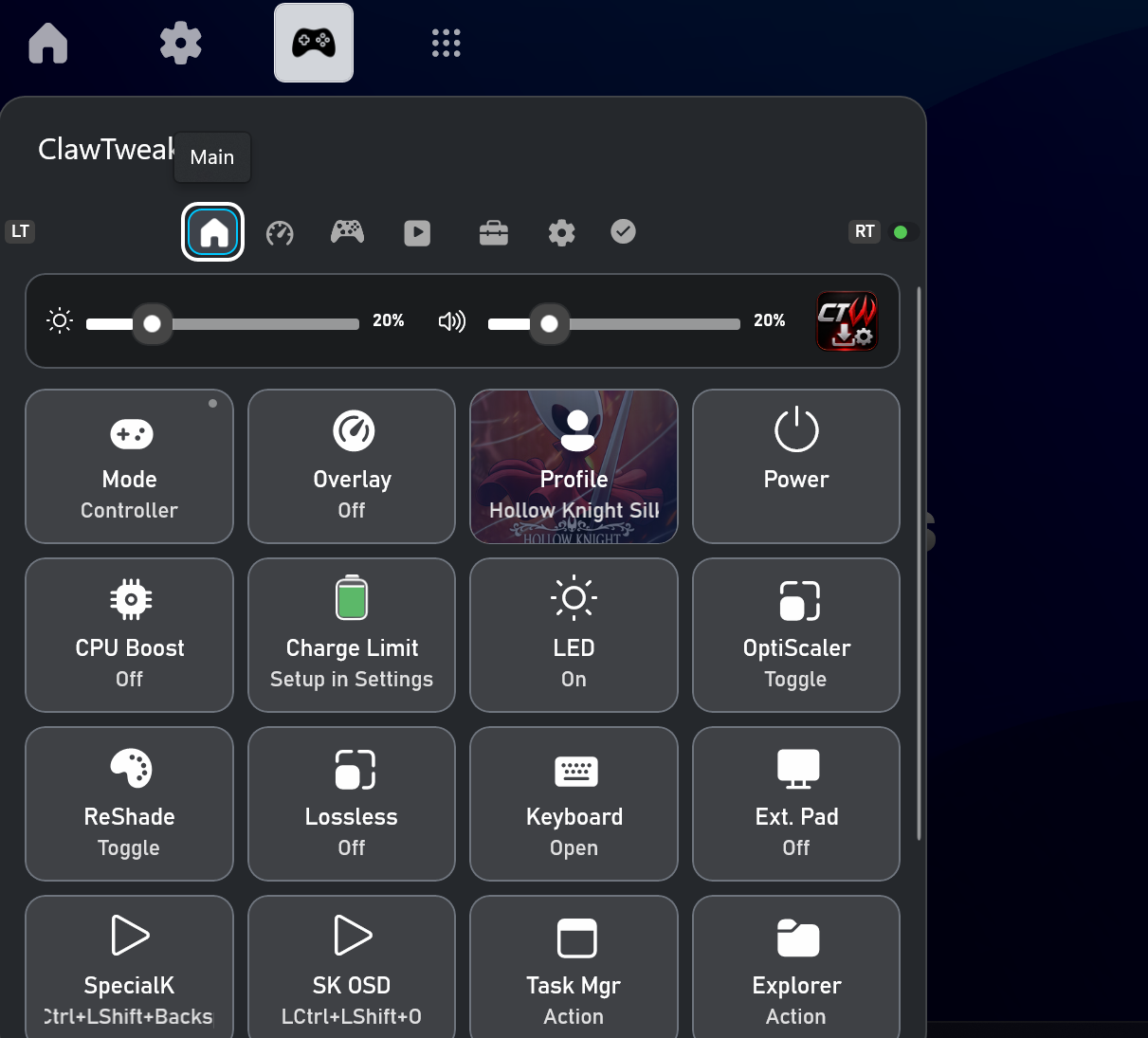
Quick setting — Tiles
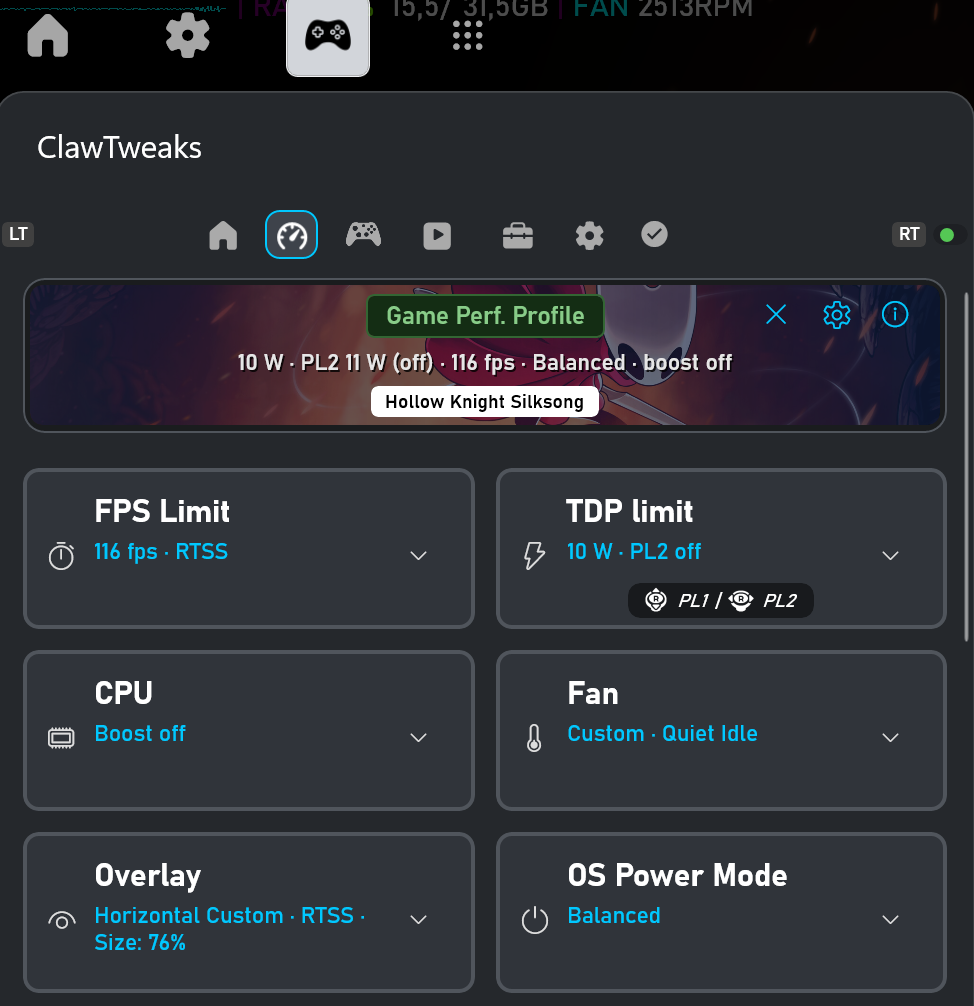
Global - or per game performance settings
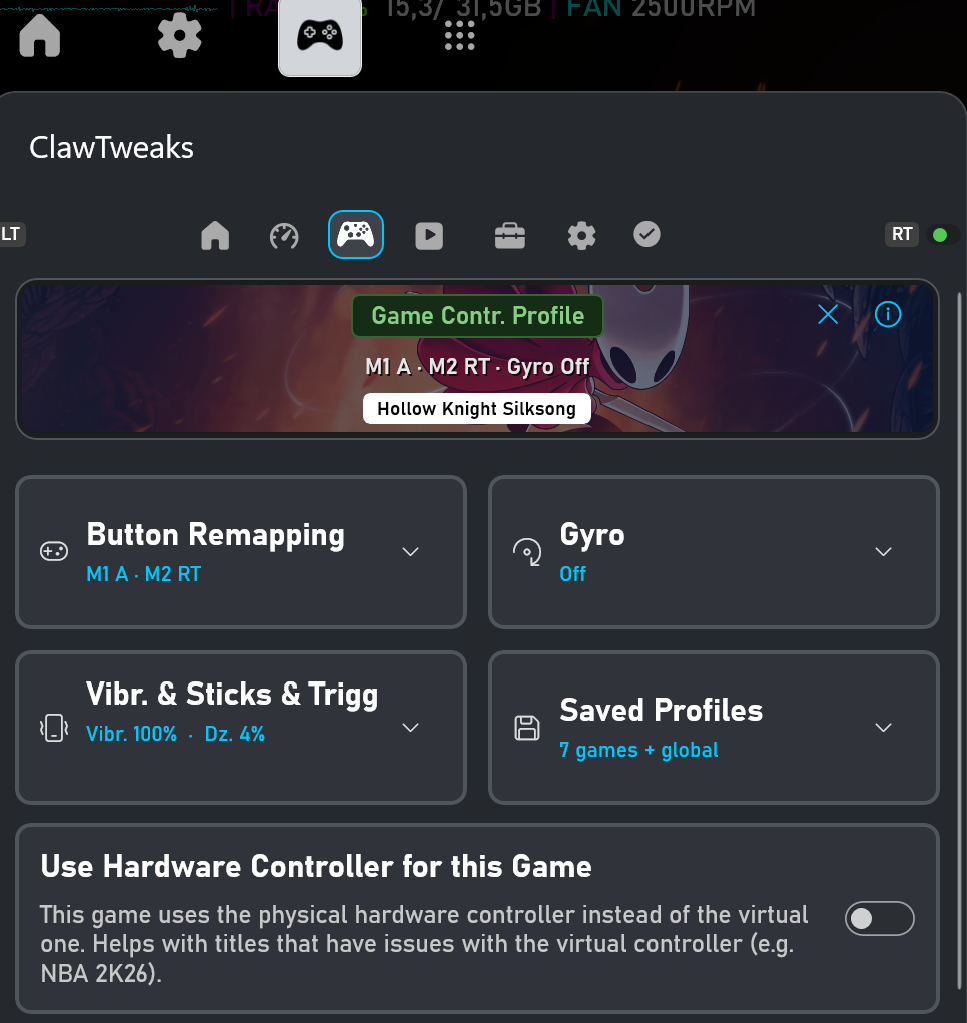
Global - or per game controller settings
### Quick Settings
Customizable dashboard with quick-access tiles for most-used settings.
- Gamebar widget settings for TDP, FPS Limit, Overlay, Profile, Charge Limiter and more
- **Controller ↔ Mouse mode** — switch input mode quickly via tile ore controller shortcut
- Custom keyboard shortcut tiles, predefined and user created action tiles (Brightness, Volume, Desktop,Launch Apps and own EXE (even Powershell), Gyro, Media: Play, Next Track etc.)
**Controller shortcut support for every tile an in App-Actions:**
You can adjust TDP, brightness, FPS cap, overlay level, or trigger any custom action mid-game using only the controller — no interruption to gameplay.
Examples:
- `M1 + D-Pad Up/Down` — raise or lower TDP by 1W on the fly
- `M1 + D-Pad Left/Right` — cycle FPS limit up or down
- `Select + A/B` — toggle brightness up/down
- Any combination of 2+ buttons can be assigned to any tile

Overview — Shortcuts: assign a controller button combo to any tile
---
### Performance Control
**TDP Management:**
- Adjust power limits with real-time monitoring
- TDP Boost (PL2 / Overboost) with separate slider
**FPS Limiter:**
- **Intel IGCL** — driver-level limiter built into the Intel GPU. Unlike RTSS it does not render and then discard a frame — the limit is applied before rendering, so it costs no extra GPU work and does not consume an FPS from your headroom. Tiers: Performance (60), Balanced (40), Efficiency (30).
- **RTSS** — RivaTuner Statistics Server for finer-grained limits (30 / 40 / 60 / 90 / 120 FPS). Requires RTSS to be installed. Adds ~1 FPS of overhead compared to Intel IGCL.
- Quick toggle between Intel and RTSS mode from the Quick Settings tile or the Performance tab
**CPU Controls:**
- CPU Boost enable/disable
- OS Power Mode (Efficiency / Balanced / Performance)

Global performance Profiles — FPS Limit, TDP Power Limit and Overboost (PL2)
**Display & Color:**
- Per-profile **Saturation / Hue / Contrast** applied live to the running game
- Saved as part of the performance & display profile (global or per game)

Per Game Color and Display Settings
---
### Controller (MSI Claw)
ClawTweaks implements software controller emulation: it hides the physical controller via HidHide. All customfeatures run through this virtual device.
**Button remapping — per game:**
Every hardware button on the Claw is remappable independently for each game. Profiles switch automatically when a game launches.
- **M1, M2** (right side back buttons) — remap to any gamepad button, D-pad direction, stick click, or keyboard/mouse input
- **Left front OEM button** — assign a **single-click** action and an optional **double-click** action (with adjustable detection window), e.g. toggle Controller/Mouse mode on single press and cycle through apps on double press. By default single click switches between Controller and Mouse mode
- All remaps are per-game: M1 can be "Jump" in one game and "Dodge" in another, applied automatically

Front MSI Button — Single and Double Click Actions


Global Controller Profiles (left) vs Per Game Controller Profiles (right) — incl. keyboard/mouse remaps
**Gyroscope — per game:**
- Gyro-to-right-stick — works with any game that supports stick-based aim (gyro aim in Steam, or natively)
- Gyro-to-mouse — direct cursor movement, useful for desktop or mouse-driven games
- Sensitivity X/Y, deadzone, and invert per axis
- Activation: Always On, Hold a button, or Toggle — configurable button (LT, RT, LB, RB, face buttons)
- Gyro settings saved per-game profile
**Controller ↔ Mouse mode:**
- **Controller mode** (default) — full virtual gamepad, all inputs forwarded
- **Mouse mode** — left stick → scroll, right stick → cursor, , LT/RT → mouse buttons
**Technical:**
- Virtual Xbox 360 controller via ViGEm (DInput path). (VIIPER Support coming soon).
- HidHide hides only the hw gamepad interface — Win+G/Gamebar and long click App overview stay fully functional
- MSI Center M detection — emulation suspends automatically when MSI Center M is active
> Requires [ViGEmBus](https://github.com/nefarius/ViGEmBus) and [HidHide](https://github.com/nefarius/HidHide).
---
### Per-Game Profiles
Automatically apply your preferred settings the moment a game launches — no manual switching needed.
- Automatic profile switching on game detection via Xbox Game Bar's focus API
- Each profile saves independently: TDP, TDP Boost, FPS Limit, CPU Boost, EPP, OS Power Mode, controller mappings, gyro settings, and more
- **Default game profile** — applies a single preset to any unknown game (useful for "always cap FPS + set TDP to X for every game I haven't configured yet")
- Profile card shown in the widget header while a game is active, with the active profile name
- Per-game controller button remapping — M1/M2 behave differently in each game without touching global settings
- **Per power source (AC/DC)** — optionally store separate values for plugged-in (AC) vs battery (DC) within a profile


Global vs Per Game Profile comparison (left) · Per Game AC / DC Profiles (right)
---
### Performance Overlay (OSD)
Real-time on-screen display powered by RivaTuner Statistics Server.
- FPS and frametime graph
- CPU / GPU usage and temperatures
- Power consumption, memory, VRAM
- Battery level and charge status
- Fan speed (supported devices)
- TDP limits
---
### Lossless Scaling Integration
- Launch and manage Lossless Scaling from the widget
- Configure scaling type, factor, and frame generation mode (LSFG2 / LSFG3)
- Per-profile configurations
---
### Fan Control (MSI Claw)
Custom fan curve written directly to the EC (Lunar Lake).
- Drag-to-edit fan curve with presets (Quiet / Default / Aggressive / Custom)
- **Check applied values** — reads the live EC bytes back and verifies they match the graph
- Live CPU package temperature indicator on the curve
- Turn off to hand control back to MSI's firmware *(per-game fan profiles — coming soon; the curve is currently global)*

Fan Settings with EC Value Check · Per Game coming soon
---
### Battery Charge Limit (MSI Claw)
Cap the battery charge level to extend long-term battery lifespan.
- Granular limit slider, written to EC via ACPI/WMI (firmware-level)
- Enforced by the EC even while the device is asleep or shut down (as long as it stays plugged in)
- Re-applied automatically on helper start / reboot, so it survives an EC reset

Charge Limiter
---
## Installation
### 🟢 Already running ClawTweaks? → just update (no certificate step)
The certificate is **already trusted** on your device, so you only need the **`XboxGamingBarPackage_…_x64.msix`** asset from the release — **not** the full ZIP.
Download just that `.msix`, double-click it → **Install**.
> You can also update straight from inside the app via the in-app updater.
---
### 🟠 First time on this device? → full install
New users install the signing certificate **once**, then the app manually. No PowerShell, no typing — just a couple of double-clicks.
1. **Extract the whole ZIP** to a folder (right-click the ZIP → **Extract All…**). Keep all the files together.
2. **Trust the certificate — first install only, once per device:** double-click **`XboxGamingBarPackage_…_x64.cer`** → **Install Certificate…** → choose **Local Machine** → **Next** (approve the admin prompt) → **Place all certificates in the following store** → **Browse…** → **Trusted People** → **OK** → **Next** → **Finish**. You'll see *"The import was successful."*
3. **Install the app:** double-click **`XboxGamingBarPackage_…_x64.msix`** → the Windows **App Installer** window opens → click **Install**. *(If Windows offers to fetch required framework components, let it.)*
4. **Wait until the Game Bar opens** on its own, and approve the background **UAC** prompt if it appears.
Alternative: one-shot installer script — use this only if the double-click install above complains about missing framework packages
`Install.ps1` installs the certificate **and** every framework dependency in one go:
1. In the extracted folder, open a terminal **in that folder**: right-click an empty spot → **Open in Terminal** (or open **Windows PowerShell** from the Start menu).
2. Paste this line and press **Enter**:
```powershell
powershell -ExecutionPolicy Bypass -File .\Install.ps1
```
*The `-ExecutionPolicy Bypass` part only applies to this one run and changes nothing permanently.*
### Enable the Widget
1. Open Xbox Game Bar (`Win + G`)
2. Click the **Widgets** menu
3. Find and enable **"Gaming"**
4. Confirm UAC so that CTW can launch as admin after reboot
---
## Requirements
- Windows 11
- Xbox Game Bar
- **For controller emulation:** [ViGEmBus](https://github.com/nefarius/ViGEmBus) + [HidHide](https://github.com/nefarius/HidHide)
- **Optional:**
- [RivaTuner Statistics Server](https://www.guru3d.com/download/rtss-rivatuner-statistics-server-download/) — required for OSD overlay and RTSS FPS limiter
- [PawnIO](https://github.com/SuporteTI/PawnIO) — required for extended sensors (fan speed, GPU power draw on some devices)
- Lossless Scaling — for scaling integration
---
## Known Limitations
- **Only supports MSI Claw 7/8 AI+ A2VM (Lunar Lake)**. The A1M (Meteor Lake) and other variants are not supported — installation will be blocked on unsupported hardware.
- This is beta software — expect rough edges and report issues.
---
## Technology
100% free and open source. Built with C#.
**Libraries used:**
- **LibreHardwareMonitor** — hardware sensors
- **RTSSSharedMemoryNET** — OSD overlay with frametime graph support
- **ViGEmBus / HidHide** — virtual controller and HID suppression
---
## Credits
Based on [GoTweaks](https://github.com/corando98/GoTweaks) by [namquang93](https://github.com/namquang93) / [corando98](https://github.com/corando98).
Some Controller emulation and gyro implementation parts adapted from [Handheld Companion](https://github.com/Valkirie/HandheldCompanion).
## License
ClawTweaks is licensed under the **GNU Affero General Public License v3 (AGPLv3)** —
see [`LICENSE`](LICENSE). In short: you are free to use, study, modify and share it,
but any distributed or network-hosted derivative must also publish its complete
source under AGPLv3. It cannot be turned into a closed-source product.
Original portions derived from [GoTweaks](https://github.com/corando98/GoTweaks) /
the Microsoft Game Bar widget sample remain under the MIT License
([`LICENSE.MIT`](LICENSE.MIT)). See [`LICENSING.md`](LICENSING.md) for the full
explanation, the trademark note, and contribution terms.
> **No prebuilt binaries.** This repo does not ship ready-to-run signed packages
> or the full packaging pipeline — building and signing is left to the user.