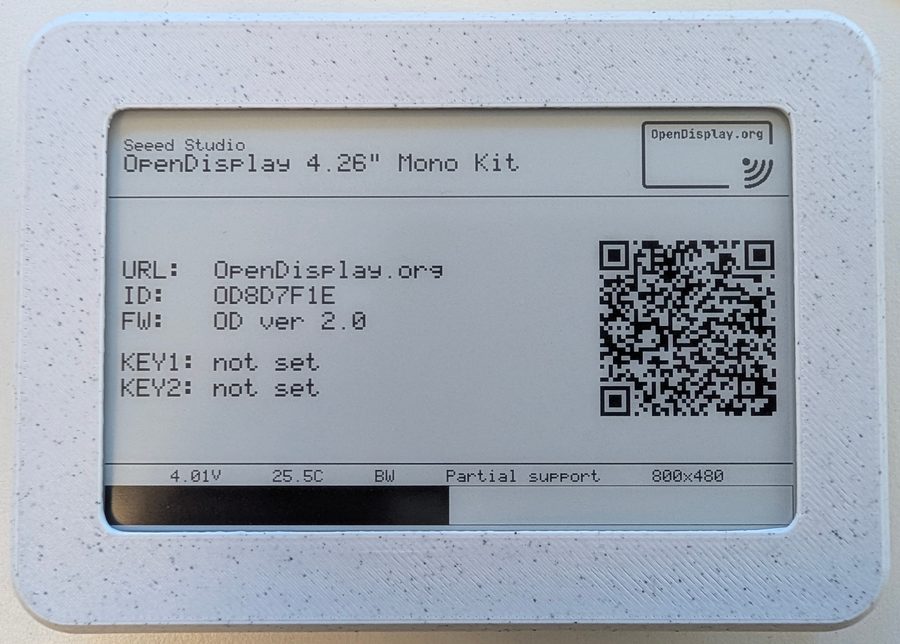
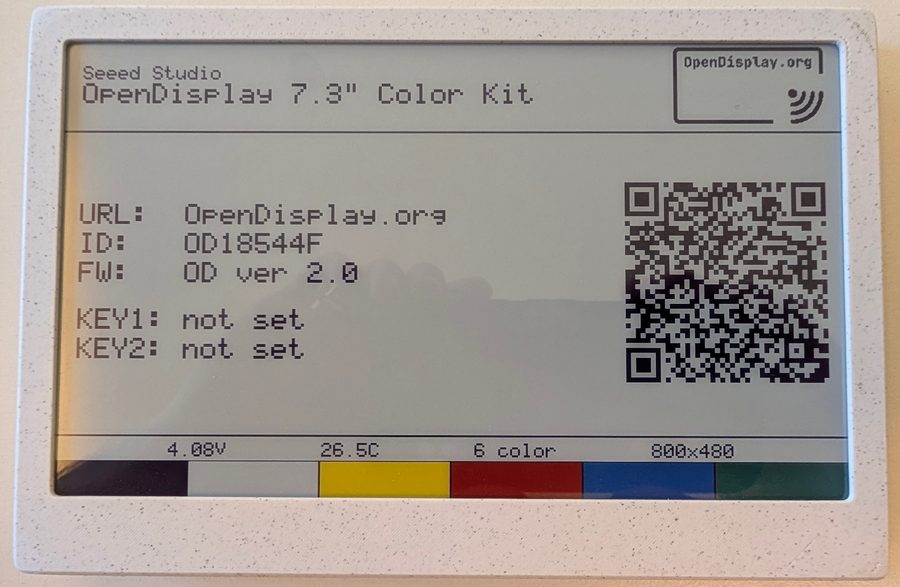
The OpenDisplay 4.26" mono and 7.3" colour kits
## Requirements - Home Assistant **2026.7.0** or newer - A Bluetooth adapter, or an ESPHome Bluetooth proxy - An OpenDisplay-compatible board and panel. See the [compatibility guide](https://opendisplay.org/firmware/seeed_display_compatibility.html) ## What you get Each device is set up over Bluetooth and appears with: | | | |---|---| | **Display content** | an image entity showing the last frame sent, or the one queued for a sleeping tag | | **Sensors** | temperature, humidity (on tags with an SHT40), battery level and voltage, signal strength, last seen | | **Buttons and touch** | event entities for physical buttons and touch controllers | | **Firmware** | an update entity that flashes new firmware over Bluetooth | | **Status** | whether content is waiting to be delivered, and whether WiFi delivery is in use | and these actions: | action | | |---|---| | `opendisplay.drawcustom` | compose a frame from text, shapes, icons, QR codes, images, plots and progress bars | | `opendisplay.upload_image` | send an existing image, from a local file or a URL | | `opendisplay.activate_led` | flash the on-board LED in a colour sequence | | `opendisplay.activate_buzzer` | play a tone | | `opendisplay.play_melody` | play a sequence of notes | | `opendisplay.write_nfc` | write a URL, text, MIME record or Home Assistant tag to the NFC chip | **Battery-powered tags are handled properly.** A deep-sleeping tag is dark most of the time, so content sent to one is queued and delivered the next time it wakes, rather than failing. The image entity shows the queued frame straight away and marks it as pending until it lands. **WiFi-capable tags deliver over the LAN** when the device has recently announced itself over mDNS, falling back to Bluetooth otherwise. ## Installation ### Option 1: HACS (recommended) [](https://my.home-assistant.io/redirect/hacs_repository/?owner=OpenDisplay&repository=Home_Assistant_Integration) ### Option 2: Manual 1. Download the `opendisplay` folder from the [latest release](https://github.com/OpenDisplay/Home_Assistant_Integration/releases/latest) 2. Copy it to your [`custom_components` folder](https://developers.home-assistant.io/docs/creating_integration_file_structure/#where-home-assistant-looks-for-integrations) 3. Restart Home Assistant ## Configuration Devices are discovered automatically once they are in range, over Bluetooth or over mDNS if they are on WiFi. Confirm the discovery to add one. If a device has encryption enabled you are asked for its 32-character key. Home Assistant prompts you again if the key is ever rejected. Each device has options, under **Configure** on the device page: | option | | |---|---| | **Sleep mode** | whether to treat the tag as deep-sleeping. `Automatic` follows the device's own power configuration | | **Missed cycles** | how many wakes may be missed before entities are marked unavailable | | **Queue timeout** | how long queued content waits for a wake before it expires | | **Probe before queueing** | try a quick connection first, so content reaches an awake tag immediately | | **Blocks per ack**, **Max queue size** | Bluetooth transfer tuning; leave these alone unless transfers are unreliable | ## Usage In the UI the device picker fills these in for you. In YAML, replace `YOUR_DEVICE_ID` with the device's id. `drawcustom` takes a **target**, so one call can draw to several devices, or to a whole area or label. The other actions take a single `device_id` field. ### Draw a frame `payload` is a list of elements drawn in order: text, shapes, icons, QR codes, images, plots and progress bars. ```yaml action: opendisplay.drawcustom target: device_id: YOUR_DEVICE_ID data: payload: - type: text value: Hello World! x: 10 y: 10 size: 40 color: red ``` Templates are rendered, so a frame can show live state: ```yaml action: opendisplay.drawcustom target: device_id: YOUR_DEVICE_ID data: payload: - type: text value: "Temperature: {{ states('sensor.temperature') }}°C" x: 10 y: 10 size: 24 - type: progress_bar x_start: 10 y_start: 50 x_end: 180 y_end: 70 progress: "{{ states('sensor.battery') | int }}" show_percentage: true - type: icon value: mdi:battery-70 x: 190 y: 60 size: 24 ``` Every element type and field is documented in [the drawcustom guide](docs/drawcustom/supported_types.md). ### Send an existing image ```yaml action: opendisplay.upload_image data: device_id: YOUR_DEVICE_ID image: media_content_id: media-source://media_source/local/weather.png media_content_type: image/png ``` ### Flash the LED Up to three colour steps run in sequence. Set a step's `flash_count` to 0 to skip it. ```yaml action: opendisplay.activate_led data: device_id: YOUR_DEVICE_ID brightness: 8 color1: [255, 0, 0] flash_count1: 3 repeats: 2 ``` ### Make a sound ```yaml action: opendisplay.activate_buzzer data: device_id: YOUR_DEVICE_ID frequency_hz: 1000 duration_ms: 200 ``` Or play a melody, as note names with optional durations: ```yaml action: opendisplay.play_melody data: device_id: YOUR_DEVICE_ID notes: C4 E4 G4 C5 tempo: 120 ``` ### Write the NFC tag `record_type` is `url`, `text`, `mime`, or `ha_tag` to write a Home Assistant tag that a phone can scan to trigger automations. ```yaml action: opendisplay.write_nfc data: device_id: YOUR_DEVICE_ID record_type: url content: https://www.home-assistant.io/ ``` ## Translations The integration is available in Czech, Dutch, English, French, German, Italian, Polish, Portuguese (European and Brazilian), and Spanish. English is written by hand. **Every other language is machine-translated** and has not been reviewed by a native speaker, so expect the occasional awkward or plainly wrong phrasing. Corrections are very welcome, and they stick: - Edit the relevant file in `custom_components/opendisplay/translations/` and open a pull request. There is no need to touch anything else. - **Your wording will not be overwritten.** The translation workflow records a fingerprint of what it generated, so it can tell its own output from a human edit. Once you have corrected a string it is treated as yours. If the English source later changes, the workflow flags the string for review rather than replacing your version. One style note if you are correcting a string: translations deliberately avoid the familiar/polite distinction (German du/Sie, French tu/vous, and so on) by using impersonal phrasing, such as infinitives for instructions. Please keep that style. Missing a language? Open an issue and we will add it. See [CONTRIBUTING.md](CONTRIBUTING.md) for how the translation workflow is maintained. ## Contributing Pull requests are encouraged, and bug reports and feature requests are welcome. See [CONTRIBUTING.md](CONTRIBUTING.md) for the commit conventions and maintainer notes, or join the [Discord server](https://discord.com/invite/tw48NCrRxH) to discuss ideas and get help.