# darknet
**Repository Path**: SongpingWang/darknet
## Basic Information
- **Project Name**: darknet
- **Description**: No description available
- **Primary Language**: C++
- **License**: Apache-2.0
- **Default Branch**: master
- **Homepage**: None
- **GVP Project**: No
## Statistics
- **Stars**: 0
- **Forks**: 0
- **Created**: 2025-03-16
- **Last Updated**: 2025-03-16
## Categories & Tags
**Categories**: Uncategorized
**Tags**: None
## README
# Table of Contents
* [Darknet Object Detection Framework and YOLO](#darknet-object-detection-framework-and-yolo)
* [Papers](#papers)
* [General Information](#general-information)
* [Darknet Version](#darknet-version)
* [Pre-trained Weights](#pre-trained-weights)
* [People-R-People Pre-trained Weights](#people-r-people-pre-trained-weights)
* [MSCOCO Pre-trained Weights](#mscoco-pre-trained-weights)
* [Building](#building)
* [Google Colab](#google-colab)
* [WSL](#wsl)
* [Linux CMake Method](#linux-cmake-method)
* [Windows CMake Method](#windows-cmake-method)
* [Docker](#docker)
* [Using Darknet](#using-darknet)
* [CLI](#cli)
* [Training](#training)
* [Other Tools and Links](#other-tools-and-links)
* [Roadmap](#roadmap)
* [Short-term goals](#short-term-goals)
* [Mid-term goals](#mid-term-goals)
* [Long-term goals](#long-term-goals)
# Darknet Object Detection Framework and YOLO

Darknet is an open source neural network framework written in C, C++, and CUDA.
YOLO (You Only Look Once) is a state-of-the-art, real-time, object detection system, which runs in the Darknet framework.
* Read how **[Hank.ai is helping the Darknet/YOLO community](https://hank.ai/darknet-welcomes-hank-ai-as-official-sponsor-and-commercial-entity/)**
* Announcing **[Darknet V3 "Jazz"](https://hank.ai/announcing-darknet-v3-a-quantum-leap-in-open-source-object-detection/)**
* See the **[Darknet/YOLO web site](https://darknetcv.ai/)**
* Please read through the **[Darknet/YOLO FAQ](https://www.ccoderun.ca/programming/darknet_faq/)**
* Join the **[Darknet/YOLO discord server](https://discord.gg/zSq8rtW)**
# Papers
* Paper **[YOLOv7](https://arxiv.org/abs/2207.02696)**
* Paper **[Scaled-YOLOv4](https://openaccess.thecvf.com/content/CVPR2021/html/Wang_Scaled-YOLOv4_Scaling_Cross_Stage_Partial_Network_CVPR_2021_paper.html)**
* Paper **[YOLOv4](https://arxiv.org/abs/2004.10934)**
* Paper **[YOLOv3](https://arxiv.org/abs/1804.02767)**
# General Information
The Darknet/YOLO framework continues to be both **faster** and **more accurate** than other frameworks and versions of YOLO.
This framework is both **completely free** and **open source**. You can incorporate Darknet/YOLO into existing projects and
products -- including commercial ones -- without a license or paying a fee.
Darknet V3 ("Jazz") released in October 2024 can accurately run the LEGO dataset videos at up to **1000 FPS** when using
a NVIDIA RTX 3090 GPU, meaning each video frame is read, resized, and processed by Darknet/YOLO in 1 millisecond or less.
Please join the Darknet/YOLO Discord server if you need help or you want to discuss Darknet/YOLO and related tools: https://discord.gg/zSq8rtW
The CPU version of Darknet/YOLO can run on simple devices such as Raspberry Pi, cloud & colab servers, desktops,
laptops, and high-end training rigs. The GPU version of Darknet/YOLO requires either a CUDA-capable GPU from NVIDIA,
or a ROCm-capable GPU from AMD.
Darknet/YOLO is known to work on Linux, Windows, and Mac. See the [building instructions](#building) below.
## Darknet Version
* The original Darknet tool written by Joseph Redmon in 2013-2017 did not have a version number. We consider this version 0.x.
* The next popular Darknet repo maintained by Alexey Bochkovskiy between 2017-2021 also did not have a version number. We consider this version 1.x.
* The Darknet repo sponsored by Hank.ai and maintained by Stéphane Charette starting in 2023 was the first one with a `version` command. From 2023 until late 2024, it returned version 2.x "OAK".
* The goal was to try and break as little of the existing functionality while getting familiar with the codebase.
* Re-wrote the build steps so we have 1 unified way to build using CMake on Windows, Linux, and Mac.
* Converted the codebase to use the C++ compiler.
* Enhanced chart.png while training.
* Bug fixes and performance-related optimizations, mostly related to cutting down the time it takes to train a network.
* The last branch of this codebase is version 2.1 in the `v2` branch.
* The next phase of development started in mid-2024 and was released in October 2024. The `version` command now returns 3.x "JAZZ".
* Removed many old and unmaintained commands.
* You can always do a checkout of the previous `v2` branch if you need to run one of these commands. Let us know so we can investigate adding back any missing commands.
* Many performance optimizations, both when training and during inference.
* Legacy C API was modified; applications that use the original Darknet API will need minor modifications: https://darknetcv.ai/api/api.html
* New Darknet V3 C and C++ API to make it easier for developers to write applications that use Darknet/YOLO: https://darknetcv.ai/api/api.html
* New apps and sample code in `src-examples`: https://darknetcv.ai/api/files.html
* The most recent version was released in early 2025. The `version` command now returns 4.x "SLATE".
* Added support for AMD GPUs using ROCm.
* All `printf()` and `std::cout` calls have all been replaced so Darknet/YOLO logging messages can easily be redirected.
# Pre-trained Weights
People are generally expected to [train their own network](#training). But pre-trained weights are also popular. These are weights which someone else has trained and made available for free on the internet. This is sometimes convenient when first installing Darknet/YOLO, since the software can be quickly tested without having to train a new neural network.
* [People-R-People Pre-trained Weights](#people-r-people-pre-trained-weights) (2 classes, `person` and `head`)
* [MSCOCO Pre-trained Weights](#mscoco-pre-trained-weights) (80 classes covering a large range of objects, such as `person`, `backpack`, `chair`, `clock`, ...)
* There are several other simple datasets and pre-trained weights available for testing Darknet/YOLO, such as [LEGO Gears](https://www.ccoderun.ca/programming/2024-05-01_LegoGears/) and [Rolodex](https://www.ccoderun.ca/programming/2023-11-06_Rolodex/). See the Darknet/YOLO FAQ for details.
## People-R-People Pre-trained Weights
The People-R-People pre-trained weights are used to find people. This dataset only has 2 classes: `person` and `head`.
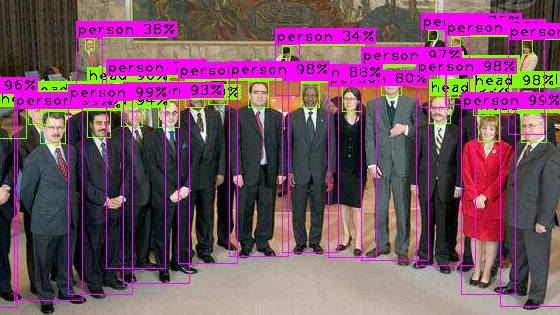
You can download these pre-trained weights directly from [C Code Run's web site](https://www.ccoderun.ca/programming/2025-01-20_People-R-People/).
## MSCOCO Pre-trained Weights
Several popular versions of YOLO were pre-trained for convenience on the [MSCOCO dataset](https://cocodataset.org/). This dataset has 80 classes, which can be seen in the text file [`cfg/coco.names`](cfg/coco.names).
The MSCOCO pre-trained weights can be downloaded from several different locations, and are also available for download from this repo:
* YOLOv2, November 2016
* [YOLOv2-tiny](https://github.com/hank-ai/darknet/issues/21#issuecomment-1807469361)
* [YOLOv2-full](https://github.com/hank-ai/darknet/issues/21#issuecomment-1807478865)
* YOLOv3, May 2018
* [YOLOv3-tiny](https://github.com/hank-ai/darknet/issues/21#issuecomment-1807479419)
* [YOLOv3-full](https://github.com/hank-ai/darknet/issues/21#issuecomment-1807480139)
* YOLOv4, May 2020
* [YOLOv4-tiny](https://github.com/hank-ai/darknet/issues/21#issuecomment-1807480542)
* [YOLOv4-full](https://github.com/hank-ai/darknet/issues/21#issuecomment-1807481315)
* YOLOv7, August 2022
* [YOLOv7-tiny](https://github.com/hank-ai/darknet/issues/21#issuecomment-1807483279)
* [YOLOv7-full](https://github.com/hank-ai/darknet/issues/21#issuecomment-1807483787)
The MSCOCO pre-trained weights are provided for demo-purpose only. The corresponding `.cfg` and `.names` files for MSCOCO are in [the cfg directory](cfg/). Example commands:
```sh
wget --no-clobber https://github.com/hank-ai/darknet/releases/download/v2.0/yolov4-tiny.weights
darknet_02_display_annotated_images coco.names yolov4-tiny.cfg yolov4-tiny.weights image1.jpg
darknet_03_display_videos coco.names yolov4-tiny.cfg yolov4-tiny.weights video1.avi
DarkHelp coco.names yolov4-tiny.cfg yolov4-tiny.weights image1.jpg
DarkHelp coco.names yolov4-tiny.cfg yolov4-tiny.weights video1.avi
```
# Building
The various build methods available in the past (pre-2023) have been merged together into a single unified solution. Darknet requires C++17 or newer, OpenCV, and uses CMake to generate the necessary project files.
**You do not need to know C++ to build, install, nor run Darknet/YOLO, the same way you don't need to be a mechanic to learn to drive a car.**
* [Google Colab](#google-colab)
* [WSL](#wsl)
* [Linux](#linux-cmake-method)
* [Windows](#windows-cmake-method)
* [Docker](#docker)
**Beware if you are following old tutorials with more complicated build steps, or build steps that don't match what is in this readme.** The new build steps as described below started in August 2023.
Software developers are encouraged to visit https://darknetcv.ai/ to get information on the internals of the Darknet/YOLO object detection framework.
## Google Colab
The Google Colab instructions are the same as the [Linux](#linux-cmake-method) instructions. Several Jupyter notebooks are available showing how to do certain tasks, such as training a new network.
See the notebooks in the `colab` subdirectory, and/or follow [the Linux instructions](#linux_cmake-method) below.
## WSL
If you have a modern version of Windows and a decent computer, then the use of WSL (Windows Subsystem for Linux) and Ubuntu 24.04 LTS is **highly recommended**.
WSL is a feature in Windows which allows people to run Linux-based applications from within their Windows desktop. This is similar to a virtual machine with host/guest extensions. Linux apps running in WSL have access to the GPU if you [install the Linux NVIDIA driver for WSL](https://docs.nvidia.com/cuda/wsl-user-guide/), and you can train a new network with Darknet/YOLO running within WSL.
[Once WSL is installed](https://learn.microsoft.com/windows/wsl/install), run `sudo apt-get update` at least once from your Ubuntu command prompt to get the updated list of packages, and then follow the usual [Linux instructions](#linux-cmake-method).
If you don't want to use Darknet/YOLO from within WSL, then skip ahead to the [Windows instructions](#windows-cmake-method).
## Linux CMake Method
[](https://www.youtube.com/watch?v=WTT1s8JjLFk)
* Optional: Darknet can run without access to a GPU, but if you want to _train_ a custom network or you need higher performance, then a modern NVIDIA GPU or AMD GPU is _strongly recommended_.
* Depending on which GPU you have, please read the [NVIDIA GPU Readme](README_GPU_NVIDIA_CUDA.md) or the [AMD GPU Readme](README_GPU_AMD_ROCM.md).
These instructions assume (but do not require!) a system running Ubuntu 22.04. Adapt as necessary if you're using a different Linux distribution.
```sh
sudo apt-get install build-essential git libopencv-dev cmake
mkdir ~/src
cd ~/src
git clone https://github.com/hank-ai/darknet
cd darknet
mkdir build
cd build
cmake -DCMAKE_BUILD_TYPE=Release ..
make -j4 package
sudo dpkg -i darknet-.deb
```
**If you are using an older version of CMake** then you'll need to upgrade CMake before you can run the `cmake` command above. Upgrading CMake on Ubuntu can be done with the following commands:
```sh
sudo apt-get purge cmake
sudo snap install cmake --classic
```
**If using `bash` as your command shell** you'll want to re-start your shell at this point. If using `fish`, it should immediately pick up the new path.
> Advanced users:
>
> If you want to build a RPM installation file instead of a DEB file, see the relevant lines in `CM_package.cmake`. Prior to running `make -j4 package` you'll need to edit these two lines:
```cmake
SET (CPACK_GENERATOR "DEB")
# SET (CPACK_GENERATOR "RPM")
```
> For distros such as Centos and OpenSUSE, you'll need to switch those two lines in `CM_package.cmake` to be:
```cmake
# SET (CPACK_GENERATOR "DEB")
SET (CPACK_GENERATOR "RPM")
```
**To install the installation package** once it has finished building, use the usual package manager for your distribution. For example, on Debian-based systems such as Ubuntu:
```sh
sudo dpkg -i darknet-2.0.1-Linux.deb
```
Installing the `.deb` package will copy the following files:
* `/usr/bin/darknet*...` are the usual Darknet executables. Run `darknet version` from the CLI to confirm it is installed correctly.
* `/usr/include/darknet*...` are the Darknet API header files for C, C++, and Python developers.
* `/usr/lib/libdarknet.so` is the library to link against for C, C++, and Python developers.
* `/opt/darknet/cfg/...` is where all the `.cfg` templates are stored.
You are now done! Darknet has been built and installed into `/usr/bin/`. Run this to test: `darknet version`.
> **If you don't have `/usr/bin/darknet`** then this means you _did not_ install it, you only built it! Make sure you install the `.deb` or `.rpm` file as described above.
## Windows CMake Method
> Before building Darknet/YOLO for Windows please see the note about using [WSL](#wsl). (Spoiler ... Darknet/YOLO works great in WSL!)
- These instructions assume a brand new installation of Windows 11 22H2.
- These instructions are for a native Windows installation, not using WSL. If you'd rather use WSL, see [above](#wsl).
Open a normal `cmd.exe` command prompt window and run the following commands:
```bat
winget install Git.Git
winget install Kitware.CMake
winget install nsis.nsis
winget install Microsoft.VisualStudio.2022.Community
```
At this point we need to modify the Visual Studio installation to include support for C++ applications:
* click on the "Windows Start" menu and run "Visual Studio Installer"
* click on `Modify`
* select `Desktop Development With C++`
* click on `Modify` in the bottom-right corner, and then click on `Yes`
**IMPORTANT:** Once everything is downloaded and installed, click on the "Windows Start" menu again and select `Developer Command Prompt for VS 2022`. **Do not** use PowerShell for these steps, you will run into problems!
> Advanced users:
>
> Instead of running the `Developer Command Prompt`, you can use a normal command prompt or ssh into the device and manually run `"\Program Files\Microsoft Visual Studio\2022\Community\Common7\Tools\VsDevCmd.bat"`.
**Please don't skip this step!** Re-read the "important" description in the previous sentence to see what kind of window you **must** be using. Anytime you want to use Visual Studio from the command prompt to compile C++ code you must use the Visual Studio developer command prompt as described above.
Once you have the **Developer Command Prompt** running as described above run the following commands to install Microsoft VCPKG, which will then be used to build OpenCV:
```bat
cd c:\
mkdir c:\src
cd c:\src
git clone https://github.com/microsoft/vcpkg
cd vcpkg
bootstrap-vcpkg.bat
.\vcpkg.exe integrate install
.\vcpkg.exe integrate powershell
.\vcpkg.exe install opencv[contrib,dnn,freetype,jpeg,openmp,png,webp,world]:x64-windows
```
Be patient at this last step as it can take a long time to run. It needs to download and build many things.
> Advanced users:
>
> Note there are many other optional modules you may want to add when building OpenCV. Run `.\vcpkg.exe search opencv` to see the full list.
* Optional: Darknet can run without access to a GPU, but if you want to _train_ a custom network or you need higher performance, then a modern NVIDIA GPU or AMD GPU is _strongly recommended_.
* Depending on which GPU you have, please read the [NVIDIA GPU Readme](README_GPU_NVIDIA_CUDA.md) or the [AMD GPU Readme](README_GPU_AMD_ROCM.md).
Once all of the previous steps have finished successfully, you need to clone Darknet and build it. During this step we also need to tell CMake where vcpkg is located so it can find OpenCV and other dependencies. Make sure you continue to use the **Developer Command Prompt** as described above when you run these commands:
```bat
cd c:\src
git clone https://github.com/hank-ai/darknet.git
cd darknet
mkdir build
cd build
cmake -DCMAKE_BUILD_TYPE=Release -DCMAKE_TOOLCHAIN_FILE=C:/src/vcpkg/scripts/buildsystems/vcpkg.cmake ..
msbuild.exe /property:Platform=x64;Configuration=Release /target:Build -maxCpuCount -verbosity:normal -detailedSummary darknet.sln
msbuild.exe /property:Platform=x64;Configuration=Release PACKAGE.vcxproj
```
> Advanced users:
>
> Note that the output of the `cmake` command is a normal Visual Studio solution file, `Darknet.sln`. If you are a software developer who regularly uses the Visual Studio GUI instead of `msbuild.exe` to build projects, you can ignore the command-line and load the Darknet project in Visual Studio.
You should now have this file you can run: `C:\src\Darknet\build\src-cli\Release\darknet.exe`. Run this to test: `C:\src\Darknet\build\src-cli\Release\darknet.exe --version`.
To correctly install Darknet, the libraries, the include files, and the necessary DLLs, **run the NSIS installation wizard** that was built in the last step. See the file `darknet--win64.exe` in the `build` directory. For example:
```bat
darknet--win64.exe
```
Installing the NSIS installation package will:
* Create a directory called `Darknet`, such as `C:\Program Files\Darknet\`.
* Install the CLI applications, `darknet.exe` and other sample apps.
* Install the required 3rd-party `.dll` files, such as those from OpenCV and Darknet.
* Install the neccesary Darknet `.dll`, `.lib` and header files to use `darknet.dll` from another application.
* Install the template `.cfg` files.
You are now done! Once the installation wizard has finished, Darknet will have been installed into `C:\Program Files\Darknet\`. Run this to test: `C:\Program Files\Darknet\bin\darknet.exe version`.
> If you don't have `C:/Program Files/darknet/bin/darknet.exe` then this means you _did not_ install it, you only built it! Make sure you go through each panel of the NSIS installation wizard in the previous step.
## Docker
To build Darknet via Docker with GPU support, [nvidia-container-toolkit](https://github.com/NVIDIA/nvidia-container-toolkit) must be installed on your system, and the build process must be executed in `docker run`.
Below is an example Dockerfile built with the following command:
`docker build -t darknet-hankai . && docker run -it --gpus all darknet-hankai`
```docker
FROM nvidia/cuda:12.8.0-cudnn-devel-ubuntu24.04
# Set environment variables
ENV DEBIAN_FRONTEND=noninteractive
ENV PATH="/usr/local/cuda/bin:${PATH}"
ENV LD_LIBRARY_PATH="/usr/local/cuda/lib64:${LD_LIBRARY_PATH}"
# Install dependencies
RUN apt-get update
RUN apt-get install -y build-essential git libopencv-dev wget file cmake
# Set working directory for Darknet
WORKDIR /workspace
# Clone Darknet
RUN git clone https://github.com/hank-ai/darknet.git
# Defer building the Darknet package to runtime (GPU visible)
CMD ["/bin/bash", "-c", "\
cd /workspace/darknet && \
# initialize cmake
mkdir build && cd build && cmake ..; \
# build darknet
make -j$(nproc) package && \
# package darknet
dpkg -i /workspace/darknet/build/darknet-*.deb && \
# run darknet version to verify build & enter terminal
darknet version && \
exec /bin/bash"]
```
# Using Darknet
## CLI
The following is not the full list of all commands supported by Darknet.
> In addition to the Darknet CLI, also note [the DarkHelp project CLI](https://github.com/stephanecharette/DarkHelp#what-is-the-darkhelp-cli) which provides an additional CLI to Darknet/YOLO. The DarkHelp CLI also has several advanced features that are not available directly in Darknet. You can use both the Darknet CLI and the DarkHelp CLI together, they are not mutually exclusive.
For most of the commands shown below, you'll need the `.weights` file with the corresponding `.names` and `.cfg` files. You can either [train your own network](#training) (highly recommended!) or download a neural network that someone has already trained and made available for free on the internet. Examples of pre-trained datasets include:
* LEGO Gears (finding ojects in an image)
* Rolodex (finding text in an image)
* [People-R-People](#people-r-people-pre-trained-weights) (finding people in an image)
* [MSCOCO](#mscoco-pre-trained-weights) (standard 80-class object detection)
Commands to run include:
* List some possible commands and options to run:
* `darknet help`
* Check the version:
* `darknet version`
* Predict using an image:
* V2: `darknet detector test cars.data cars.cfg cars_best.weights image1.jpg`
* V3+: `darknet_02_display_annotated_images cars.cfg image1.jpg`
* DarkHelp: `DarkHelp cars.cfg cars.cfg cars_best.weights image1.jpg`
* Output coordinates:
* V2: `darknet detector test animals.data animals.cfg animals_best.weights -ext_output dog.jpg`
* V3+: `darknet_01_inference_images animals dog.jpg`
* DarkHelp: `DarkHelp --json animals.cfg animals.names animals_best.weights dog.jpg`
* Working with videos:
* V2: `darknet detector demo animals.data animals.cfg animals_best.weights -ext_output test.mp4`
* V3+: `darknet_03_display_videos animals.cfg test.mp4`
* DarkHelp: `DarkHelp animals.cfg animals.names animals_best.weights test.mp4`
* Reading from a webcam:
* V2: `darknet detector demo animals.data animals.cfg animals_best.weights -c 0`
* V3+: `darknet_08_display_webcam animals`
* Save results to a video:
* V2: `darknet detector demo animals.data animals.cfg animals_best.weights test.mp4 -out_filename res.avi`
* V3+: `darknet_05_process_videos_multithreaded animals.cfg animals.names animals_best.weights test.mp4`
* DarkHelp: `DarkHelp animals.cfg animals.names animals_best.weights test.mp4`
* JSON:
* V2: `darknet detector demo animals.data animals.cfg animals_best.weights test50.mp4 -json_port 8070 -mjpeg_port 8090 -ext_output`
* V3+: `darknet_06_images_to_json animals image1.jpg`
* DarkHelp: `DarkHelp --json animals.names animals.cfg animals_best.weights image1.jpg`
* Running on a specific GPU:
* V2: `darknet detector demo animals.data animals.cfg animals_best.weights -i 1 test.mp4`
* To check the accuracy of the neural network:
```sh
darknet detector map driving.data driving.cfg driving_best.weights
...
Id Name AvgPrecision TP FN FP TN Accuracy ErrorRate Precision Recall Specificity FalsePosRate
-- ---- ------------ ------ ------ ------ ------ -------- --------- --------- ------ ----------- ------------
0 vehicle 91.2495 32648 3903 5826 65129 0.9095 0.0905 0.8486 0.8932 0.9179 0.0821
1 motorcycle 80.4499 2936 513 569 5393 0.8850 0.1150 0.8377 0.8513 0.9046 0.0954
2 bicycle 89.0912 570 124 104 3548 0.9475 0.0525 0.8457 0.8213 0.9715 0.0285
3 person 76.7937 7072 1727 2574 27523 0.8894 0.1106 0.7332 0.8037 0.9145 0.0855
4 many vehicles 64.3089 1068 509 733 11288 0.9087 0.0913 0.5930 0.6772 0.9390 0.0610
5 green light 86.8118 1969 239 510 4116 0.8904 0.1096 0.7943 0.8918 0.8898 0.1102
6 yellow light 82.0390 126 38 30 1239 0.9525 0.0475 0.8077 0.7683 0.9764 0.0236
7 red light 94.1033 3449 217 451 4643 0.9237 0.0763 0.8844 0.9408 0.9115 0.0885
```
* To check accuracy mAP@IoU=75:
* `darknet detector map animals.data animals.cfg animals_best.weights -iou_thresh 0.75`
* Recalculating anchors is best done in DarkMark, since it will run 100 consecutive times and select the best anchors from all the ones that were calculated. But if you want to run the old version in Darknet:
```sh
darknet detector calc_anchors animals.data -num_of_clusters 6 -width 320 -height 256
```
* Train a new network:
* `darknet detector -map -dont_show train animals.data animals.cfg` (also see [the training section](#training) below)
* Display YOLO heatmaps:
* V3+: `darknet_02_display_annotated_images --heatmaps cars images/*.jpg`
* V3+: `darknet_03_display_videos --heatmaps cars videos/*.m4v`
## Training
Quick links to relevant sections of the Darknet/YOLO FAQ:
* [How should I setup my files and directories?](https://www.ccoderun.ca/programming/yolo_faq/#directory_setup)
* [Which configuration file should I use?](https://www.ccoderun.ca/programming/yolo_faq/#configuration_template)
* [What command should I use when training my own network?](https://www.ccoderun.ca/programming/yolo_faq/#training_command)
The simplest way to annotate and train is with the use of [DarkMark](https://github.com/stephanecharette/DarkMark) to create all of the necessary Darknet files. This is definitely the recommended way to train a new neural network.
If you'd rather manually setup the various files to train a custom network:
* Create a new folder where the files will be stored. For this example, a neural network will be created to detect animals, so the following directory is created: `~/nn/animals/`.
* Copy one of the Darknet configuration files you'd like to use as a template. For example, see `cfg/yolov4-tiny.cfg`. Place this in the folder you created. For this example, we now have `~/nn/animals/animals.cfg`.
* Create a `animals.names` text file in the same folder where you placed the configuration file. For this example, we now have `~/nn/animals/animals.names`.
* Edit the `animals.names` file with your text editor. List the classes you want to use. You need to have exactly 1 entry per line, with no blank lines and no comments. For this example, the `.names` file will contain exactly 4 lines:
```txt
dog
cat
bird
horse
```
* Create a `animals.data` text file in the same folder. For this example, the `.data` file will contain:
```txt
classes = 4
train = /home/username/nn/animals/animals_train.txt
valid = /home/username/nn/animals/animals_valid.txt
names = /home/username/nn/animals/animals.names
backup = /home/username/nn/animals
```
* Create a folder where you'll store your images and annotations. For example, this could be `~/nn/animals/dataset`. Each image will need a coresponding `.txt` file which describes the annotations for that image. The format of the `.txt` annotation files is very specific. You cannot create these files by hand since each annotation needs to contain the exact coordinates for the annotation. See [DarkMark](https://github.com/stephanecharette/DarkMark) or other similar software to annotate your images. The YOLO annotation format is described in the [Darknet/YOLO FAQ](https://www.ccoderun.ca/programming/yolo_faq/#darknet_annotations).
* Create the "train" and "valid" text files named in the `.data` file. These two text files need to individually list all of the images which Darknet must use to train and for validation when calculating the mAP%. Exactly one image per line. The path and filenames may be relative or absolute.
* Modify your `.cfg` file with a text editor.
* Make sure that `batch=64`.
* Note the subdivisions. Depending on the network dimensions and the amount of memory available on your GPU, you may need to increase the subdivisions. The best value to use is `1` so start with that. See the [Darknet/YOLO FAQ](https://www.ccoderun.ca/programming/yolo_faq/#cuda_out_of_memory) if `1` doesn't work for you.
* Note `max_batches=...`. A good value to use when starting out is 2000 x the number of classes. For this example, we have 4 animals, so 4 * 2000 = 8000. Meaning we'll use `max_batches=8000`.
* Note `steps=...`. This should be set to 80% and 90% of `max_batches`. For this example we'd use `steps=6400,7200` since `max_batches` was set to 8000.
* Note `width=...` and `height=...`. These are the network dimensions. The Darknet/YOLO FAQ explains [how to calculate the best size to use](https://www.ccoderun.ca/programming/darknet_faq/#optimal_network_size).
* Search for all instances of the line `classes=...` and modify it with the number of classes in your `.names` file. For this example, we'd use `classes=4`.
* Search for all instances of the line `filters=...` in the `[convolutional]` section **prior** to each `[yolo]` section. The value to use is (number_of_classes + 5) * 3. Meaning for this example, (4 + 5) * 3 = 27. So we'd use `filters=27` on the appropriate lines.
* Start training! Run the following commands:
```sh
cd ~/nn/animals/
darknet detector -map -dont_show train animals.data animals.cfg
```
Be patient. The best weights will be saved as `animals_best.weights`. And the progress of training can be observed by viewing the `chart.png` file. See [the Darknet/YOLO FAQ](https://www.ccoderun.ca/programming/yolo_faq/#training_command) for additional parameters you may want to use when training a new network.
If you want to see more details during training, add the `--verbose` parameter. For example:
```sh
darknet detector -map -dont_show --verbose train animals.data animals.cfg
```
# Other Tools and Links
* To manage your Darknet/YOLO projects, annotate images, verify your annotations, and generate the necessary files to train with Darknet, [see DarkMark](https://github.com/stephanecharette/DarkMark).
* For a robust alternative CLI to Darknet, to use image tiling, for object tracking in your videos, or for a robust C++ API that can easily be used in commercial applications, [see DarkHelp](https://github.com/stephanecharette/DarkHelp).
* See if [the Darknet/YOLO FAQ](https://www.ccoderun.ca/programming/darknet_faq/) can help answer your questions.
* See the many tutorial and example videos on [Stéphane's YouTube channel](https://www.youtube.com/c/StephaneCharette/videos)
* If you have a support question or want to chat with other Darknet/YOLO users, [join the Darknet/YOLO discord server](https://discord.gg/zSq8rtW).
# Roadmap
Last updated 2025-03-11:
## Completed
* [X] swap out qsort() for std::sort() where used during training (some other obscure ones remain)
* [X] get rid of check_mistakes, getchar(), and system()
* [X] convert Darknet to use the C++ compiler (g++ on Linux, VisualStudio on Windows)
* [X] fix Windows build
* [X] fix Python support
* [X] build darknet library
* [X] re-enable labels on predictions ("alphabet" code)
* [X] re-enable CUDA/GPU code
* [X] re-enable CUDNN
* [X] re-enable CUDNN half
* [X] do not hard-code the CUDA architecture
* [X] better CUDA version information
* [X] re-enable AVX
* [X] remove old solutions and Makefile
* [X] make OpenCV non-optional
* [X] remove dependency on the old pthread library
* [X] remove STB
* [X] re-write CMakeLists.txt to use the new CUDA detection
* [X] remove old "alphabet" code, and delete the 700+ images in data/labels
* [X] build out-of-source
* [X] have better version number output
* [X] performance optimizations related to training (on-going task)
* [X] performance optimizations related to inference (on-going task)
* [X] pass-by-reference where possible
* [X] clean up .hpp files
* [X] re-write darknet.h
* [X] do not cast `cv::Mat` to `void*` but use it as a proper C++ object
* [X] fix or be consistent in how internal `image` structure gets used
* [X] fix build for ARM-based Jetson devices
* [ ] ~~original Jetson devices~~ (unlikely to fix since they are no longer supported by NVIDIA and do not have a C++17 compiler)
* [X] new Jetson Orin devices are working
* [X] fix Python API in V3
* [ ] better support for Python is needed **(any Python developers want to help with this?)**
* [X] heatmaps
* [X] remove all calls to printf() and std::cout and replace with std::ofstream to log to a file
* [X] add support for AMD GPUs
## Short-term goals
* [ ] look into old zed camera support
* [ ] better and more consistent command line parsing **(in progress)**
* [ ] add support for MIOpen
## Mid-term goals
* [ ] remove all `char*` code and replace with `std::string`
* [ ] don't hide warnings and clean up compiler warnings **(in progress)**
* [ ] better use of `cv::Mat` instead of the custom `image` structure in C **(in progress)**
* [ ] replace old `list` functionality with `std::vector` or `std::list`
* [ ] fix support for 1-channel greyscale images
* [ ] add support for N-channel images where N > 3 (e.g., images with an additional depth or thermal channel)
* [ ] on-going code cleanup **(in progress)**
## Long-term goals
* [ ] fix CUDA/CUDNN issues with all GPUs
* [ ] re-write CUDA+cuDNN code
* [ ] look into adding support for additional hardware
* [ ] rotated bounding boxes, or some sort of "angle" support
* [ ] keypoints/skeletons
* [ ] segmentation