
Multiline
text
 ### Other functions
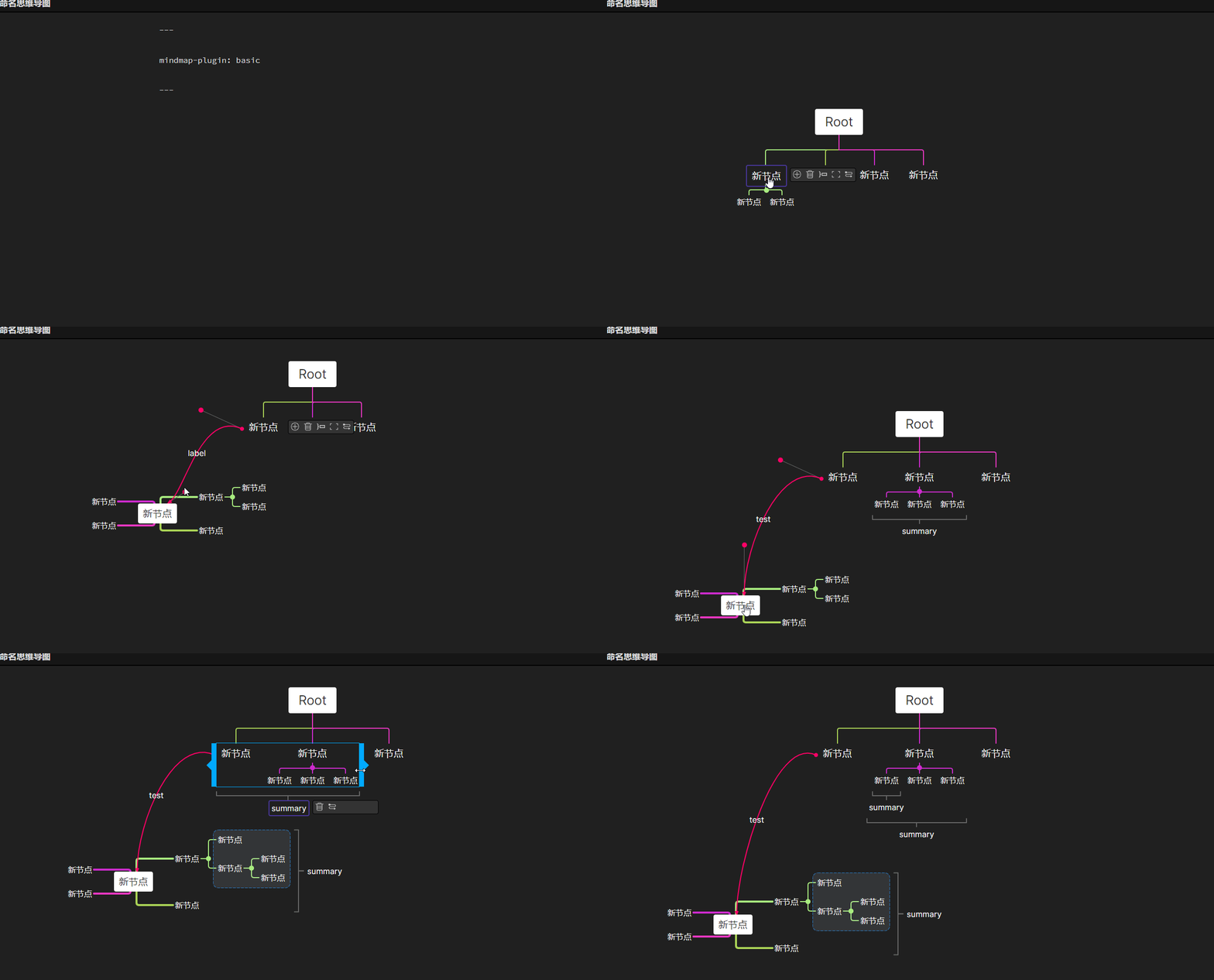
- Exporting MindMap to image
- Use `CTRL + P` and click `Export to HTML` command
- Getting markdown in `rich` mode
- You can find `Copy as markdown` menu in `More options`
- Exporting MindMap to pdf
- download lasted obsidian,open a mind map in a independ window
- Use `CTRL + P` and click `Export mindmap as a pdf file` command
### Other functions
- Exporting MindMap to image
- Use `CTRL + P` and click `Export to HTML` command
- Getting markdown in `rich` mode
- You can find `Copy as markdown` menu in `More options`
- Exporting MindMap to pdf
- download lasted obsidian,open a mind map in a independ window
- Use `CTRL + P` and click `Export mindmap as a pdf file` command
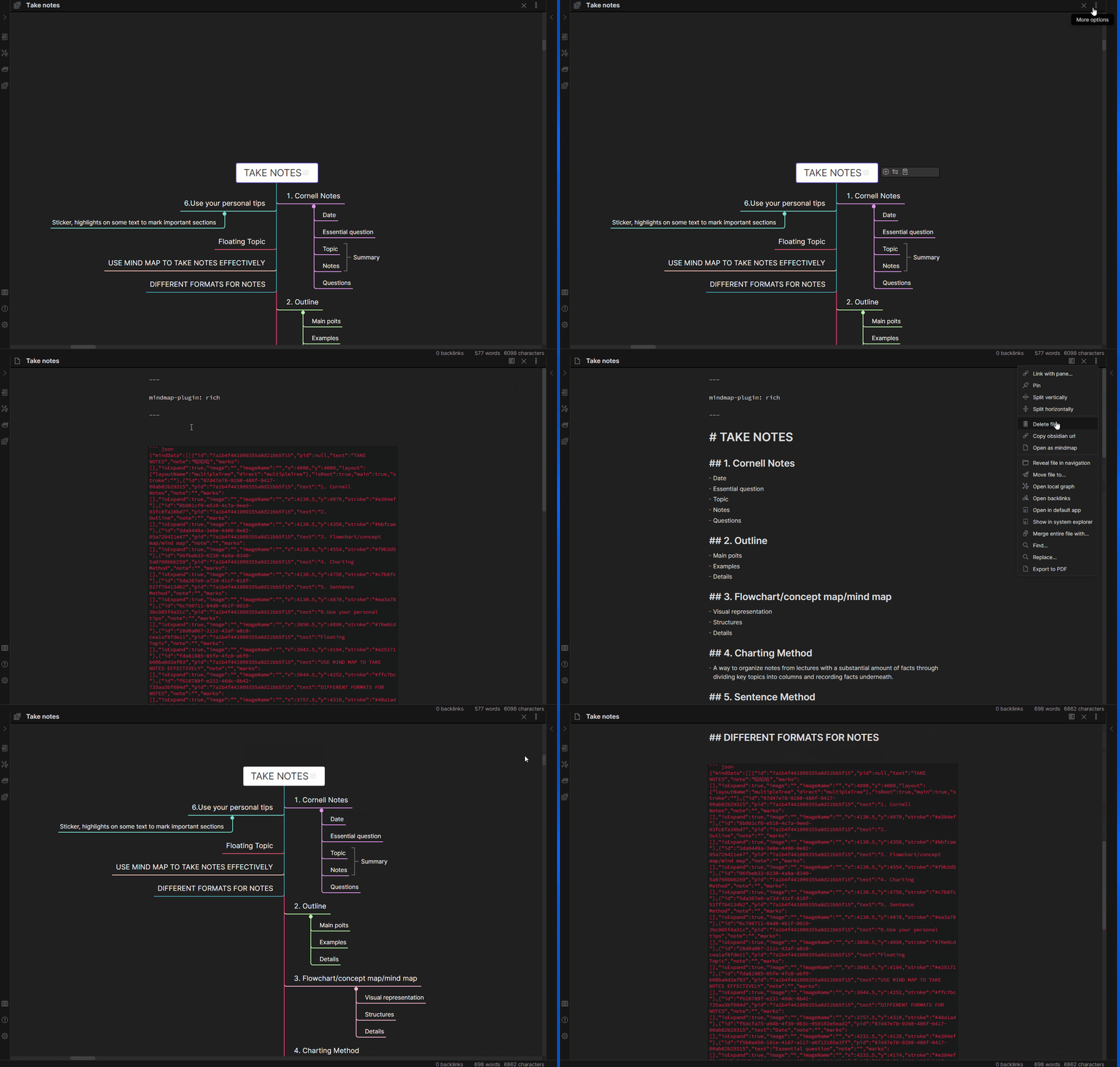 ## PDF annotate
- Highlight text
- Area annotate
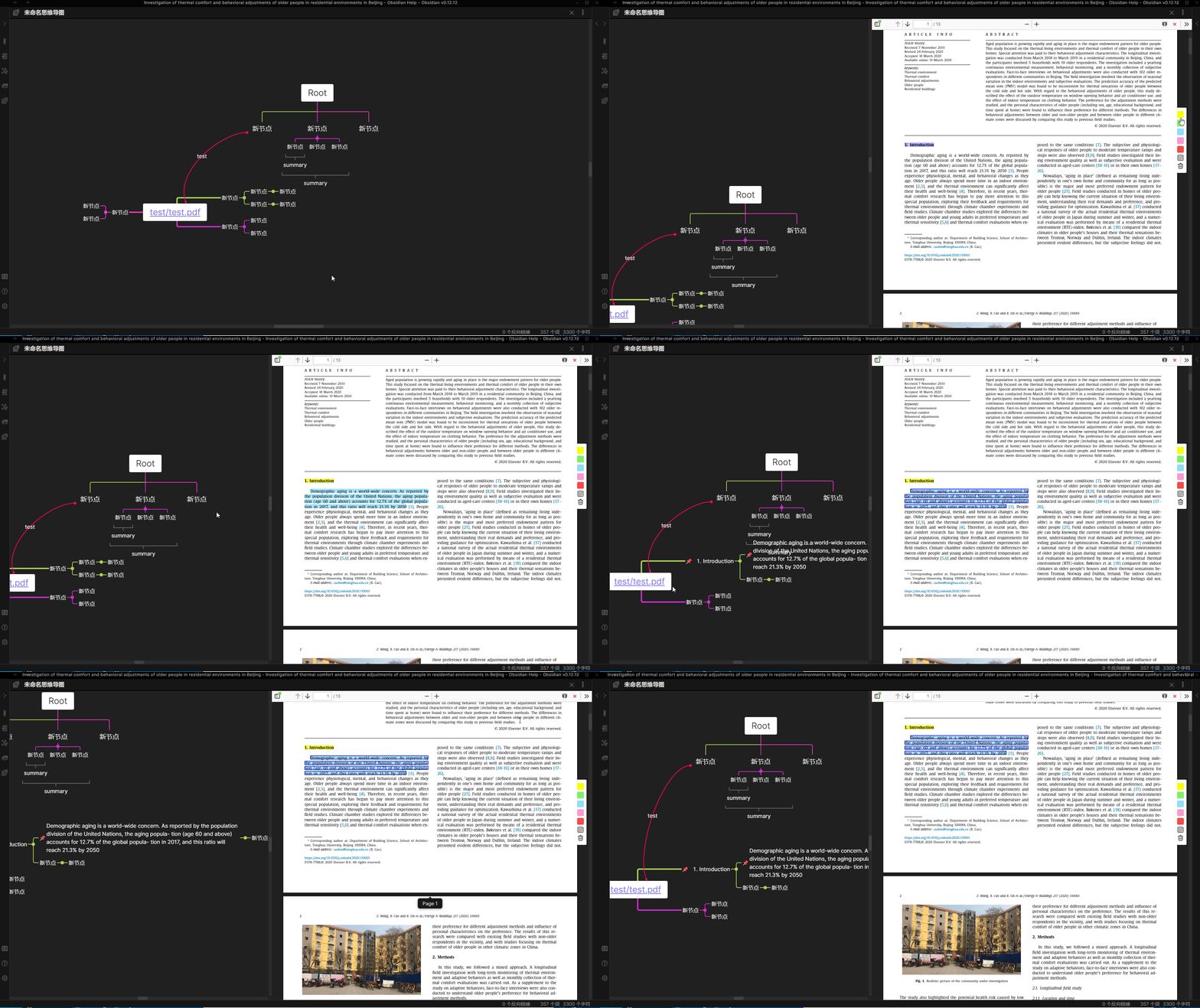
- Relate MindMap node and annotate
### How to use PDF annotate
1. Download the appropriate [PDFJS plugins](https://github.com/MarkMindCkm/obsidian-markmind/releases/download/1.8.2/pdfjs.zip)
2. Install PDFJS plugin:
- On Android, create an `andriod` folder then extract `pdfjs` folder into it
- On IOS, create an `ios` folder, then extract `pdfjs` folder into it
- The PDFJS path is set separately and if it does not you can try `filza` app, it can find the path to Obsidian
- On PC, extract `pdfjs` folder to `.obsidian` folder
- `CTRL/CMD + P`, click `set up pdfjs plugin path`
- On Mac `Command + Shift+ .` to show the hidden folder, extract `pdfjs` folder to `.obsidian` folder
- Restart Obsidian
3. Ensure these folders are present in PDFJS folder (VaultLocation\.obsidian\pdfjs):
- build
- epub
- epub.js
- pdfextrct
- web
4. Add the following YAML code to the MindMap document:
```YAML
---
annotate-target: test/test.PDF
annotate-type: pdf
---
```
5. Then you can find `Annotate PDF` in `more options`
### Screenshot folder for rect annotations
1. In the MindMap plugin settings you can set a folder path
- This should be a relative path pointing to your vault folder
2. Or you can add the folder path in YAML:
```YAML
---
annotate-target: test/test.PDF
annotate-type: pdf
annotate-image-target: assets/image
---
```
### Short Cuts for annotate
| Feature | Short Cut |
| ------------------ | ------------------------------- |
| Highlight Yellow | CTRL/CMD/ALT + Y |
| Highlight Green | CTRL/CMD/ALT + G |
| Highlight Blue | CTRL/CMD/ALT + B |
| Highlight Pink | CTRL/CMD/ALT + P |
| Highlight Red | CTRL/CMD/ALT + R |
| Delete annotate | CTRL/CMD/ALT + Delete/Backspace |
### Mind Map and PDF annotate
1. Open file as MindMap
2. Use `[[]]` to reference PDF
3. Click PDF reference, it will open a PDF reader if the PDF plugin path is correct
4. Use the PDF annotate function:
- It will create an `annos` file in your current folder by default, the `annos`
- The `annos` file stores annotations data in JSON format
- If you set the `Save PDF annotation type` as `markdown` in setting tab, it will create a `${PDF name}-annotate.md` file in your current folder
- Each annotation has an associated quote block with a block reference
- **Please do not modify these blocks**
### Relating MindMap nodes and annotations
There are three ways to relate mind map node and annotations
1. Default (Only supports rich mode)
- Make a PDF annotation
- Click PDF annotate
- Edit MindMap node and hit `CTRL/CMD + V` to relate the node and annotations
- Click the node PDF annotation and it will will auto copy the `id` of the annotation to your clipboard
2. Jumpto protocol `obsidian://jump-to-PDF` (Supports basic and rich mode)
- In MindMark settings, set `Support protocol` to `Open`
- This will automatically create a PDF annotation reference link and copy to your clipboard when you click PDF-annotate
- Paste into markdown file
3. Use markdown to save PDF annotations (Supports basic and rich mode)
- You can use `[[${md name}#${block reference}]]` to associate a quote block with a block reference
- An obsidian link to an annotation block-reference will, when clicked, open the corresponding file and scroll to the associated highlight
- If the file is already open in a pane, then the link will cause the existing pane to scroll instead
### Importing PDF highlight annotations
1. You can use `CTRL + P` and then the change basic to rich mode command
2. Import highlight annotations from PDF
- You can find this in the `more options` menu when opening a PDF
3. You can also export PDF annotations in the PDF format
- In the `more options` menu for the MindMap document
- You can set the format you want in the MarkMind settings tab
- The default format is:
```
Page:{{page}}
Text:{{highlightText}}
Comment:{{comment}}
^{{id}}
```
#### Demonstration
## PDF annotate
- Highlight text
- Area annotate
- Relate MindMap node and annotate
### How to use PDF annotate
1. Download the appropriate [PDFJS plugins](https://github.com/MarkMindCkm/obsidian-markmind/releases/download/1.8.2/pdfjs.zip)
2. Install PDFJS plugin:
- On Android, create an `andriod` folder then extract `pdfjs` folder into it
- On IOS, create an `ios` folder, then extract `pdfjs` folder into it
- The PDFJS path is set separately and if it does not you can try `filza` app, it can find the path to Obsidian
- On PC, extract `pdfjs` folder to `.obsidian` folder
- `CTRL/CMD + P`, click `set up pdfjs plugin path`
- On Mac `Command + Shift+ .` to show the hidden folder, extract `pdfjs` folder to `.obsidian` folder
- Restart Obsidian
3. Ensure these folders are present in PDFJS folder (VaultLocation\.obsidian\pdfjs):
- build
- epub
- epub.js
- pdfextrct
- web
4. Add the following YAML code to the MindMap document:
```YAML
---
annotate-target: test/test.PDF
annotate-type: pdf
---
```
5. Then you can find `Annotate PDF` in `more options`
### Screenshot folder for rect annotations
1. In the MindMap plugin settings you can set a folder path
- This should be a relative path pointing to your vault folder
2. Or you can add the folder path in YAML:
```YAML
---
annotate-target: test/test.PDF
annotate-type: pdf
annotate-image-target: assets/image
---
```
### Short Cuts for annotate
| Feature | Short Cut |
| ------------------ | ------------------------------- |
| Highlight Yellow | CTRL/CMD/ALT + Y |
| Highlight Green | CTRL/CMD/ALT + G |
| Highlight Blue | CTRL/CMD/ALT + B |
| Highlight Pink | CTRL/CMD/ALT + P |
| Highlight Red | CTRL/CMD/ALT + R |
| Delete annotate | CTRL/CMD/ALT + Delete/Backspace |
### Mind Map and PDF annotate
1. Open file as MindMap
2. Use `[[]]` to reference PDF
3. Click PDF reference, it will open a PDF reader if the PDF plugin path is correct
4. Use the PDF annotate function:
- It will create an `annos` file in your current folder by default, the `annos`
- The `annos` file stores annotations data in JSON format
- If you set the `Save PDF annotation type` as `markdown` in setting tab, it will create a `${PDF name}-annotate.md` file in your current folder
- Each annotation has an associated quote block with a block reference
- **Please do not modify these blocks**
### Relating MindMap nodes and annotations
There are three ways to relate mind map node and annotations
1. Default (Only supports rich mode)
- Make a PDF annotation
- Click PDF annotate
- Edit MindMap node and hit `CTRL/CMD + V` to relate the node and annotations
- Click the node PDF annotation and it will will auto copy the `id` of the annotation to your clipboard
2. Jumpto protocol `obsidian://jump-to-PDF` (Supports basic and rich mode)
- In MindMark settings, set `Support protocol` to `Open`
- This will automatically create a PDF annotation reference link and copy to your clipboard when you click PDF-annotate
- Paste into markdown file
3. Use markdown to save PDF annotations (Supports basic and rich mode)
- You can use `[[${md name}#${block reference}]]` to associate a quote block with a block reference
- An obsidian link to an annotation block-reference will, when clicked, open the corresponding file and scroll to the associated highlight
- If the file is already open in a pane, then the link will cause the existing pane to scroll instead
### Importing PDF highlight annotations
1. You can use `CTRL + P` and then the change basic to rich mode command
2. Import highlight annotations from PDF
- You can find this in the `more options` menu when opening a PDF
3. You can also export PDF annotations in the PDF format
- In the `more options` menu for the MindMap document
- You can set the format you want in the MarkMind settings tab
- The default format is:
```
Page:{{page}}
Text:{{highlightText}}
Comment:{{comment}}
^{{id}}
```
#### Demonstration
 ## Donating
---
### ChangeLog
#### v1.7.2
> This is a major version update !
[Download PDFjs plugin](https://github.com/MarkMindCkm/obsidian-markmind/releases/download/1.7.2/pdfjs.zip)
1. add a table layout for rich mindmap
2. update `andoird` and `ios` pdfjs plugin , the version will be same as pc version
3. fix `only copy annotate link` in setting tab of markmind , now the link type is `[📌](link)`
4. fix the image name of rect annotate,not paste path in `[[ ]]`
5. Open mind map increases speed
The program is becoming increasingly complex and difficult, please support me!
[Buy a active code](https://www.markmind.net)
The prices will be adjusted soon
---
这是一次大的版本更新,请注意!
[下载 PDFjs 插件](https://github.com/MarkMindCkm/obsidian-markmind/releases/download/1.7.2/pdfjs.zip)
1. 增加表格布局
2. 更新安卓和 ios 的 pdfjs 和电脑版本一致,现在可以在不同系统之间通用
3. 修复 只复制标注链接 的 问题
4. 修复复制矩形标注的链接,去掉其中的图片路径,只使用图片名称
5. 增加打开思维导图的速度
程序越来越复杂,难度越来越大,请支持我!
[购买一个激活码](https://www.markmind.net/cn)
也许后面会调整价格。
----

## Donating
---
### ChangeLog
#### v1.7.2
> This is a major version update !
[Download PDFjs plugin](https://github.com/MarkMindCkm/obsidian-markmind/releases/download/1.7.2/pdfjs.zip)
1. add a table layout for rich mindmap
2. update `andoird` and `ios` pdfjs plugin , the version will be same as pc version
3. fix `only copy annotate link` in setting tab of markmind , now the link type is `[📌](link)`
4. fix the image name of rect annotate,not paste path in `[[ ]]`
5. Open mind map increases speed
The program is becoming increasingly complex and difficult, please support me!
[Buy a active code](https://www.markmind.net)
The prices will be adjusted soon
---
这是一次大的版本更新,请注意!
[下载 PDFjs 插件](https://github.com/MarkMindCkm/obsidian-markmind/releases/download/1.7.2/pdfjs.zip)
1. 增加表格布局
2. 更新安卓和 ios 的 pdfjs 和电脑版本一致,现在可以在不同系统之间通用
3. 修复 只复制标注链接 的 问题
4. 修复复制矩形标注的链接,去掉其中的图片路径,只使用图片名称
5. 增加打开思维导图的速度
程序越来越复杂,难度越来越大,请支持我!
[购买一个激活码](https://www.markmind.net/cn)
也许后面会调整价格。
----
