# vscode-spell-checker
**Repository Path**: bu_ke/vscode-spell-checker
## Basic Information
- **Project Name**: vscode-spell-checker
- **Description**: No description available
- **Primary Language**: Unknown
- **License**: GPL-3.0
- **Default Branch**: main
- **Homepage**: None
- **GVP Project**: No
## Statistics
- **Stars**: 0
- **Forks**: 0
- **Created**: 2024-02-27
- **Last Updated**: 2024-06-01
## Categories & Tags
**Categories**: Uncategorized
**Tags**: None
## README
# Spelling Checker for Visual Studio Code
A basic spell checker that works well with code and documents.
The goal of this spell checker is to help catch common spelling errors while keeping the number of false positives low.
## Support Further Development
- [](https://github.com/sponsors/streetsidesoftware)
- [](https://patreon.com/streetsidesoftware)
- [](https://www.paypal.com/donate/?hosted_button_id=26LNBP2Q6MKCY)
- [](https://opencollective.com/code-spell-checker)
## Functionality
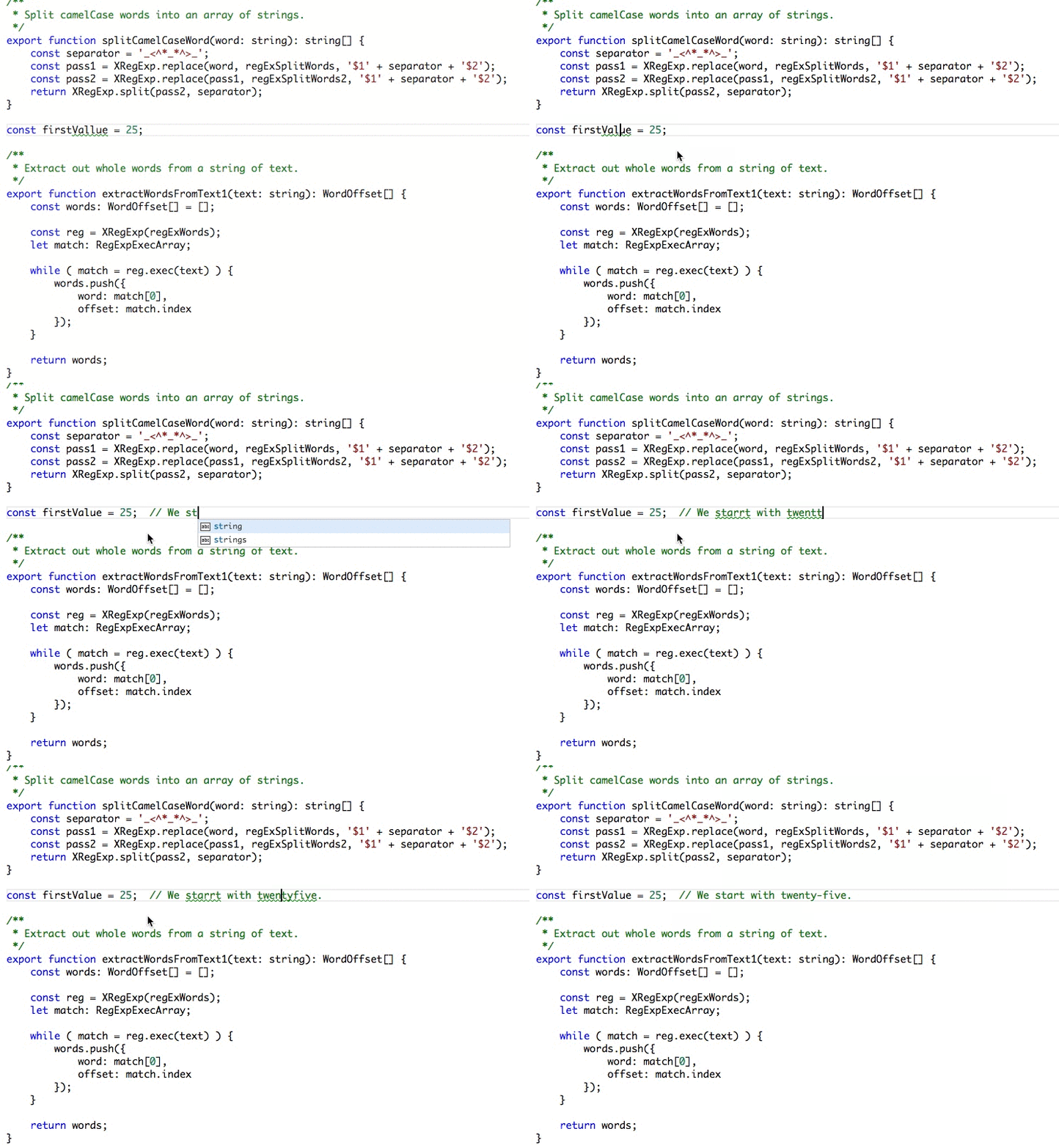
Load a TypeScript, JavaScript, Text, etc. file. Words not in the dictionary files will have
a squiggly underline.
### Example
## Suggestions
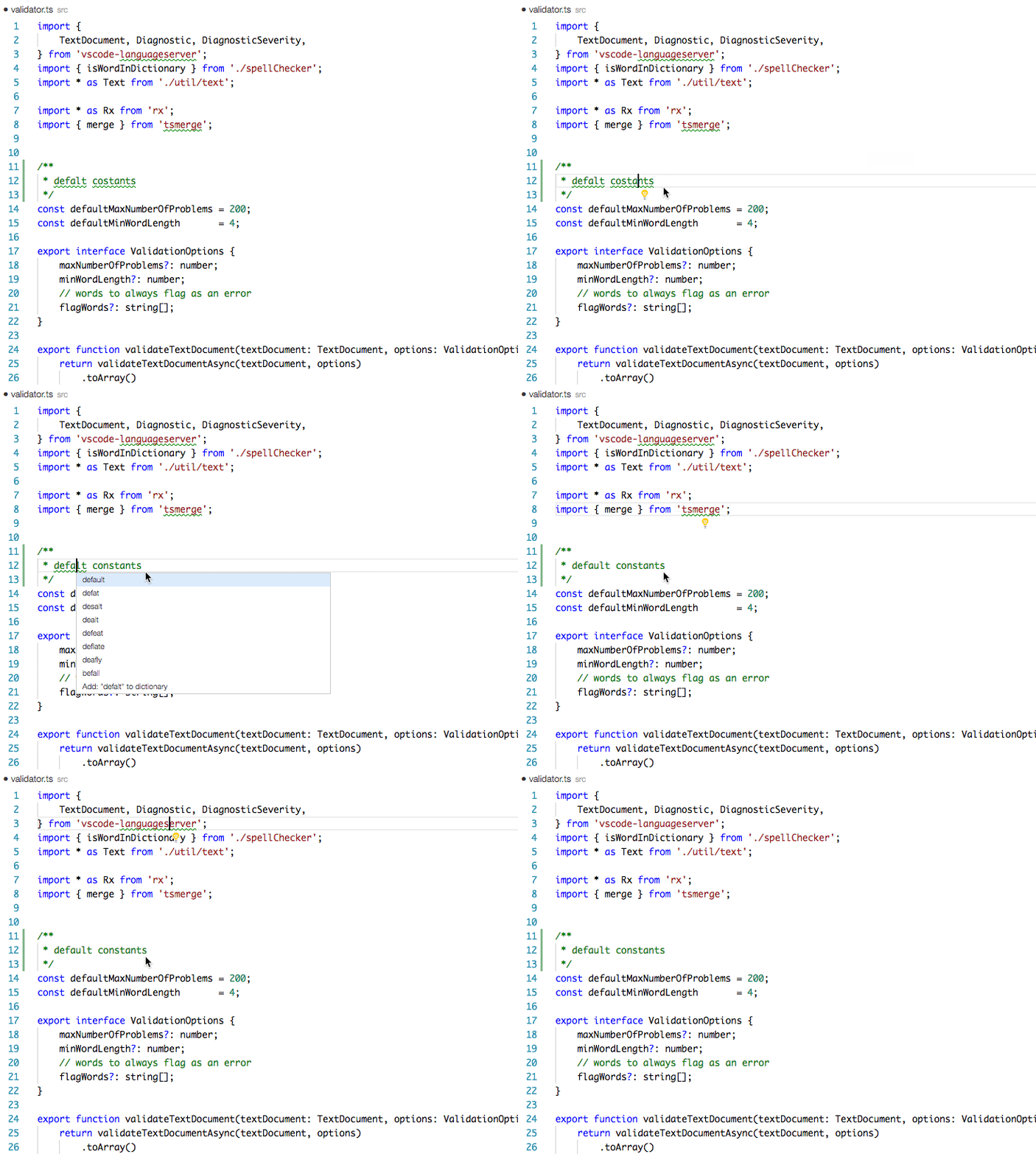
To see the list of suggestions:
After positioning the cursor in the word, any of the following should display the list of suggestions:
- Click on the 💡 (lightbulb) in the left hand margin.
- [`Quick Fix`](https://code.visualstudio.com/docs/getstarted/keybindings#_rich-languages-editing) Editor action command:
- Mac: `⌘`+`.` or `Cmd`+`.`
- PC: `Ctrl`+`.`
## Install
Open up VS Code and hit `F1` and type `ext` select install and type `code-spell-checker` hit enter and reload window to enable.
## Supported Languages
- English (US)
- English (GB) - turn on by changing `"cSpell.language": "en"` to `"cSpell.language": "en-GB"`
## Add-On Dictionaries
### Language Dictionaries
- [Arabic](https://marketplace.visualstudio.com/items?itemName=streetsidesoftware.code-spell-checker-arabic) - Arabic dictionary extension for VS Code.
- [Australian English](https://marketplace.visualstudio.com/items?itemName=streetsidesoftware.code-spell-checker-australian-english) - Australian English dictionary extension for VS Code.
- [Austrian German](https://marketplace.visualstudio.com/items?itemName=streetsidesoftware.code-spell-checker-austrian-german) - Austrian German dictionary extension for VS Code.
- [Basque](https://marketplace.visualstudio.com/items?itemName=streetsidesoftware.code-spell-checker-basque) - Basque dictionary extension for VS Code.
- [British English](https://marketplace.visualstudio.com/items?itemName=streetsidesoftware.code-spell-checker-british-english) - British English dictionary extension for VS Code.
- [Bulgarian](https://marketplace.visualstudio.com/items?itemName=streetsidesoftware.code-spell-checker-bulgarian) - Bulgarian dictionary extension for VS Code.
- [Canadian English](https://marketplace.visualstudio.com/items?itemName=streetsidesoftware.code-spell-checker-canadian-english) - Canadian English dictionary extension for VS Code.
- [Catalan](https://marketplace.visualstudio.com/items?itemName=streetsidesoftware.code-spell-checker-catalan) - Catalan dictionary extension for VS Code.
- [Croatian](https://marketplace.visualstudio.com/items?itemName=streetsidesoftware.code-spell-checker-croatian) - Croatian dictionary extension for VS Code.
- [Czech](https://marketplace.visualstudio.com/items?itemName=streetsidesoftware.code-spell-checker-czech) - Czech dictionary extension for VS Code.
- [Danish](https://marketplace.visualstudio.com/items?itemName=streetsidesoftware.code-spell-checker-danish) - Danish dictionary extension for VS Code.
- [Dutch](https://marketplace.visualstudio.com/items?itemName=streetsidesoftware.code-spell-checker-dutch) - Dutch / Nederlands dictionary extension for VS Code.
- [Esperanto](https://marketplace.visualstudio.com/items?itemName=streetsidesoftware.code-spell-checker-esperanto) - Esperanto dictionary extension for VS Code.
- [Estonian](https://marketplace.visualstudio.com/items?itemName=streetsidesoftware.code-spell-checker-estonian) - Estonian dictionary extension for VS Code.
- [Finnish](https://marketplace.visualstudio.com/items?itemName=streetsidesoftware.code-spell-checker-finnish) - Finnish dictionary extension for VS Code.
- [French](https://marketplace.visualstudio.com/items?itemName=streetsidesoftware.code-spell-checker-french) - French dictionary extension for VS Code.
- [French Réforme 90](https://marketplace.visualstudio.com/items?itemName=streetsidesoftware.code-spell-checker-french-reforme) - French Réforme 90 dictionary extension for VS Code.
- [German](https://marketplace.visualstudio.com/items?itemName=streetsidesoftware.code-spell-checker-german) - German dictionary extension for VS Code.
- [Greek](https://marketplace.visualstudio.com/items?itemName=streetsidesoftware.code-spell-checker-greek) - Greek dictionary extension for VS Code.
- [Hebrew](https://marketplace.visualstudio.com/items?itemName=streetsidesoftware.code-spell-checker-hebrew) - Hebrew dictionary extension for VS Code.
- [Hungarian](https://marketplace.visualstudio.com/items?itemName=streetsidesoftware.code-spell-checker-hungarian) - Hungarian dictionary extension for VS Code.
- [Indonesian](https://marketplace.visualstudio.com/items?itemName=streetsidesoftware.code-spell-checker-indonesian) - Indonesian dictionary extension for VS Code.
- [Italian](https://marketplace.visualstudio.com/items?itemName=streetsidesoftware.code-spell-checker-italian) - Italian dictionary extension for VS Code.
- [Latvian](https://marketplace.visualstudio.com/items?itemName=streetsidesoftware.code-spell-checker-latvian) - Latvian dictionary extension for VS Code.
- [Lithuanian](https://marketplace.visualstudio.com/items?itemName=streetsidesoftware.code-spell-checker-lithuanian) - Lithuanian dictionary extension for VS Code.
- [Norwegian Bokmål](https://marketplace.visualstudio.com/items?itemName=streetsidesoftware.code-spell-checker-norwegian-bokmal) - Norwegian Bokmål dictionary extension for VS Code.
- [Persian](https://marketplace.visualstudio.com/items?itemName=streetsidesoftware.code-spell-checker-persian) - Persian dictionary extension for VS Code.
- [Polish](https://marketplace.visualstudio.com/items?itemName=streetsidesoftware.code-spell-checker-polish) - Polish dictionary extension for VS Code.
- [Portuguese](https://marketplace.visualstudio.com/items?itemName=streetsidesoftware.code-spell-checker-portuguese) - Portuguese dictionary extension for VS Code.
- [Brazilian Portuguese](https://marketplace.visualstudio.com/items?itemName=streetsidesoftware.code-spell-checker-portuguese-brazilian) - Brazilian Portuguese dictionary extension for VS Code.
- [Romanian](https://marketplace.visualstudio.com/items?itemName=streetsidesoftware.code-spell-checker-romanian) - Romanian dictionary extension for VS Code.
- [Russian](https://marketplace.visualstudio.com/items?itemName=streetsidesoftware.code-spell-checker-russian) - Russian dictionary extension for VS Code.
- [Serbian](https://marketplace.visualstudio.com/items?itemName=streetsidesoftware.code-spell-checker-serbian) - Serbian dictionary extension for VS Code.
- [Slovak](https://marketplace.visualstudio.com/items?itemName=streetsidesoftware.code-spell-checker-slovak) - Slovak dictionary extension for VS Code.
- [Slovenian](https://marketplace.visualstudio.com/items?itemName=streetsidesoftware.code-spell-checker-slovenian) - Slovenian dictionary extension for VS Code.
- [Spanish](https://marketplace.visualstudio.com/items?itemName=streetsidesoftware.code-spell-checker-spanish) - Spanish Add-On for Code Spell Checker
- [Swedish](https://marketplace.visualstudio.com/items?itemName=streetsidesoftware.code-spell-checker-swedish) - Swedish dictionary extension for VS Code.
- [Swiss German](https://marketplace.visualstudio.com/items?itemName=streetsidesoftware.code-spell-checker-swiss-german) - Swiss German dictionary extension for VS Code.
- [Turkish](https://marketplace.visualstudio.com/items?itemName=streetsidesoftware.code-spell-checker-turkish) - Turkish dictionary extension for VS Code.
- [Ukrainian](https://marketplace.visualstudio.com/items?itemName=streetsidesoftware.code-spell-checker-ukrainian) - Ukrainian dictionary extension for VS Code.
- [Vietnamese](https://marketplace.visualstudio.com/items?itemName=streetsidesoftware.code-spell-checker-vietnamese) - Vietnamese dictionary extension for VS Code.
### Technical Dictionaries
- [Medical Terms](https://marketplace.visualstudio.com/items?itemName=streetsidesoftware.code-spell-checker-medical-terms) - Medical Terms Add-On for Code Spell Checker
- [Scientific Terms](https://marketplace.visualstudio.com/items?itemName=streetsidesoftware.code-spell-checker-scientific-terms) - Scientific Terms dictionary extension for VS Code.
- [Win32](https://marketplace.visualstudio.com/items?itemName=streetsidesoftware.code-spell-checker-win32) - Win32 dictionary extension for VS Code.
## Enabled File Types
- AsciiDoc
- C, C++
- C#
- css, less, scss
- Dart
- Elixir
- Go
- Html
- Java
- JavaScript
- JSON / JSONC
- LaTeX
- Markdown
- PHP
- PowerShell
- Pug / Jade
- Python
- reStructuredText
- Ruby
- Rust
- Scala
- Text
- TypeScript
- YAML
- SQL
### Enable / Disable File Types
To _Enable_ or _Disable_ spell checking for a file type:
1. Click on the Spell Checker status in the status bar:
 2. On the Info screen, click the checkbox.
 ## How it works with camelCase
The concept is simple, split camelCase words before checking them against a list of known English words.
- camelCase -> camel case
- HTMLInput -> html input -- Notice that the `I` is associated with `Input` and not `HTML`
- snake_case_words -> snake case words
- camel2snake -> camel snake -- (the 2 is ignored)
### Special case with ALL CAPS words
There are a few special cases to help with common spelling practices for ALL CAPS words.
Trailing `s`, `ing`, `ies`, `es`, `ed` are kept with the previous word.
- CURLs -> curls -- trailing `s`
- CURLedRequest -> curled request -- trailing `ed`
## Things to note
- This spellchecker is case insensitive. It will not catch errors like english which should be English.
- The spellchecker uses a local word dictionary. It does not send anything outside your machine.
- The words in the dictionary can and do contain errors.
- There are missing words.
- Only words longer than 3 characters are checked. "jsj" is not checked, while "jsja" is checked and will be marked as incorrect because it does not exist in any of the dictionaries.
- All symbols and punctuation are ignored.
## In Document Settings
It is possible to add spell check settings into your source code.
This is to help with file specific issues that may not be applicable to the entire project.
All settings are prefixed with `cSpell:` or `spell-checker:`.
- `disable` -- turn off the spell checker for a section of code.
- `enable` -- turn the spell checker back on after it has been turned off.
- `ignore` -- specify a list of words to be ignored.
- `words` -- specify a list of words to be considered correct and will appear in the suggestions list.
- `locale` -- set locale (example: `cSpell:locale fr,en` to use French and English languages)
- `ignoreRegExp` -- Any text matching the regular expression will NOT be checked for spelling.
- `includeRegExp` -- Only text matching the collection of includeRegExp will be checked.
- `enableCompoundWords` / `disableCompoundWords` -- Allow / disallow words like: "stringlength".
### Enable / Disable checking sections of code
It is possible to disable / enable the spell checker by adding comments to your code.
#### Disable Checking
- `cSpell:disable`
- `spell-checker: disable`
- `spellchecker: disable`
- `cspell: disable-line`
- `cspell: disable-next-line`
#### Enable Checking
- `cSpell:enable`
- `spell-checker: enable`
- `spellchecker: enable`
#### JavaScript Example
```javascript
// cSpell:disable
const wackyWord = ['zaallano', 'wooorrdd', 'zzooommmmmmmm'];
/* cSpell:enable */
// Nest disable / enable is not Supported
// spell-checker:disable
// It is now disabled.
var liep = 1;
/* cspell:disable */
// It is still disabled
// cSpell:enable
// It is now enabled
const str = 'goededag'; // <- will be flagged as an error.
// spell-checker:enable <- doesn't do anything
// cSPELL:DISABLE <-- also works.
// if there isn't an enable, spelling is disabled till the end of the file.
const str = 'goedemorgen'; // <- will NOT be flagged as an error.
```
#### Markdown Example
```markdown
This text is not checked.
This text is checked.
```
### Ignore
Ignore allows you the specify a list of words you want to ignore within the document.
```javascript
// cSpell:ignore zaallano, wooorrdd
// cSpell:ignore zzooommmmmmmm
const wackyWord = ['zaallano', 'wooorrdd', 'zzooommmmmmmm'];
```
**Note:** words defined with `ignore` will be ignored for the entire file.
### Words
The words list allows you to add words that will be considered correct and will be used as suggestions.
```javascript
// cSpell:words woorxs sweeetbeat
const companyName = 'woorxs sweeetbeat';
```
**Note:** words defined with `words` will be used for the entire file.
### Enable / Disable compound words
In some programming language it is common to glue words together.
```c
// cSpell:enableCompoundWords
char * errormessage; // Is ok with cSpell:enableCompoundWords
int errornumber; // Is also ok.
```
**Note:** Compound word checking cannot be turned on / off in the same file.
The last setting in the file determines the value for the entire file.
### Excluding and Including Text to be checked.
By default, the entire document is checked for spelling.
`cSpell:disable`/`cSpell:enable` above allows you to block off sections of the document.
`ignoreRegExp` and `includeRegExp` give you the ability to ignore or include patterns of text.
By default the flags `gim` are added if no flags are given.
The spell checker works in the following way:
1. Find all text matching `includeRegExp`
1. Remove any text matching `excludeRegExp`
1. Check the remaining text.
#### Exclude Example
```javascript
// cSpell:ignoreRegExp 0x[0-9a-f]+ -- will ignore c style hex numbers
// cSpell:ignoreRegExp /0x[0-9A-F]+/g -- will ignore upper case c style hex numbers.
// cSpell:ignoreRegExp g{5} h{5} -- will only match ggggg, but not hhhhh or 'ggggg hhhhh'
// cSpell:ignoreRegExp g{5}|h{5} -- will match both ggggg and hhhhh
// cSpell:ignoreRegExp /g{5} h{5}/ -- will match 'ggggg hhhhh'
/* cSpell:ignoreRegExp /n{5}/ -- will NOT work as expected because of the ending comment -> */
/*
cSpell:ignoreRegExp /q{5}/ -- will match qqqqq just fine but NOT QQQQQ
*/
// cSpell:ignoreRegExp /[^\s]{40,}/ -- will ignore long strings with no spaces.
// cSpell:ignoreRegExp Email -- this will ignore email like patterns -- see Predefined RegExp expressions
var encodedImage = 'HR+cPzr7XGAOJNurPL0G8I2kU0UhKcqFssoKvFTR7z0T3VJfK37vS025uKroHfJ9nA6WWbHZ/ASn...';
var email1 = 'emailaddress@myfancynewcompany.com';
var email2 = '';
```
**Note:** ignoreRegExp and includeRegExp are applied to the entire file. They do not start and stop.
#### Include Example
In general you should not need to use `includeRegExp`. But if you are mixing languages then it could come in helpful.
```Python
# cSpell:includeRegExp #.*
# cSpell:includeRegExp /(["]{3}|[']{3})[^\1]*?\1/g
# only comments and block strings will be checked for spelling.
def sum_it(self, seq):
"""This is checked for spelling"""
variabele = 0
alinea = 'this is not checked'
for num in seq:
# The local state of 'value' will be retained between iterations
variabele += num
yield variabele
```
## Predefined RegExp expressions
### Exclude patterns
- `Urls`1 -- Matches urls
- `HexValues` -- Matches common hex format like `#aaa`, `0xfeef`, `\u0134`
- `EscapeCharacters`1 -- matches special characters: `\n`, `\t` etc.
- `Base64`1 -- matches base64 blocks of text longer than 40 characters.
- `Email` -- matches most email addresses.
### Include Patterns
- `Everything`1 -- By default we match an entire document and remove the excludes.
- `string` -- This matches common string formats like '...', "...", and \`...\`
- `CStyleComment` -- These are C Style comments /\* \*/ and //
- `PhpHereDoc` -- This matches PHPHereDoc strings.
1. These patterns are part of the default include/exclude list for every file.
## Customization
The spell checker configuration can be controlled via VS Code preferences or `cspell.json` configuration file.
Order of precedence:
1. Workspace Folder `cspell.json`
1. Workspace Folder `.vscode/cspell.json`
1. VS Code Preferences `cSpell` section.
### Adding words to the Workspace Dictionary
You have the option to add you own words to the workspace dictionary. The easiest, is to put your cursor
on the word you wish to add, when you lightbulb shows up, hit `Ctrl+.` (windows) / `Cmd+.` (Mac). You will get a list
of suggestions and the option to add the word.
You can also type in a word you want to add to the dictionary: `F1` `add word` -- select `Add Word to Dictionary` and type in the word you wish to add.
### cspell.json
Words added to the dictionary are placed in the `cspell.json` file in the _workspace_ folder.
Note, the settings in `cspell.json` will override the equivalent cSpell settings in VS Code's `settings.json`.
#### Example _cspell.json_ file
```javascript
// cSpell Settings
{
// Version of the setting file. Always 0.2
"version": "0.2",
// language - current active spelling language
"language": "en",
// words - list of words to be always considered correct
"words": [
"mkdirp",
"tsmerge",
"githubusercontent",
"streetsidesoftware",
"vsmarketplacebadge",
"visualstudio"
],
// flagWords - list of words to be always considered incorrect
// This is useful for offensive words and common spelling errors.
// For example "hte" should be "the"
"flagWords": [
"hte"
]
}
```
### VS Code Configuration Settings
```javascript
//-------- Code Spell Checker Configuration --------
// The Language locale to use when spell checking. "en", "en-US" and "en-GB" are currently supported by default.
"cSpell.language": "en",
// Controls the maximum number of spelling errors per document.
"cSpell.maxNumberOfProblems": 100,
// Controls the number of suggestions shown.
"cSpell.numSuggestions": 8,
// The minimum length of a word before checking it against a dictionary.
"cSpell.minWordLength": 4,
// Specify file types to spell check.
"cSpell.enabledLanguageIds": [
"csharp",
"go",
"javascript",
"javascriptreact",
"markdown",
"php",
"plaintext",
"typescript",
"typescriptreact",
"yml",
"sql"
],
// Enable / Disable the spell checker.
"cSpell.enabled": true,
// Display the spell checker status on the status bar.
"cSpell.showStatus": true,
// Words to add to dictionary for a workspace.
"cSpell.words": [],
// Enable / Disable compound words like 'errormessage'
"cSpell.allowCompoundWords": false,
// Words to be ignored and not suggested.
"cSpell.ignoreWords": ["behaviour"],
// User words to add to dictionary. Should only be in the user settings.
"cSpell.userWords": [],
// Specify paths/files to ignore.
"cSpell.ignorePaths": [
"node_modules", // this will ignore anything the node_modules directory
"**/node_modules", // the same for this one
"**/node_modules/**", // the same for this one
"node_modules/**", // Doesn't currently work due to how the current working directory is determined.
"vscode-extension", //
".git", // Ignore the .git directory
"*.dll", // Ignore all .dll files.
"**/*.dll" // Ignore all .dll files
],
// flagWords - list of words to be always considered incorrect
// This is useful for offensive words and common spelling errors.
// For example "hte" should be "the"`
"cSpell.flagWords": ["hte"],
// Set the delay before spell checking the document. Default is 50.
"cSpell.spellCheckDelayMs": 50,
// Set Diagnostic Reporting Level
// Error - Report Spelling Issues as Errors
// Warning - Report Spelling Issues as Warnings
// Information - Report Spelling Issues as Information (default)
// Hint - Report Spelling Issues as Hints, will not show up in Problems
"cSpell.diagnosticLevel": "Information",
```
## Dictionaries
The spell checker includes a set of default dictionaries.
### General Dictionaries
- **wordsEn** - Derived from Hunspell US English words.
- **wordsEnGb** - Derived from Hunspell GB English words.
- **companies** - List of well known companies
- **softwareTerms** - Software Terms and concepts like "coroutine", "debounce", "tree", etc.
- **misc** - Terms that do not belong in the other dictionaries.
### Programming Language Dictionaries
- **typescript** - keywords for Typescript and Javascript
- **node** - terms related to using nodejs.
- **php** - _php_ keywords and library methods
- **go** - _go_ keywords and library methods
- **python** - _python_ keywords
- **powershell** - _powershell_ keywords
- **html** - _html_ related keywords
- **css** - _css_, _less_, and _scss_ related keywords
### Miscellaneous Dictionaries
- **fonts** - long list of fonts - to assist with _css_
Based upon the programming language, different dictionaries will be loaded.
Here are some of the default rules:
- `"*"` matches any programming language / file type.
- `"locale"` is used to filter based upon the `"cSpell.language"` setting.
```javascript
{
"cSpell.languageSettings": [
{ "languageId": '*', "locale": 'en', "dictionaries": ['wordsEn'] },
{ "languageId": '*', "locale": 'en-US', "dictionaries": ['wordsEn'] },
{ "languageId": '*', "locale": 'en-GB', "dictionaries": ['wordsEnGb'] },
{ "languageId": '*', "dictionaries": ['companies', 'softwareTerms', 'misc'] },
{ "languageId": "python", "dictionaries": ["python"]},
{ "languageId": "go", "dictionaries": ["go"] },
{ "languageId": "javascript", "dictionaries": ["typescript", "node"] },
{ "languageId": "javascriptreact", "dictionaries": ["typescript", "node"] },
{ "languageId": "typescript", "dictionaries": ["typescript", "node"] },
{ "languageId": "typescriptreact", "dictionaries": ["typescript", "node"] },
{ "languageId": "html", "dictionaries": ["html", "fonts", "typescript", "css"] },
{ "languageId": "php", "dictionaries": ["php", "html", "fonts", "css", "typescript"] },
{ "languageId": "css", "dictionaries": ["fonts", "css"] },
{ "languageId": "less", "dictionaries": ["fonts", "css"] },
{ "languageId": "scss", "dictionaries": ["fonts", "css"] },
];
}
```
### How to add your own Dictionaries
#### `cSpell.customDictionaries`
````ts
interface Settings {
'cSpell.customDictionaries': {
[name: string]: CustomDictionary;
};
}
interface CustomDictionary {
/**
* @title Name of Dictionary
* The reference name of the dictionary.
*
*
* Example: `My Words` or `custom`
*
*
* If they name matches a pre-defined dictionary, it will override the pre-defined dictionary.
* If you use: `typescript` it will replace the built-in TypeScript dictionary.
*/
name?: DictionaryId;
/**
* @title Description of the Dictionary
* Optional: A human readable description.
*/
description?: string;
/**
* @title Path to Dictionary Text File
* Define the path to the dictionary text file.
*
*
* **Note:** if path is `undefined` the `name`d dictionary is expected to be found
* in the `dictionaryDefinitions`.
*
*
* File Format: Each line in the file is considered a dictionary entry.
* Case is preserved while leading and trailing space is removed.
* The path should be absolute, or relative to the workspace.
*
* **Example:** relative to User's folder
*
* ```
* ~/dictionaries/custom_dictionary.txt
* ```
*
* **Example:** relative to the `client` folder in a multi-root workspace
*
* ```
* ${workspaceFolder:client}/build/custom_dictionary.txt
* ```
*
* **Example:** relative to the current workspace folder in a single-root workspace
*
* **Note:** this might no as expected in a multi-root workspace since it is based upon the relative
* workspace for the currently open file.
*
* ```
* ${workspaceFolder}/build/custom_dictionary.txt
* ```
*
* **Example:** relative to the workspace folder in a single-root workspace or the first folder in
* a multi-root workspace
*
* ```
* ./build/custom_dictionary.txt
* ```
*/
path?: FsPath;
/**
* @title Add Words to Dictionary
* Indicate if this custom dictionary should be used to store added words.
* @default true
*/
addWords?: boolean;
/**
* @title Scope of dictionary
* Options are
* - `user` - words that apply to all projects and workspaces
* - `workspace` - words that apply to the entire workspace
* - `folder` - words that apply to only a workspace folder
*/
scope?: CustomDictionaryScope | CustomDictionaryScope[];
}
````
#### Global Dictionary
To add a global dictionary, you will need change your user settings.
##### Define the Dictionary
In your user settings, you will need to tell the spell checker where to find your word list.
Example adding medical terms, so words like _acanthopterygious_ can be found.
**VS Code Settings**
```js
"cSpell.customDictionaries": {
"myWords": {
"name": "myWords",
"path": "~/my-words.txt",
"scope": "user",
"addWords": true
}
}
```
**Explained:** In this example, we have told the spell checker where to find our personal dictionary called `myWords`.
- `name` - this is the name of the dictionary, all references to this dictionary is done by the name.
- `path` - this the path to the dictionary file. Since it is in the user settings, we have to use absolute paths or paths relative to the user directory by using `~/`.
- `scope` - (Optional) this is used to "scope" a dictionary to `user`, `workspace`, or `folder`. Scope is used to help communicate the intended use of the dictionary.
- `addWords` - (Optional) default - `true` - is used to show / hide the dictionary as a possible target for adding words.
#### Project / Workspace Dictionary using `cspell.json`
To add a dictionary at the project level should be defined in a `cspell.json` file so it can be used with the `cspell` command line tool.
This file can be either at the project root or in the .vscode directory.
Example adding medical terms, where the terms are checked into the project and we only want to use it for .md files.
```javascript
{
"dictionaryDefinitions": [
{ "name": "medicalTerms", "path": "./dictionaries/medicalterms-en.txt"},
{ "name": "cities", "path": "./dictionaries/cities.txt"}
],
"dictionaries": [
"cities"
],
"languageSettings": [
{ "languageId": "markdown", "dictionaries": ["medicalTerms"] },
{ "languageId": "plaintext", "dictionaries": ["medicalTerms"] }
]
}
```
**Explained:** In this example, two dictionaries were defined: _cities_ and _medicalTerms_.
The paths are relative to the location of the _cSpell.json_ file. This allows for dictionaries to be checked into the project.
The _cities_ dictionary is used for every file type, because it was added to the list to _dictionaries_.
The _medicalTerms_ dictionary is only used when editing _markdown_ or _plaintext_ files.
**DictionaryDefinition**
```ts
interface DictionaryDefinition {
/**
* This is the name of a dictionary.
*
* Name Format:
* - Must contain at least 1 number or letter.
* - Spaces are allowed.
* - Leading and trailing space will be removed.
* - Names ARE case-sensitive.
* - Must not contain `*`, `!`, `;`, `,`, `{`, `}`, `[`, `]`, `~`.
*/
name: DictionaryId;
/** Optional description. */
description?: string;
/** Path to custom dictionary text file. */
path: CustomDictionaryPath;
/**
* Defines the scope for when words will be added to the dictionary.
* Scope values: `user`, `workspace`, `folder`.
*/
scope?: CustomDictionaryScope | CustomDictionaryScope[];
/**
* When `true`, let's the spell checker know that words can be added to this dictionary.
*/
addWords: boolean;
}
```
#### Project / Workspace Dictionary using VS Code Settings
**VS Code Settings**
```js
"cSpell.customDictionaries": {
"project-words": {
"name": "project-words",
"path": "${workspaceRoot}/project-words.txt",
"description": "Words used in this project",
"addWords": true
},
"medicalTerms": {
"name": "medicalTerms",
"path": "/Users/guest/projects/cSpell-WordLists/dictionaries/medicalterms-en.txt",
"addWords": false // Do not add words to this dictionary
},
"companyTerms": {
"name": "companyTerms",
"path": "${workspaceFolder}/../company/terms.txt"
// "addWords": true -- is implied
},
"custom": true, // Enable the `custom` dictionary
"internal-terms": false // Disable the `internal-terms` dictionary
}
```
## FAQ
See: [FAQ](https://github.com/streetsidesoftware/vscode-spell-checker/blob/main/FAQ.md)
## How it works with camelCase
The concept is simple, split camelCase words before checking them against a list of known English words.
- camelCase -> camel case
- HTMLInput -> html input -- Notice that the `I` is associated with `Input` and not `HTML`
- snake_case_words -> snake case words
- camel2snake -> camel snake -- (the 2 is ignored)
### Special case with ALL CAPS words
There are a few special cases to help with common spelling practices for ALL CAPS words.
Trailing `s`, `ing`, `ies`, `es`, `ed` are kept with the previous word.
- CURLs -> curls -- trailing `s`
- CURLedRequest -> curled request -- trailing `ed`
## Things to note
- This spellchecker is case insensitive. It will not catch errors like english which should be English.
- The spellchecker uses a local word dictionary. It does not send anything outside your machine.
- The words in the dictionary can and do contain errors.
- There are missing words.
- Only words longer than 3 characters are checked. "jsj" is not checked, while "jsja" is checked and will be marked as incorrect because it does not exist in any of the dictionaries.
- All symbols and punctuation are ignored.
## In Document Settings
It is possible to add spell check settings into your source code.
This is to help with file specific issues that may not be applicable to the entire project.
All settings are prefixed with `cSpell:` or `spell-checker:`.
- `disable` -- turn off the spell checker for a section of code.
- `enable` -- turn the spell checker back on after it has been turned off.
- `ignore` -- specify a list of words to be ignored.
- `words` -- specify a list of words to be considered correct and will appear in the suggestions list.
- `locale` -- set locale (example: `cSpell:locale fr,en` to use French and English languages)
- `ignoreRegExp` -- Any text matching the regular expression will NOT be checked for spelling.
- `includeRegExp` -- Only text matching the collection of includeRegExp will be checked.
- `enableCompoundWords` / `disableCompoundWords` -- Allow / disallow words like: "stringlength".
### Enable / Disable checking sections of code
It is possible to disable / enable the spell checker by adding comments to your code.
#### Disable Checking
- `cSpell:disable`
- `spell-checker: disable`
- `spellchecker: disable`
- `cspell: disable-line`
- `cspell: disable-next-line`
#### Enable Checking
- `cSpell:enable`
- `spell-checker: enable`
- `spellchecker: enable`
#### JavaScript Example
```javascript
// cSpell:disable
const wackyWord = ['zaallano', 'wooorrdd', 'zzooommmmmmmm'];
/* cSpell:enable */
// Nest disable / enable is not Supported
// spell-checker:disable
// It is now disabled.
var liep = 1;
/* cspell:disable */
// It is still disabled
// cSpell:enable
// It is now enabled
const str = 'goededag'; // <- will be flagged as an error.
// spell-checker:enable <- doesn't do anything
// cSPELL:DISABLE <-- also works.
// if there isn't an enable, spelling is disabled till the end of the file.
const str = 'goedemorgen'; // <- will NOT be flagged as an error.
```
#### Markdown Example
```markdown
This text is not checked.
This text is checked.
```
### Ignore
Ignore allows you the specify a list of words you want to ignore within the document.
```javascript
// cSpell:ignore zaallano, wooorrdd
// cSpell:ignore zzooommmmmmmm
const wackyWord = ['zaallano', 'wooorrdd', 'zzooommmmmmmm'];
```
**Note:** words defined with `ignore` will be ignored for the entire file.
### Words
The words list allows you to add words that will be considered correct and will be used as suggestions.
```javascript
// cSpell:words woorxs sweeetbeat
const companyName = 'woorxs sweeetbeat';
```
**Note:** words defined with `words` will be used for the entire file.
### Enable / Disable compound words
In some programming language it is common to glue words together.
```c
// cSpell:enableCompoundWords
char * errormessage; // Is ok with cSpell:enableCompoundWords
int errornumber; // Is also ok.
```
**Note:** Compound word checking cannot be turned on / off in the same file.
The last setting in the file determines the value for the entire file.
### Excluding and Including Text to be checked.
By default, the entire document is checked for spelling.
`cSpell:disable`/`cSpell:enable` above allows you to block off sections of the document.
`ignoreRegExp` and `includeRegExp` give you the ability to ignore or include patterns of text.
By default the flags `gim` are added if no flags are given.
The spell checker works in the following way:
1. Find all text matching `includeRegExp`
1. Remove any text matching `excludeRegExp`
1. Check the remaining text.
#### Exclude Example
```javascript
// cSpell:ignoreRegExp 0x[0-9a-f]+ -- will ignore c style hex numbers
// cSpell:ignoreRegExp /0x[0-9A-F]+/g -- will ignore upper case c style hex numbers.
// cSpell:ignoreRegExp g{5} h{5} -- will only match ggggg, but not hhhhh or 'ggggg hhhhh'
// cSpell:ignoreRegExp g{5}|h{5} -- will match both ggggg and hhhhh
// cSpell:ignoreRegExp /g{5} h{5}/ -- will match 'ggggg hhhhh'
/* cSpell:ignoreRegExp /n{5}/ -- will NOT work as expected because of the ending comment -> */
/*
cSpell:ignoreRegExp /q{5}/ -- will match qqqqq just fine but NOT QQQQQ
*/
// cSpell:ignoreRegExp /[^\s]{40,}/ -- will ignore long strings with no spaces.
// cSpell:ignoreRegExp Email -- this will ignore email like patterns -- see Predefined RegExp expressions
var encodedImage = 'HR+cPzr7XGAOJNurPL0G8I2kU0UhKcqFssoKvFTR7z0T3VJfK37vS025uKroHfJ9nA6WWbHZ/ASn...';
var email1 = 'emailaddress@myfancynewcompany.com';
var email2 = '';
```
**Note:** ignoreRegExp and includeRegExp are applied to the entire file. They do not start and stop.
#### Include Example
In general you should not need to use `includeRegExp`. But if you are mixing languages then it could come in helpful.
```Python
# cSpell:includeRegExp #.*
# cSpell:includeRegExp /(["]{3}|[']{3})[^\1]*?\1/g
# only comments and block strings will be checked for spelling.
def sum_it(self, seq):
"""This is checked for spelling"""
variabele = 0
alinea = 'this is not checked'
for num in seq:
# The local state of 'value' will be retained between iterations
variabele += num
yield variabele
```
## Predefined RegExp expressions
### Exclude patterns
- `Urls`1 -- Matches urls
- `HexValues` -- Matches common hex format like `#aaa`, `0xfeef`, `\u0134`
- `EscapeCharacters`1 -- matches special characters: `\n`, `\t` etc.
- `Base64`1 -- matches base64 blocks of text longer than 40 characters.
- `Email` -- matches most email addresses.
### Include Patterns
- `Everything`1 -- By default we match an entire document and remove the excludes.
- `string` -- This matches common string formats like '...', "...", and \`...\`
- `CStyleComment` -- These are C Style comments /\* \*/ and //
- `PhpHereDoc` -- This matches PHPHereDoc strings.
1. These patterns are part of the default include/exclude list for every file.
## Customization
The spell checker configuration can be controlled via VS Code preferences or `cspell.json` configuration file.
Order of precedence:
1. Workspace Folder `cspell.json`
1. Workspace Folder `.vscode/cspell.json`
1. VS Code Preferences `cSpell` section.
### Adding words to the Workspace Dictionary
You have the option to add you own words to the workspace dictionary. The easiest, is to put your cursor
on the word you wish to add, when you lightbulb shows up, hit `Ctrl+.` (windows) / `Cmd+.` (Mac). You will get a list
of suggestions and the option to add the word.
You can also type in a word you want to add to the dictionary: `F1` `add word` -- select `Add Word to Dictionary` and type in the word you wish to add.
### cspell.json
Words added to the dictionary are placed in the `cspell.json` file in the _workspace_ folder.
Note, the settings in `cspell.json` will override the equivalent cSpell settings in VS Code's `settings.json`.
#### Example _cspell.json_ file
```javascript
// cSpell Settings
{
// Version of the setting file. Always 0.2
"version": "0.2",
// language - current active spelling language
"language": "en",
// words - list of words to be always considered correct
"words": [
"mkdirp",
"tsmerge",
"githubusercontent",
"streetsidesoftware",
"vsmarketplacebadge",
"visualstudio"
],
// flagWords - list of words to be always considered incorrect
// This is useful for offensive words and common spelling errors.
// For example "hte" should be "the"
"flagWords": [
"hte"
]
}
```
### VS Code Configuration Settings
```javascript
//-------- Code Spell Checker Configuration --------
// The Language locale to use when spell checking. "en", "en-US" and "en-GB" are currently supported by default.
"cSpell.language": "en",
// Controls the maximum number of spelling errors per document.
"cSpell.maxNumberOfProblems": 100,
// Controls the number of suggestions shown.
"cSpell.numSuggestions": 8,
// The minimum length of a word before checking it against a dictionary.
"cSpell.minWordLength": 4,
// Specify file types to spell check.
"cSpell.enabledLanguageIds": [
"csharp",
"go",
"javascript",
"javascriptreact",
"markdown",
"php",
"plaintext",
"typescript",
"typescriptreact",
"yml",
"sql"
],
// Enable / Disable the spell checker.
"cSpell.enabled": true,
// Display the spell checker status on the status bar.
"cSpell.showStatus": true,
// Words to add to dictionary for a workspace.
"cSpell.words": [],
// Enable / Disable compound words like 'errormessage'
"cSpell.allowCompoundWords": false,
// Words to be ignored and not suggested.
"cSpell.ignoreWords": ["behaviour"],
// User words to add to dictionary. Should only be in the user settings.
"cSpell.userWords": [],
// Specify paths/files to ignore.
"cSpell.ignorePaths": [
"node_modules", // this will ignore anything the node_modules directory
"**/node_modules", // the same for this one
"**/node_modules/**", // the same for this one
"node_modules/**", // Doesn't currently work due to how the current working directory is determined.
"vscode-extension", //
".git", // Ignore the .git directory
"*.dll", // Ignore all .dll files.
"**/*.dll" // Ignore all .dll files
],
// flagWords - list of words to be always considered incorrect
// This is useful for offensive words and common spelling errors.
// For example "hte" should be "the"`
"cSpell.flagWords": ["hte"],
// Set the delay before spell checking the document. Default is 50.
"cSpell.spellCheckDelayMs": 50,
// Set Diagnostic Reporting Level
// Error - Report Spelling Issues as Errors
// Warning - Report Spelling Issues as Warnings
// Information - Report Spelling Issues as Information (default)
// Hint - Report Spelling Issues as Hints, will not show up in Problems
"cSpell.diagnosticLevel": "Information",
```
## Dictionaries
The spell checker includes a set of default dictionaries.
### General Dictionaries
- **wordsEn** - Derived from Hunspell US English words.
- **wordsEnGb** - Derived from Hunspell GB English words.
- **companies** - List of well known companies
- **softwareTerms** - Software Terms and concepts like "coroutine", "debounce", "tree", etc.
- **misc** - Terms that do not belong in the other dictionaries.
### Programming Language Dictionaries
- **typescript** - keywords for Typescript and Javascript
- **node** - terms related to using nodejs.
- **php** - _php_ keywords and library methods
- **go** - _go_ keywords and library methods
- **python** - _python_ keywords
- **powershell** - _powershell_ keywords
- **html** - _html_ related keywords
- **css** - _css_, _less_, and _scss_ related keywords
### Miscellaneous Dictionaries
- **fonts** - long list of fonts - to assist with _css_
Based upon the programming language, different dictionaries will be loaded.
Here are some of the default rules:
- `"*"` matches any programming language / file type.
- `"locale"` is used to filter based upon the `"cSpell.language"` setting.
```javascript
{
"cSpell.languageSettings": [
{ "languageId": '*', "locale": 'en', "dictionaries": ['wordsEn'] },
{ "languageId": '*', "locale": 'en-US', "dictionaries": ['wordsEn'] },
{ "languageId": '*', "locale": 'en-GB', "dictionaries": ['wordsEnGb'] },
{ "languageId": '*', "dictionaries": ['companies', 'softwareTerms', 'misc'] },
{ "languageId": "python", "dictionaries": ["python"]},
{ "languageId": "go", "dictionaries": ["go"] },
{ "languageId": "javascript", "dictionaries": ["typescript", "node"] },
{ "languageId": "javascriptreact", "dictionaries": ["typescript", "node"] },
{ "languageId": "typescript", "dictionaries": ["typescript", "node"] },
{ "languageId": "typescriptreact", "dictionaries": ["typescript", "node"] },
{ "languageId": "html", "dictionaries": ["html", "fonts", "typescript", "css"] },
{ "languageId": "php", "dictionaries": ["php", "html", "fonts", "css", "typescript"] },
{ "languageId": "css", "dictionaries": ["fonts", "css"] },
{ "languageId": "less", "dictionaries": ["fonts", "css"] },
{ "languageId": "scss", "dictionaries": ["fonts", "css"] },
];
}
```
### How to add your own Dictionaries
#### `cSpell.customDictionaries`
````ts
interface Settings {
'cSpell.customDictionaries': {
[name: string]: CustomDictionary;
};
}
interface CustomDictionary {
/**
* @title Name of Dictionary
* The reference name of the dictionary.
*
*
* Example: `My Words` or `custom`
*
*
* If they name matches a pre-defined dictionary, it will override the pre-defined dictionary.
* If you use: `typescript` it will replace the built-in TypeScript dictionary.
*/
name?: DictionaryId;
/**
* @title Description of the Dictionary
* Optional: A human readable description.
*/
description?: string;
/**
* @title Path to Dictionary Text File
* Define the path to the dictionary text file.
*
*
* **Note:** if path is `undefined` the `name`d dictionary is expected to be found
* in the `dictionaryDefinitions`.
*
*
* File Format: Each line in the file is considered a dictionary entry.
* Case is preserved while leading and trailing space is removed.
* The path should be absolute, or relative to the workspace.
*
* **Example:** relative to User's folder
*
* ```
* ~/dictionaries/custom_dictionary.txt
* ```
*
* **Example:** relative to the `client` folder in a multi-root workspace
*
* ```
* ${workspaceFolder:client}/build/custom_dictionary.txt
* ```
*
* **Example:** relative to the current workspace folder in a single-root workspace
*
* **Note:** this might no as expected in a multi-root workspace since it is based upon the relative
* workspace for the currently open file.
*
* ```
* ${workspaceFolder}/build/custom_dictionary.txt
* ```
*
* **Example:** relative to the workspace folder in a single-root workspace or the first folder in
* a multi-root workspace
*
* ```
* ./build/custom_dictionary.txt
* ```
*/
path?: FsPath;
/**
* @title Add Words to Dictionary
* Indicate if this custom dictionary should be used to store added words.
* @default true
*/
addWords?: boolean;
/**
* @title Scope of dictionary
* Options are
* - `user` - words that apply to all projects and workspaces
* - `workspace` - words that apply to the entire workspace
* - `folder` - words that apply to only a workspace folder
*/
scope?: CustomDictionaryScope | CustomDictionaryScope[];
}
````
#### Global Dictionary
To add a global dictionary, you will need change your user settings.
##### Define the Dictionary
In your user settings, you will need to tell the spell checker where to find your word list.
Example adding medical terms, so words like _acanthopterygious_ can be found.
**VS Code Settings**
```js
"cSpell.customDictionaries": {
"myWords": {
"name": "myWords",
"path": "~/my-words.txt",
"scope": "user",
"addWords": true
}
}
```
**Explained:** In this example, we have told the spell checker where to find our personal dictionary called `myWords`.
- `name` - this is the name of the dictionary, all references to this dictionary is done by the name.
- `path` - this the path to the dictionary file. Since it is in the user settings, we have to use absolute paths or paths relative to the user directory by using `~/`.
- `scope` - (Optional) this is used to "scope" a dictionary to `user`, `workspace`, or `folder`. Scope is used to help communicate the intended use of the dictionary.
- `addWords` - (Optional) default - `true` - is used to show / hide the dictionary as a possible target for adding words.
#### Project / Workspace Dictionary using `cspell.json`
To add a dictionary at the project level should be defined in a `cspell.json` file so it can be used with the `cspell` command line tool.
This file can be either at the project root or in the .vscode directory.
Example adding medical terms, where the terms are checked into the project and we only want to use it for .md files.
```javascript
{
"dictionaryDefinitions": [
{ "name": "medicalTerms", "path": "./dictionaries/medicalterms-en.txt"},
{ "name": "cities", "path": "./dictionaries/cities.txt"}
],
"dictionaries": [
"cities"
],
"languageSettings": [
{ "languageId": "markdown", "dictionaries": ["medicalTerms"] },
{ "languageId": "plaintext", "dictionaries": ["medicalTerms"] }
]
}
```
**Explained:** In this example, two dictionaries were defined: _cities_ and _medicalTerms_.
The paths are relative to the location of the _cSpell.json_ file. This allows for dictionaries to be checked into the project.
The _cities_ dictionary is used for every file type, because it was added to the list to _dictionaries_.
The _medicalTerms_ dictionary is only used when editing _markdown_ or _plaintext_ files.
**DictionaryDefinition**
```ts
interface DictionaryDefinition {
/**
* This is the name of a dictionary.
*
* Name Format:
* - Must contain at least 1 number or letter.
* - Spaces are allowed.
* - Leading and trailing space will be removed.
* - Names ARE case-sensitive.
* - Must not contain `*`, `!`, `;`, `,`, `{`, `}`, `[`, `]`, `~`.
*/
name: DictionaryId;
/** Optional description. */
description?: string;
/** Path to custom dictionary text file. */
path: CustomDictionaryPath;
/**
* Defines the scope for when words will be added to the dictionary.
* Scope values: `user`, `workspace`, `folder`.
*/
scope?: CustomDictionaryScope | CustomDictionaryScope[];
/**
* When `true`, let's the spell checker know that words can be added to this dictionary.
*/
addWords: boolean;
}
```
#### Project / Workspace Dictionary using VS Code Settings
**VS Code Settings**
```js
"cSpell.customDictionaries": {
"project-words": {
"name": "project-words",
"path": "${workspaceRoot}/project-words.txt",
"description": "Words used in this project",
"addWords": true
},
"medicalTerms": {
"name": "medicalTerms",
"path": "/Users/guest/projects/cSpell-WordLists/dictionaries/medicalterms-en.txt",
"addWords": false // Do not add words to this dictionary
},
"companyTerms": {
"name": "companyTerms",
"path": "${workspaceFolder}/../company/terms.txt"
// "addWords": true -- is implied
},
"custom": true, // Enable the `custom` dictionary
"internal-terms": false // Disable the `internal-terms` dictionary
}
```
## FAQ
See: [FAQ](https://github.com/streetsidesoftware/vscode-spell-checker/blob/main/FAQ.md)
---
Brought to you by
 Street Side Software