



 ## 应用场景
### 例1:多图像浏览
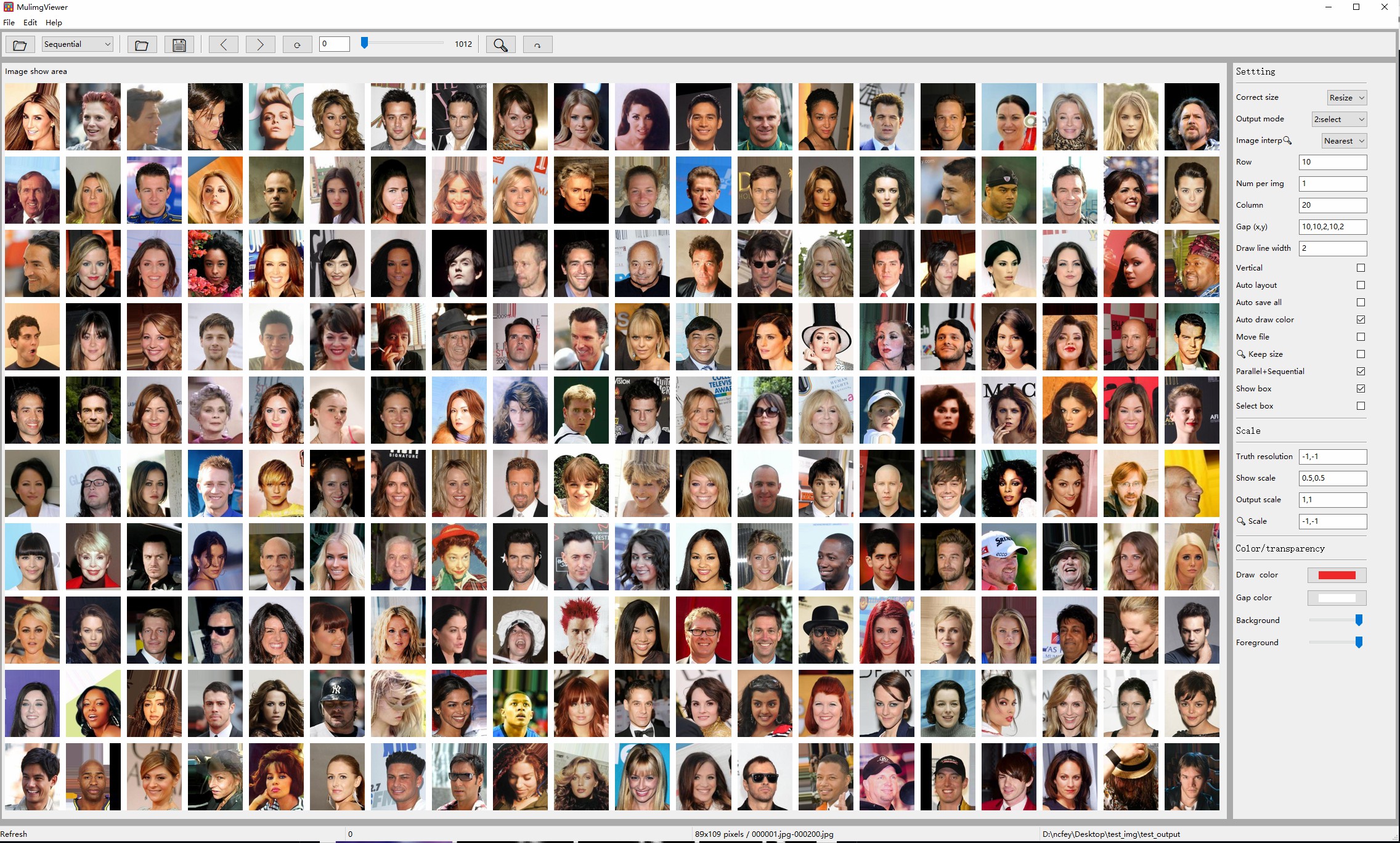
浏览202,599张图片的数据库CelebA,需要多长时间?一次显示1000张,只需点击200多次即可完成!
### 例2:并行挑选
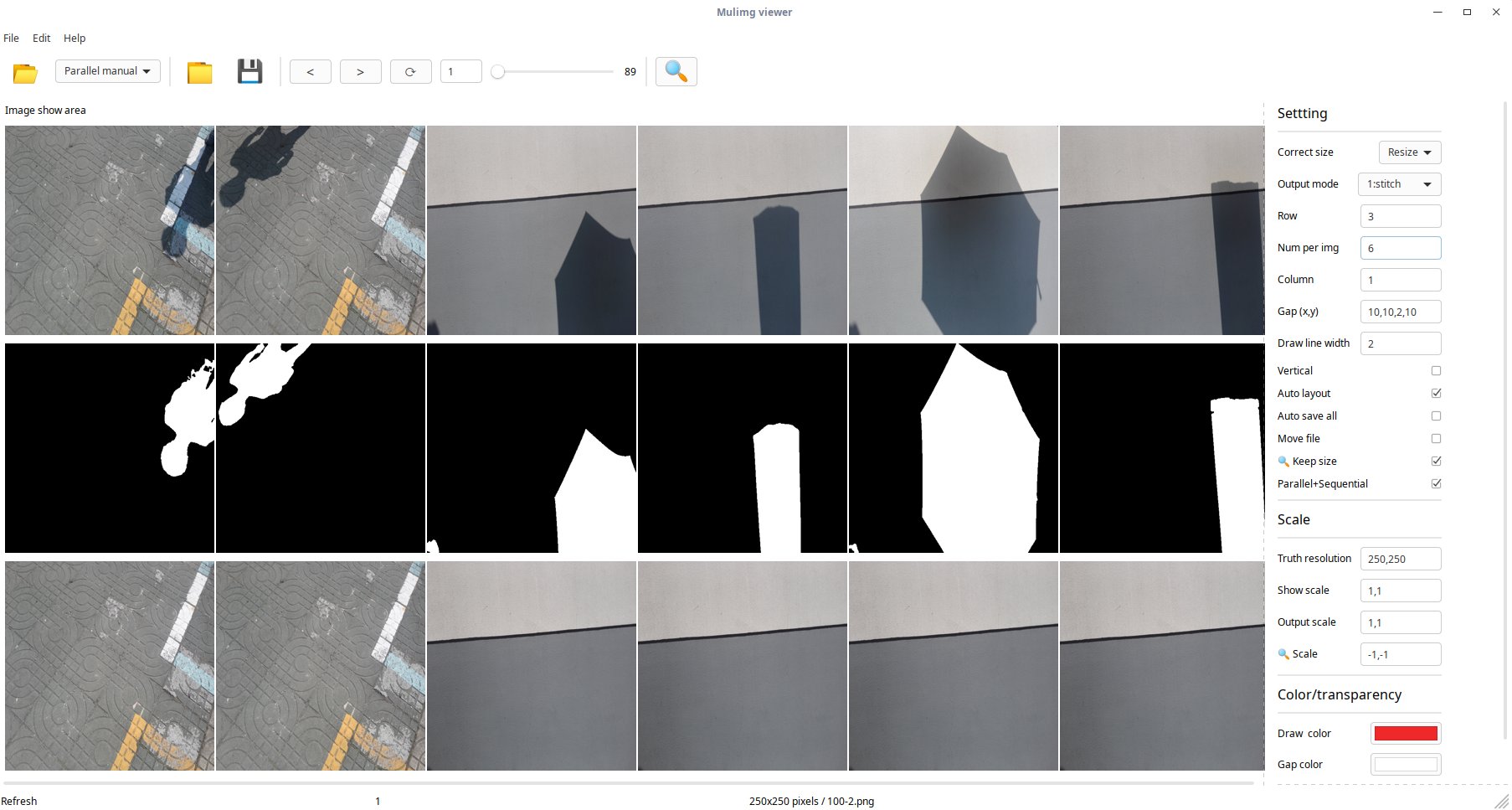
**以前**你可能需要在多个窗口打开多个图像,逐个对比,再到文件夹找到对应的图像,复制到别的地方。
**现在**使用MulimgViewer多图像浏览器,输入各个需要对比的目录,**一键保存需要对比的多张图像到本地**!
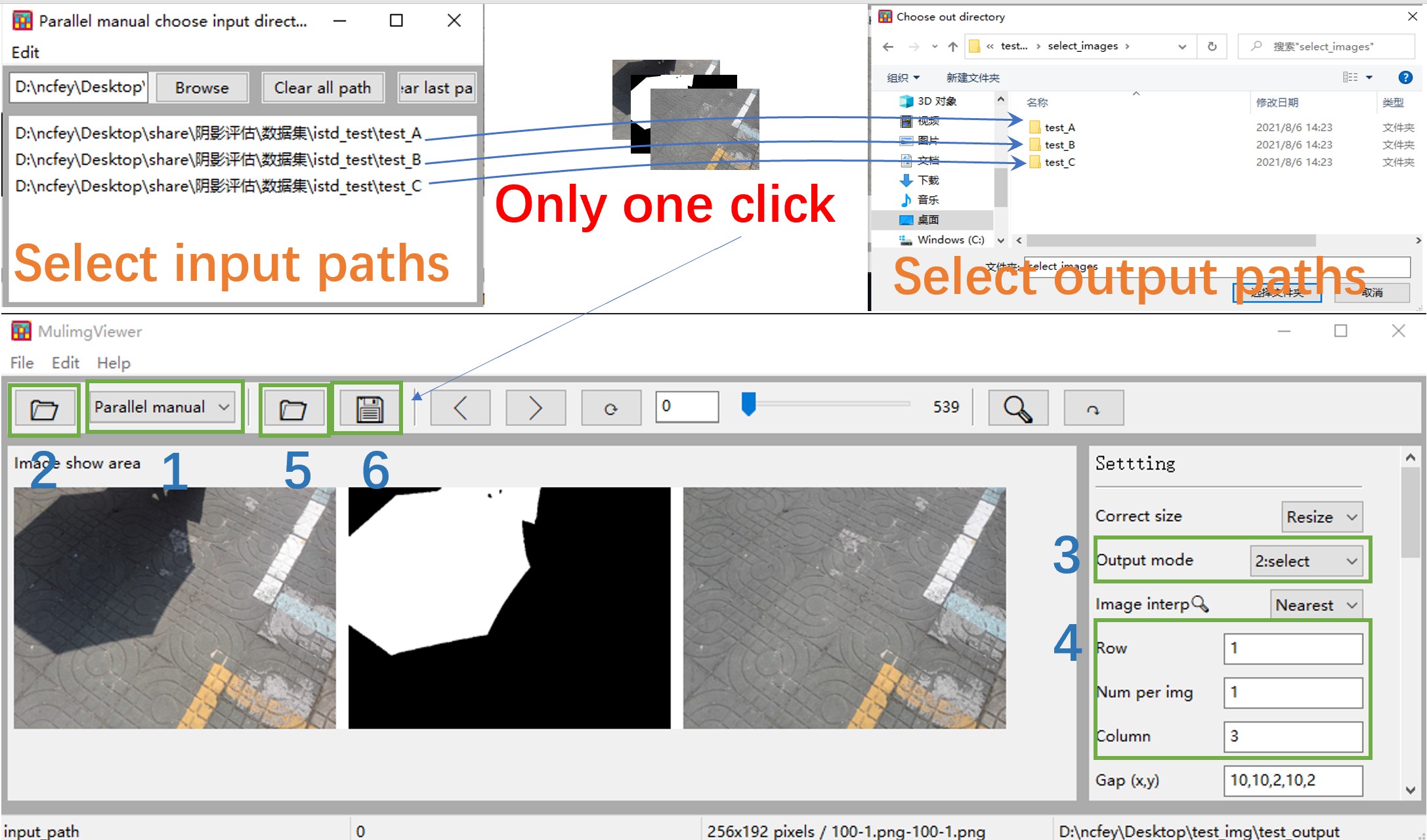
图片并行挑选:`Parallel auto` or `Parallel manual`,关闭`Parallel+Sequential`(默认使用复制,选中`MoveFile`为剪切)。
### 例3:并行放大
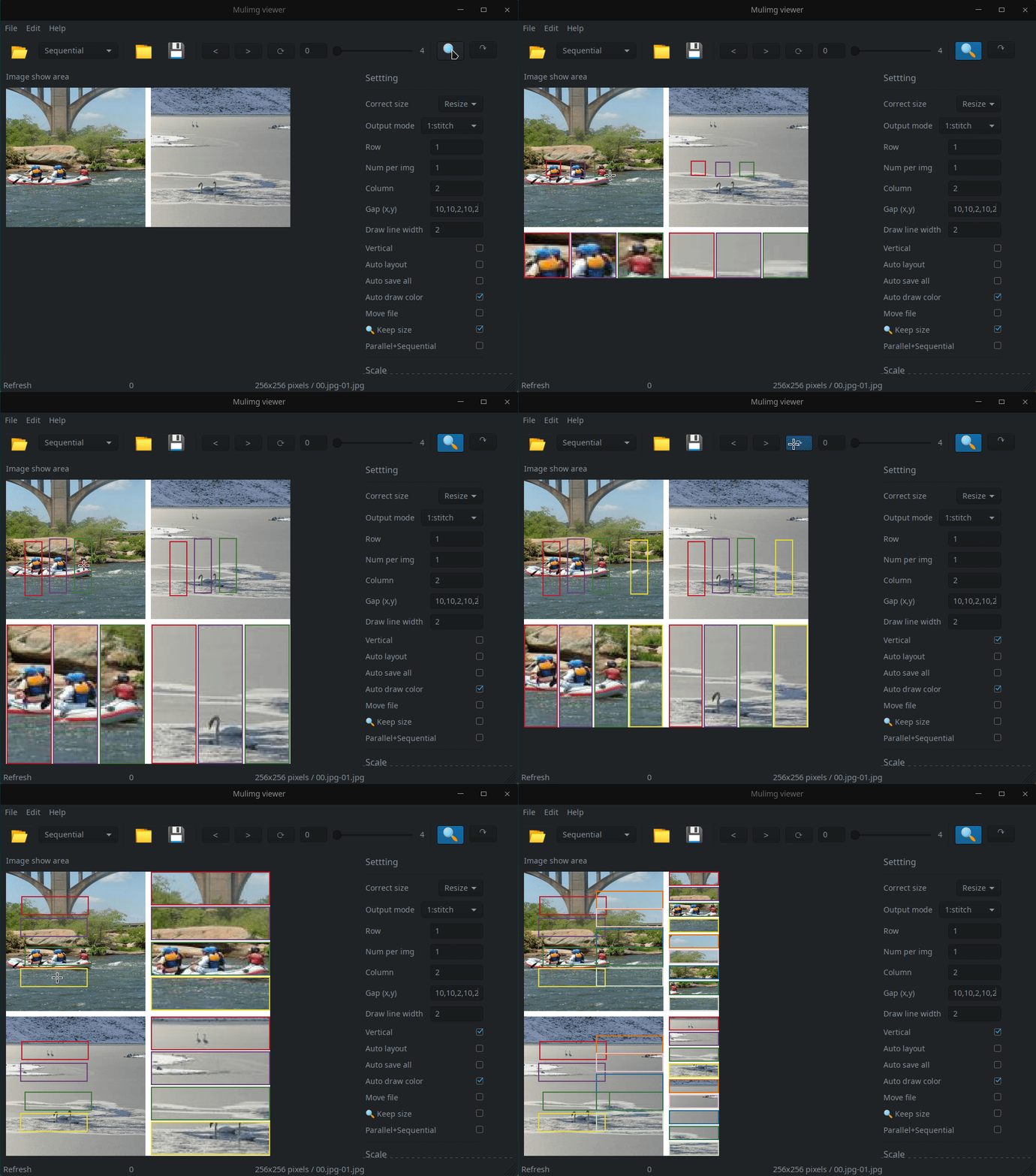
MulimgViewer可以轻松的完成纵向与横向的拼接,**支持自动拼接保存,支持并行放大**!
同时支持**任意位置**划框(鼠标左键按住移动),**多框**并行放大(鼠标右键点击,生成新的框)。[详细见](https://mulimgviewer.readthedocs.io/zh_CN/latest/resources/usage.html#id16)
### 例4:成对数据浏览
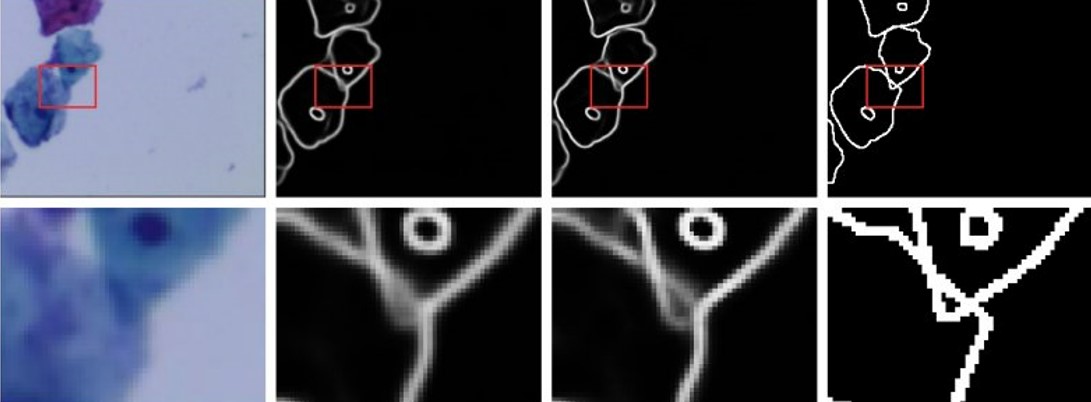
MulimgViewer可以方便的进行成对的数据的浏览、比较。[详细见](https://mulimgviewer.readthedocs.io/zh_CN/latest/resources/usage.html#id9)
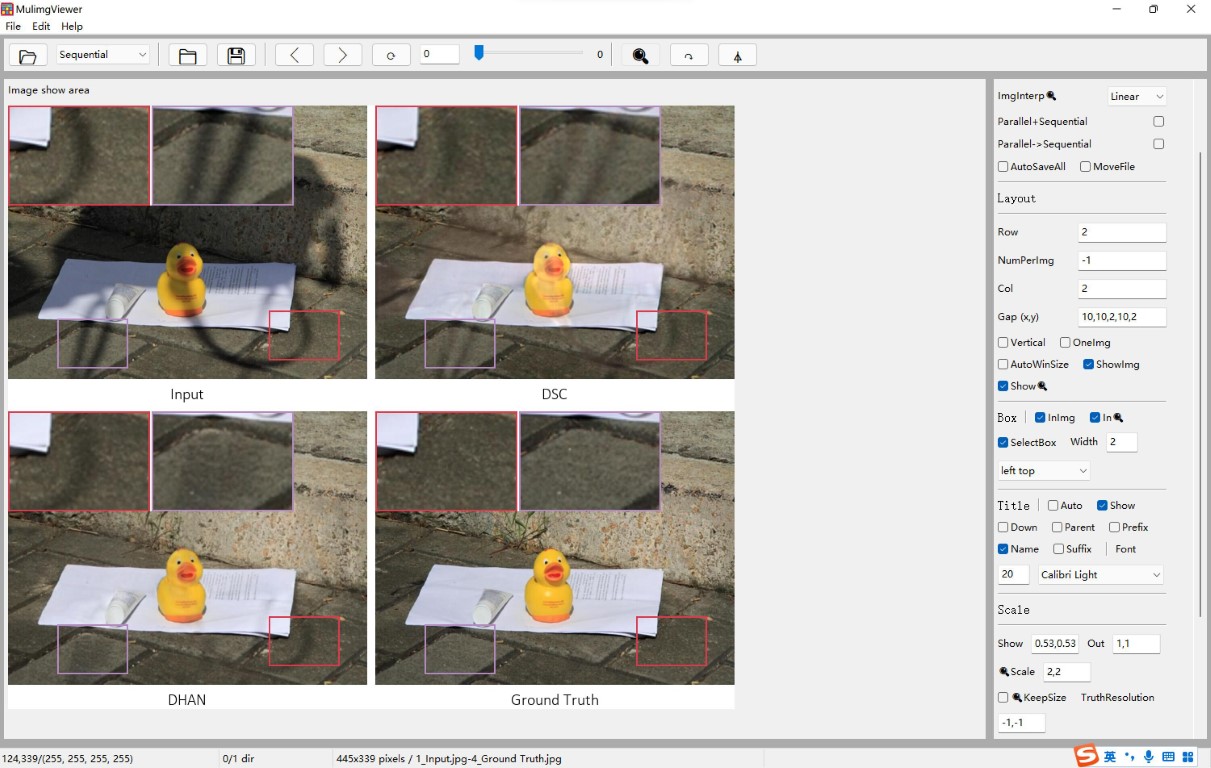
### 例5:一键生成论文对比图
支持显示标题,调整放大框的位置。放大框的位置选择`middle bottom`,建议`🔍️Scale=-1,-1`;如果选择其他位置,自行调节放大倍数,例如:`🔍️Scale=1.5,1.5`。[详细见](https://mulimgviewer.readthedocs.io/zh_CN/latest/resources/usage.html#id19)
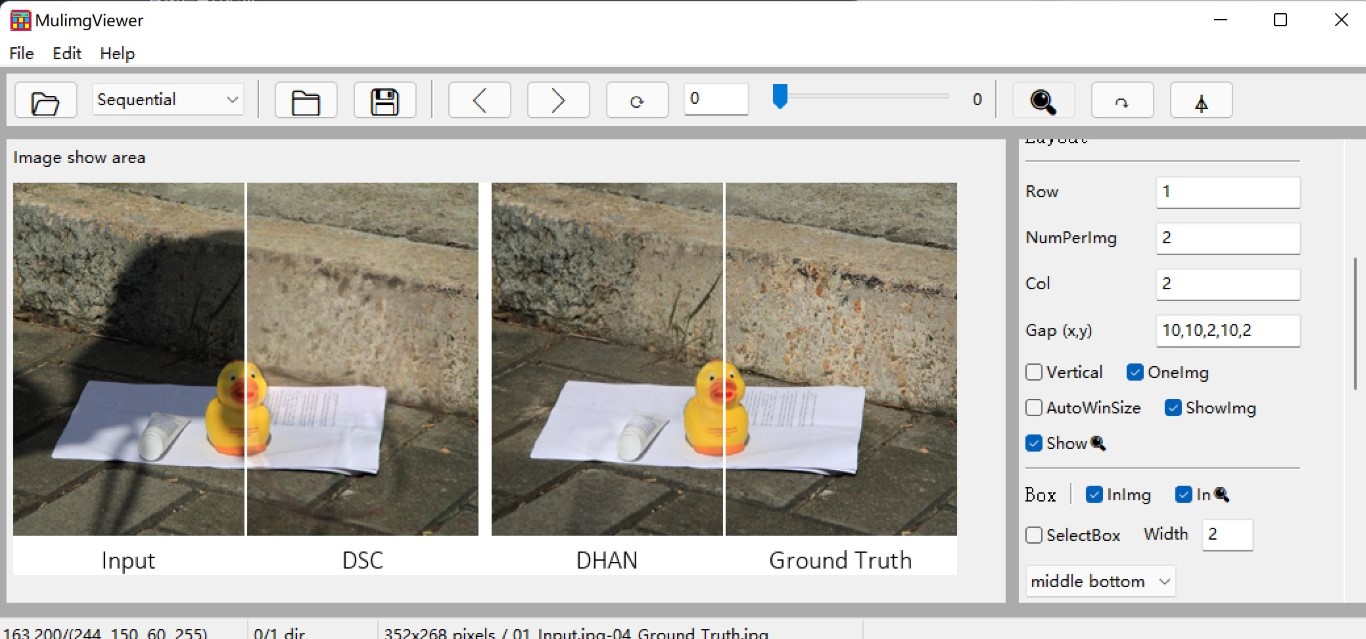
显示半张图像。勾选`OneImg`,使用`NumPerimg`控制几张图像合成一张图像。`Gap(x,y)=*,*,0,*,*`消除间距。
### 例6:支持远程挂载目录图片浏览
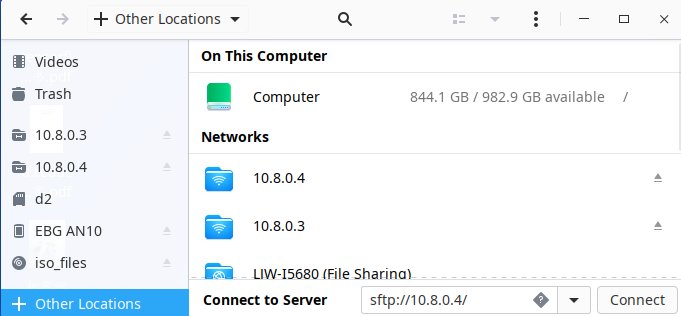
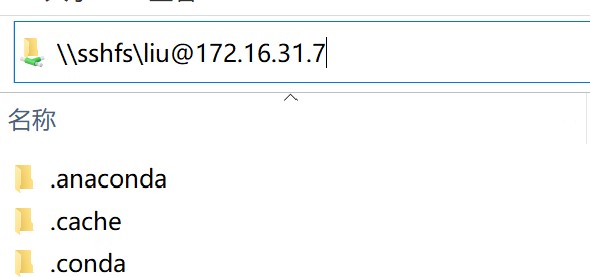
将远程服务器的目录挂载后,在MulimgViewer中选择目录即可,完成图片浏览。
1. Ubuntu: 使用ubuntu的文件管理器`nautilus`,stfp://10.8.0.4连接到服务器。
## 应用场景
### 例1:多图像浏览
浏览202,599张图片的数据库CelebA,需要多长时间?一次显示1000张,只需点击200多次即可完成!

### 例2:并行挑选
**以前**你可能需要在多个窗口打开多个图像,逐个对比,再到文件夹找到对应的图像,复制到别的地方。
**现在**使用MulimgViewer多图像浏览器,输入各个需要对比的目录,**一键保存需要对比的多张图像到本地**!

图片并行挑选:`Parallel auto` or `Parallel manual`,关闭`Parallel+Sequential`(默认使用复制,选中`MoveFile`为剪切)。
### 例3:并行放大
MulimgViewer可以轻松的完成纵向与横向的拼接,**支持自动拼接保存,支持并行放大**!

同时支持**任意位置**划框(鼠标左键按住移动),**多框**并行放大(鼠标右键点击,生成新的框)。[详细见](https://mulimgviewer.readthedocs.io/zh_CN/latest/resources/usage.html#id16)

### 例4:成对数据浏览
MulimgViewer可以方便的进行成对的数据的浏览、比较。[详细见](https://mulimgviewer.readthedocs.io/zh_CN/latest/resources/usage.html#id9)

### 例5:一键生成论文对比图
支持显示标题,调整放大框的位置。放大框的位置选择`middle bottom`,建议`🔍️Scale=-1,-1`;如果选择其他位置,自行调节放大倍数,例如:`🔍️Scale=1.5,1.5`。[详细见](https://mulimgviewer.readthedocs.io/zh_CN/latest/resources/usage.html#id19)

显示半张图像。勾选`OneImg`,使用`NumPerimg`控制几张图像合成一张图像。`Gap(x,y)=*,*,0,*,*`消除间距。

### 例6:支持远程挂载目录图片浏览
将远程服务器的目录挂载后,在MulimgViewer中选择目录即可,完成图片浏览。
1. Ubuntu: 使用ubuntu的文件管理器`nautilus`,stfp://10.8.0.4连接到服务器。
 2. win10: 安装WinFsp和[SSHFS-Win](https://github.com/billziss-gh/sshfs-win)之后,文件资源管理器中填写远程服务器ip,例如:`\\sshfs\user@ip!port`
 ### 例7:支持点按旋转
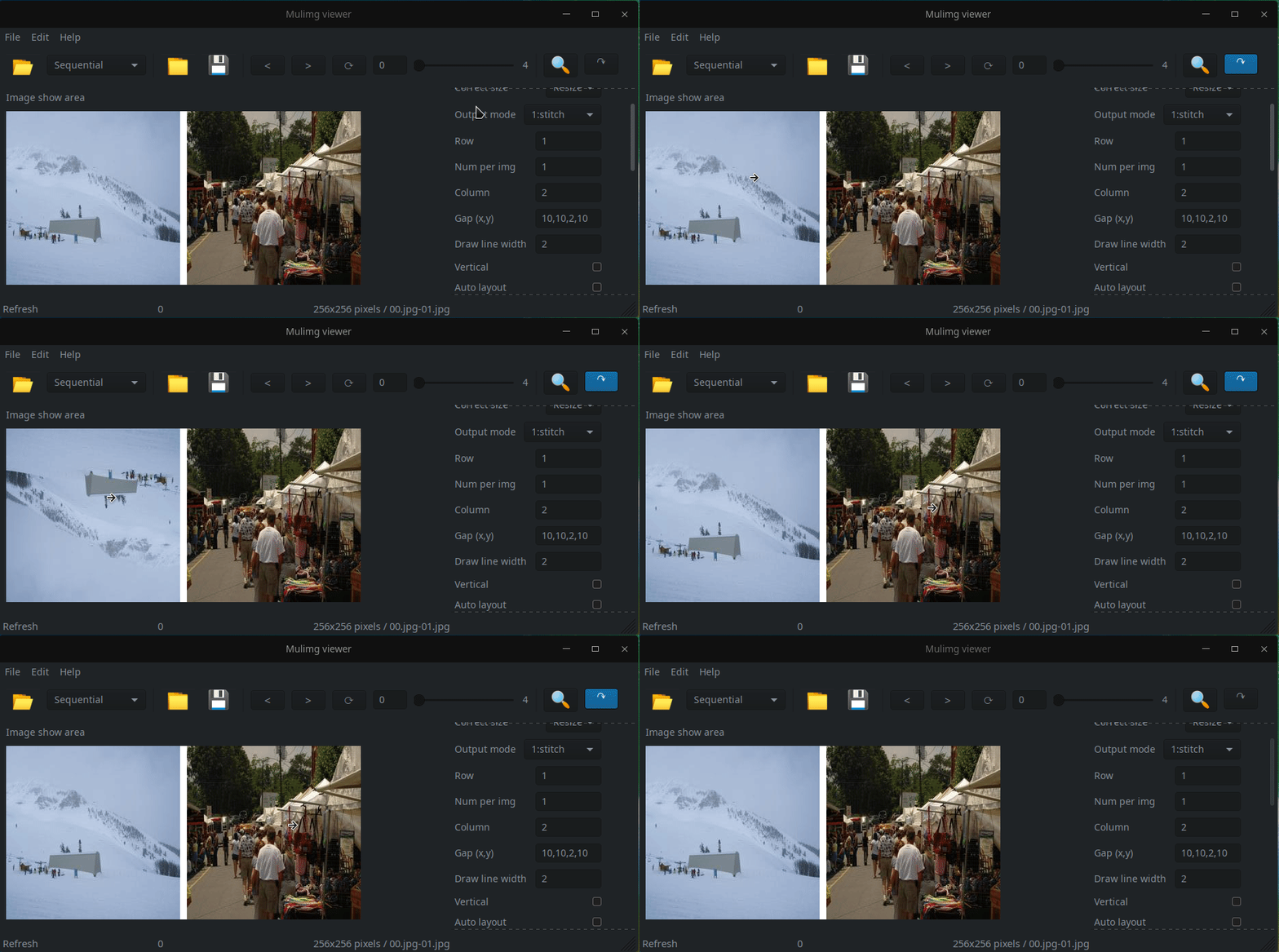
显示多张图片的同时,鼠标左键点击即可完成图片旋转。
### 例8:批量化resize图片
利用自动保存功能,可以实现批量化resize图片。
操作:
1. 输入模式选择:Sequential,选择输入文件夹
2. 选择保存文件的输出目录
3. 勾选自动保存`AutoSaveAll`
4. 设置`TruthResolution`为固定的大小,例如:`256,256`
5. 点击保存💾️
## 引用
如果您在研究中使用此项目,请使用以下BibTeX条目。
```bib
@software{MulimgViewer,
author = {Liu, Jiawei},
license = {GPL-3},
title = {{MulimgViewer: A multi-image viewer for image comparison and image stitching}},
url = {https://github.com/nachifur/MulimgViewer}
}
```
## 使用条款
**许可证**
GPL-3.0 License:https://www.gnu.org/licenses/gpl-3.0.en.html
**额外条款**
- 允许个人使用
- 商业使用请联系 - liujiawei18@mails.ucas.ac.cn.
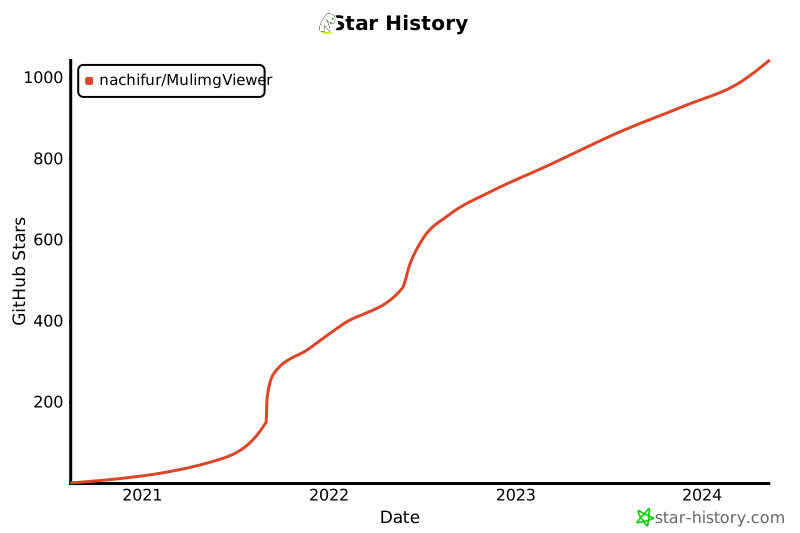
## Star 历史
[](https://star-history.com/#nachifur/MulimgViewer&Date)
### 例7:支持点按旋转
显示多张图片的同时,鼠标左键点击即可完成图片旋转。

### 例8:批量化resize图片
利用自动保存功能,可以实现批量化resize图片。
操作:
1. 输入模式选择:Sequential,选择输入文件夹
2. 选择保存文件的输出目录
3. 勾选自动保存`AutoSaveAll`
4. 设置`TruthResolution`为固定的大小,例如:`256,256`
5. 点击保存💾️
## 引用
如果您在研究中使用此项目,请使用以下BibTeX条目。
```bib
@software{MulimgViewer,
author = {Liu, Jiawei},
license = {GPL-3},
title = {{MulimgViewer: A multi-image viewer for image comparison and image stitching}},
url = {https://github.com/nachifur/MulimgViewer}
}
```
## 使用条款
**许可证**
GPL-3.0 License:https://www.gnu.org/licenses/gpl-3.0.en.html
**额外条款**
- 允许个人使用
- 商业使用请联系 - liujiawei18@mails.ucas.ac.cn.
## Star 历史
[](https://star-history.com/#nachifur/MulimgViewer&Date)