# HiveChat
**Repository Path**: cnhw/HiveChat
## Basic Information
- **Project Name**: HiveChat
- **Description**: No description available
- **Primary Language**: JavaScript
- **License**: Apache-2.0
- **Default Branch**: main
- **Homepage**: None
- **GVP Project**: No
## Statistics
- **Stars**: 0
- **Forks**: 0
- **Created**: 2025-02-22
- **Last Updated**: 2025-02-22
## Categories & Tags
**Categories**: Uncategorized
**Tags**: None
## README
中文 | English
An AI chatbot designed specifically for small to medium-sized teams, supporting models such as Deepseek, OpenAI, Claude, and Gemini.
## 1. Feature Overview
One-time configuration by the administrator, easy for the entire team to use various AI models.
* LaTeX and Markdown rendering
* DeepSeek thought chain visualization
* Vision Recognition
* AI agents
* Cloud-based data storage
* Supported large model providers:
* OpenAI
* Claude
* Gemini
* DeepSeek
* Moonshot
* Volcengine Ark
* Alibaba Bailian (Qwen)
* Baidu Qianfan
* Ollama
* SiliconFlow
### Regular Users
Log in to your account to start chatting.

### Admin Dashboard
* Admins can configure AI model providers
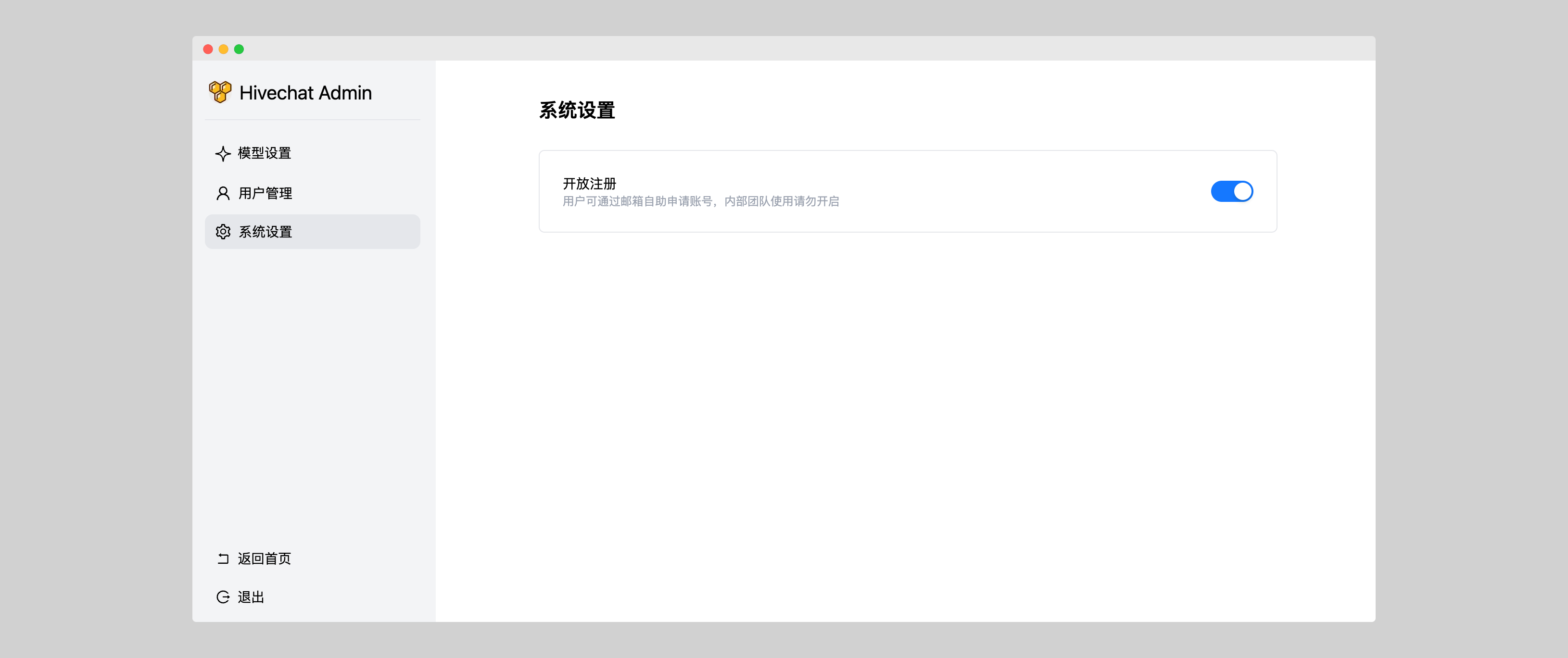
* Users can be added manually, and account registration can be enabled or disabled, suitable for small teams in companies, schools, or organizations
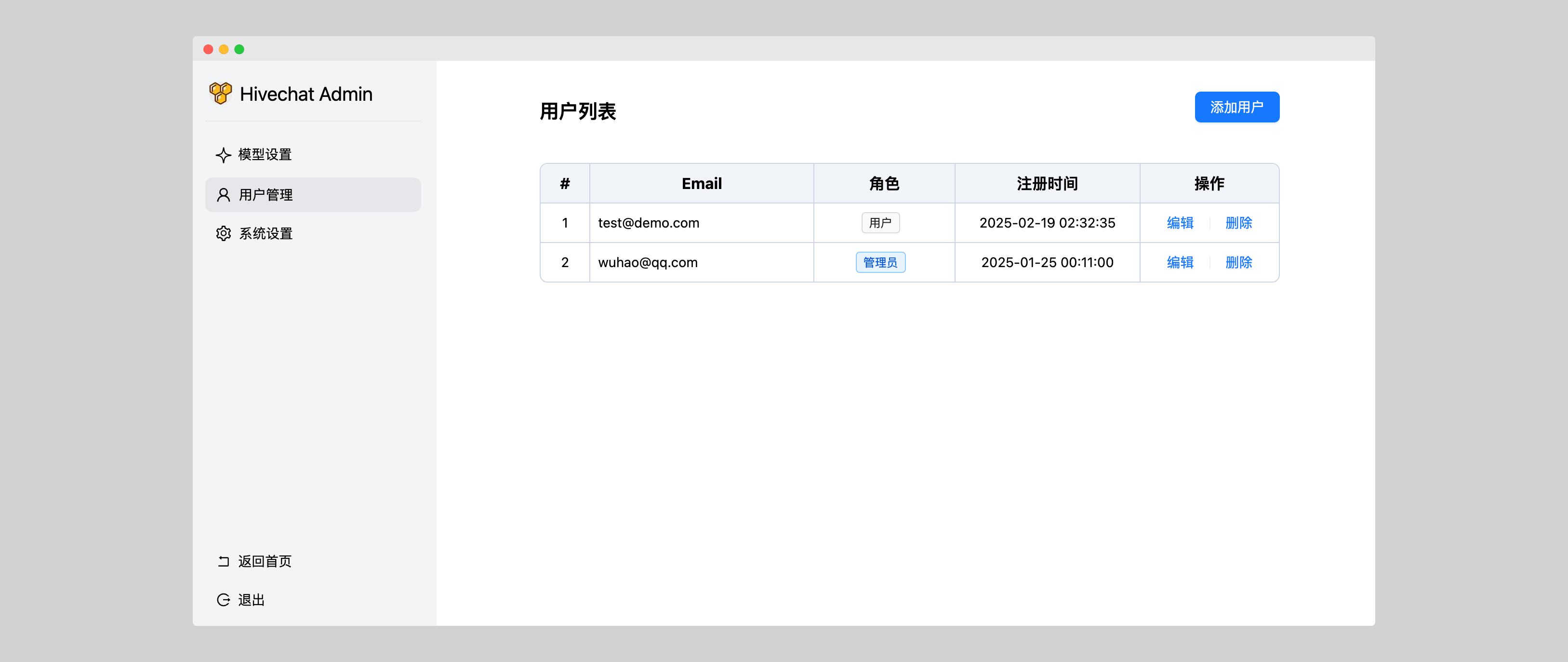
* View and manage all users

More Screenshot
Users
Enable or disable user registration.
## 2. Online Demo
Note: The following is a demo site, and data may be cleared at any time.
* **User Portal**:https://chat.yotuku.cn/
* You can register an account to try it out.
* **Admin Portal**:https://hivechat-demo.vercel.app/
* Email: admin@demo.com
* Password: helloHivechat
## 3. Tech stack
* Next.js
* Tailwindcss
* Auth.js
* PostgreSQL
* Drizzle ORM
* Ant Design
## 4. Installation and Deployment
### Method 1: Local Deployment
1. Clone this project to local.
```
git clone https://github.com/HiveNexus/hivechat.git
```
2. Install the dependencies
```shell
cd hivechat
npm install
```
3. Modify the local configuration file
Copy the sample .env file to `.env`
```shell
cp .env.example .env
```
Edit the .env file.
```env
# PostgreSQL Database Connection URL. This is an example; you need to install PostgreSQL locally or connect to a remote PostgreSQL instance.
# Note: Local installations do not currently support Serverless PostgreSQL provided by Vercel or Neon.
DATABASE_URL=postgres://postgres:password@localhost/hivechat
# Used for encrypting sensitive information such as user data. You can generate a random 32-character string as a key using the command `openssl rand -base64 32`. This is an example; please replace it with the value you generate.
AUTH_SECRET=hclqD3nBpMphLevxGWsUnGU6BaEa2TjrCQ77weOVpPg=
# Admin authorization code. After initialization, use this value to set up the admin account. This is an example; please replace it with the value you generate.
ADMIN_CODE=22113344
# Set the production environment to the official domain. No changes are required for testing purposes.
NEXTAUTH_URL=http://127.0.0.1:3000
```
4. Initialize the Database
```shell
npm run initdb
```
5. Start the Application
```
// Development mode
npm run dev
// Production mode
npm run build
npm run start
```
6. Initialize the Admin Account
Visit `http://localhost:3000/setup` (use the actual domain and port) to access the admin account setup page. Once set up, you can use the system normally.
### Method 2: Docker Deployment
1. Clone this project to your local machine
```
git clone https://github.com/HiveNexus/hivechat.git
```
2. Modify the local configuration file
Copy the example file to `.env`
```shell
cp .env.example .env
```
Modify `AUTH_SECRET` and `ADMIN_CODE` as needed. Be sure to reset these for production environments; no changes are needed for testing.
3. Build the Docker image
```
docker compose build
```
5. Start the container
```
docker compose up -d
```
6. Initialize the Admin Account
Visit `http://localhost:3000/setup` (use the actual domain and port) to access the admin account setup page. Once set up, you can use the system normally.
### Method 3: Deploy on Vercel
Click the button below to begin deployment.
[](https://vercel.com/new/clone?repository-url=https://github.com/HiveNexus/hivechat.git&project-name=hivechat&env=DATABASE_URL&env=AUTH_SECRET&env=ADMIN_CODE)
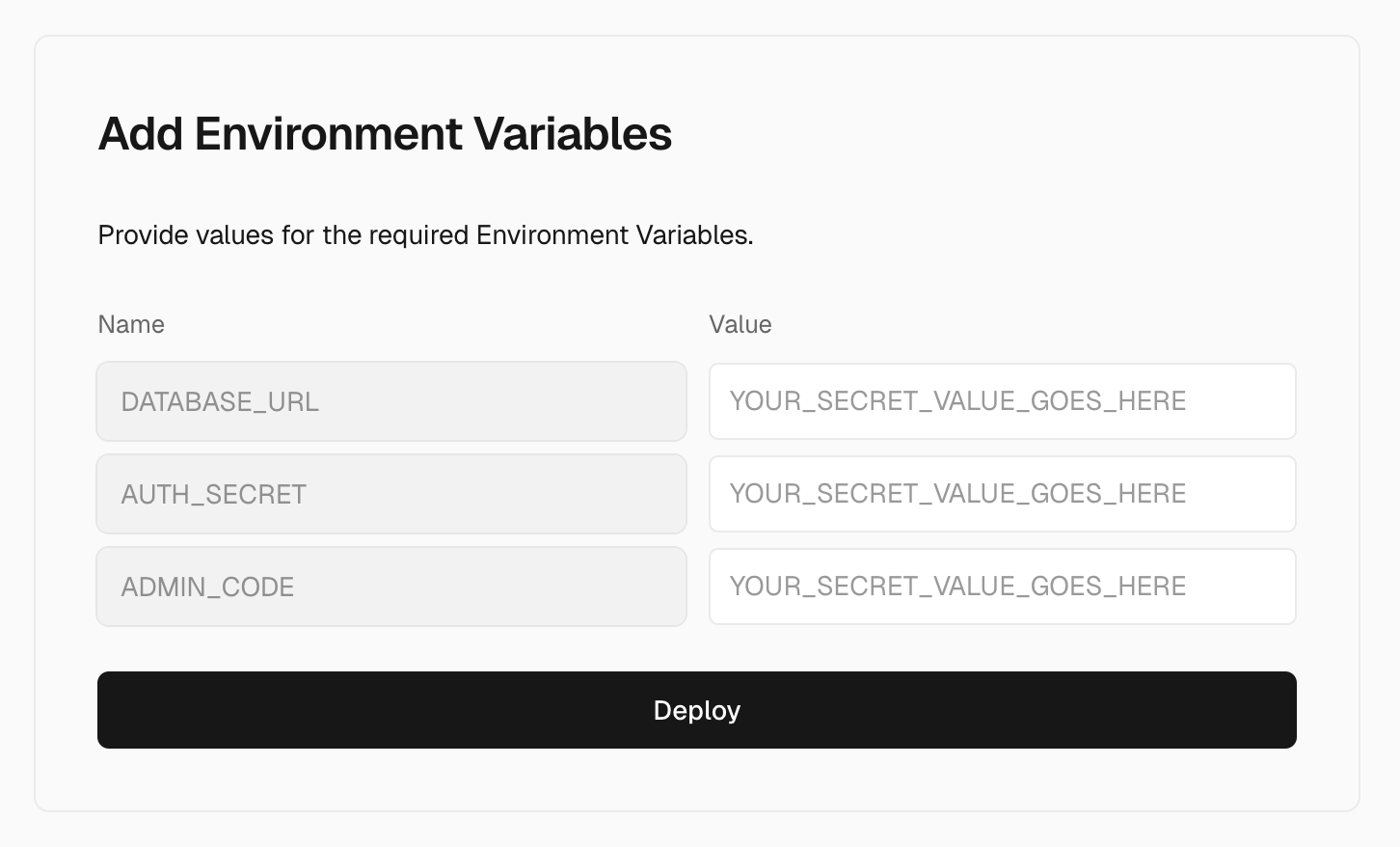
By default, the code is cloned to your own Github. Afterward, fill in the environment variables:
```
# PostgreSQL database connection URL. Vercel offers free hosting services. See further details below.
DATABASE_URL=postgres://postgres:password@localhost/hivechat
#Encryption key for sensitive information like user data. You can generate a random 32-character string using openssl rand -base64 32. This example key should be replaced with your generated value.
AUTH_SECRET=hclqD3nBpMphLevxGWsUnGU6BaEa2TjrCQ77weOVpPg=
# Admin authorization code. This value is used to set up the admin account. Replace this example with your generated value.
ADMIN_CODE=22113344
```
#### Appendix: Vercel (Neon) PostgreSQL Configuration
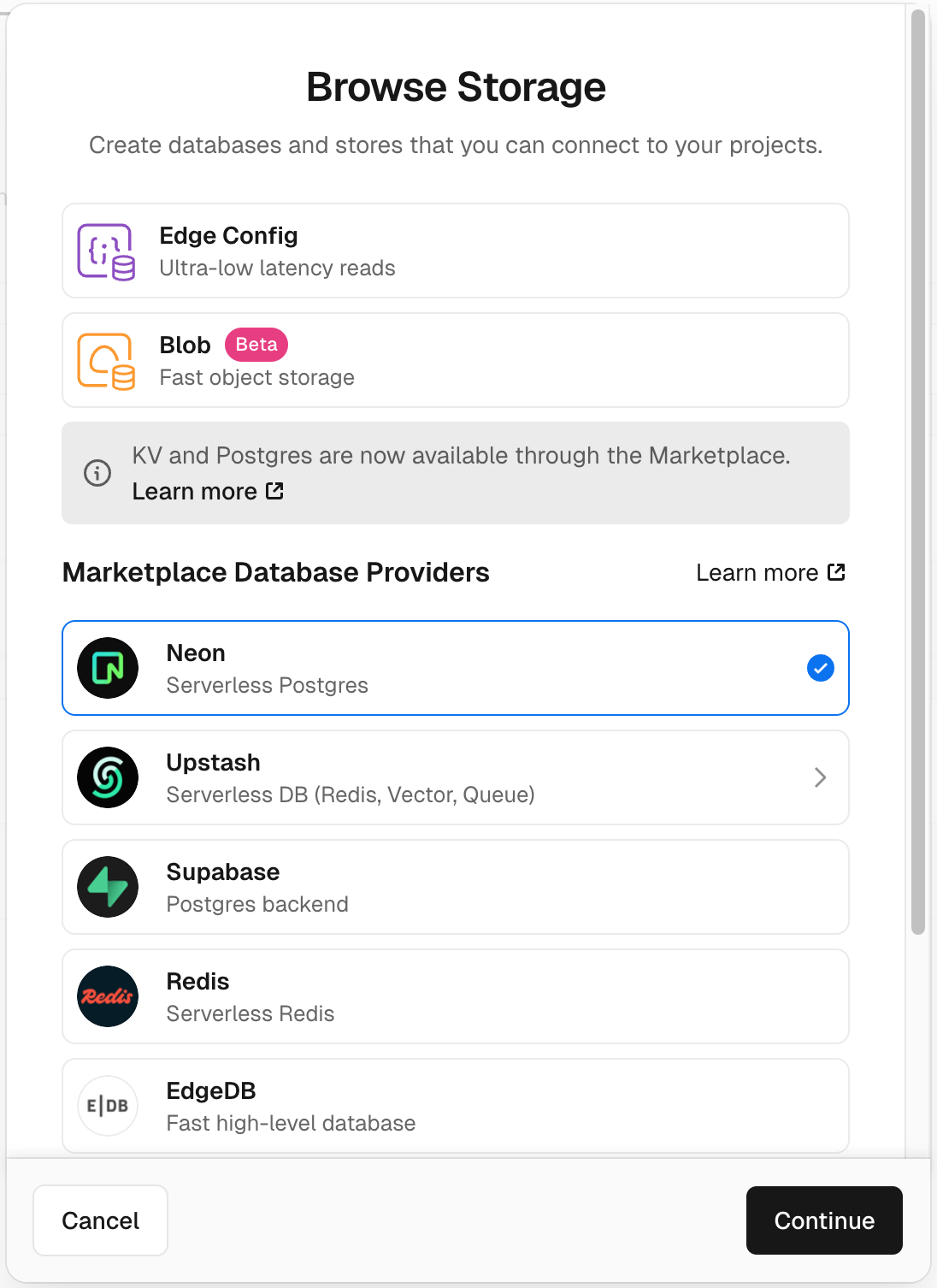
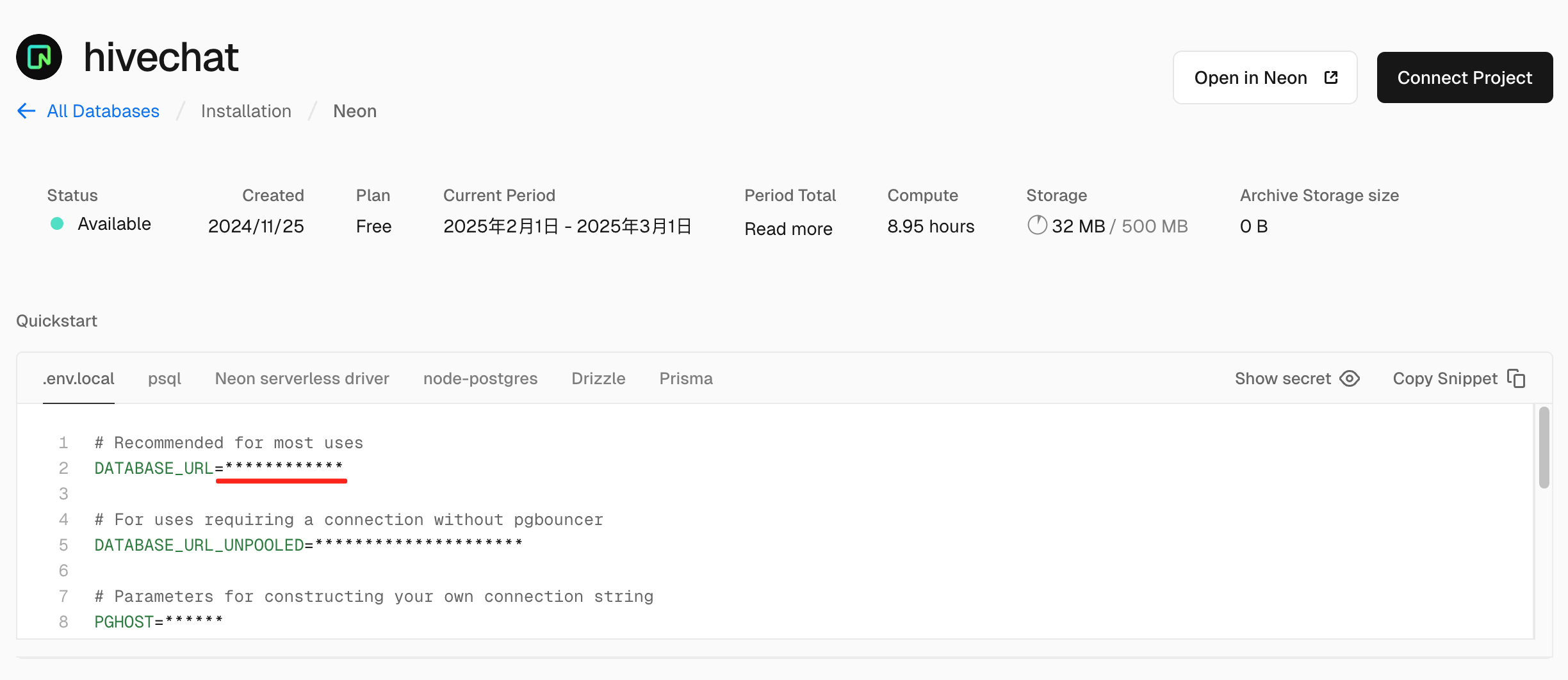
1. In the Vercel dashboard, select the "Storage" tab and click "Create Database".
2. Choose Neon (Serverless Postgres)
3. Follow the instructions to complete the setup, then copy the `DATABASE_URL` value from this step and paste it into the `DATABASE_URL` from the previous section.
4. Initialize the Admin Account
Once the installation and deployment are complete using the above method, visit `http://localhost:3000/setup` (use the actual domain and port) to access the admin account setup page. Once set up, you can use the system normally.