
Figure 1: BerryNet architecture
Figure 1 shows the software architecture of the project, we use Node.js/Python, MQTT and an AI engine to analyze images or video frames with deep learning. So far, there are two default types of AI engines, the classification engine (with Inception v3 [[1]](https://arxiv.org/pdf/1512.00567.pdf) model) and the object detection engine (with TinyYOLO [[2]](https://pjreddie.com/media/files/papers/YOLO9000.pdf) model or MobileNet SSD [[3]](https://arxiv.org/pdf/1704.04861.pdf) model). Figure 2 shows the differences between classification and object detection. Figure 2: Classification vs detection
One of the application of this intelligent gateway is to use the camera to monitor the place you care about. For example, Figure 3 shows the analyzed results from the camera hosted in the DT42 office. The frames were captured by the IP camera and they were submitted into the AI engine. The output from the AI engine will be shown in the dashboard. We are working on the Email and IM notification so you can get a notification when there is a dog coming into the meeting area with the next release. Figure 3: Object detection result example
To bring easy and flexible edge AI experience to user, we keep expending support of the AI engines and the reference HWs. 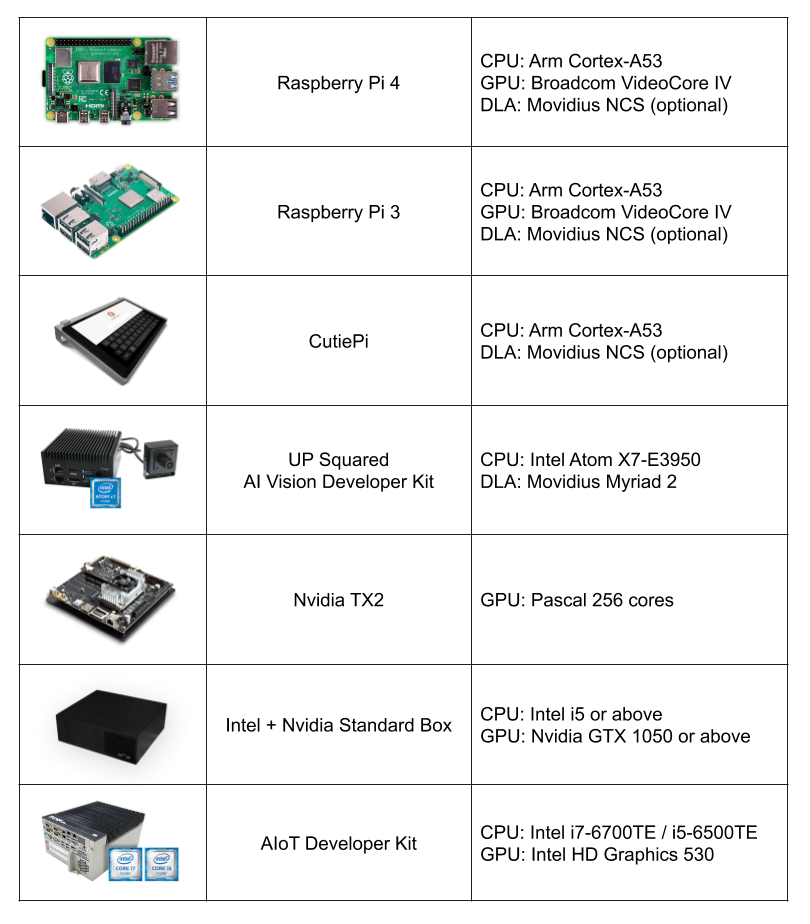Figure 4: Reference hardwares
## Installation You can install BerryNet by using pre-built image or from source. Please refer to the [installation guide](https://dt42.io/berrynet-doc/tutorials/installation/) for the details. We are pushing BerryNet into Debian repository, so you will be able to install by only typing one command in the future. Here is the quick steps to install from source: ``` $ git clone https://github.com/DT42/BerryNet.git $ cd BerryNet $ ./configure ``` ## Start and Stop BerryNet BerryNet performs an AIoT application by connecting independent components together. Component types include but not limited to AI engine, I/O processor, data processor (algorithm), or data collector. We recommend to manage BerryNet componetns by [supervisor](http://supervisord.org/), but you can also run BerryNet components manually. You can manage BerryNet via `supervisorctl`: ``` # Check status of BerryNet components $ sudo supervisorctl status all # Stop Camera client $ sudo supervisorctl stop camera # Restart all components $ sudo supervisorctl restart all # Show last stderr logs of camera client $ sudo supervisorctl tail camera stderr ``` For more possibilities of supervisorctl, please refer to the [official tutorial](http://supervisord.org/running.html#running-supervisorctl). The default application has three components: * Camera client to provide input images * Object detection engine to find type and position of the detected objects in an image * Dashboard to display the detection results You will learn how to configure or change the components in the [Configuration](#configuration) section. ## Dashboard: Freeboard ### Open Freeboard on RPi (with touch screen) Freeboard is a web-based dashboard. Here are the steps to show the detection result iamge and text on Freeboard: * 1: Enter `http://127.0.0.1:8080` in browser's URL bar, and press enter * 2: [Download](https://raw.githubusercontent.com/DT42/BerryNet/master/config/dashboard-tflitedetector.json) the Freeboard configuration for default application, `dashboard-tflitedetector.json` * 2: Click `LOAD FREEBOARD`, and select the newly downloaded `dashboard-tflitedetector.json` * 3: Wait for seconds, you should see the inference result image and text on Freeboard ### Open Freeboard on another computer Assuming that you have two devices: * Device A with IP `192.168.1.42`, BerryNet default application runs on it * Device B with IP `192.168.1.43`, you want to open Freeboard and see the detection result on it Here are the steps: * 1: Enter `http://192.168.1.42:8080` in browser's URL bar, and press enter * 2: [Download](https://raw.githubusercontent.com/DT42/BerryNet/master/config/dashboard-tflitedetector.json) the Freeboard configuration for default application, `dashboard-tflitedetector.json` * 3: Replace all the `localhost` to `192.168.1.42` in `dashboard-tflitedetector.json` * 2: Click `LOAD FREEBOARD`, and select the newly downloaded `dashboard-tflitedetector.json` * 3: Wait for seconds, you should see the inference result image and text on Freeboard For more details about dashboard configuration (e.g. how to add widgets), please refer to [Freeboard project](https://github.com/Freeboard/freeboard). ## Enable Data Collector You might want to store the snapshot and inference results for data analysis. To run BerryNet data collector manually, you can run the command below: ``` $ bn_data_collector --topic-config