')
# 写正则
pattern = re.compile('href="(.*?)"')
# 匹配出图片链接所有href,是个列表
hrefs = pattern.findall(origin_text)
# 筛选出那些包含子字符串 "desk" 的元素,否则不是图片链接
hrefs = [i for i in hrefs if i.find("desk") > 0]
# print('看看')
# print(hrefs)
for href in hrefs:
# 得到每一张图片链接
url = f"http://www.netbian.com{href}"
print(f"正在下载页面:{url}")
# 请求这一页的源码
text = request_get(url)
# 解析这一页的内容
format_detail(text)
return text
# 存储函数
def save_image(image_src):
# 文件夹名
folder_name = 'downloaded_images'
if not os.path.exists(folder_name):
os.makedirs(folder_name)
content = request_get(image_src, "image")
# 用时间戳来给文件命名
file_name = f"{str(time.time())}.jpg"
# 创建路径
file_path = os.path.join(folder_name, file_name)
# 写入文件
with open(file_path, "wb") as f:
f.write(content)
print(f"图片保存成功: {file_path}")
# 主函数
def main():
urls = [f"http://www.netbian.com/mei/index_{i}.htm" for i in range(2, 201)]
for url in urls:
print('休息1s继续爬...')
time.sleep(1)
print("抓取列表页地址为:", url)
# 获取图片链接内容
text = request_get(url)
format(text)
if __name__ == '__main__':
main()
```
## 五、构建代理池
免费下载代理,筛选后以CSV格式导出:
```
https://geonode.com/free-proxy-list
```
留其中IP列即可,使用该CSV文件构建代理池,每次请求随意获取一个代理:
```
# coding=gbk
'''
https://geonode.com/free-proxy-list
'''
import csv
from random import choice
proxy_file_path = 'Proxy.csv'
proxy_list = []
with open(proxy_file_path, 'r') as csvfile:
csv_reader = csv.reader(csvfile)
next(csv_reader)
for row in csv_reader:
if row:
proxy_list.append(row[0])
random_proxy = choice(proxy_list)
print(random_proxy)
```
## 六、使用 BeautifulSoup和selenium4抓取网页所有图片
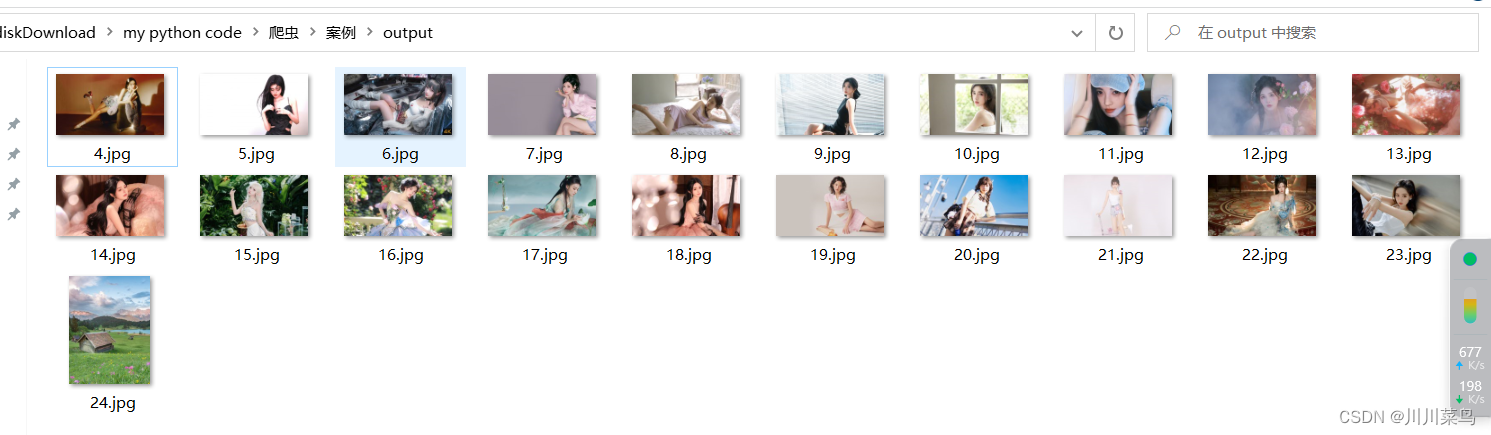
原理:抓取该链接中所有的图片格式。基于selenium来获取,自动下载到output文件夹中。
```csharp
from selenium import webdriver
import requests as rq
import os
from bs4 import BeautifulSoup
import time
# Enter Path : chromedriver.exe
# Enter URL : http://www.netbian.com/meinv/index_2.htm
path = input("Enter Path : ")
url = input("Enter URL : ")
output = "output"
def get_url(path, url):
driver = webdriver.Chrome(executable_path=r"{}".format(path))
driver.get(url)
print("loading.....")
res = driver.execute_script("return document.documentElement.outerHTML")
return res
def get_img_links(res):
soup = BeautifulSoup(res, "lxml")
imglinks = soup.find_all("img", src=True)
return imglinks
def download_img(img_link, index):
try:
extensions = [".jpeg", ".jpg", ".png", ".gif"]
extension = ".jpg"
for exe in extensions:
if img_link.find(exe) > 0:
extension = exe
break
img_data = rq.get(img_link).content
with open(output + "\\" + str(index + 1) + extension, "wb+") as f:
f.write(img_data)
f.close()
except Exception:
pass
result = get_url(path, url)
time.sleep(60)
img_links = get_img_links(result)
if not os.path.isdir(output):
os.mkdir(output)
for index, img_link in enumerate(img_links):
img_link = img_link["src"]
print("Downloading...")
if img_link:
download_img(img_link, index)
print("Download Complete!!")
```
如下所示:
## 七、抓取csdn单个用户所有文章信息
```
import requests
import openpyxl
import time
# 定义全局请求头
HEADERS = {
'User-Agent': 'Mozilla/5.0 (Windows NT 10.0; Win64; x64) AppleWebKit/537.36 (KHTML, like Gecko) Chrome/93.0.4542.2 Safari/537.36'}
# 获取数据抓包,返回json数据集
def getData(url, params):
response = requests.get(url, params=params, headers=HEADERS)
return response.json()
# 获取文章数
def getArticleCount(username):
url = 'https://blog.csdn.net/community/home-api/v1/get-tab-total'
params = {'username': username}
response = requests.get(url, params=params, headers=HEADERS)
return response.json()['data']['blog']
# 保存json对象数据到excel中
def saveData(url, username, save_path):
wb = openpyxl.Workbook()
ws = wb.active
ws.title = 'CSDN用户文章信息'
params = {'page': '1', 'size': '20', 'businessType': 'blog', 'noMore': 'false', 'username': username}
total_blogs = getArticleCount(username)
print('用户%s的博客数:%d' % (username, total_blogs))
for i in range(int(total_blogs / 20) + 1):
params['page'] = str(i + 1)
json_data = getData(url, params=params)
if i == 0:
ws.append(list(json_data['data']['list'][0].keys()))
for index, article in enumerate(json_data['data']['list'], start=i * 20 + 1):
values = [str(value) for value in article.values()]
ws.append(values)
print('正在爬取第%d篇文章' % index)
if index >= total_blogs:
break
wb.save(save_path)
print('爬取成功!!!')
# 读取文件访问所有文章
def read_excel(excelUrl, username):
wb = openpyxl.load_workbook(excelUrl)
ws = wb.active
rows = getArticleCount(username)
for row in ws.iter_rows(min_row=2, max_row=rows + 1, min_col=4, max_col=4):
for cell in row:
try:
requests.get(cell.value)
print('访问', cell.value, '成功', end='\t\t')
except requests.RequestException as e:
print('访问', cell.value, '失败', end='\t\t')
print()
if __name__ == '__main__':
url = 'https://blog.csdn.net/community/home-api/v1/get-business-list'
# 强调:请在这里替换为你自己的用户名,就是主页的后缀
username = 'weixin_46211269'
save_path = './CSDN用户文章信息.xlsx'
saveData(url, username, save_path)
read_excel(save_path, username)
```
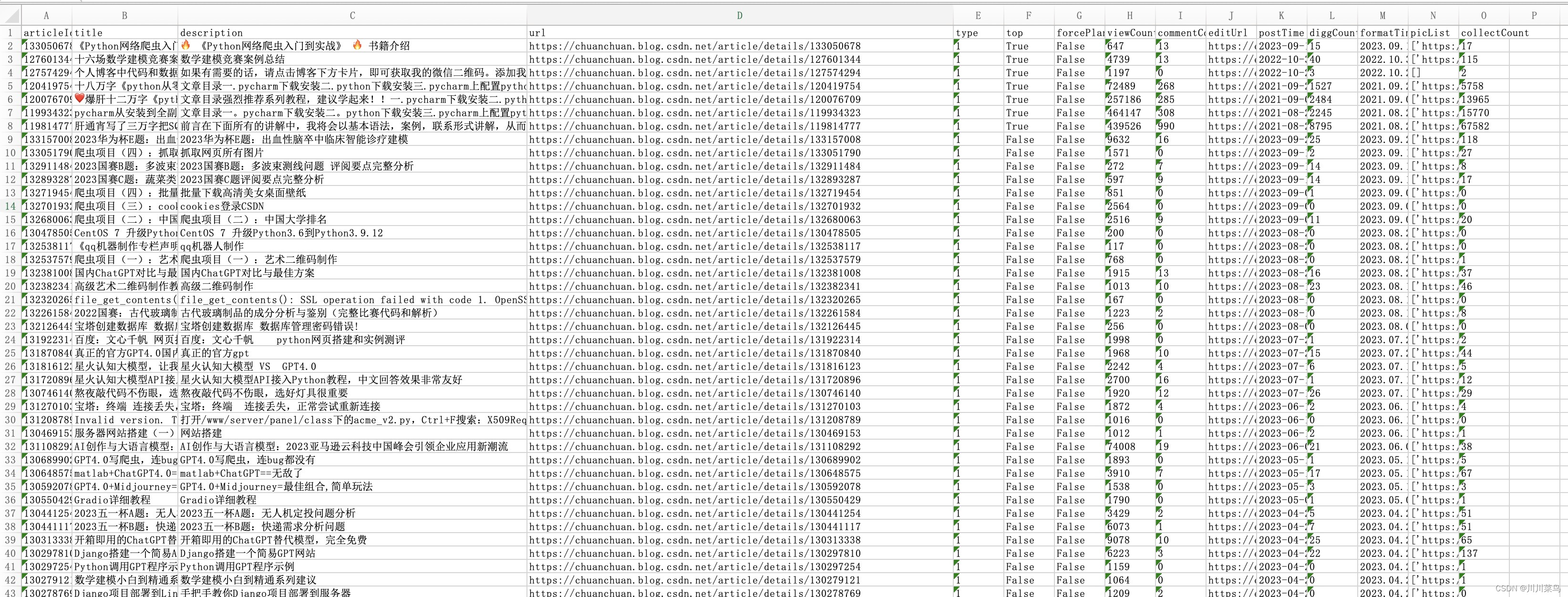
结果如下:
## 八、使用代理和selenium,抓取亚马逊iphone15数据
分析文章:https://chuanchuan.blog.csdn.net/article/details/133129610
完整代码如下所示:
```
from selenium import webdriver
from selenium.webdriver.common.by import By
from selenium.webdriver.common.keys import Keys
import time
import csv
import json
import urllib.request
# 获取动态IP
def get_dynamic_ip():
opener = urllib.request.build_opener(
urllib.request.ProxyHandler(
{'http': 'http://brd-customer-hl_5dede465-zone-try-country-us:pdqt284jal8m@brd.superproxy.io:22225',
'https': 'http://brd-customer-hl_5dede465-zone-try-country-us:pdqt284jal8m@brd.superproxy.io:22225'}))
response = opener.open('http://lumtest.com/myip.json').read()
response_str = response.decode('utf-8')
ip = json.loads(response_str)['ip']
return ip
# 使用动态IP配置WebDriver
def configure_driver_with_proxy(ip):
PROXY = ip
chrome_options = webdriver.ChromeOptions()
chrome_options.add_argument(f'--proxy-server={PROXY}')
# 初始化浏览器
driver = webdriver.Chrome()
return driver
# 主逻辑
ip = get_dynamic_ip()
print(f"Using IP: {ip}")
driver = configure_driver_with_proxy(ip)
# 打开亚马逊网站
driver.get("https://www.amazon.cn/")
time.sleep(3)
# 在搜索框中输入“iPhone 15”
search_box = driver.find_element(By.ID, "twotabsearchtextbox")
search_box.send_keys("iPhone 15")
search_box.send_keys(Keys.RETURN)
# 等待页面加载
time.sleep(3)
# 获取商品信息
product_elements = driver.find_elements(By.CSS_SELECTOR, ".s-main-slot .s-result-item")
# 创建CSV文件并写入数据
with open('amazon_products_multiple_pages.csv', 'w', newline='', encoding='utf-8') as csvfile:
fieldnames = ['Title', 'Price', 'Image URL']
writer = csv.DictWriter(csvfile, fieldnames=fieldnames)
writer.writeheader()
# 循环遍历多个页面,使用代理的ip去爬多页
for page in range(1, 9):
time.sleep(2)
print(f"Scraping page {page}..")
# 获取商品信息
product_elements = driver.find_elements(By.CSS_SELECTOR, ".s-main-slot .s-result-item")
for index, product in enumerate(product_elements):
try:
title = product.find_element(By.CSS_SELECTOR, ".a-text-normal").text
price = product.find_element(By.CSS_SELECTOR, ".a-price-whole").text
image_url = product.find_element(By.CSS_SELECTOR, "img.s-image").get_attribute("src")
# print(f"Product {index + 1}:")
# print(f"Title: {title}")
# print(f"Price: {price} RMB")
# print(f"Image URL: {image_url}")
# 写入CSV文件
writer.writerow({'Title': title, 'Price': price, 'Image URL': image_url})
except Exception as e:
print(f"Skipping product {index + 1} due to missing information.")
# 点击“下一页”按钮
try:
next_button = driver.find_element(By.CSS_SELECTOR, ".s-pagination-next")
next_button.click()
time.sleep(3) # 等待下一页加载
except Exception as e:
print("No more pages to scrape.")
break
time.sleep(10)
# 关闭浏览器
driver.quit()
```
如果打开遇到验证码,以下是解决的方案:
```
# 使用XPath定位图片并获取其src属性
image_element = driver.find_element(By.XPATH, "/html/body/div/div[1]/div[3]/div/div/form/div[1]/div/div/div[1]/img")
image_url = image_element.get_attribute('src')
# 使用requests下载图片
response = requests.get(image_url, stream=True)
response.raise_for_status()
# 保存图片到磁盘
with open('c.png', 'wb') as file:
for chunk in response.iter_content(chunk_size=8192):
file.write(chunk)
ocr = ddddocr.DdddOcr()
with open('c.png', 'rb') as f:
img_bytes = f.read()
res = ocr.classification(img_bytes)
time.sleep(2)
driver.find_element(By.XPATH, '//*[@id="captchacharacters"]').send_keys(res)
driver.find_element(By.XPATH, '/html/body/div/div[1]/div[3]/div/div/form/div[2]/div/span/span/button').click()
```
## 九、使用正则表达式爬取B彼岸网站美女壁纸
```
# -*- coding: utf-8 -*-
# -*- coding: utf-8 -*-
import requests
import re
# 设置保存路径
path = './girl'
# 目标url
url = "http://pic.netbian.com/4kmeinv/index.html"
# 伪装请求头 防止被反爬
headers = {
"User-Agent": "Mozilla/5.0 (Windows NT 6.1; WOW64) AppleWebKit/537.1 (KHTML, like Gecko) Chrome/21.0.1180.89 Safari/537.1",
"Referer": "http://pic.netbian.com/4kmeinv/index.html"
}
# 发送请求 获取响应
response = requests.get(url, headers=headers)
# 打印网页源代码来看 乱码 重新设置编码解决编码问题
# 内容正常显示 便于之后提取数据
response.encoding = 'GBK'
# 正则匹配提取想要的数据 得到图片链接和名称
img_info = re.findall('img src="(.*?)" alt="(.*?)" /', response.text)
for src, name in img_info:
img_url = 'http://pic.netbian.com' + src # 加上 'http://pic.netbian.com'才是真正的图片url
img_content = requests.get(img_url, headers=headers).content
img_name = name + '.jpg'
with open(path + img_name, 'wb') as f: # 图片保存到本地
print(f"正在为您下载图片:{img_name}")
f.write(img_content)
```
## 爬虫项目(10):抓第三方网站接口,基于Flask搭建搭建一个AI内容识别平台
视频讲解:https://www.bilibili.com/video/BV1xu4y177BC/?spm_id_from=333.999.0.0
文章:https://chuanchuan.blog.csdn.net/article/details/134194689
selenium实现:
```csharp
from flask import Flask, render_template, request
from selenium import webdriver
from selenium.webdriver.common.by import By
from selenium.webdriver.chrome.options import Options
from selenium.webdriver.support.ui import WebDriverWait
from selenium.webdriver.support import expected_conditions as EC
from datetime import datetime
from queue import Queue, Empty
app = Flask(__name__)
# 创建一个队列保存浏览器实例
browser_queue = Queue(maxsize=2) # 这里的maxsize可以根据你的需求调整
def get_browser():
try:
browser = browser_queue.get_nowait()
except Empty:
if browser_queue.full():
old_browser = browser_queue.get()
old_browser.quit()
chrome_options = Options()
chrome_options.add_argument("--headless")
browser = webdriver.Chrome(options=chrome_options)
return browser
def return_browser(browser):
# 将浏览器实例放回队列中
browser_queue.put(browser)
@app.route('/', methods=['GET', 'POST'])
def index():
start_time = datetime.now()
result = None
time_elapsed = 0
if request.method == 'POST':
user_input = request.form.get('user_input')
if len(user_input) > 300:
return render_template('index.html', result="输入的文本超过了 300 个字符。", timeElapsed=time_elapsed)
browser = get_browser() # 从队列中获取浏览器实例
try:
browser.get('https://writer.com/ai-content-detector/')
input_element = browser.find_element(By.XPATH, '/html/body/div[3]/div[2]/div[2]/div[1]/form/div[2]/textarea')
input_element.send_keys(user_input)
detect_button = browser.find_element(By.XPATH, '/html/body/div[3]/div[2]/div[2]/div[1]/form/button')
browser.execute_script("arguments[0].click();", detect_button)
WebDriverWait(browser, 10).until(
EC.visibility_of_element_located((By.ID, 'ai-percentage'))
)
percentage_element = browser.find_element(By.ID, 'ai-percentage')
result = f'AI生成百分比为: {percentage_element.text}%'
finally:
return_browser(browser) # 将浏览器实例放回队列中
end_time = datetime.now()
time_elapsed = (end_time - start_time).seconds
return render_template('index.html', result=result, timeElapsed=time_elapsed)
if __name__ == '__main__':
app.run(debug=False)
```
抓取接口进行实现,速度更快:
```csharp
from flask import Flask, render_template, request
import requests
from datetime import datetime
app = Flask(__name__)
HEADERS = {
'User-Agent': 'Mozilla/5.0 (Windows NT 10.0; Win64; x64) AppleWebKit/537.36 (KHTML, like Gecko) Chrome/118.0.0.0 Safari/537.36',
'Origin': 'https://writer.com',
'Referer': 'https://writer.com/ai-content-detector/',
'X-Requested-With': 'XMLHttpRequest',
'Content-Type': 'application/x-www-form-urlencoded; charset=UTF-8',
'Accept': 'text/plain, */*; q=0.01',
'Accept-Encoding': 'gzip, deflate, br',
'Accept-Language': 'zh-CN,zh;q=0.9',
'Sec-Ch-Ua': '"Chromium";v="118", "Google Chrome";v="118", "Not=A?Brand";v="99"',
'Sec-Ch-Ua-Mobile': '?0',
'Sec-Ch-Ua-Platform': 'Windows',
'Sec-Fetch-Dest': 'empty',
'Sec-Fetch-Mode': 'cors',
'Sec-Fetch-Site': 'same-origin',
'Cookie': 'mutiny.user.token=c64da415-54d0-4c6d-9795-122c6acc2ce2; _gcl_au=1.1.1398885097.1698945402; traffic_src={"ga_gclid":"","ga_source":"google","ga_medium":"organic","ga_campaign":"","ga_content":"","ga_keyword":"(not provided)","ga_landing_page":"https://writer.com/ai-content-detector/"}; _rdt_uuid=1698945402575.25da91b6-60f8-4a95-8224-b8a6b14cdbda; cb_user_id=null; cb_group_id=null; cb_anonymous_id=%2284aafc75-f11b-4644-8d6e-08bd275fd45a%22; _clck=2alrmh|2|fgd|0|1401; hubspotutk=ed3255630247916c775fae866532a97b; __hssrc=1; OptanonAlertBoxClosed=2023-11-02T17:18:18.959Z; ajs_user_id=null; ajs_group_id=null; ajs_anonymous_id=%229d688975-a06f-49e3-ac6c-c6525bfcbe77%22; _gid=GA1.2.788250116.1698945706; _ga_PTDL30YN61=GS1.2.1698945710.1.1.1698945716.54.0.0; _ga=GA1.1.439872204.1698945402; mutiny.user.session=2a4f8206-e4e8-40d6-a707-e30b55b7d96a; mutiny.user.session_number=1; __hstc=117297753.ed3255630247916c775fae866532a97b.1698945405358.1698952211562.1698954156966.4; wordpress_test_cookie=WP%20Cookie%20check; jetpack_sso_original_request=http%3A%2F%2Fwriter.com%2Fwp-login.php%3Fredirect_to%3Dhttps%253A%252F%252Fwriter.com%252Fwp-admin%252F%26reauth%3D1; jetpack_sso_redirect_to=https%3A%2F%2Fwriter.com%2Fwp-admin%2F; jetpack_sso_nonce=m6lxyej0gmnexusohi7w; tk_ai=fyx5WYo7VrrlSEGRPGoPSKer; _uetsid=97cd66e079a311eebddb6dbe9738e37e; _uetvid=adc4fce0e28811eda5d8dff742ed6907; OptanonConsent=isIABGlobal=false&datestamp=Fri+Nov+03+2023+03%3A55%3A15+GMT%2B0800+(%E4%B8%AD%E5%9B%BD%E6%A0%87%E5%87%86%E6%97%B6%E9%97%B4)&version=6.26.0&landingPath=NotLandingPage&groups=1%3A1%2C0_175949%3A1%2C0_175955%3A1%2C2%3A1%2C0_175947%3A1%2C3%3A1%2C0_175950%3A1%2C4%3A1%2C0_175962%3A1%2C0_175967%3A1%2C0_175960%3A1%2C0_180698%3A1%2C0_175959%3A1%2C0_180699%3A1%2C0_180707%3A1%2C0_180701%3A1%2C0_182460%3A1%2C0_175963%3A1%2C0_180703%3A1%2C0_180693%3A1%2C0_180697%3A1%2C0_180695%3A1%2C0_180700%3A1%2C0_175964%3A1%2C0_180702%3A1%2C0_180694%3A1%2C0_180706%3A1%2C8%3A1&consentId=f460ce62-468d-4204-927a-e69e4741f2d6&AwaitingReconsent=false; __hssc=117297753.3.1698954156966; _clsk=bafar6|1698954921053|3|1|w.clarity.ms/collect; _ga_JW9S1XHSVS=GS1.1.1698952208.2.1.1698954940.34.0.0' # 通常,Cookie 也是很重要的,但由于它包含了许多个人信息和会话信息,所以在这里我暂时注释掉了。如果需要,您可以加上。
}
@app.route('/', methods=['GET', 'POST'])
def index():
start_time = datetime.now()
result = None
time_elapsed = 0
if request.method == 'POST':
user_input = request.form.get('user_input')
if len(user_input) > 300:
return render_template('index.html', result="输入的文本超过了 300 个字符。", timeElapsed=time_elapsed)
# 构建POST数据
data = {
'action': 'ai_content_detector_recaptcha',
'inputs': user_input,
'token': '' # 根据您的信息,token为空
}
response = requests.post('https://writer.com/wp-admin/admin-ajax.php', data=data, headers=HEADERS)
response_data = response.json()
# 根据响应计算AI生成百分比
if response_data:
ai_percentage = response_data[0]['score'] * 100
result = f'AI生成百分比为: {ai_percentage:.2f}%'
end_time = datetime.now()
time_elapsed = (end_time - start_time).seconds
return render_template('index.html', result=result, timeElapsed=time_elapsed)
if __name__ == '__main__':
app.run(debug=False)
```
index.html如下:
```csharp
AI Content Detector
AI 内容检测器
{% if result %}
{{ result }}
检测消耗时间大约为: {{ timeElapsed }} 秒
{% endif %}
```