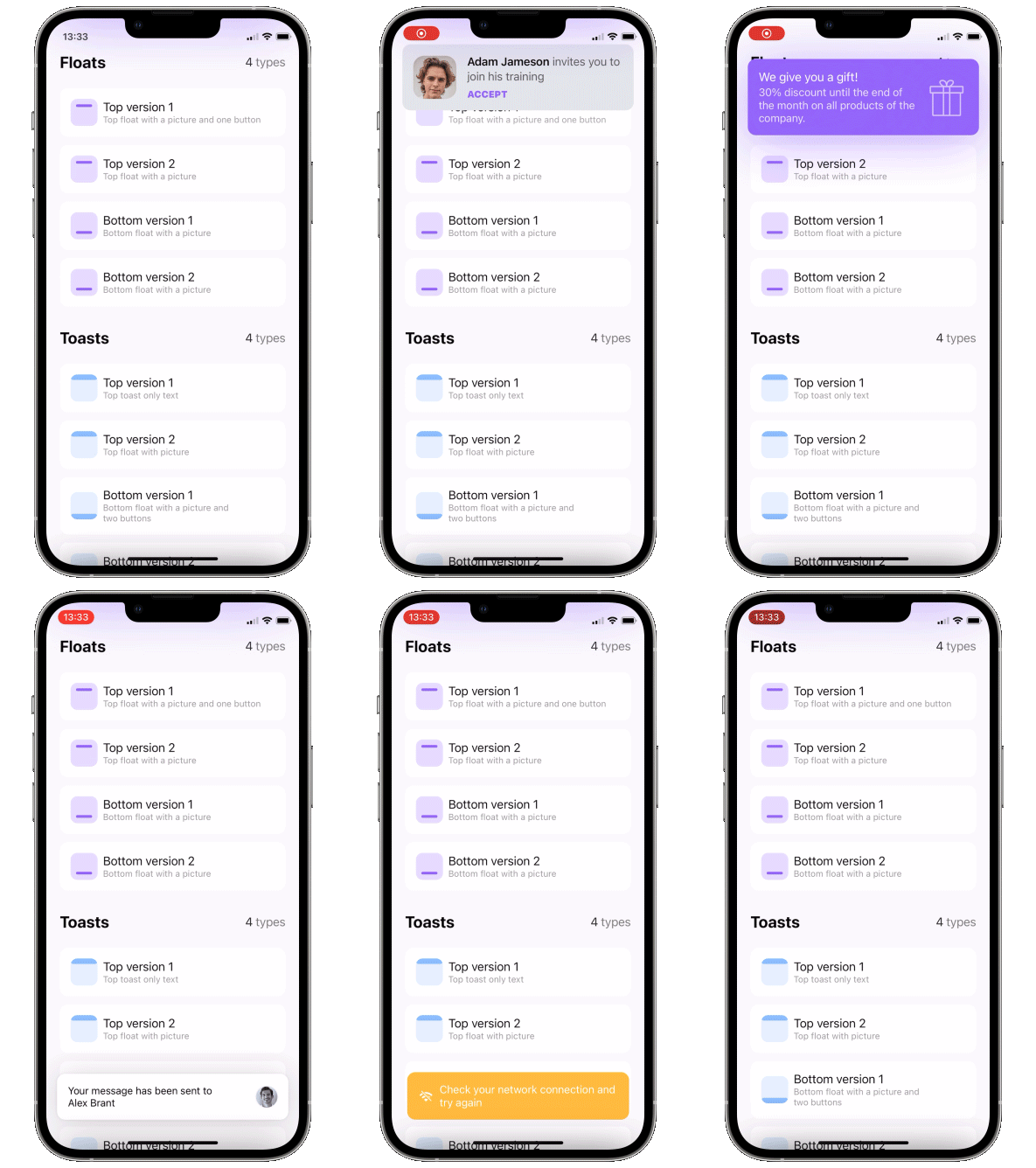
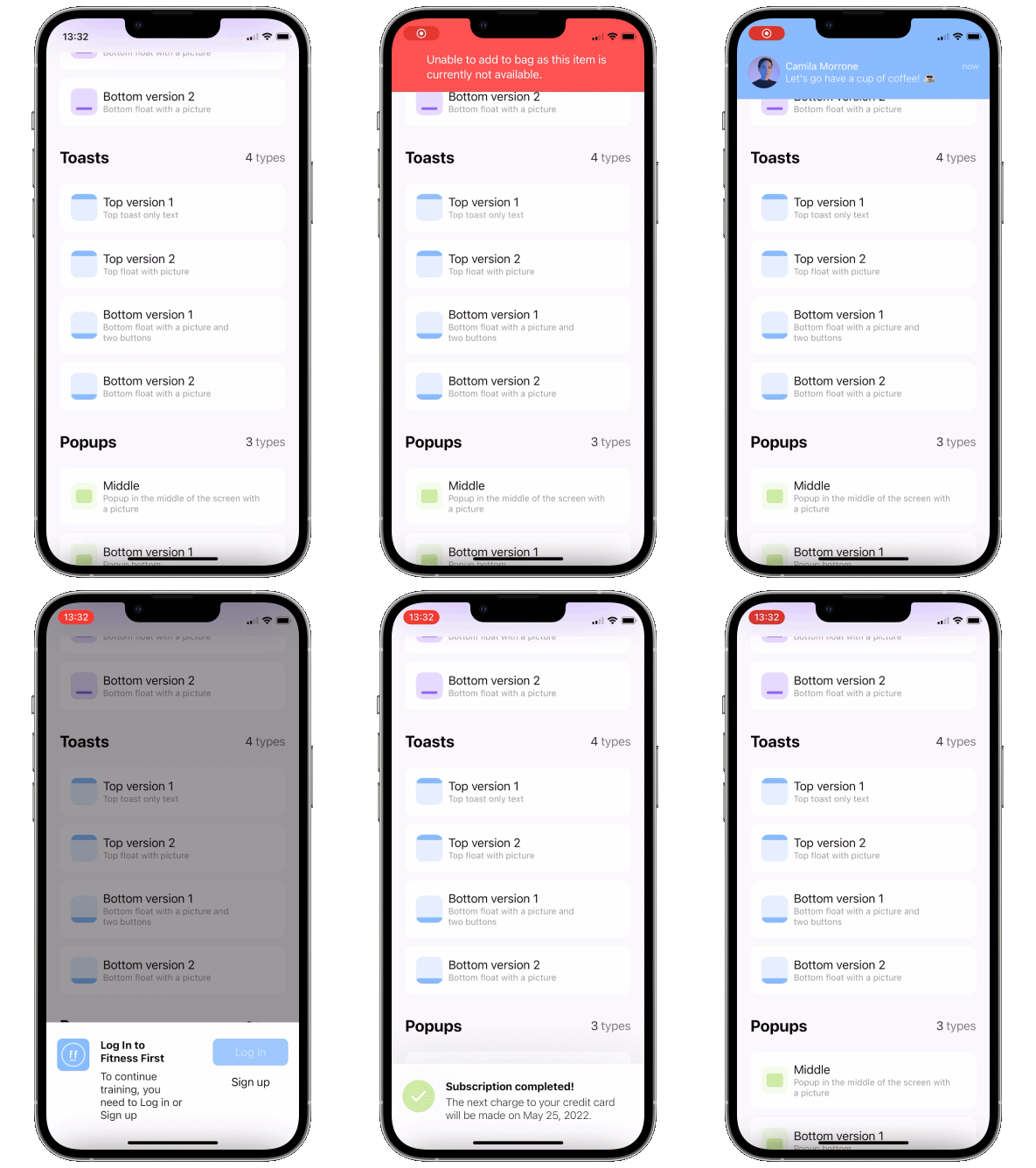
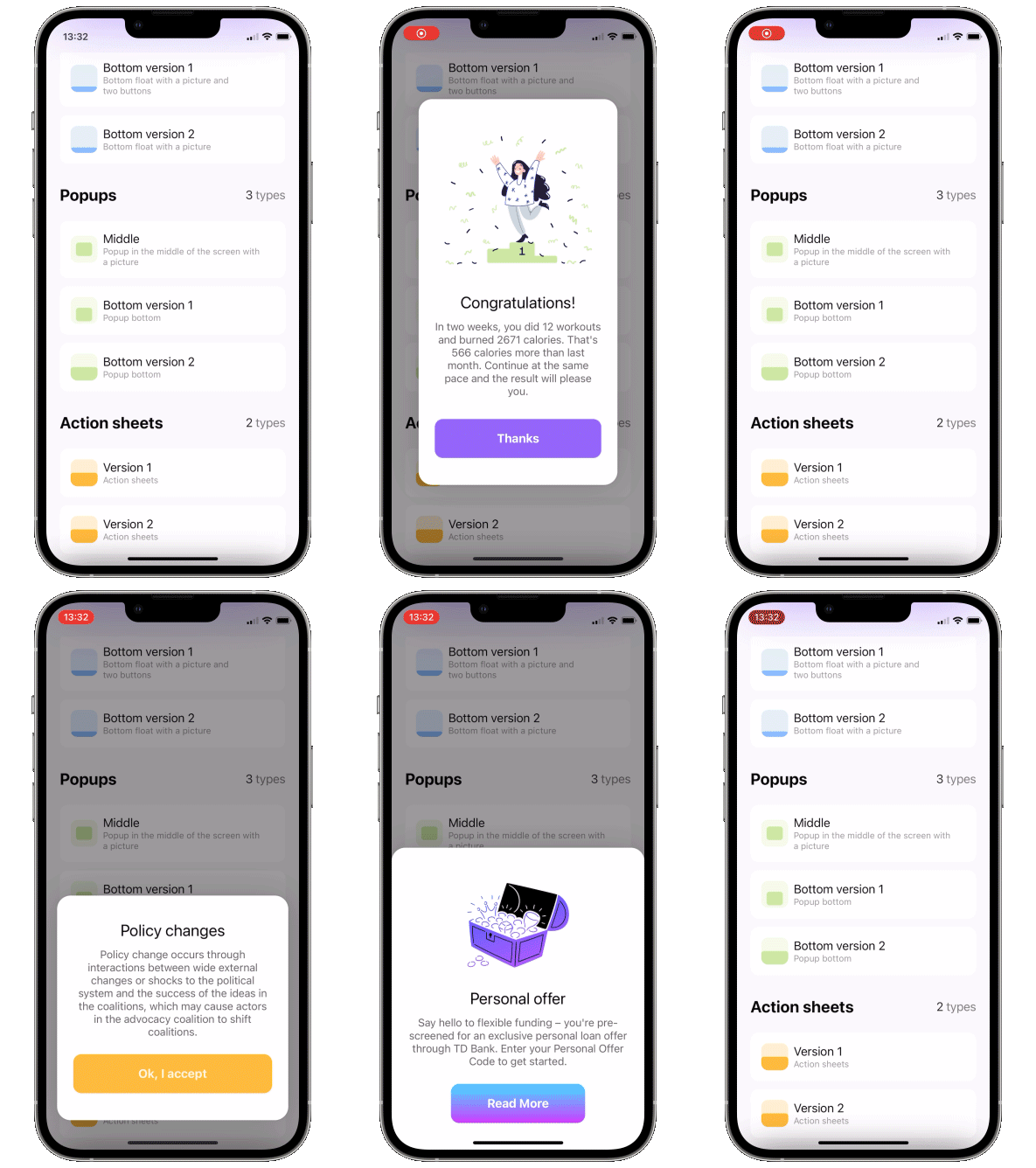


| Floaters | Toasts | Popups | Sheets |
|---|---|---|---|
|
|
|
|
|
We are a development agency building phenomenal apps.

 [](http://twitter.com/exyteHQ)
[](http://cocoapods.org/pods/ExytePopupView)
[](https://github.com/Carthage/Carthage)
[](http://cocoapods.org/pods/ExytePopupView)
[](http://cocoapods.org/pods/ExytePopupView)
# Usage
1. Add a binding bool to control popup presentation state
2. Add `.popup` modifier to your view.
```swift
struct ContentView: View {
@State var showingPopup = false
var body: some View {
YourView()
.popup(isPresented: $showingPopup, autohideIn: 2) {
Text("The popup")
.frame(width: 200, height: 60)
.background(Color(red: 0.85, green: 0.8, blue: 0.95))
.cornerRadius(30.0)
}
}
}
```
### Note
Please keep in mind that the popup calculates its position using the frame of the view you attach it to. So you'll likely want to attach it to the root view of your screen.
### Note 2
Unfortunately popup can not be displayed above navigation bar - Apple doesn't provide API for that. So if you want the popup to be fullscreen, you might want to attach it to the root view of your app.
### Required parameters
`isPresented` - binding to determine if the popup should be seen on screen or hidden
`view` - view you want to display on your popup
### Available customizations - optional parameters
`type` - toast, float or default. Floater has parameters of its own:
- `verticalPadding` - padding which will define padding from the top or will be added to safe area if `useSafeAreaInset` is true
- `useSafeAreaInset` - whether to include safe area insets in floater padding
`position` - top or bottom (for default case it just determines animation direction)
`animation` - custom animation for popup sliding onto screen
`autohideIn` - time after which popup should disappear
`dragToDismiss` - true by default: enable/disable drag to dismiss (upwards for .top popup types, downwards for .bottom and default type)
`closeOnTap` - true by default: enable/disable closing on tap on popup
`closeOnTapOutside` - false by default: enable/disable closing on tap on outside of popup
`backgroundColor` - Color.clear by default: change background color of outside area
`dismissCallback` - custom callback to call once the popup is dismissed
### Draggable card - sheet
To implement a sheet (like in 4th gif) enable dragToDismiss on bottom toast (see example project for implementation of the card itself)
```swift
.popup(isPresented: $show, type: .toast, position: .bottom, dragToDismiss: true) {
// your content
}
```
## Examples
To try PopupView examples:
- Clone the repo `https://github.com/exyte/PopupView.git`
- Open terminal and run `cd
[](http://twitter.com/exyteHQ)
[](http://cocoapods.org/pods/ExytePopupView)
[](https://github.com/Carthage/Carthage)
[](http://cocoapods.org/pods/ExytePopupView)
[](http://cocoapods.org/pods/ExytePopupView)
# Usage
1. Add a binding bool to control popup presentation state
2. Add `.popup` modifier to your view.
```swift
struct ContentView: View {
@State var showingPopup = false
var body: some View {
YourView()
.popup(isPresented: $showingPopup, autohideIn: 2) {
Text("The popup")
.frame(width: 200, height: 60)
.background(Color(red: 0.85, green: 0.8, blue: 0.95))
.cornerRadius(30.0)
}
}
}
```
### Note
Please keep in mind that the popup calculates its position using the frame of the view you attach it to. So you'll likely want to attach it to the root view of your screen.
### Note 2
Unfortunately popup can not be displayed above navigation bar - Apple doesn't provide API for that. So if you want the popup to be fullscreen, you might want to attach it to the root view of your app.
### Required parameters
`isPresented` - binding to determine if the popup should be seen on screen or hidden
`view` - view you want to display on your popup
### Available customizations - optional parameters
`type` - toast, float or default. Floater has parameters of its own:
- `verticalPadding` - padding which will define padding from the top or will be added to safe area if `useSafeAreaInset` is true
- `useSafeAreaInset` - whether to include safe area insets in floater padding
`position` - top or bottom (for default case it just determines animation direction)
`animation` - custom animation for popup sliding onto screen
`autohideIn` - time after which popup should disappear
`dragToDismiss` - true by default: enable/disable drag to dismiss (upwards for .top popup types, downwards for .bottom and default type)
`closeOnTap` - true by default: enable/disable closing on tap on popup
`closeOnTapOutside` - false by default: enable/disable closing on tap on outside of popup
`backgroundColor` - Color.clear by default: change background color of outside area
`dismissCallback` - custom callback to call once the popup is dismissed
### Draggable card - sheet
To implement a sheet (like in 4th gif) enable dragToDismiss on bottom toast (see example project for implementation of the card itself)
```swift
.popup(isPresented: $show, type: .toast, position: .bottom, dragToDismiss: true) {
// your content
}
```
## Examples
To try PopupView examples:
- Clone the repo `https://github.com/exyte/PopupView.git`
- Open terminal and run `cd