# camunda-docs-manual
**Repository Path**: hfpiao/camunda-docs-manual
## Basic Information
- **Project Name**: camunda-docs-manual
- **Description**: Sources of the docs.camunda.org site
- **Primary Language**: Unknown
- **License**: Not specified
- **Default Branch**: master
- **Homepage**: https://github.com/camunda/camunda-docs-manual
- **GVP Project**: No
## Statistics
- **Stars**: 0
- **Forks**: 0
- **Created**: 2020-07-26
- **Last Updated**: 2023-03-01
## Categories & Tags
**Categories**: Uncategorized
**Tags**: None
## README
# The Camunda Platform Documentation Sources
This repository contains the sources of the Camunda Platform Documentation.
**Important:** _do NOT change the content of `themes/camunda` directory directly!_
Instead, change the [theme](//github.com/camunda/camunda-docs-theme).
## Contributing
Have a look at our [contribution guide](https://github.com/camunda/camunda-bpm-platform/blob/master/CONTRIBUTING.md) for our general contribution guidelines. See the following sections for how to work with the docs.
## Installing Hugo
In order to build this documentation, you first need to install [Hugo][Hugo] [v0.54][Hugo v0.54]. Newer versions _may_ work, but please note that some issues have been reported on v61.0+.
See the [Hugo installation guide][Hugo Installation] for more details on how to install Hugo. Issues have been reported when installing v0.54 via a package manager; install via tarball instead. The v0.54 tarball can be downloaded from [the corresponding Hugo release page][Hugo v0.54].
## Building the Documentation
After you have installed Hugo, you can build the docs by running the following command:
```bash
hugo
```
A static build of the documentation will be placed in the `public/` folder.
While editing the docs, you probably want to start the Hugo server (defaults to "watch mode"):
```bash
hugo server --baseUrl="http://localhost"
```
You can then browse the docs under [http://localhost:1313/](http://localhost:1313/).
Hugo will automatically detect when you change a file and refresh the page in the browser.
## License
 The content on this site is licensed under a Creative Commons Attribution-ShareAlike 3.0 Unported License.
## Writing Docs
Some guidelines for writing docs.
### How can I add an image?
#### Where should I put the image?
Images should be put next to the content page which references them.
So, if you have a file named `user-guide/process-engine/history/overview.md` and you want to add an image named `architecture-overview.png` then it should be placed in the same folder.
#### How can I reference the image?
Use the `img` shorthand:
```html
{{< img src="architecture-overview.png" title="History Architecture" >}}
```
### How can I reference to the Javadocs?
Use the 'javadocref' shorthand:
```html
{{< javadocref page="org/camunda/bpm/engine/impl/TaskServiceImpl.html" text="Java-API Task Service" >}}.
```
### How can I add a note?
Use the `note` shorthand:
```html
{{< note title="Heads Up!" class="info" >}}
The content of the note.
* full
* markdown is supported
{{< /note >}}
```
Supported classes:
* `info`
* `warning`
### How can I add an "EE only note"?
Sometimes you want to flag a feature as an Enterprise Feature.
You can achieve this by using the `enterprise` shortcode:
```html
{{< enterprise >}}
The FOO Feature is only available in the Enterprise Edition.
{{< /enterprise >}}
```
### How can I highlight code lines?
You can use the `code` markdown to highlight single or multiple lines.
```html
{{< code language="xml" line="3-5,13" >}}
{{< /code >}}
```
## How do I make screenshots for documentation?
_Note: For screenshot of the enterprise webapps, you can use the automatic screenshot tool in the ee repository._
### Setup
* Download and install [OpenOffice][OpenOffice]
* Download and install [Open Sans font][OpenSans]
* Create a new drawing in OpenOffice Draw
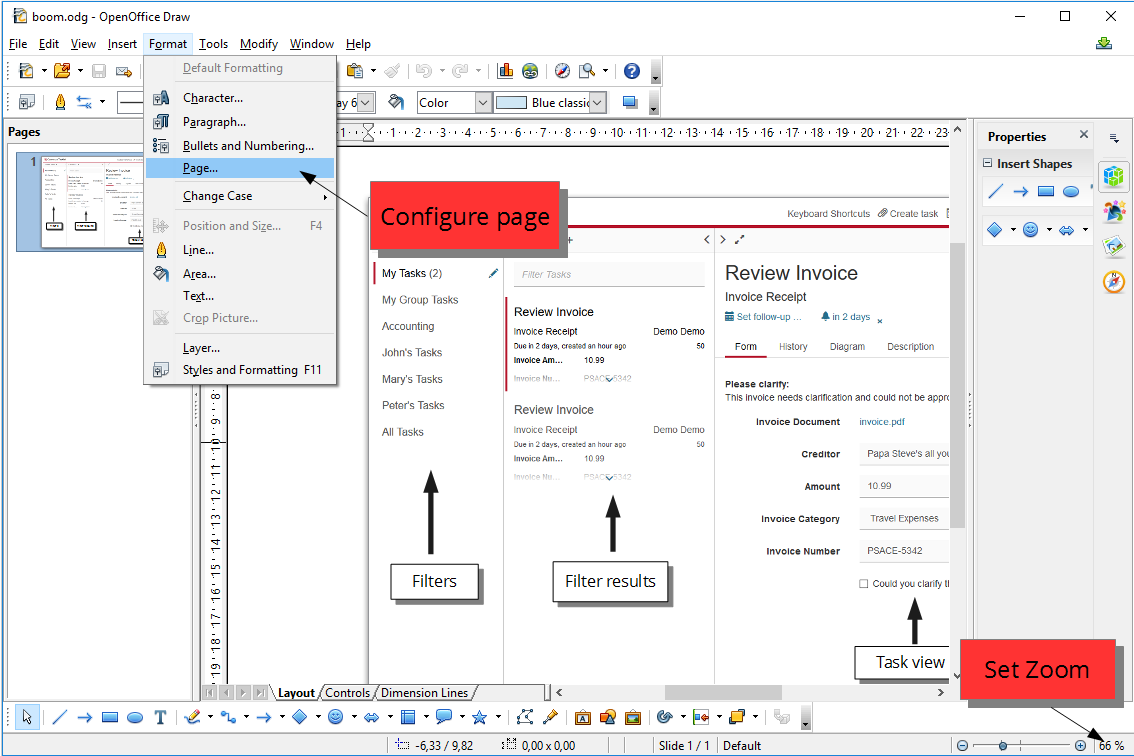
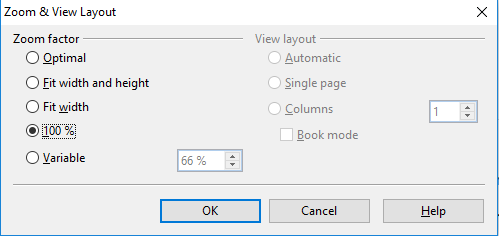
* Configure document:
* Zoom & View layout (double click on zoom factor in the footer) -> Zoom factor 100%
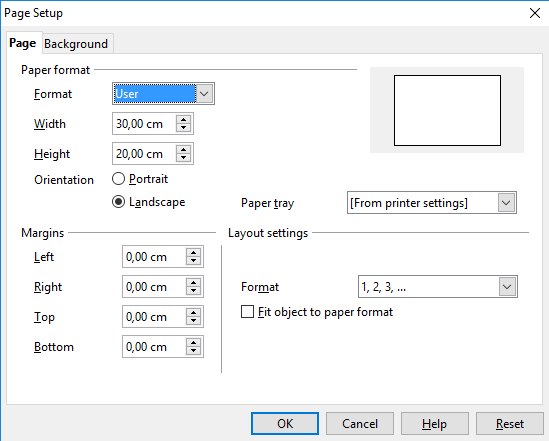
* Page Setup (Format menu -> Page)
* Format: Screen (this will change back to "User" after further modifications)
* Width: 30,00 cm
* Height: 20,00 cm
* Orientation: Landscape
### Take the screenshots
* Hover over the drawing with your browser and adjust the browser screen size to fit the drawing (do not include the footer)
* Take screenshot
* Paste screenshot into the drawing
* Right click on the image and select 'Original Size'
### Add annotations
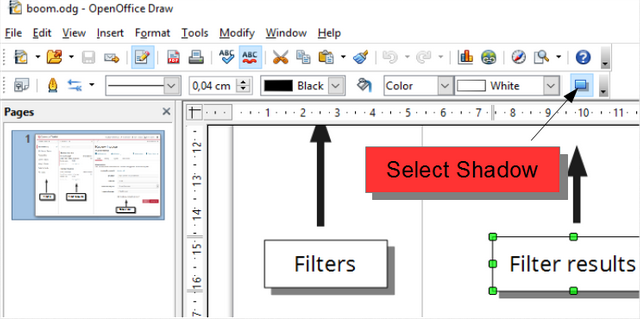
* Add rectangle shapes for text boxes
* Use the Open Sans font for text
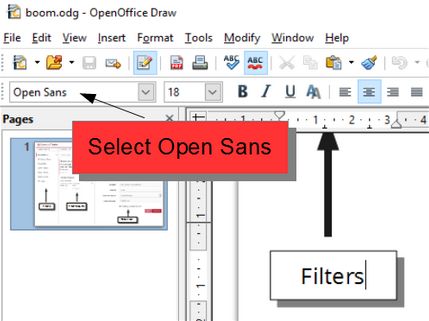
* If possible, utilize the whitespaces within the image
* Use shadows
### Export the image
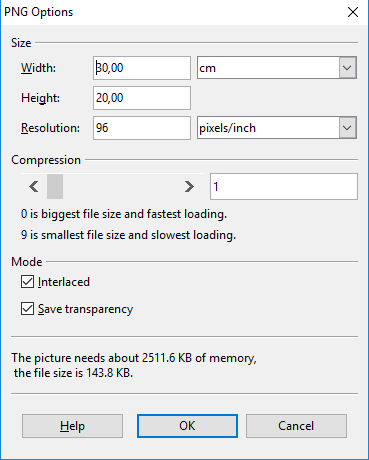
* Export (File menu -> Export)
* Select PNG format and name the file
* Compression: 1
* Resolution: 96 pixels/inch
[Hugo]: http://gohugo.io/
[Hugo v0.54]: https://github.com/gohugoio/hugo/releases/tag/v0.54.0
[Hugo Installation]: https://gohugo.io/getting-started/installing/#install-hugo-from-tarball
[Camunda Nexus]: https://artifacts.camunda.com/artifactory/thirdparty/hugo/
[OpenOffice]: https://www.openoffice.org/download/index.html
[OpenSans]: https://www.google.com/fonts#UsePlace:use/Collection:Open+Sans
The content on this site is licensed under a Creative Commons Attribution-ShareAlike 3.0 Unported License.
## Writing Docs
Some guidelines for writing docs.
### How can I add an image?
#### Where should I put the image?
Images should be put next to the content page which references them.
So, if you have a file named `user-guide/process-engine/history/overview.md` and you want to add an image named `architecture-overview.png` then it should be placed in the same folder.
#### How can I reference the image?
Use the `img` shorthand:
```html
{{< img src="architecture-overview.png" title="History Architecture" >}}
```
### How can I reference to the Javadocs?
Use the 'javadocref' shorthand:
```html
{{< javadocref page="org/camunda/bpm/engine/impl/TaskServiceImpl.html" text="Java-API Task Service" >}}.
```
### How can I add a note?
Use the `note` shorthand:
```html
{{< note title="Heads Up!" class="info" >}}
The content of the note.
* full
* markdown is supported
{{< /note >}}
```
Supported classes:
* `info`
* `warning`
### How can I add an "EE only note"?
Sometimes you want to flag a feature as an Enterprise Feature.
You can achieve this by using the `enterprise` shortcode:
```html
{{< enterprise >}}
The FOO Feature is only available in the Enterprise Edition.
{{< /enterprise >}}
```
### How can I highlight code lines?
You can use the `code` markdown to highlight single or multiple lines.
```html
{{< code language="xml" line="3-5,13" >}}
{{< /code >}}
```
## How do I make screenshots for documentation?
_Note: For screenshot of the enterprise webapps, you can use the automatic screenshot tool in the ee repository._
### Setup
* Download and install [OpenOffice][OpenOffice]
* Download and install [Open Sans font][OpenSans]
* Create a new drawing in OpenOffice Draw

* Configure document:
* Zoom & View layout (double click on zoom factor in the footer) -> Zoom factor 100%

* Page Setup (Format menu -> Page)
* Format: Screen (this will change back to "User" after further modifications)
* Width: 30,00 cm
* Height: 20,00 cm
* Orientation: Landscape

### Take the screenshots
* Hover over the drawing with your browser and adjust the browser screen size to fit the drawing (do not include the footer)
* Take screenshot
* Paste screenshot into the drawing
* Right click on the image and select 'Original Size'
### Add annotations
* Add rectangle shapes for text boxes
* Use the Open Sans font for text

* If possible, utilize the whitespaces within the image
* Use shadows

### Export the image
* Export (File menu -> Export)
* Select PNG format and name the file
* Compression: 1
* Resolution: 96 pixels/inch

[Hugo]: http://gohugo.io/
[Hugo v0.54]: https://github.com/gohugoio/hugo/releases/tag/v0.54.0
[Hugo Installation]: https://gohugo.io/getting-started/installing/#install-hugo-from-tarball
[Camunda Nexus]: https://artifacts.camunda.com/artifactory/thirdparty/hugo/
[OpenOffice]: https://www.openoffice.org/download/index.html
[OpenSans]: https://www.google.com/fonts#UsePlace:use/Collection:Open+Sans