# marp-cli
**Repository Path**: jerryyang66/marp-cli
## Basic Information
- **Project Name**: marp-cli
- **Description**: A CLI interface for Marp and Marpit based converters
- **Primary Language**: Unknown
- **License**: MIT
- **Default Branch**: master
- **Homepage**: None
- **GVP Project**: No
## Statistics
- **Stars**: 0
- **Forks**: 2
- **Created**: 2020-10-30
- **Last Updated**: 2020-12-19
## Categories & Tags
**Categories**: Uncategorized
**Tags**: None
## README
# @marp-team/marp-cli
[](https://circleci.com/gh/marp-team/marp-cli/)
[](https://github.com/marp-team/marp-cli/actions?query=workflow%3A%22Test+for+Windows%22+branch%3Amaster)
[](https://codecov.io/gh/marp-team/marp-cli)
[](https://www.npmjs.com/package/@marp-team/marp-cli)
[](https://hub.docker.com/r/marpteam/marp-cli/)
[](./LICENSE)
**A CLI interface, for [Marp](https://github.com/marp-team/marp)** (using [@marp-team/marp-core](https://github.com/marp-team/marp-core)) and any slide deck converter based on [Marpit](https://marpit.marp.app/) framework.
It can convert Marp / Marpit Markdown files into static HTML / CSS, PDF, PowerPoint document, and image(s) easily.

## Try it now!
### npx
[npx](https://blog.npmjs.org/post/162869356040/introducing-npx-an-npm-package-runner) is the best tool when you want to convert Markdown right now. Just run below if you are installed [Node.js](https://nodejs.org/):
```bash
# Convert slide deck into HTML
npx @marp-team/marp-cli slide-deck.md
npx @marp-team/marp-cli slide-deck.md -o output.html
# Convert slide deck into PDF
npx @marp-team/marp-cli slide-deck.md --pdf
npx @marp-team/marp-cli slide-deck.md -o output.pdf
# Convert slide deck into PowerPoint document (PPTX)
npx @marp-team/marp-cli slide-deck.md --pptx
npx @marp-team/marp-cli slide-deck.md -o output.pptx
# Watch mode
npx @marp-team/marp-cli -w slide-deck.md
# Server mode (Pass directory to serve)
npx @marp-team/marp-cli -s ./slides
# Open converted HTML in preview window
npx @marp-team/marp-cli -p slide-deck.md
```
> :information_source: You have to install [Google Chrome] (or [Chromium]) to convert slide deck into PDF, PPTX, and image(s).
[google chrome]: https://www.google.com/chrome/
[chromium]: https://www.chromium.org/
### Docker
Do you hate to install Node and Chrome locally? We have [an official Docker image `marpteam/marp-cli`][marp-cli-docker] ready to use CLI.
[Please refer how to use at Docker Hub.][marp-cli-docker]
[marp-cli-docker]: https://hub.docker.com/r/marpteam/marp-cli/
### Run in Gitpod
You can also build and run `marp-cli` in Gitpod, an online IDE for GitHub:
[](https://gitpod.io/#https://github.com/marp-team/marp-cli)
## Install
### Local installation
We recommend to install Marp CLI into your Node project. You may control the CLI (and engine) version exactly.
```bash
npm install --save-dev @marp-team/marp-cli
```
The installed `marp` command is available in [npm-scripts](https://docs.npmjs.com/misc/scripts) or `npx marp`.
### Global installation
You can install with `-g` option if you want to use `marp` command globally.
```bash
npm install -g @marp-team/marp-cli
```
### Standalone binary _(EXPERIMENTAL)_
Do you never want to install any dependent tools? we also provide executable binaries for Linux, macOS, and Windows.
**[:fast_forward: Download the latest standalone binary for your OS from release page.](https://github.com/marp-team/marp-cli/releases)**
## Basic usage
### Convert to HTML
The passed markdown will be converted to HTML file by default. In the below example, a converted `slide-deck.html` will output to the same directory.
```bash
marp slide-deck.md
```
You can change the output path by `--output` (`-o`) option.
```bash
marp slide-deck.md -o output.html
```
Marp CLI supports converting multiple files by passing multiple paths, directories, and glob patterns. In this case, `--output` option cannot use.
When you want to output the converted result to another directory with keeping the origin directory structure, you can use `--inpur-dir` (`-I`) option. `--output` option would be available for specify the output directory.
### Convert to PDF (`--pdf`)
If you passed `--pdf` option or the output filename specified by `--output` (`-o`) option ends with `.pdf`, Marp CLI will try to convert into PDF file by using the installed [Google Chrome] or [Chromium].
```bash
marp --pdf slide-deck.md
marp slide-deck.md -o converted.pdf
```
> :information_source: The all kind of conversions except HTML require [Google Chrome] or [Chromium]. When any problem has occurred while converting, please update your Chrome/Chromium to the latest version or try using [Google Chrome Canary].
[google chrome canary]: https://www.google.com/chrome/canary/
### Convert to PowerPoint document (`--pptx`)
Do you want more familiar way to present and share your deck? PPTX conversion to create PowerPoint document is available by passing `--pptx` option or specify the output path with PPTX extension.
```bash
marp --pptx slide-deck.md
marp slide-deck.md -o converted.pptx
```
A created PPTX includes rendered Marp slide pages and the support of [Marpit presenter notes](https://marpit.marp.app/usage?id=presenter-notes). It can open with PowerPoint, Keynote, Google Slides, LibreOffice Impress, and so on...
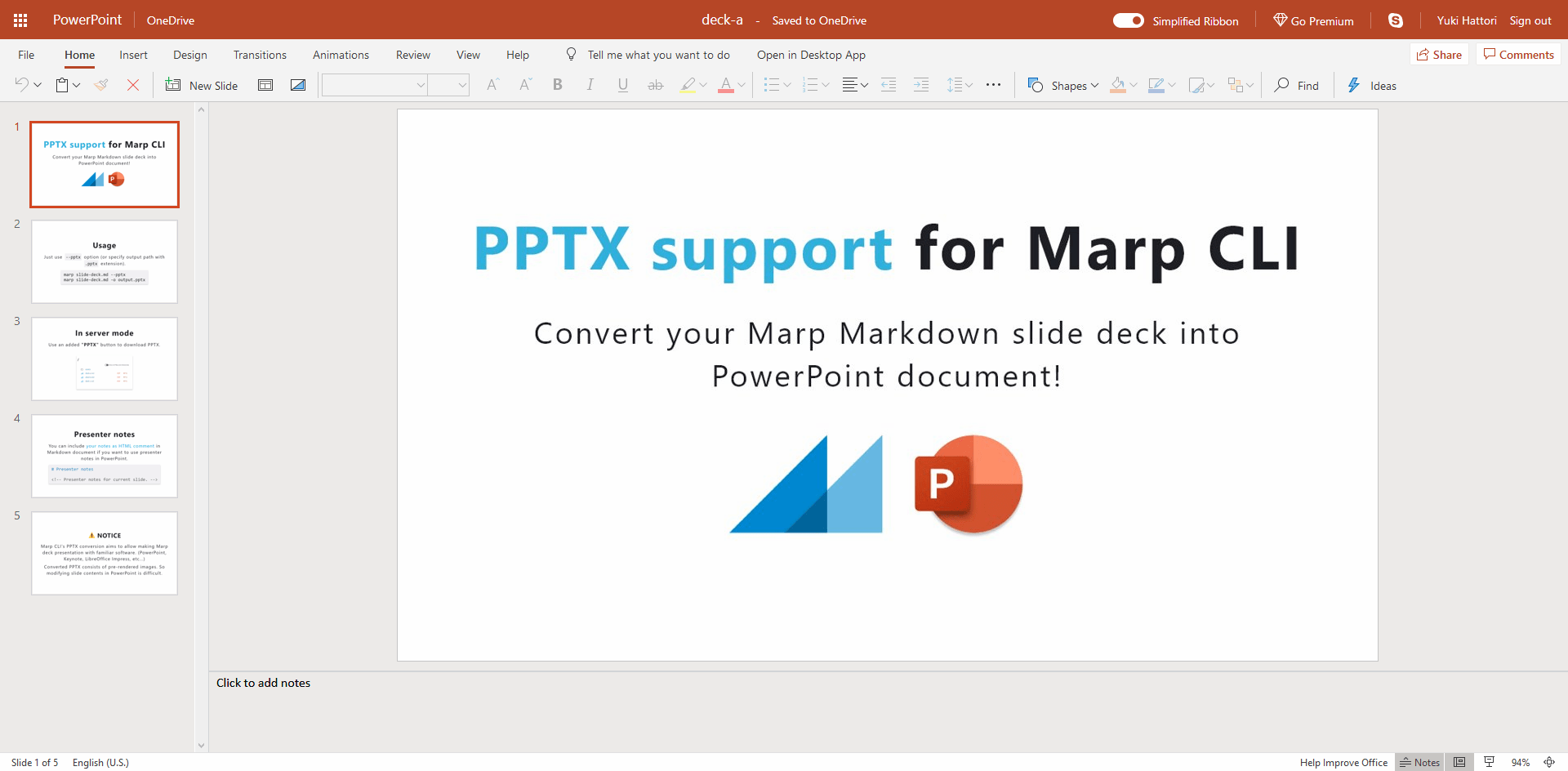
> :information_source: A converted PPTX consists of pre-rendered images. Please note that contents would not be able to modify or re-use in PowerPoint.
### Convert to PNG/JPEG image(s)
#### Multiple images (`--images`)
You can convert the slide deck into multiple images when specified `--images [png|jpeg]` option.
```bash
# Convert into multiple PNG image files
marp --images png slide-deck.md
# Convert into multiple JPEG image files
marp --images jpeg slide-deck.md
```
Output files have a suffix of page number, like `slide-deck.001.png`, `slide-deck.002.png`, and so on.
#### Title slide (`--image`)
When you passed `--image` option or specified the output path with PNG/JPEG extension, Marp CLI will convert _only the first page (title slide)_ of the targeted slide deck into an image.
```bash
# Convert the title slide into an image
marp --image png slide-deck.md
marp slide-deck.md -o output.png
```
It would be useful for creating [Open Graph] image that can specify with [`image` global directive and `--og-image` option](#metadata).
### Security about local files
Because of [the security reason](https://github.com/marp-team/marp-cli/pull/10#user-content-security), **PDF, PPTX and image(s) conversion cannot use local files by default.**
Marp CLI would output incompleted result with warning if the blocked local file accessing is detected. We recommend uploading your assets to online.
If you really need to use local files in these conversion, `--alow-local-files` option helps to find your local files. _Please use only to the trusted Markdown because there is a potential security risk._
```bash
marp --pdf --allow-local-files slide-deck.md
```
## Conversion modes
### Watch mode (`--watch` / `-w`)
Marp CLI will observe a change of Markdown / used Theme CSS when passed with `--watch` (`-w`) option. The conversion is triggered whenever the content of file is updated.
While you are opening the converted HTML in browser, it would refresh the opened page automatically.
### Server mode (`--server` / `-s`)
Server mode supports on-demand conversion by HTTP request. We require to pass `--server` (`-s`) option and a directory to serve.

In this mode, the converted file outputs as the result of accessing to server, and not to disk.
You would get the converted PDF, PNG, and JPEG by adding corresponded query string when requesting. e.g. `http://localhost:8080/deck-a.md?pdf` returns converted PDF.
#### `index.md` / `PITCHME.md`
Marp CLI server will provide the list of served files by default, but you can place the default Markdown deck like a common web server's `index.html`.
Place Markdown named `index.md` or `PITCHME.md` ([GitPitch style](https://gitpitch.com/docs/getting-started/pitchme/)) to served directory. It would be redirected just accessing to `http://localhost:8080/`.
### Preview window (_Experimental:_ `--preview` / `-p`)
When conversions were executed together with `--preview` (`-p`) option, Marp CLI will open preview window(s) to check the converted result immediately.
Unlike opening with browser, you may present deck with the immersive window. [Watch mode](#watch-mode) is enabled automatically.
> :information_source: `--preview` option cannot use when you are using Marp CLI through official docker image.
## Template
You can choose a built-in HTML templates by `--template` option. Default template is `bespoke`.
```bash
marp --template bespoke slide-deck.md
```
### `bespoke` template (default)
The `bespoke` template is using [Bespoke.js](https://github.com/bespokejs/bespoke) as the name implies. It has several features to be useful in a real presentation. A few features may control by CLI options.
#### Features
- **Navigation**: Navigate the deck through keyboard and swipe geasture.
- **Fullscreen**: Toggle fullscreen by hitting f / F11 key.
- **On-screen controller**: There is a touch-friendly OSC. You may also disable by `--bespoke.osc=false` if unneccesary.
- **Fragmented list**: Recognize [Marpit's fragmented list](https://github.com/marp-team/marpit/issues/145) and appear list one-by-one if used `*` and `1)` as the bullet marker.
- **Presenter view**: Open presenter view in external window by hitting p key.
- **Progress bar** (optional): By setting `--bespoke.progress` option, you can add a progress bar on the top of the deck.
### `bare` template
The `bare` template is a primitive template, and there is no extra features. It only has minimum assets to give your presentation with browser.
#### Zero-JS slide deck
When [the conversion engine is changed to Marpit framework by setting `engine` option](#use-marpit-framework), _it would not use any scripts._ Even then, it has enough to use for the browser-based presentation.
```bash
marp --template bare --engine @marp-team/marpit slide-deck.md
```
## Metadata
We recommend setting metadata of the slide deck if you want to host the outputted HTML on the web. To optimize the converted web page for SEO and social sharing, passed meta values will use in ``, `<link>`, and `<meta>` tags.
| [Global directives] | CLI option | Description | Metadata |
| :-----------------: | :-------------: | :------------------------------------ | :-------------------------------------------- |
| `title` | `--title` | Define title of the slide deck. | `<title>`, `og:title` |
| `description` | `--description` | Define description of the slide deck. | `<meta name="description">`, `og:description` |
| `url` | `--url` | Define [canonical URL]. | `<link rel="canonical">`, `og:url` |
| `image` | `--og-image` | Define [Open Graph] image URL. | `og:image` |
[canonical url]: https://en.wikipedia.org/wiki/Canonical_link_element
[open graph]: http://ogp.me/
> :information_source: The passed canonical URL will be ignored when cannot parse as valid URL.
### By [global directives]
Marp CLI supports _additional [global directives]_ to specify metadata in Markdown. You can define meta values in Markdown front-matter.
```markdown
---
title: Marp slide deck
description: An example slide deck created by Marp CLI
url: https://marp.app/
image: https://marp.app/og-image.jpg
---
# Marp slide deck
```
[global directives]: https://marpit.marp.app/directives?id=global-directives-1
### By CLI option
Marp CLI prefers CLI option to global directives. You can override metadata values by `--title`, `--description`, `--url`, and `--og-image`.
## Theme
### Override theme
You can override theme you want to use by `--theme` option. For example to use [Gaia](https://github.com/marp-team/marp-core/tree/master/themes#gaia) built-in theme in Marp Core:
```bash
marp --theme gaia
```
### Use custom theme
A custom theme created by user also can use easily by passing the path of CSS file.
```bash
marp --theme custom-theme.css
```
> :information_source: Normally [Marpit theme CSS requires `@theme` meta comment](https://marpit.marp.app/theme-css?id=metadata), but it's not required in this usage.
### Theme set
`--theme-set` option has to specify theme set composed by multiple theme CSS files. The registed themes are usable in [Marpit's `theme` directive](https://marpit.marp.app/directives?id=theme).
```bash
# Multiple theme CSS files
marp --theme-set theme-a.css theme-b.css theme-c.css -- deck-a.md deck-b.md
# Theme directory
marp --theme-set ./themes -- deck.md
```
## Engine
Marp CLI is calling the [Marpit framework](https://marpit.marp.app/) based converter as "Engine". Normally we use the bundled [marp-core](https://github.com/marp-team/marp-core), but you may swap the conversion engine to another Marpit based engine through `--engine` option.
### Use Marpit framework
For example, it can convert Markdown by using the pure Marpit framework.
```bash
# Install Marpit framework
npm i @marp-team/marpit
# Specify engine to use Marpit
marp --engine @marp-team/marpit marpit-deck.md
```
Notice that Marpit has not provided theme. It would be good to include inline style in Markdown, or pass CSS file by `--theme` option.
### Functional engine
When you specify the path to JavaScript file in `--engine` option, you may use more customized engine by JS.
It would be useful to convert with a customized engine for supporting the additional syntax that is out of Marp Markdown specification.
#### Example: [markdown-it-mark](https://github.com/markdown-it/markdown-it-mark)
```javascript
// engine.js
const { Marp } = require('@marp-team/marp-core')
const markdownItMark = require('markdown-it-mark')
module.exports = opts => new Marp(opts).use(markdownItMark)
```
```bash
# Install Marp Core and markdown-it-mark
npm install @marp-team/marp-core markdown-it-mark --save-dev
# Specify the path to functional engine
marp --engine ./engine.js slide-deck.md
```
The customized engine would convert `==marked==` to `<mark>marked</mark>`.
### Confirm engine version
By using `--version` (`-v`) option, you may confirm the version of engine that is expected to use in current configuration.
```console
$ marp --version
@marp-team/marp-cli v0.x.x (w/ bundled @marp-team/marp-core v0.x.x)
```
Marp CLI prefers to use _an installed core by user_ than the bundled. If the current project has installed `@marp-team/marp-core` individually, it would show its version and the annotation: `w/ user-installed @marp-team/marp-core vX.X.X` or `w/ customized engine`.
## Configuration file
Marp CLI can be configured options with file, such as `marp.config.js`, `.marprc` (JSON / YAML), and `marp` section of `package.json`. It is useful to configure settings for the whole of project.
```javascript
// package.json
{
"marp": {
"inputDir": "./slides",
"output":" ./public",
"themeSet": "./themes"
}
}
```
```yaml
# .marprc.yml
allowLocalFiles: true
options:
looseYAML: false
markdown:
breaks: false
pdf: true
```
```javascript
// marp.config.js
const { Marp } = require('@marp-team/marp-core')
const container = require('markdown-it-container')
module.exports = {
// Customize engine on configuration file directly
engine: opts => new Marp(opts).use(container, 'custom'),
}
```
By default we use configuration file that is placed on current directory, but you may also specify the for configuration file by `--config-file` option (`-c`).
### Options
| Key | Type | CLI option | Description |
| :---------------- | :-------------------------: | :-------------------: | :----------------------------------------------------------------------------------------------------- |
| `allowLocalFiles` | boolean | `--allow-local-files` | Allow to access local files from Markdown while converting PDF _(NOT SECURE)_ |
| `bespoke` | object | | Setting options for `bespoke` template |
| ┗ `osc` | boolean | `--bespoke.osc` | \[Bespoke\] Use on-screen controller (`true` by default) |
| ┗ `progress` | boolean | `--bespoke.progress` | \[Bespoke\] Use progress bar (`false` by default) |
| `description` | string | `--description` | Define description of the slide deck |
| `engine` | string \| Class \| Function | `--engine` | Specify Marpit based engine |
| `html` | boolean \| object | `--html` | Enable or disable HTML (Configuration file can pass [the whitelist object] if you are using Marp Core) |
| `image` | `png` \| `jpeg` | `--image` | Convert the first slide page into an image file |
| `images` | `png` \| `jpeg` | `--images` | Convert slide deck into multiple image files |
| `inputDir` | string | `--input-dir` `-I` | The base directory to find markdown and theme CSS |
| `jpegQuality` | number | `--jpeg-quality` | Setting JPEG image quality (`85` by default) |
| `lang` | string | | Define the language of converted HTML |
| `ogImage` | string | `--og-image` | Define [Open Graph] image URL |
| `options` | object | | The base options for the constructor of engine |
| `output` | string | `--output` `-o` | Output file path (or directory when input-dir is passed) |
| `pdf` | boolean | `--pdf` | Convert slide deck into PDF |
| `preview` | boolean | `--preview` `-p` | Open preview window _(EXPERIMENTAL)_ |
| `server` | boolean | `--server` `-s` | Enable server mode |
| `template` | `bare` \| `bespoke` | `--template` | Choose template (`bespoke` by default) |
| `theme` | string | `--theme` | Override theme by name or CSS file |
| `themeSet` | string \| string[] | `--theme-set` | Path to additional theme CSS files |
| `title` | string | `--title` | Define title of the slide deck |
| `url` | string | `--url` | Define [canonical URL] |
| `watch` | boolean | `--watch` `-w` | Watch input markdowns for changes |
[the whitelist object]: https://github.com/marp-team/marp-core#html-boolean--object
### Advanced
The advanced options that cannot specify through CLI options can be configured by file.
#### Base options for engine constructor
`options` can set the base options for the constructor of the used engine. You can fine-tune constructor options for [Marp Core](https://github.com/marp-team/marp-core#constructor-options) / [Marpit](https://marpit-api.marp.app/marpit).
For example, the below configuration will set constructor option for Marp Core as specified:
- Disables [Marp Core's line breaks conversion](https://github.com/marp-team/marp-core#marp-markdown) (`\n` to `<br />`) to match for CommonMark, by passing [markdown-it's `breaks` option](https://markdown-it.github.io/markdown-it/#MarkdownIt.new) as `false`.
- Disable minification for rendered theme CSS to make debug your style easily, by passing [`minifyCSS`](https://github.com/marp-team/marp-core#minifycss-boolean) as `false`.
```json
{
"options": {
"markdown": {
"breaks": false
},
"minifyCSS": false
}
}
```
> :warning: Some options may be overridden by used template.
## Contributing
Are you interested in contributing? Please see [CONTRIBUTING.md](.github/CONTRIBUTING.md) and [the common contributing guideline for Marp team](https://github.com/marp-team/.github/blob/master/CONTRIBUTING.md).
## Author
Managed by [@marp-team](https://github.com/marp-team).
- <img src="https://github.com/yhatt.png" width="16" height="16"/> Yuki Hattori ([@yhatt](https://github.com/yhatt))
## License
This tool releases under the [MIT License](LICENSE).