# hugo-nuo
**Repository Path**: jimuvip/hugo-nuo
## Basic Information
- **Project Name**: hugo-nuo
- **Description**: A responsive light & clean hugo theme for blogger.
- **Primary Language**: HTML
- **License**: MIT
- **Default Branch**: master
- **Homepage**: None
- **GVP Project**: No
## Statistics
- **Stars**: 0
- **Forks**: 0
- **Created**: 2019-12-25
- **Last Updated**: 2020-12-19
## Categories & Tags
**Categories**: Uncategorized
**Tags**: None
## README
# Hugo Nuo
Hugo Nuo is an responsive light & clean hugo theme for blogger. This theme features several page layout, like an [about page](https://laozhu.me/about/) for your portfolio, a [links page](https://laozhu.me/links/) for your friends' blog, a [tags page](https://laozhu.me/tags/) for your tags cloud, a works page is under development. This theme makes many third-party hugo shortcodes, including [Codepen](https://codepen.io/), [JSFiddle](https://jsfiddle.net/), [Video.js](http://videojs.com/), ~~Music 163~~ and [Sheng Xiang](https://ppt.baomitu.com/), [Asciinema](https://asciinema.org/).
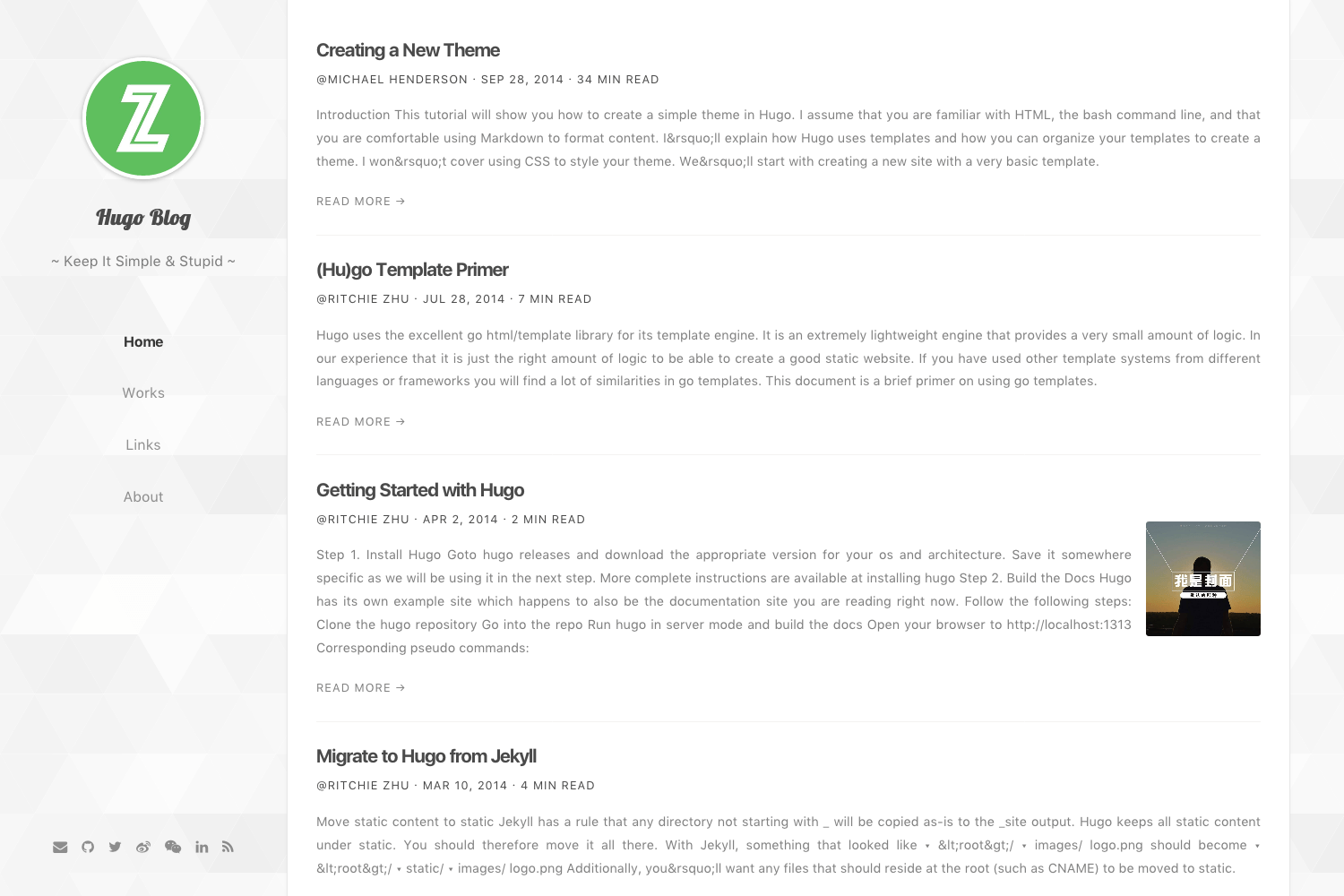
Or you want → [A Real Site Demo](https://laozhu.me) | [Hugo Nuo Theme Post Preview](https://laozhu.me/post/hugo-nuo-post-preview/)
[中文帮助](https://laozhu.me/post/hugo-nuo-theme/)
## Installation
Inside the folder of your Hugo site run:
```bash
$ cd themes
$ git clone https://github.com/laozhu/hugo-nuo
# Change theme field to 'hugo-nuo' in your config.toml
# Or just copy exampleSite/config.toml
```
_For more information read the official [setup guide](https://gohugo.io/overview/installing/) of Hugo._
## Getting Started
After installing the hugo-nuo theme successfully it requires just a few more steps to get your site finally running.
### The config file
Take a look inside the [exampleSite](https://github.com/laozhu/hugo-nuo/tree/master/exampleSite) folder of this theme. You'll find a file called [config.toml](https://github.com/laozhu/hugo-nuo/blob/master/exampleSite/config.toml). To use it, copy the config.toml in the root folder of your Hugo site. Feel free to customize this theme as you like.
**Main Menu**
The hugo-nuo theme add `home`, `works` and `tags` page to initial site menu, you can add your own menu item here.
```toml
[[menu.main]]
name = "Home"
weight = 10
identifier = "home"
url = "/"
[[menu.main]]
name = "Works"
weight = 20
identifier = "works"
url = "https://github.com/laozhu"
[[menu.main]]
name = "Tags"
weight = 30
identifier = "tags"
url = "/tags/"
```
Or you can add some other page to menu in page's front matter:
```markdown
---
title: 'Links'
date: 2017-08-02
layout: 'links'
menu: 'main'
weight: 40
---
```
**Social Networks**
The following social network icons are available:
```toml
[params]
email = "name@domain.com"
github = "github_username"
twitter = "twitter_username"
linkedin = "linkedin_username"
weibo = "weibo_username"
wechat= "/images/qrcode.jpg" # Replace with your wechat qrcode image
facebook = "facebook_username"
google = "googlplus_id_number"
instagram = "instagram_username"
youtube = "youtube_username"
vimeo = "vimeo_username"
medium = "medium_username"
quora = "quora_username"
pinterest = "pinterest_username"
dribbble = "dribbble_username"
behance = "behance_username"
jsfiddle = "jsfiddle_username"
codepen = "codepen_username"
zhihu = "zhihu_username"
douban = "douban_username"
bilibili = "bilibili_id_number"
codesandbox = "codesandbox_username"
stackoverflow = "stackoverflow_username"
npm = "npm_username"
reddit = "reddit_username"
```
You can choose someone to display, the recommend number is 7 icons.
Icons are provided by [iconfont](https://www.iconfont.cn/) by default, but you
can choose to use [FontAwesome](https://fontawesome.com/) instead by adding
`fontAwesome = true` to the `[params]` section.
**SEO**
The hugo-nuo theme support [Google](https://www.google.com/webmasters/), [Bing](https://www.bing.com/toolbox/webmaster/), [Baidu](https://zhanzhang.baidu.com/), [Sogou](http://zhanzhang.sogou.com/), [360](http://zhanzhang.so.com/) webmaster's meta verification tool, you can activate as required. The `seotitle` and `description` will show in search results and browser title.
```toml
[params]
seotitle = "Hugo Blog Title (SEO Version)"
description = "Hugo is one of the most popular open-source static site generators. With its amazing speed and flexibility, Hugo makes building websites fun again."
# Google Webmaster
# https://www.google.com/webmasters/
googleSiteVerification = "google_site_verification_code"
# Bing Webmaster
# https://www.bing.com/toolbox/webmaster/
msValidate = "bing_site_verification_code"
# Baidu Webmaster (China Only)
# https://zhanzhang.baidu.com/
# baiduSiteVerification = "baidu_site_verification_code"
# Sogou Webmaster (China Only)
# http://zhanzhang.sogou.com/
# sogouSiteVerification = "sogou_site_verification_code"
# 360 Webmaster (China Only)
# http://zhanzhang.so.com/
# soSiteVerification = "360_site_verification_code"
```
**Website Analytics**
The hugo-nuo theme support [Google Analytics](https://www.google.com/analytics/) and [Baidu Tongji](https://tongji.baidu.com/), In China you can choose both Baidu Tongji and Google Analytics.
```toml
# Google Analytics UA number
googleAnalytics = "UA-XXXXXXXX-X"
[params]
# Baidu Tongji (China Only)
# https://tongji.baidu.com/
baiduTongji = "baidu_tongji_code"
```
**Social Comments**
The hugo-nuo theme support [Disqus](https://disqus.com/) and [Chang Yan](https://changyan.kuaizhan.com/) social comment system, In China you can choose Chang Yan because Disqus is blocked by GFW.
```toml
# Disqus Username
disqusShortname = "disqus_shortname"
[params]
# Changyan Comments (China Only)
changyan = false
changyanId = "your_changyan_id"
changyanConf = "your_changyan_conf"
```
If you want to use Disqus, you should disable `changyan` to `false`.
**🆕 Medium Zoom**
If you want medium-like photo zoom in your post, you can add `zoomable` class to your `img` or `figure` tag, just something like below:
```html
 ```
```markdown
{{% figure src="/media/posts/hugo-nuo-post-preview/01.jpg" alt="这是一只梅花鹿" title="显然,这是一只梅花鹿" class="zoomable" %}}
```
### The works page
The works page layout is under development, you can use github homepage for replacement temporarily.
```toml
[[menu.main]]
name = "Works"
weight = 20
identifier = "works"
url = "https://github.com/your_github_username"
```
### The tags page
Thanks to [@bwangelme](https://github.com/bwangelme)'s great [PR](https://github.com/laozhu/hugo-nuo/pull/37), the tags page has been done, you can use this page by adding it to main menu.
```toml
[[menu.main]]
name = "Tags"
weight = 30
identifier = "tags"
url = "/tags/"
```
### The links page
Inside the folder of your Hugo site run:
```bash
$ hugo new links.md
$ mkdir data && touch data/links.yml
$ mkdir -p content/media/links
$ vim content/links.md
```
Change the content of `links.md`, set page layout to `links`, If you want to add about page to menu, set menu to `main` and `weight` to 40.
```markdown
---
title: 'Links'
date: 2017-08-02
layout: 'links'
menu: 'main'
weight: 40
---
```
The links page read data from `data/links.toml` file, now you can add friend's links there. The format looks like:
```toml
[chekun]
title = "chekun's blog"
link = "https://chekun.me"
avatar = "/media/links/chekun.jpg"
description = "A full-stack developer"
[wangbo]
title = "Boof Wang"
link = "http://boof.wang"
avatar = "/media/links/wangbo.jpg"
description = "Another full-stack developer"
```
The links page need friend's avatar, finally you should add friend's avatar to `content/media/links` directory and link to avatar in the `links.toml` file.
### The about page
Inside the folder of your Hugo site run:
```bash
$ hugo new about.md
$ vim content/about.md
```
Change the content of `about.md`, set page layout to `about`, If you want to add about page to menu, set menu to `main` and `weight` to 50.
```markdown
---
title: 'About'
date: 2017-08-02
layout: 'about'
menu: 'main'
weight: 50
comments: false
---
Write something about you here.
```
Write your portfolio as a post here, if you want comments in about page, you should turn comments to `true`.
### The resume page
Inside the folder of your Hugo site run:
```bash
$ hugo new resume.md
$ cat << EOF > content/resume.md
---
title: "Resume"
date: 2017-12-01
layout: "resume"
---
EOF
```
Then create a file at `data/resume.toml`, where the resume page reads data from.
You can reference
[exampleSite/data/resume.toml](https://github.com/laozhu/hugo-nuo/tree/master/exampleSite/data/resume.toml)
for how to construct your resume.
The resume page will be located at `/resume` off your website root. Different
from the about page, the resume page is intended as a one pager that you
can print out for job hunting.
## Custom theme
If you don't want change default theme SCSS files, you can override styles with an custom SCSS file. Set file in your `config.toml` as below.
```toml
[params]
# Overrid theme styles in this file
customStyle = "styles/custom.scss"
```
Then create `styles/custom.scss` file and write your own styles there. your custom rules will override the default ones. you can place custom.scss in theme-scoped or site-scoped assets folder.
```
.
├── README.md
├── assets
│ └── styles
│ └── custom.scss ✅
├── config.toml
├── content
└── themes
└── hugo-nuo
├── assets
│ ├── images
│ ├── scripts
│ ├── service-worker.js
│ └── styles
├── partials
├── main.scss
│ └── custom.scss ✅
└── theme.toml
```
## Build
> **⚠️ Big Change**
>
> This theme has been using hugo pipes instead of webpack now, no build package needed now.
I use [ImageOptim](https://imageoptim.com/) to make images load faster, I recommend this tool to you.
_From Hugo 0.28, the default syntax hightlighter in Hugo is [Chroma](https://github.com/alecthomas/chroma); it is built in Go and is really, really fast – and for the most important parts compatible with [Pygments](http://pygments.org/)._
```bash
$ hugo gen chromastyles --style=monokai > ./src/styles/partials/syntax.css
```
Run hugo gen `chromastyles -h` for more options. See for a gallery of available styles.
## Nearly finished
In order to see your site in action, run Hugo's built-in local server.
```bash
$ hugo server
```
Now enter [localhost:1313](http://localhost:1313) in the address bar of your browser.
## Credits
- [Medium Zoom](https://medium-zoom.francoischalifour.com/)
- [Video.js](http://videojs.com/)
- [MathJax](https://www.mathjax.org/)
- [Smooth Scroll](https://github.com/cferdinandi/smooth-scroll)
- [jsDelivr](https://www.jsdelivr.com/)
Also thanks to [Steve Francia](https://github.com/spf13) for creating [Hugo](https://gohugo.io/) and the awesome community around the project.
```
```markdown
{{% figure src="/media/posts/hugo-nuo-post-preview/01.jpg" alt="这是一只梅花鹿" title="显然,这是一只梅花鹿" class="zoomable" %}}
```
### The works page
The works page layout is under development, you can use github homepage for replacement temporarily.
```toml
[[menu.main]]
name = "Works"
weight = 20
identifier = "works"
url = "https://github.com/your_github_username"
```
### The tags page
Thanks to [@bwangelme](https://github.com/bwangelme)'s great [PR](https://github.com/laozhu/hugo-nuo/pull/37), the tags page has been done, you can use this page by adding it to main menu.
```toml
[[menu.main]]
name = "Tags"
weight = 30
identifier = "tags"
url = "/tags/"
```
### The links page
Inside the folder of your Hugo site run:
```bash
$ hugo new links.md
$ mkdir data && touch data/links.yml
$ mkdir -p content/media/links
$ vim content/links.md
```
Change the content of `links.md`, set page layout to `links`, If you want to add about page to menu, set menu to `main` and `weight` to 40.
```markdown
---
title: 'Links'
date: 2017-08-02
layout: 'links'
menu: 'main'
weight: 40
---
```
The links page read data from `data/links.toml` file, now you can add friend's links there. The format looks like:
```toml
[chekun]
title = "chekun's blog"
link = "https://chekun.me"
avatar = "/media/links/chekun.jpg"
description = "A full-stack developer"
[wangbo]
title = "Boof Wang"
link = "http://boof.wang"
avatar = "/media/links/wangbo.jpg"
description = "Another full-stack developer"
```
The links page need friend's avatar, finally you should add friend's avatar to `content/media/links` directory and link to avatar in the `links.toml` file.
### The about page
Inside the folder of your Hugo site run:
```bash
$ hugo new about.md
$ vim content/about.md
```
Change the content of `about.md`, set page layout to `about`, If you want to add about page to menu, set menu to `main` and `weight` to 50.
```markdown
---
title: 'About'
date: 2017-08-02
layout: 'about'
menu: 'main'
weight: 50
comments: false
---
Write something about you here.
```
Write your portfolio as a post here, if you want comments in about page, you should turn comments to `true`.
### The resume page
Inside the folder of your Hugo site run:
```bash
$ hugo new resume.md
$ cat << EOF > content/resume.md
---
title: "Resume"
date: 2017-12-01
layout: "resume"
---
EOF
```
Then create a file at `data/resume.toml`, where the resume page reads data from.
You can reference
[exampleSite/data/resume.toml](https://github.com/laozhu/hugo-nuo/tree/master/exampleSite/data/resume.toml)
for how to construct your resume.
The resume page will be located at `/resume` off your website root. Different
from the about page, the resume page is intended as a one pager that you
can print out for job hunting.
## Custom theme
If you don't want change default theme SCSS files, you can override styles with an custom SCSS file. Set file in your `config.toml` as below.
```toml
[params]
# Overrid theme styles in this file
customStyle = "styles/custom.scss"
```
Then create `styles/custom.scss` file and write your own styles there. your custom rules will override the default ones. you can place custom.scss in theme-scoped or site-scoped assets folder.
```
.
├── README.md
├── assets
│ └── styles
│ └── custom.scss ✅
├── config.toml
├── content
└── themes
└── hugo-nuo
├── assets
│ ├── images
│ ├── scripts
│ ├── service-worker.js
│ └── styles
├── partials
├── main.scss
│ └── custom.scss ✅
└── theme.toml
```
## Build
> **⚠️ Big Change**
>
> This theme has been using hugo pipes instead of webpack now, no build package needed now.
I use [ImageOptim](https://imageoptim.com/) to make images load faster, I recommend this tool to you.
_From Hugo 0.28, the default syntax hightlighter in Hugo is [Chroma](https://github.com/alecthomas/chroma); it is built in Go and is really, really fast – and for the most important parts compatible with [Pygments](http://pygments.org/)._
```bash
$ hugo gen chromastyles --style=monokai > ./src/styles/partials/syntax.css
```
Run hugo gen `chromastyles -h` for more options. See for a gallery of available styles.
## Nearly finished
In order to see your site in action, run Hugo's built-in local server.
```bash
$ hugo server
```
Now enter [localhost:1313](http://localhost:1313) in the address bar of your browser.
## Credits
- [Medium Zoom](https://medium-zoom.francoischalifour.com/)
- [Video.js](http://videojs.com/)
- [MathJax](https://www.mathjax.org/)
- [Smooth Scroll](https://github.com/cferdinandi/smooth-scroll)
- [jsDelivr](https://www.jsdelivr.com/)
Also thanks to [Steve Francia](https://github.com/spf13) for creating [Hugo](https://gohugo.io/) and the awesome community around the project.