# QKeyMapper **Repository Path**: lchmoonrider/QKeyMapper ## Basic Information - **Project Name**: QKeyMapper - **Description**: [按键映射工具] QKeyMapper,Qt开发Win10&Win11可用,不修改注册表、不需重新启动系统,可立即生效和停止,新增虚拟游戏手柄功能,可鼠标控制虚拟手柄摇杆。 最新Release编译压缩包下载: https://gitee.com/asukavov/QKeyMapper/releases/latest - **Primary Language**: C++ - **License**: GPL-3.0 - **Default Branch**: master - **Homepage**: https://github.com/Zalafina/QKeyMapper - **GVP Project**: No ## Statistics - **Stars**: 0 - **Forks**: 12 - **Created**: 2025-09-23 - **Last Updated**: 2025-09-23 ## Categories & Tags **Categories**: Uncategorized **Tags**: None ## README

QKeyMapper

Platform: Windows

中文 | English

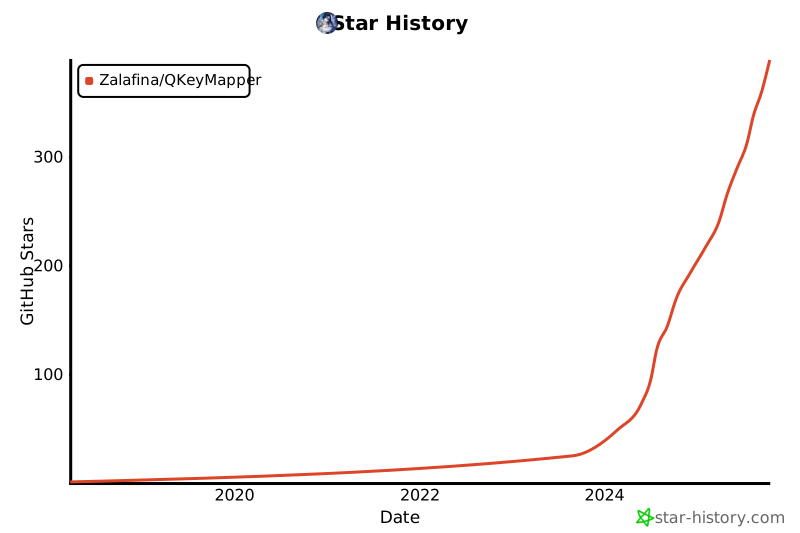
## 📖 Software Introduction QKeyMapper is an open-source key mapping tool compatible with Win7/Win10/Win11, developed using Qt Widget and WinAPI with C++. It supports various key mappings between keyboard, mouse, gamepad, and virtual gamepad. The software can be run directly after downloading and extracting, without modifying the registry or requiring system restarts. It relies on in-memory program execution to complete key mapping conversions. During program execution, mapping functions can be controlled to start and stop at any time, and mapping functions automatically stop when the software exits. Suitable for various gaming or office purposes on Windows PC key remapping scenarios. --------------- ## ⚠️ Disclaimer **QKeyMapper** is an open-source software project released under the [GPLv3](./LICENSE) license. Please read and understand the following terms before using this software: ### 📋 Usage Responsibility - This software is provided *"as is"* without any express or implied warranties. - All risks associated with the use of this software are borne solely by the user. - The developer shall not be liable for any direct or indirect damages resulting from the use of this software. ### 🔒 Safety Notice - This software involves low-level system operations and drivers; ensure you understand the relevant technical risks. - Back up important data before use and verify functionality in a test environment. - Some features require administrator privileges—grant them with caution. ### 🎯 Compliance - Ensure your usage complies with applicable local laws and regulations. - This software is intended solely for learning, research, and lawful personal use. - It is prohibited to use this software for any illegal, malicious, or rights-infringing purposes. ### 💼 Commercial Use - **This software is developed for open-source sharing and is not encouraged for commercial use.** - While the GPLv3 license technically permits commercial use, the developer’s intention is to provide a free tool for the community. - If commercial use is necessary, you must strictly comply with the GPLv3 requirements: - Retain the GPLv3 license and make the complete source code publicly available. - Derivative works based on this software must also be released under the GPLv3 license. - The software must not be used in any form of closed-source commercial product. - **Commercial entities and businesses are strongly advised to seek alternative commercial solutions.** - For full license details, please refer to the [GPLv3 Terms](./LICENSE). **By continuing to use this software, you acknowledge that you have read, understood, and agreed to the above disclaimer.** ## ✨ Features | Device | Input Detection | Input Mapping | Combination Key | Multi-Input | Multi-Controller | | ------------- | --------------- | --------------| ----------------- | ------------------- | ------------------------ | | Keyboard | ✅ | ✅ | ✅ | ✅ (10) | | | Mouse | ✅ | ✅ | ✅ | ✅ (10) | | | Physical Gamepad | ✅ | | ✅ | | ✅ (10) | | Virtual Gamepad | | ✅ | ✅ | | ✅ (4) | --- ### Download the latest Release version zip package: ### https://github.com/Zalafina/QKeyMapper/releases/latest ### https://gitee.com/asukavov/QKeyMapper/releases/latest ### ※ The ZIP packages starting with QKeyMapper_vX.Y.Z_x64/x86 are compiled executable file zip packages. Build_YYYYMMDD represents the compilation date, and the newer compilation date has corresponding new feature descriptions. --------------- ## ⭐ Star Trend If the **QKeyMapper** key mapping software has been helpful to you, please give it a ⭐ Star to support the project and help more people discover **QKeyMapper**. [![Star History Chart](https://api.star-history.com/svg?repos=Zalafina/QKeyMapper&type=Date)](https://star-history.com/#Zalafina/QKeyMapper&Date) --- ## 💡 Usage notes ### For Windows 10 and Windows 11, Qt 6 is recommended. Qt 5 builds are provided only for Windows 7 compatibility. If Qt 6 cannot run on Windows 7, download and use the Qt 5 build. ### 📌 Note 1: You may need to install the Visual C++ Redistributable 64-bit runtime.
VC++ 2015–2022 (64-bit) download from Microsoft:
https://aka.ms/vs/17/release/vc_redist.x64.exe * ( For 32-bit systems, install the 32-bit runtime https://aka.ms/vs/17/release/vc_redist.x86.exe ) ### 📌 Note 2: The multi-device support feature uses the Interception driver. This driver has known issues: repeatedly plugging/unplugging input devices (keyboard/mouse) from USB, reconnecting, or putting Windows to sleep and waking it can cause input device IDs to increase. If the ID value exceeds the Interception driver’s limit (10 keyboards, 10 mice), input devices may stop working. Only a full OS restart restores functionality (a quick restart that preserves application state will not). Install the multi-device driver only if you truly need the feature and after carefully reading how to use the driver and its potential side effects, to avoid unnecessary problems. If your mouse or keyboard stops working, first perform a full system restart, then click “Uninstall multi-device driver,” and restart again to return to normal without driver impact. ### 📌 Note 3: ViGEMBus and vJoy are both virtual gamepad drivers. Installing both at the same time is not recommended. If vJoy was previously installed and you encounter virtual gamepad issues, uninstall vJoy and check whether the problem is resolved. ### [📌 Note 4: Windows 7 requires manual installation of ViGEMBus v1.16.116 to use the virtual gamepad feature](https://github.com/Zalafina/ViGEmBus_v1.16.116_Win7_InstallFiles) * https://github.com/Zalafina/ViGEmBus_v1.16.116_Win7_InstallFiles --- ## 🔧 Usage Recommendations #### ※ In most cases, it is recommended to run the QKeyMapper mapping tool first, and then launch the game or software that requires key mapping. This helps avoid situations where keys are intercepted by other software, preventing the mapping tool from detecting them. #### ※ It is strongly recommended to enable Windows Filter Keys when using QKeyMapper. This prevents the system from continuously sending the same key signal when a keyboard key is held down, which can cause unpredictable issues with key mapping functions.
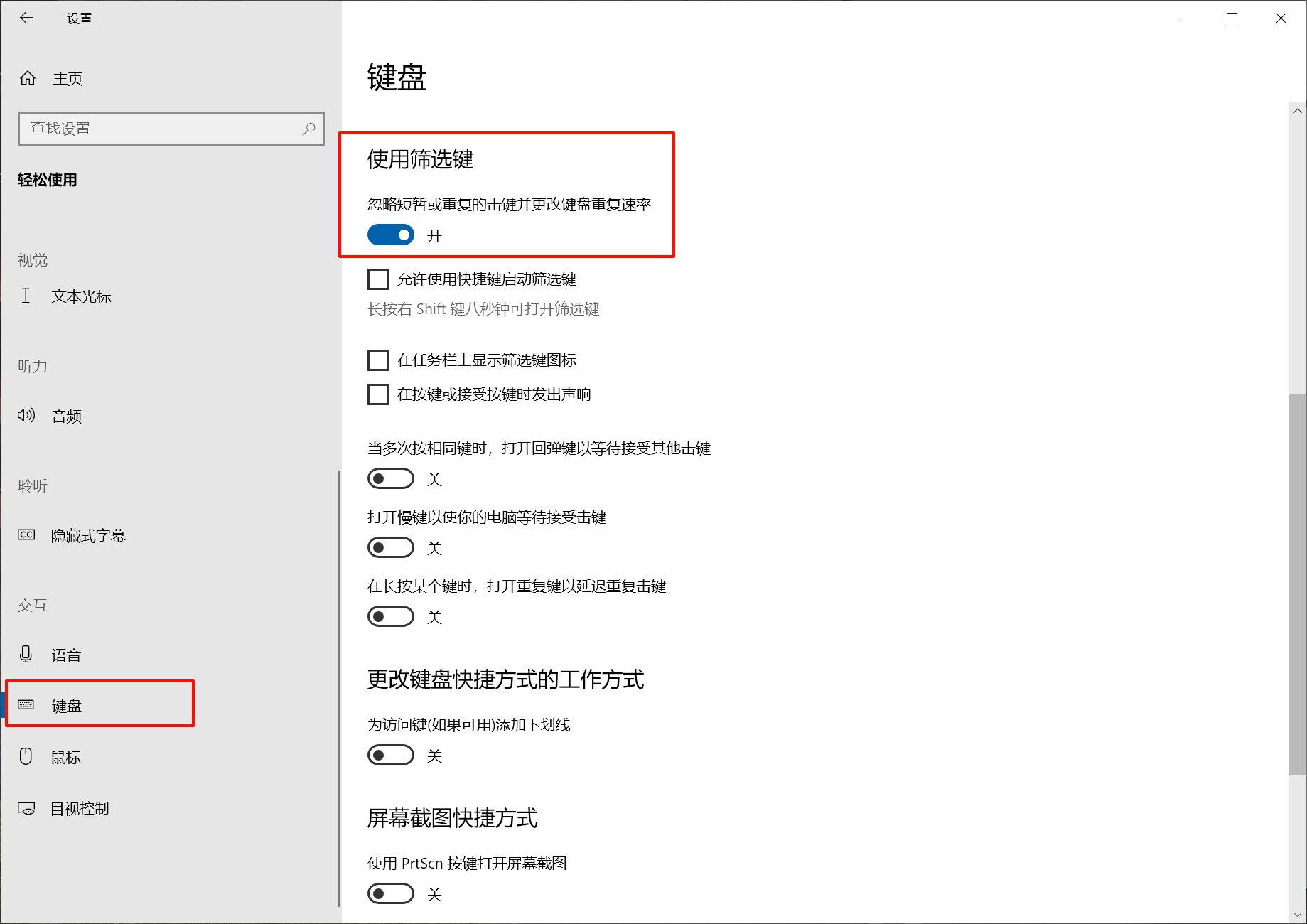
Starting from version v1.3.8.20250816, a "Enable System Filter Keys" checkbox has been added. When this option is checked, if the system’s Filter Keys are not enabled at the start of mapping, the program will automatically enable them. After mapping ends, it will restore the Filter Keys setting to its previous disabled state. - #### How to enable Filter Keys in Windows 10 Windows Settings -> Ease of Access -> Keyboard -> Filter Keys
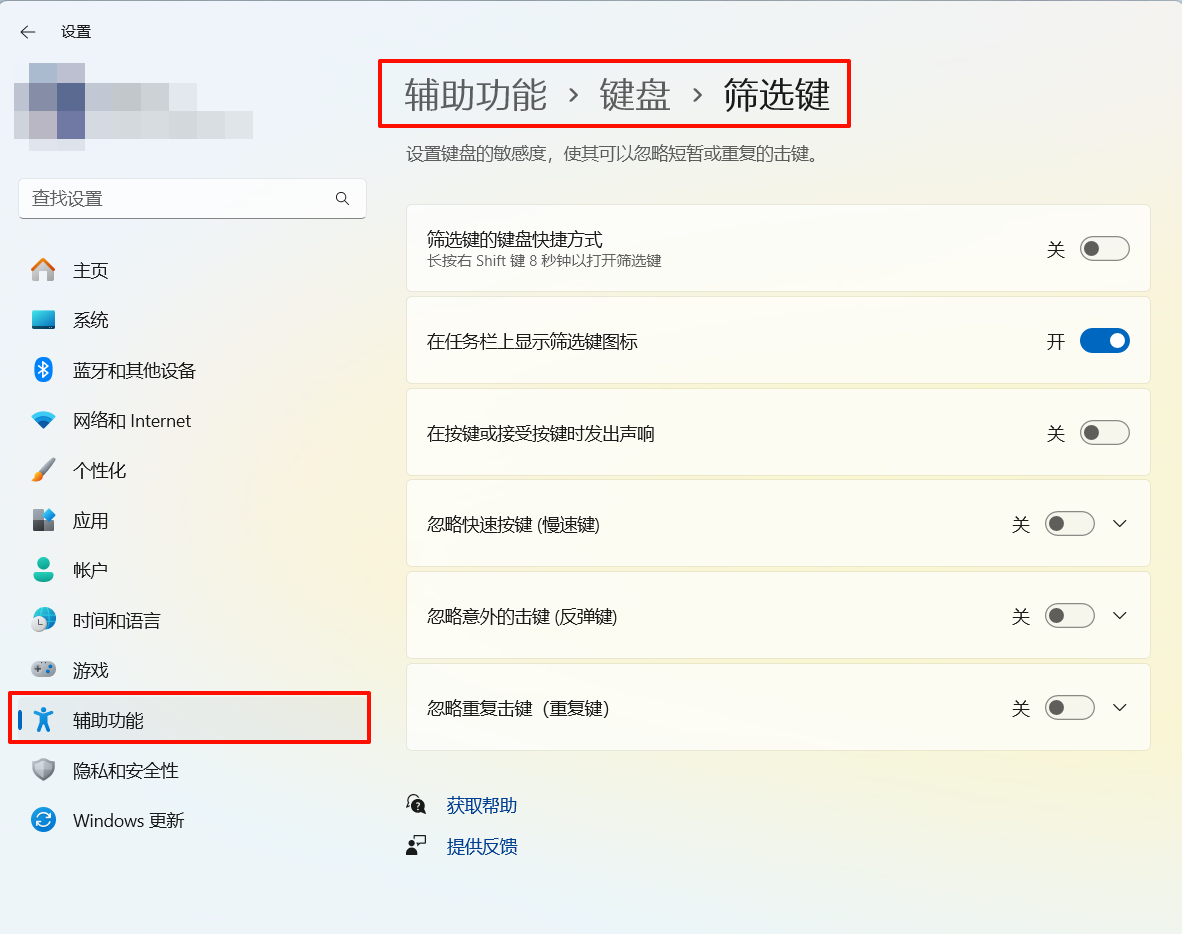
- #### How to enable Filter Keys in Windows 11 Settings -> Accessibility -> Keyboard -> Filter Keys
--- ### 🎯 New features list (sorted in descending order of update time) * v1.3.8 (Build 20250926) * Added "**Regex Match**" as a process and window title matching method. When using this method, the process and window title will be matched based on the regular expression entered in the single-line edit boxes for process and title. After entering a "**Regex Match**" pattern, you can press Enter to validate the regular expression. If invalid, a prompt will display: "Invalid regular expression : ...". * Added "**SetVolume🔊**" mapping key to the mapping key list. This mapping key sets the volume of the system’s current playback device and also displays the new volume value via a notification message. * v1.3.8 (Build 20250920) * Added two original keys to the original key list: "**SendOnMappingStart**" and "**SendOnSwitchTab**". - "**SendOnMappingStart**": Sends the mapped key content when mapping starts from this mapping table. - "**SendOnSwitchTab**": Sends the mapped key content when switching to this mapping table using the Tab shortcut key or the **SwitchTab** mapping. * Added "**SetVolume**" mapping key to the mapping key list. You can use this mapping key in the form "**SetVolume(...)**" to control the volume of the system’s current playback device. The volume range is 0–100, allowing up to two decimal places. ##### Examples of using the volume setting mapping key: SetVolume(10) (Set volume to 10) SetVolume(+5) (Increase current volume by 5, will not exceed 100) SetVolume(-20) (Decrease current volume by 20, will not go below 0) SetVolume(30.8) (Set volume to 30.8, system UI will round to display 31) * Optimized display and operation in the import/export settings dialog. * Added "Advanced Mapping Settings" button, which opens the "Advanced Mapping Settings" dialog window. - The settings for "Horizontal Mouse Speed", "Vertical Mouse Speed", "Use Process Icon as Tray Icon", and "Accept Virtual Gamepad Input" have been moved into the "Advanced Mapping Settings" dialog window. - Added "Polling Interval" for mouse movement. When controlling the mouse pointer via gamepad analog stick or keyboard keys, increasing the "Polling Interval" can further reduce pointer movement speed. Default value is "2 milliseconds", with a configurable range of 1–99 milliseconds. * v1.3.8 (Build 20250912) * Added "**Unlock**" mapping key to the mapping key list. You can use this mapping key in the form "**Unlock(...)**" to unlock the lock state of a specified original key. For example: A->B (locked), C->Unlock(A). After pressing and releasing key A for the first time, it enters a locked state of continuously pressing key B. Pressing key C can unlock the original key A, ending the continuous press of key B. * Added "**Disable Original Key Unlock**" checkbox in the mapping item settings window. When checked, for keys with the lock function enabled, pressing the original key will only lock it and cannot unlock it by pressing the original key again. The lock state can only be released via the "**Unlock**" mapping key or by stopping the mapping. * Added mapping tab switch memory function. - Double-click the mapping tab name to set a tab switch shortcut key. If you add the prefix "💾", switching to this tab using the shortcut during mapping will record and save the tab name. The next time you switch to this setting, the saved tab name will be displayed. - Added "**SwitchTab💾**" mapping key to the mapping key list. Using this mapping key to switch tabs will record and save the tab name, and the next time you switch to this setting, the saved tab name will be displayed. * When manually stopping mapping, if the current mapping has automatically switched to the global mapping settings, the software will attempt to switch back to the last setting that was automatically matched to the foreground window within the past 20 seconds, allowing the user to directly modify and edit that setting. * v1.3.8 (Build 20250906) * Added a "Backup" button to the right of the main window’s setting name edit box. Clicking it opens the "Import Settings" and "Import Settings (Extended)" buttons. The export settings window includes: - In the "Export Settings" dialog, you can select and edit the name of the exported INI file. The default is "setting_export.ini" in the software directory. Note: If you select an existing INI file, it will not be cleared; instead, the selected settings will overwrite and append to the current contents of the INI file. To perform a fresh export without appending, choose a new file name that does not already exist. - In the "Import Settings" dialog, you can select and edit the name of the INI file to import. If the INI file contains setting names already present in the current file, they will be displayed in a special color. Importing settings with the same name will overwrite the data of the same-named settings in the current settings file. - "Select All" is used to select or deselect all items. - "General Settings" refers to the basic software function settings in the "General Settings" tab that are not tied to a specific setting name. After importing general settings, if some do not take effect immediately, you can manually exit and restart the software to reload the settings file. - "Import Settings" will modify and overwrite the current settings file data. It is recommended to back up the original `keymapdata.ini` settings file before proceeding to avoid accidental data loss or file errors. * After adjusting the position and transparency of the floating window, holding L-Ctrl and double-clicking the floating window with the left mouse button will save the settings. * In virtual gamepad settings, "X-axis sensitivity" and "Y-axis sensitivity" can be set to 0. When set to 0, moving the mouse will not cause any horizontal or vertical analog stick movement in the virtual gamepad. * Updated interface icon colors for clearer contrast in dark and light modes. * Optimized mapping switch effects when switching between two saved foreground windows. * Added a tri-state "Do Not Show Notifications" checkbox in the mapping tab settings window. This allows a single tab mapping to be set so that no notifications are shown when starting mapping for that tab, or both when starting mapping and switching to that tab. * Fixed an issue with the "Update Mapping" button related to double-click and long-press original key check rules. * v1.3.8 (Build 20250830) * Added "SwitchTab" mapping key to switch to a specified tab mapping table by name using a mapping action. * When selecting the first blank item in the settings selection list, the tab mapping list will be cleared and the settings will be restored to their initial default values. * Optimized the update method after modifying the key mapping string content in the "Mapping Item Settings" window. * Added a "Startup Position Settings" window to choose the window position when the program starts. * Tab names with assigned shortcut keys are now displayed in teal text instead of using the ★ prefix. * Added support for ".svg" suffix SVG images in "Custom Mapping Table Image". * Pressing Tab or Shift+Tab in the key capture edit box will no longer switch focus to other controls. * v1.3.8 (Build 20250824) * Added "Run" mapping key to map a key to execute a specific command. - Example: `Run(E:\ABC\def\XYZ\abcd.exe param1 param2 [WorkingDir=""] [ShowOption=Max|Min|Hide])` can run the specified command, with parameters specified by spaces. - Special parameters can be added to define the run state: - `WorkingDir="C:\Path With Spaces"` specifies the working directory. Paths containing spaces must be enclosed in double quotes; the directory existence will be validated. - `ShowOption=Max|Min|Hide` sets the startup window display mode: Max (maximize), Min (minimize), Hide (hidden). If not specified, the default is normal display (note: not all programs support these ShowOption parameters). - Supports specifying system actions at the start of the command. Available system actions: - `find` (Search) - `explore` (Open in File Explorer) - `open` (Open file) - `edit` (Edit with default editor) - `openas` (Open with program selection) - `print` (Print) - `properties` (Show file properties) - `runas` (Run with administrator privileges) * SendText now supports multi-line text. * Fixed an issue where displaying the "Crosshair" mapping should not steal focus from the current window. * v1.3.8 (Build 20250816) * Added an "Enable System Filter Keys" checkbox in the "Mapping Settings" tab. When checked, if the system’s Filter Keys are not enabled at the start of mapping for this set of mappings, the program will automatically enable them. After mapping ends, it will restore the Filter Keys state to what it was before mapping started. This checkbox is unchecked by default. When unchecked, a message prompt will appear asking the user to confirm that they do not want Filter Keys to be automatically enabled during mapping. * In the settings list, the global mapping setting name is displayed as "Global Key Mapping". * Added a "Key Recording Area" edit box in the mapping table settings window. When this edit box gains focus, any single key or key combination pressed will be recorded and displayed in the box. - Clicking the "Key Compile/Key Capture" mode toggle button next to it switches between key capture mode and manual edit mode. - Right-clicking the mode toggle button will append the current contents of the "Key Recording Area" edit box to the end of the original key or mapped key edit box (holding L-Ctrl while right-clicking will append to the mapped key edit box). * v1.3.8 (Build 20250812) * Added an "Appearance Color" dropdown list in "General Settings", allowing selection of "Light", "Dark", or "System Default". "System Default" follows the Windows system color theme to change the interface appearance accordingly. * Added an "Original Key Recording" edit box. When this edit box gains focus, any single key or key combination pressed will be recorded and displayed in the box. - Clicking the "Key Compile/Key Capture" mode toggle button next to it switches between key capture mode and manual edit mode. - When clicking the "Add" button, the program will first check the contents of the "Original Key Recording" edit box. If it is empty, it will then check the selection in the original key list. * Changed the display of operation prompts and mapping status prompts to use mouse-through effect. * v1.3.8 (Build 20250808) * Added support for new physical gamepad buttons in button detection. ##### Newly supported buttons: Joy-Misc1 (Xbox X Share button, PS5 Microphone button, Switch Pro Capture button, Amazon Luna Microphone button) Joy-Paddle1 (Xbox Elite upper left back paddle) Joy-Paddle2 (Xbox Elite upper right back paddle) Joy-Paddle3 (Xbox Elite lower left back paddle) Joy-Paddle4 (Xbox Elite lower right back paddle) Joy-Touchpad (PS4/PS5 Touchpad button) ※ On Windows, Xbox layout controllers use XInput by default, so special buttons can only be detected when switched to DInput mode. PS controllers and Switch controllers use DInput by default, so these buttons can be detected. * Optimized physical gamepad button detection so that PS4/PS5 button names match those of Xbox controllers. * When the original key list control has focus (e.g., by scrolling or clicking with the mouse), pressing a physical gamepad button will automatically switch the original key list to the name of the pressed gamepad button. * If Windows system default app mode is set to "Dark", QKeyMapper will still display the interface in "Light" mode. * Fixed an issue where the floating window would not display when setting prompts were disabled. * Fixed an issue where changing a tab name did not update the tab label display. * Removed the program’s default scale setting. You can now select the display scaling factor from the new "Scaling Ratio" dropdown list in "General Settings". The setting will take effect the next time the program starts after saving. Note: The "--scale=" startup parameter has higher priority than the in-program setting. * v1.3.8 (Build 20250806) * Added coordinate reference point settings in the "Floating Window Settings" window. The default reference point is "Top-left corner of the screen". You can choose a specific position on the screen or a specific position of the matched window as the reference point, combined with coordinate information to determine the floating window display position. * In the "Floating Window Settings" window, you can set the floating window's "Background Color" and "Corner Radius" separately. * Holding L-Ctrl while clicking the "Add Tab" button will fully duplicate the contents of the currently displayed tab into the newly added tab, including custom tab images and all tab settings. * Fixed an issue where switching to a tab that does not display a floating window would not remove the floating window. * Changed "Post" sending method to "SendMessage" sending. Replaced PostMessage with SendMessage to improve compatibility. * v1.3.8 (Build 20250802) * Added a "Display as Floating Window" checkbox in the custom mapping table image settings area of the "Mapping Table Settings" window. When checked, successfully matching and enabling this tab mapping table will display the custom image as a top-level floating window on the screen. - While the floating window is displayed, you can drag it to move its position using the left mouse button. - Moving the mouse pointer to the bottom-right corner of the floating window will change the pointer to the resize cursor. Pressing and dragging with the left mouse button will resize the floating window. The aspect ratio is fixed as a square, with size range 16~640. - When the mouse pointer is inside the floating window, you can scroll the mouse wheel up to increase opacity or down to decrease opacity. Opacity range is 0.10~1.00. - Clicking the "Floating Window Settings" button in the "Mapping Table Settings" window opens the "Floating Window Settings" window, where you can view and adjust the current floating window's size, position, opacity, and mouse-through state. - When the "Mouse Through" checkbox is checked, the floating window cannot be dragged, resized, or have its opacity adjusted with the mouse. Mouse actions will pass directly through to the underlying window. - While the floating window is displayed, pressing the "F11" key when the mouse pointer is inside the window will toggle the "Mouse Through" state. - Clicking "Save Settings" will save the current settings along with the mapping table's "Floating Window Settings", including size, position, opacity, and mouse-through state. * Modified the "Tray Icon Pixel" dropdown list in the "Mapping Table Settings" window to read various icon sizes directly from ICO files for selection. * v1.3.8 (Build 20250728) * Fixed an issue where icon sizes were extracted incorrectly when loading certain exe files that do not provide high-resolution icons. * If the "custom_trayicons" subdirectory exists in the program directory and contains ".ico" icon files, the program will read and append them to the end of the list in the "Select System Tray Icon" window at startup, allowing selection as custom tray icons for different states. * In the "Window Information" tab, the "Process" and "Title" fields can be set to empty. Setting them to empty is equivalent to selecting "Ignore" as the matching method, meaning process or window title detection will be skipped. * Improved foreground window matching handling when "Process" or "Title" fields are empty. * Improved detection method for "Send to Same-Named Window". * v1.3.8 (Build 20250726) * Changed the rules for setting names by adding a "Setting Name" single-line edit box, allowing users to customize the setting name. If the entered name does not exist in the list, a new setting will be added when saving. - When saving, if the setting name matches an existing name in the list, the existing setting will be overwritten. - Changes to "Process" and "Title" content and matching method in the setting will only take effect after clicking the Save button. * Added a "Window Information" tab, moving the window title, process name, setting description, and process icon to be displayed in this tab. - In the "Window Information" tab, you can choose the matching method for process and title, including: "Ignore", "Equals", "Contains", "Starts with...", "Ends with...". Selecting "Ignore" works the same as previously unchecking the process and title checkboxes. - Double-clicking an item in the left process list changes the "Process" single-line edit box from showing the process file name to showing the absolute path, and makes both the "Process" and "Title" single-line edit boxes editable. - Holding L-Ctrl while double-clicking an item in the left process list will not only search for a matching existing setting name but also update the process path and window title in the "Window Information" tab. - Clicking the "Restore" button will restore the "Process" edit box content to the absolute path (if available). * Added a "Start Automatically" checkbox in the "General Settings" tab. When checked, the software will automatically switch to "Mapping Started" state upon launch. This removes the need to use the "Auto Match Foreground Process" checkbox to achieve automatic mapping start after launch. * Pressing the "Remove Setting" button will now prompt the user with a confirmation dialog. The setting will only be removed if the user clicks Confirm. * Added a "Fixed Virtual Key Code" hexadecimal value box in the "Mapping Item Settings" window. If the value is not 0x0, the specified virtual key code will be sent when sending a keyboard mapping key, but the key scan code will still be sent according to the key name. * Added support for mapping original key combinations to functional mapping keys with the "Func-" prefix. * In "Advanced Prompt Settings", if the display duration is set to 0, the last displayed prompt will remain visible indefinitely. * Fixed untranslated interface text in the "Advanced Prompt Settings" window. * v1.3.8 (Build 20250716) * Added a "Tab Prompt Background Color" setting button in the "Mapping Table Settings" dialog. Clicking it opens a color selection window, allowing you to set different background colors for prompt messages when starting or switching mapping for each mapping table. * Fixed issues with the SendText text sending function. * v1.3.8 (Build 20250712) * Added "Category Filter" feature. Clicking the "Category Filter" button will display the "Category" column in the mapping table. Double-clicking a cell in the Category column allows you to enter a category. Selecting a specific category tag from the dropdown list on the right will filter the mapping table display accordingly. * Tab mapping tables can now be moved by dragging the tab name position. The Add Tab function is no longer triggered by double-clicking the "+" tab; instead, use the "Add Tab" button in the upper right corner. * Removed the up/down move buttons for mapping items on the right side of the main program window. Mapping items can now be moved by dragging with the mouse, or by selecting them and pressing the keyboard arrow keys "↑" and "↓". * After selecting one or more mapping items, holding L-Ctrl and pressing the keyboard arrow keys "↑" or "↓" will move the selected items directly to the top or bottom of the mapping table. * Updated **zipupdater.exe** to fix an issue where updating and copying program files could fail if the QKeyMapper process exited slowly. * Fixed an issue where, if there was only one empty mapping table with no mapping items, changes to the mapping table name or other custom data could not be saved correctly. * v1.3.8 (Build 20250708) * Added a "Tray Icon Pixel" selection list in the "Custom Mapping Table Image" settings area. If the selected resolution layer exists in the ICO file, the specified pixel resolution layer from the ICO image will be used for the custom tray icon. Otherwise, it will behave the same as the default selection, letting the system automatically choose which resolution layer to display for the tray icon. * Fixed an issue in **v1.3.8.20250706** where the tray icon was not updated correctly when prompt messages were disabled. * v1.3.8 (Build 20250706) * Added the following "Custom Mapping Table Image" settings in the "Mapping Table Settings" window: - Clicking the "Select Custom Image" button opens a dialog to choose a dedicated custom image for this tab mapping table (supports .ico/.png extensions). If the image file loads successfully, it will be displayed in the left image box and updated in front of the tab name label. - Holding L-Ctrl while clicking the "Select Custom Image" button will clear the current tab’s custom image. - The "Display Position" dropdown list allows choosing to display the tab custom image to the left or right of the prompt text, or not display it in the prompt at all. - The "Image and Text Spacing" value adjustment box can increase the spacing between the image and text when displaying the custom image in the prompt (default spacing 0, range 0~1000). - When the "Display as Tray Icon" checkbox is checked, successfully matching and enabling this tab mapping table will use the custom image as the system tray icon. - If the selected custom image file is located in the current program directory or its subdirectory, a relative path will be saved. This ensures that when the program directory is moved to another PC, the custom image in the program directory can still be used. * Added a "Advanced Prompt Settings" button in the "General Settings" tab. Clicking it opens the "Advanced Prompt Settings" dialog, where you can configure: - Prompt text color (hold L-Ctrl and click the color button to restore default color) - Prompt text size (default size 16, range 1~72) - Prompt text weight (default bold; options: thin, regular, bold) - Prompt display duration (milliseconds, default 3000 ms, range 0~99999 ms) - Prompt fade-in animation duration (milliseconds, default 0 ms: no fade-in, range 0~99999 ms) - Prompt fade-out animation duration (milliseconds, default 500 ms, range 0~99999 ms) - Prompt background color (can set background transparency; hold L-Ctrl and click the color button to restore default color) - Prompt background corner radius (default 5 pixels, range 0~1000; 0 for square corners) - Prompt background padding (default 15 pixels, range 0~1000) - Prompt overall opacity (default 1.000, range 0.000~1.000; lower values are more transparent) - Prompt horizontal offset adjustment (additional X-axis offset in pixels based on chosen prompt position; default 0, range -5000~5000; negative shifts left, positive shifts right) - Prompt vertical offset adjustment (additional Y-axis offset in pixels based on chosen prompt position; default 0, range -5000~5000; negative shifts up, positive shifts down) * In the "Mapping Table Settings" window, holding L-Ctrl while clicking the "Tab Prompt Text Color" button will restore the default color for tabs without a custom "Tab Prompt Text Color" set. * Added category selection buttons above the "Original Key List" and "Mapped Key List" in the "Mapping Item Settings" window, linked with the main window. * Foreground window monitoring now uses both event monitoring and periodic monitoring to improve detection stability. * Fixed an issue where the "Mapped Key List" was missing the Key2Mouse mapping key. * v1.3.8 (Build 20250626) * Added category selection buttons above the "Original Key List" and "Mapped Key List" in the main program window. The four buttons are "Keyboard Keys", "Mouse Keys", "Gamepad Keys", and "Function Keys". Only keys of the selected category will be listed when the corresponding button is pressed. * Added a "Tab Prompt Text Color" setting button in the "Mapping Table Settings" dialog. Clicking it opens a color selection window, allowing you to set different prompt text colors for each mapping table when mapping starts. * Added a "Select Tray Icon" button in the "General Settings" tab. Clicking it opens a dialog where you can choose system tray icons for the four states: "Idle", "Monitoring", "Global Mapping", and "Matched Mapping". Multiple color icon options are available. **[Thanks to user group member **汽波** for creating the new system tray icons]** * Added a "Use Process Icon as Tray Icon" checkbox in the "Mapping Settings" tab. When checked, successfully matching and enabling a mapping configuration will use the saved process file icon as the system tray icon. * Optimized the method for monitoring foreground window changes, making the start/stop mapping response faster when switching foreground windows. * Clicking the close button now opens a dialog asking whether to check "Clicking the close button will hide the program to the system tray icon". If checked and confirmed, subsequent clicks on the close button will hide the program to the system tray. If unchecked and confirmed, subsequent clicks will directly close the program. **[Note: The dialog choice is saved to the settings file. Holding L-Ctrl while clicking the close button will reopen the dialog to choose again.]** * When a numeric adjustment box in the "Mapping Item Settings" dialog has focus and is being edited, closing the dialog will update the setting value with the current edit. * Optimized the display method for mapping start prompt messages: - Added a numeric box in the "General Settings" tab to set the size of the mapping status prompt text (default size 16, range 1~72). - For mapping configurations with a description, the description will replace the process information in the prompt message when mapping starts. - When switching mapping table tabs via shortcut keys while mapping is active, if the pressed shortcut key belongs to the current mapping table, a prompt will display: "Already on - ". * v1.3.7 (Build 20250622) * Fixed an issue introduced in **v1.3.7.20250618** where gamepad buttons could not be detected properly. (The 0618 version files are no longer provided; upgrade to the 0622 version to resolve the issue.) * v1.3.7 (Build 20250618) * Added "vJoy-LS-Radius" and "vJoy-RS-Radius" mapping keys to the mapped key list. These can be used with the "Light Push Value" slider to add mapping keys such as "vJoy-LS-Radius[100]" or "vJoy-RS-Radius[150]" to switch the radius of the left/right virtual analog sticks. **Stick radius range**: 1~254. * Added a "Mapping Table Templates" folder to the ZIP package of the software release. It contains several ready-to-import mapping table templates for reference. * v1.3.7 (Build 20250616) * Added the "Gyro2Mouse" feature. If your physical game controller supports the standard gyro protocol (DS4, DS5, etc.), you can select "Joy-Gyro2Mouse" in the original key list to use gyro-to-mouse mapping, allowing you to control the mouse pointer's horizontal and vertical movement by rotating the controller along a specific axis. - Added a "Gyro2Mouse" settings tab, where "Horizontal Speed" and "Vertical Speed" can be adjusted to control the horizontal and vertical movement speed of the gyro-to-mouse function. Value range: 0.00~99.99. - When a game controller with gyro support is connected to the PC, "[GyroEnabled]" will be displayed after the controller name in the controller list. When a controller is highlighted in the list, pressing the "F2" key will toggle gyro enabled/disabled state. Gyro is enabled by default when the controller is connected. - Added "Gyro2Mouse-Hold" and "Gyro2Mouse-Move" mapping keys to the mapping keys list. When "Gyro2Mouse-Hold" is pressed, gyro mouse pointer movement is suppressed; when released, gyro mouse pointer movement is allowed. When "Gyro2Mouse-Move" is pressed, gyro mouse pointer movement is allowed; when released, gyro mouse pointer movement is suppressed. - The "Gyro2Mouse" settings tab contains other advanced options. The default values are usually sufficient. If you need to modify them, please make sure you fully understand their functions before making changes. * v1.3.7 (Build 20250608) * The close button in the upper right corner of the window now hides the window to the system tray. The minimize button minimizes the window to the taskbar. You can exit the program by right-clicking the system tray icon and selecting "Exit", or by pressing Alt+F4 when the window is visible. * Fixed calculation errors when moving the mouse pointer using controller sticks or keyboard keys. * Added tooltip information to the "General Settings", "Mapping Settings", "Virtual Gamepad", "Multi-Input", and "Forza Motorsport" tabs. Hovering the mouse pointer over the tab name will display the tooltip. * Updated the SDL2 library for game controller detection to SDL2-2.32.6 (released 2025-05-05), and the SDL_GameControllerDB database to 20250523. * v1.3.7 (Build 20250508) * Before installing the "Interception Driver", a confirmation dialog will prompt the user to carefully read the instructions for using the "Interception Driver" to avoid issues such as keyboard/mouse device failure caused by repeatedly plugging/unplugging devices or repeated sleep/wake cycles. * For key sequences with "Repeat on Key Down" enabled, releasing the original key will immediately interrupt the currently sending key sequence. * Fixed an issue where pressing the original key repeatedly in a key sequence mapping did not properly interrupt the previous key sequence. * v1.3.7 (Build 20250412) * If Windows Filter Keys are not enabled, a prompt will appear at startup: "It is strongly recommended to enable Windows Filter Keys when using QKeyMapper to avoid various abnormal issues." * On Windows 10 or later 64-bit systems, running the Qt5 version will prompt: "Qt6_x64 version is recommended for Windows 10 or later 64-bit systems. The Qt5 version is for compatibility with Windows 7 only." * v1.3.7(Build 20250226) * Added two mapping keys **Crosshair-Normal** and **Crosshair-TypeA** to display crosshair reticles on the game screen when pressed. In the mapping item setting window, the **Crosshair Settings** button pops up a setting window where you can adjust the color, line length, line width, offset, and transparency. * Updated **PS4-Dualshock Controller** key detect table in the README file. * Increased the number of physical gamepad key detections to **Joy-Key30**. * Changed the translation text switching mechanism when switching languages. * v1.3.7(Build 20250118) * Increased the adjustment range of **X-axis sensitivity** and **Y-axis sensitivity** on the "Virtual Gamepad" tab from **1~1000** to **1~50000**, with the default value changed from 80 to 4000. After the update, if the virtual gamepad joystick moves too slowly, you can multiply the original sensitivity setting by 50 times to achieve the same effect as before. * Fixed memory leak issue caused by the update module. * v1.3.7(Build 20250115) * Added a **Post Method Sending** checkbox in the mapping item setting window. When checked, if the mapping key supports using the PostMessage method (ordinary keyboard and mouse keys), the mapping key will be sent using the Post method. * Fixed issue where the original key was not released correctly when setting a long press time. * Fixed issue where setting long press/double-click for the original key and enabling "Key Sequence Loop" did not loop the key sequence after completion if the original key was still pressed. * v1.3.7(Build 20250110) * In the "Virtual Gamepad" tab, setting the "Recenter Delay" value to 0 will display "No Recenter." In this case, the recenter delay timer for the mouse-controlled virtual gamepad joystick will not be activated. * Removed **Mouse2vJoy-Direct** mapping key and added a "Direct Control Mode" checkbox in the "Virtual Gamepad" tab to replace this mapping key. When this setting is checked, the mouse control virtual gamepad joystick function of **vJoy-Mouse2LS/vJoy-Mouse2RS** will use "Direct Control Mode" for joystick movement. * The "Recenter Delay" value setting also applies to the mouse-controlled virtual gamepad joystick in "Direct Control Mode." * Changed the adjustment effect of **X-axis sensitivity** and **Y-axis sensitivity** in the "Virtual Gamepad" tab from the smaller the value, the higher the sensitivity, to the larger the value, the higher the sensitivity. The adjustment range remains unchanged at 1~1000, with the default value changed from 12 to 80. * Fixed the "ZIP file not found" error when updating from the **Gitee** website. * v1.3.7(Build 20250108) * Added "Recenter Delay" value adjustment box in the "Virtual Gamepad" tab, which can be set to a recenter delay time between 1~1000 milliseconds. The default recenter delay is 200 milliseconds. * v1.3.7(Build 20241230) * When selecting the [Yes] button to automatically upgrade and overwrite the current version files, if the upgrade files are successfully decompressed and copied, the QKeyMapper program will automatically restart. * Mapping table supports simultaneous selection of multiple rows. The method is to left-click to select one row, then press the **Shift** or **Ctrl** key on the keyboard while left-clicking to select another row to simultaneously select multiple rows of the mapping table content. The following operations support multi-row selection: - Press the **Delete** button or the keyboard **Delete** key to delete the currently selected multiple rows simultaneously. - Press the **▲** / **▼** buttons or the keyboard **↑** / **↓** keys to move the currently selected multiple rows up or down. - Drag the currently selected multiple rows to the specified position through mouse dragging. * After selecting the current mapping table content, press **Ctrl + C** to copy the selected content, then switch to another mapping table and press **Ctrl + V** to insert the copied content: - If there are no duplicate entries with the original keys in the current mapping table, all copied content will be inserted, and the number of inserted entries will be displayed in the prompt information. - If some original keys in the copied content are duplicated with the current mapping table, the non-duplicated copied content will be inserted, and the number of inserted entries and the number of entries that could not be inserted due to duplication will be displayed in the prompt information. - If all the copied content duplicates the original keys in the current mapping table, no content will be inserted, and a failure prompt will be displayed. - During the insertion operation, the copied content will be inserted in front of the currently selected item in the current mapping table. If there are no selected items, the copied content will be inserted at the end of the mapping table. * v1.3.7(Build 20241228) * Added zipupdater.exe upgrade program. After downloading the upgrade files by clicking the "Check for Updates" button, you can select [Yes] in the dialog box to automatically decompress and overwrite the current program files. Before overwriting the current version files, the **keymapdata_latest.ini** setting file will be backed up to the **settings_backup** directory. * Added "milliseconds" unit display suffix to all time-related value adjustment boxes, including: "long press" and "double click" time value adjustment boxes, "delay" time value adjustment boxes, "rapid fire press" and "rapid fire release" time value adjustment boxes. * When the mapping is stopped, after left-clicking to highlight an item in the mapping table, you can use the "↑" and "↓" keys on the keyboard to move the currently selected item up and down, and use the "Del" key on the keyboard to delete the currently selected item. * If a combination key is set for the shortcut keys "Mapping On," "Mapping Off," "Display Switch," "Mapping Table Switch," the key order will be checked, and the shortcut key will be triggered only when the key order is consistent. * v1.3.7(Build 20241222) * Added "UpdateSite" dropdown list before the "Check Updates" button. You can choose "Github" or "Gitee" to check for updates on different version release websites. After switching, click "SaveSetting" to save the selected website in the settings. **Note: Some network environments require a proxy or VPN to connect to Github servers without obstacles. If you cannot update through Github or the download speed is too slow, please try selecting the Gitee website for updates.** * v1.3.7(Build 20241220) * Added "Check Updates" button in the "General" tab. If the latest version on Github is newer than the currently running version, it will prompt the user whether to download the latest version. Clicking "Yes" will download the zip upgrade package to the "update_files" directory in the software path, and a prompt dialog box will be displayed when the download is complete. **Note: This is available for normal access to the Github network environment. If you cannot access Github normally, please use other methods to update.** * Fixed the issue where the original key pass-through did not work when both "Burst" and "PassThrough" were enabled. * v1.3.7(Build 20241216) * Fixed the issue of multi-directional simultaneous light push for virtual gamepad joysticks. * v1.3.7(Build 20241210) * Add **PushLevel** value slider for specific virtual gamepad buttons: - **PushLevel value range**: 1~254 - **Default Value**: 255 (slider at the maximum position) When the slider value is **255**, the button will not add a `[xxx]` suffix number, achieving the same effect as pressing the button fully in previous versions. ##### Example of PushLevel Virtual Gamepad Button Format: vJoy-LS-Up[150] vJoy-Key12(RT)[100] ##### Supported Button List: vJoy-Key11(LT) vJoy-Key12(RT) vJoy-LS-Up vJoy-LS-Down vJoy-LS-Left vJoy-LS-Right vJoy-RS-Up vJoy-RS-Down vJoy-RS-Left vJoy-RS-Right * v1.3.7(Build 20241206) * Added "Accept Virtual Gamepad Input" checkbox in the "Mapping" tab. When this setting is checked, if the sent virtual gamepad button matches the original key in the mapping table, the corresponding mapped key will also be triggered and sent. By default, QKeyMapper does not detect or trigger any original keys for any virtual gamepad operations it sends. * Fixed several mapping key sending issues when "Multi-Input Devices" is enabled. * v1.3.7(Build 20241130) * Added "Unbreakable" checkbox in the mapping item setting window. When checked, pressing the same original key again before the mapped keys are fully sent will not perform any action. When unchecked, repeatedly pressing the same original key will interrupt the currently sending mapped keys and restart sending the mapped keys. * Increased the duplicate mapping key check rule when editing mapping keys in the mapping item setting window. Adding the same mapping key with different prefixes and suffixes will also be checked as a duplicate key. For example, "A+!A" and "A+A⏱200" will be checked as existing duplicate keys. * v1.3.7(Build 20241126) * Fixed the crash issue when importing older version mapdata INI files into the November new version program. * v1.3.7(Build 20241120) * Added the "CheckCombinationKeyOrder" checkbox in the mapping settings window. When enabled, if the original key is a combination, the order in which the keys are pressed must match the sequence of the original key combination for it to trigger. For example, for the original key combination "A+B" with "CheckCombKeyOrder" enabled, pressing A first and then B will trigger the combination. The default value for "CheckCombKeyOrder" is enabled. If you do not want to check the order, uncheck this option. * v1.3.7(Build 20241116) * Added a "Record Keys" button in the mapping settings window. Pressing this button opens the key recording dialog. In the recording dialog, press the "F11" key to start recording and the "F12" key to stop recording. You can also click the "Start Record"/"Stop Record" buttons with the left mouse button to control the recording process. After recording, the captured key sequence is displayed in the lineedit box and automatically copied to the clipboard. You can directly paste the recorded keys into the "MappingKey" lineedit box or other fields. * v1.3.7 (Build 20241112) * **New Feature: "SendTiming" Options**: * Added a **"SendTiming"** dropdown in the mapping configuration window, allowing users to choose when mapped keys are sent based on the state of the original key. Options include: - **Normal** - **KeyDown** - **KeyUp** - **KeyDown+KeyUp** - **Normal+KeyUp** * The previous **"KeyUp Action"** checkbox has been replaced and removed. * **Separate KeyUpMapping**: * Introduced a **"KeyUpMapping"** field in the configuration window to specify a separate key mapping triggered when the original key is released. * By default, the **"KeyUpMapping"** inherits the same value as the **"MappingKey"** field but can be customized independently. - **MappingKey**: Sent when the original key is pressed. - **KeyUpMapping**: Sent when the original key is released. * **"MappingKeyUnlock" Option**: * Added a **"MappingKeyUnlock"** checkbox, available when the **"Lock"** option is selected. * Functionality: - While a key is locked (e.g., holding **L-Shift** locks it in a pressed state), pressing it again will unlock and release the key. - If **"MappingKeyUnlock"** is also checked, a short press of any mapped key can unlock and release the locked key. - Example: Mapping **L-Shift⏲500** to **L-Shift** with **Lock** enabled will lock **L-Shift** when long-pressed. Unlock it with either another long press or a short press of the mapped key if **MappingKeyUnlock** is enabled. * **Extended "!" Prefix Functionality**: * Enhanced the **"!" prefix** in the mapping configuration to support **Input after override(SOCD - Last Input Priority) for both physical and virtual keys**. * Input after override(SOCD - Last Input Priority) is now available for both keyboard keys and mouse buttons, ensuring seamless key remapping across physical and virtual devices. * v1.3.7 (Build 20241030) * **Crash Fix for Burst Key Presses**: * Resolved a potential crash issue when holding burst keys. * **Save Settings Hotkey**: * While mapping is inactive, pressing **L-Ctrl+S** with the main window in focus now executes the **"Save Settings"** action. * **Miscellaneous Fixes**: * Addressed other issues affecting user experience. * v1.3.7 (Build 20241024) * **Key Sequence Holddown Issue Fix**: * Fixed a bug in the **"Key Sequence Holddown"** feature to ensure consistent behavior. * v1.3.7 (Build 20241022) * **New Key Mapping: KeySequenceBreak**: * Added a new mapping key **"KeySequenceBreak"** to interrupt ongoing key sequences connected by "»". * Example: If the original key **Q** is mapped to **"KeySequenceBreak"**, pressing **Q** immediately halts all ongoing key sequences in the active mapping table. * **Optimized Key Sequence and Burst Handling**: * Improved the method of sending rapid-fire keys for smoother performance. * **Key State Synchronization**: * When stopping burst or key sequence sends, the program now checks for physically pressed keys and reissues their press messages to ensure their states remain consistent. * **New Launch Parameter: `--scale=`**: * Added the `--scale=` launch parameter to enforce a specific UI scaling factor. * Example: Setting the shortcut as `QKeyMapper.exe --scale=1.0` will start the program at a 1.0 scaling factor. * If no `--scale=` parameter is passed and the system scaling is set to 1.0, the program defaults to a 1.25 scaling factor. * v1.3.7 (Build 20241012) * **Gamepad Detection Update**: * Updated the SDL2 library for gamepad detection to **SDL2-2.30.8** (released on 2024-10-02). * Updated the gamepad detection database to support more devices. * v1.3.7 (Build 20241006) * **Mapping Item Description**: * Added a **"Mapping Item Description"** text box to the "Mapping Table Settings" dialog. * You can add remarks or notes for a specific key mapping. When hovering over the "OriginalKey" field in the mapping list, the description is displayed as a tooltip at the mouse pointer location. * **ShowNotes Button**: * A new **"ShowNotes"** toggle button has been added to the top-right corner of the main window. * By default, this button is unchecked (released), and remarks are not appended to the original key list. * Clicking the button toggles it to a checked (pressed) state, displaying the original key in the format: `Original Key【Mapping Item Note】`. * **Optimized Concurrent Key Processing**: * Improved the handling of simultaneous key mapping sends for better performance and stability during high-frequency input scenarios. * v1.3.7 (Build 20240928) * Added "RepeatByKey" and "RepeatTimes" checkboxes in the mapping settings window. Only one of these checkboxes can be selected at a time: - **RepeatByKey**: Sends the key sequence repeatedly while the original key remains pressed. - **RepeatTimes**: Specifies how many times the key sequence will be repeated for a single press of the original key. * Introduced the "!" prefix for the "Mapped Key List" in the mapping settings window. This prefix can be added before a normal keyboard or mouse mapped key to implement input after override(SOCD - Last Input Priority). For example: - If the "D" key is mapped to "!A," pressing the "D" key after pressing the "A" key will automatically send a release signal for "A." - When the "D" key is released, if the "A" key's physical button is still pressed, it will automatically send an "A key pressed" message. - (Note: This character is not the exclamation mark on the keyboard and must be added through the "Mapped Key List" in the mapping settings window or copied from elsewhere.) * Added a "Mapping Description" text box below the "Save Settings" button in the main window. This allows users to add descriptive notes for the saved settings corresponding to processes and titles. The description is displayed in the settings selection list as `process.exe|TitleX【Mapping Description】`. * Moved the language selection dropdown to the "General" settings tab. * Added a "Process List" toggle button in the top-right corner of the main window. By default, the "Process List" button is in the checked state, displaying the process list on the left side of the main window. Clicking the button toggles it to the unchecked state, hiding the process list and expanding the mapping table on the right to occupy the space previously used by the process list. * v1.3.7 (Build 20240916) * Support for adding multiple mapping tables under a single configuration option (process name + title). The default mapping table tab name is "Tab1." Double-click the "+" tab button with the left mouse button to add a blank mapping table. Tab names are automatically numbered sequentially as "Tab2," "Tab3," and so on. * Double-click an existing mapping table tab name with the left mouse button to open the "Mapping Table Settings" dialog. Here, you can modify the "Mapping Table Name" and "Mapping Table Hotkey." Changes take effect after clicking the "Update" button. To save the updated "Mapping Table Name" and "Mapping Table Hotkey" to the configuration file, you must click the "Save Settings" button. * "Mapping Table Hotkey" allows you to switch the currently active mapping table while the mapping is enabled in the game, enabling you to switch between multiple key mappings during gameplay. If the hotkey is prefixed with the `$` character, the hotkey will not be intercepted and will still be sent to the application. * The "Mapping Table Settings" dialog now includes an "Export Mapping Table" button, which can export all key mapping data from a specific mapping table to an INI file. The default file name for export is "mapdatatable.ini," but you can set a custom file name in the save file dialog. * The "Mapping Table Settings" dialog now includes an "Import Mapping Table" button, allowing you to import previously exported mapping table data from an INI file. The imported data is appended to the end of the selected mapping table. Since duplicate mappings with the same original key are not allowed in a single table, imported data with original keys already existing in the table will be filtered out. * Physical gamepad key input detection now supports detecting virtual gamepad input. This allows you to combine virtual gamepad key mappings with physical gamepad key mappings. For example, you can map `vJoy-Mouse2RS` along with `Joy-RS-Up`, `Joy-RS-Down`, `Joy-RS-Left`, and `Joy-RS-Right` to keyboard keys, enabling functionality where mouse movements trigger keyboard keys. * v1.3.7 (Build 20240812) * In the "Original Keys List," physical gamepad keys prefixed with `Joy-` can now include `@` followed by a numeric player index (`0` to `9`) to distinguish mappings based on the gamepad's player number. A total of 10 player indices are supported. If no `@` + numeric player index is added, the mapping will apply to inputs from all physical gamepads. * Added a "Gamepad" dropdown combo box to assist with selecting the player index (PlayerIndex) for mapping original keys. When selecting a gamepad player index, the `@` + numeric index (`0~9`) is automatically appended to the `Joy-` prefixed original key mapping. For example, `"Joy-Key1(A/×)@0"` represents the `A/×` key of gamepad player `0`. * Removed the feature allowing deletion of the last `»` or `+` connected mapping key by pressing the `Backspace` key after selecting a mapping item via mouse click. Instead, mapping keys can be modified through the "Mapped Keys" editor in the mapping settings window. * v1.3.7 (Build 20240711) * Added `SendText` mapping to the "Mapped Keys List." When `SendText` is selected, you can input text in the "Text" single-line editor to send the string inside `SendText()` to the current foreground window or a specified window when the original key is pressed. * You can now prepend the `$` character to the "Display Toggle Key" and "Mapping Toggle Key" settings. This indicates that these keys will not be intercepted and will still be sent to the application after being triggered. * Added a "Notification" combo box in the "General" tab. You can choose whether to display notifications on the screen for mapping state changes. Notification display positions include "Top Left," "Top Center," "Top Right," "Bottom Left," "Bottom Center," and "Bottom Right." * Updated to allow multiple instances of the QKeyMapper program to run simultaneously on the same system. By copying the unzipped QKeyMapper directory, each instance can maintain its own independent configuration files. * Split the "Mapping Toggle Key" into separate "MappingStart" and "MappingStop" keys, allowing different shortcut keys for start and stop the mapping. * Added `↓`, `↑`, and `⇵` prefixes to the "MappingKeyList" in the mapping settings window. These prefixes can be added before normal mapped keys to specify that the mapping sends only the key press, key release, or both key press and release simultaneously. * v1.3.7 (Build 20240622) * Added "WindowPoint" mapping to the mapping list. Use `L-Alt + Left Mouse Button` to mark relative coordinates within the corresponding window for the current mapping configuration. Selecting `Mouse-L|R|M|X1|X2_WindowPoint` allows sending mouse clicks to the relative coordinates within the window. Pressing the `F8` key displays the WindowPoint coordinates for the currently mapped window. The display rules, including color, are consistent with the previously added `F9` key, which shows fullscreen coordinate points. * Added a "Send To Same Windows" checkbox in the "Mapping" tab. When enabled, mapped keys will be sent to all windows with the same title as the current "Title" display name, even if the windows are minimized to the taskbar and not shown in the foreground. * v1.3.7 (Build 20240610) * Added a "Settings" tab, organizing all software settings into separate categorized tabs. Tabs include "General","Mapping","Virtual GamePad","Multi-Input Devices", and "Forza". * Enhanced "OriginalKey" and "MappingKey" editing functionality in the mapping settings dialog: * In the mapping settings window (opened by double-clicking an item in the mapping list), the "OriginalKey" and "MappingKey" input boxes now allow editing of the respective keys. After editing, click the "Update" button at the end of the input box or press the Enter key while the input box is focused to update the "OriginalKey" or "MappingKey." On successful update, a green-font popup message "Update Successful" will appear in the center of the window and disappear after 3 seconds. If the update fails, a red-font popup message will appear in the center of the window, indicating the reason for the failure, and will also disappear after 3 seconds. * Right-clicking the "OriginalKeyList" or "MappingKeyList" allows you to add the content at the current cursor position in the list to the "OriginalKey" or "MappingKey" input boxes. * v1.3.7 (Build 20240604) * Double-clicking any row in the key mapping list will pop up the mapping settings dialog for that key in the center of the window. In this dialog, you can modify settings such as "Rapid Fire," "Lock," "Action on Key Release," and "Original Key Passthrough." * The "Rapid Fire Down" and "Rapid Fire Up" time adjustment boxes, previously located at the bottom of the key mapping list, have been moved to the mapping settings dialog. Each key mapping's "Rapid Fire Down" and "Rapid Fire Up" times can now be individually configured and saved. * A right-click context menu with "Show" and "Hide" options has been added to the system tray icon, allowing you to display or hide the main window. This feature is disabled while the input device list window is open. * A "Quit" option has been added to the system tray icon's right-click menu, enabling you to directly exit the application. * Drag-and-drop functionality has been added to the items in the key mapping list. * When you click the "Save Settings" button and successfully save the current mapping settings, a green-font popup message "Save Successful: [Setting Name]" will appear in the center of the window and gradually fade out over 3 seconds. * The "Auto Map and Minimize" checkbox setting has been split into two separate checkboxes: "Auto Match and Enable Mapping" and "Auto Minimize After Startup." * The last successfully saved settings file will be backed up in the same directory as `QKeyMapper.exe` with the filename `keymapdata_latest.ini`. If mapping data issues occur, you can try restoring by replacing `keymapdata.ini` with this file. * Supports executable file process names with extensions other than `.exe`. * A "Hold Key Sequence" checkbox has been added to the mapping settings dialog. When checked, the final set of mapped keys in the key sequence (the part after the last "»") will remain pressed while the original key is held down. When the original key is released, the release action for the final set of mapped keys will be triggered. * v1.3.7(Build 20240519) * Added "Long Press" and "Double Click" time value adjustment boxes (select the type of press through the drop-down list in front of the value box). You can map keys by long pressing for a specific time (within the range of 1~9999 milliseconds), or by double clicking twice within a specific time interval. * The switch key for the PassThrough mode of key mapping has been changed from the "F2" key to the "F12" key. * Added the KeyUp_Action mode for mapping. Select a mapping in the mapping table, press the "F2" key, and the original key string will be displayed in underscore font. This mapping will not be triggered when the original key is pressed, but when the original key is released. * Right-click the "original key" list control, you can append the currently displayed "original key" key name to the "original combination key" edit box, which is more convenient than manually filling in or copying and filling in the combination key name. * After clicking the mouse to highlight and select a mapping table item, pressing the keyboard "Backspace" key can delete the last mapped key connected by "»" or "+". It will not be deleted when there is only one mapping key. * Fixed the support of "long press" and "double click" mapping for "continuous firing" and "locking" functions (Build 20240519). * v1.3.7(Build 20240416) * Supports adding up to 4 virtual gamepads and each can be controlled independently. * Multi-virtual gamepad feature 1: A "spin box" has been added behind the virtual gamepad type combo box to increase or decrease the number of gamepads. The range is between 1 and 4. Click the up arrow of the spin box to increase the number of gamepads (the type of gamepad added is determined by the gamepad type selection box X360/DS4), and click the down arrow to delete the last added gamepad each time. * Multi-virtual gamepad feature 2: The added gamepads can be viewed and selected through the virtual gamepad list combo box. When adding a mapped virtual gamepad key, "@+ digital number 0~3" is added after the gamepad key according to the currently selected virtual gamepad, indicating which virtual gamepad key is mapped. When the virtual gamepad selection combo box is empty, no "@+ digital number" is added after the mapping, and it is mapped to the 0th virtual gamepad key by default. * When multiple input devices are enabled, you can use the "Filter Key" checkbox to turn on and off whether to filter out the repeated sending of keys when the same key on the same keyboard is continuously pressed. This is the same as the filter key switch function of the Windows Control Panel, but the filter key built into Windows will fail when different keys on multiple keyboards connected to the same PC are pressed at the same time. This multiple input device filter key solves this problem. The filter key setting is saved in each mapping configuration file, and different filter key switch states can be set for different application windows. The corresponding filter key settings will be loaded when the mapping configuration is automatically switched according to the foreground window. * When multiple input devices are enabled, the Interception driver is used to listen for keyboard and mouse input, which is a lower-level interception than the WinAPI low-level keyboard and mouse hook function, and can map keys to games that cannot intercept input with low-level keyboard and mouse hooks. * Added the PassThrough mode for mapping. Select a mapping in the mapping table, press the "F2" key, and the color of the original key string display will become "orange", indicating that this mapping has become PassThrough mode, that is, after the original key is pressed, the mapped key will be sent, but the original key will not be intercepted and will be triggered with the mapped key. * v1.3.7(Build 20240330) * Supports multi-input device differentiation function (up to 10 different keyboard and 10 different mouse devices can be received). * Multi-input device function 1: The "Install Driver" and "Uninstall Driver" buttons in the multi-input device GroupBox are used to uninstall and install the multi-input device support driver (the driver needs to be restarted to take effect after installation and uninstallation). * Multi-input device function 2: The "Enable" checkbox in the multi-input device GroupBox will distinguish the input of different keyboard and mouse devices when checked, and will not distinguish input device operations when not checked. * Multi-input device function 3: The "Device List" button in the multi-input device GroupBox pops up the keyboard and mouse input device list, which will display the keyboard and mouse devices currently connected in the system, and display the "Device Description", "Hardware ID", "VID", "PID", "Manufacturer", "Product Name", "Manufacturer" information of each device. When the multi-input device is enabled, the last operated keyboard and mouse device will be highlighted in the device list. * Multi-input device function 4: The disable checkbox in the keyboard and mouse input device list popped up by the "Device List" button can disable keyboard and mouse devices. After checking the disable and clicking the confirm button to exit the device list, the disable takes effect and saves the disabled keyboard and mouse devices to the disable list. The next time the program starts, it will automatically load the previously saved disable device list. (When a device is disabled, any input from this device cannot be received, so use it with caution. Do not disable the input device currently in use and cannot operate) * Multi-input device function 5: The "Keyboard" and "Mouse" drop-down combo boxes are used in conjunction with the "Original Key" list to select the input device number of the original key mapping. According to the selected device, the "@+ digital number 0~9" will be appended after adding the original key mapping. For example: "A@0" represents the A key of the 0th keyboard, and "Mouse-L@1" represents the left key of the 1st mouse. * Multi-input device function 6: You can directly input the combination key of a specific input device number in the "Original Combination Key" text edit box. For example: "L-Ctrl@2+F@2" represents the combination key of the LCtrl key and F key of the 2nd keyboard, and "L-Alt+3@1" represents the combination key of the L-Alt key of any keyboard and the 3 key of the 1st keyboard. * Multi-input device function 7: When the multi-input device is enabled, if there are multiple mappings in the key mapping list that match the current key, the first matching mapping entry from top to bottom will take effect, and others will not. For example: There are mappings for "W@2" and "W" in the mapping list. When the W key of the 2nd keyboard is pressed, if "W@2" is on top, "W@2" will be triggered, and if "W" is on top, "W" will be triggered. #### ※ Note: After installing the multi-device driver, do not repeatedly plug and unplug the USB device connected to the system. The keyboard/mouse device ID upper limit of the Interception driver is 10. Each time the device is plugged and unplugged, the device ID upper limit will increase by 1. Exceeding the upper limit will cause the device to be unable to detect input, and only restarting the operating system can reset it. The system enters the sleep state and then returns, which is similar to the increase in device ID caused by plugging and unplugging devices, and the problem of increasing the device ID to more than the upper limit of 10 will also occur, which needs to be avoided. It is recommended to use the multi-device driver, first connect all the input devices that need to be used, restart the system for use, and do not plug and unplug the device during use. * v1.3.6(Build 20240320) * Fixed the problem that the virtual key that is locked and pressed down is not released when the key mapping stops. * Fixed the problem that the delay setting of the mapped key is greater than 1000 milliseconds and cannot take effect. The upper limit of the delay setting of the mapped key is increased to 9999 milliseconds. * v1.3.6(Build 20240316) * The UI control overall layout changes. * Added support for virtual gamepad type selection (X360/DS4), if you use the settings of the previous version, it prompts "Invalid settings data loaded from INI file", after backing up keymapdata.ini in the program path, use a text editing tool to replace text in keymapdata.ini to continue using the old configuration file. Replace content: (A) -> (A/×), (B) -> (B/○), (X) -> (X/□), (Y) -> (Y/△) * v1.3.6(Build 20240131) * UI control position fine-tuning, setting selection list is placed under the process name and title name text box. Added a GroupBox frame for virtual gamepad settings. * When the window is visible, the process list displayed on the left is automatically refreshed every 3 seconds. * ADD button right side "»" checkbox added key sequence can support "vJoy" prefix virtual gamepad keys. * "Save Settings" button can save the current window position, after hiding and then displaying the window, it will be displayed at the window position before hiding. The program starts to display according to the window position when the last saved setting is saved. * Use the "»" checkbox to add a key sequence to use the delay function. * Window title added Build Number display. * Added "sound effect" checkbox, after checking, start mapping and stop mapping will play sound effects. * Added the function of controlling the virtual gamepad left/right joystick with the mouse (Mouse2Joystick). * v1.3.6(Build 20240125) * Added a fixed global mapping setting item (QKeyMapperGlobalSetting). If the global mapping is checked to automatically start mapping, after exiting from the matching window in the start mapping state, it will automatically switch to the global mapping setting and enable mapping after a few seconds. A special tray icon is added for the global mapping state. * The "original shortcut key" edit box has been added, and the combination keys containing Ctrl, Shift, and Alt keys can be set as original input (when the original key drop-down box is empty, the setting key in the original shortcut key edit box will be added). * Added sound effect when stopping key mapping. * v1.3.6(Build 20240112) * Added "Delay" numeric adjustment box for mapped keys, which can appropriately increase the waiting time between pressing and releasing of combination keys. * v1.3.6(Build 20240106) * Added "Lock Cursor" checkbox. When checked, when the mouse controls the virtual gamepad joystick, the mouse cursor is locked at the lower right corner of the screen (please confirm that the mapping switch combination key is available before using this function to avoid the mouse being unable to move and the key mapping cannot be turned off to restore mouse movement). * Added support for mouse wheel scrolling up and down mapping function. * v1.3.6(Build 20231230) * Added "Delay" numeric adjustment box for mapped keys, which can appropriately increase the waiting time between pressing and releasing of combination keys. * v1.3.6(Build 20231225) * Added "Lock Cursor" checkbox. When checked, when the mouse controls the virtual gamepad joystick, the mouse cursor is locked at the lower right corner of the screen (please confirm that the mapping switch combination key is available before using this function to avoid the mouse being unable to move and the key mapping cannot be turned off to restore mouse movement). * Added support for mouse wheel scrolling up and down mapping function. * v1.3.6(Build 20231223) * Added the function of controlling the virtual gamepad left/right joystick with the mouse (Mouse2Joystick). It can be used by adding "vJoy-Mouse2LS" or "vJoy-Mouse2RS" in the mapping table. The sensitivity of the X-axis and Y-axis of the joystick controlled by the mouse is in the range of "1~1000", and the smaller the value, the more sensitive. * The "Auto Mapping and Minimize" button has been changed to a tri-state checkbox. When set to the middle state, the software only minimizes to the tray when it starts, and does not automatically start key mapping. * v1.3.6(Build 20231220) * Added virtual gamepad function (implemented through ViGEmBus). Click "Install ViGEmBus", after the green word "ViGEmBus available" is displayed, check "Enable Virtual Gamepad", then you can map keyboard keys to "vJoy" prefixed virtual gamepad keys. * v1.3.6(Build 20231125) * Added the function of mapping gamepad keys as original keys to keyboard keys. Select keys starting with "Joy" in the original key list, then select the keyboard key you want to trigger in the mapped keys. * v1.3.5(Build 20230806) * The shortcut key to switch between start and stop mapping can be customized through the KeySequenceEdit widget. Click the KeySequenceEdit widget with the mouse and press the shortcut key you want to set. This custom shortcut key setting can save different values for each configuration. * v1.3.5(Build 20230805) * Added a shortcut key that can directly switch between start and stop mapping in any state. Press "Ctrl + F6", no matter whether it is displayed in the foreground or the tray, you can immediately switch between start mapping and stop mapping. * v1.3.5 * Added Chinese interface, you can use the language switch drop-down list to switch between Chinese and English interfaces, supporting 4K/2K/1K resolution. * v1.3.3 * Added support for mouse side keys XButton1 and XButton2 in the key list. * v1.3.3 * Added "»" checkbox to the right of the ADD button for adding key sequences, for example: Ctrl + X then Ctrl + S, the effect after setting is referenced in the screenshot displayed in README. * v1.3.2 * In the "KeyMappingStart" (loop detection) state, if it is detected that the foreground window matches the key mapping configuration setting of the current SelectSetting, a sound effect will be played to prompt the entry into the effective state of key mapping. * v1.3.1 * Added support for single-instance process, only one QKeyMapper program can run at the same time, when running the second QKeyMapper program, the window of the first running instance program will be displayed in the foreground. * v1.3.1 * The "Auto Startup" checkbox allows the QKeyMapper key mapping program to automatically start when the Windows user logs in. With the "Auto Start Mapping" checkbox, it can automatically minimize to the system tray icon after startup, unchecking the checkbox cancels automatic startup when logging in. * v1.3.0 * Started to support "SaveMapData" which can save different key mapping configurations of multiple programs to the "keymapdata.ini" file. If the "Auto Start Mapping" function is configured, then in the "KeyMappingStart" state, it will automatically match and switch to the corresponding key mapping configuration based on the executable file name of the current foreground window. --- ### Feature details 1. Display a ProcessList of visible windows for select process name & title to match the current ForegroundWindow. 2. Use mouse leftbutton doubleclick a row to select it to the Icon/FileName/WindowTitle area. 3. Push "KeyMappingStart" to start KeyMapping, then it will check ForegroundWindow's process name/title cyclically, KeyMapping function only take effect when ForegroundWindow's process name/title matched. 4. Support add & delete KeyMapDataTable, when the KeyMap ComboBox has focus, push certain keyboardkey will set the ComboBox to the keyname you pressed. 5. Save button will write KeyMapData & ProcessInfo to ini setting file, then it will load it at program startup. 6. Press "Ctrl + `" to minimize the QKeyMapper to System tray. 7. Mapping multi keys to the same original key will display mappingkeys as "A + B" to support multi key mapping. 8. "Disable Win Key" checkbox could make Windows Key on the keyboard invalid in the game. 9. Burst checkbox could repeatly send mappingkeys by selected BurstPress and BurstRelease time. 10. Lock checkbox could lock the original key as pressed status, next time the original key pressed will set LockStatus to OFF. Lock checkbox could work wiht Burst checkbox to Lock a key in burst mode. "Lock" column will display ON & OFF to show original key LockStatus. 11. "Auto Start Mapping" checkbox could auto start mapping at program startup, and minimize it to System tray. 12. Add "SelectSetting" combobox to support multi settings selection, could save upto 10 different settings, and switch them by "SelectSetting" combobox. 13. Add support mouse left&right&middle button to mapping with keyborad keys. 14. v1.3.0 -> Start to support save multi different program's keymap settings to "keymapdata.ini" config file. If "Auto Start Mapping" is checked for the keymap setting, it will check foreground window's executable file name to match saved program keymap settings in "keymapdata.ini" config file automatically at "KeyMappingStart" state. If there is a matched keymap setting, it will load this setting and start key mapping automatically. 15. v1.3.1 -> "Auto Startup" checkbox could launch QKeyMapper program at Windows user logon, it could work with "Auto Start Mapping" checkbox. 16. v1.3.1 -> Add SingleApplication support, there could be only one QKeyMapper program instance at the same time. Launch second QKeyMapper program will only bring first QKeyMapper instance to Forgeground Window. 17. v1.3.2 -> When it is detected that the foreground window is matched with the current SelectSetting's mapping configuration at the "KeyMappingStart"(Cycle Checking) state, a sound effect will be played to prompt that keymapping is actived. 18. v1.3.3 -> Add a checkbox "»" next to the "ADD" button, which is used to add a key sequence, such as "Ctrl+X" then "Ctrl+S". The effect after setting can be seen in the screenshot displayed in the README. 19. v1.3.3 -> Add Mouse XButton1 & XButton2 to key list for the support of mouse side buttons. 20. v1.3.5 -> Add Chinese UI, use language select checkbox to change UI language between Chinese and English. Adapt to different resolutions(4K/2K/1K). 21. v1.3.5(Build 20230805) -> Added a shortcut key that allows you to switch the mapping start and stop states directly in any state. Press the "Ctrl + F6" shortcut key, and you can immediately switch between the mapping start and stop states whether in the foreground or in the tray display state. 22. v1.3.5(Build 20230806) -> The shortcut key for switching the mapping start and stop states can be customized through the KeySequenceEdit control. After clicking the KeySequenceEdit control with the mouse, press the desired shortcut key to set it. This custom shortcut key setting can save different values for each configuration. 23. v1.3.6(Build 20231125) -> Added the feature to map gamepad buttons as original keys to keyboard keys. Select the keys starting with "Joy" from the original key list, and choose the keyboard key you want to trigger as the mapped key from the mapping key list. 24. v1.3.6(Build 20231220) -> Added virtual gamepad functionality (implemented through ViGEmBus). Click "Install ViGEmBus", and once the green text "ViGEmBus Available" appears, check "Enable Virtual Gamepad". After that, you can map keyboard keys to virtual gamepad keys starting with "vJoy". 25. v1.3.6(Build 20231223) -> Added the feature to control the virtual gamepad's left/right stick via the mouse (Mouse2Joystick). This can be used by adding "vJoy-Mouse2LS" or "vJoy-Mouse2RS" to the mapping table. The sensitivity of the X and Y axes of the joystick controlled by the mouse ranges from "1 to 1000". The smaller the value, the more sensitive it is. 26. v1.3.6(Build 20231223) -> The "AutoMappingMinimize" button has been changed to a tri-state checkbox. When set to the middle state, the software only minimizes to the tray on startup and does not automatically start key mapping. --------------- ## Standard Keyboard and Mouse Key Mapping Table | QKeyMapper Key Name | Original Key | Mapped Key | Description | |---------------------|--------------|------------|------------------------------------| | Mouse-L | ✔ | ✔ | Mouse Left Button | | Mouse-R | ✔ | ✔ | Mouse Right Button | | Mouse-M | ✔ | ✔ | Mouse Middle Button | | Mouse-X1 | ✔ | ✔ | Mouse Side Button 1 | | Mouse-X2 | ✔ | ✔ | Mouse Side Button 2 | | Mouse-WheelUp | ✔ | ✔ | Mouse Wheel Up | | Mouse-WheelDown | ✔ | ✔ | Mouse Wheel Down | | Mouse-WheelLeft | ✔ | ✔ | Mouse Wheel Left | | Mouse-WheelRight | ✔ | ✔ | Mouse Wheel Right | | A~Z | ✔ | ✔ | Keyboard letter keys A~Z | | 0~9 | ✔ | ✔ | Number keys above the letter area | | Up | ✔ | ✔ | Arrow Up (↑) | | Down | ✔ | ✔ | Arrow Down (↓) | | Left | ✔ | ✔ | Arrow Left (←) | | Right | ✔ | ✔ | Arrow Right (→) | | Insert | ✔ | ✔ | Insert key | | Delete | ✔ | ✔ | Delete key | | Home | ✔ | ✔ | Home key | | End | ✔ | ✔ | End key | | PageUp | ✔ | ✔ | Page Up key | | PageDown | ✔ | ✔ | Page Down key | | Space | ✔ | ✔ | Spacebar | | Tab | ✔ | ✔ | Tab key | | Enter | ✔ | ✔ | Enter key | | L-Shift | ✔ | ✔ | Left Shift key | | R-Shift | ✔ | ✔ | Right Shift key | | L-Ctrl | ✔ | ✔ | Left Ctrl key | | R-Ctrl | ✔ | ✔ | Right Ctrl key | | L-Alt | ✔ | ✔ | Left Alt key | | R-Alt | ✔ | ✔ | Right Alt key | | L-Win | ✔ | ✔ | Left Windows key | | R-Win | ✔ | ✔ | Right Windows key | | Backspace | ✔ | ✔ | Backspace key | | ` | ✔ | ✔ | Tilde key (top left, left of 1) | | - | ✔ | ✔ | Minus key (right of 0) | | = | ✔ | ✔ | Equals key (right of 0) | | [ | ✔ | ✔ | Left bracket key | | ] | ✔ | ✔ | Right bracket key | | \ | ✔ | ✔ | Backslash key | | ; | ✔ | ✔ | Semicolon key | | ' | ✔ | ✔ | Apostrophe key | | , | ✔ | ✔ | Comma key | | . | ✔ | ✔ | Period key | | / | ✔ | ✔ | Slash key | | Esc | ✔ | ✔ | Escape key | | F1~F24 | ✔ | ✔ | Function keys F1~F24 | | CapsLock | ✔ | ✔ | Caps Lock key | | Application | ✔ | ✔ | Menu key (right of right Ctrl) | | PrintScrn | ✔ | ✔ | Print Screen key | | ScrollLock | ✔ | ✔ | Scroll Lock key | | Pause | ✔ | ✔ | Pause key | | NumLock | ✔ | ✔ | Num Lock key (numpad) | | Num/ | ✔ | ✔ | Numpad Divide key | | Num* | ✔ | ✔ | Numpad Multiply key | | Num- | ✔ | ✔ | Numpad Minus key | | Num+ | ✔ | ✔ | Numpad Plus key | | Num. | ✔ | ✔ | Numpad Decimal key | | Num0~9 | ✔ | ✔ | Numpad 0~9 keys | | NumEnter | ✔ | ✔ | Numpad Enter key | | Num.(NumOFF) | ✔ | ✔ | Numpad Decimal (NumLock off) | | Num0~9(NumOFF) | ✔ | ✔ | Numpad 0~9 (NumLock off) | | VolumeMute | ✔ | ✔ | Mute key | | VolumeDown | ✔ | ✔ | Volume Down key | | VolumeUp | ✔ | ✔ | Volume Up key | | MediaNext | ✔ | ✔ | Next Track key | | MediaPrev | ✔ | ✔ | Previous Track key | | MediaStop | ✔ | ✔ | Stop Media key | | MediaPlayPause | ✔ | ✔ | Play/Pause Media key | | LaunchMail | ✔ | ✔ | Launch Mail Client key | | SelectMedia | ✔ | ✔ | Select Media key | | LaunchApp1 | ✔ | ✔ | Launch Application 1 key | | LaunchApp2 | ✔ | ✔ | Launch Application 2 key | | BrowserBack | ✔ | ✔ | Browser Back key | | BrowserForward | ✔ | ✔ | Browser Forward key | | BrowserRefresh | ✔ | ✔ | Browser Refresh key | | BrowserStop | ✔ | ✔ | Browser Stop key | | BrowserSearch | ✔ | ✔ | Browser Search key | | BrowserFavorites | ✔ | ✔ | Browser Favorites key | | BrowserHome | ✔ | ✔ | Browser Home key | ##### The above covers almost all standard keyboard and mouse keys, but most common keyboards and mice only include a subset. --------------- ## Special Mapping Key Table | QKeyMapper Mapping Key Name | Description | |----------------------------|--------------------------------------------------------------------| | ⏱ | Key delay suffix, add a number to indicate hold duration (ms) | | ↓ | Key down prefix (must be paired with up mapping, or key won't release) | | ↑ | Key up prefix | | BLOCKED | Block original key (no response on press) | | NONE | Empty key (used as delay placeholder, etc.) | | SendText | Send text string directly | | KeySequenceBreak | Interrupt all currently executing key sequences | | Key2Mouse-Up | Move mouse pointer up while key is held | | Key2Mouse-Down | Move mouse pointer down while key is held | | Key2Mouse-Left | Move mouse pointer left while key is held | | Key2Mouse-Right | Move mouse pointer right while key is held | | Mouse-L_WindowPoint | Left click at specified window coordinate | | Mouse-R_WindowPoint | Right click at specified window coordinate | | Mouse-M_WindowPoint | Middle click at specified window coordinate | | Mouse-X1_WindowPoint | Side button 1 click at specified window coordinate | | Mouse-X2_WindowPoint | Side button 2 click at specified window coordinate | | Mouse-Move_WindowPoint | Move mouse pointer to specified window coordinate | | Mouse-L_ScreenPoint | Left click at specified screen coordinate | | Mouse-R_ScreenPoint | Right click at specified screen coordinate | | Mouse-M_ScreenPoint | Middle click at specified screen coordinate | | Mouse-X1_ScreenPoint | Side button 1 click at specified screen coordinate | | Mouse-X2_ScreenPoint | Side button 2 click at specified screen coordinate | | Crosshair-Normal | Show normal crosshair on screen while key is held | | Crosshair-TypeA | Show Type A crosshair on screen while key is held | | Func-Refresh | Trigger Windows refresh | | Func-LockScreen | Trigger Windows lock screen | | Func-Shutdown | Trigger Windows shutdown | | Func-Reboot | Trigger Windows reboot | | Func-Logoff | Trigger Windows logoff | | Func-Sleep | Trigger Windows sleep (power saving) | | Func-Hibernate | Trigger Windows hibernate (save state to disk, almost no power) | ##### Keys starting with "Key2Mouse-" control mouse pointer movement in four directions. You can further adjust X and Y axis speed in the mapping settings; higher values move faster. ##### WindowPoint mapping keys require using "Left Alt + Mouse Left Button" to pick a coordinate in the selected window. ##### ScreenPoint mapping keys require using "Left Ctrl + Mouse Left Button" to pick a coordinate on the screen. --------------- ## Xbox Controller Button Table | Xbox Controller Button | QKeyMapper Original Key Name | |-----------------------|------------------------------| | Left Stick Up | Joy-LS-Up | | Left Stick Down | Joy-LS-Down | | Left Stick Left | Joy-LS-Left | | Left Stick Right | Joy-LS-Right | | Right Stick Up | Joy-RS-Up | | Right Stick Down | Joy-RS-Down | | Right Stick Left | Joy-RS-Left | | Right Stick Right | Joy-RS-Right | | Left Stick Press | Joy-Key9(LS-Click) | | Right Stick Press | Joy-Key10(RS-Click) | | D-Pad Up | Joy-DPad-Up | | D-Pad Down | Joy-DPad-Down | | D-Pad Left | Joy-DPad-Left | | D-Pad Right | Joy-DPad-Right | | A Button | Joy-Key1(A/×) | | B Button | Joy-Key2(B/○) | | X Button | Joy-Key3(X/□) | | Y Button | Joy-Key4(Y/△) | | Left Shoulder | Joy-Key5(LB) | | Right Shoulder | Joy-Key6(RB) | | Left Trigger | Joy-Key11(LT) | | Right Trigger | Joy-Key12(RT) | | Back Button | Joy-Key7(Back) | | Start Button | Joy-Key8(Start) | | Guide Button | Joy-Key13(Guide) | ## Special Physical Controller Keys | QKeyMapper Original Key Name | Function | |-----------------------------|-------------------------------------------------------------------------------------------| | Joy-LS2Mouse | Move mouse pointer with left stick (light push = slow, hard push = fast) | | Joy-RS2Mouse | Move mouse pointer with right stick (light push = slow, hard push = fast) | | Joy-Gyro2Mouse | Control mouse pointer movement horizontally and vertically by detecting controller gyro rotation | ##### Mouse pointer speed controlled by stick can be further adjusted for X and Y axes in the mapping settings; higher values move faster. ##### Mouse pointer speed controlled by the controller gyro can be adjusted separately for horizontal and vertical directions in the "Gyro2Mouse" settings; higher values move faster. | QKeyMapper Mapping Key Name | Function | |----------------------------|--------------------------------------------------------------------------------------------| | Gyro2Mouse-Hold | Suppress gyro mouse pointer movement while held, allow movement when released | | Gyro2Mouse-Move | Allow gyro mouse pointer movement while held, suppress movement when released | --------------- ## PS4-Dualshock Controller Button Table | PS4 Controller Button | QKeyMapper Original Key Name | |----------------------|-----------------------------| | Left Stick Up | Joy-LS-Up | | Left Stick Down | Joy-LS-Down | | Left Stick Left | Joy-LS-Left | | Left Stick Right | Joy-LS-Right | | Right Stick Up | Joy-RS-Up | | Right Stick Down | Joy-RS-Down | | Right Stick Left | Joy-RS-Left | | Right Stick Right | Joy-RS-Right | | Left Stick Press | Joy-Key8(Start) | | Right Stick Press | Joy-Key9(LS-Click) | | D-Pad Up | Joy-Key14 | | D-Pad Down | Joy-Key15 | | D-Pad Left | Joy-Key16 | | D-Pad Right | Joy-Key17 | | × Button | Joy-Key1(A/×) | | ○ Button | Joy-Key2(B/○) | | □ Button | Joy-Key3(X/□) | | △ Button | Joy-Key4(Y/△) | | Left Shoulder | Joy-Key10(RS-Click) | | Right Shoulder | Joy-Key13(Guide) | | Left Trigger | Joy-Key11(LT) | | Right Trigger | Joy-Key12(RT) | | SHARE Button | Joy-Key5(LB) | | OPTIONS Button | Joy-Key7(Back) | | Touchpad Button | Joy-Key18 | | PS Button | Joy-Key6(RB) | --------------- ## Xbox360 Virtual Controller Button Table Refer to the Xbox Controller Button Table above, but add a lowercase **v** prefix to the original key name for the corresponding Xbox360 virtual controller key. Example: | Xbox Virtual Controller Button | QKeyMapper Mapping Key Name | |-------------------------------|-----------------------------| | Left Stick Up | vJoy-LS-Up | | D-Pad Down | vJoy-DPad-Down | | A Button | vJoy-Key1(A/×) | | Right Trigger | vJoy-Key12(RT) | ## Special Virtual Controller Keys | QKeyMapper Original Key Name | Function | |-----------------------------|-----------------------------------------------------------------| | vJoy-Mouse2LS | Control virtual left stick with mouse | | vJoy-Mouse2RS | Control virtual right stick with mouse | ##### Mouse control of virtual controller can be used for games like Zelda in emulators to control the camera. The default recenter delay is 20ms, adjustable in the "Virtual Gamepad" tab. Set to 0 to disable auto recentering. ##### The "X Axis Sensitivity" and "Y Axis Sensitivity" in the "Virtual Gamepad" tab adjust the sensitivity of mouse control for the virtual stick; range is 1~50000. ##### Mouse control of the virtual stick can enable "Direct Control Mode" for 1:1 mapping between mouse movement and stick offset. | QKeyMapper Mapping Key Name | Function | |----------------------------|-----------------------------------------------------------------| | Mouse2vJoy-Hold | Hold to keep the virtual stick at the current offset; release to continue moving | --------------- ## Screenshot
--------------- ## XBox Gamepad Layout
--------------- ## VirScan result ![Screenshot](https://raw.githubusercontent.com/Zalafina/QKeyMapper/master/screenshot/QKeyMapper_VirScan.png)