# kiauh
**Repository Path**: longhuohuxiao/kiauh
## Basic Information
- **Project Name**: kiauh
- **Description**: Klipper Installation And Update Helper基于国外的克隆仓库
本仓库含本仓库kiauh中文安装教程,以及官方教程
魔改kiauh,增加中文汉化,增加一键安装,增加快乐兔Happyhare,延迟摄影,共振补偿等一键安装
并且所有安装采用国内克隆仓库以及清华源,该克隆仓库拉取时间为2025/3/6,魔改时间为2025/3/8
- **Primary Language**: Unknown
- **License**: GPL-3.0
- **Default Branch**: master
- **Homepage**: None
- **GVP Project**: No
## Statistics
- **Stars**: 6
- **Forks**: 1
- **Created**: 2025-02-27
- **Last Updated**: 2025-04-25
## Categories & Tags
**Categories**: Uncategorized
**Tags**: None
## README
此乃本仓库的安装教程,最下方是官方教程
简介
KIAUH(全称 Klipper Installation And Update Helper)是一个用于简化 Klipper 及其相关组件安装和更新过程的工具。它通过提供一个字符界面,帮助用户快速安装、更新和管理 Klipper 生态系统中的各种组件。
主要功能
一键安装 Klipper
自动下载和安装 Klipper 固件及其依赖项,适合新手和有一定经验的用户。
支持多种组件
除了 Klipper,KIAUH 还可以安装和管理以下组件:
Moonraker:Klipper 的后端服务,用于管理打印机状态和通信。
Mainsail 和 Fluidd:Klipper 的网页界面,提供友好的操作体验。
KlipperScreen:适用于触摸屏的图形界面。
Telegram Bot、OctoEverywhere、Mobileraker 等扩展功能。
更新和维护
用户可以通过 KIAUH 快速更新 Klipper 和相关组件,同时备份配置文件,避免手动操作带来的错误。
跨平台兼容
虽然主要针对 Raspberry Pi,但 KIAUH 也支持其他基于 Debian 的单板计算机(SBC),如 Orange Pi。
易于使用
KIAUH 提供了一个简单的字符界面,用户可以通过输入数字选择相应的操作,无需复杂的命令行操作。
如何获取和安装kiauh
在ssh界面输入以下代码,获取kiauh安装程序
```
cd ~ && git clone https://gitee.com/longhuohuxiao/kiauh.git
```
获取完成后,输入以下代码,进入kiauh安装界面
```
cd kiauh && ./kiauh.sh
```
在 KIAUH 的主菜单中,根据提示输入对应的数字,选择需要的操作。
以下是界面展示


以下为官方教程

Klipper Installation And Update Helper
A handy installation script that makes installing Klipper (and more) a breeze!







📄️ Instructions 📄
### 📋 Prerequisites
KIAUH is a script that assists you in installing Klipper on a Linux operating system that has
already been flashed to your Raspberry Pi's (or other SBC's) SD card. As a result, you must ensure
that you have a functional Linux system on hand. `Raspberry Pi OS Lite (either 32bit or 64bit)` is a recommended Linux image
if you are using a Raspberry Pi. The [official Raspberry Pi Imager](https://www.raspberrypi.com/software/)
is the simplest way to flash an image like this to an SD card.
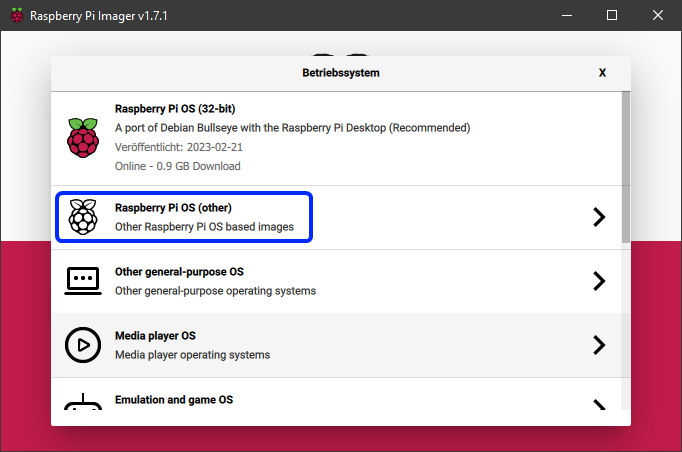
* Once you have downloaded, installed and launched the Raspberry Pi Imager,
select `Choose OS -> Raspberry Pi OS (other)`: \
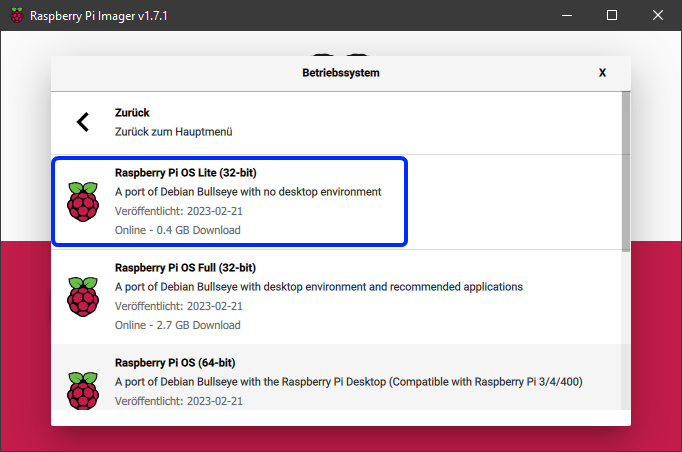
* Then select `Raspberry Pi OS Lite (32bit)` (or 64bit if you want to use that instead):
* Back in the Raspberry Pi Imager's main menu, select the corresponding SD card to which
you want to flash the image.
* Make sure to go into the Advanced Option (the cog icon in the lower left corner of the main menu)
and enable SSH and configure Wi-Fi.
* If you need more help for using the Raspberry Pi Imager, please visit the [official documentation](https://www.raspberrypi.com/documentation/computers/getting-started.html).
These steps **only** apply if you are actually using a Raspberry Pi. In case you want
to use a different SBC (like an Orange Pi or any other Pi derivates), please look up on how to get an appropriate Linux image flashed
to the SD card before proceeding further (usually done with Balena Etcher in those cases). Also make sure that KIAUH will be able to run
and operate on the Linux Distribution you are going to flash. You likely will have the most success with
distributions based on Debian 11 Bullseye. Read the notes further down below in this document.
### 💾 Download and use KIAUH
**📢 Disclaimer: Usage of this script happens at your own risk!**
* **Step 1:** \
To download this script, it is necessary to have git installed. If you don't have git already installed, or if you are unsure, run the following command:
```shell
sudo apt-get update && sudo apt-get install git -y
```
* **Step 2:** \
Once git is installed, use the following command to download KIAUH into your home-directory:
```shell
cd ~ && git clone https://gitee.com/longhuohuxiao/kiauh.git
```
* **Step 3:** \
Finally, start KIAUH by running the next command:
```shell
./kiauh/kiauh.sh
```
* **Step 4:** \
You should now find yourself in the main menu of KIAUH. You will see several actions to choose from depending
on what you want to do. To choose an action, simply type the corresponding number into the "Perform action"
prompt and confirm by hitting ENTER.
❗ Notes ❗
### **📋 Please see the [Changelog](docs/changelog.md) for possible important changes!**
- Mainly tested on Raspberry Pi OS Lite (Debian 10 Buster / Debian 11 Bullseye)
- Other Debian based distributions (like Ubuntu 20 to 22) likely work too
- Reported to work on Armbian as well but not tested in detail
- During the use of this script you will be asked for your sudo password. There are several functions involved which need sudo privileges.
🌐 Sources & Further Information
🎖️ Contributors 🎖️
✨ Credits ✨
* A big thank you to [lixxbox](https://github.com/lixxbox) for that awesome KIAUH-Logo!
* Also, a big thank you to everyone who supported my work with a [Ko-fi](https://ko-fi.com/dw__0) !
* Last but not least: Thank you to all contributors and members of the Klipper Community who like and share this project!
A special thank you to JetBrains for sponsoring this project with their incredible software!