# APNumberPad
**Repository Path**: mirrors/APNumberPad
## Basic Information
- **Project Name**: APNumberPad
- **Description**: APNumberPad 实现了 iOS 的数字键盘,并提供可定制的功能按钮
- **Primary Language**: Objective-C
- **License**: MIT
- **Default Branch**: master
- **Homepage**: https://www.oschina.net/p/apnumberpad
- **GVP Project**: No
## Statistics
- **Stars**: 0
- **Forks**: 0
- **Created**: 2020-09-13
- **Last Updated**: 2026-01-17
## Categories & Tags
**Categories**: Uncategorized
**Tags**: None
## README
# APNumberPad
[](https://travis-ci.org/podkovyrin/APNumberPad)
[](http://cocoapods.org/pods/APNumberPad)
[](http://cocoapods.org/pods/APNumberPad)
[](http://cocoapods.org/pods/APNumberPad)
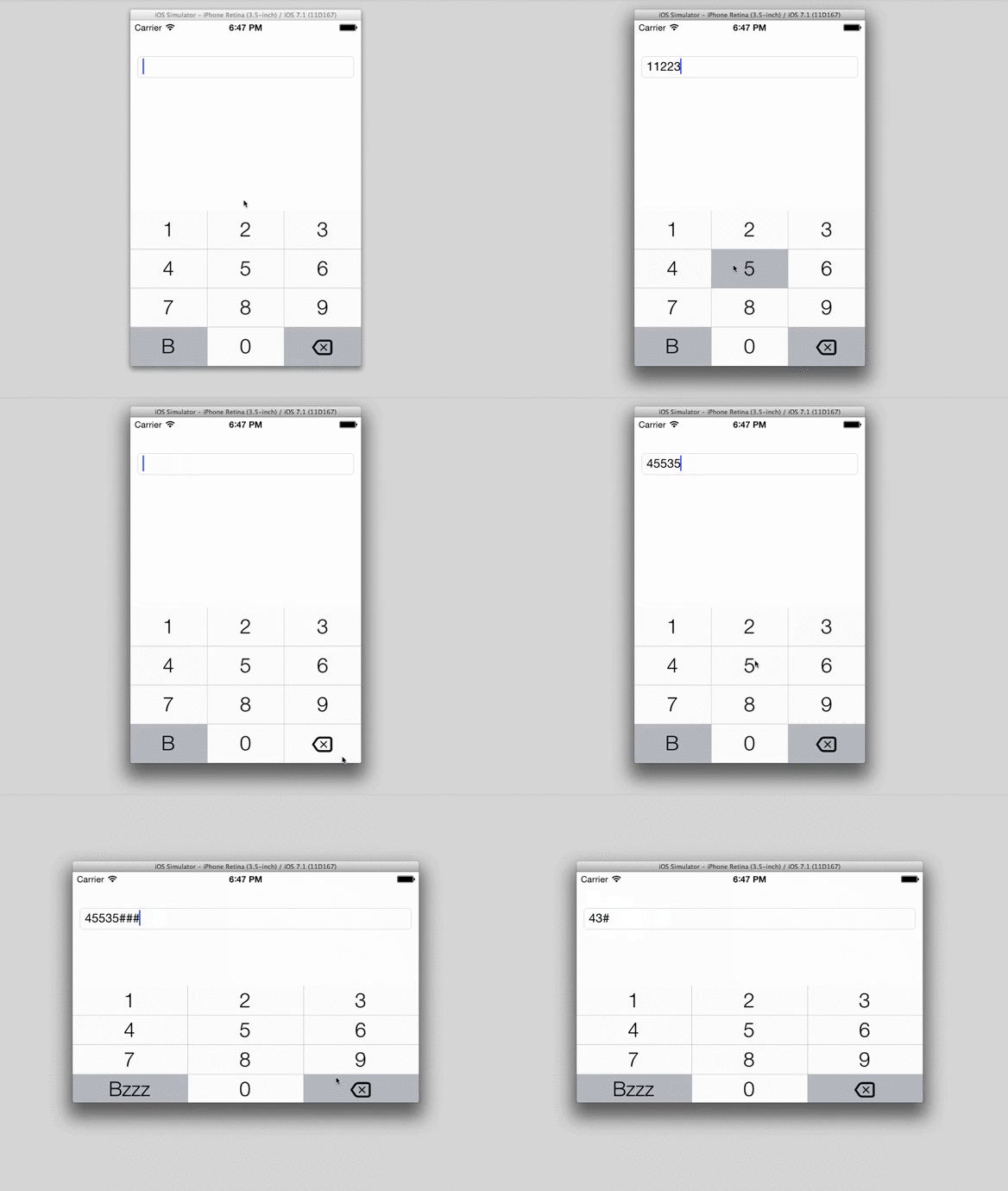
APNumberPad is a custom keyboard for iOS allows you to create a keyboard `inputView` that looks and feels just like the iPhone keyboard with `UIKeyboardTypeNumberPad` as `keyboardType`. Also APNumberPad provides customizable left-function button.
 ## Features
- FULLY repeats default iOS keyboard look'n'feel (input with "tap by tap", pan over keyboard and release finger on button, holding clear button, ...)
- Device rotation
- Customizable left function button
- Customizable keyboard appearence (see `APNumberPadStyle.h`)
- `UITextField` and `UITextView` support (or any other `UIResponder` object that responds to `UITextInput` protocol)
- Input clicks
- iPhone X (safe area) support
## Example
To run the example project, clone the repo, and run `pod install` from the Example directory first.
```obj-c
// in .h:
#import
@interface ExampleViewController : UIViewController
// in .m:
UITextField *textField = [[UITextField alloc] initWithFrame:CGRectZero];
textField.inputView = ({
APNumberPad *numberPad = [APNumberPad numberPadWithDelegate:self];
// configure function button
//
[numberPad.leftFunctionButton setTitle:@"Func" forState:UIControlStateNormal];
numberPad.leftFunctionButton.titleLabel.adjustsFontSizeToFitWidth = YES;
numberPad;
});
#pragma mark - APNumberPadDelegate
- (void)numberPad:(APNumberPad *)numberPad functionButtonAction:(UIButton *)functionButton textInput:(UIResponder *)textInput {
[textInput insertText:@"#"];
}
```
## Requirements
iOS 8.0 or later.
## Notes
Inspired by https://github.com/kulpreetchilana/Custom-iOS-Keyboards and http://stackoverflow.com/questions/13205160/how-do-i-retrieve-keystrokes-from-a-custom-keyboard-on-an-ios-app/13205494#13205494
APNumberPad very gratefully makes use of backspace icon from Typicons set by Stephen Hutchings (http://typicons.com/), under Creative Commons (Attribution-Share Alike 3.0 Unported) license.
## Installation via CocoaPods
APNumberPad is available through [CocoaPods](http://cocoapods.org). To install
it, simply add the following line to your Podfile:
```ruby
pod "APNumberPad"
```
## Installation via Carthage
[Carthage](https://github.com/Carthage/Carthage) is a decentralized dependency manager that automates the process of adding frameworks to your Cocoa application.
You can install Carthage with [Homebrew](http://brew.sh/) using the following command:
```bash
$ brew update
$ brew install carthage
```
To integrate APNumberPad into your Xcode project using Carthage, specify it in your `Cartfile`:
```ogdl
github "podkovyrin/APNumberPad"
```
## Author
Andrew Podkovyrin, podkovyrin@gmail.com
## License
APNumberPad is available under the MIT license. See the LICENSE file for more info.
## Features
- FULLY repeats default iOS keyboard look'n'feel (input with "tap by tap", pan over keyboard and release finger on button, holding clear button, ...)
- Device rotation
- Customizable left function button
- Customizable keyboard appearence (see `APNumberPadStyle.h`)
- `UITextField` and `UITextView` support (or any other `UIResponder` object that responds to `UITextInput` protocol)
- Input clicks
- iPhone X (safe area) support
## Example
To run the example project, clone the repo, and run `pod install` from the Example directory first.
```obj-c
// in .h:
#import
@interface ExampleViewController : UIViewController
// in .m:
UITextField *textField = [[UITextField alloc] initWithFrame:CGRectZero];
textField.inputView = ({
APNumberPad *numberPad = [APNumberPad numberPadWithDelegate:self];
// configure function button
//
[numberPad.leftFunctionButton setTitle:@"Func" forState:UIControlStateNormal];
numberPad.leftFunctionButton.titleLabel.adjustsFontSizeToFitWidth = YES;
numberPad;
});
#pragma mark - APNumberPadDelegate
- (void)numberPad:(APNumberPad *)numberPad functionButtonAction:(UIButton *)functionButton textInput:(UIResponder *)textInput {
[textInput insertText:@"#"];
}
```
## Requirements
iOS 8.0 or later.
## Notes
Inspired by https://github.com/kulpreetchilana/Custom-iOS-Keyboards and http://stackoverflow.com/questions/13205160/how-do-i-retrieve-keystrokes-from-a-custom-keyboard-on-an-ios-app/13205494#13205494
APNumberPad very gratefully makes use of backspace icon from Typicons set by Stephen Hutchings (http://typicons.com/), under Creative Commons (Attribution-Share Alike 3.0 Unported) license.
## Installation via CocoaPods
APNumberPad is available through [CocoaPods](http://cocoapods.org). To install
it, simply add the following line to your Podfile:
```ruby
pod "APNumberPad"
```
## Installation via Carthage
[Carthage](https://github.com/Carthage/Carthage) is a decentralized dependency manager that automates the process of adding frameworks to your Cocoa application.
You can install Carthage with [Homebrew](http://brew.sh/) using the following command:
```bash
$ brew update
$ brew install carthage
```
To integrate APNumberPad into your Xcode project using Carthage, specify it in your `Cartfile`:
```ogdl
github "podkovyrin/APNumberPad"
```
## Author
Andrew Podkovyrin, podkovyrin@gmail.com
## License
APNumberPad is available under the MIT license. See the LICENSE file for more info.