# Rocket.Chat.Electron
**Repository Path**: mirrors_RocketChat/Rocket.Chat.Electron
## Basic Information
- **Project Name**: Rocket.Chat.Electron
- **Description**: Official OSX, Windows, and Linux Desktop Clients for Rocket.Chat
- **Primary Language**: Unknown
- **License**: MIT
- **Default Branch**: master
- **Homepage**: None
- **GVP Project**: No
## Statistics
- **Stars**: 0
- **Forks**: 0
- **Created**: 2020-09-25
- **Last Updated**: 2026-02-15
## Categories & Tags
**Categories**: Uncategorized
**Tags**: None
## README
# Rocket.Chat Desktop App
[](https://github.com/RocketChat/Rocket.Chat.Electron/actions)

[](https://github.com/RocketChat/Rocket.Chat.Electron/releases/latest)

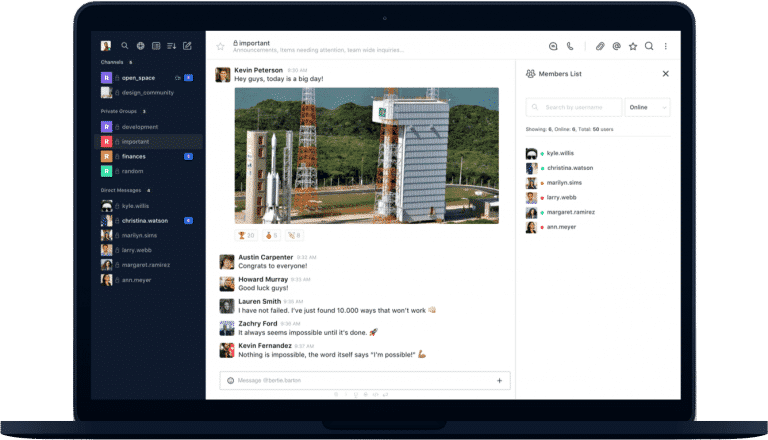
Desktop application for [Rocket.Chat][] available for macOS, Windows and Linux
using [Electron][].
---
## Supported Platforms
| Platform | Minimum Version | Architectures | Formats |
| -------- | --------------------------- | ------------------------------- | -------------------------------- |
| Windows | 10 | x64, ia32, arm64 | NSIS, MSI |
| macOS | 12 (Monterey) | Universal (x64 + Apple Silicon) | DMG, PKG, ZIP |
| Linux | Ubuntu 22.04+ or equivalent | x64 | AppImage, deb, rpm, snap, tar.gz |
---
## Engage with us
### Share your story
We'd love to hear about [your experience][] and potentially feature it on our
[Blog][].
### Subscribe for Updates
Once a month our marketing team releases an email update with news about product
releases, company related topics, events and use cases. [Sign Up!][]
---
## Download
You can download the latest version from the [Releases][] page.



## Install
Launch the installer and follow the instructions to install.
### Windows Options
On Windows you can run a silent install by adding the `/S` flag. You can also
add the options below:
- `/S` - Silent install
- `/allusers` - Install for all users (requires admin)
- `/currentuser` - Install only for the current user (default)
- `/disableAutoUpdates` - Disable automatic updates
## Development
### Quick start
Prerequisites:
- [Git](http://git-scm.com/book/en/v2/Getting-Started-Installing-Git)
- [Node.js](https://nodejs.org) >= 24.11.1
- [Yarn](http://yarnpkg.com/) >= 4.0.2
Now just clone and start the app:
```sh
git clone https://github.com/RocketChat/Rocket.Chat.Electron.git
cd Rocket.Chat.Electron
yarn
yarn start
```
### Structure of the project
The source is located in the `src` folder. Everything in this folder will be
built automatically when running the app with `yarn start`.
The build process compiles all stuff from the `src` folder and puts it into the
`app` folder, so after the build has finished, your `app` folder contains the
full, runnable application.
### TypeScript
Following the [ongoing changes in Rocket.Chat codebase][], the app was
rewritten in TypeScript 5 to address issues regarding maintainability.
### The build pipeline
The build process is founded upon [rollup][] bundler. There are three entry files
for your code:
- `src/main.ts`, the script running at the main Electron process, orchestrating
the whole application;
- `src/rootWindow.ts`, the script that renders the UI of the _root window_, the
app's main window;
- and `src/preload.ts`, which runs in a privileged mode to connect the app and
the webviews rendering Rocket.Chat's web client.
#### Adding Node.js modules
Remember to respect the split between `dependencies` and `devDependencies` in
`package.json` file. Only modules listed in `dependencies` will be included into
distributable app.
### Troubleshooting
#### Ubuntu/Debian
You may need to install the following packages for development:
```sh
sudo apt install build-essential libxss-dev
```
#### Fedora/RHEL
You may need to install the following packages for development:
```sh
sudo dnf install libX11-devel libXScrnSaver-devel gcc-c++
```
### Testing
#### Unit tests
```sh
yarn test
```
We use [Jest][] testing framework with the [Jest electron runner][]. It searches
for all files in `src` directory that match the glob pattern
`*.(spec|test).{js,ts,tsx}`.
### Making a release
To package your app into an installer use command:
```sh
yarn release
```
It will start the packaging process for operating system you are running this
command on. Ready for distribution file will be outputted to `dist` directory.
All packaging actions are handled by [electron-builder][]. It has a lot of
[customization options][].
## Default servers
The `servers.json` file will define what servers the client will connect to and
will populate the server list in the sidebar. It contains a list of default
servers which will be added the first time the user runs the app (or when all
servers are removed from the list).
The file syntax is as follows:
```json
{
"Demo Rocket Chat": "https://demo.rocket.chat",
"Open Rocket Chat": "https://open.rocket.chat"
}
```
### Pre-Release Configuration
You can bundle a `servers.json` with the install package, the file should be
located in the root of the project application (same level as the
`package.json`). If the file is found, the initial "Connect to server" screen
will be skipped and it will attempt to connect to the first server in the array
that has been defined and drop the user right at the login screen. Note that the
`servers.json` will only be checked if no other servers have already been added,
even if you uninstall the app without removing older preferences, it will not be
triggered again.
### Post-Install Configuration
If you can't (or don't want to) bundle the file inside the app, you can create a
`servers.json` in the user preferences folder which will overwrite the packaged
one. The file should be located in the `%APPDATA%/Rocket.Chat/` folder or the
installation folder in case of an installation for all users (Windows only).
For Windows, the full paths are:
- `~\Users\\AppData\Roaming\Rocket.Chat\`
- `~\Program Files\Rocket.Chat\Resources\`
On macOS, the full path is:
- `~/Users//Library/Application Support/Rocket.Chat/`
- `/Library/Preferences/Rocket.Chat/`
On Linux, the full paths are:
- `/home//.config/Rocket.Chat/`
- `/opt/Rocket.Chat/resources/`
### Overridden settings
You can override the user settings by creating an `overridden-settings.json` in
the user preferences folder.
The file should be located in the `%APPDATA%/Rocket.Chat/` folder or the
installation folder in case of an installation for all users (Windows only).
Every setting set on the file will override the default and user settings. Then
you can use it for disabling the default features like auto-update and even create
a single server mode.
#### The settings that can be overridden are:
| Setting | Description |
| ------------------------------------------ | ------------------------------------------------------------------------------------------------------ |
| `"isReportEnabled": true` | Sets if the bugs will be reported to developers. |
| `"isInternalVideoChatWindowEnabled": true` | Sets if video calls will be opened in an internal window. |
| `"isFlashFrameEnabled": true` | Sets if the flash frame will be enabled. |
| `"isMinimizeOnCloseEnabled": false` | Sets if the app will be minimized on close. |
| `"doCheckForUpdatesOnStartup": true` | Sets if the app will check for updates on startup. |
| `"isMenuBarEnabled": true` | Sets if the menu bar will be enabled. |
| `"isTrayIconEnabled": true` | Enables Tray Icon, the app will be hidden to the tray on close. Overrides `"isMinimizeOnCloseEnabled"` |
| `"isUpdatingEnabled": true` | Sets if the app can be updated by the user. |
| `"isAddNewServersEnabled": true` | Sets if the user can add new servers. |
##### Single server mode
If the setting `"isAddNewServersEnabled": false` is set, the user will not be able to add new servers.
The buttons and shortcuts will be disabled. Then you will have to add the server to the `servers.json` file.
With this, you can create a single server mode or just don't let the user add new servers on their own.
##### Example configuration
`overridden-settings.json` file:
```json
{
"isTrayIconEnabled": false,
"isMinimizeOnCloseEnabled": false
}
```
If `isTrayIconEnabled` is enabled, the app will be hidden on close.
If `isMinimizeOnCloseEnabled` is enabled, the app will be minimized on close.
With both disabled, the app will quit on close.
## License
Released under the MIT license.
[Rocket.Chat]: https://rocket.chat
[Electron]: https://electronjs.org/
[your experience]: https://survey.zohopublic.com/zs/e4BUFG
[Blog]: https://rocket.chat/case-studies/?utm_source=github&utm_medium=readme&utm_campaign=community
[Sign Up!]: https://rocket.chat/newsletter/?utm_source=github&utm_medium=readme&utm_campaign=community
[Releases]: https://github.com/RocketChat/Rocket.Chat.Electron/releases/latest
[ongoing changes in Rocket.Chat codebase]: https://forums.rocket.chat/t/moving-away-from-meteor-and-beyond/3270
[rollup]: https://github.com/rollup/rollup
[Jest]: https://jestjs.io/
[Jest electron runner]: https://github.com/kayahr/jest-electron-runner
[electron-builder]: https://github.com/electron-userland/electron-builder
[customization options]: https://www.electron.build/configuration