# nativeHTML
**Repository Path**: mirrors_WebReflection/nativeHTML
## Basic Information
- **Project Name**: nativeHTML
- **Description**: coming soon
- **Primary Language**: Unknown
- **License**: Not specified
- **Default Branch**: master
- **Homepage**: None
- **GVP Project**: No
## Statistics
- **Stars**: 0
- **Forks**: 0
- **Created**: 2020-08-19
- **Last Updated**: 2026-01-10
## Categories & Tags
**Categories**: Uncategorized
**Tags**: None
## README
# nativeHTML
[](https://opensource.org/licenses/ISC) [](https://github.com/WebReflection/donate)
[hyperHTML](https://github.com/WebReflection/hyperHTML) ease and [NativeScript](https://www.nativescript.org/) performance for Android and iOS.
 - - -
**work in progress**
- - -
### Basic Setup
There is an official [documentation page](http://docs.nativescript.org/start/quick-setup) on how to setup your system.
On **ArchLinux** though, you can go through [this post](https://medium.com/@WebReflection/testing-nativescript-on-arch-linux-a19511cd9521) or type the following:
```sh
# install android stuff via archibold, IF NEEDED
bash <(curl -s archibold.io/install/android)
# setup env and read terms and conditions
sudo $ANDROID_HOME/tools/bin/sdkmanager "tools" "platform-tools" "build-tools;25.0.3" "extras;android;m2repository" "extras;google;m2repository"
# install NativeScript (tsc)
npm install -g nativescript --unsafe-perm
# install virtual device
yaourt -S --needed genymotion
```
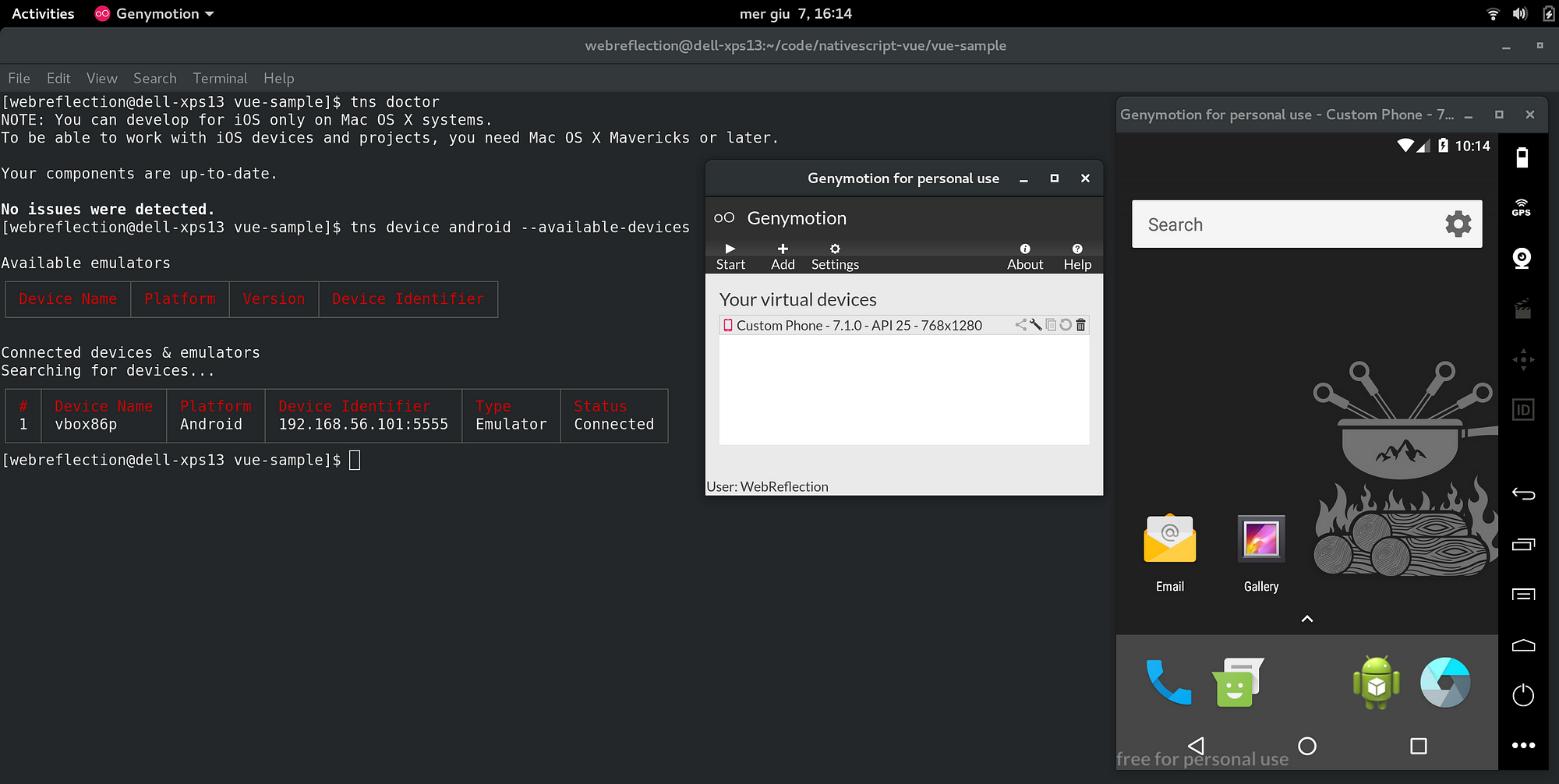
Chose **Custom Phone — 7.1.0 API 25** as [Genymotion](https://www.genymotion.com/) device after launching it and creating a free developer account.
#### Find the device
Once android tools are installed and genymotion is running, type the following:
```sh
tns device android --available-devices
```
You should see a list of devices and relative IDs.
#### Run the basic example
From your developer folder, we are going to create a new NativeScript Hello World demo.
```sh
tns create ns-hello-world --template tns-template-hello-world
cd ns-hello-world
```
At this point we can launch for the first time the example.
The first time it will take a little longer than usual because it needs to install extra software.
```sh
# be sure the device id is your correct one
# tns device android --available-devices
tns run android --device 192.168.1.2:3456
# NOTE: if you have one device only
# you can just type tns run android
```
If everything went fine, you should already see an Hello World application.
#### Test nativeHTML
From the same folder, the `ns-hello-world` one, clone this repository and copy some file over.
```sh
# install nativehtml
npm install --save nativehtml
# copy the default example page
cp node_modules/nativehtml/examples/default-app.js app/main-page.js
# deploy via tns deploy android
tns deploy android --device 192.168.1.2:3456
# NOTE: you can omit --device xx.xx.xx if only 1 device
# run the debugger
tns debug android
# optionally add --debug-brk
```
Once the debugger shows you the Chrome/ium link, go there and play the code.
You should see the `app/main-page.js` running through hyperHTML and basicHTML.
- - -
**work in progress**
- - -
### Basic Setup
There is an official [documentation page](http://docs.nativescript.org/start/quick-setup) on how to setup your system.
On **ArchLinux** though, you can go through [this post](https://medium.com/@WebReflection/testing-nativescript-on-arch-linux-a19511cd9521) or type the following:
```sh
# install android stuff via archibold, IF NEEDED
bash <(curl -s archibold.io/install/android)
# setup env and read terms and conditions
sudo $ANDROID_HOME/tools/bin/sdkmanager "tools" "platform-tools" "build-tools;25.0.3" "extras;android;m2repository" "extras;google;m2repository"
# install NativeScript (tsc)
npm install -g nativescript --unsafe-perm
# install virtual device
yaourt -S --needed genymotion
```
Chose **Custom Phone — 7.1.0 API 25** as [Genymotion](https://www.genymotion.com/) device after launching it and creating a free developer account.
#### Find the device
Once android tools are installed and genymotion is running, type the following:
```sh
tns device android --available-devices
```
You should see a list of devices and relative IDs.

#### Run the basic example
From your developer folder, we are going to create a new NativeScript Hello World demo.
```sh
tns create ns-hello-world --template tns-template-hello-world
cd ns-hello-world
```
At this point we can launch for the first time the example.
The first time it will take a little longer than usual because it needs to install extra software.
```sh
# be sure the device id is your correct one
# tns device android --available-devices
tns run android --device 192.168.1.2:3456
# NOTE: if you have one device only
# you can just type tns run android
```
If everything went fine, you should already see an Hello World application.
#### Test nativeHTML
From the same folder, the `ns-hello-world` one, clone this repository and copy some file over.
```sh
# install nativehtml
npm install --save nativehtml
# copy the default example page
cp node_modules/nativehtml/examples/default-app.js app/main-page.js
# deploy via tns deploy android
tns deploy android --device 192.168.1.2:3456
# NOTE: you can omit --device xx.xx.xx if only 1 device
# run the debugger
tns debug android
# optionally add --debug-brk
```
Once the debugger shows you the Chrome/ium link, go there and play the code.
You should see the `app/main-page.js` running through hyperHTML and basicHTML.