# INLBreadcrumbs
**Repository Path**: mirrors_inloop/INLBreadcrumbs
## Basic Information
- **Project Name**: INLBreadcrumbs
- **Description**: iOS library for UINavigationController breadcrumb navigation
- **Primary Language**: Unknown
- **License**: CC0-1.0
- **Default Branch**: master
- **Homepage**: None
- **GVP Project**: No
## Statistics
- **Stars**: 0
- **Forks**: 0
- **Created**: 2020-09-25
- **Last Updated**: 2026-03-01
## Categories & Tags
**Categories**: Uncategorized
**Tags**: None
## README
# INLBreadcrumbs
## 1. Overview
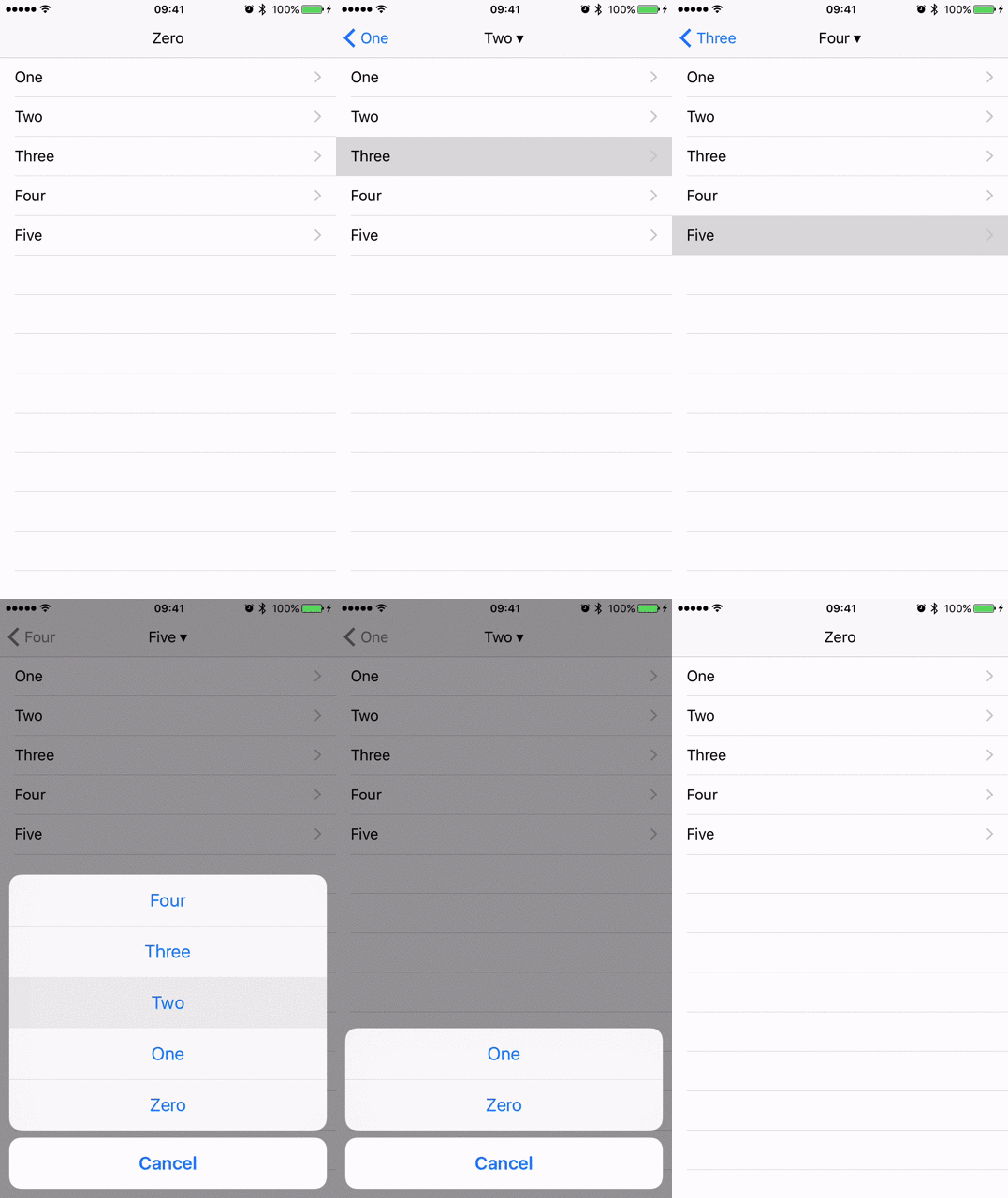
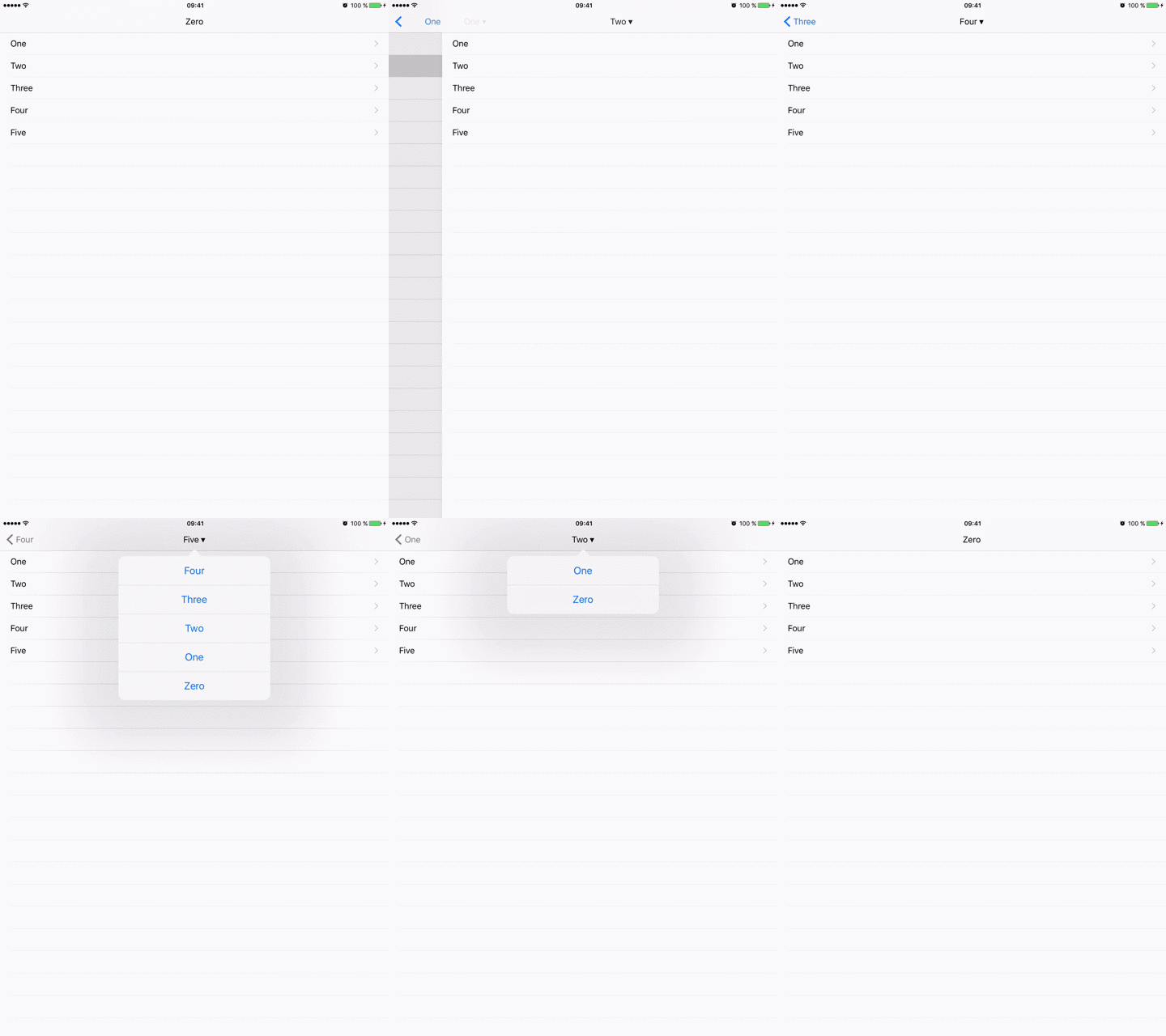
The `INLBreadcrumbs` library adds breadcrumbs to a `UINavigationController`. You can pop to an arbitrary view controller from the title view.
 ## 2. How to use
There are two ways breadcrumbs can be added to your application:
#### 1: Subclassing INLBreadcrumbViewController
This is the simpler approach. All you need to do is subclass the `INLBreadcrumbViewController`. No further configuration needed.
```objective-c
#import "INLBreadcrumbs.h"
@interface MyViewController : INLBreadcrumbViewController
```
Congratulations. You have just added breadcrumbs to your application
#### 2: Implementing the INLBreadcrumbCompatibleController protocol
This approach requires you to write slightly more code but it’s more flexible since you don’t need to subclass anything.
First, implement the `INLBreadcrumbCompatibleController` protocol and create a breadcrumb property of type `INLBreadcrumb*`
```objective-c
#import "INLBreadcrumb.h"
@interface INLBreadcrumbViewController : UIViewController
@property (strong, nonatomic) INLBreadcrumb * breadcrumb;
```
In the `+load` method call the `setupBreadcrumbs` and in the `-viewDidLoad` initialise the breadcrumb property
```objective-c
#import "INLBreadcrumb.h"
@implementation INLBreadcrumbViewController
+(void)load {
[super load];
[self setupBreadcrumbs];
}
-(void)viewDidLoad {
[super viewDidLoad];
self.breadcrumb = [INLBreadcrumb breadcrumbWithController:self];
}
```
## 3. Multiple breadcrumb stacks
You can have multiple breadcrumb stacks e.g. if you have several `UITabViewController` tabs or a modal transition - each should have a separate breadcrumb stack. You associate a breadcrumb with a breadcrumb stack by setting the manager property before `didMoveToParentViewController:` is called.
```objective-c
-(void)viewDidLoad {
[super viewDidLoad];
// If subclassing INLBreadcrumbViewController
self.breadcrumb.manager = [INLBreadcrumbManager managerForKey:@"stackId"]
// If conforming to INLBreadcrumbCompatibleController
self.breadcrumb = [INLBreadcrumb breadcrumbWithController:self
manager:[INLBreadcrumbManager managerForKey:@"stackId"]];
}
```
If you don’t specify a manager the default manager is used.
## 4. Customising the UI
You can change the breadcrumb indicator in the navigation bar title view (default is " ▾") and the cancel button title for the iPhone action sheet popup (default is “Cancel”) by setting the corresponding properties.
```objective-c
self.breadcrumb.cancelButtonTitle = NSLocalizedString(@"breadcrumbs.cancel”, nil);
self.breadcrumb.breadcrumbIndicator = @" 🍞";
```
This will only set the values for a specific breadcrumb. If you want to set it for an entire breadcrumb stack you can change the manager settings.
```objective-c
[INLBreadcrumbManager defaultManager].cancelButtonTitle = NSLocalizedString(@"breadcrumbs.cancel", nil);
[INLBreadcrumbManager defaultManager].breadcrumbIndicator = @" 🍞";
```
Changing the manager settings will not affect breadcrumbs that were already created. You should therefore set this before initialising the first view controller that uses breadcrumbs.
## 2. How to use
There are two ways breadcrumbs can be added to your application:
#### 1: Subclassing INLBreadcrumbViewController
This is the simpler approach. All you need to do is subclass the `INLBreadcrumbViewController`. No further configuration needed.
```objective-c
#import "INLBreadcrumbs.h"
@interface MyViewController : INLBreadcrumbViewController
```
Congratulations. You have just added breadcrumbs to your application
#### 2: Implementing the INLBreadcrumbCompatibleController protocol
This approach requires you to write slightly more code but it’s more flexible since you don’t need to subclass anything.
First, implement the `INLBreadcrumbCompatibleController` protocol and create a breadcrumb property of type `INLBreadcrumb*`
```objective-c
#import "INLBreadcrumb.h"
@interface INLBreadcrumbViewController : UIViewController
@property (strong, nonatomic) INLBreadcrumb * breadcrumb;
```
In the `+load` method call the `setupBreadcrumbs` and in the `-viewDidLoad` initialise the breadcrumb property
```objective-c
#import "INLBreadcrumb.h"
@implementation INLBreadcrumbViewController
+(void)load {
[super load];
[self setupBreadcrumbs];
}
-(void)viewDidLoad {
[super viewDidLoad];
self.breadcrumb = [INLBreadcrumb breadcrumbWithController:self];
}
```
## 3. Multiple breadcrumb stacks
You can have multiple breadcrumb stacks e.g. if you have several `UITabViewController` tabs or a modal transition - each should have a separate breadcrumb stack. You associate a breadcrumb with a breadcrumb stack by setting the manager property before `didMoveToParentViewController:` is called.
```objective-c
-(void)viewDidLoad {
[super viewDidLoad];
// If subclassing INLBreadcrumbViewController
self.breadcrumb.manager = [INLBreadcrumbManager managerForKey:@"stackId"]
// If conforming to INLBreadcrumbCompatibleController
self.breadcrumb = [INLBreadcrumb breadcrumbWithController:self
manager:[INLBreadcrumbManager managerForKey:@"stackId"]];
}
```
If you don’t specify a manager the default manager is used.
## 4. Customising the UI
You can change the breadcrumb indicator in the navigation bar title view (default is " ▾") and the cancel button title for the iPhone action sheet popup (default is “Cancel”) by setting the corresponding properties.
```objective-c
self.breadcrumb.cancelButtonTitle = NSLocalizedString(@"breadcrumbs.cancel”, nil);
self.breadcrumb.breadcrumbIndicator = @" 🍞";
```
This will only set the values for a specific breadcrumb. If you want to set it for an entire breadcrumb stack you can change the manager settings.
```objective-c
[INLBreadcrumbManager defaultManager].cancelButtonTitle = NSLocalizedString(@"breadcrumbs.cancel", nil);
[INLBreadcrumbManager defaultManager].breadcrumbIndicator = @" 🍞";
```
Changing the manager settings will not affect breadcrumbs that were already created. You should therefore set this before initialising the first view controller that uses breadcrumbs.