# MultiProgressView
**Repository Path**: mirrors_mac-gallagher/MultiProgressView
## Basic Information
- **Project Name**: MultiProgressView
- **Description**: 📊 An animatable view that depicts multiple progresses over time. Modeled after UIProgressView
- **Primary Language**: Unknown
- **License**: MIT
- **Default Branch**: master
- **Homepage**: None
- **GVP Project**: No
## Statistics
- **Stars**: 0
- **Forks**: 1
- **Created**: 2022-01-11
- **Last Updated**: 2026-02-08
## Categories & Tags
**Categories**: Uncategorized
**Tags**: None
## README






)

 📊 **MultiProgressView** is an animatable view that depicts multiple progresses over time. Modeled after [UIProgressView](https://developer.apple.com/documentation/uikit/uiprogressview).
---
## Examples
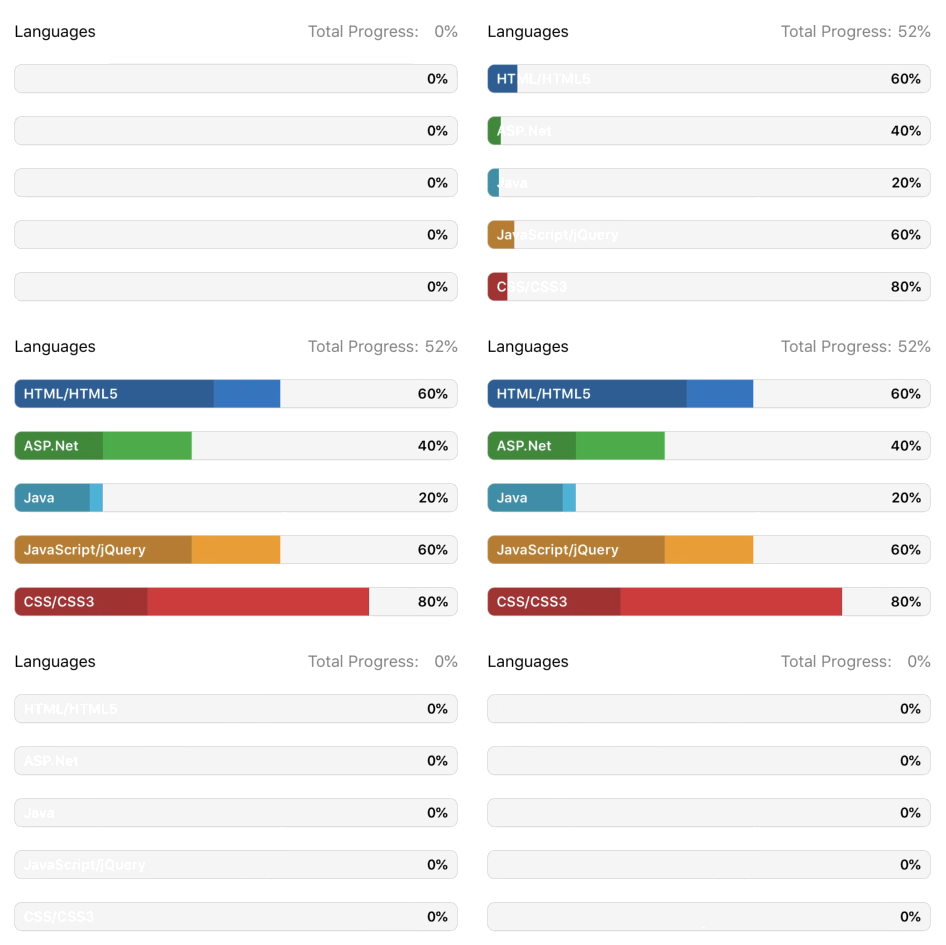
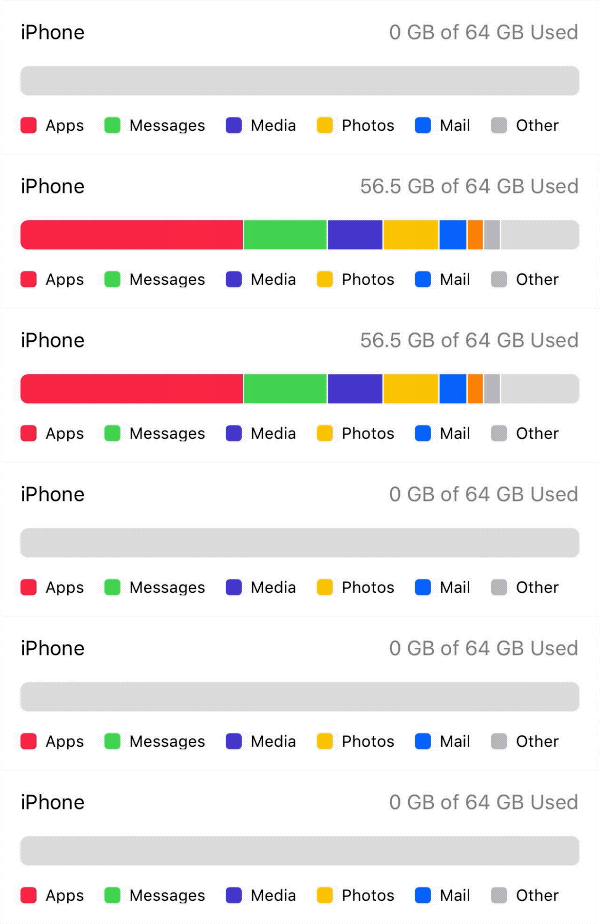
To run the example project, clone the repo and run the `MultiProgressViewExample` target.
📊 **MultiProgressView** is an animatable view that depicts multiple progresses over time. Modeled after [UIProgressView](https://developer.apple.com/documentation/uikit/uiprogressview).
---
## Examples
To run the example project, clone the repo and run the `MultiProgressViewExample` target.
## Basic Usage
### Programmatic
1. Add a `MultiProgressView` to your view hierarchy:
```swift
let progressView = MultiProgressView()
view.addSubview(progressView)
```
2. Conform your class to the `MultiProgressViewDataSource` protocol and set your progress view's `dataSource`:
```swift
func numberOfSections(in progressView: MultiProgressView) -> Int
func progressView(_ progressView: MultiProgressView, viewForSection section: Int) -> ProgressViewSection
```
```swift
progressView.dataSource = self
```
3. Call `setProgress(section:to:)` to update your view's progress:
```swift
progressView.setProgress(section: 0, to: 0.4) //animatable
```
### Storyboards
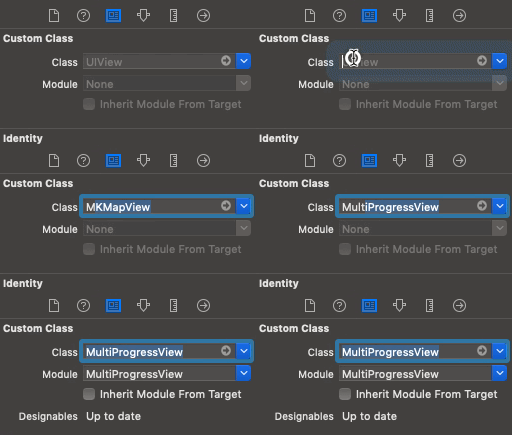
1. Drag a `UIView` onto your view controller and set the view's class to `MultiProgressView` in the *Identity Inspector*:
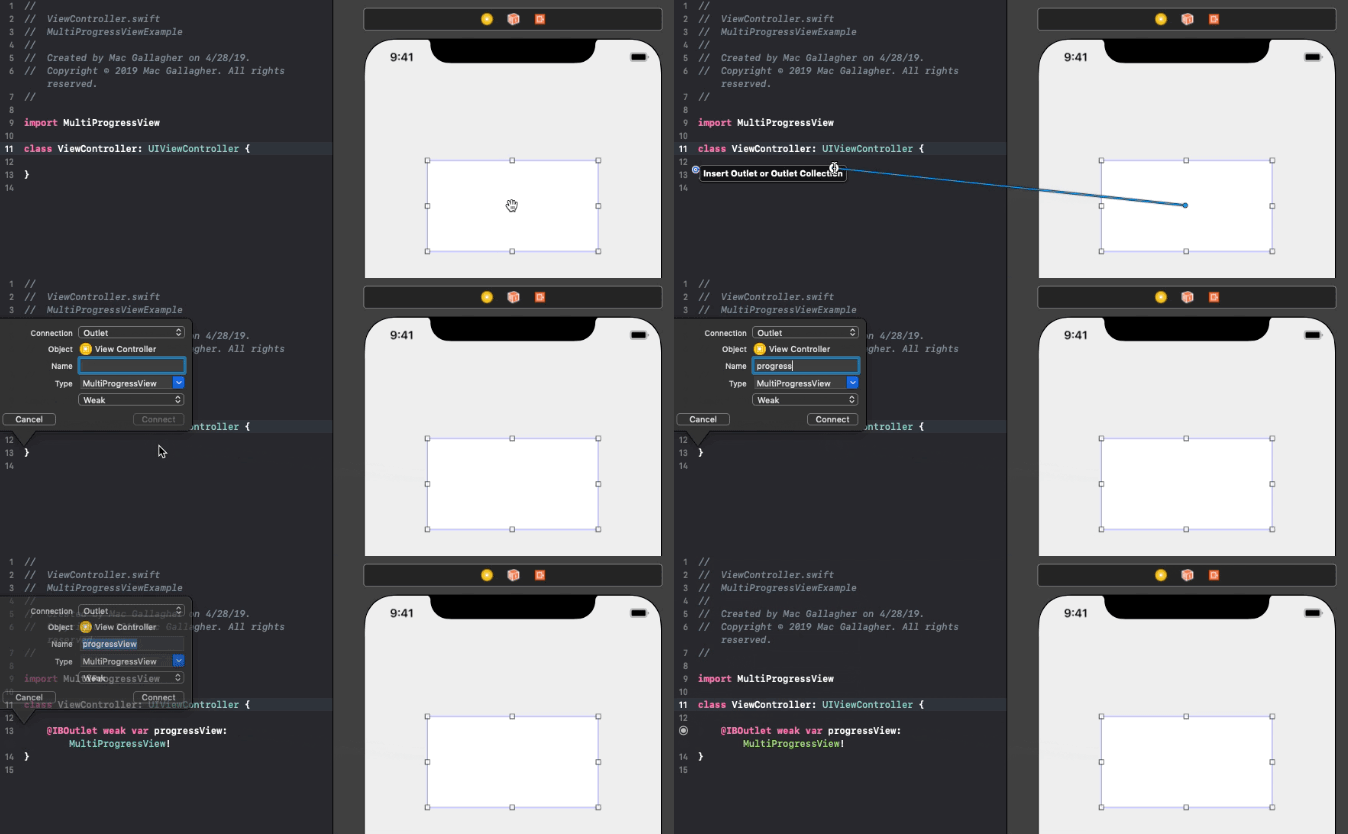
3. Connect your progress view to your view controller with an `IBOutlet`:
4. Conform your view controller to the `MultiProgressViewDataSource` protocol and implement the required methods:
```swift
func numberOfSections(in progressView: MultiProgressView) -> Int
func progressView(_ progressView: MultiProgressView, viewForSection section: Int) -> ProgressViewSection
```
5. Set your view controller as the progress view's `dataSource`:
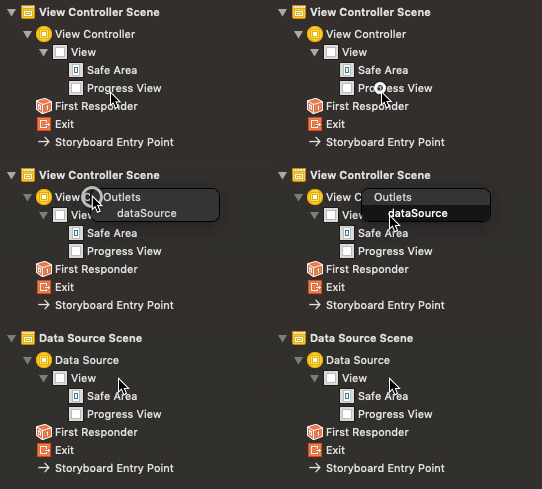
6. Call `setProgress(section:to:)` to update your view's progress:
```swift
progressView.setProgress(section: 0, to: 0.4) //animatable
```
## Customization
### MultiProgressView
Each `MultiProgressView` exposes the variables listed below. If using storyboards, many of these properties can be customized directly in the view's *Attribute Inspector*.
```swift
var cornerRadius: CGFloat = 0
var borderWidth: CGFloat = 0
var borderColor: UIColor? = .black
var lineCap: LineCapType = .square
var trackInset: CGFloat = 0
var trackBackgroundColor: UIColor? = .clear
var trackBorderColor: UIColor? = .black
var trackBorderWidth: CGFloat = 0
var trackImageView: UIImageView
var trackTitleLabel: UILabel
var trackTitleEdgeInsets: UIEdgeInsets = .zero
var trackTitleAlignment: AlignmentType = .center
```
**Note**: To apply a corner radius (using `layer.cornerRadius` or the `cornerRadius` variable) the `lineCap` type must be set to `.round`.
### ProgressViewSection
Each `ProgressViewSection` exposes the following variables:
```swift
var imageView: UIImageView
var titleLabel: UILabel
var titleEdgeInsets: UIEdgeInsets = .zero
var titleAlignment: AlignmentType = .center
```
## Installation
### CocoaPods
MultiProgressView is available through [CocoaPods](). To install it, simply add the following line to your Podfile:
pod 'MultiProgressView'
### Carthage
MultiProgressView is available through [Carthage](). To install it, simply add the following line to your Cartfile:
github "mac-gallagher/MultiProgressView"
### Swift Package Manager
MultiProgressView is available through [Swift PM](). To install it, simply add the package as a dependency in `Package.swift`:
```swift
dependencies: [
.package(url: "https://github.com/mac-gallagher/MultiProgressView.git", from: "1.2.0"),
]
```
### Manual
Download and drop the `MultiProgressView` directory into your project.
## Requirements
* iOS 9.0+
* Xcode 10.2+
* Swift 5.0+
## Apps Using MultiProgressView
We love to hear about apps that use MultiProgressView - feel free to submit a pull request and share yours here!
---
Made with ❤️ by Mac Gallagher
(Header design by Mazen Ghani)