# Shuffle
**Repository Path**: mirrors_mac-gallagher/Shuffle
## Basic Information
- **Project Name**: Shuffle
- **Description**: 🔥 A multi-directional card swiping library inspired by Tinder
- **Primary Language**: Unknown
- **License**: MIT
- **Default Branch**: master
- **Homepage**: None
- **GVP Project**: No
## Statistics
- **Stars**: 0
- **Forks**: 0
- **Created**: 2022-01-07
- **Last Updated**: 2026-02-09
## Categories & Tags
**Categories**: Uncategorized
**Tags**: None
## README




)


Made with ❤️ by Mac Gallagher
## Features
💡 Advanced swipe recognition based on velocity and card position
💡 Manual and programmatic actions
💡 Smooth card overlay view transitions
💡 Fluid and customizable animations
💡 Dynamic card loading using data source pattern
## Example
To run the example project, clone the repo and run the `ShuffleExample` target.

## Basic Usage
1. Create your own card by either subclassing `SwipeCard` or setting its properties directly:
```swift
func card(fromImage image: UIImage) -> SwipeCard {
let card = SwipeCard()
card.swipeDirections = [.left, .right]
card.content = UIImageView(image: image)
let leftOverlay = UIView()
leftOverlay.backgroundColor = .green
let rightOverlay = UIView()
rightOverlay.backgroundColor = .red
card.setOverlays([.left: leftOverlay, .right: rightOverlay])
return card
}
```
The card returned from `card(fromImage:)` displays an image, can be swiped left or right, and has overlay views for both directions.
2. Initialize your card data and place a `SwipeCardStack` on your view:
```swift
class ViewController: UIViewController {
let cardStack = SwipeCardStack()
let cardImages = [
UIImage(named: "cardImage1"),
UIImage(named: "cardImage2"),
UIImage(named: "cardImage3")
]
override func viewDidLoad() {
super.viewDidLoad()
view.addSubview(cardStack)
cardStack.frame = view.safeAreaLayoutGuide.layoutFrame
}
}
```
3. Conform your class to `SwipeCardStackDataSource` and set your card stack's `dataSource`:
```swift
func cardStack(_ cardStack: SwipeCardStack, cardForIndexAt index: Int) -> SwipeCard {
return card(fromImage: cardImages[index])
}
func numberOfCards(in cardStack: SwipeCardStack) -> Int {
return cardImages.count
}
```
```swift
cardStack.dataSource = self
```
3. Conform to `SwipeCardStackDelegate` to subscribe to any of the following events:
```swift
func cardStack(_ cardStack: SwipeCardStack, didSelectCardAt index: Int)
func cardStack(_ cardStack: SwipeCardStack, didSwipeCardAt index: Int, with direction: SwipeDirection)
func cardStack(_ cardStack: SwipeCardStack, didUndoCardAt index: Int, from direction: SwipeDirection)
func didSwipeAllCards(_ cardStack: SwipeCardStack)
```
**Note**: `didSwipeCardAt` and `didSwipeAllCards` are called regardless if a card is swiped programmatically or by the user.
## Card Stack Actions
The following methods are available on `SwipeCardStack`.
### Swipe
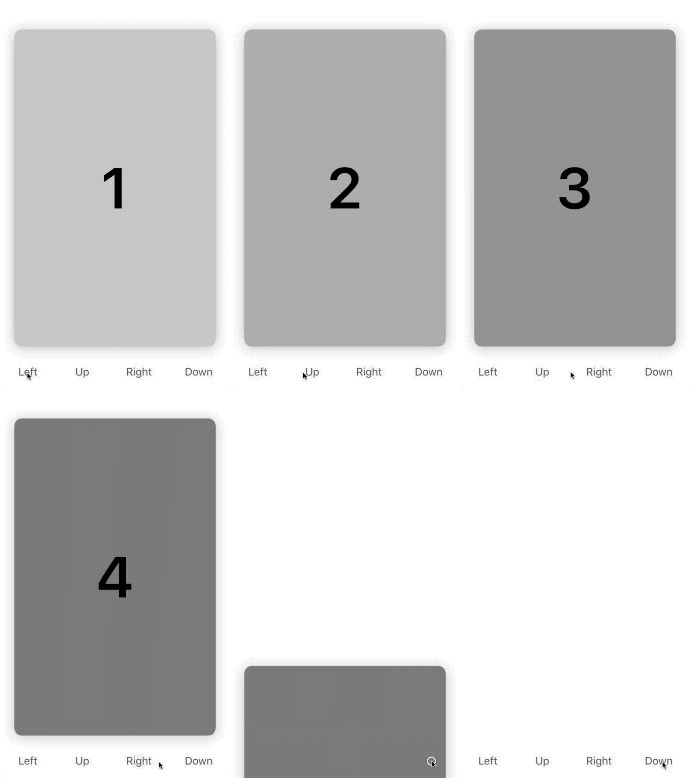
Performs a swipe programmatically in the given direction.
```swift
func swipe(_ direction: SwipeDirection, animated: Bool)
```
 ### Shift
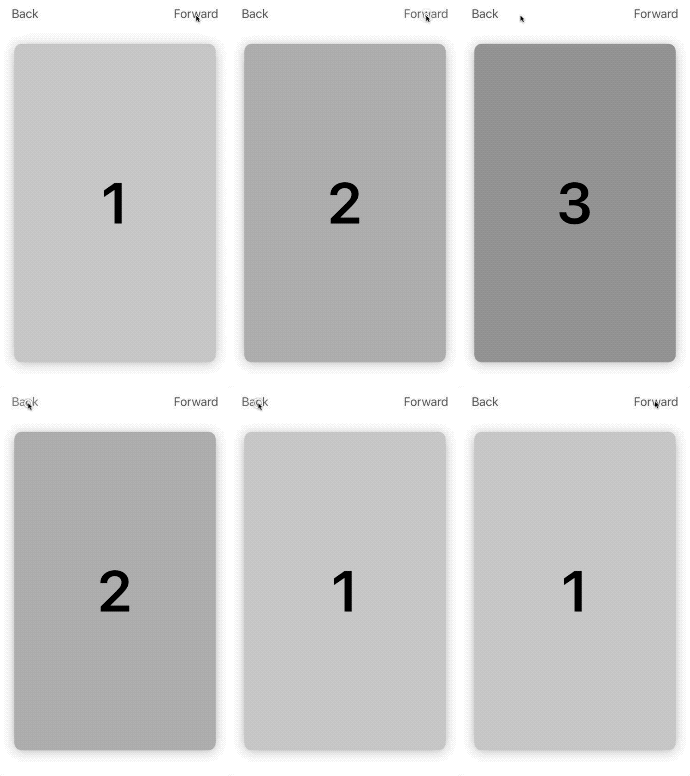
Shifts the card stack's cards by the given distance. Any swiped cards are skipped over.
```swift
func shift(withDistance distance: Int = 1, animated: Bool)
```
### Shift
Shifts the card stack's cards by the given distance. Any swiped cards are skipped over.
```swift
func shift(withDistance distance: Int = 1, animated: Bool)
```
 ### Undo
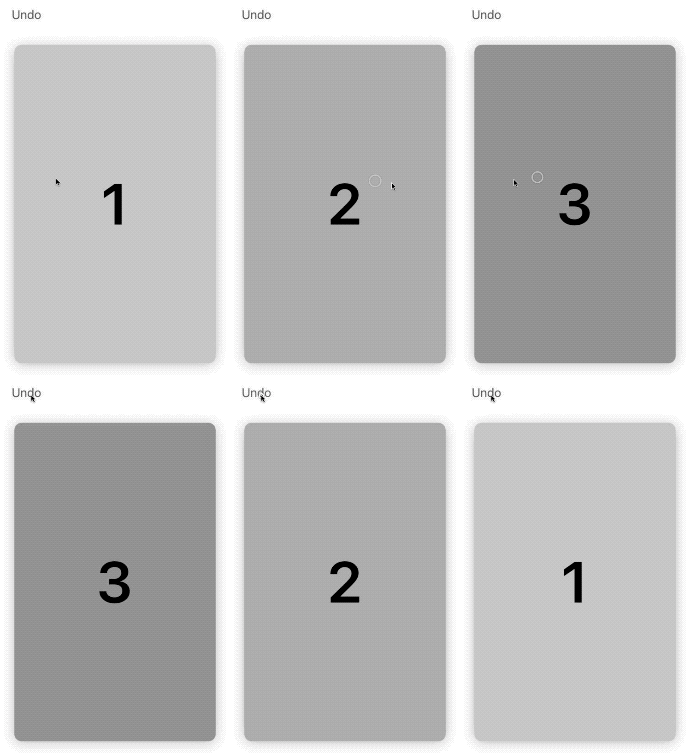
Returns the most recently swiped card to the top of the card stack.
```swift
func undoLastSwipe(animated: Bool)
```
### Undo
Returns the most recently swiped card to the top of the card stack.
```swift
func undoLastSwipe(animated: Bool)
```
 ## Card Layout
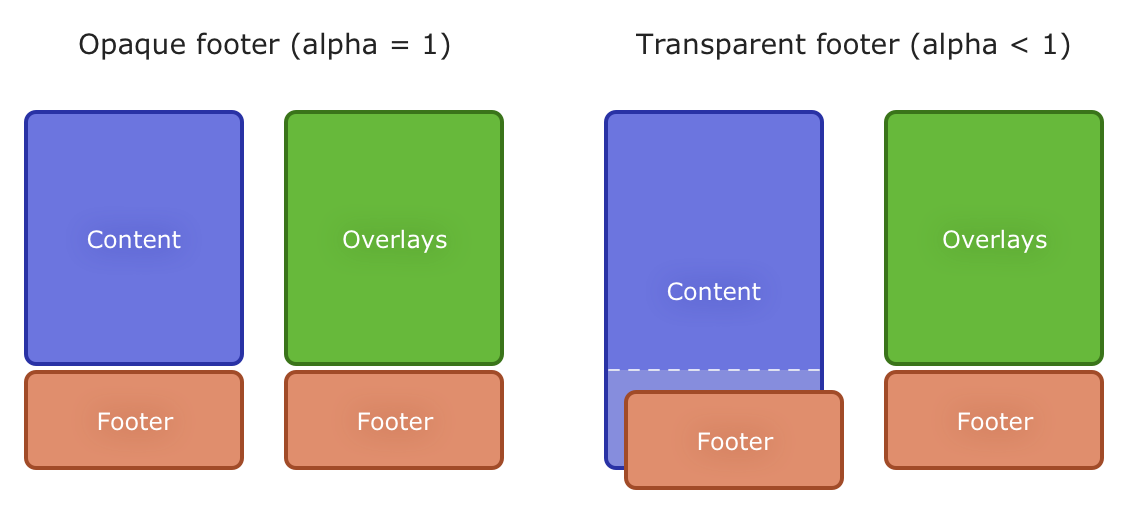
Each `SwipeCard` consists of three UI components: its *content*, *footer*, and *overlay(s)*.
### Content
The content is the card's primary view. You can include your own card template here.
```swift
var content: UIView? { get set }
```
### Footer
The footer is an axuilliary view on the bottom of the card. It is laid out above the content in the view hierarchy if the footer is transparent. Otherwise, the footer is drawn just below the content.
## Card Layout
Each `SwipeCard` consists of three UI components: its *content*, *footer*, and *overlay(s)*.
### Content
The content is the card's primary view. You can include your own card template here.
```swift
var content: UIView? { get set }
```
### Footer
The footer is an axuilliary view on the bottom of the card. It is laid out above the content in the view hierarchy if the footer is transparent. Otherwise, the footer is drawn just below the content.
```swift
var footer: UIView? { get set }
var footerHeight: CGFloat { get set }
```
### Overlays
An overlay is a view whose alpha value reacts to the user's dragging. The overlays are laid out above the footer, regardless if the footer is transparent or not.
```swift
func overlay(forDirection direction: SwipeDirection) -> UIView?
func setOverlay(_ overlay: UIView?, forDirection direction: SwipeDirection)
func setOverlays(_ overlays: [SwipeDirection: UIView])
```
## Advanced Usage
For more advanced usage, including
* [Animations](Documentation/AdvancedUsage.md#animations)
* [Inserting and Deleting Cards](Documentation/AdvancedUsage.md#inserting-and-deleting-cards)
* [Swipe Recognition](Documentation/AdvancedUsage.md#swipe-recognition)
visit the document [here](Documentation/AdvancedUsage.md).
## Installation
### CocoaPods
Shuffle is available through [CocoaPods](). To install it, simply add the following line to your `Podfile`:
pod 'Shuffle-iOS'
The import statement in this case will be
```swift
import Shuffle_iOS
```
### Carthage
Shuffle is available through [Carthage](). To install it, simply add the following line to your Cartfile:
github "mac-gallagher/Shuffle"
### Swift Package Manager
Shuffle is available through [Swift PM](). To install it, simply add the package as a dependency in `Package.swift`:
```swift
dependencies: [
.package(url: "https://github.com/mac-gallagher/Shuffle.git", from: "0.1.0"),
]
```
### Manual
Download and drop the `Sources` directory into your project.
## Requirements
* iOS 9.0+
* Xcode 10.2+
* Swift 5.0+
## Apps Using Shuffle
We love to hear about apps that use Shuffle - feel free to submit a pull request and share yours here!






---
Made with ❤️ by Mac Gallagher