# tailwindcss-intellisense
**Repository Path**: mirrors_tailwindlabs/tailwindcss-intellisense
## Basic Information
- **Project Name**: tailwindcss-intellisense
- **Description**: Intelligent Tailwind CSS tooling for Visual Studio Code
- **Primary Language**: Unknown
- **License**: Not specified
- **Default Branch**: main
- **Homepage**: None
- **GVP Project**: No
## Statistics
- **Stars**: 0
- **Forks**: 0
- **Created**: 2022-01-05
- **Last Updated**: 2026-03-01
## Categories & Tags
**Categories**: Uncategorized
**Tags**: None
## README
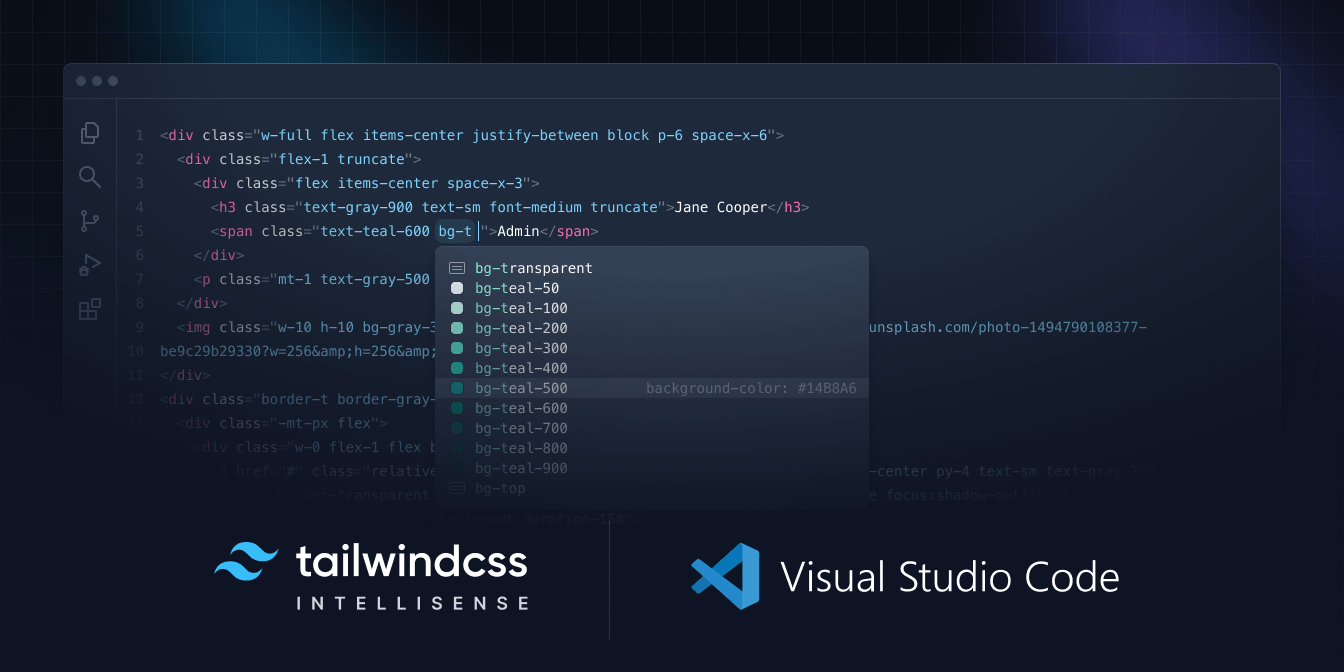 Tailwind CSS IntelliSense enhances the Tailwind development experience by providing Visual Studio Code users with advanced features such as autocomplete, syntax highlighting, and linting.
## Installation
**[Install via the Visual Studio Code Marketplace →](https://marketplace.visualstudio.com/items?itemName=bradlc.vscode-tailwindcss)**
In order for the extension to activate you must have [`tailwindcss` installed](https://tailwindcss.com/docs/installation) and one of these:
- For v4 and later, a `.css` file that imports a Tailwind CSS stylesheet (e.g. `@import "tailwindcss"`)
- For v3 and earlier, a [Tailwind CSS config file](https://v3.tailwindcss.com/docs/configuration#creating-your-configuration-file) named `tailwind.config.{js,cjs,mjs,ts,cts,mts}` in your workspace.
- For v3 and earlier, a stylesheet that points to a config file via `@config`
## Features
### Autocomplete
Intelligent suggestions for class names, as well as [CSS functions and directives](https://tailwindcss.com/docs/functions-and-directives/).
Tailwind CSS IntelliSense enhances the Tailwind development experience by providing Visual Studio Code users with advanced features such as autocomplete, syntax highlighting, and linting.
## Installation
**[Install via the Visual Studio Code Marketplace →](https://marketplace.visualstudio.com/items?itemName=bradlc.vscode-tailwindcss)**
In order for the extension to activate you must have [`tailwindcss` installed](https://tailwindcss.com/docs/installation) and one of these:
- For v4 and later, a `.css` file that imports a Tailwind CSS stylesheet (e.g. `@import "tailwindcss"`)
- For v3 and earlier, a [Tailwind CSS config file](https://v3.tailwindcss.com/docs/configuration#creating-your-configuration-file) named `tailwind.config.{js,cjs,mjs,ts,cts,mts}` in your workspace.
- For v3 and earlier, a stylesheet that points to a config file via `@config`
## Features
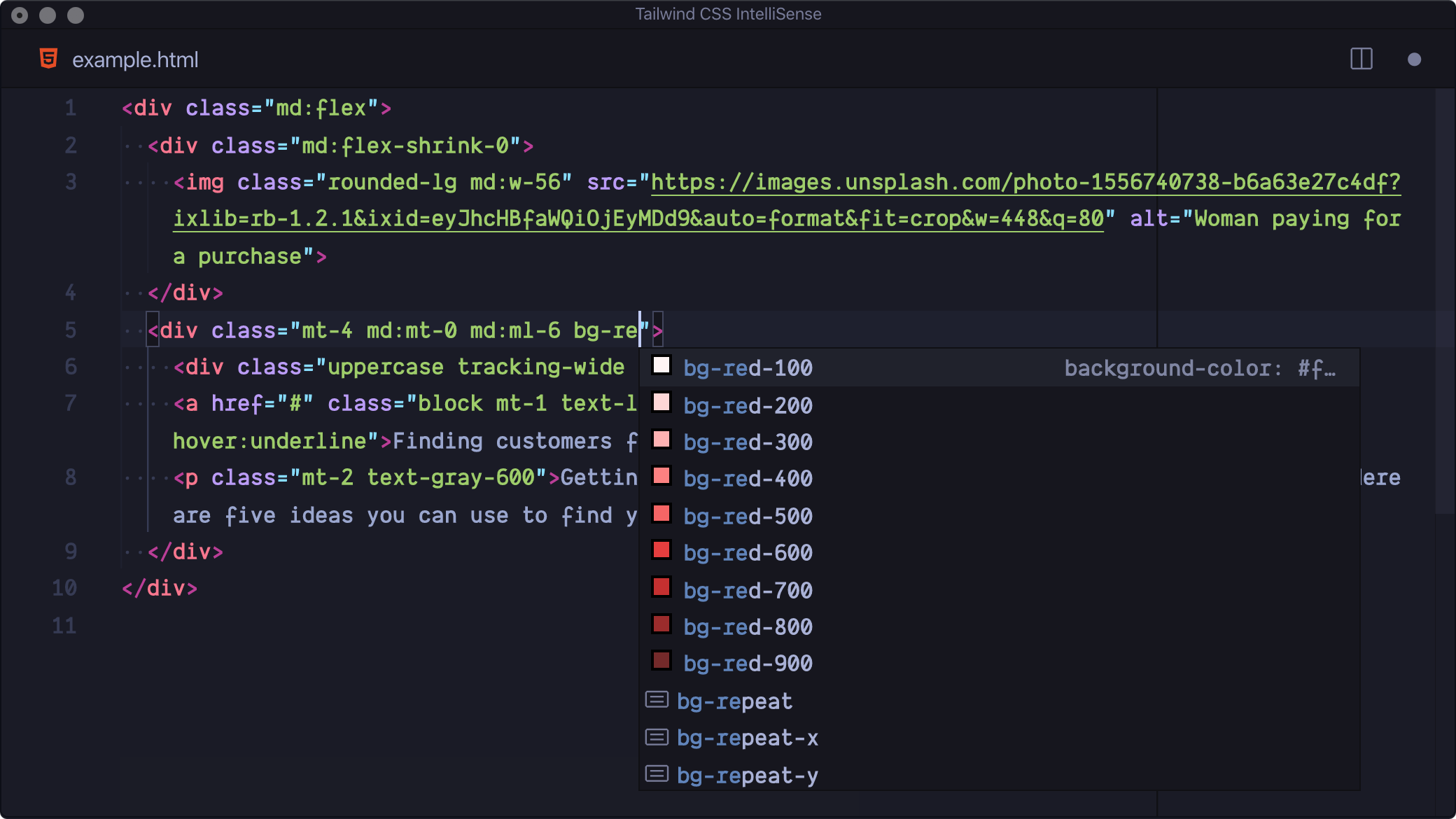
### Autocomplete
Intelligent suggestions for class names, as well as [CSS functions and directives](https://tailwindcss.com/docs/functions-and-directives/).
 ### Linting
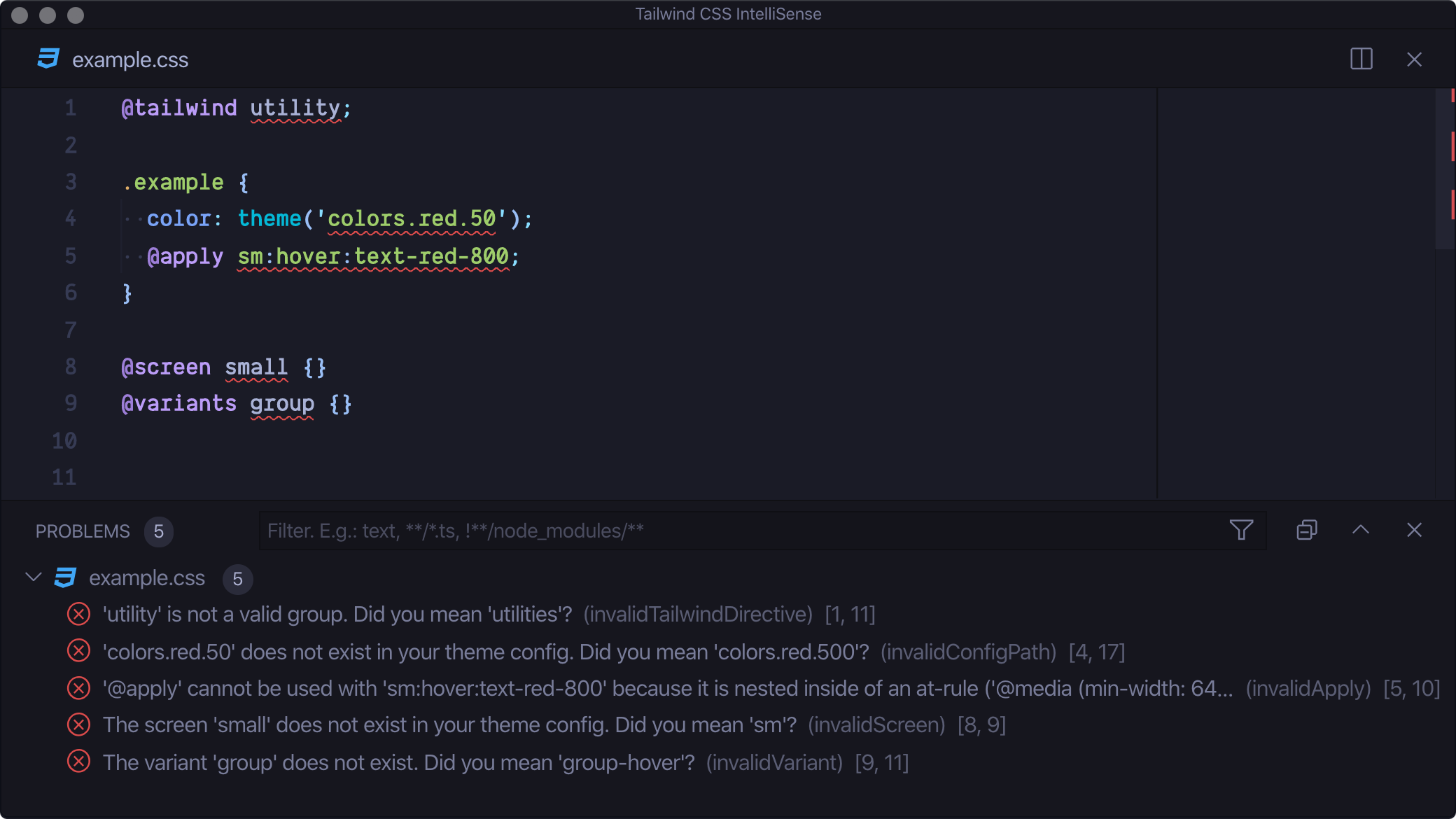
Highlights errors and potential bugs in both your CSS and your markup.
### Linting
Highlights errors and potential bugs in both your CSS and your markup.
 ### Hover Preview
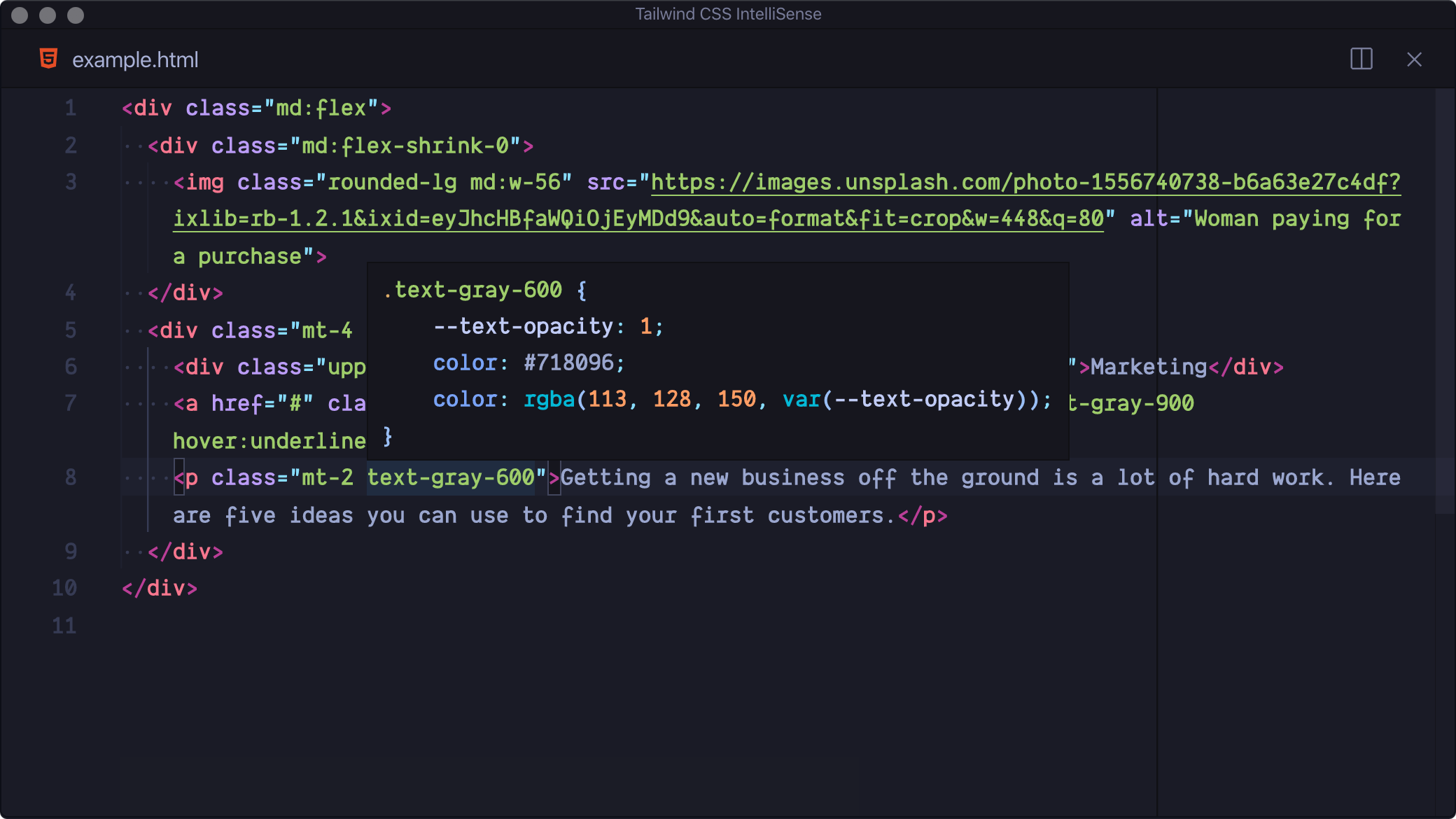
See the complete CSS for a Tailwind class name by hovering over it.
### Hover Preview
See the complete CSS for a Tailwind class name by hovering over it.
 ### Tailwind CSS Language Mode
An alternative to VS Code's built-in CSS language mode which maintains full CSS IntelliSense support even when using Tailwind-specific at-rules. Syntax definitions are also provided so that Tailwind-specific syntax is highlighted correctly in all CSS contexts.
## Recommended VS Code Settings
### `files.associations`
Use the `files.associations` setting to tell VS Code to always open `.css` files in Tailwind CSS mode:
```json
"files.associations": {
"*.css": "tailwindcss"
}
```
### `editor.quickSuggestions`
By default VS Code will not trigger completions when editing "string" content, for example within JSX attribute values. Updating the `editor.quickSuggestions` setting may improve your experience:
```json
"editor.quickSuggestions": {
"strings": "on"
}
```
## Extension Commands
### `Tailwind CSS: Show Output`
Reveal the language server log panel. This command is only available when there is an active language server instance.
### `Tailwind CSS: Sort Selection` (pre-release)
When a list of CSS classes is selected this command can be used to sort them in [the same order that Tailwind orders them in your CSS](https://tailwindcss.com/blog/automatic-class-sorting-with-prettier#how-classes-are-sorted). This command is only available when the current document belongs to an active Tailwind project and the `tailwindcss` version is `3.0.0` or greater.
## Extension Settings
### `tailwindCSS.includeLanguages`
This setting allows you to add additional language support. The key of each entry is the new language ID and the value is any one of the extensions [built-in languages](https://github.com/tailwindlabs/tailwindcss-intellisense/blob/main/packages/tailwindcss-language-service/src/util/languages.ts), depending on how you want the new language to be treated (e.g. `html`, `css`, or `javascript`):
```json
{
"tailwindCSS.includeLanguages": {
"plaintext": "html"
}
}
```
### `tailwindCSS.files.exclude`
Configure glob patterns to exclude from all IntelliSense features. Inherits all glob patterns from the `files.exclude` setting. **Default: ["\*\*/.git/\*\*", "\*\*/node_modules/\*\*", "\*\*/.hg/\*\*", "\*\*/.svn/\*\*"]**
### `tailwindCSS.emmetCompletions`
Enable completions when using [Emmet](https://emmet.io/)-style syntax, for example `div.bg-red-500.uppercase`. **Default: `false`**
### `tailwindCSS.classAttributes`
The HTML attributes for which to provide class completions, hover previews, linting etc. **Default: `class`, `className`, `ngClass`, `class:list`**
### `tailwindCSS.classFunctions`
Functions in which to provide completions, hover previews, linting etc. Currently, this works for both function calls and tagged template literals in JavaScript / TypeScript.
Each entry is treated as regex pattern that matches on a function name. You *cannot* match on content before or after the function name — matches are limited to function names only.
Example:
```json
{
"tailwindCSS.classFunctions": ["tw", "clsx", "tw\\.[a-z-]+"]
}
```
```javascript
let classes = tw`flex bg-red-500`
let classes2 = clsx([
"flex bg-red-500",
{ "text-red-500": true }
])
let element = tw.div`flex bg-red-500`
```
### `tailwindCSS.colorDecorators`
Controls whether the editor should render inline color decorators for Tailwind CSS classes and helper functions. **Default: `true`**
> Note that `editor.colorDecorators` must be enabled for color decorators to be shown.
### `tailwindCSS.showPixelEquivalents`
Show `px` equivalents for `rem` CSS values in completions and hovers. **Default: `true`**
### `tailwindCSS.rootFontSize`
Root font size in pixels. Used to convert `rem` CSS values to their `px` equivalents. See [`tailwindCSS.showPixelEquivalents`](#tailwindcssshowpixelequivalents). **Default: `16`**
### `tailwindCSS.hovers`
Enable hovers. **Default: `true`**
### `tailwindCSS.suggestions`
Enable autocomplete suggestions. **Default: `true`**
### `tailwindCSS.codeActions`
Enable code actions. **Default: `true`**
### `tailwindCSS.validate`
Enable linting. Rules can be configured individually using the `tailwindcss.lint` settings:
- `ignore`: disable lint rule entirely
- `warning`: rule violations will be considered "warnings," typically represented by a yellow underline
- `error`: rule violations will be considered "errors," typically represented by a red underline
#### `tailwindCSS.lint.invalidScreen`
Unknown screen name used with the [`@screen` directive](https://tailwindcss.com/docs/functions-and-directives/#screen). **Default: `error`**
#### `tailwindCSS.lint.invalidVariant`
Unknown variant name used with the [`@variants` directive](https://tailwindcss.com/docs/functions-and-directives/#variants). **Default: `error`**
#### `tailwindCSS.lint.invalidTailwindDirective`
Unknown value used with the [`@tailwind` directive](https://tailwindcss.com/docs/functions-and-directives/#tailwind). **Default: `error`**
#### `tailwindCSS.lint.invalidApply`
Unsupported use of the [`@apply` directive](https://tailwindcss.com/docs/functions-and-directives/#apply). **Default: `error`**
#### `tailwindCSS.lint.invalidConfigPath`
Unknown or invalid path used with the [`theme` helper](https://tailwindcss.com/docs/functions-and-directives/#theme). **Default: `error`**
#### `tailwindCSS.lint.cssConflict`
Class names on the same HTML element which apply the same CSS property or properties. **Default: `warning`**
#### `tailwindCSS.lint.recommendedVariantOrder`
Class variants not in the recommended order (applies in [JIT mode](https://tailwindcss.com/docs/just-in-time-mode) only). **Default: `warning`**
#### `tailwindCSS.lint.usedBlocklistedClass`
Usage of class names that have been blocklisted via `@source not inline(…)`. **Default: `warning`**
#### `tailwindCSS.lint.suggestCanonicalClasses`
Detect usage of class names that are not in the most optimal form. **Default: `warning`**
Some examples of the changes this makes:
| Class | Canonical Form |
| ------------------------------- | -------------- |
| `[color:red]/100` | `text-[red]` |
| `[@media_print]:[display:flex]` | `print:flex` |
### `tailwindCSS.inspectPort`
Enable the Node.js inspector agent for the language server and listen on the specified port. **Default: `null`**
## Experimental Extension Settings
**_Experimental settings may be changed or removed at any time._**
### `tailwindCSS.experimental.configFile`
**Default: `null`**
This setting allows you to manually specify the CSS entrypoints (for v4 projects) or the Tailwind configuration file (for v3 projects). By default, the extension attempts to detect your project setup automatically:
- **For Tailwind CSS v4**: The extension scans your project for CSS files and determines the "root" CSS file.
- **For Tailwind CSS v3 (and earlier)**: The extension automatically uses the first `tailwind.config.{js,cjs,mjs,ts,cts,mts}` file it finds.
If IntelliSense is unable to detect your project, you can use this setting to define your config files manually.
#### Tailwind CSS v4.x (CSS entrypoints)
For v4 projects, specify the CSS file(s) that serve as your Tailwind entrypoints.
If your project contains a single CSS entrypoint, set this option to a string:
```json
"tailwindCSS.experimental.configFile": "src/styles/app.css"
```
For projects with multiple CSS entrypoints, use an object where each key is a file path and each value is a glob pattern (or array of patterns) representing the files it applies to:
```json
"tailwindCSS.experimental.configFile": {
"packages/a/src/app.css": "packages/a/src/**",
"packages/b/src/app.css": "packages/b/src/**"
}
```
#### Tailwind CSS v3.x and earlier (config files)
For v3 projects and below, specify the Tailwind configuration file(s) instead.
If your project contains a single Tailwind config, set this option to a string:
```json
"tailwindCSS.experimental.configFile": ".config/tailwind.config.js"
```
For projects with multiple config files, use an object where each key is a config file path and each value is a glob pattern (or array of patterns) representing the files it applies to:
```json
"tailwindCSS.experimental.configFile": {
"themes/simple/tailwind.config.js": "themes/simple/**",
"themes/neon/tailwind.config.js": "themes/neon/**"
}
```
## Troubleshooting
If you’re having issues getting the IntelliSense features to activate, there are a few things you can check:
- You must have `tailwindcss` installed in your workspace via `npm`, `pnpm`, or `yarn`. The extension will then attempt to detect your Tailwind CSS configuration, which can be located in one of the following:
- For Tailwind CSS **v4** projects, configuration defined directly within your main CSS file using directives like `@import "tailwindcss";` and `@theme { ... }`. Preprocessor files like Less, Sass, or Stylus are not supported. A `.css` file is **required** for IntelliSense to function.
- For Tailwind CSS **v3 and earlier**, a Tailwind CSS config file in your workspace whose name matches (`tailwind.config.{js,cjs,mjs,ts,cts,mts}`), or a stylesheet that points to a config file via `@config`.
- Make sure your VS Code settings aren’t causing your stylesheet or your Tailwind CSS config file to be hidden/ignored, for example via the `files.exclude`, `files.watcherExclude`, or `tailwindCSS.files.exclude` settings.
- Take a look at the language server output by running the `Tailwind CSS: Show Output` command from the command palette. This may show errors that are preventing the extension from activating.
- For projects with multiple installations of Tailwind CSS, multiple config files, or several stylesheets with `@import "tailwindcss"` we recommend using the `tailwindCSS.experimental.configFile` setting to explicitly state your stylesheet or config paths.
### Tailwind CSS Language Mode
An alternative to VS Code's built-in CSS language mode which maintains full CSS IntelliSense support even when using Tailwind-specific at-rules. Syntax definitions are also provided so that Tailwind-specific syntax is highlighted correctly in all CSS contexts.
## Recommended VS Code Settings
### `files.associations`
Use the `files.associations` setting to tell VS Code to always open `.css` files in Tailwind CSS mode:
```json
"files.associations": {
"*.css": "tailwindcss"
}
```
### `editor.quickSuggestions`
By default VS Code will not trigger completions when editing "string" content, for example within JSX attribute values. Updating the `editor.quickSuggestions` setting may improve your experience:
```json
"editor.quickSuggestions": {
"strings": "on"
}
```
## Extension Commands
### `Tailwind CSS: Show Output`
Reveal the language server log panel. This command is only available when there is an active language server instance.
### `Tailwind CSS: Sort Selection` (pre-release)
When a list of CSS classes is selected this command can be used to sort them in [the same order that Tailwind orders them in your CSS](https://tailwindcss.com/blog/automatic-class-sorting-with-prettier#how-classes-are-sorted). This command is only available when the current document belongs to an active Tailwind project and the `tailwindcss` version is `3.0.0` or greater.
## Extension Settings
### `tailwindCSS.includeLanguages`
This setting allows you to add additional language support. The key of each entry is the new language ID and the value is any one of the extensions [built-in languages](https://github.com/tailwindlabs/tailwindcss-intellisense/blob/main/packages/tailwindcss-language-service/src/util/languages.ts), depending on how you want the new language to be treated (e.g. `html`, `css`, or `javascript`):
```json
{
"tailwindCSS.includeLanguages": {
"plaintext": "html"
}
}
```
### `tailwindCSS.files.exclude`
Configure glob patterns to exclude from all IntelliSense features. Inherits all glob patterns from the `files.exclude` setting. **Default: ["\*\*/.git/\*\*", "\*\*/node_modules/\*\*", "\*\*/.hg/\*\*", "\*\*/.svn/\*\*"]**
### `tailwindCSS.emmetCompletions`
Enable completions when using [Emmet](https://emmet.io/)-style syntax, for example `div.bg-red-500.uppercase`. **Default: `false`**
### `tailwindCSS.classAttributes`
The HTML attributes for which to provide class completions, hover previews, linting etc. **Default: `class`, `className`, `ngClass`, `class:list`**
### `tailwindCSS.classFunctions`
Functions in which to provide completions, hover previews, linting etc. Currently, this works for both function calls and tagged template literals in JavaScript / TypeScript.
Each entry is treated as regex pattern that matches on a function name. You *cannot* match on content before or after the function name — matches are limited to function names only.
Example:
```json
{
"tailwindCSS.classFunctions": ["tw", "clsx", "tw\\.[a-z-]+"]
}
```
```javascript
let classes = tw`flex bg-red-500`
let classes2 = clsx([
"flex bg-red-500",
{ "text-red-500": true }
])
let element = tw.div`flex bg-red-500`
```
### `tailwindCSS.colorDecorators`
Controls whether the editor should render inline color decorators for Tailwind CSS classes and helper functions. **Default: `true`**
> Note that `editor.colorDecorators` must be enabled for color decorators to be shown.
### `tailwindCSS.showPixelEquivalents`
Show `px` equivalents for `rem` CSS values in completions and hovers. **Default: `true`**
### `tailwindCSS.rootFontSize`
Root font size in pixels. Used to convert `rem` CSS values to their `px` equivalents. See [`tailwindCSS.showPixelEquivalents`](#tailwindcssshowpixelequivalents). **Default: `16`**
### `tailwindCSS.hovers`
Enable hovers. **Default: `true`**
### `tailwindCSS.suggestions`
Enable autocomplete suggestions. **Default: `true`**
### `tailwindCSS.codeActions`
Enable code actions. **Default: `true`**
### `tailwindCSS.validate`
Enable linting. Rules can be configured individually using the `tailwindcss.lint` settings:
- `ignore`: disable lint rule entirely
- `warning`: rule violations will be considered "warnings," typically represented by a yellow underline
- `error`: rule violations will be considered "errors," typically represented by a red underline
#### `tailwindCSS.lint.invalidScreen`
Unknown screen name used with the [`@screen` directive](https://tailwindcss.com/docs/functions-and-directives/#screen). **Default: `error`**
#### `tailwindCSS.lint.invalidVariant`
Unknown variant name used with the [`@variants` directive](https://tailwindcss.com/docs/functions-and-directives/#variants). **Default: `error`**
#### `tailwindCSS.lint.invalidTailwindDirective`
Unknown value used with the [`@tailwind` directive](https://tailwindcss.com/docs/functions-and-directives/#tailwind). **Default: `error`**
#### `tailwindCSS.lint.invalidApply`
Unsupported use of the [`@apply` directive](https://tailwindcss.com/docs/functions-and-directives/#apply). **Default: `error`**
#### `tailwindCSS.lint.invalidConfigPath`
Unknown or invalid path used with the [`theme` helper](https://tailwindcss.com/docs/functions-and-directives/#theme). **Default: `error`**
#### `tailwindCSS.lint.cssConflict`
Class names on the same HTML element which apply the same CSS property or properties. **Default: `warning`**
#### `tailwindCSS.lint.recommendedVariantOrder`
Class variants not in the recommended order (applies in [JIT mode](https://tailwindcss.com/docs/just-in-time-mode) only). **Default: `warning`**
#### `tailwindCSS.lint.usedBlocklistedClass`
Usage of class names that have been blocklisted via `@source not inline(…)`. **Default: `warning`**
#### `tailwindCSS.lint.suggestCanonicalClasses`
Detect usage of class names that are not in the most optimal form. **Default: `warning`**
Some examples of the changes this makes:
| Class | Canonical Form |
| ------------------------------- | -------------- |
| `[color:red]/100` | `text-[red]` |
| `[@media_print]:[display:flex]` | `print:flex` |
### `tailwindCSS.inspectPort`
Enable the Node.js inspector agent for the language server and listen on the specified port. **Default: `null`**
## Experimental Extension Settings
**_Experimental settings may be changed or removed at any time._**
### `tailwindCSS.experimental.configFile`
**Default: `null`**
This setting allows you to manually specify the CSS entrypoints (for v4 projects) or the Tailwind configuration file (for v3 projects). By default, the extension attempts to detect your project setup automatically:
- **For Tailwind CSS v4**: The extension scans your project for CSS files and determines the "root" CSS file.
- **For Tailwind CSS v3 (and earlier)**: The extension automatically uses the first `tailwind.config.{js,cjs,mjs,ts,cts,mts}` file it finds.
If IntelliSense is unable to detect your project, you can use this setting to define your config files manually.
#### Tailwind CSS v4.x (CSS entrypoints)
For v4 projects, specify the CSS file(s) that serve as your Tailwind entrypoints.
If your project contains a single CSS entrypoint, set this option to a string:
```json
"tailwindCSS.experimental.configFile": "src/styles/app.css"
```
For projects with multiple CSS entrypoints, use an object where each key is a file path and each value is a glob pattern (or array of patterns) representing the files it applies to:
```json
"tailwindCSS.experimental.configFile": {
"packages/a/src/app.css": "packages/a/src/**",
"packages/b/src/app.css": "packages/b/src/**"
}
```
#### Tailwind CSS v3.x and earlier (config files)
For v3 projects and below, specify the Tailwind configuration file(s) instead.
If your project contains a single Tailwind config, set this option to a string:
```json
"tailwindCSS.experimental.configFile": ".config/tailwind.config.js"
```
For projects with multiple config files, use an object where each key is a config file path and each value is a glob pattern (or array of patterns) representing the files it applies to:
```json
"tailwindCSS.experimental.configFile": {
"themes/simple/tailwind.config.js": "themes/simple/**",
"themes/neon/tailwind.config.js": "themes/neon/**"
}
```
## Troubleshooting
If you’re having issues getting the IntelliSense features to activate, there are a few things you can check:
- You must have `tailwindcss` installed in your workspace via `npm`, `pnpm`, or `yarn`. The extension will then attempt to detect your Tailwind CSS configuration, which can be located in one of the following:
- For Tailwind CSS **v4** projects, configuration defined directly within your main CSS file using directives like `@import "tailwindcss";` and `@theme { ... }`. Preprocessor files like Less, Sass, or Stylus are not supported. A `.css` file is **required** for IntelliSense to function.
- For Tailwind CSS **v3 and earlier**, a Tailwind CSS config file in your workspace whose name matches (`tailwind.config.{js,cjs,mjs,ts,cts,mts}`), or a stylesheet that points to a config file via `@config`.
- Make sure your VS Code settings aren’t causing your stylesheet or your Tailwind CSS config file to be hidden/ignored, for example via the `files.exclude`, `files.watcherExclude`, or `tailwindCSS.files.exclude` settings.
- Take a look at the language server output by running the `Tailwind CSS: Show Output` command from the command palette. This may show errors that are preventing the extension from activating.
- For projects with multiple installations of Tailwind CSS, multiple config files, or several stylesheets with `@import "tailwindcss"` we recommend using the `tailwindCSS.experimental.configFile` setting to explicitly state your stylesheet or config paths.