# git-date-extractor
**Repository Path**: mirrors_vuetifyjs/git-date-extractor
## Basic Information
- **Project Name**: git-date-extractor
- **Description**: No description available
- **Primary Language**: Unknown
- **License**: MIT
- **Default Branch**: master
- **Homepage**: None
- **GVP Project**: No
## Statistics
- **Stars**: 0
- **Forks**: 0
- **Created**: 2020-08-22
- **Last Updated**: 2026-05-23
## Categories & Tags
**Categories**: Uncategorized
**Tags**: None
## README
# git-date-extractor [](https://travis-ci.org/github/joshuatz/git-date-extractor) [](https://codecov.io/gh/joshuatz/git-date-extractor?branch=master) [](https://www.npmjs.com/package/git-date-extractor)
> Easily extract file dates based on git history, and optionally cache in a easy to parse JSON file.
I made this tool because, in trying to set up an automated static site deployment, I realized two important facts:
1. Git does not preserve OS timestamps (`git clone` will set file creation date to now)
2. However, you can use the git log to track a file's history and generate timestamps based on when it was:
- First added
- Last modified
Essentially, this is a way to run a command and get back a list of `created` and `modified` timestamps based on `git` history, regardless of when the files were actually created on your computer.
It can run as either a CLI tool, or via JS, and returns an easy to parse JSON object with filenames as the key, and UNIX timestamps for created/modified times as the values.
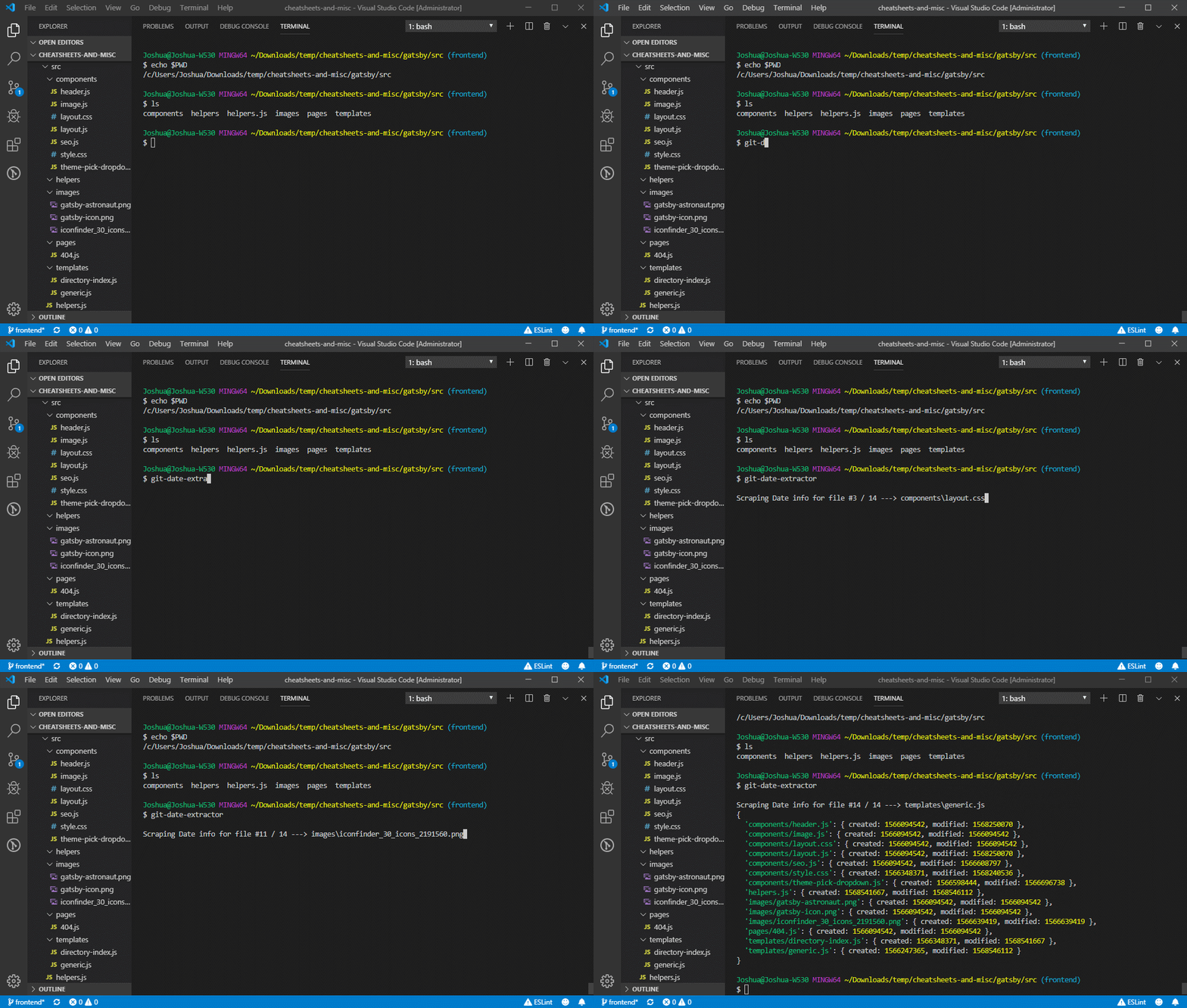
## Quick Demo (CLI Usage):
## Install
```
$ npm install git-date-extractor
```
## Usage
Assume directory structure of:
- `alpha.txt`
- `bravo.txt`
- `/subdir`
- `charlie.txt`
This script will produce an output of:
```json
{
"alpha.txt": {
"created": 1568785761,
"modified": 1568790468
},
"bravo.txt": {
"created": 1568785761,
"modified": 1568790468
},
"subdir/charlie.txt": {
"created": 1568785762,
"modified": 1568790368
}
}
```
### Via JS
Generic usage:
```js
const gitDateExtractor = require('git-date-extractor');
const stamps = await gitDateExtractor.getStamps(optionsObject);
```
Sample demo:
```js
// This will store stamps into `stamps` variable, as well as save to file
const stamps = await gitDateExtractor.getStamps({
outputToFile: true,
outputFileName: 'timestamps.json',
projectRootPath: __dirname
});
console.log(stamps);
/**
* Output looks like:
*/
/*
{
"alpha.txt": {
"created": 1568785761,
"modified": 1568790468
},
"bravo.txt": {
"created": 1568785761,
"modified": 1568790468
},
"subdir/charlie.txt": {
"created": 1568785762,
"modified": 1568790368
}
}
*/
```
> If you prefer callback style of async, you can pass a callback function as the second argument to `getStamps`.
### Via CLI
```
$ npm install --global git-date-extractor
```
```
$ git-date-extractor --help
$ git-dates --help
Usage
$ git-date-extractor [input]
$ git-dates [input]
Options (all are optional):
--outputToFile {boolean} [Default: false]
--outputFileName {string} [Default: timestamps.json]
--outputFileGitAdd {boolean} [Default: false*] *default=true if gitCommitHook is set
--files {string[] | string}
--onlyIn {string[] | string}
--blockFiles {string[] | string}
--allowFiles {string[] | string}
--gitCommitHook {"post" | "pre" | "none"} [Default: "none"]
--projectRootPath {string}
--debug {boolean} [Default: false]
Examples
$ git-date-extractor
{
'alpha.txt': { created: 1568789925, modified: 1568790468 },
'bravo.txt': { created: 1568789925, modified: 1568790468 },
'subdir/charlie.txt': { created: 1568789925, modified: 1568790368 }
}
$ git-date-extractor --files=[alpha.txt] --outputFileGitAdd=true --gitCommitHook=post
timestamps updated
```
> For the CLI, you can pass files either directly via the `--files` flag, such as `--files=[alpha.txt,bravo.txt]`, or as final arguments to the command, such as `git-date-extractor --outputToFile=true alpha.txt bravo.txt`
> For passing filenames to the CLI (e.g. with `xargs`), be careful of special characters and/or spaces in filenames.
## Options
Both the CLI and the main method accept the same options:
Option Key | CLI Alias | Description | Type | Default
---|---|---|---|---
outputToFile | out | Should the results be saved to file? | `boolean` | `false`
outputFileName | outFile | Name of the file to save to (if applicable) | `string` | `timestamps.json`
outputFileGitAdd | gitAdd | If saving to file, should the file be `git add`'ed after update?
Note: This will only stage the file, unless you set gitCommitHook=post, then it will commit it. | `boolean` | `false` if `gitCommitHook` is set to `none`
files | file | Specific files to get timestamps for. These should either be full file paths (e.g. `C:\dir\file.txt`) or relative to root of the scanned dir | `string[] or string` | NA - if empty, script will scan entire dir
onlyIn | dirs | Filter files by specific directory | `string[] or string` | NA
blockFiles | blocklist | Block certain files from being tracked | `string[] or string` | NA
allowFiles | whitelist | Exception list of filepaths that will override certain blocks.
See advanced examples section. | `string[] or string | NA
gitCommitHook | git-stage | Use this if you are running this script on a git hook.
For example, use `post` and the script will append a new commit with the changed timestamp file. | `"pre"` or `"post"` or `"none"` | `"none"`
projectRootPath | rootDir | Top level directory containing your files.
Script should be able to detect automatically, but can also pass to be safe. | `string` | Auto-detected based on `proccess.cwd()`
or `__dirname`
debug | debug | Might output extra meta info related to the development of this module | `boolean` | `false`
> Warning: The debug option actually slows down the speed of execution a little due to some overhead related to logging
---
## Advanced examples
I tried to make this tool very customizable, maybe a bit too much so! In general, the easiest way to use it is either with no flags (autoscan all files) or with `files` set to specific files.
Also, if you are calling it from the console, you probably always want `outputToFile` to be `true`, unless you really only want output in the console alone.
Setting `files` makes it run the fastest, since then it doesn't need to scan for files.
However, here are some more advanced examples:
### Allowing exceptions to files not in whitelisted directories
Here is our example structure:
- `alpha.txt`
- `bravo.txt`
- `charlie.txt`
- `/subdir`
- `delta.js`
- `echo.js`
```javascript
const options = {
files: ['bravo.txt','subdir/delta.js','subdir/echo.js'],
onlyIn: ['subdir'],
allowFiles: ['bravo.txt']
}
```
With the above options, our results will include `bravo.txt`, even though it doesn't fall within `/subdir`, because the `allowFiles` flag is an override that will bypass the `onlyIn` rule.
This is useful when calling the script via an automation, like a `git hook`, where the `files` argument is dynamic, but you there are certain files you never want to be blocked from being tracked.
### Automating the check in of the timestamp file into version control (`git add`)
If you are tracking the timestamp JSON file in `git`, and updating it via a `git hook` such as `pre-commit`, then an issue you are going to run into is that every time you commit, the file will get updated, which means it needs to be re-added (staged), and so on.
The `gitCommitHook` lets you tell the script that it is being triggered by a hook, and it will act accordingly. This also works in tandem with the `outputFileGitAdd` flag. If you specify...
- `gitCommitHook: 'pre'` And/Or `outputFileGitAdd: true`
- The timestamp file will be `git add`ed to staging
- If you run this script as a pre-commit hook, this means that the timestamps file will seamlessly appear as part of the commit without needing to be manually added each time
- `gitCommitHook: 'post'` (and `outputFileGitAdd` !== false)
- After the updated timestamp file is staged, it will be committed as a new commit.
- `--amend` is not used to inject it into the last commit, since this could easily trigger a hook loop
Here is how I have this setup as a pre-commit hook. This is a little over-complicated; this could be simplified further:
```sh
#!/bin/bash
# Get list of changed files - everything but "deletes"
git diff --cached --name-only --diff-filter=ACMRTUXB -z | xargs -0 git-date-extractor --gitCommitHook=pre --onlyIn=[md,images] --allowFiles=[README.md] --outputToFile=true --outputFileName=timestamps-cache.json
```
## Portfolio / Project Page
https://joshuatz.com/projects/applications/git-date-extractor-npm-package-and-cli-tool/
## Major updates
Version | Date | Notes
--- | --- | ---
3.0.0 | 5/31/2020 | Fix CLI projectRootPath issues, refactor tests, and cleanup.
2.0.0 | 11/01/2019 | Refactored a bunch of stuff to be async. Main export is now async, which makes it incompatible with the previous version and necessitated a major version bump.
## Note about accuracy
For files that have no git history, this tool has limited accuracy when it comes to creation time (birthtime), especially on Linux, with Node < 10.16.0 and/or Kernel <= 4.11 (where statx is not available).