# atom-ternjs
**Repository Path**: nur/atom-ternjs
## Basic Information
- **Project Name**: atom-ternjs
- **Description**: No description available
- **Primary Language**: Unknown
- **License**: MIT
- **Default Branch**: master
- **Homepage**: None
- **GVP Project**: No
## Statistics
- **Stars**: 0
- **Forks**: 0
- **Created**: 2019-10-22
- **Last Updated**: 2020-12-19
## Categories & Tags
**Categories**: Uncategorized
**Tags**: None
## README
# atom-ternjs
> JavaScript code intelligence for atom with [Tern](https://github.com/ternjs/tern).
Adds support for ES5, ES6, ES7, ES8, Node.js and more. Extendable via plugins.
Uses suggestion provider by [autocomplete-plus](https://github.com/atom/autocomplete-plus).
## Get started (configure your project)
* Open any JavaScript file from within your project
* Navigate to Packages -> Atom Ternjs -> Configure project
* The config view appears. Configure to your needs.
* Hit "Save & Restart Server" to create/update the .tern-project file. The configuration is now active.
## Get started (in case you can't use configure your project)
* In your project root create a file named .tern-project. See docs @ http://ternjs.net/doc/manual.html#configuration.
* Restart the server via *Packages -> Atom Ternjs -> Restart server*
Example `.tern-project` file (customize to your own needs):
```json
{
"ecmaVersion": 8,
"libs": [
"browser"
],
"loadEagerly": [
"path/to/your/js/**/*.js"
],
"dontLoad": [
"node_modules/**",
"path/to/your/js/**/*.js"
],
"plugins": {
"es_modules": {},
"node": {},
"doc_comment": {
"fullDocs": true,
"strong": true
}
}
}
```
### EcmaVersion
* 5: use ECMAScript5
* 6: use ECMAScript6
* 7: use ECMAScript7
* 8: use ECMAScript8 (default)
### Libs
* browser: completion for browser features like document.querySelector (optional)
* chai: completion for chai (optional)
* jquery: completion for jQuery (optional)
* react: completion for React (optional)
* underscore: completion for underscore (optional)
### Options
* loadEagerly: provide the path to your projects JavaScript. For relative paths do not use `./` as a prefix. This sometimes leads to an unexpected behaviour.
* **loadEagerly is expensive. Do not add paths like `node_modules`.**
* dontLoad: can be used to prevent Tern from loading certain files. It also takes an array of file names or glob patterns.
### Plugins
* For a list of build in server plugins, visit: http://ternjs.net/doc/manual.html#plugins
### Example configurations
* RequireJS: https://github.com/tststs/atom-ternjs-using-requirejs
### Keybindings
List of [keybindings](#features).
To use your own keybindings goto `atom-ternjs` package settings and disable keybindings.
## Third party plugins
In order to use third party plugins (e.g. [tern-node-express](https://github.com/angelozerr/tern-node-express)):
```
$ cd ~/.atom/packages/atom-ternjs
$ npm install tern-node-express
```
Add the plugin to your .tern-project file:
```json
{
"ecmaVersion": 8,
"libs": [
"browser"
],
"loadEagerly": [
"app/**/*.js"
],
"plugins": {
"node-express": {}
}
}
```
Third party plugins are still an issue and sometimes do not work as expected, especially if the plugin requires a tern version that does not match the tern version that is used by atom-ternjs.
Restart the server: *Packages -> Atom Ternjs -> Restart server*
## .tern-project created/modified
* After the file was created or has been modified, restart the server via *Packages -> Atom Ternjs -> Restart server*
## Features
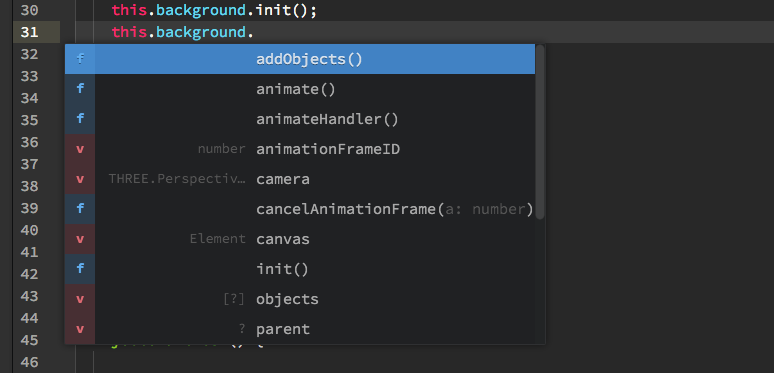
* Completion (autocompletion triggers automatically), or via the keybindings:
* ctrl+space
* ctrl+alt+space (force autocompletion in any context)

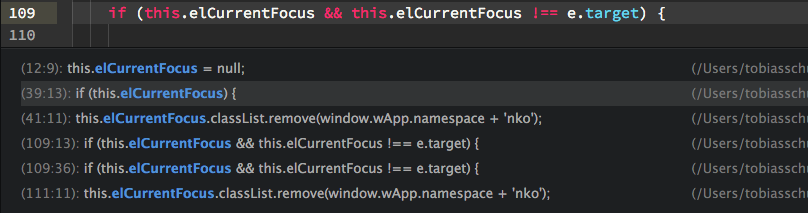
* Find references (set your cursor position to one of variable, function or instance -> open context-menu and trigger "Find references" or use the keybindings:
* ctrl+shift+r (macOS, Windows)
* ctrl+alt+shift+e (Linux)
Click any item in the generated reference-list and navigate directly to file and position
* Documentation
* Show documentation for the thing under the cursor via alt+o (macOS, Windows, Linux)

* Also displayed if a suggestion with a valid documentation is selected in the autocomplete-plus select-list
* Find definition (set your cursor position to one of variable, function or instance -> open context-menu and trigger "Find definition") or use the keybindings:
* cmd+click (macOS, Windows, Linux), requires https://atom.io/packages/hyperclick. Since cmd+click is also used for multi-line editing in macOS you should change the default hyperclick settings.
* ctrl+alt+shift+d (macOS, Windows, Linux)
* Navigate back or forward
* ctrl+shift+cmd+left (macOS, Windows, Linux)
* ctrl+shift+cmd+right (macOS, Windows, Linux)
* Rename variable (set your cursor position to a variable -> open context-menu and trigger "Rename") or use the keybindings:
* ctrl+alt+c (macOS, Windows)
* ctrl+alt+shift+c (Linux)