# flutter-unity-view-widget
**Repository Path**: samfky/flutter-unity-view-widget
## Basic Information
- **Project Name**: flutter-unity-view-widget
- **Description**: Embeddable unity game engine view for Flutter. Advance demo here https://github.com/juicycleff/flutter-unity-arkit-demo
- **Primary Language**: Unknown
- **License**: MIT
- **Default Branch**: master
- **Homepage**: None
- **GVP Project**: No
## Statistics
- **Stars**: 0
- **Forks**: 0
- **Created**: 2020-10-24
- **Last Updated**: 2020-12-19
## Categories & Tags
**Categories**: Uncategorized
**Tags**: None
## README
# flutter_unity_widget
[](#contributors-)
[![version][version-badge]][package]
[![MIT License][license-badge]][license]
[![PRs Welcome][prs-badge]](https://makeapullrequest.com)
[![Watch on GitHub][github-watch-badge]][github-watch]
[![Star on GitHub][github-star-badge]][github-star]
[](https://gitter.im/flutter-unity/community?utm_source=badge&utm_medium=badge&utm_campaign=pr-badge)
Flutter unity 3D widget for embedding unity in flutter. Now you can make awesome gamified features of your app in Unity and get it rendered in a Flutter app both in fullscreen and embeddable mode. Works great on Android, iPad OS and iOS. There are now two unity app examples in the unity folder, one with the default scene and another based on Unity AR foundation samples.
Note: I have updated the example for Unity 2019.3.5 and there are some new changes in the scripts folder. Please replace your already copied files and folders in your unity project. This package only supports Unity version 2019.3 and later
## Installation
First depend on the library by adding this to your packages `pubspec.yaml`:
```yaml
dependencies:
flutter_unity_widget: ^2.0.0+2
```
Now inside your Dart code you can import it.
```dart
import 'package:flutter_unity_widget/flutter_unity_widget.dart';
```
## Preview
30 fps gifs, showcasing communication between Flutter and Unity:


## Setup Project
For this, there is also a video tutorial, which you can find a [here](https://www.youtube.com/watch?v=exNPmv_7--Q).
### Add Unity Project
1. Create an unity project, Example: 'UnityDemoApp'.
2. Create a folder named `unity` in flutter project folder.
2. Move unity project folder to `unity` folder.
Now your project files should look like this.
```
.
├── android
├── ios
├── lib
├── test
├── unity
│ └── // Example: UnityDemoApp
├── pubspec.yml
├── README.md
```
### Configure Player Settings
1. First Open Unity Project.
2. Click Menu: File => Build Settings
Be sure you have at least one scene added to your build.
3. => Player Settings
**Android Platform**:
1. Change `Scripting Backend` to IL2CPP.
2. Mark the following `Target Architectures` :
- ARMv7 ✅
- ARM64 ✅
- x86 ✅ (In Unity Version 2019.2+, this feature is not avaliable due to the lack of Unity Official Support)
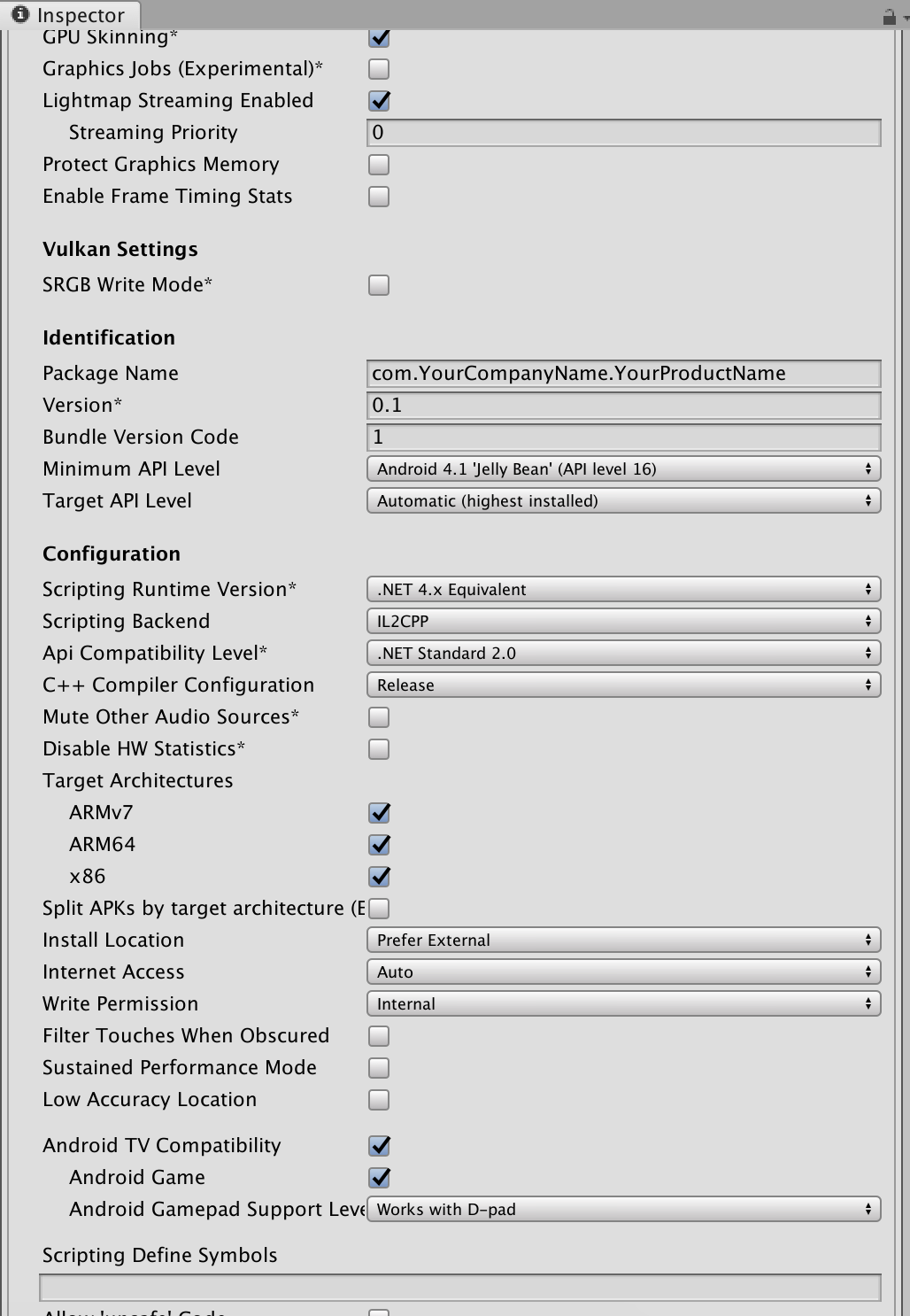 **iOS Platform**:
1. Depending on where you want to test or run your app, (simulator or physical device), you should select the appropriate SDK on `Target SDK`.
**iOS Platform**:
1. Depending on where you want to test or run your app, (simulator or physical device), you should select the appropriate SDK on `Target SDK`.
### Add Flutter Unity Package to Unity Project
Import [`FlutterUnityPackage.unitypackage`](https://github.com/juicycleff/flutter-unity-view-widget/tree/master/scripts/FlutterUnityPackage.unitypackage) to `unity/`
Open your unity project in Unity Editor. Now you can export the Unity project with `Flutter/Export Android` (for Unity versions 2019.3 and up, which uses the new [Unity as a Library](https://blogs.unity3d.com/2019/06/17/add-features-powered-by-unity-to-native-mobile-apps/) export format), or `Flutter/Export IOS` menu.
Please do not use `Flutter/Export plugin` as it was specially added to work with [`flutter_unity_cli`](https://github.com/juicycleff/flutter_unity_cli) for larger projects
 Android will export unity project to `android/unityLibrary`.
IOS will export unity project to `ios/UnityLibrary`.
Android will export unity project to `android/unityLibrary`.
IOS will export unity project to `ios/UnityLibrary`.
**Note**:
The build unity export script automatically sets things up for you for you, so you don't have to do anything for android.
But if you want to manually set it up, continue, else skip to iOS.
**Android Platform Only (Manual Steps)**
1. After exporting the unity game, open Android Studio and then
2. Add the following to your ```/android/settings.gradle```file:
```gradle
include ":unityLibrary"
project(":unityLibrary").projectDir = file("./unityLibrary")
```
3. open ```/android/app/build.gradle```file and add:
```gradle
dependencies {
implementation project(':unityLibrary')
}
```
4. To build a release package, you need to add signconfig in `UnityExport/build.gradle`. The code below use the `debug` signConfig for all buildTypes, which can be changed as you well if you need specify signConfig.
```
buildTypes {
release {
signingConfig signingConfigs.debug
}
debug {
signingConfig signingConfigs.debug
}
profile{
signingConfig signingConfigs.debug
}
innerTest {
//...
matchingFallbacks = ['debug', 'release']
}
}
```
5. If you want unity in it's own activity as an alternative, just add this to your app `AndroidManifest.xml` file
```xml
```
**iOS Platform Only**
1. open your ios/Runner.xcworkspace (workspace!, not the project) in Xcode and add the exported project in the workspace root (with a right click in the Navigator, not on an item -> Add Files to “Runner” -> add the unityLibrary/Unity-Iphone.xcodeproj file
 2. Select the Unity-iPhone/Data folder and change the Target Membership for Data folder to UnityFramework (Optional)
 3. Add this to your Runner/Runner/Runner-Bridging-Header.h
```c
#import "UnityUtils.h"
```
4. Add to Runner/Runner/AppDelegate.swift before the GeneratedPluginRegistrant call:
```swift
InitArgs(CommandLine.argc, CommandLine.unsafeArgv)
```
For example
```swift
import UIKit
import Flutter
@UIApplicationMain
@objc class AppDelegate: FlutterAppDelegate {
override func application(
_ application: UIApplication,
didFinishLaunchingWithOptions launchOptions: [UIApplication.LaunchOptionsKey: Any]?
) -> Bool {
InitArgs(CommandLine.argc, CommandLine.unsafeArgv)
GeneratedPluginRegistrant.register(with: self)
return super.application(application, didFinishLaunchingWithOptions: launchOptions)
}
}
```
Or when using Objective-C your `main.m` should look like this:
```
#import "UnityUtils.h"
int main(int argc, char * argv[]) {
@autoreleasepool {
InitArgs(argc, argv);
return UIApplicationMain(argc, argv, nil, NSStringFromClass([AppDelegate class]));
}
}
```
5. Opt-in to the embedded views preview by adding a boolean property to the app's `Info.plist` file with the key `io.flutter.embedded_views_preview` and the value `YES`.
6. Add UnityFramework.framework as a Library to the Runner project
3. Add this to your Runner/Runner/Runner-Bridging-Header.h
```c
#import "UnityUtils.h"
```
4. Add to Runner/Runner/AppDelegate.swift before the GeneratedPluginRegistrant call:
```swift
InitArgs(CommandLine.argc, CommandLine.unsafeArgv)
```
For example
```swift
import UIKit
import Flutter
@UIApplicationMain
@objc class AppDelegate: FlutterAppDelegate {
override func application(
_ application: UIApplication,
didFinishLaunchingWithOptions launchOptions: [UIApplication.LaunchOptionsKey: Any]?
) -> Bool {
InitArgs(CommandLine.argc, CommandLine.unsafeArgv)
GeneratedPluginRegistrant.register(with: self)
return super.application(application, didFinishLaunchingWithOptions: launchOptions)
}
}
```
Or when using Objective-C your `main.m` should look like this:
```
#import "UnityUtils.h"
int main(int argc, char * argv[]) {
@autoreleasepool {
InitArgs(argc, argv);
return UIApplicationMain(argc, argv, nil, NSStringFromClass([AppDelegate class]));
}
}
```
5. Opt-in to the embedded views preview by adding a boolean property to the app's `Info.plist` file with the key `io.flutter.embedded_views_preview` and the value `YES`.
6. Add UnityFramework.framework as a Library to the Runner project

### AR Foundation ( requires Unity 2019.3.*)

Check out the Unity AR Foundation Samples [Demo Repository](https://github.com/juicycleff/flutter-unity-arkit-demo)
**The Demo Repository is not guaranteed to be up-to-date with the latest flutter-unity-view-widget master. Make sure to follow the steps listed below for setting up AR Foundation on iOS and Android in your projects.**
**iOS**
Go to target info list on Xcode and add this key and value;
key: `Privacy - Camera Usage Description` value: `$(PRODUCT_NAME) uses Cameras`
**Android**
If you want to use Unity for integrating Augmented Reality in your Flutter app, a few more changes are required:
1. Export the Unity Project as previously stated (using the Editor Build script).
2. Check if the exported project includes all required Unity libraries (.so) files (`lib/\/libUnityARCore.so` and `libarpresto_api.so`). There seems to be a bug where a Unity export does not include all lib files. If they are missing, use Unity to build a standalone .apk of your AR project, unzip the resulting apk, and copy over the missing .lib files to the `unityLibrary` module.
3. Similar to how you've created the `unity-classes` module in Android Studio, create similar modules for all exported .aar and .jar files in the `unityLibrary/libs` folder (`arcore_client.aar`, `unityandroidpermissions.aar`, `UnityARCore.aar`).
4. Update the build.gradle script of the `unityLibrary` module to depend on the new modules (again, similar to how it depends on `unity-classes`).
5. Finally, update your Dart code build method where you include the `UnityWidget` and add `isARScene: true,`.
Sadly, this does have the side effect of making your Flutter activity act in full screen, as Unity requires control of your Activity for running in AR, and it makes several modifications to your Activity as a result (including setting it to full screen).
### Add Flutter Unity Package
Import [`FlutterUnityPackage.unitypackage`](https://github.com/juicycleff/flutter-unity-view-widget/tree/master/scripts/FlutterUnityPackage.unitypackage) to `unity/`
### Vuforia
**Android**
Similar to setting up AR Foundation, but creating a module for the VuforiaWrapper instead.
Thanks to [@PiotrxKolasinski](https://github.com/PiotrxKolasinski) for writing down the exact steps:
1. Change in build.gradle: `implementation(name: 'VuforiaWrapper', ext:'aar')` to `implementation project(':VuforiaWrapper')`
2. In settings.gradle in the first line at the end add: `':VuforiaWrapper'`
3. From menu: File -> New -> New Module choose "import .JAR/.AAR Package" and add lib VuforiaWrapper.arr. Move generated folder to android/
4. In Widget UnityWidget add field: `isARScene: true`
5. Your App need camera permission (you can set in settings on mobile)
## Examples
### Simple Example
```dart
import 'package:flutter/material.dart';
import 'package:flutter/services.dart';
import 'package:flutter_unity_widget/flutter_unity_widget.dart';
class UnityDemoScreen extends StatefulWidget {
UnityDemoScreen({Key key}) : super(key: key);
@override
_UnityDemoScreenState createState() => _UnityDemoScreenState();
}
class _UnityDemoScreenState extends State{
static final GlobalKey _scaffoldKey =
GlobalKey();
UnityWidgetController _unityWidgetController;
Widget build(BuildContext context) {
return Scaffold(
key: _scaffoldKey,
body: SafeArea(
bottom: false,
child: WillPopScope(
onWillPop: () {
// Pop the category page if Android back button is pressed.
},
child: Container(
color: colorYellow,
child: UnityWidget(
onUnityViewCreated: onUnityCreated,
),
),
),
),
);
}
// Callback that connects the created controller to the unity controller
void onUnityCreated(controller) {
this._unityWidgetController = controller;
}
}
```
### Communicating with and from Unity
```dart
import 'package:flutter/material.dart';
import 'package:flutter_unity_widget/flutter_unity_widget.dart';
void main() => runApp(MyApp());
class MyApp extends StatefulWidget {
@override
_MyAppState createState() => _MyAppState();
}
class _MyAppState extends State {
static final GlobalKey _scaffoldKey =
GlobalKey();
UnityWidgetController _unityWidgetController;
double _sliderValue = 0.0;
@override
void initState() {
super.initState();
}
@override
Widget build(BuildContext context) {
return MaterialApp(
home: Scaffold(
key: _scaffoldKey,
appBar: AppBar(
title: const Text('Unity Flutter Demo'),
),
body: Card(
margin: const EdgeInsets.all(8),
clipBehavior: Clip.antiAlias,
shape: RoundedRectangleBorder(
borderRadius: BorderRadius.circular(20.0),
),
child: Stack(
children: [
UnityWidget(
onUnityViewCreated: onUnityCreated,
isARScene: true,
onUnityMessage: onUnityMessage,
onUnitySceneLoaded: onUnitySceneLoaded,
fullscreen: false,
),
Positioned(
bottom: 20,
left: 20,
right: 20,
child: Card(
elevation: 10,
child: Column(
children: [
Padding(
padding: const EdgeInsets.only(top: 20),
child: Text("Rotation speed:"),
),
Slider(
onChanged: (value) {
setState(() {
_sliderValue = value;
});
setRotationSpeed(value.toString());
},
value: _sliderValue,
min: 0,
max: 20,
),
],
),
),
),
],
),
),
),
);
}
// Communcation from Flutter to Unity
void setRotationSpeed(String speed) {
_unityWidgetController.postMessage(
'Cube',
'SetRotationSpeed',
speed,
);
}
// Communication from Unity to Flutter
void onUnityMessage(controller, message) {
print('Received message from unity: ${message.toString()}');
}
// Callback that connects the created controller to the unity controller
void onUnityCreated(controller) {
this._unityWidgetController = controller;
}
// Communication from Unity when new scene is loaded to Flutter
void onUnitySceneLoaded(
controller, {
int buildIndex,
bool isLoaded,
bool isValid,
String name,
}) {
print('Received scene loaded from unity: $name');
print('Received scene loaded from unity buildIndex: $buildIndex');
}
}
```
## Props
- `fullscreen` (Enable or disable fullscreen mode on Android)
- `disableUnload` (Disable unload on iOS when unload is called)
## API
- `pause()` (Use this to pause unity player)
- `resume()` (Use this to resume unity player)
- `unload()` (Use this to unload unity player)
- `quit()` (Use this to quit unity player)
- `postMessage(String gameObject, methodName, message)` (Allows you invoke commands in Unity from flutter)
- `onUnityMessage(data)` (Unity to flutter binding and listener)
- `onUnityUnloaded()` (Unity to flutter listener when unity is unloaded)
- `onUnitySceneLoaded(String name, int buildIndex, bool isLoaded, bool isValid,)` (Unity to flutter binding and listener when new scene is loaded)
## Known issues
- Remember to disabled fullscreen in unity player settings to disable unity fullscreen.
[version-badge]: https://img.shields.io/pub/v/flutter_unity_widget.svg?style=flat-square
[package]: https://pub.dartlang.org/packages/flutter_unity_widget/
[license-badge]: https://img.shields.io/github/license/juicycleff/flutter-unity-view-widget.svg?style=flat-square
[license]: https://github.com/juicycleff/flutter-unity-view-widget/blob/master/LICENSE
[prs-badge]: https://img.shields.io/badge/PRs-welcome-brightgreen.svg?style=flat-square
[prs]: https://makeapullrequest.com
[github-watch-badge]: https://img.shields.io/github/watchers/juicycleff/flutter-unity-view-widget.svg?style=social
[github-watch]: https://github.com/juicycleff/flutter-unity-view-widget/watchers
[github-star-badge]: https://img.shields.io/github/stars/juicycleff/flutter-unity-view-widget.svg?style=social
[github-star]: https://github.com/juicycleff/flutter-unity-view-widget/stargazers
## Contributors ✨
Thanks goes to these wonderful people ([emoji key](https://allcontributors.org/docs/en/emoji-key)):
This project follows the [all-contributors](https://github.com/all-contributors/all-contributors) specification. Contributions of any kind welcome!


