# APNGKit
**Repository Path**: shuike/APNGKit
## Basic Information
- **Project Name**: APNGKit
- **Description**: No description available
- **Primary Language**: Unknown
- **License**: MIT
- **Default Branch**: master
- **Homepage**: None
- **GVP Project**: No
## Statistics
- **Stars**: 0
- **Forks**: 0
- **Created**: 2025-12-14
- **Last Updated**: 2025-12-14
## Categories & Tags
**Categories**: Uncategorized
**Tags**: None
## README






APNGKit is a high performance framework for loading and displaying APNG images in iOS and macOS. It's built with
high-level abstractions and brings a delightful API. Since be that, you will feel at home and joy when using APNGKit to
play with images in APNG format.
## APNG, what and why?
The [Animated Portable Network Graphics (APNG)](https://en.wikipedia.org/wiki/APNG) is a file format extending the
well-known PNG format. It allows for animated PNG files that work similarly to animated GIF files, while supporting
24-bit images and 8-bit transparency not available for GIFs. This means much better quality of animation. At the same
time, the file size is comparable to or even less than, if created carefully, GIFs.
Talk is cheap; show me the image. You can click on the image to see how it looks like when animating.
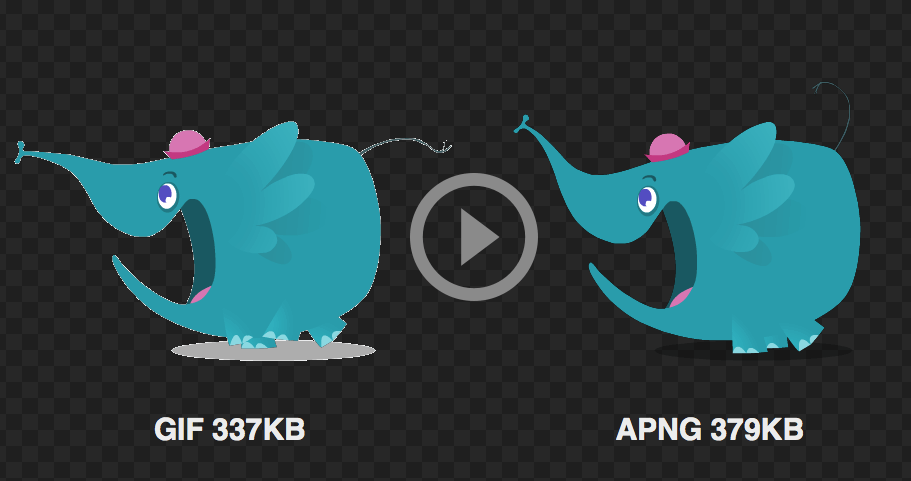
That's cool. APNG is much better! But wait...why haven't I heard about APNG before? It is not a popular format, so why
should I use it in my next great iOS/macOS app?
Good question! APNG is an excellent extension for regular PNG, and it is also very simple to use and not conflicting
with current PNG standard (It consists a standard PNG header, so if your platform does not support APNG, it will be
recognized as a normal PNG with its first frame being displayed as a static image). But unfortunately, it is a rebel
format so that it is not accepted by the PNG group. However, it is accepted by many vendors and is even mentioned in
[W3C Standards](http://www.w3.org/TR/html5/embedded-content-0.html#the-img-element). There is another format called
MNG (Multiple-image Network Graphics), which is created by the same team as PNG. It is a comprehensive format, but very
very very (重要的事要说三遍) complex. It is so complex that despite being a "standard", it was almost universally rejected.
There is only one "popular" browser called [Konqueror](https://konqueror.org)(at least I have used it before when I was
in high school) that supports MNG, which is really a sad but reasonable story.
Even though APNG is not accepted currently, we continue to see the widespread implementation of it. Apple recently
supported APNG in both [desktop and mobile Safari](http://www.macrumors.com/2014/09/28/ios-8-safari-supports-animated-png-images/).
Microsoft Edge and Chrome are also considering adding APNG support since it is already officially added in
[WebKit core](https://bugs.webkit.org/show_bug.cgi?id=17022).
APNG is such a nice format to bring users much better experience of animating images. The more APNG is used, the more
recognition and support it will get. Not only in the browsers world, but also in the apps we always love. That's why
I created this framework.
## Installation
### Requirement
iOS 9.0+ / macOS 10.11+ / tvOS 9.0+
### Swift Package Manager
The **recommended way** to install APNGKit is to use Swift Package Manager. Adding it to your project with Xcode:
- File > Swift Packages > Add Package Dependency
- Add https://github.com/onevcat/APNGKit.git
- Select "Up to Next Major" with "2.0.0"
### CocoaPods
[CocoaPods](http://cocoapods.org) is a dependency manager for Cocoa projects.
```bash
$ gem install cocoapods
```
To integrate APNGKit into your Xcode project using CocoaPods, specify it in your `Podfile`:
```ruby
source 'https://github.com/CocoaPods/Specs.git'
platform :ios, '9.0'
use_frameworks!
target 'your_app' do
pod 'APNGKit', '~> 2.0'
end
```
Then, run the following command:
```bash
$ pod install
```
You should open the `{Project}.xcworkspace` instead of the `{Project}.xcodeproj` after you installed anything from CocoaPods.
For more information about how to use CocoaPods, I suggest [this tutorial](http://www.raywenderlich.com/64546/introduction-to-cocoapods-2).
## Usage
### Basic
Import APNGKit into your source files in which you want to use the framework.
```swift
import APNGKit
```
#### Load an APNG Image
```swift
// Load an APNG image from file in main bundle
var image = try APNGImage(named: "your_image")
// Or
// Load an APNG image from file at specified path
if let url = Bundle.main.url(forResource: "your_image", withExtension: "apng") {
image = try APNGImage(fileURL: path)
}
// Or
// Load an APNG image from data
let data: Data = ... // From disk or network or anywhere else.
image = try APNGImage(data: data)
```
You may notice that all initializers are throwable. If anything is wrong during creating the image, it let you know the
error explicitly and you have a chance to handle it. We will cover the error handling soon later.
#### Display an APNG Image
When you have an `APNGImage` object, you can use it to initialize an image view and display it on screen with an
`APNGImageView`, which is a subclass of `UIView` or `NSView`:
```swift
let image: APNGImage = ... // You already have an APNG image object.
let imageView = APNGImageView(image: image)
view.addSubview(imageView)
```
#### Start animation
The animation will be played automatically as soon as the image view is created with a valid APNG image. If you do not
want the animation to be played automatically, set the `autoStartAnimationWhenSetImage` property to `false` before you
assign an image:
```swift
let imageView = APNGImageView(frame: .zero)
imageView.autoStartAnimationWhenSetImage = false
imageView.image = image
// Start the animation manually:
imageView.startAnimating()
```
#### XIB or Storyboard
If you are an Interface Builder lover, drag a `UIView` (or `NSView`) (Please note, not a `UIImageView` or `NSImageView`)
to the canvas, and modify its class to `APNGImageView`. Then, you can drag an `IBOutlet` and play with it as usual, such
as setting its `image` property.
### Delegates
APNG defines the play loop count as `numberOfPlays` in `APNGImage`, and APNGKit respects it by default. To inspect the
end of each loop, register yourself as a delegate of `APNGImageView.onOnePlayDone`:
```swift
class ViewController: UIViewController {
override func viewDidLoad() {
super.viewDidLoad()
let imageView = APNGImageView(image: image)
imageView.onOnePlayDone.delegate(on: self) { (self, count) in
print("Played: \(count)")
}
}
}
```
When `numberOfPlays` is `nil`, the animation will be played forever. If it is a limited non-zero value, the animation
will be stopped at the final frame when the loop count reaches the limit. To inspect the whole animation is done,
use `onAllPlaysDone`:
```swift
imageView.onAllPlaysDone.delegate(on: self) { (self, _) in
print("All done.")
}
```
APNGKit loads the data in a streaming way by default, it reads the frame information while playing the animation. Since
APNG encodes the duration in each frame, it is not possible to get the whole animation duration before loading all frames
information. Before the first reading pass finishes, you can only get a partial duration for loaded frames. To get the
full duration, use `APNGImage.onFramesInformationPrepared`:
```swift
let image = try APNGImage(named: "image")
image.onFramesInformationPrepared.delegate(on: self) { (self, _) in
switch image.duration {
case .full(let duration):
print("Full duration: \(duration)")
case .partial:
print("This should not happen.")
}
}
imageView.image = image
```
Or, you can specify the `.fullFirstPass` option while creating the `APNGImage`. It reads all frames before starting
rendering and animating the image:
```swift
let image = try APNGImage(named: "image", options: [.fullFirstPass])
print(image.duration) // .full(duration)
```
APNGKit provides a few other reading options. Please let me skip it for now and you can check them in documentation.
### Error handling
#### While creating image
Creating an `APNGImage` can throw an error if anything goes wrong. All possible errors while decoding are defined as an
`APNGKitError.decoderError`. When an error happens while creating the image, you are expected to check if it should be
treated as a normal static image. If so, try to set it as the static image:
```swift
do {
let image = try APNGImage(named: data.imageName)
imageView.image = image
} catch {
if let normalImage = error.apngError?.normalImage {
imageView.staticImage = normalImage
} else {
print("Error: \(error)")
}
}
```
#### While playing animation
If some frames are broken, the default image defined in APNG should be displayed as a fallback. You can get this in
APNGKit for free. To get notified when this happens, listen to `APNGImageView.onFallBackToDefaultImage`:
```swift
imageView.onDecodingFrameError.delegate(on: self) { (self, error) in
print("A frame cannot be decoded. After this, either onFallBackToDefaultImage or onFallBackToDefaultImageFailed happens.")
}
imageView.onFallBackToDefaultImage.delegate(on: self) { (self, _) in
print("Fall back to default image.")
}
imageView.onFallBackToDefaultImageFailed.delegate(on: self) { (self, error) in
print("Tried to fall back to default image, but it fails: \(error)")
}
```
### PNG compression
Xcode will compress all PNG files in your app bundle when you build the project. Since APNG is an extension format of
PNG, Xcode will think there are redundancy data in that file and compress it into a single static image. When this happens,
you may inspect a log message from APNGKit:
> `CgBI` chunk found. It seems that the input image is compressed by Xcode and not supported by APNGKit.
> Consider to rename it to `apng` to prevent compressing.
Usually this is not what you want when working with APNG. You can disable the PNG compression by setting
"COMPRESS_PNG_FILES" to NO in the build settings of your app target. However, it will also prevent Xcode to optimize
your other regular PNGs.
A better approach would be renaming your APNG files with an extension besides of "png". If you do so, Xcode will stop
recognizing your APNG files as PNG format, and will not apply compression on them. A suggested extension is "apng",
which will be detected and handled by APNGKit seamlessly.
## Acknowledgement
The demo elephant image in README file is stolen from ICS Lab, you can find the original post [here](http://ics-web.jp/lab/archives/2441).
## Reference
If you are interested in APNG, you can know more about it from the links below (some of them are written in Chinese).
* [APNG Specification](https://wiki.mozilla.org/APNG_Specification)
* [APNG - Wikipedia](https://www.google.co.jp/url?sa=t&rct=j&q=&esrc=s&source=web&cd=2&cad=rja&uact=8&ved=0CCkQFjABahUKEwjYxdSQjtrHAhWIn5QKHVDkAHs&url=https%3A%2F%2Fen.wikipedia.org%2Fwiki%2FAPNG&usg=AFQjCNF2CJ-OePHGKIhR14TdrCuEn9nn1A&sig2=188CAiDHZv0FVn7QVnhVVQ)
* [小牛犊 APNG 力挫老古董 MNG](http://blog.wuxinan.net/archives/313)
* [再回眸,丽影如初](http://isux.tencent.com/introduction-of-apng.html)
APNGKit can only load and display APNG image now. The creating feature will be developed later. If you need to create APNG file now, I suggest using [iSparta](http://isparta.github.io) or [apngasm](http://apngasm.sourceforge.net) instead for now.
## License
APNGKit is released under the MIT license. See LICENSE for details.