# GEM
**Repository Path**: shuiyuan/GEM
## Basic Information
- **Project Name**: GEM
- **Description**: No description available
- **Primary Language**: Unknown
- **License**: LGPL-3.0
- **Default Branch**: master
- **Homepage**: None
- **GVP Project**: No
## Statistics
- **Stars**: 0
- **Forks**: 0
- **Created**: 2026-02-14
- **Last Updated**: 2026-02-14
## Categories & Tags
**Categories**: Uncategorized
**Tags**: None
## README

===========
GEM (a.k.a. *Good Enough Menu*) - Arduino library for creation of graphic multi-level menu with editable menu items, such as variables (supports `int`, `byte`, `float`, `double`, `bool`, `char[17]` data types) and option selects. User-defined callback function can be specified to invoke when menu item is saved.
Supports buttons that can invoke user-defined actions and create action-specific context, which can have its own enter (setup) and exit callbacks as well as loop function.
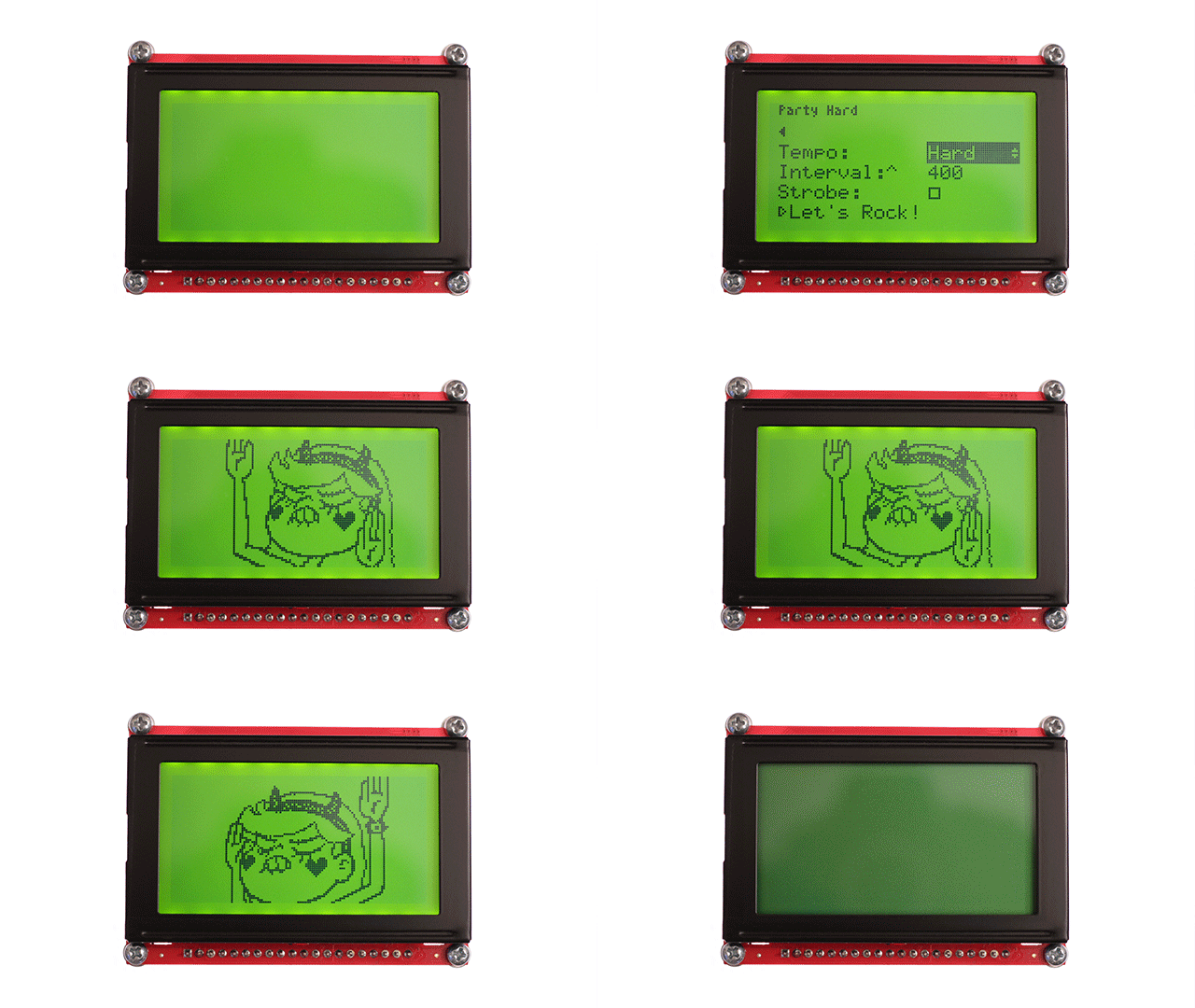
Supports [AltSerialGraphicLCD](http://www.jasspa.com/serialGLCD.html) (since GEM ver. 1.0), [U8g2](https://github.com/olikraus/U8g2_Arduino) (since GEM ver. 1.1) and [Adafruit GFX](https://learn.adafruit.com/adafruit-gfx-graphics-library) (since GEM ver. 1.3) graphics libraries.
> Note that U8g2 and Adafruit GFX libraries are required by default, regardless of which one of them is actually used to drive display (although the ones that are not used shouldn't affect compiled sketch size much). However, it is possible (since GEM ver. 1.2.2) to exclude support for not used ones. Support for `AltSerialGraphicLCD` is disabled by default since GEM ver. 1.5 (it is still possible to enable it). See [Configuration](#configuration) section for details.
> For use with AltSerialGraphicLCD library (by Jon Green) LCD screen must be equipped with [SparkFun Graphic LCD Serial Backpack](https://www.sparkfun.com/products/9352) and properly set up to operate using firmware provided with aforementioned library.
> Cyrillic is partially supported in U8g2 version of GEM (since 1.1). Can be used in menu title, menu item labels (including variables, buttons, and menu page links), and select options. Editable strings with Cyrillic characters are not supported.
> Optional support for editable variables of `float` and `double` data types was added since version 1.2 of GEM. It is enabled by default, but can be disabled by editing [config.h](https://github.com/Spirik/GEM/blob/master/src/config.h) file that ships with the library or by defining `GEM_DISABLE_FLOAT_EDIT` flag before build. Disabling this feature may save considerable amount of program storage space. See [Floating-point variables](#floating-point-variables) section for details.
> User-defined arguments can be passed to callback function as a part of [`GEMCallbackData`](#gemcallbackdata) struct (specified for menu items that represent editable variables and buttons) since version 1.4 of GEM.
* [When to use](#when-to-use)
* [Structure](#structure)
* [Installation](#installation)
* How to use
* [With AltSerialGraphicLCD](#how-to-use-with-altserialgraphiclcd)
* [With U8g2](#how-to-use-with-u8g2)
* [With Adafruit GFX](#how-to-use-with-adafruit-gfx)
* [Reference](#reference)
* [GEM, GEM_u8g2, GEM_adafruit_gfx](#gem-gem_u8g2-gem_adafruit_gfx)
* [GEMPage](#gempage)
* [GEMItem](#gemitem)
* [GEMSelect](#gemselect)
* [GEMSpinner](#gemspinner)
* [GEMSpinnerValue](#gemspinnervalue)
* [GEMCallbackData](#gemcallbackdata)
* [GEMPreviewCallbackData](#gempreviewcallbackdata)
* [GEMAppearance](#gemappearance)
* [GEMContext](#gemcontext)
* [Floating-point variables](#floating-point-variables)
* [Advanced Mode](#advanced-mode)
* [Configuration](#configuration)
* [Compatibility](#compatibility)
* [Examples](#examples)
* [License](#license)
* [**Wiki**](https://github.com/Spirik/GEM/wiki)
When to use
-----------
If you want to equip your project with graphic LCD display and let user choose different options and settings to configure its operation. Whether it is control panel of smart home or simple configurable LED strip, GEM will provide all necessary controls for editing variables and navigating through submenus, as well as running user-defined functions.
Structure
-----------
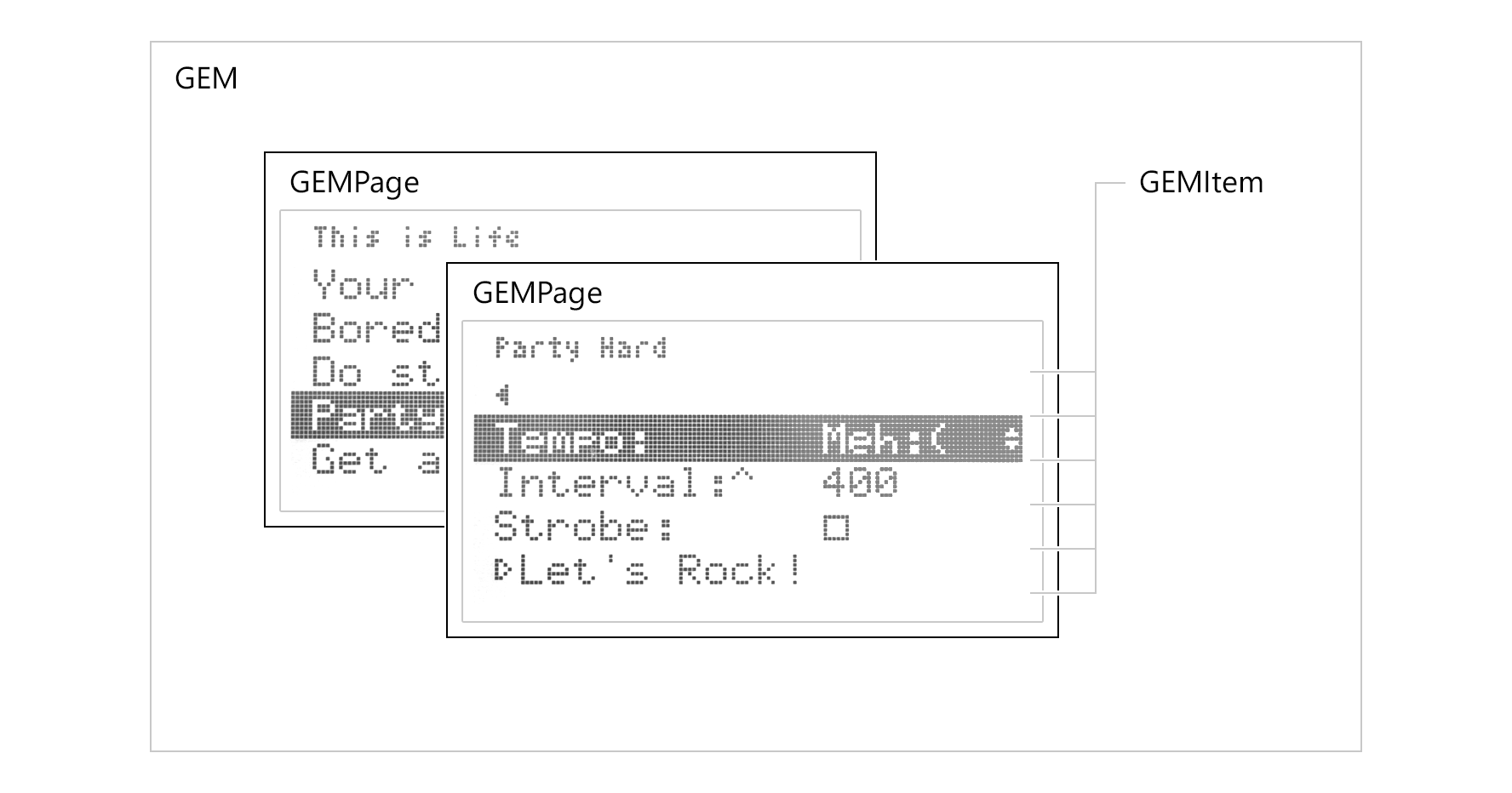
Menu created with GEM library comprises of three base elements:
- menu item (`GEMItem` class) - represents associated variable, button, or link to the next menu level (menu page);
- menu page (`GEMPage` class) - consists of list of menu items and represents menu level;
- menu object itself (`GEM`, or `GEM_u8g2`, or `GEM_adafruit_gfx` class) - can have multiple menu pages (linked to each other) with multiple menu items each.
Installation
------------
Library format is compatible with Arduino IDE 1.5.x+ and PlatformIO. There are number of ways to install the library in the Arduino IDE:
- Download ZIP-archive directly from [Releases](https://github.com/Spirik/GEM/releases) section (or Master branch) and extract it into GEM folder inside your Library folder.
- Using Library Manager (since Arduino IDE 1.6.2): navigate to `Sketch > Include Library > Manage Libraries` inside your Arduino IDE and search for GEM library, then click `Install`. (Alternatively you can add previously downloaded ZIP through `Sketch > Include Library > Add .ZIP Library` menu).
- Using Library Manager in Arduino IDE 2: see [documentation](https://docs.arduino.cc/software/ide-v2/tutorials/ide-v2-installing-a-library) for details.
Whichever option you choose you may need to reload the Arduino IDE afterwards.
For PlatformIO, add the [GEM library](https://registry.platformio.org/libraries/spirik/GEM) to the `lib_deps` option in your project `platformio.ini`:
```
lib_deps =
spirik/GEM
```
[U8g2](https://github.com/olikraus/U8g2_Arduino) and [Adafruit GFX](https://learn.adafruit.com/adafruit-gfx-graphics-library) libraries are required to be installed by default as well. Support for [AltSerialGraphicLCD](http://www.jasspa.com/serialGLCD.html) is disabled by default since GEM ver. 1.5 (so it is not required to be installed). However, it is possible to exclude support for not used libraries (since GEM ver. 1.2.2), and/or enable support for `AltSerialGraphicLCD` (since GEM ver 1.5). See [Configuration](#configuration) section for details.
How to use with AltSerialGraphicLCD
-----------------------------------
Click here to view
### Requirements
GEM supports [AltSerialGraphicLCD](http://www.jasspa.com/serialGLCD.html) library if enabled (see [Configuration](#configuration) section). LCD screen must be equipped with [SparkFun Graphic LCD Serial Backpack](https://www.sparkfun.com/products/9352) and properly set up to operate using firmware provided with AltSerialGraphicLCD. Installation and configuration of it is covered in great detail in AltSerialGraphicLCD manual.
In theory GEM is compatible with any display, that is supported by SparkFun Graphic LCD Serial Backpack. Guaranteed to work with [128x64](https://www.sparkfun.com/products/710) pixel displays. [160x128](https://www.sparkfun.com/products/8799) pixel ones should work fine as well, although it wasn't tested.
### Import
To include AltSerialGraphicLCD-compatible version of GEM library add the following line at the top of your sketch:
```cpp
#include
```
AltSerialGraphicLCD library will be included automatically through GEM library, so no need to include it explicitly in your sketch (although it still needs to be installed in your system, of course).
In order to communicate with your SparkFun Graphic LCD Serial Backpack, AltSerialGraphicLCD library uses [SoftwareSerial](https://www.arduino.cc/en/Reference/SoftwareSerial) (that ships with Arduino IDE). There is no need to explicitly include it in your sketch as well, because it is already included through AltSerialGraphicLCD library. So the following line is completely optional (although note that second inclusion won't affect the size of you sketch) - you may omit it and use SoftwareSerial as though it was included.
```cpp
#include
```
> Note that it is possible to use hardware serial instead (e.g. if you're planning to use it with Arduino Leonardo's `Serial1` class), however some modifications of AltSerialGraphicLCD library would be required in that case.
One more additional library that may come in handy (although is not necessary) is [KeyDetector](https://github.com/Spirik/KeyDetector) - it is small and lightweight library for key press events detection. It is used in some of the supplied examples (as well as the following one) to detect button presses for navigation through menu. To include KeyDetector library, install it first and then add the following line:
```cpp
#include
```
### Use
Assume you have a simple setup as follows:
- 128x64 LCD screen equipped with SparkFun Graphic LCD Serial Backpack, which is properly connected to the power source and to digital pins 8 and 9 of your Arduino for serial communication via SoftwareSerial library;
- also you have 6 push-buttons (momentary switches) connected to the digital pins 2 to 7, wired with 10kOhm pulldown resistors (so the HIGH means that the button is pressed).
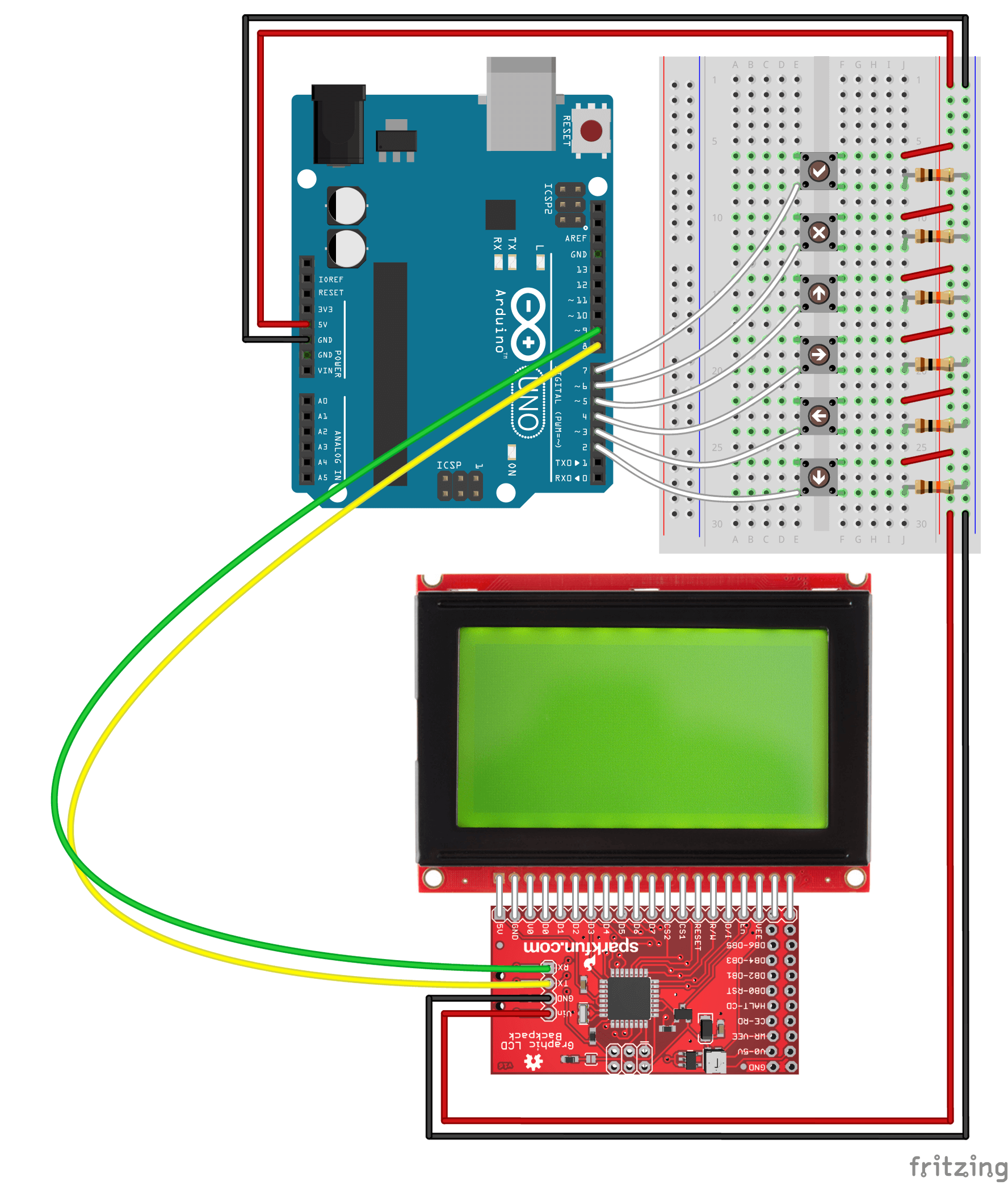
Let's create a simple one page menu with one editable menu item associated with `int` variable, one with `bool` variable, and a button, pressing of which will result in `int` variable value being printed to Serial monitor if `bool` variable is set to `true`. To navigate through menu we will use 6 push-buttons connected to the Arduino (for four directional controls, one Cancel, and one Ok). For the sake of simplicity we will use KeyDetector library to detect single button presses (as we need a way to prevent continuously pressed button from triggering press event multiple times in a row).
> For more detailed examples and tutorials please visit GEM [wiki](https://github.com/Spirik/GEM/wiki).
#### Navigation buttons initial setup (via KeyDetector library)
Create constants for the pins you want to detect signals on (these are the pins the push-buttons are connected to):
```cpp
const byte downPin = 2;
const byte leftPin = 3;
const byte rightPin = 4;
const byte upPin = 5;
const byte cancelPin = 6;
const byte okPin = 7;
```
Create an array of `Key` objects. It will hold information about which button press event should be detected on which input pin:
```cpp
Key keys[] = {{GEM_KEY_UP, upPin}, {GEM_KEY_RIGHT, rightPin}, {GEM_KEY_DOWN, downPin}, {GEM_KEY_LEFT, leftPin}, {GEM_KEY_CANCEL, cancelPin}, {GEM_KEY_OK, okPin}};
```
> **Note:** aliases `GEM_KEY_UP`, `GEM_KEY_RIGHT`, `GEM_KEY_DOWN`, `GEM_KEY_LEFT`, `GEM_KEY_CANCEL`, and `GEM_KEY_OK` are predefined and come with the GEM library. They represent identifiers of buttons that menu listens and responds to. E.g. sending to menu `GEM_KEY_DOWN` will trigger it to move cursor down and highlight the next menu item, etc.
Create `KeyDetector` object called `myKeyDetector` and supply its constructor with `keys` array created at the previous step and explicitly pass the size of the array:
```cpp
KeyDetector myKeyDetector(keys, sizeof(keys)/sizeof(Key));
```
Navigation buttons initial setup is now complete.
#### LCD initial setup (via SoftwareSerial and AltSerialGraphicLCD libraries)
Create constants for the pins SparkFun Graphic LCD Serial Backpack is connected to:
```cpp
const byte rxPin = 8;
const byte txPin = 9;
```
Initialize an instance of the SoftwareSerial library called `serialLCD`:
```cpp
SoftwareSerial serialLCD(rxPin, txPin);
```
Create an instance of the `GLCD` class named `glcd`. This instance is used to call all of the subsequent GLCD functions (internally from GEM library, or manually in your sketch if it is required). Instance is created with a reference to the software serial object:
```cpp
GLCD glcd(serialLCD);
```
LCD initial setup is now complete.
#### Menu initial setup
Create variables that you would like to be editable through the menu. Assign them initial values:
```cpp
int number = -512;
bool enablePrint = false;
```
Create two menu item objects of class `GEMItem`, linked to `number` and `enablePrint` variables. Let's name them simply "Number" and "Enable print" respectively - these names will be printed on screen:
```cpp
GEMItem menuItemInt("Number:", number);
GEMItem menuItemBool("Enable print:", enablePrint);
```
Create menu button that will trigger `printData()` function. It will print value of our `number` variable to Serial monitor if `enablePrint` is `true`. We will write (define) this function later. However we should forward-declare it in order to pass its reference to `GEMItem` constructor. Let's name our button "Print":
```cpp
void printData(); // Forward declaration
GEMItem menuItemButton("Print", printData);
```
Create menu page object of class `GEMPage`. Menu page holds menu items (`GEMItem`) and, in fact, represents menu level. Menu can have multiple menu pages (linked to each other) with multiple menu items each. Let's call our only menu page "Main Menu":
```cpp
GEMPage menuPageMain("Main Menu");
```
And finally, create menu object of class `GEM`. Supply its constructor with a reference to `glcd` object we created earlier:
```cpp
GEM menu(glcd);
```
> **Note:** `GEM` constructor supports additional optional parameters that can customize look of the menu. See [Reference](#reference) and [wiki](https://github.com/Spirik/GEM/wiki) for details.
We will link menu items to menu pages to menu in `setup()` function. For now, menu initial setup is complete.
#### setup() function
In `setup()` function of the sketch define modes of the pins push-buttons are connected to:
```cpp
pinMode(downPin, INPUT);
pinMode(leftPin, INPUT);
pinMode(rightPin, INPUT);
pinMode(upPin, INPUT);
pinMode(cancelPin, INPUT);
pinMode(okPin, INPUT);
```
Init serial communications (both native `Serial` and software `serialLCD`):
```cpp
Serial.begin(115200);
serialLCD.begin(115200);
```
Reset LCD to its initial state. Using delays here is optional, but I've found that it actually may help certain LCDs to regain their initial state more effectively after being previously unexpectedly shut down. Adjust the delays to what best works for your display.
```cpp
delay(500);
glcd.reset();
delay(1000);
```
If you still encounter spontaneous freezing on load (especially right after sketch uploads), you may want to add the second instance of reset instructions. This (almost) bulletproof solution will ensure that screen boots and properly resets no matter what.
```cpp
// Uncomment the following lines in dire situations
// (e.g. when screen becomes unresponsive after shutdown)
glcd.reset();
delay(1000);
```
Init menu. That will run some initialization routines (e.g. load sprites into LCD Serial Backpack's internal memory), then show splash screen (which can be customized).
```cpp
menu.init();
```
The next step is to gather all of the previously declared menu items and pages together and assign them to our menu. It is convenient to do that in a separate function. Let's call it `setupMenu()`. We will define it later.
```cpp
setupMenu();
```
And finally, draw menu to the screen:
```cpp
menu.drawMenu();
```
`setup()` function of the sketch is now complete:
```cpp
void setup() {
// Push-buttons pin modes
pinMode(downPin, INPUT);
pinMode(leftPin, INPUT);
pinMode(rightPin, INPUT);
pinMode(upPin, INPUT);
pinMode(cancelPin, INPUT);
pinMode(okPin, INPUT);
// Serial communications setup
Serial.begin(115200);
SerialLCD.begin(115200);
// LCD reset
delay(500);
glcd.reset();
delay(1000);
// Uncomment the following lines in dire situations
// (e.g. when screen becomes unresponsive after shutdown)
glcd.reset();
delay(1000);
// Menu init, setup and draw
menu.init();
setupMenu();
menu.drawMenu();
}
```
#### setupMenu() function
Let's assemble our menu in `setupMenu()` function. First, add menu items to menu page:
```cpp
menuPageMain.addMenuItem(menuItemInt);
menuPageMain.addMenuItem(menuItemBool);
menuPageMain.addMenuItem(menuItemButton);
```
Because we don't have multiple menu levels, all we left to do now is to add our only menu page to menu and set it as initial menu page (loaded when menu first drawn):
```cpp
menu.setMenuPageCurrent(menuPageMain);
```
`setupMenu()` function is now complete:
```cpp
void setupMenu() {
// Add menu items to menu page
menuPageMain.addMenuItem(menuItemInt);
menuPageMain.addMenuItem(menuItemBool);
menuPageMain.addMenuItem(menuItemButton);
// Add menu page to menu and set it as current
menu.setMenuPageCurrent(menuPageMain);
}
```
#### loop() function
In the `loop()` function of the sketch we'll be listening to push-buttons presses (using `KeyDetector`) and delegate pressed button to menu:
```cpp
void loop() {
// If menu is ready to accept button press...
if (menu.readyForKey()) {
// ...detect key press using KeyDetector library
myKeyDetector.detect();
// Pass pressed button to menu
// (pressed button ID is stored in trigger property of KeyDetector object)
menu.registerKeyPress(myKeyDetector.trigger);
}
}
```
#### Button action
Let's define `printData()` function that we declared earlier. It will be invoked each time the "Print" button in our menu is pressed. It should print value of our `number` variable to Serial monitor if `enablePrint` is `true`.
```cpp
void printData() {
// If enablePrint flag is set to true (checkbox on screen is checked)...
if (enablePrint) {
// ...print the number to Serial
Serial.print("Number is: ");
Serial.println(number);
} else {
Serial.println("Printing is disabled, sorry:(");
}
}
```
> This is the simplest action that menu item button can have. More elaborate versions make use of custom "[context](#gemcontext)" that can be created when button is pressed. In that case, button action can have its own setup and loop functions (named `context.enter()` and `context.loop()`) that run similarly to how sketch operates. It allows you to initialize variables and e.g. prepare screen (if needed for the task that function performs), and then run through loop function, waiting for user input, or sensor reading, or command to terminate and exit back to the menu eventually. In the latter case additional `context.exit()` function will be called, that can be used to clean up your context and e.g. to free some memory and draw menu back to screen.
#### Sketch
Full version of this basic example is shipped with the library and can be found at "examples/AltSerialGraphicLCD/Example-01_Basic/[Example-01_Basic.ino](https://github.com/Spirik/GEM/blob/master/examples/AltSerialGraphicLCD/Example-01_Basic/Example-01_Basic.ino)".
#### Run
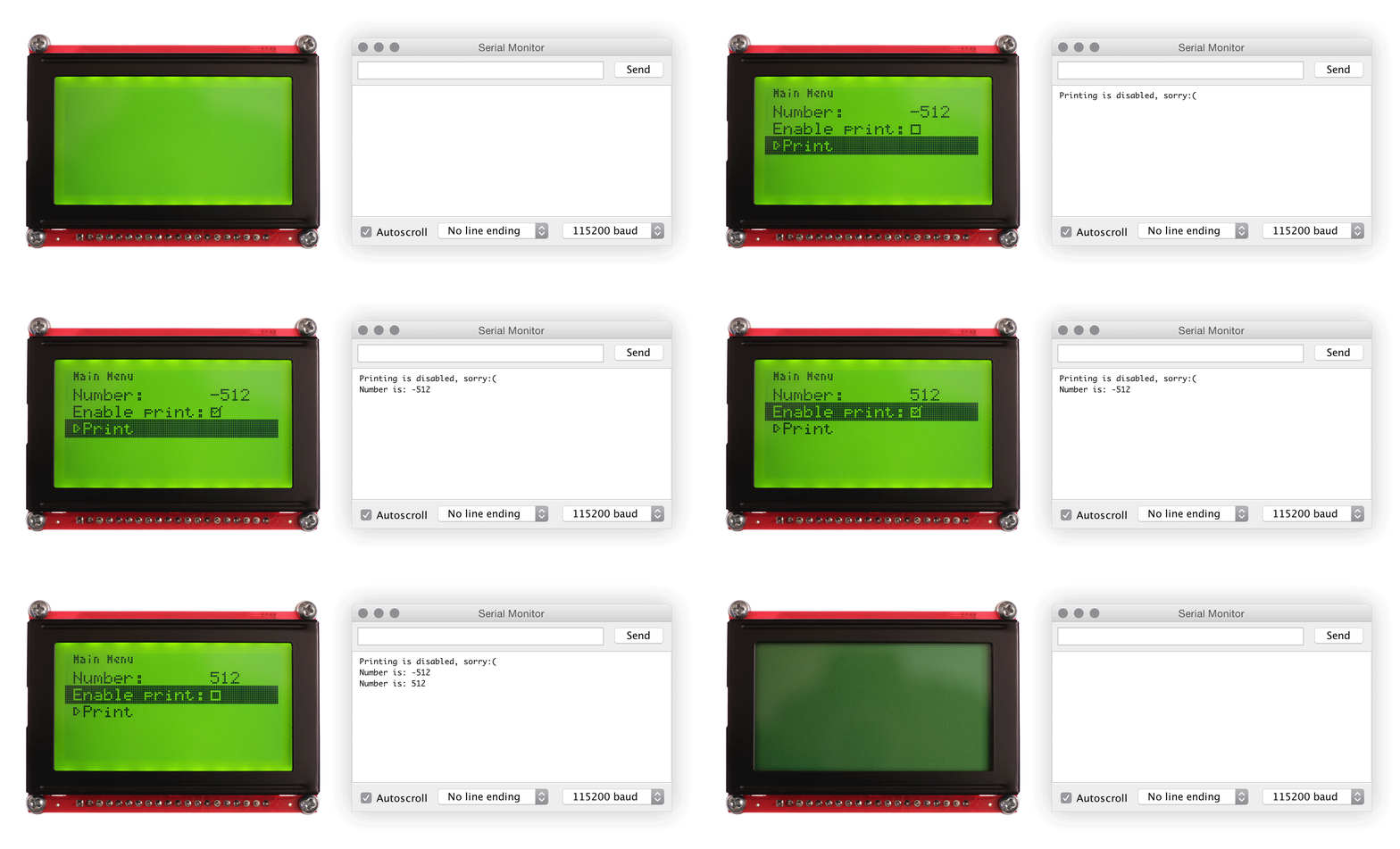
After compiling and uploading sketch to Arduino, wait while LCD screen boots and menu is being initialized and drawn to the screen. Then start pressing the push-buttons and navigate through the menu. Pressing "Ok" button (attached to pin 7) will trigger edit mode of the "Number" variable, or change state of "Enable print" option, or invoke action associated with "Print" menu button (depending on which menu item is currently selected). If "Enable print" option is checked, then pressing "Print" button will result in `number` variable printed to the Serial Monitor.
To learn more about GEM library, see the [Reference](#reference) section and visit [wiki](https://github.com/Spirik/GEM/wiki).
How to use with U8g2
--------------------
Click here to view
### Requirements
GEM supports [U8g2](https://github.com/olikraus/U8g2_Arduino) library.
In theory GEM is compatible with any display, that is supported by U8g2 library (given that it is properly set up and configured using correct [constructor](https://github.com/olikraus/u8g2/wiki/u8g2setupcpp)). Guaranteed to work with [128x64](https://www.sparkfun.com/products/710) pixel displays, based on KS0108 controller. [160x128](https://www.sparkfun.com/products/8799) pixel ones should also work, as well as any other display that is supported by U8g2, although it is yet to be tested.
### Import
To include U8g2-compatible version of GEM library add the following line at the top of your sketch:
```cpp
#include
```
U8g2 library will be included automatically through GEM library, so no need to include it explicitly in your sketch (although it still needs to be installed in your system, of course).
### Use
Assume you have a simple setup as follows:
- 128x64 LCD screen based on (or compatible with) KS0108 controller, connected as shown below, with 10kOhm potentiometer to adjust screen contrast;
- also you have 6 push-buttons (momentary switches) connected to the digital pins 2 to 7, wired with 10kOhm pullup resistors (so the LOW means that the button is pressed).
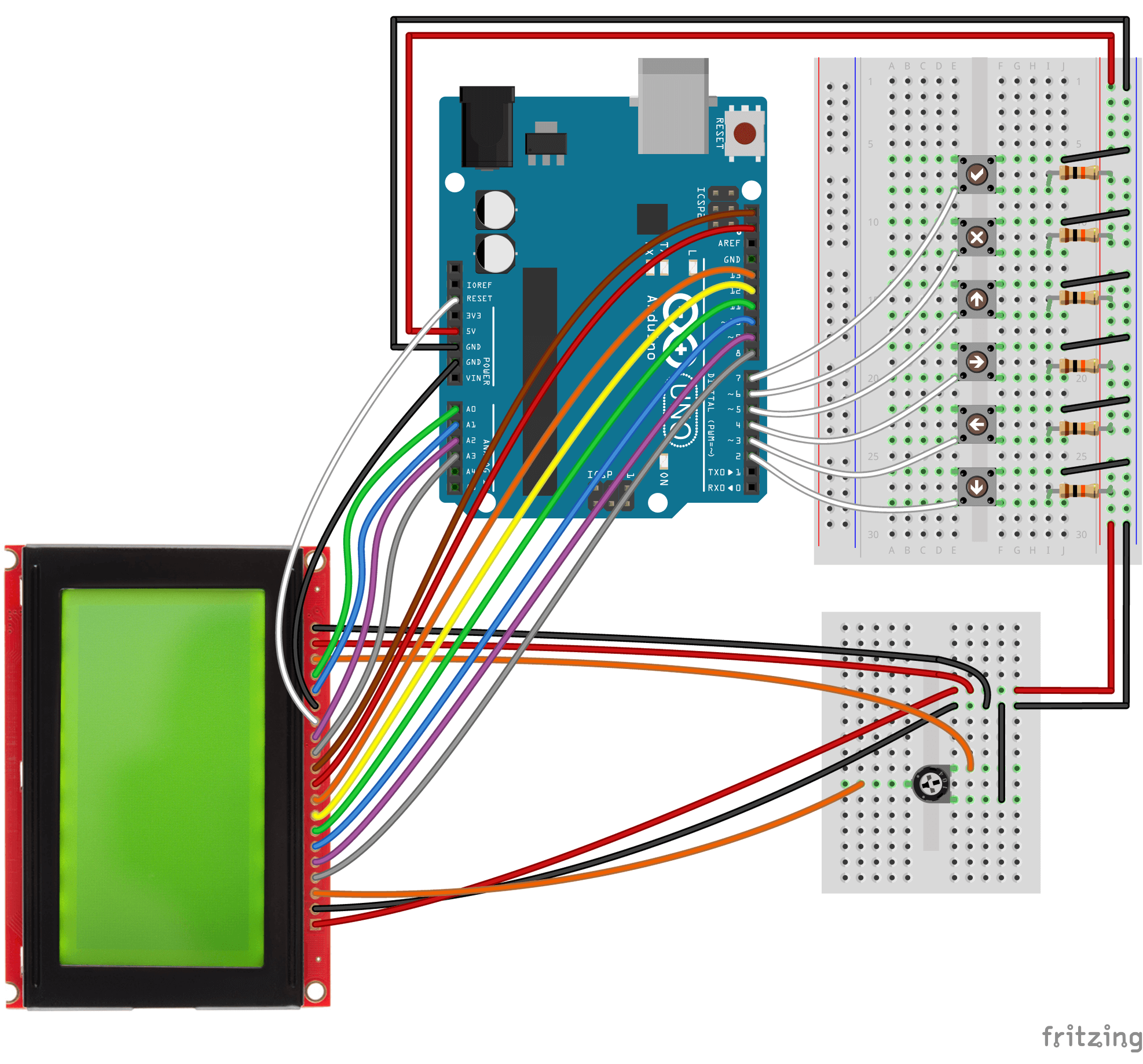
Let's create a simple one page menu with one editable menu item associated with `int` variable, one with `bool` variable, and a button, pressing of which will result in `int` variable value being printed to Serial monitor if `bool` variable is set to `true`. To navigate through menu we will use 6 push-buttons connected to the Arduino (for four directional controls, one Cancel, and one Ok). We will use U8g2 library to detect single button presses.
> For more detailed examples and tutorials please visit GEM [wiki](https://github.com/Spirik/GEM/wiki).
#### LCD initial setup (via U8g2 library)
U8g2 library supports numerous popular display controllers. Choose a matching constructor for the correct initialization of the display. See available constructors and supported controllers in the [documentation](https://github.com/olikraus/u8g2/wiki/u8g2setupcpp) for U8g2 library.
In our case create an instance of the `U8G2_KS0108_128X64_1` class named `u8g2`. This instance is used to call all of the subsequent U8g2 functions (internally from GEM library, or manually in your sketch if it is required).
```cpp
U8G2_KS0108_128X64_1 u8g2(U8G2_R0, 8, 9, 10, 11, 12, 13, 18, 19, /*enable=*/ A0, /*dc=*/ A1, /*cs0=*/ A3, /*cs1=*/ A2, /*cs2=*/ U8X8_PIN_NONE, /* reset=*/ U8X8_PIN_NONE);
```
> **Note:** GEM library is compatible with all [buffer size](https://github.com/olikraus/u8g2/wiki/u8g2setupcpp#buffer-size) options (namely `_1`, `_2`, `_F`) and screen [rotation](https://github.com/olikraus/u8g2/wiki/u8g2setupcpp#rotation) options supported by U8g2.
LCD initial setup is now complete.
#### Menu initial setup
Create variables that you would like to be editable through the menu. Assign them initial values:
```cpp
int number = -512;
bool enablePrint = false;
```
Create two menu item objects of class `GEMItem`, linked to `number` and `enablePrint` variables. Let's name them simply "Number" and "Enable print" respectively - these names will be printed on screen:
```cpp
GEMItem menuItemInt("Number:", number);
GEMItem menuItemBool("Enable print:", enablePrint);
```
Create menu button that will trigger `printData()` function. It will print value of our `number` variable to Serial monitor if `enablePrint` is `true`. We will write (define) this function later. However we should forward-declare it in order to pass its reference to `GEMItem` constructor. Let's name our button "Print":
```cpp
void printData(); // Forward declaration
GEMItem menuItemButton("Print", printData);
```
Create menu page object of class `GEMPage`. Menu page holds menu items (`GEMItem`) and, in fact, represents menu level. Menu can have multiple menu pages (linked to each other) with multiple menu items each. Let's call our only menu page "Main Menu":
```cpp
GEMPage menuPageMain("Main Menu");
```
And finally, create menu object of class `GEM_u8g2`. Supply its constructor with a reference to `u8g2` object we created earlier:
```cpp
GEM_u8g2 menu(u8g2);
```
> **Note:** `GEM_u8g2` constructor supports additional optional parameters that can customize look of the menu. See [Reference](#reference) and [wiki](https://github.com/Spirik/GEM/wiki) for details.
We will link menu items to menu pages to menu in `setup()` function. For now, menu initial setup is complete.
#### setup() function
In `setup()` function of the sketch init serial communication:
```cpp
Serial.begin(115200);
```
Init `u8g2` instance of U8g2 library by calling `begin()` method and supplying it with pin numbers push-buttons are attached to:
```cpp
u8g2.begin(/*Select/OK=*/ 7, /*Right/Next=*/ 4, /*Left/Prev=*/ 3, /*Up=*/ 5, /*Down=*/ 2, /*Home/Cancel=*/ 6);
```
Init menu. That will run some initialization routines (e.g. clear display and apply some GEM specific settings), then show splash screen (which can be customized).
```cpp
menu.init();
```
The next step is to gather all of the previously declared menu items and pages together and assign them to our menu. It is convenient to do that in a separate function. Let's call it `setupMenu()`. We will define it later.
```cpp
setupMenu();
```
And finally, draw menu to the screen:
```cpp
menu.drawMenu();
```
`setup()` function of the sketch is now complete:
```cpp
void setup() {
// Serial communication setup
Serial.begin(115200);
// U8g2 library init. Pass pin numbers the buttons are connected to.
// The push-buttons should be wired with pullup resistors (so the LOW means that the button is pressed)
u8g2.begin(/*Select/OK=*/ 7, /*Right/Next=*/ 4, /*Left/Prev=*/ 3, /*Up=*/ 5, /*Down=*/ 2, /*Home/Cancel=*/ 6);
// Menu init, setup and draw
menu.init();
setupMenu();
menu.drawMenu();
}
```
#### setupMenu() function
Let's assemble our menu in `setupMenu()` function. First, add menu items to menu page:
```cpp
menuPageMain.addMenuItem(menuItemInt);
menuPageMain.addMenuItem(menuItemBool);
menuPageMain.addMenuItem(menuItemButton);
```
Because we don't have multiple menu levels, all we left to do now is to add our only menu page to menu and set it as initial menu page (loaded when menu first drawn):
```cpp
menu.setMenuPageCurrent(menuPageMain);
```
`setupMenu()` function is now complete:
```cpp
void setupMenu() {
// Add menu items to menu page
menuPageMain.addMenuItem(menuItemInt);
menuPageMain.addMenuItem(menuItemBool);
menuPageMain.addMenuItem(menuItemButton);
// Add menu page to menu and set it as current
menu.setMenuPageCurrent(menuPageMain);
}
```
#### loop() function
In the `loop()` function of the sketch we'll be listening to push-buttons presses (using `U8g2`) and delegate pressed button to menu:
```cpp
void loop() {
// If menu is ready to accept button press...
if (menu.readyForKey()) {
// ...detect key press using U8g2 library
// and pass pressed button to menu
menu.registerKeyPress(u8g2.getMenuEvent());
}
}
```
#### Button action
Let's define `printData()` function that we declared earlier. It will be invoked each time the "Print" button in our menu is pressed. It should print value of our `number` variable to Serial monitor if `enablePrint` is `true`.
```cpp
void printData() {
// If enablePrint flag is set to true (checkbox on screen is checked)...
if (enablePrint) {
// ...print the number to Serial
Serial.print("Number is: ");
Serial.println(number);
} else {
Serial.println("Printing is disabled, sorry:(");
}
}
```
> This is the simplest action that menu item button can have. More elaborate versions make use of custom "[context](#gemcontext)" that can be created when button is pressed. In that case, button action can have its own setup and loop functions (named `context.enter()` and `context.loop()`) that run similarly to how sketch operates. It allows you to initialize variables and e.g. prepare screen (if needed for the task that function performs), and then run through loop function, waiting for user input, or sensor reading, or command to terminate and exit back to the menu eventually. In the latter case additional `context.exit()` function will be called, that can be used to clean up your context and e.g. to free some memory and draw menu back to screen.
#### Sketch
Full version of this basic example is shipped with the library and can be found at "examples/U8g2/Example-01_Basic/[Example-01_Basic.ino](https://github.com/Spirik/GEM/blob/master/examples/U8g2/Example-01_Basic/Example-01_Basic.ino)".
#### Run
After compiling and uploading sketch to Arduino, wait while LCD screen boots and menu is being initialized and drawn to the screen. Then start pressing the push-buttons and navigate through the menu. Pressing "Ok" button (attached to pin 7) will trigger edit mode of the "Number" variable, or change state of "Enable print" option, or invoke action associated with "Print" menu button (depending on which menu item is currently selected). If "Enable print" option is checked, then pressing "Print" button will result in `number` variable printed to the Serial Monitor.

To learn more about GEM library, see the [Reference](#reference) section and visit [wiki](https://github.com/Spirik/GEM/wiki).
How to use with Adafruit GFX
----------------------------
Click here to view
### Requirements
GEM supports [Adafruit GFX](https://learn.adafruit.com/adafruit-gfx-graphics-library) library.
In theory GEM is compatible with any display, that is supported by Adafruit GFX library (given that it is properly set up and configured as required by the library). Guaranteed to work with [Adafruit 1.8" 128x160](https://www.adafruit.com/products/358) TFT LCD display, based on ST7735 controller. Other ST77** based ones should also work, theoretically as well as any other display that is supported by Adafruit GFX, although it is yet to be tested.
### Import
To include Adafruit GFX-compatible version of GEM library add the following line at the top of your sketch:
```cpp
#include
```
Adafruit GFX library will be included automatically through GEM library, so no need to include it explicitly in your sketch (although it still needs to be installed in your system, of course).
However, in order to communicate with your display it is required to install and explicitly include library specific to controller of your display, e.g. ST7735:
```cpp
#include
```
One more additional library that may come in handy (although is not necessary) is [KeyDetector](https://github.com/Spirik/KeyDetector) - it is small and lightweight library for key press events detection. It is used in some of the supplied examples (as well as the following one) to detect button presses for navigation through menu. To include KeyDetector library, install it first and then add the following line:
```cpp
#include
```
### Use
Assume you have a simple setup as follows:
- 128x160 TFT LCD display based on (or compatible with) ST7735 controller, e.g. [Adafruit 1.8" TFT Display with microSD](http://www.adafruit.com/products/358), connected as shown below;
- also you have 6 push-buttons (momentary switches) connected to the digital pins 2 to 7, wired with 10kOhm pulldown resistors (so the HIGH means that the button is pressed).
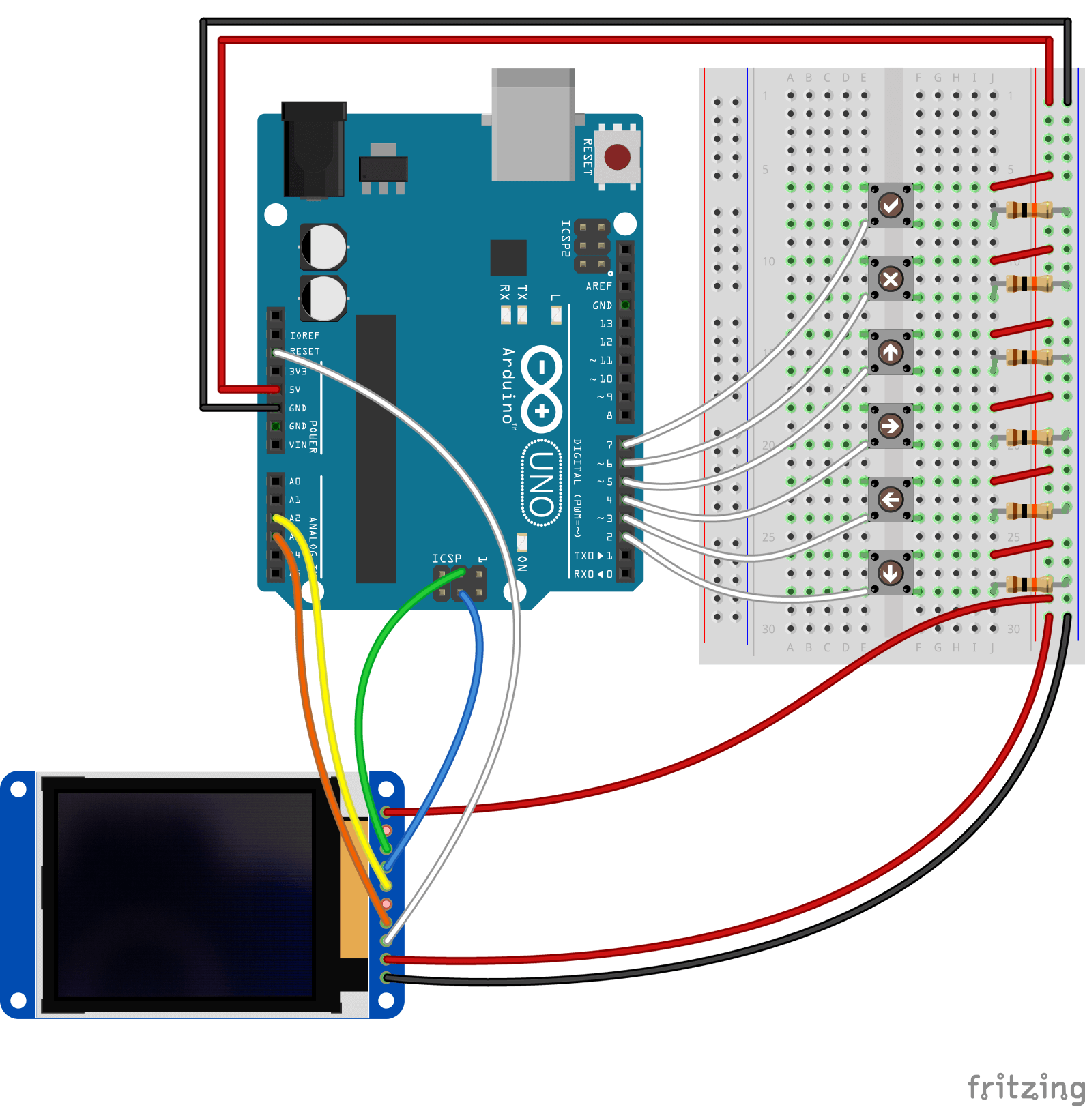
Let's create a simple one page menu with one editable menu item associated with `int` variable, one with `bool` variable, and a button, pressing of which will result in `int` variable value being printed to Serial monitor if `bool` variable is set to `true`. To navigate through menu we will use 6 push-buttons connected to the Arduino (for four directional controls, one Cancel, and one Ok). For the sake of simplicity we will use KeyDetector library to detect single button presses (as we need a way to prevent continuously pressed button from triggering press event multiple times in a row).
> For more detailed examples and tutorials please visit GEM [wiki](https://github.com/Spirik/GEM/wiki).
#### Navigation buttons initial setup (via KeyDetector library)
Create constants for the pins you want to detect signals on (these are the pins the push-buttons are connected to):
```cpp
const byte downPin = 2;
const byte leftPin = 3;
const byte rightPin = 4;
const byte upPin = 5;
const byte cancelPin = 6;
const byte okPin = 7;
```
Create an array of `Key` objects. It will hold information about which button press event should be detected on which input pin:
```cpp
Key keys[] = {{GEM_KEY_UP, upPin}, {GEM_KEY_RIGHT, rightPin}, {GEM_KEY_DOWN, downPin}, {GEM_KEY_LEFT, leftPin}, {GEM_KEY_CANCEL, cancelPin}, {GEM_KEY_OK, okPin}};
```
> **Note:** aliases `GEM_KEY_UP`, `GEM_KEY_RIGHT`, `GEM_KEY_DOWN`, `GEM_KEY_LEFT`, `GEM_KEY_CANCEL`, and `GEM_KEY_OK` are predefined and come with the GEM library. They represent identifiers of buttons that menu listens and responds to. E.g. sending to menu `GEM_KEY_DOWN` will trigger it to move cursor down and highlight the next menu item, etc.
Create `KeyDetector` object called `myKeyDetector` and supply its constructor with `keys` array created at the previous step and explicitly pass the size of the array:
```cpp
KeyDetector myKeyDetector(keys, sizeof(keys)/sizeof(Key));
```
Navigation buttons initial setup is now complete.
#### LCD initial setup (via Adafruit GFX library)
Adafruit GFX library supports several different display controllers (through separately installed and included libraries). Choose a matching library for the correct initialization of the display. See available libraries and supported controllers in the [documentation](https://learn.adafruit.com/adafruit-gfx-graphics-library) for Adafruit GFX library.
In our case we included Adafruit_ST7735 library, and now we need to create an instance of the `Adafruit_ST7735` class named `tft`. This instance is used to call all of the subsequent Adafruit GFX functions (internally from GEM library, or manually in your sketch if it is required). Before that, we define aliases for the pins display is connected to.
```cpp
#define TFT_CS A2
#define TFT_RST -1
#define TFT_DC A3
Adafruit_ST7735 tft = Adafruit_ST7735(TFT_CS, TFT_DC, TFT_RST);
```
LCD initial setup is now complete.
#### Menu initial setup
Create variables that you would like to be editable through the menu. Assign them initial values:
```cpp
int number = -512;
bool enablePrint = false;
```
Create two menu item objects of class `GEMItem`, linked to `number` and `enablePrint` variables. Let's name them simply "Number" and "Enable print" respectively - these names will be printed on screen:
```cpp
GEMItem menuItemInt("Number:", number);
GEMItem menuItemBool("Enable print:", enablePrint);
```
Create menu button that will trigger `printData()` function. It will print value of our `number` variable to Serial monitor if `enablePrint` is `true`. We will write (define) this function later. However we should forward-declare it in order to pass its reference to `GEMItem` constructor. Let's name our button "Print":
```cpp
void printData(); // Forward declaration
GEMItem menuItemButton("Print", printData);
```
Create menu page object of class `GEMPage`. Menu page holds menu items (`GEMItem`) and, in fact, represents menu level. Menu can have multiple menu pages (linked to each other) with multiple menu items each. Let's call our only menu page "Main Menu":
```cpp
GEMPage menuPageMain("Main Menu");
```
And finally, create menu object of class `GEM_adafruit_gfx`. Supply its constructor with a reference to `tft` object we created earlier:
```cpp
GEM_adafruit_gfx menu(tft, GEM_POINTER_ROW, GEM_ITEMS_COUNT_AUTO);
```
> **Note:** `GEM_POINTER_ROW` option defines the look of the menu item pointer, `GEM_ITEMS_COUNT_AUTO` turns on automatic calculation of number of items that will fit on the screen based on screen's height. `GEM_adafruit_gfx` constructor supports additional optional parameters that can customize look of the menu. See [Reference](#reference) and [wiki](https://github.com/Spirik/GEM/wiki) for details.
We will link menu items to menu pages to menu in `setup()` function. For now, menu initial setup is complete.
#### setup() function
In `setup()` function of the sketch define modes of the pins push-buttons are connected to:
```cpp
pinMode(downPin, INPUT);
pinMode(leftPin, INPUT);
pinMode(rightPin, INPUT);
pinMode(upPin, INPUT);
pinMode(cancelPin, INPUT);
pinMode(okPin, INPUT);
```
Init serial communications:
```cpp
Serial.begin(115200);
```
Init `tft` instance of Adafruit_ST7735/Adafruit GFX library by calling `initR()` method and supplying it with tab initialization parameter, suitable for your display (in case of Adafruit 1.8" TFT Display set it to `INITR_BLACKTAB`):
```cpp
tft.initR(INITR_BLACKTAB);
```
You can optionally [rotate](https://learn.adafruit.com/adafruit-gfx-graphics-library/rotating-the-display) the display by calling `setRotation()` method, e.g.:
```cpp
tft.setRotation(3);
```
Init menu. That will run some initialization routines, then show splash screen (which can be customized).
```cpp
menu.init();
```
The next step is to gather all of the previously declared menu items and pages together and assign them to our menu. It is convenient to do that in a separate function. Let's call it `setupMenu()`. We will define it later.
```cpp
setupMenu();
```
And finally, draw menu to the screen:
```cpp
menu.drawMenu();
```
`setup()` function of the sketch is now complete:
```cpp
void setup() {
// Push-buttons pin modes
pinMode(downPin, INPUT);
pinMode(leftPin, INPUT);
pinMode(rightPin, INPUT);
pinMode(upPin, INPUT);
pinMode(cancelPin, INPUT);
pinMode(okPin, INPUT);
// Serial communications setup
Serial.begin(115200);
// Use this initializer if using a 1.8" TFT screen:
tft.initR(INITR_BLACKTAB); // Init ST7735S chip, black tab
// OR use this initializer if using a 1.8" TFT screen with offset such as WaveShare:
// tft.initR(INITR_GREENTAB); // Init ST7735S chip, green tab
// See more options in Adafruit GFX library documentation
// Optionally, rotate display
// tft.setRotation(3); // See Adafruit GFX library documentation for details
// Menu init, setup and draw
menu.init();
setupMenu();
menu.drawMenu();
}
```
#### setupMenu() function
Let's assemble our menu in `setupMenu()` function. First, add menu items to menu page:
```cpp
menuPageMain.addMenuItem(menuItemInt);
menuPageMain.addMenuItem(menuItemBool);
menuPageMain.addMenuItem(menuItemButton);
```
Because we don't have multiple menu levels, all we left to do now is to add our only menu page to menu and set it as initial menu page (loaded when menu first drawn):
```cpp
menu.setMenuPageCurrent(menuPageMain);
```
`setupMenu()` function is now complete:
```cpp
void setupMenu() {
// Add menu items to menu page
menuPageMain.addMenuItem(menuItemInt);
menuPageMain.addMenuItem(menuItemBool);
menuPageMain.addMenuItem(menuItemButton);
// Add menu page to menu and set it as current
menu.setMenuPageCurrent(menuPageMain);
}
```
#### loop() function
In the `loop()` function of the sketch we'll be listening to push-buttons presses (using `KeyDetector`) and delegate pressed button to menu:
```cpp
void loop() {
// If menu is ready to accept button press...
if (menu.readyForKey()) {
// ...detect key press using KeyDetector library
myKeyDetector.detect();
// Pass pressed button to menu
// (pressed button ID is stored in trigger property of KeyDetector object)
menu.registerKeyPress(myKeyDetector.trigger);
}
}
```
#### Button action
Let's define `printData()` function that we declared earlier. It will be invoked each time the "Print" button in our menu is pressed. It should print value of our `number` variable to Serial monitor if `enablePrint` is `true`.
```cpp
void printData() {
// If enablePrint flag is set to true (checkbox on screen is checked)...
if (enablePrint) {
// ...print the number to Serial
Serial.print("Number is: ");
Serial.println(number);
} else {
Serial.println("Printing is disabled, sorry:(");
}
}
```
> This is the simplest action that menu item button can have. More elaborate versions make use of custom "[context](#gemcontext)" that can be created when button is pressed. In that case, button action can have its own setup and loop functions (named `context.enter()` and `context.loop()`) that run similarly to how sketch operates. It allows you to initialize variables and e.g. prepare screen (if needed for the task that function performs), and then run through loop function, waiting for user input, or sensor reading, or command to terminate and exit back to the menu eventually. In the latter case additional `context.exit()` function will be called, that can be used to clean up your context and e.g. to free some memory and draw menu back to screen.
#### Sketch
Full version of this basic example is shipped with the library and can be found at "examples/AdafruitGFX/Example-01_Basic/[Example-01_Basic.ino](https://github.com/Spirik/GEM/blob/master/examples/AdafruitGFX/Example-01_Basic/Example-01_Basic.ino)".
#### Run
After compiling and uploading sketch to Arduino, wait while LCD screen boots and menu is being initialized and drawn to the screen. Then start pressing the push-buttons and navigate through the menu. Pressing "Ok" button (attached to pin 7) will trigger edit mode of the "Number" variable, or change state of "Enable print" option, or invoke action associated with "Print" menu button (depending on which menu item is currently selected). If "Enable print" option is checked, then pressing "Print" button will result in `number` variable printed to the Serial Monitor.
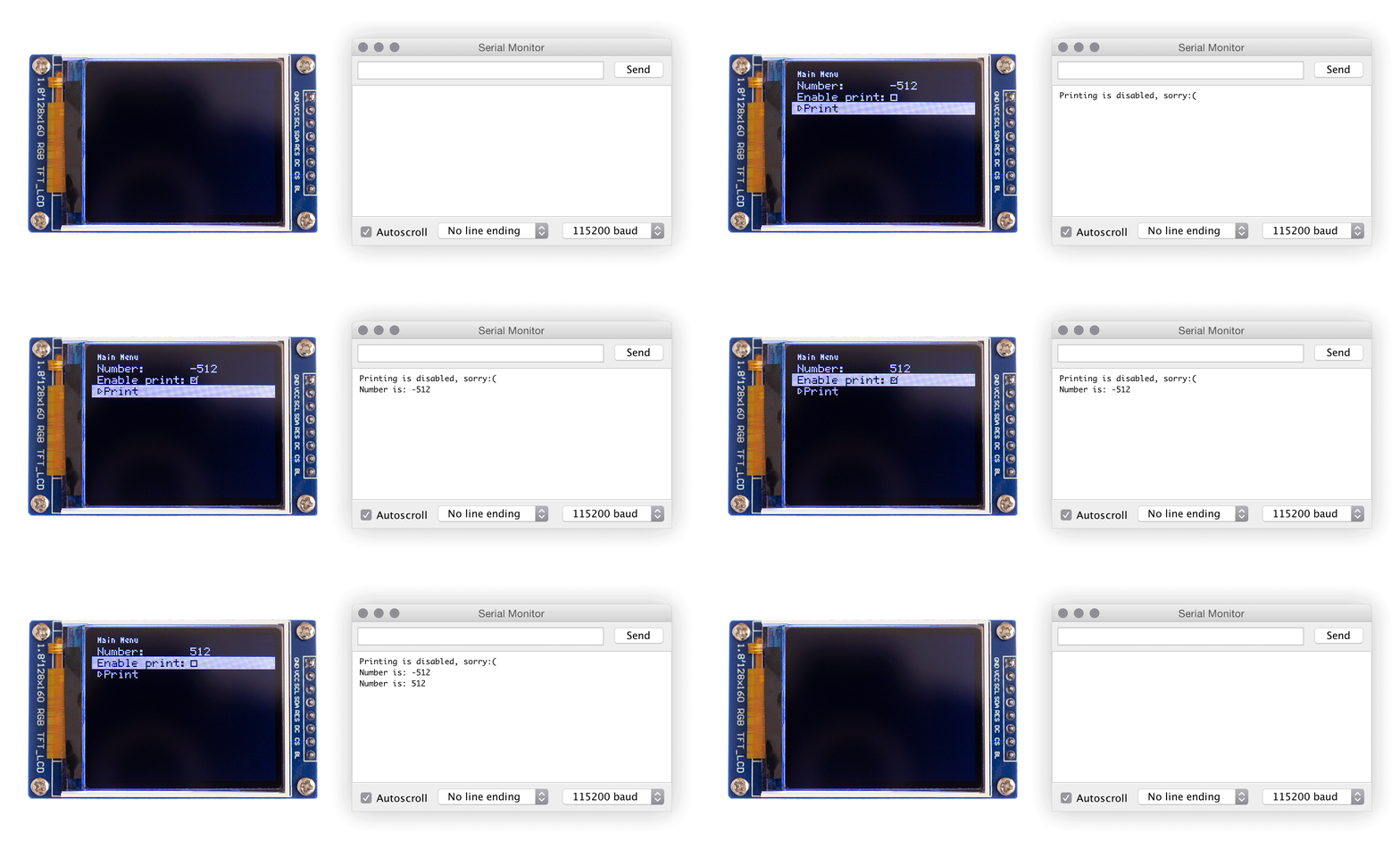
To learn more about GEM library, see the [Reference](#reference) section and visit [wiki](https://github.com/Spirik/GEM/wiki).
Reference
-----------
### GEM, GEM_u8g2, GEM_adafruit_gfx
Primary class of the library. Responsible for general appearance of the menu, communication with display (via supplied `GLCD`, `U8G2` or `Adafruit_GFX` object), integration of all menu items `GEMItem` and pages `GEMPage` into one menu. Object of corresponding `GEM` class variation defines as follows.
AltSerialGraphicLCD version:
```cpp
GEM menu(glcd[, menuPointerType[, menuItemsPerScreen[, menuItemHeight[, menuPageScreenTopOffset[, menuValuesLeftOffset]]]]]);
// or
GEM menu(glcd[, appearance]);
```
U8g2 version:
```cpp
GEM_u8g2 menu(u8g2[, menuPointerType[, menuItemsPerScreen[, menuItemHeight[, menuPageScreenTopOffset[, menuValuesLeftOffset]]]]]);
// or
GEM_u8g2 menu(u8g2[, appearance]);
```
Adafruit GFX version:
```cpp
GEM_adafruit_gfx menu(tft[, menuPointerType[, menuItemsPerScreen[, menuItemHeight[, menuPageScreenTopOffset[, menuValuesLeftOffset]]]]]);
// or
GEM_adafruit_gfx menu(tft[, appearance]);
```
* **glcd** `AltSerialGraphicLCD version`
*Type*: `GLCD`
Holds the reference to a `GLCD` object created with AltSerialGraphicLCD library and used for communication with SparkFun Graphic LCD Serial Backpack.
* **u8g2** `U8g2 version`
*Type*: `U8G2`
Holds the reference to an object created with U8g2 library and used for communication with LCD. Choose a matching constructor for the correct initialization of the display. See available constructors and supported controllers in the [documentation](https://github.com/olikraus/u8g2/wiki/u8g2setupcpp) for U8g2 library.
> **Note:** GEM library is compatible with all [buffer size](https://github.com/olikraus/u8g2/wiki/u8g2setupcpp#buffer-size) options (namely `_1`, `_2`, `_F`) and screen [rotation](https://github.com/olikraus/u8g2/wiki/u8g2setupcpp#rotation) options supported by U8g2.
* **tft** `Adafruit GFX version`
*Type*: `Adafruit_GFX`
Holds the reference to an object created with Adafruit GFX library and used for communication with LCD. Choose a matching library for the correct initialization of the display. See available libraries and supported controllers in the [documentation](https://learn.adafruit.com/adafruit-gfx-graphics-library) for Adafruit GFX library.
* **menuPointerType** [*optional*]
*Type*: `byte`
*Values*: `GEM_POINTER_ROW`, `GEM_POINTER_DASH`
*Default*: `GEM_POINTER_ROW`
Type of menu pointer visual appearance: either highlighted row or pointer to the left of the row.
* **menuItemsPerScreen** [*optional*]
*Type*: `byte`
*Values*: number, `GEM_ITEMS_COUNT_AUTO` (alias for `0`)
*Default*: `5`
Count of the menu items per screen. Default value is suitable for 128x64 screen with other parameters at their default values. If set to `GEM_ITEMS_COUNT_AUTO` (available since GEM ver. 1.3), the number of menu items will be determined automatically based on actual height of the screen.
* **menuItemHeight** [*optional*]
*Type*: `byte`
*Units*: dots
*Default*: `10`
Height of the menu item. Default value is suitable for 128x64 screen with other parameters at their default values.
* **menuPageScreenTopOffset** [*optional*]
*Type*: `byte`
*Units*: dots
*Default*: `10`
Offset from the top of the screen to accommodate title of the menu page. Default value is suitable for 128x64 screen with other parameters at their default values.
* **menuValuesLeftOffset** [*optional*]
*Type*: `byte`
*Units*: dots
*Default*: `86`
Offset from the left of the screen to the value of variable associated with the menu item (effectively the space left for the title of the menu item to be printed on screen). Default value is suitable for 128x64 screen with other parameters at their default values; 86 - recommended value for 128x64 screen.
* **appearance** [*optional*]
*Type*: `GEMAppearance`
Object of type `GEMAppearance` that holds values of appearance settings that define how menu is rendered on screen. Essentially allows to pass appearance as a single object instead of specifying each option as a separate argument.

Calls to `GEM`, `GEM_u8g2` or `GEM_adafruit_gfx` constructors `GEM(glcd)`, `GEM_u8g2(u8g2)`, `GEM_adafruit_gfx(tft)` without specifying additional custom parameters are equivalent to the following calls:
```cpp
GEM menu(glcd, /* menuPointerType= */ GEM_POINTER_ROW, /* menuItemsPerScreen= */ 5, /* menuItemHeight= */ 10, /* menuPageScreenTopOffset= */ 10, /* menuValuesLeftOffset= */ 86);
```
```cpp
GEM_u8g2 menu(u8g2, /* menuPointerType= */ GEM_POINTER_ROW, /* menuItemsPerScreen= */ 5, /* menuItemHeight= */ 10, /* menuPageScreenTopOffset= */ 10, /* menuValuesLeftOffset= */ 86);
```
```cpp
GEM_adafruit_gfx menu(tft, /* menuPointerType= */ GEM_POINTER_ROW, /* menuItemsPerScreen= */ 5, /* menuItemHeight= */ 10, /* menuPageScreenTopOffset= */ 10, /* menuValuesLeftOffset= */ 86);
```
> **Note:** carefully choose values of `menuItemsPerScreen`, `menuItemHeight`, `menuPageScreenTopOffset`, `menuValuesLeftOffset` in accordance to the actual size of your display. Default values of these options are suitable for 128x64 screens. But that is not the only possible option: the other combination of values you set may also be suitable - just calculate them correctly and see what works best for you.
> **Note:** long title of the menu page `GEMPage` won't overflow to the new line in U8g2 version and will be truncated at the edge of the screen.
> **Note:** it is possible to customize appearance of each menu page individually (since GEM ver. 1.5) by using [`GEMAppearance`](#gemappearance) object.
For more details on customization see corresponding section of the [wiki](https://github.com/Spirik/GEM/wiki) and description of [`GEMAppearance`](#gemappearance) struct.
#### Constants
* **GEM_POINTER_DASH**
*Type*: macro `#define GEM_POINTER_DASH 0`
*Value*: `0`
Alias for the type of menu pointer visual appearance (submitted as **menuPointerType** setting to `GEM`, `GEM_u8g2` and `GEM_adafruit_gfx` constructors): pointer to the left of the row.
* **GEM_POINTER_ROW**
*Type*: macro `#define GEM_POINTER_ROW 1`
*Value*: `1`
Alias for the type of menu pointer visual appearance (submitted as **menuPointerType** setting to `GEM`, `GEM_u8g2` and `GEM_adafruit_gfx` constructors): highlighted row.
* **GEM_ITEMS_COUNT_AUTO**
*Type*: macro `#define GEM_ITEMS_COUNT_AUTO 0`
*Value*: `0`
Alias for the option to automatically determine the number of menu items that will fit on the screen based on actual height of the screen (submitted as **menuItemsPerScreen** setting to `GEM`, `GEM_u8g2` and `GEM_adafruit_gfx` constructors).
* **GEM_FONT_BIG**
* `GEM_adafruit_gfx`:
*Type*: macro `#define GEM_FONT_BIG &Fixed6x12`
*Value*: `&Fixed6x12`
* `GEM_u8g2`:
*Type*: macro `#define GEM_FONT_BIG u8g2_font_6x12_tr`
*Value*: `u8g2_font_6x12_tr`
Alias for the default big font version used to print menu items. Submitted as a default value to `GEM_adafruit_gfx::setFontBig()` method.
* **GEM_FONT_BIG_CYR** `GEM_u8g2 version only`
*Type*: macro `#define GEM_FONT_BIG_CYR u8g2_font_6x12_t_cyrillic`
*Value*: `u8g2_font_6x12_t_cyrillic`
Alias for the default Cyrillic big font version used to print menu items.
* **GEM_FONT_SMALL**
* `GEM_adafruit_gfx`:
*Type*: macro `#define GEM_FONT_SMALL &TomThumbMono`
*Value*: `&TomThumbMono`
* `GEM_u8g2`:
*Type*: macro `#define GEM_FONT_SMALL u8g2_font_tom_thumb_4x6_tr`
*Value*: `u8g2_font_tom_thumb_4x6_tr`
Alias for the default small font version used to print titles of menu pages (and menu items when big font won't fit). Submitted as a default value to `GEM_adafruit_gfx::setFontSmall()` method.
* **GEM_FONT_SMALL_CYR** `GEM_u8g2 version only`
*Type*: macro `#define GEM_FONT_SMALL_CYR u8g2_font_4x6_t_cyrillic`
*Value*: `u8g2_font_4x6_t_cyrillic`
Alias for the default Cyrillic small font version used to print titles of menu pages (and menu items when big font won't fit).
* **GEM_KEY_NONE**
*Type*: macro `#define GEM_KEY_NONE 0`
*Value*: `0`
Alias for the keys (buttons) used to navigate and interact with menu. Submitted to `GEM::registerKeyPress()`, `GEM_u8g2::registerKeyPress()` and `GEM_adafruit_gfx::registerKeyPress()` methods. Indicates that no key presses were detected.
* **GEM_KEY_UP**
* `GEM`, `GEM_adafruit_gfx`:
*Type*: macro `#define GEM_KEY_UP 1`
*Value*: `1`
* `GEM_u8g2`:
*Type*: macro `#define GEM_KEY_UP U8X8_MSG_GPIO_MENU_UP`
*Value*: `U8X8_MSG_GPIO_MENU_UP`
Alias for the keys (buttons) used to navigate and interact with menu. Submitted to `GEM::registerKeyPress()`, `GEM_u8g2::registerKeyPress()` and `GEM_adafruit_gfx::registerKeyPress()` methods. Indicates that Up key is pressed (navigate up through the menu items list, select next value of the digit/char of editable variable, or previous option in select).
* **GEM_KEY_RIGHT**
* `GEM`, `GEM_adafruit_gfx`:
*Type*: macro `#define GEM_KEY_RIGHT 2`
*Value*: `2`
* `GEM_u8g2`:
*Type*: macro `#define GEM_KEY_RIGHT U8X8_MSG_GPIO_MENU_NEXT`
*Value*: `U8X8_MSG_GPIO_MENU_NEXT`
Alias for the keys (buttons) used to navigate and interact with menu. Submitted to `GEM::registerKeyPress()`, `GEM_u8g2::registerKeyPress()` and `GEM_adafruit_gfx::registerKeyPress()` methods. Indicates that Right key is pressed (navigate through the link to another (child) menu page, select next digit/char of editable variable, execute code associated with button).
* **GEM_KEY_DOWN**
* `GEM`, `GEM_adafruit_gfx`:
*Type*: macro `#define GEM_KEY_DOWN 3`
*Value*: `3`
* `GEM_u8g2`:
*Type*: macro `#define GEM_KEY_DOWN U8X8_MSG_GPIO_MENU_DOWN`
*Value*: `U8X8_MSG_GPIO_MENU_DOWN`
Alias for the keys (buttons) used to navigate and interact with menu. Submitted to `GEM::registerKeyPress()`, `GEM_u8g2::registerKeyPress()` and `GEM_adafruit_gfx::registerKeyPress()` methods. Indicates that Down key is pressed (navigate down through the menu items list, select previous value of the digit/char of editable variable, or next option in select).
* **GEM_KEY_LEFT**
* `GEM`, `GEM_adafruit_gfx`:
*Type*: macro `#define GEM_KEY_LEFT 4`
*Value*: `4`
* `GEM_u8g2`:
*Type*: macro `#define GEM_KEY_LEFT U8X8_MSG_GPIO_MENU_PREV`
*Value*: `U8X8_MSG_GPIO_MENU_PREV`
Alias for the keys (buttons) used to navigate and interact with menu. Submitted to `GEM::registerKeyPress()`, `GEM_u8g2::registerKeyPress()` and `GEM_adafruit_gfx::registerKeyPress()` methods. Indicates that Left key is pressed (navigate through the Back button to the previous menu page, select previous digit/char of editable variable).
* **GEM_KEY_CANCEL**
* `GEM`, `GEM_adafruit_gfx`:
*Type*: macro `#define GEM_KEY_CANCEL 5`
*Value*: `5`
* `GEM_u8g2`:
*Type*: macro `#define GEM_KEY_CANCEL U8X8_MSG_GPIO_MENU_HOME`
*Value*: `U8X8_MSG_GPIO_MENU_HOME`
Alias for the keys (buttons) used to navigate and interact with menu. Submitted to `GEM::registerKeyPress()`, `GEM_u8g2::registerKeyPress()` and `GEM_adafruit_gfx::registerKeyPress()` methods. Indicates that Cancel key is pressed (navigate to the previous (parent) menu page, exit edit mode without saving the variable, exit context loop if allowed within context's settings).
* **GEM_KEY_OK**
* `GEM`, `GEM_adafruit_gfx`:
*Type*: macro `#define GEM_KEY_OK 6`
*Value*: `6`
* `GEM_u8g2`:
*Type*: macro `#define GEM_KEY_OK U8X8_MSG_GPIO_MENU_SELECT`
*Value*: `U8X8_MSG_GPIO_MENU_SELECT`
Alias for the keys (buttons) used to navigate and interact with menu. Submitted to `GEM::registerKeyPress()`, `GEM_u8g2::registerKeyPress()` and `GEM_adafruit_gfx::registerKeyPress()` methods. Indicates that Ok/Apply key is pressed (toggle `bool` menu item, enter edit mode of the associated non-`bool` variable, exit edit mode with saving the variable, execute code associated with button).
* **GEM_LOOP**
*Type*: macro `#define GEM_LOOP true`
*Value*: `true`
Alias for loop modifier of selects and range spinners. Submitted as **loop** setting to `GEMSelect` and `GEMSpinner` constructors.
#### Methods
* *GEM&* **setAppearance(** _GEMAppearance_ appearance **)**
*Accepts*: `GEMAppearance`
*Returns*: `GEM&`, or `GEM_u8g2&`, or `GEM_adafruit_gfx&`
Set general [appearance](#gemappearance) of the menu (can be overridden in `GEMPage` on per page basis).
* *GEMAppearance** **getCurrentAppearance()**
*Returns*: `GEMAppearance*`
Get appearance (as a pointer to [`GEMAppearance`](#gemappearance) object) applied to current menu page (or general if menu page has none of its own).
* *GEM&* **setSplash(** _const uint8_t PROGMEM_ *sprite **)** `AltSerialGraphicLCD version`
*Accepts*: `_const uint8_t PROGMEM_ *`
*Returns*: `GEM&`
Set custom sprite displayed as the splash screen when GEM is being initialized. Should be called before `GEM::init()`. The following is the format of the sprite as described in AltSerialGraphicLCD library documentation:
> The sprite commences with two bytes which are the width and height of the image in pixels. The pixel data is organised as rows of 8 vertical pixels per byte where the least significant bit (LSB) is the top-left pixel and the most significant bit (MSB) tends towards the bottom-left pixel. A complete row of 8 vertical pixels across the image width comprises the first row, this is then followed by the next row of 8 vertical pixels and so on. Where the image height is not an exact multiple of 8 bits then any unused bits are typically set to zero (although this does not matter).
For more details on splash customization see corresponding section of the [wiki](https://github.com/Spirik/GEM/wiki).
* *GEM_u8g2&* **setSplash(** _byte_ width, _byte_ height, _const unsigned char U8X8_PROGMEM_ *image **)** `U8g2 version`
*Accepts*: `byte`, `byte`, `_const unsigned char U8X8_PROGMEM_ *`
*Returns*: `GEM_u8g2&`
Set custom [XBM](https://en.wikipedia.org/wiki/X_BitMap) image displayed as the splash screen when GEM is being initialized. Should be called before `GEM_u8g2::init()`. For more details on splash customization and example refer to corresponding section of the [wiki](https://github.com/Spirik/GEM/wiki).
* *GEM_adafruit_gfx&* **setSplash(** _byte_ width, _byte_ height, _const uint8_t PROGMEM_ *image **)** `Adafruit GFX version`
*Accepts*: `byte`, `byte`, `_const uint8_t PROGMEM_ *`
*Returns*: `GEM_adafruit_gfx&`
Set custom bitmap image displayed as the splash screen when GEM is being initialized. The following is the format of the bitmap as described in Adafruit GFX library documentation:
> A contiguous block of bits, where each `1` bit sets the corresponding pixel to 'color', while each `0` bit is skipped.
Bitmap must be presented as a byte array and located in program memory using the PROGMEM directive, width and height of the bitmap must be supplied as a first and second argument to the function respectively. Should be called before `GEM_adafruit_gfx::init()`. See [Bitmaps](https://learn.adafruit.com/adafruit-gfx-graphics-library/graphics-primitives#bitmaps-2002806-39) section of Adafruit GFX documentation for more details and [image2cpp](http://javl.github.io/image2cpp/) webtool for online bitmap conversion. For more details on splash customization and example refer to corresponding section of the [wiki](https://github.com/Spirik/GEM/wiki).
* *GEM&* **setSplashDelay(** _uint16_t_ value **)**
*Accepts*: `uint16_t`
*Returns*: `GEM&`, or `GEM_u8g2&`, or `GEM_adafruit_gfx&`
Set splash screen delay (in ms). By default splash screen will be visible for 1000ms. Maximum supported value is 65535ms. Setting to 0 will disable splash screen. Should be called before `init()`.
> **Note:** internally splash screen delay is implemented via `delay()` function. This is the only place in library where `delay()` is utilized (aside of example sketches).
* *GEM&* **hideVersion(** _bool_ flag = true **)**
*Accepts*: `bool`
*Returns*: `GEM&`, or `GEM_u8g2&`, or `GEM_adafruit_gfx&`
Turn printing of the current GEM library version on splash screen off (`hideVersion()`) or back on (`hideVersion(false)`). By default the version is printed. Should be called before `init()`.
* *GEM_u8g2&* **enableUTF8(** _bool_ flag = true **)** `U8g2 version only`
*Accepts*: `bool`
*Returns*: `GEM_u8g2&`
Turn support for multi-byte UTF8 fonts on (`enableUTF8()`) or off (`enableUTF8(false)`). Fonts are set using `GEM_u8g2::setFontBig()` and `GEM_u8g2::setFontSmall()` methods. You may use UTF8 fonts in menu title, menu item labels (`GEMItem`, including buttons and menu page links), and select options (`SelectOptionInt`, `SelectOptionByte`, `SelectOptionChar` data structures). Editable strings with UTF8 characters are **not supported** (edit mode of such strings may lead to unpredictable results due to incompatibility with multi-byte UTF8 characters). By default support for UTF8 is off. Should be called before `GEM_u8g2::init()`.
* *GEM_u8g2&* **enableCyrillic(** _bool_ flag = true **)** `U8g2 version only`
*Accepts*: `bool`
*Returns*: `GEM_u8g2&`
Turn Cyrillic typeset on (`enableCyrillic()`) or off (`enableCyrillic(false)`). By default [`u8g2_font_6x12_t_cyrillic`](https://raw.githubusercontent.com/wiki/olikraus/u8g2/fntpic/u8g2_font_6x12_t_cyrillic.png) and [`u8g2_font_4x6_t_cyrillic`](https://raw.githubusercontent.com/wiki/olikraus/u8g2/fntpic/u8g2_font_4x6_t_cyrillic.png) fonts from [U8g2](https://github.com/olikraus/u8g2/wiki/fntlistall) will be used when Cyrillic typeset is enabled, and fonts [`u8g2_font_6x12_tr`](https://raw.githubusercontent.com/wiki/olikraus/u8g2/fntpic/u8g2_font_6x12_tr.png) and [`u8g2_font_tom_thumb_4x6_tr`](https://raw.githubusercontent.com/wiki/olikraus/u8g2/fntpic/u8g2_font_tom_thumb_4x6_tr.png) will be used otherwise (if not overridden via `GEM_u8g2::setFontBig()` and `GEM_u8g2::setFontSmall()` methods). You may use Cyrillic in menu title, menu item labels (`GEMItem`, including buttons and menu page links), and select options (`SelectOptionInt`, `SelectOptionByte`, `SelectOptionChar` data structures). Editable strings with Cyrillic characters are **not supported** (edit mode of such strings may lead to unpredictable results due to incompatibility with multi-byte UTF8 characters). Increases required program storage space, use cautiously. By default Cyrillic typeset is off. Should be called before `GEM_u8g2::init()`.
* *GEM&* **invertKeysDuringEdit(** _bool_ invert = true **)**
*Accepts*: `bool`
*Returns*: `GEM&`, or `GEM_u8g2&`, or `GEM_adafruit_gfx&`
Turn inverted order of characters during edit mode on (`invertKeysDuringEdit()`) or off (`invertKeysDuringEdit(false)`). By default when in edit mode of a number, or a `char[17]` variable, or a spinner, digits (and other characters) increment when `GEM_KEY_UP` key is pressed and decrement when `GEM_KEY_DOWN` key is pressed. Inverting this order may lead to more natural expected behavior when editing `char[17]`, or number variables, or incremental spinners with certain input devices (e.g. rotary encoder, in which case rotating knob clock-wise is generally associated with `GEM_KEY_DOWN` action during navigation through menu items, but in edit mode it seems more natural to increment a digit rather than to decrement it when performing the same clock-wise rotation).
* *GEM&* **init()**
*Returns*: `GEM&`, or `GEM_u8g2&`, or `GEM_adafruit_gfx&`
Init the menu: load necessary sprites into RAM of the SparkFun Graphic LCD Serial Backpack (for AltSerialGraphicLCD version), display GEM splash screen, etc.
> The following `GLCD` object settings will be applied during `init()`:
> * `glcd.drawMode(GLCD_MODE_NORMAL)`;
> * `glcd.fontMode(GLCD_MODE_NORMAL)`;
> * `glcd.set(GLCD_ID_CRLF, 0)`;
> * `glcd.set(GLCD_ID_SCROLL, 0)`.
>
> Keep this in mind if you are planning to use the same object in your own routines.
> The following `U8G2` object settings will be applied during `init()`:
> * `u8g2.setDrawColor(1)`;
> * `u8g2.setFontPosTop()`.
>
> Keep this in mind if you are planning to use the same object in your own routines.
> The following `Adafruit_GFX` object settings will be applied during `init()`:
> * `tft.setTextSize(_textSize)` (sets text magnification size to default value 1 or value set through `setTextSize()` previously);
> * `tft.setTextWrap(false)`;
> * `tft.setTextColor(_menuForegroundColor)` (sets text color to default value 0xFFFF or value set through `setForegroundColor()`).
>
> Keep this in mind if you are planning to use the same object in your own routines.
* *GEM&* **reInit()**
*Returns*: `GEM&`, or `GEM_u8g2&`, or `GEM_adafruit_gfx&`
Set GEM specific settings to their values, set initially in `init()` method. If you were working with AltSerialGraphicLCD, U8g2 or Adafruit GFX graphics in your own user-defined button action, it may be a good idea to call `reInit()` before drawing menu back to screen (generally in custom `context.exit()` routine). See [context](#gemcontext) for more details.
* *GEM_adafruit_gfx&* **setTextSize(** _uint8_t_ size **)** `Adafruit GFX version only`
*Accepts*: `uint8_t`
*Returns*: `GEM_adafruit_gfx&`
Set text 'magnification' size (as per Adafruit GFX docs) to supplied value. See Adafruit GFX [documentation](http://adafruit.github.io/Adafruit-GFX-Library/html/class_adafruit___g_f_x.html#a39eb4a8a2c9fa4ab7d58ceffd19535d5) for details on internaly called method of the same name. Sprites (i.e. various menu icons) will be scaled maximum up to two times regardless of the value. If not called explicitly, magnification size will be set to 1. Should be called before `init()`.
* *GEM_adafruit_gfx&* **setSpriteSize(** _uint8_t_ size **)** `Adafruit GFX version only`
*Accepts*: `uint8_t`
*Returns*: `GEM_adafruit_gfx&`
Set sprite scaling factor if it should be different from the text 'magnification' size set through `setTextSize()` method. Sprites (i.e. various menu icons) will be scaled maximum up to two times regardless of the value. If not called explicitly, equals to the text magnification set with `setTextSize()`. Should be called after `setTextSize()` but before `init()`.
* *GEM_adafruit_gfx&* **setFontBig(** _const GFXfont*_ font = GEM_FONT_BIG[, _byte_ width = 6[, _byte_ height = 8[, _byte_ baselineOffset = 8]]] **)** `Adafruit GFX version`
*Accepts*: `const GFXfont*`[, `byte`[, `byte`[, `byte`]]]
*Returns*: `GEM_adafruit_gfx&`
Set font that will be displayed if height of menu item is enough to fit it (else small font will be used instead). Accepts pointer to the font that Adafruit GFX supports. See Adafruit GFX [documentation](https://learn.adafruit.com/adafruit-gfx-graphics-library/using-fonts) for details on font format and possible conversion options. Note that using mono-spaced font is recommended for correct calculations internally (especially for editable menu items). Options `width` and `height` describe size of a single character, `baselineOffset` sets offset from the top of the character to baseline (helps to better adjust vertical alignment). Call this method without arguments to revert to default font supplied with GEM.
* *GEM_adafruit_gfx&* **setFontSmall(** _const GFXfont*_ font = GEM_FONT_SMALL[, _byte_ width = 4[, _byte_ height = 6[, _byte_ baselineOffset = 6]]] **)** `Adafruit GFX version`
*Accepts*: `const GFXfont*`[, `byte`[, `byte`[, `byte`]]]
*Returns*: `GEM_adafruit_gfx&`
Set font that will be displayed if height of menu item is not enough to fit big font. Also used in titles of menu pages. Accepts pointer to the font that Adafruit GFX supports. See Adafruit GFX [documentation](https://learn.adafruit.com/adafruit-gfx-graphics-library/using-fonts) for details on font format and possible conversion options. Note that using mono-spaced font is recommended for correct calculations internally (especially for editable menu items). Options `width` and `height` describe size of a single character, `baselineOffset` sets offset from the top of the character to baseline (helps to better adjust vertical alignment). Call this method without arguments to revert to default font supplied with GEM.
* *GEM_u8g2&* **setFontBig(** _const uint8_t*_ font[, _byte_ width = 6[, _byte_ height = 8]] **)** `U8g2 version`
*Accepts*: `const uint8_t*`[, `byte`[, `byte`]]
*Returns*: `GEM_u8g2&`
Set font that will be displayed if height of menu item is enough to fit it (else small font will be used instead). Accepts pointer to the font that U8g2 supports. See U8g2 [documentation](https://github.com/olikraus/u8g2/wiki/fntlistall) for list of available fonts. Note that using mono-spaced font is recommended for correct calculations internally (especially for editable menu items). Options `width` and `height` describe size of a single character. Adjusting `height` may help to achieve better vertical alignment. Call this method without arguments to revert to default font settings.
* *GEM_u8g2&* **setFontSmall(** _const uint8_t*_ font[, _byte_ width = 4[, _byte_ height = 6]] **)** `U8g2 version`
*Accepts*: `const uint8_t*`[, `byte`[, `byte`]]
*Returns*: `GEM_u8g2&`
Set font that will be displayed if height of menu item is not enough to fit big font. Also used in titles of menu pages. Accepts pointer to the font that U8g2 supports. See U8g2 [documentation](https://github.com/olikraus/u8g2/wiki/fntlistall) for list of available fonts. Note that using mono-spaced font is recommended for correct calculations internally (especially for editable menu items). Options `width` and `height` describe size of a single character. Adjusting `height` may help to achieve better vertical alignment. Call this method without arguments to revert to default font settings.
* *GEM_adafruit_gfx&* **setForegroundColor(** _uint16_t_ color **)** `Adafruit GFX version only`
*Accepts*: `uint16_t`
*Returns*: `GEM_adafruit_gfx&`
Set foreground color to supplied value. Accepts 16-bit RGB color representation. See Adafruit GFX [documentation](https://learn.adafruit.com/adafruit-gfx-graphics-library/coordinate-system-and-units) for detailed description of a format. Will take effect next time menu is drawn. If not called explicitly, foreground color will be set to 0xFFFF. For more details on color customization and example refer to corresponding section of the [wiki](https://github.com/Spirik/GEM/wiki).
* *GEM_adafruit_gfx&* **setBackgroundColor(** _uint16_t_ color **)** `Adafruit GFX version only`
*Accepts*: `uint16_t`
*Returns*: `GEM_adafruit_gfx&`
Set background color to supplied value. Accepts 16-bit RGB color representation. See Adafruit GFX [documentation](https://learn.adafruit.com/adafruit-gfx-graphics-library/coordinate-system-and-units) for detailed description of a format. Will take effect next time menu is drawn. If not called explicitly, background color will be set to 0x0000. For more details on color customization and example refer to corresponding section of the [wiki](https://github.com/Spirik/GEM/wiki).
* *GEM&* **setMenuPageCurrent(** _GEMPage&_ menuPageCurrent **)**
*Accepts*: `GEMPage`
*Returns*: `GEM&`, or `GEM_u8g2&`, or `GEM_adafruit_gfx&`
Set supplied menu page as current. Accepts `GEMPage` object.
* *GEMPage** **getCurrentMenuPage()**
*Returns*: `GEMPage*`
Get pointer to currently active menu page.
* *GEM&* **drawMenu()**
*Returns*: `GEM&`, or `GEM_u8g2&`, or `GEM_adafruit_gfx&`
Draw menu on screen, with menu page set earlier in `setMenuPageCurrent()`.
* *GEM&* **setDrawMenuCallback(** _void_ (*drawMenuCallback)() **)**
*Accepts*: `pointer to function`
*Returns*: `GEM&`, or `GEM_u8g2&`, or `GEM_adafruit_gfx&`
Specify callback function that will be called at the end of `drawMenu()`. Potentially can be used to draw something on top of the menu, e.g. notification icons in menu title, battery status, etc. However, note that for different versions of GEM drawMenuCallback may be called different number of times: e.g. U8g2 version of GEM calls `drawMenu()` method more often than other versions do, especially when buffer modes `_1` or `_2` of U8g2 is enabled. Alternatively, Adafruit GFX and AltSerialGraphicLCD versions of GEM make use of partial updates of the screen, hence call to `drawMenu()` is less common. Keep that in mind when specifying callback function, and consider using U8g2 version of GEM with full buffer `_F` mode.
* *GEM&* **removeDrawMenuCallback()**
*Returns*: `GEM&`, or `GEM_u8g2&`, or `GEM_adafruit_gfx&`
Disable callback that was called at the end of `drawMenu()`.
* *bool* **isEditMode()**
*Returns*: `bool`
Checks if menu is in edit mode (returns `true` when editing a variable or navigating through option select or spinner).
* *bool* **readyForKey()**
*Returns*: `bool`
Checks that menu is waiting for the key press.
* *GEM&* **registerKeyPress(** _byte_ keyCode **)**
*Accepts*: `byte` (*Values*: `GEM_KEY_NONE`, `GEM_KEY_UP`, `GEM_KEY_RIGHT`, `GEM_KEY_DOWN`, `GEM_KEY_LEFT`, `GEM_KEY_CANCEL`, `GEM_KEY_OK`)
*Returns*: `GEM&`, or `GEM_u8g2&`, or `GEM_adafruit_gfx&`
Register the key press and trigger corresponding action (navigation through the menu, editing values, pressing menu buttons).
* *GEM&* **clearContext()**
*Returns*: `GEM&`, or `GEM_u8g2&`, or `GEM_adafruit_gfx&`
Clear context. Assigns `nullptr` values to function pointers of the `context` property and sets `allowExit` flag of the `context` to `true`.
> **Note:** calls to methods that return a reference to the owning `GEM`, or `GEM_u8g2`, or `GEM_adafruit_gfx` object can be chained, e.g. `menu.hideVersion().invertKeysDuringEdit().init();` (since GEM ver. 1.4.6).
#### Properties
* **context**
*Type*: `GEMContext`
Currently set [context](#gemcontext).
----------
### GEMPage
Menu page holds menu items `GEMItem` and represents menu level. Menu can have multiple menu pages (linked to each other) with multiple menu items each. Object of class `GEMPage` defines as follows:
```cpp
GEMPage menuPage([title[, exitAction]]);
```
or
```cpp
GEMPage menuPage([title[, parentMenuPage]]);
```
* **title** [*optional*]
*Type*: `const char*`
Title of the menu page displayed at top of the screen.
> **Note:** there is no explicit restriction on the length of the title. However, AltSerialGraphicLCD, U8g2 and Adafruit GFX vesrions handle long titles differently. If title won't fit on a single line, it will overflow to the next line in AltSerialGraphicLCD and Adafruit GFX versions, but will be cropped at the edge of the screen in U8g2 version. In case of AltSerialGraphicLCD and Adafruit GFX versions it is possible to accommodate multiline menu titles by enlarging `menuPageScreenTopOffset` when initializing `GEM` object.
* **exitAction** [*optional*]
*Type*: `pointer to function`
Pointer to a function that will be executed when `GEM_KEY_CANCEL` key is pressed while being on top level menu page (i.e. page that has no parent menu page) and not in edit mode. Action-specific [context](#gemcontext) can be created, which can have its own enter (setup) and exit callbacks as well as loop function. Current menu item will be set to the first item of the menu page upon calling this function, this change will be reflected with the subsequent explicit redraw of the menu (e.g. by calling `drawMenu()` method of `GEM`, `GEM_u8g2` or `GEM_adafruit_gfx` object).
* **parentMenuPage** [*optional*]
*Type*: `GEMPage`
Parent level menu page (to know where to go back to when pressing Back button, which will be added automatically). Alternatively can be set by calling `GEMPage::setParentMenuPage()` method (see below).
#### Constants
* **GEM_LAST_POS**
*Type*: macro `#define GEM_LAST_POS 255`
*Value*: `255`
Alias for the last possible position that menu item can be added at. Submitted as a default value of **pos** option to `GEMPage::addMenuItem()` method.
* **GEM_ITEMS_TOTAL**
*Type*: macro `#define GEM_ITEMS_TOTAL true`
*Value*: `true`
Alias for modifier of `GEMPage::addMenuItem()` method for the case when all menu items should be considered. Submitted as a default value of **total** option to `GEMPage::addMenuItem()` method.
* **GEM_ITEMS_VISIBLE**
*Type*: macro `#define GEM_ITEMS_VISIBLE false`
*Value*: `false`
Alias for modifier of `GEMPage::addMenuItem()` method for the case when only visible menu items should be considered. Submitted as a possible value of **total** option to `GEMPage::addMenuItem()` method.
#### Methods
* *GEMPage&* **addMenuItem(** _GEMItem&_ menuItem[, _byte_ pos = 255[, _bool_ total = true]] **)**
*Accepts*: `GEMItem`[, `byte`[, `bool`]]
*Returns*: `GEMPage&`
Add menu item to menu page. Accepts `GEMItem` object. Optionally menu item can be added at a specified position **pos** (zero-based number from 0 to 255, as a second argument) out of total (flag **total** set to `true`, or `GEM_ITEMS_TOTAL`, as a third argument) or only visible (flag **total** set to `false`, or `GEM_ITEMS_VISIBLE`, as a third argument) number of items. Note that if **pos** is set to 0 and menu page has parent menu page, menu item will be added at position 1 instead (i.e. as a second menu item, after built-in Back button). By default (if optional arguments are not provided) each menu item is added at the end of the list of menu items of the page (including hidden ones).
* *GEMPage&* **setParentMenuPage(** _GEMPage&_ parentMenuPage **)**
*Accepts*: `GEMPage`
*Returns*: `GEMPage&`
Specify parent level menu page (to know where to go back to when pressing Back button, which will be added automatically). Accepts `GEMPage` object. If called additional time, previously added parent menu page will be overridden with the new one.
* *GEMPage&* **setTitle(** _const char*_ title **)**
*Returns*: `GEMPage&`
Set title of the menu page. Can be used to update menu page title dynamically.
* *const char** **getTitle()**
*Returns*: `const char*`
Get title of the menu page.
* *GEMPage&* **setAppearance(** _GEMAppearance*_ appearance **)**
*Accepts*: `GEMAppearance*`
*Returns*: `GEMPage&`
Set appearance of the menu page. Note that appearance should be passed as a pointer to [`GEMAppearance`](#gemappearance) object. And as such, `GEMAppearance` object should be declared in a global scope.
* *GEMItem** **getMenuItem(** _byte_ index[, _bool_ total = false] **)**
*Accepts*: `byte`[, `bool`]
*Returns*: `GEMItem*`
Get pointer to menu item on this page by index, counting hidden ones (if **total** set to `true`, or `GEM_ITEMS_TOTAL`) or only visible (if **total** set to `false`, or `GEM_ITEMS_VISIBLE`).
* *GEMItem** **getCurrentMenuItem()**
*Returns*: `GEMItem*`
Get pointer to currently focused menu item on this page.
* *byte* **getCurrentMenuItemIndex()**
*Returns*: `byte`
Get index of currently focused menu item on this page.
* *GEMPage&* **setCurrentMenuItemIndex(** _byte_ index **)**
*Accepts*: `byte`
*Returns*: `GEMPage&`
Set index of currently focused menu item on this page (only visible items are counted).
* *byte* **getItemsCount(** _bool_ total = false **)**
*Accepts*: `bool`
*Returns*: `byte`
Get items count of the menu page, counting hidden ones (if **total** set to `true`, or `GEM_ITEMS_TOTAL`) or only visible (if **total** set to `false`, or `GEM_ITEMS_VISIBLE`).
> **Note:** calls to methods that return a reference to the owning `GEMPage` object can be chained, e.g. `menuPageSettings.addMenuItem(menuItemInterval).addMenuItem(menuItemTempo).setParentMenuPage(menuPageMain);` (since GEM ver. 1.4.6).
----------
### GEMItem
Menu item of the menu. Can represent editable or read-only variable of type `int`, `byte`, `float`, `double`, `bool`, `char[17]` (or `char[GEM_STR_LEN]`, to be exact); option select of type `int`, `byte`, `float`, `double`, `char[n]`; incremental spinner of type `int`, `byte`, `float`, `double`; non-interactive label; link to another menu page; or button that can invoke user-defined actions and create action-specific context, which can have its own enter (setup) and exit callbacks as well as loop function. User-defined callback function can be specified to invoke when editable menu item is saved or option is selected. Exact definition of `GEMItem` object depends on its type.
> **Note:** support for editable variables (and spinner) of types `float` and `double` is optional. It is enabled by default, but can be disabled by editing [config.h](https://github.com/Spirik/GEM/blob/master/src/config.h) file that ships with the library. Disabling this feature may save considerable amount of program storage space (up to 10% on Arduino UNO R3). See [Floating-point variables](#floating-point-variables) for more details.
#### Variable
```cpp
GEMItem menuItemVar(title, linkedVariable[, readonly]);
```
or
```cpp
GEMItem menuItemVar(title, linkedVariable[, saveCallback[, callbackVal]]);
```
* **title**
*Type*: `const char*`
Title of the menu item displayed on the screen.
* **linkedVariable**
*Type*: `int`, `byte`, `float`, `double`, `bool`, `char[17]` (or `char[GEM_STR_LEN]`, to be exact)
Reference to variable that menu item is associated with.
* **readonly** [*optional*]
*Type*: `bool`
*Values*: `GEM_READONLY` (alias for `true`), `false`
*Default*: `false`
Sets readonly mode for variable that menu item is associated with.
* **saveCallback** [*optional*]
*Type*: `pointer to function`
Pointer to callback function executed when associated variable is successfully saved. Optionally, callback function can expect argument of type `GEMCallbackData` to be passed to it when it is executed. In this case optional user-defined value of an argument can be specified (see below).
* **callbackVal** [*optional*]
*Type*: `int`, `byte`, `float`, `double`, `bool`, `const char*`, `void*`
*Default*: `0`
Sets user-defined value of an argument that will be passed to callback function as a part of [`GEMCallbackData`](#gemcallbackdata) struct.
> **Note:** you cannot specify both readonly mode and callback in the same constructor. However, you can set readonly mode for menu item with callback explicitly later using `GEMItem::setReadonly()` method.
#### Option select
```cpp
GEMItem menuItemSelect(title, linkedVariable, select[, readonly]);
```
or
```cpp
GEMItem menuItemSelect(title, linkedVariable, select[, saveCallback[, callbackVal]]);
```
* **title**
*Type*: `const char*`
Title of the menu item displayed on the screen.
* **linkedVariable**
*Type*: `int`, `byte`, `float`, `double`, `char[n]`
Reference to variable that menu item is associated with. Note that in case of `char[n]` variable, character array should be big enough to hold select option with the longest value to avoid overflows. It can be greater than `GEM_STR_LEN` limit set for non-select menu item variable (i.e. it is possible to have `n` > 17).
* **select**
*Type*: `GEMSelect`
Reference to [`GEMSelect`](#gemselect) option select object that represents a list of available values.
* **readonly** [*optional*]
*Type*: `bool`
*Values*: `GEM_READONLY` (alias for `true`), `false`
*Default*: `false`
Sets readonly mode for variable that menu item is associated with.
* **saveCallback** [*optional*]
*Type*: `pointer to function`
Pointer to callback function executed when associated variable is successfully saved. Optionally, callback function can expect argument of type `GEMCallbackData` to be passed to it when it is executed. In this case optional user-defined value of an argument can be specified (see below).
* **callbackVal** [*optional*]
*Type*: `int`, `byte`, `float`, `double`, `bool`, `const char*`, `void*`
*Default*: `0`
Sets user-defined value of an argument that will be passed to callback function as a part of [`GEMCallbackData`](#gemcallbackdata) struct.
> **Note:** you cannot specify both readonly mode and callback in the same constructor. However, you can set readonly mode for menu item with callback explicitly later using `GEMItem::setReadonly()` method.
#### Spinner
```cpp
GEMItem menuItemSpinner(title, linkedVariable, spinner[, readonly]);
```
or
```cpp
GEMItem menuItemSpinner(title, linkedVariable, spinner[, saveCallback[, callbackVal]]);
```
* **title**
*Type*: `const char*`
Title of the menu item displayed on the screen.
* **linkedVariable**
*Type*: `int`, `byte`, `float`, `double`
Reference to variable that menu item is associated with.
* **spinner**
*Type*: `GEMSpinner`
Reference to [`GEMSpinner`](#gemspinner) spinner object that represents available range of values.
* **readonly** [*optional*]
*Type*: `bool`
*Values*: `GEM_READONLY` (alias for `true`), `false`
*Default*: `false`
Sets readonly mode for variable that menu item is associated with.
* **saveCallback** [*optional*]
*Type*: `pointer to function`
Pointer to callback function executed when associated variable is successfully saved. Optionally, callback function can expect argument of type `GEMCallbackData` to be passed to it when it is executed. In this case optional user-defined value of an argument can be specified (see below).
* **callbackVal** [*optional*]
*Type*: `int`, `byte`, `float`, `double`, `bool`, `const char*`, `void*`
*Default*: `0`
Sets user-defined value of an argument that will be passed to callback function as a part of [`GEMCallbackData`](#gemcallbackdata) struct.
> **Note:** you cannot specify both readonly mode and callback in the same constructor. However, you can set readonly mode for menu item with callback explicitly later using `GEMItem::setReadonly()` method.
#### Label
```cpp
GEMItem menuItemLabel(title);
```
* **title**
*Type*: `const char*`
Title of the menu item displayed on the screen.
#### Link to menu page
```cpp
GEMItem menuItemLink(title, linkedPage[, readonly]);
```
* **title**
*Type*: `const char*`
Title of the menu item displayed on the screen.
* **linkedPage**
*Type*: `GEMPage`
Menu page `GEMPage` that menu item is associated with.
* **readonly** [*optional*]
*Type*: `bool`
*Values*: `GEM_READONLY` (alias for `true`), `false`
*Default*: `false`
Sets readonly mode for the link (user won't be able to navigate to linked page).
#### Button
```cpp
GEMItem menuItemButton(title, buttonAction[, readonly]);
```
or
```cpp
GEMItem menuItemButton(title, buttonAction[, callbackVal[, readonly]]);
```
* **title**
*Type*: `const char*`
Title of the menu item displayed on the screen (in this case - name of the button).
* **buttonAction**
*Type*: `pointer to function`
Pointer to function that will be executed when menu item is activated. Action-specific [context](#gemcontext) can be created, which can have its own enter (setup) and exit callbacks as well as loop function. Optionally, callback function can expect argument of type `GEMCallbackData` to be passed to it when it is executed. In this case optional user-defined value of an argument can be specified (see below).
* **callbackVal** [*optional*]
*Type*: `int`, `byte`, `float`, `double`, `bool`, `const char*`, `void*`
*Default*: `0`
Sets user-defined value of an argument that will be passed to callback function as a part of [`GEMCallbackData`](#gemcallbackdata) struct.
* **readonly** [*optional*]
*Type*: `bool`
*Values*: `GEM_READONLY` (alias for `true`), `false`
*Default*: `false`
Sets readonly mode for the button (user won't be able to call action associated with it).
> **Note:** you cannot specify both readonly mode and callback with *uninitialized* `GEMCallbackData` argument in the same constructor. However, you can set readonly mode later using `GEMItem::setReadonly()` method.
#### Constants
* **GEM_READONLY**
*Type*: macro `#define GEM_READONLY true`
*Value*: `true`
Alias for readonly modifier of associated with menu item variable. Submitted as **readonly** setting to `GEMItem` constructor of variable menu items and option select.
* **GEM_HIDDEN**
*Type*: macro `#define GEM_HIDDEN true`
*Value*: `true`
Alias for hidden state of the menu item. Submitted as **hide** option to `GEMItem::hide()` method.
* **GEM_STR_LEN**
*Type*: macro `#define GEM_STR_LEN 17`
*Value*: `17`
Alias for supported length of the string (character sequence) variable of type `char[GEM_STR_LEN]`. Note that this limits the length of the string that can be used with editable character menu item variable, but option select variable doesn't have this restriction. But you still have to make sure that in the latter case character array should be big enough to hold select option with the longest value to avoid overflows.
* **GEM_ITEM_VAL**
*Type*: macro `#define GEM_ITEM_VAL 0`
*Value*: `0`
Alias for menu item type that represents editable variable.
* **GEM_ITEM_LINK**
*Type*: macro `#define GEM_ITEM_LINK 1`
*Value*: `1`
Alias for menu item type that represents link to another menu page.
* **GEM_ITEM_BACK**
*Type*: macro `#define GEM_ITEM_BACK 2`
*Value*: `2`
Alias for menu item type that represents Back button (that links to parent level menu page).
* **GEM_ITEM_BUTTON**
*Type*: macro `#define GEM_ITEM_BUTTON 3`
*Value*: `3`
Alias for menu item type that represents button.
* **GEM_ITEM_LABEL**
*Type*: macro `#define GEM_ITEM_LABEL 4`
*Value*: `4`
Alias for menu item type that represents non-interactive menu item.
* **GEM_VAL_INTEGER**
*Type*: macro `#define GEM_VAL_INTEGER 0`
*Value*: `0`
Alias for `int` type of associated with menu item variable.
* **GEM_VAL_BYTE**
*Type*: macro `#define GEM_VAL_BYTE 1`
*Value*: `1`
Alias for `byte` type of associated with menu item variable.
* **GEM_VAL_CHAR**
*Type*: macro `#define GEM_VAL_CHAR 2`
*Value*: `2`
Alias for `char[n]` type of associated with menu item variable.
* **GEM_VAL_BOOL**
*Type*: macro `#define GEM_VAL_BOOL 3`
*Value*: `3`
Alias for `bool` type of associated with menu item variable.
* **GEM_VAL_SELECT**
*Type*: macro `#define GEM_VAL_SELECT 4`
*Value*: `4`
Associated variable is either of type `int`, `byte`, `char[n]`, `float` or `double` with option select used to pick a predefined value from the list.
* **GEM_VAL_FLOAT**
*Type*: macro `#define GEM_VAL_FLOAT 5`
*Value*: `5`
Alias for `float` type of associated with menu item variable.
* **GEM_VAL_DOUBLE**
*Type*: macro `#define GEM_VAL_DOUBLE 6`
*Value*: `6`
Alias for `double` type of associated with menu item variable.
* **GEM_VAL_SPINNER**
*Type*: macro `#define GEM_VAL_SPINNER 7`
*Value*: `7`
Associated variable is either of type `int`, `byte`, `float` or `double` with spinner to increment or decrement value with given step.
#### Methods
* *GEMItem&* **setCallbackVal(** _int_ | _byte_ | _float_ | _double_ | _bool_ | _const char*_ | _void*_ callbackVal **)**
*Returns*: `GEMItem&`
Set user-defined value of an argument that will be passed to callback function as a part of [`GEMCallbackData`](#gemcallbackdata) struct.
* *GEMCallbackData* **getCallbackData()**
*Returns*: `GEMCallbackData`
Get [`GEMCallbackData`](#gemcallbackdata) struct associated with menu item. It contains pointer to menu item and optionally user-defined value.
* *GEMItem&* **setPreviewCallback(** _void_ (*previewCallbackAction_)(GEMPreviewCallbackData)**)**
*Returns*: `GEMItem&`
Specify preview callback function that will be called in edit mode when intermediate values of associated variable is changed. Callback function should expect argument of type [`GEMPreviewCallbackData`](#gempreviewcallbackdata) to be passed to it when it is executed.
* *GEMItem&* **removePreviewCallback()**
*Returns*: `GEMItem&`
Disable preview callback that was called in edit mode when intermediate values of associated variable is changed.
* *GEMItem&* **setTitle(** _const char*_ title **)**
*Returns*: `GEMItem&`
Set title of the menu item. Can be used to update menu item title dynamically.
* *const char** **getTitle()**
*Returns*: `const char*`
Get title of the menu item.
* *byte* **getLinkedType()**
*Returns*: `byte`
*Return values*: `GEM_VAL_INTEGER`, `GEM_VAL_BYTE`, `GEM_VAL_CHAR`, `GEM_VAL_BOOL`, `GEM_VAL_SELECT`, `GEM_VAL_FLOAT`, `GEM_VAL_DOUBLE`, `GEM_VAL_SPINNER`
Get type of linked variable. Relevant for menu items of type `GEM_ITEM_VAL`. Value is undetermined otherwise.
* *byte* **getType()**
*Returns*: `byte`
*Return values*: `GEM_ITEM_VAL`, `GEM_ITEM_LINK`, `GEM_ITEM_BACK`, `GEM_ITEM_BUTTON`
Get type of menu item.
* *GEMItem&* **setPrecision(** _byte_ prec **)**
*Accepts*: `byte`
*Returns*: `GEMItem&`
Explicitly set precision for `float` or `double` variable as required by [`dtostrf()`](http://www.nongnu.org/avr-libc/user-manual/group__avr__stdlib.html#ga060c998e77fb5fc0d3168b3ce8771d42) conversion used internally, i.e. the number of digits **after** the decimal sign.
* *GEMItem&* **setAdjustedASCIIOrder(** _bool_ mode = true **)**
*Accepts*: `bool`
*Returns*: `GEMItem&`
Turn adjsuted order of characters when editing `char[17]` variables on (`setAdjustedASCIIOrder()`, or `setAdjustedASCIIOrder(true)`) or off (`setAdjustedASCIIOrder(false)`). When adjsuted order is enabled, space character is followed by "a" and preceded by "\`" (grave accent character). By default adjusted order is disabled, and characters follow order in ASCII table (space character is followed by "!"). Adjusted order can be more suitable for editing text variables in certain use cases (so user won't have to scroll past all of the special characters to get to alphabet).
* *GEMItem&* **setReadonly(** _bool_ mode = true **)**
*Accepts*: `bool`
*Returns*: `GEMItem&`
Explicitly set (`setReadonly(true)`, or `setReadonly(GEM_READONLY)`, or `setReadonly()`) or unset (`setReadonly(false)`) readonly mode for variable that menu item is associated with (relevant for `int`, `byte`, `float`, `double`, `char[17]`, `bool` variable menu items and option select), or menu button and menu link, pressing of which won't result in any action, associated with them.
* *bool* **getReadonly()**
*Returns*: `bool`
Get readonly state of the variable that menu item is associated with (as well as menu link or button): `true` for readonly state, `false` otherwise.
* *GEMItem&* **hide(** _bool_ hide = true **)**
*Accepts*: `bool`
*Returns*: `GEMItem&`
Hide (`hide(true)`, or `hide(GEM_HIDDEN)`, or `hide()`) or show (`hide(false)`) menu item. Hidden menu items won't be printed to the screen the next time menu is drawn.
* *GEMItem&* **show()**
*Returns*: `GEMItem&`
Show previously hidden menu item.
* *bool* **getHidden()**
*Returns*: `bool`
Get hidden state of the menu item: `true` when menu item is hidden, `false` otherwise.
* *GEMItem&* **remove()**
*Returns*: `GEMItem&`
Remove menu item from parent menu page. Unlike `hide()`, completely detaches menu item from menu page. Removed menu item then can be added to the same or a different menu page (via `GEMPage::addMenuItem()`) or even safely destroyed. Effectively the opposite of `GEMPage::addMenuItem()` method.
* *void** **getLinkedVariablePointer()**
*Returns*: `void*`
Get pointer to a linked variable (relevant for menu items that represent variable). Note that user is reponsible for casting `void*` pointer to a correct pointer type.
* *GEMSpinner** **getSpinner()**
*Returns*: `GEMSpinner*`
Get pointer to a range spinner object associated with menu item.
* *GEMPage** **getParentPage()**
*Returns*: `GEMPage*`
Get pointer to menu page that holds this menu item.
* *GEMPage** **getLinkedPage()**
*Returns*: `GEMPage*`
Get pointer to menu page that menu item of type `GEM_ITEM_LINK` or `GEM_ITEM_BACK` links to.
* *GEMItem** **getMenuItemNext(** _bool_ total = false **)**
*Accepts*: `bool`
*Returns*: `GEMItem*`
Get pointer to next menu item, i.e. menu item that follows this one on the menu page, including hidden ones (if **total** set to `true`, or `GEM_ITEMS_TOTAL`) or only visible (if **total** set to `false`, or `GEM_ITEMS_VISIBLE`).
> **Note:** calls to methods that return a reference to the owning `GEMItem` object can be chained, e.g. `menuItemInterval.setReadonly().show();` (since GEM ver. 1.4.6).
----------
### GEMSelect
List of values available for option select. Supplied to `GEMItem` constructor. Object of class `GEMSelect` defines as follows:
```cpp
GEMSelect mySelect(length, optionsArray[, loop]);
```
* **length**
*Type*: `byte`
Length of `optionsArray`. Should be explicitly supplied because array is passed as a pointer. Easy way to provide array length is to calculate it using the following expression: `sizeof(optionsArray)/sizeof(SelectOptionInt)`, or `sizeof(optionsArray)/sizeof(SelectOptionByte)`, or `sizeof(optionsArray)/sizeof(SelectOptionFloat)`, or `sizeof(optionsArray)/sizeof(SelectOptionDouble)`, or `sizeof(optionsArray)/sizeof(SelectOptionChar)` depending on the type of the array used.
* **optionsArray**
*Type*: `void*` (pointer to array of type either `SelectOptionInt`, or `SelectOptionByte`, or `SelectOptionFloat`, or `SelectOptionDouble`, or `SelectOptionChar`)
Array of the available options. Type of the array is either `SelectOptionInt`, or `SelectOptionByte`, or `SelectOptionFloat`, or `SelectOptionDouble`, or `SelectOptionChar` depending on the kind of data options are selected from. See the following section for definition of these custom types.
* **loop** [*optional*]
*Type*: `bool`
*Values*: `GEM_LOOP` (alias for `true`), `false`
*Default*: `false`
Sets loop mode for select which defines whether iteration over options should be looped.
Example of use:
```cpp
// Integer option select
// 1) Create array of options:
SelectOptionInt optionsArray[] = {{"Opt 1", 10}, {"Opt 2", -12}, {"Opt 3", 13}};
// 2) Supply array of options to GEMSelect constructor:
GEMSelect mySelect(sizeof(optionsArray)/sizeof(SelectOptionInt), optionsArray);
// 3) Optionally enable loop mode:
GEMSelect mySelect(sizeof(optionsArray)/sizeof(SelectOptionInt), GEM_LOOP);
```
or
```cpp
// Integer option select
// GEMSelect constructor with anonymous options array (length of array (3) can't be calculated in this case and should be explicitly supplied):
GEMSelect mySelect(3, (SelectOptionInt[]){{"Opt 1", 10}, {"Opt 2", -12}, {"Opt 3", 13}});
```
#### Methods
* *GEMSelect&* **setLoop(** _bool_ mode = true **)**
*Accepts*: `bool`
*Returns*: `GEMSelect&`
Explicitly set (`setLoop(true)`, or `setLoop(GEM_LOOP)`, or `setLoop()`) or unset (`setLoop(false)`) loop mode for select which defines whether iteration over options should be looped.
* *bool* **getLoop()**
*Returns*: `bool`
Get loop state of the select: `true` when looping is enabled, `false` otherwise.
----------
### SelectOptionInt
Data structure that represents option of the select of type `int`. Object of type `SelectOptionInt` defines as follows:
```cpp
SelectOptionInt selectOption = {name, val_int};
```
* **name**
*Type*: `const char*`
Text label of the option as displayed in select.
* **val_int**
*Type*: `int`
Value of the option that is assigned to linked variable upon option selection.
### SelectOptionByte
Data structure that represents option of the select of type `byte`. Object of type `SelectOptionByte` defines as follows:
```cpp
SelectOptionByte selectOption = {name, val_byte};
```
* **name**
*Type*: `const char*`
Text label of the option as displayed in select.
* **val_byte**
*Type*: `byte`
Value of the option that is assigned to linked variable upon option selection.
### SelectOptionFloat
Data structure that represents option of the select of type `float`. Object of type `SelectOptionFloat` defines as follows:
```cpp
SelectOptionFloat selectOption = {name, val_float};
```
* **name**
*Type*: `const char*`
Text label of the option as displayed in select.
* **val_float**
*Type*: `float`
Value of the option that is assigned to linked variable upon option selection.
### SelectOptionDouble
Data structure that represents option of the select of type `double`. Object of type `SelectOptionDouble` defines as follows:
```cpp
SelectOptionDouble selectOption = {name, val_double};
```
* **name**
*Type*: `const char*`
Text label of the option as displayed in select.
* **val_double**
*Type*: `double`
Value of the option that is assigned to linked variable upon option selection.
### SelectOptionChar
Data structure that represents option of the select of type `char*`. Object of type `SelectOptionChar` defines as follows:
```cpp
SelectOptionChar selectOption = {name, val_char};
```
* **name**
*Type*: `const char*`
Text label of the option as displayed in select.
* **val_char**
*Type*: `const char*`
Value of the option that is assigned to linked variable upon option selection. Note that character array of associated with menu item variable (of type `char[n]`) should be big enough to hold select option with the longest value to avoid overflows.
----------
### GEMSpinner
Spinner is similar to option select, but instead of specifying available options as an array, requires setting of minimum and maximum values of available range and a step with which increment/decrement of the linked variable is performed. Available since GEM ver. 1.6.
`GEMSpinner` represents range of values available for incremental spinner. Supplied to `GEMItem` constructor. Object of class `GEMSpinner` defines as follows:
```cpp
GEMSpinner mySpinner(boundaries[, loop]);
```
* **boundaries**
*Type*: `GEMSpinnerBoundariesInt`, or `GEMSpinnerBoundariesByte`, or `GEMSpinnerBoundariesFloat`, or `GEMSpinnerBoundariesDouble`
Settings of the incremental spinner, such as minimum and maximum boundaries of available values in range, and step with which increment/decrement of value is performed. Type of boundaries object is either `GEMSpinnerBoundariesInt`, or `GEMSpinnerBoundariesByte`, or `GEMSpinnerBoundariesFloat`, or `GEMSpinnerBoundariesDouble` depending on the type of variable the spinner is associated with. See the following section for definition of these custom types.
* **loop** [*optional*]
*Type*: `bool`
*Values*: `GEM_LOOP` (alias for `true`), `false`
*Default*: `false`
Sets loop mode for spinner which defines whether iteration over options should be looped.
Example of use:
```cpp
// Integer spinner
// 1) Define settings (boundaries) of the spinner:
GEMSpinnerBoundariesInt mySpinnerBoundaries = { .step = 50, .min = -150, .max = 150 };
// 2) Supply settings to GEMSpinner constructor:
GEMSpinner mySpinner(mySpinnerBoundaries);
// 3) Optionally enable loop mode:
GEMSpinner mySpinner(mySpinnerBoundaries, GEM_LOOP);
```
It is possible to exclude support for spinner menu items to save some space on your chip. For that, locate file [config.h](https://github.com/Spirik/GEM/blob/master/src/config.h) that comes with the library, open it and comment out corresponding inclusion, i.e. change this line:
```cpp
#include "config/support-spinner.h"
```
to
```cpp
// #include "config/support-spinner.h"
```
> Keep in mind that contents of the `config.h` file most likely will be reset to its default state after installing library update.
Or, alternatively, define `GEM_DISABLE_SPINNER` flag before build. E.g. in [PlatformIO](https://platformio.org/) environment via `platformio.ini`:
```ini
build_flags =
; Disable support for increment/decrement spinner menu items
-D GEM_DISABLE_SPINNER
```
#### Methods
* *GEMSpinner&* **setLoop(** _bool_ mode = true **)**
*Accepts*: `bool`
*Returns*: `GEMSpinner&`
Explicitly set (`setLoop(true)`, or `setLoop(GEM_LOOP)`, or `setLoop()`) or unset (`setLoop(false)`) loop mode for range spinner which defines whether iteration over options should be looped.
* *bool* **getLoop()**
*Returns*: `bool`
Get loop state of the spinner: `true` when looping is enabled, `false` otherwise.
* *GEMSpinnerValue* **getOptionNameByIndex(** _void*_ variable, _int_ index **)**
*Accepts*: `void*`, `int`
*Returns*: `GEMSpinnerValue`
Get option by supplying pointer to a variable and its **index**. Returned value is of type [`GEMSpinnerValue`](#gemspinnervalue).
----------
### GEMSpinnerBoundariesInt
Data structure that represents settings of the spinner of type `int`. Object of type `GEMSpinnerBoundariesInt` defines as follows:
```cpp
GEMSpinnerBoundariesInt boundaries = {step, min, max};
```
* **step**
*Type*: `int`
Step with which increment/decrement of the spinner value is performed.
* **min**
*Type*: `int`
Minimum boundary of the spinner range.
* **max**
*Type*: `int`
Maximum boundary of the spinner range.
### GEMSpinnerBoundariesByte
Data structure that represents settings of the spinner of type `byte`. Object of type `GEMSpinnerBoundariesByte` defines as follows:
```cpp
GEMSpinnerBoundariesByte boundaries = {step, min, max};
```
* **step**
*Type*: `byte`
Step with which increment/decrement of the spinner value is performed.
* **min**
*Type*: `byte`
Minimum boundary of the spinner range.
* **max**
*Type*: `byte`
Maximum boundary of the spinner range.
### GEMSpinnerBoundariesFloat
Data structure that represents settings of the spinner of type `float`. Object of type `GEMSpinnerBoundariesFloat` defines as follows:
```cpp
GEMSpinnerBoundariesFloat boundaries = {step, min, max};
```
* **step**
*Type*: `float`
Step with which increment/decrement of the spinner value is performed.
* **min**
*Type*: `float`
Minimum boundary of the spinner range.
* **max**
*Type*: `float`
Maximum boundary of the spinner range.
### GEMSpinnerBoundariesDouble
Data structure that represents settings of the spinner of type `double`. Object of type `GEMSpinnerBoundariesDouble` defines as follows:
```cpp
GEMSpinnerBoundariesDouble boundaries = {step, min, max};
```
* **step**
*Type*: `double`
Step with which increment/decrement of the spinner value is performed.
* **min**
*Type*: `double`
Minimum boundary of the spinner range.
* **max**
*Type*: `double`
Maximum boundary of the spinner range.
> **Note:** It is up to author of the sketch to make sure that initial value of the associated variable is within allowable range of spinner, and that type of variable and types of step and min/max boundaries match (and their values don't exceed capacity of their data type). Increment/decrement of variable will stop closest to the corresponding min/max boundary of allowable range, and result variable value may not always reach said boundaries exactly, if initial value and step combination won't allow it. If initial value is not within min/max boundaries interaction with spinner won't affect it (it will be possible to enter edit mode but won't be possible to increment/decrement value). If step is supplied as a negative value, the absolute value will be taken instead. If supplied value of min is greater than max, min/max values will be swapped. So `{ .step = -50, .min = 150, .max = 49 }` is equivalent to `{ .step = 50, .min = 49, .max = 150 }`.
----------
### GEMSpinnerValue
Data structure that represents a value of a range spinner. The value is stored as an anonymous union, so choose carefully which property to use to access it (as it will access the same portion of memory).
Declaration of `GEMSpinnerValue` type:
```cpp
struct GEMSpinnerValue {
union {
byte valByte;
int valInt;
float valFloat;
double valDouble;
};
};
```
Object of type `GEMSpinnerValue` contains the following properties:
* **valByte** (part of a union)
*Type*: `byte`
Value of type `byte` as a part of an anonymous union.
* **valInt** (part of a union)
*Type*: `int`
Value of type `int` as a part of an anonymous union.
* **valFloat** (part of a union)
*Type*: `float`
Value of type `float` as a part of an anonymous union.
* **valDouble** (part of a union)
*Type*: `double`
Value of type `double` as a part of an anonymous union.
----------
### GEMCallbackData
Data structure that represents an argument that optionally can be passed to callback function associated with menu item. It contains pointer to menu item itself and a user-defined value, which can be one of the following types: `int`, `byte`, `float`, `double`, `bool`, `const char*`, `void*`. The value is stored as an anonymous union, so choose carefully which property to use to access it (as it will access the same portion of memory).
Declaration of `GEMCallbackData` type:
```cpp
struct GEMCallbackData {
GEMItem* pMenuItem; // Pointer to current menu item
union { // User-defined value for callback argument (as one of the following types listed in a union)
byte valByte;
int valInt;
float valFloat;
double valDouble;
bool valBoolean;
bool valBool;
const char* valChar;
void* valPointer;
};
};
```
Object of type `GEMCallbackData` contains the following properties:
* **pMenuItem**
*Type*: `GEMItem*`
Pointer to menu item with which object of type `GEMCallbackData` is associated.
* **valByte** (part of a union)
*Type*: `byte`
User-defined value of type `byte` as a part of an anonymous union.
* **valInt** (part of a union)
*Type*: `int`
User-defined value of type `int` as a part of an anonymous union.
* **valFloat** (part of a union)
*Type*: `float`
User-defined value of type `float` as a part of an anonymous union.
* **valDouble** (part of a union)
*Type*: `double`
User-defined value of type `double` as a part of an anonymous union.
* **valBoolean** (part of a union)
*Type*: `bool`
User-defined value of type `bool` as a part of an anonymous union (the same as `valBool` property).
* **valBool** (part of a union)
*Type*: `bool`
User-defined value of type `bool` as a part of an anonymous union (the same as `valBoolean` property).
* **valChar** (part of a union)
*Type*: `const char*`
User-defined value of type `const char*` as a part of an anonymous union.
* **valPointer** (part of a union)
*Type*: `void*`
User-defined value of type `void*` as a part of an anonymous union.
Basic example of use:
```cpp
...
void buttonAction(GEMCallbackData callbackData); // Forward declaration
const char* buttonId = "button_first"; // User-defined string that will be passed as a part of callback argument
GEMItem menuItemButton("Press me!", buttonAction, buttonId);
...
void buttonAction(GEMCallbackData callbackData) {
Serial.print("Pressed menu item title: ");
Serial.println(callbackData.pMenuItem->getTitle()); // Get title of the menu item via pointer to the menu item
Serial.print("Button ID: ");
Serial.println(callbackData.valChar); // Get user-defined variable as a part of callbackData argument
}
```
For more details and examples of using user-defined callback arguments see corresponding sections of the [wiki](https://github.com/Spirik/GEM/wiki).
----------
### GEMPreviewCallbackData
Data structure that represents an argument that is passed to preview callback function associated with menu item. Preview callback is called when menu item is in edit mode with each change of intermediate value of associated variable. It contains `GEMCallbackData` structure (the same one that is passed to save callback, see description above); string (`char[]`) representation of intermediate value of the editable variable; index of currently previewed option (in case of selects or range spinners); preview value casted to corresponding data type stored as an anonymous union; type of the preview value placed in the anonymous union. See detailed description of each property below.
Declaration of `GEMPreviewCallbackData` type:
```cpp
struct GEMPreviewCallbackData {
GEMCallbackData callbackData; // Struct of GEMCallbackData type (see declaration above), the same one that is passed to save callback
const char* previewString = nullptr; // char* representation of editable variable (populated when editable variable is of type GEM_VAL_INTEGER, GEM_VAL_BYTE, GEM_VAL_CHAR, GEM_VAL_FLOAT, GEM_VAL_DOUBLE)
int previewSelectNum = -1; // Index of currently previewed option (populated when editable variable is of type GEM_VAL_SELECT, GEM_VAL_SPINNER)
byte type; // Type of the preview value placed in the following anonymous union (GEM_VAL_INTEGER, GEM_VAL_BYTE, GEM_VAL_CHAR, GEM_VAL_FLOAT, GEM_VAL_DOUBLE)
union { // Preview value casted to corresponding data type stored in uinion
byte previewValByte;
int previewValInt;
float previewValFloat;
double previewValDouble;
const char* previewValChar;
};
};
```
Object of type `GEMPreviewCallbackData` contains the following properties:
* **callbackData**
*Type*: `GEMCallbackData`
Data structure that contains pointer to menu item and user-defined value (if any); see previous section.
* **previewString**
*Type*: `const cahr*`
String representation of intermediate value of the variable (populated when editable variable is of type `GEM_VAL_INTEGER`, `GEM_VAL_BYTE`, `GEM_VAL_CHAR`, `GEM_VAL_FLOAT`, `GEM_VAL_DOUBLE`, otherwise contains `nullptr`).
* **previewSelectNum**
*Type*: `int`
Index of currently previewed option (populated when editable variable is of type `GEM_VAL_SELECT`, `GEM_VAL_SPINNER`, otherwise contains `-1`).
* **type**
*Type*: `byte`
Type of the preview value placed in the following anonymous union (either `GEM_VAL_INTEGER`, `GEM_VAL_BYTE`, `GEM_VAL_CHAR`, `GEM_VAL_FLOAT`, or `GEM_VAL_DOUBLE`).
* **previewValByte** (part of a union)
*Type*: `byte`
Preview value of type `byte` as a part of an anonymous union.
* **previewValInt** (part of a union)
*Type*: `int`
Preview value of type `int` as a part of an anonymous union.
* **previewValFloat** (part of a union)
*Type*: `float`
Preview value of type `float` as a part of an anonymous union.
* **previewValDouble** (part of a union)
*Type*: `double`
Preview value of type `double` as a part of an anonymous union.
* **previewValChar** (part of a union)
*Type*: `const char*`
Preview value of type `const char*` as a part of an anonymous union.
If edition of variable is cancelled (i.e. user exits edit mode without saving), then preview callback will be called once again with `previewString` property set to `nullptr` and `previewSelectNum` set to `-1` (`type` and value placed in a union are undefined in that case).
Basic example of use:
```cpp
...
// byte spinner
byte byteNumber = 50;
GEMSpinnerBoundariesByte spinnerByteBoundaries = { .step = 10, .min = 0, .max = 150 };
GEMSpinner spinnerByte(spinnerByteBoundaries, GEM_LOOP);
// Spinner menu item
void saveCallback(GEMCallbackData callbackData); // Forward declaration of optional save callback
const char* varId = "my_byte_var"; // User-defined string that will be passed as a part of callback argument
GEMItem menuItemByteNumber("Byte:", byteNumber, spinnerByte, saveCallback, varId);
...
void setupMenu() {
menuItemByteNumber.setPreviewCallback(previewSpinner);
}
...
// Save callback
void saveCallback(GEMCallbackData callbackData) {
Serial.print("Selected value: ");
Serial.print(byteNumber);
Serial.print(" | User-defined callback data: ");
Serial.println(callbackData.valChar); // Get user-defined variable as a part of previewData.callbackData property
}
// Preview callback
void previewSpinner(GEMPreviewCallbackData previewData) {
const int selectedIndex = previewData.previewSelectNum;
if (selectedIndex != -1) {
Serial.print(selectedIndex);
Serial.print(" | ");
Serial.print(previewData.previewValByte);
Serial.print(" | Type: ");
Serial.print(previewData.type);
Serial.print(" | User-defined callback data: ");
Serial.println(previewData.callbackData.valChar); // Get user-defined variable as a part of previewData.callbackData property
} else {
Serial.print("Cancel. Original value remains: ");
Serial.println(byteNumber);
}
}
```
It is possible to exclude support for preview callbacks to save some space on your chip. For that, locate file [config.h](https://github.com/Spirik/GEM/blob/master/src/config.h) that comes with the library, open it and comment out corresponding inclusion, i.e. change this line:
```cpp
#include "config/support-preview-callbacks.h"
```
to
```cpp
// #include "config/support-preview-callbacks.h"
```
> Keep in mind that contents of the `config.h` file most likely will be reset to its default state after installing library update.
Or, alternatively, define `GEM_DISABLE_PREVIEW_CALLBACKS` flag before build. E.g. in [PlatformIO](https://platformio.org/) environment via `platformio.ini`:
```ini
build_flags =
; Disable support for preview callbacks
-D GEM_DISABLE_PREVIEW_CALLBACKS
```
For more examples see corresponding sections of the [wiki](https://github.com/Spirik/GEM/wiki).
----------
### GEMAppearance
Data structure that holds values of appearance settings that define how menu is rendered on screen. Can be submitted to `GEM` (`GEM_u8g2`, `GEM_adafruit_gfx`) constructor instead of specifying each option as a separate argument, or passed as an argument to `GEM::setAppearance()` (`GEM_u8g2::setAppearance()`, `GEM_adafruit_gfx::setAppearance()`) method to set general appearance of the menu (that will be used for every menu page if not overridden). Pointer to object of type `GEMAppearance` can be passed to `GEMPage::setAppearance()` method to customize appearance of corresponding menu page individually.
Object of type `GEMAppearance` defines as follows:
```cpp
GEMAppearance appearanceGeneral = {menuPointerType, menuItemsPerScreen, menuItemHeight, menuPageScreenTopOffset, menuValuesLeftOffset}
```
* **menuPointerType**
*Type*: `byte`
*Values*: `GEM_POINTER_ROW`, `GEM_POINTER_DASH`
Type of menu pointer visual appearance: either highlighted row or pointer to the left of the row.
* **menuItemsPerScreen**
*Type*: `byte`
*Values*: number, `GEM_ITEMS_COUNT_AUTO` (alias for `0`)
Count of the menu items per screen. Suitable for 128x64 screen with other variables at their default values. If set to `GEM_ITEMS_COUNT_AUTO`, the number of menu items will be determined automatically based on actual height of the screen.
* **menuItemHeight**
*Type*: `byte`
*Units*: dots
Height of the menu item. Suitable for 128x64 screen with other variables at their default values.
* **menuPageScreenTopOffset**
*Type*: `byte`
*Units*: dots
Offset from the top of the screen to accommodate title of the menu page. Suitable for 128x64 screen with other variables at their default values.
* **menuValuesLeftOffset**
*Type*: `byte`
*Units*: dots
Offset from the left of the screen to the value of the associated with menu item variable (effectively the space left for the title of the menu item to be printed on screen). Suitable for 128x64 screen with other variables at their default values; 86 - recommended value for 128x64 screen.
Basic example of use:
```cpp
// Create GEMAppearance object with general values (that will be used for every menu page if not overridden)
GEMAppearance appearanceGeneral = {/* menuPointerType= */ GEM_POINTER_ROW, /* menuItemsPerScreen= */ GEM_ITEMS_COUNT_AUTO, /* menuItemHeight= */ 10, /* menuPageScreenTopOffset= */ 10, /* menuValuesLeftOffset= */ 86}
// Create GEMAppearance object as a copy of appearanceGeneral (its values can be customized later in sketch).
// Note that it should be created in a global scope of the sketch (in order to be passed as a pointer to menu page)
GEMAppearance appearanceSettings = appearanceGeneral;
// Create menu object (and pass appearanceGeneral as an argument to constructor)
GEM menu(glcd, appearanceGeneral);
...
// Later in sketch, e.g. in setupMenu()
void setupMenu() {
...
appearanceSettings.menuValuesLeftOffset = 70;
menuPageSettings.setAppearance(&appearanceSettings); // Note `&` operator
...
}
```
Alternatively:
```cpp
// Create empty GEMAppearance object (its values can be populated later in sketch).
// Note that it should be created in a global scope of the sketch (in order to be passed as a pointer to menu page)
GEMAppearance appearanceSettings;
// Create menu object (its appearance settings will be populated with default values)
GEM menu(glcd);
...
// Later in sketch, e.g. in setupMenu()
void setupMenu() {
...
// Create GEMAppearance object with general values (that will be used for every menu page if not overridden)
GEMAppearance appearanceGeneral;
appearanceGeneral.menuPointerType = GEM_POINTER_ROW;
appearanceGeneral.menuItemsPerScreen = GEM_ITEMS_COUNT_AUTO;
appearanceGeneral.menuItemHeight = 10;
appearanceGeneral.menuPageScreenTopOffset = 10;
appearanceGeneral.menuValuesLeftOffset = 86;
// Set appearanceGeneral as a general appearance of the menu
menu.setAppearance(appearanceGeneral); // Note there is no `&` operator when setting general (or global) appearance of the menu
// Copy values from appearanceGeneral object to appearanceSettings for further customization
appearanceSettings = appearanceGeneral;
appearanceSettings.menuValuesLeftOffset = 70;
menuPageSettings.setAppearance(&appearanceSettings); // Note `&` operator
...
}
```
Passing `GEMAppearance` object to `GEMPage::setAppearance()` method as a pointer allows to change appearance of the _individual menu page_ dynamically by changing values stored in object (and making sure that `menu.drawMenu();` is called afterwards) without need for additional call to `GEMPage::setAppearance()`. In contrast, to change _general appearance_ of the menu (and not individual page) `menu.setAppearance(appearanceGeneral);` method should be called with new or updated `GEMAppearance` object supplied as an argument (and `menu.drawMenu();` should be called afterwards as well).
For more details about appearance customization see corresponding section of the [wiki](https://github.com/Spirik/GEM/wiki).
----------
### GEMContext
Data structure that represents "context" of currently executing user action, toggled by pressing menu item button. Property `context` of the `GEM` (`GEM_u8g2`, `GEM_adafruit_gfx`) object is of type `GEMContext`.
Consists of pointers to user-supplied functions that represent setup and loop functions (named `context.enter()` and `context.loop()` respectively) of the context. It allows you to initialize variables and e.g. prepare screen (if needed for the task that function performs), and then run through loop function, waiting for user input, or sensor reading, or command to terminate and exit back to the menu eventually. In the latter case additional `context.exit()` function will be called, that can be used to clean up your context and e.g. to free some memory and draw menu back to screen.
Object of type `GEMContext` (also aliased as `AppContext`) defines as follows:
```cpp
GEMContext myContext = {loop, enter, exit, allowExit};
```
* **loop**
*Type*: `pointer to function`
Pointer to `loop()` function of current context. Similar to regular `loop()` function; executed each regular `loop()` iteration. Usually contains code of user-defined action that is run when menu item button is pressed.
* **enter** [*optional*]
*Type*: `pointer to function`
Pointer to `enter()` function of current context. Similar to regular `setup()` function, called manually, generally once before context's `loop()` function; is optional. Usually contains some additional set up required by the user-defined action pointed to by context's `loop()`.
* **exit** [*optional*]
*Type*: `pointer to function`
Pointer to `exit()` function of current context. Called automatically when user exits currently running context if `context.allowExit` (see below) is set to `true`. Should be invoked manually otherwise. Usually contains instructions to do some cleanup after context's `loop()` and to draw menu on screen again (by calling `drawMenu()` method of `GEM`, `GEM_u8g2` or `GEM_adafruit_gfx` object). If no user-defined function specified, default action will be invoked that consists of call to three methods of `GEM`, `GEM_u8g2` or `GEM_adafruit_gfx` object: `reInit()`, `drawMenu()`, and `clearContext()`.
* **allowExit**
*Type*: `bool`
*Default*: `true`
Setting to `false` will require manually exit the context's `loop()` from within the loop itself: all necessary key detection should be done in context's `loop()` accordingly, and `context.exit()` should be called explicitly; otherwise exit is handled automatically by pressing `GEM_KEY_CANCEL` key.
Basic example of use:
```cpp
...
void buttonAction(); // Forward declaration
GEMItem menuItemButton("Blink!", buttonAction);
...
// Create menu object
GEM menu(glcd); // AltSerialGraphicLCD version used for example
...
void buttonAction() {
// Declaration of context functions
menu.context.loop = buttonContextLoop;
menu.context.enter = buttonContextEnter; // Optional
menu.context.exit = buttonContextExit; // Optional
// Call of context functions
menu.context.enter();
//menu.context.allowExit = false; // Set to false if required to manually exit the context loop from within the loop itself (default is true)
}
void buttonContextEnter() {
// Running some user-defined routines that usually belongs to setup()
// Clear LCD screen
glcd.clearScreen();
// Initialize digital pin LED_BUILTIN as an output.
pinMode(LED_BUILTIN, OUTPUT);
}
void buttonContextLoop() {
// Do something in the loop() function you would normally do in the sketch, e.g. blink built in LED
digitalWrite(LED_BUILTIN, HIGH);
delay(500);
digitalWrite(LED_BUILTIN, LOW);
delay(500);
}
void buttonContextExit() {
// Set GEM specific settings to their values
menu.reInit();
// Draw menu back to screen
menu.drawMenu();
// Clear context (assigns `nullptr` values to function pointers of the `context` property of the `GEM` object and resets `allowExit` flag to its default state)
menu.clearContext();
}
```
To exit currently running context and return to menu, press button associated with `GEM_KEY_CANCEL` key (only if `context.allowExit` flag is set to its default value of `true`, otherwise you should handle exit from the loop manually and call `context.exit()` explicitly) - `context.exit()` callback will be called.
For more details see supplied example on context usage and read corresponding section of the [wiki](https://github.com/Spirik/GEM/wiki).
Floating-point variables
-----------
The [`float`](https://www.arduino.cc/reference/en/language/variables/data-types/float/) data type has only 6-7 decimal digits of precision ("[mantissa](https://en.wikipedia.org/wiki/Scientific_notation)"). For AVR based Arduino boards (like UNO R3) [`double`](https://www.arduino.cc/reference/en/language/variables/data-types/double/) data type has basically the same precision, being only 32 bit wide (the same as `float`). On some other boards (like SAMD boards, e.g. with M0 chips) double is actually a 64 bit number, so it has more precision (up to 15 digits).
Internally in GEM, [`dtostrf()`](http://www.nongnu.org/avr-libc/user-manual/group__avr__stdlib.html#ga060c998e77fb5fc0d3168b3ce8771d42) and [`atof()`](http://www.cplusplus.com/reference/cstdlib/atof/) are used to convert floating-point number to and from a string. Support for `dtostrf()` comes with `stdlib.h` for AVR, and hence available out of the box for AVR-based boards. While it is possible to use [`sprintf()`](http://www.cplusplus.com/reference/cstdio/sprintf/) for some other boards (like SAMD), `dtostrf()` is used for them instead as well, for consistency through explicit inclusion of `avr/dtostrf.h`. See [this thread](https://github.com/plotly/arduino-api/issues/38#issuecomment-108987647) for some more details on `dtostrf()` support across different boards.
Default precision (the number of digits **after** the decimal sign, in terms of `dtostrf()`) is set to 6, but can be individually set for each editable menu item using `GEMItem::setPrecision()` method.
Note that maximum length of the number should not exceed `GEM_STR_LEN` (i.e. 17) - otherwise overflows and undetermined behavior may occur (that includes the value of precision specified through `GEMItem::setPrecision()` method or default one, which will increase length of the number with trailing zeros if necessary). This is result of using `char[GEM_STR_LEN]` buffer during `dtostrf()` conversion. It is not possible to enter number with the length exceeding this limit during edit of the variable, however, additional caution should be taken to verify that initial value of the variable (or externally changed value) in combination with specified precision does not exceed this limit.
It is possible to exclude support for editable `float` and `double` variables to save some space on your chip (up to 10% of program storage space on UNO R3). For that, locate file [config.h](https://github.com/Spirik/GEM/blob/master/src/config.h) that comes with the library, open it and comment out corresponding inclusion, i.e. change this line:
```cpp
#include "config/support-float-edit.h"
```
to
```cpp
// #include "config/support-float-edit.h"
```
> Keep in mind that contents of the `config.h` file most likely will be reset to its default state after installing library update.
Or, alternatively, define `GEM_DISABLE_FLOAT_EDIT` flag before build. E.g. in [PlatformIO](https://platformio.org/) environment via `platformio.ini`:
```ini
build_flags =
; Disable support for editable floats
-D GEM_DISABLE_FLOAT_EDIT
```
Note that option selects support `float` and `double` variables regardless of this setting.
Advanced Mode
-----------
Advanced Mode provides additional means to modify, customize and extend functionality of GEM.
When Advanced Mode is enabled some of the internal methods of the library is made `virtual` (marked with `GEM_VIRTUAL` macro in source code). That (alongside with `public` and `protected` access specifiers) makes it possible to override those methods in your own sketch. However keep in mind that inner workings of GEM is more prone to change than its public interface (e.g. during code refactoring), so be cautious to upgrade GEM version if your code is relying on derivative classes and overrides.
Additional features of Advanced Mode may be added in the future.
To enable Advanced Mode, locate file [config.h](https://github.com/Spirik/GEM/blob/master/src/config.h) that comes with the library, open it and comment out the following line:
```cpp
#define GEM_DISABLE_ADVANCED_MODE
```
to
```cpp
// #define GEM_DISABLE_ADVANCED_MODE
```
> Keep in mind that contents of the `config.h` file most likely will be reset to its default state after installing library update.
Or, alternatively, define `GEM_ENABLE_ADVANCED_MODE` flag before build. E.g. in [PlatformIO](https://platformio.org/) environment via `platformio.ini`:
```ini
build_flags =
; Enable Advanced Mode
-D GEM_ENABLE_ADVANCED_MODE
```
Note that GEM in Advanced Mode requires more memory to run, so plan accordingly.
Configuration
-----------
It is possible to configure GEM library by excluding some features not needed in your project. That may help to save some additional program storage space. E.g., you can disable support for editable floating-point variables (see previous [section](#floating-point-variables)).
You can also choose which version of GEM library (`AltSerialGraphicLCD`, `U8g2` or `Adafruit GFX` based) should be compiled. That way, there won't be requirement to have all of the supported graphics libraries installed in the system at the same time (regardless of which one is actually used).
Currently there are two ways of achieving that.
### Manual `config.h` edition
For that, locate file [config.h](https://github.com/Spirik/GEM/blob/master/src/config.h) that comes with the library, open it and comment out corresponding inclusion.
Support for `AltSerialGraphicLCD` is disabled by default since GEM ver. 1.5. To _enable_ `AltSerialGraphicLCD` support comment out the following line:
```cpp
#define GEM_DISABLE_GLCD
```
To _disable_ `U8g2` support comment out the following line:
```cpp
#include "config/enable-u8g2.h"
```
To _disable_ `Adafruit GFX` support comment out the following line:
```cpp
#include "config/enable-adafruit-gfx.h"
```
More configuration options may be added in the future.
> Keep in mind that contents of the `config.h` file most likely will be reset to its default state after installing library update.
### Defining build flags
Alternatively, define corresponding flag before build. E.g. in [PlatformIO](https://platformio.org/) environment via `platformio.ini`:
```ini
build_flags =
; Enable AltSerialGraphicLCD support
-D GEM_ENABLE_GLCD
; Disable U8g2 support
-D GEM_DISABLE_U8G2
; Disable Adafruit GFX support
-D GEM_DISABLE_ADAFRUIT_GFX
```
Compatibility
-----------
Some boards (e.g. ESP32, ESP8266, RP2040, nRF52840, etc. based boards) are not supported in AltSerialGraphicLCD version of GEM: this library should not be enabled in [Configuration](#configuration) before compiling for these boards.
When support for [Floating-point variables](#floating-point-variables) is enabled, GEM relies on `dtostrf()` function to handle conversion to a string, which may not be available for all of the architectures supported by Arduino by default. You may have to manually include support for it, e.g., via explicit inclusion of suitable version of `dtostrf.h` header file in `GEM.cpp`, `GEM_u8g2.cpp` or `GEM_adafruit_gfx.cpp` source files. It is available for AVR-based boards by default and currently it is explicitly included for SAMD boards (e.g. with M0 chips), RP2040 and nRF52840 based boards. ESP32 based boards should be fine as well.
> **Note:** there are reports of possible compatibility issues with some ESP32 based boards resulting in `flash read err, 1000` message after flashing compiled sketch (some users find it is possible to reflash the board afterwards to restore its functionality, some don't). Check this [thread](https://github.com/Spirik/GEM/issues/55) for more details.
Examples
-----------
GEM library comes with several annotated examples that will help you get familiar with it. More detailed info on the examples (including schematic, breadboard view, simulations and optional custom shield implementation) available in [wiki](https://github.com/Spirik/GEM/wiki).
License
-----------
This library is free software; you can redistribute it and/or modify it under the terms of the GNU Lesser General Public License as published by the Free Software Foundation; either version 3 of the License, or (at your option) any later version.
This library is distributed in the hope that it will be useful, but WITHOUT ANY WARRANTY; without even the implied warranty of MERCHANTABILITY or FITNESS FOR A PARTICULAR PURPOSE. See the GNU Lesser General Public License for more details.
You should have received a copy of the GNU Lesser General Public License along with this library. If not, see .