# percol
**Repository Path**: suliveevil/percol
## Basic Information
- **Project Name**: percol
- **Description**: adds flavor of interactive filtering to the traditional pipe concept of UNIX shell
- **Primary Language**: Python
- **License**: Not specified
- **Default Branch**: master
- **Homepage**: None
- **GVP Project**: No
## Statistics
- **Stars**: 0
- **Forks**: 0
- **Created**: 2020-05-09
- **Last Updated**: 2020-12-19
## Categories & Tags
**Categories**: Uncategorized
**Tags**: None
## README
# percol
__
____ ___ ______________ / /
/ __ \/ _ \/ ___/ ___/ __ \/ /
/ /_/ / __/ / / /__/ /_/ / /
/ .___/\___/_/ \___/\____/_/
/_/
percol adds flavor of interactive selection to the traditional pipe concept on UNIX.
- [What's this](#whats-this)
- [Features](#features)
- [Related projects](#related-projects)
- [Installation](#installation)
- [PyPI](#pypi)
- [Manual](#manual)
- [Usage](#usage)
- [Example](#example)
- [Interactive pgrep / pkill](#interactive-pgrep--pkill)
- [zsh history search](#zsh-history-search)
- [tmux](#tmux)
- [Configuration](#configuration)
- [Customizing prompt](#customizing-prompt)
- [Dynamic prompt](#dynamic-prompt)
- [Custom format specifiers](#custom-format-specifiers)
- [Customizing styles](#customizing-styles)
- [Foreground Colors](#foreground-colors)
- [Background Color](#background-color)
- [Attributes](#attributes)
- [Matching Method](#matching-method)
- [Migemo support](#migemo-support)
- [Dictionary settings](#dictionary-settings)
- [Minimum query length](#minimum-query-length)
- [Pinyin support](#pinyin-support)
- [Switching matching method dynamically](#switching-matching-method-dynamically)
- [Tips](#tips)
- [Selecting multiple candidates](#selecting-multiple-candidates)
- [Z Shell support](#z-shell-support)
## What's this
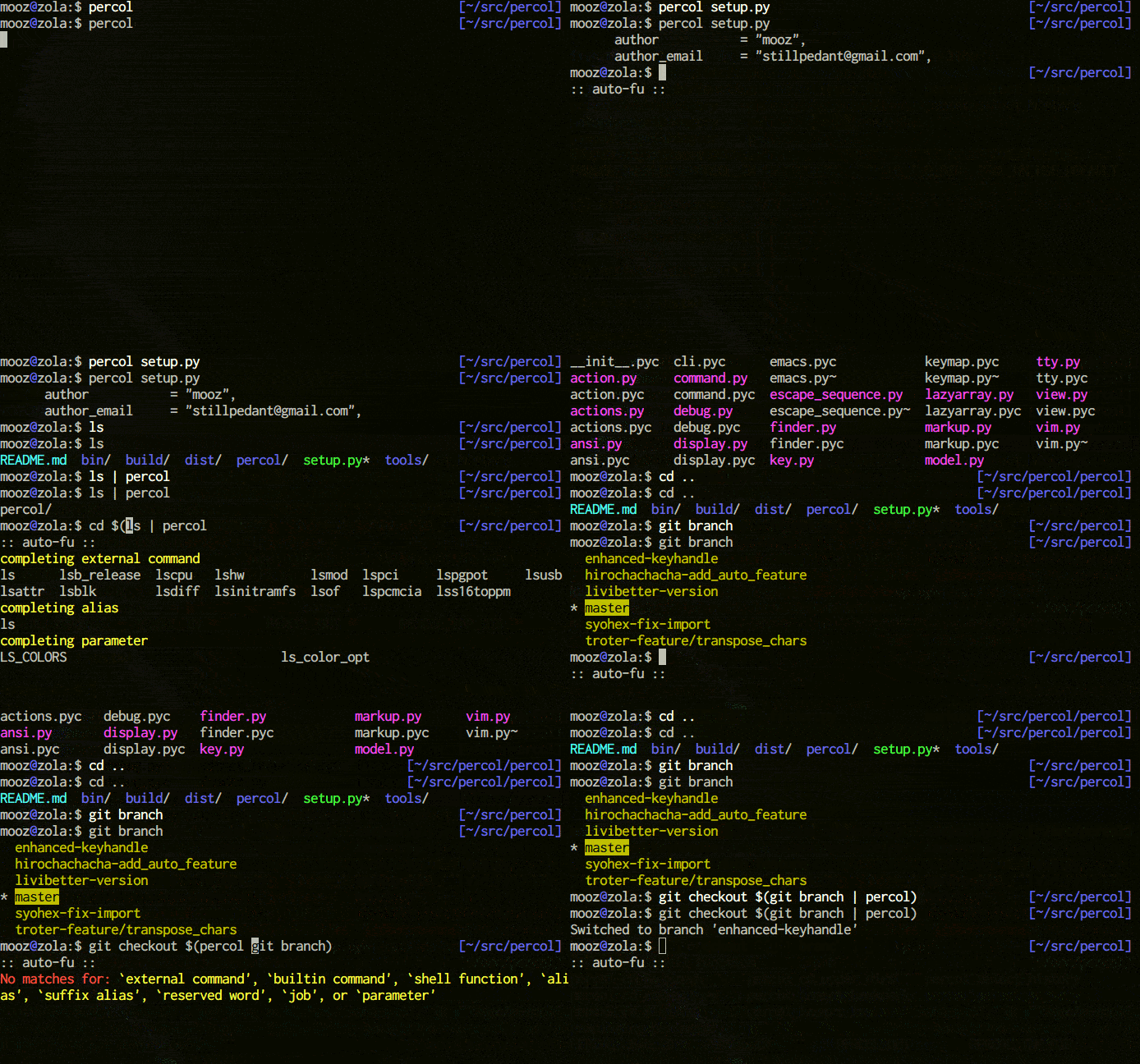
percol is an **interactive grep tool** in your terminal. percol
1. receives input lines from `stdin` or a file,
2. lists up the input lines,
3. waits for your input that filter/select the line(s),
4. and finally outputs the selected line(s) to `stdout`.
Since percol just filters the input and output the result to stdout,
it can be used in command-chains with `|` in your shell (**UNIX philosophy!**).
### Features
- **Efficient**: With **lazy loads** of input lines and **query caching**, percol handles huge inputs efficiently.
- **Customizable**: Through configuration file (`rc.py`), percol's behavior including prompts, keymaps, and color schemes can be **heavily customizable**.
- See [configuration](https://github.com/mooz/percol#configuration) for details.
- **Migemo support**: By supporting [C/Migemo](http://code.google.com/p/cmigemo/), **percol filters Japanese inputs blazingly fast**.
- See [matching method](https://github.com/mooz/percol#matching-method) for details.
### Related projects
- [canything by @keiji0](https://github.com/keiji0/canything)
- A seminal work in interactive grep tools.
- [zaw by @nakamuray](https://github.com/zsh-users/zaw)
- A zsh-friendly interactive grep tool.
- [peco by @lestrrat](https://github.com/lestrrat/peco)
- An interactive grep tool written in Go language.
- [fzf by @junegunn](https://github.com/junegunn/fzf)
- An interactive grep tool written in Go language.
## Installation
percol currently supports only Python 2.x.
### PyPI
$ sudo pip install percol
### Manual
First, clone percol repository and go into the directory.
$ git clone git://github.com/mooz/percol.git
$ cd percol
Then, run a command below.
$ sudo python setup.py install
If you don't have a root permission (or don't wanna install percol with sudo), try next one.
$ python setup.py install --prefix=~/.local
$ export PATH=~/.local/bin:$PATH
## Usage
Specifying a filename.
$ percol /var/log/syslog
Specifying a redirection.
$ ps aux | percol
## Example
### Interactive pgrep / pkill
Here is an interactive version of pgrep,
$ ps aux | percol | awk '{ print $2 }'
and here is an interactive version of pkill.
$ ps aux | percol | awk '{ print $2 }' | xargs kill
For zsh users, command versions are here (`ppkill` accepts options like `-9`).
```sh
function ppgrep() {
if [[ $1 == "" ]]; then
PERCOL=percol
else
PERCOL="percol --query $1"
fi
ps aux | eval $PERCOL | awk '{ print $2 }'
}
function ppkill() {
if [[ $1 =~ "^-" ]]; then
QUERY="" # options only
else
QUERY=$1 # with a query
[[ $# > 0 ]] && shift
fi
ppgrep $QUERY | xargs kill $*
}
```
### zsh history search
In your `.zshrc`, put the lines below.
```sh
function exists { which $1 &> /dev/null }
if exists percol; then
function percol_select_history() {
local tac
exists gtac && tac="gtac" || { exists tac && tac="tac" || { tac="tail -r" } }
BUFFER=$(fc -l -n 1 | eval $tac | percol --query "$LBUFFER")
CURSOR=$#BUFFER # move cursor
zle -R -c # refresh
}
zle -N percol_select_history
bindkey '^R' percol_select_history
fi
```
Then, you can display and search your zsh histories incrementally by pressing `Ctrl + r` key.
### tmux
Here are some examples of tmux and percol integration.
bind b split-window "tmux lsw | percol --initial-index $(tmux lsw | awk '/active.$/ {print NR-1}') | cut -d':' -f 1 | tr -d '\n' | xargs -0 tmux select-window -t"
bind B split-window "tmux ls | percol --initial-index $(tmux ls | awk \"/^$(tmux display-message -p '#{session_name}'):/ {print NR-1}\") | cut -d':' -f 1 | tr -d '\n' | xargs -0 tmux switch-client -t"
By putting above 2 settings into `tmux.conf`, you can select a tmux window with `${TMUX_PREFIX} b` keys and session with `${TMUX_PREFIX} B` keys.
Attaching to running tmux sessions can also be made easier with percol with this function(tested to work in bash and zsh)
```sh
function pattach() {
if [[ $1 == "" ]]; then
PERCOL=percol
else
PERCOL="percol --query $1"
fi
sessions=$(tmux ls)
[ $? -ne 0 ] && return
session=$(echo $sessions | eval $PERCOL | cut -d : -f 1)
if [[ -n "$session" ]]; then
tmux att -t $session
fi
}
```
## Configuration
Configuration file for percol should be placed under `${HOME}/.percol.d/` and named `rc.py`.
Here is an example `~/.percol.d/rc.py`.
```python
# X / _ / X
percol.view.PROMPT = ur"X / _ / X %q"
# Emacs like
percol.import_keymap({
"C-h" : lambda percol: percol.command.delete_backward_char(),
"C-d" : lambda percol: percol.command.delete_forward_char(),
"C-k" : lambda percol: percol.command.kill_end_of_line(),
"C-y" : lambda percol: percol.command.yank(),
"C-t" : lambda percol: percol.command.transpose_chars(),
"C-a" : lambda percol: percol.command.beginning_of_line(),
"C-e" : lambda percol: percol.command.end_of_line(),
"C-b" : lambda percol: percol.command.backward_char(),
"C-f" : lambda percol: percol.command.forward_char(),
"M-f" : lambda percol: percol.command.forward_word(),
"M-b" : lambda percol: percol.command.backward_word(),
"M-d" : lambda percol: percol.command.delete_forward_word(),
"M-h" : lambda percol: percol.command.delete_backward_word(),
"C-n" : lambda percol: percol.command.select_next(),
"C-p" : lambda percol: percol.command.select_previous(),
"C-v" : lambda percol: percol.command.select_next_page(),
"M-v" : lambda percol: percol.command.select_previous_page(),
"M-<" : lambda percol: percol.command.select_top(),
"M->" : lambda percol: percol.command.select_bottom(),
"C-m" : lambda percol: percol.finish(),
"C-j" : lambda percol: percol.finish(),
"C-g" : lambda percol: percol.cancel(),
})
```
### Customizing prompt
In percol, a prompt consists of two part: _PROMPT_ and _RPROMPT_, like zsh. As the following example shows, each part appearance can be customized by specifying a prompt format into `percol.view.PROMPT` and `percol.view.RPROMPT` respectively.
```python
percol.view.PROMPT = ur"Input: %q"
percol.view.RPROMPT = ur"(%F) [%i/%I]"
```
In prompt formats, a character preceded by `%` indicates a _prompt format specifier_ and is expanded into a corresponding system value.
- `%%`
- Display `%` itself
- `%q`
- Display query and caret
- `%Q`
- Display query without caret
- `%n`
- Page number
- `%N`
- Total page number
- `%i`
- Current line number
- `%I`
- Total line number
- `%c`
- Caret position
- `%k`
- Last input key
#### Dynamic prompt
By changing percol.view.PROMPT into a getter, percol prompts becomes more fancy.
```python
# Change prompt in response to the status of case sensitivity
percol.view.__class__.PROMPT = property(
lambda self:
ur"QUERY [a]: %q" if percol.model.finder.case_insensitive
else ur"QUERY [A]: %q"
)
```
#### Custom format specifiers
```python
# Display finder name in RPROMPT
percol.view.prompt_replacees["F"] = lambda self, **args: self.model.finder.get_name()
percol.view.RPROMPT = ur"(%F) [%i/%I]"
```
### Customizing styles
For now, styles of following 4 items can be customized in `rc.py`.
```python
percol.view.CANDIDATES_LINE_BASIC = ("on_default", "default")
percol.view.CANDIDATES_LINE_SELECTED = ("underline", "on_yellow", "white")
percol.view.CANDIDATES_LINE_MARKED = ("bold", "on_cyan", "black")
percol.view.CANDIDATES_LINE_QUERY = ("yellow", "bold")
```
Each RHS is a tuple of style specifiers listed below.
#### Foreground Colors
- `"black"` for `curses.COLOR_BLACK`
- `"red"` for `curses.COLOR_RED`
- `"green"` for `curses.COLOR_GREEN`
- `"yellow"` for `curses.COLOR_YELLOW`
- `"blue"` for `curses.COLOR_BLUE`
- `"magenta"` for `curses.COLOR_MAGENTA`
- `"cyan"` for `curses.COLOR_CYAN`
- `"white"` for `curses.COLOR_WHITE`
#### Background Color
- `"on_black"` for `curses.COLOR_BLACK`
- `"on_red"` for `curses.COLOR_RED`
- `"on_green"` for `curses.COLOR_GREEN`
- `"on_yellow"` for `curses.COLOR_YELLOW`
- `"on_blue"` for `curses.COLOR_BLUE`
- `"on_magenta"` for `curses.COLOR_MAGENTA`
- `"on_cyan"` for `curses.COLOR_CYAN`
- `"on_white"` for `curses.COLOR_WHITE`
#### Attributes
- `"altcharset"` for `curses.A_ALTCHARSET`
- `"blink"` for `curses.A_BLINK`
- `"bold"` for `curses.A_BOLD`
- `"dim"` for `curses.A_DIM`
- `"normal"` for `curses.A_NORMAL`
- `"standout"` for `curses.A_STANDOUT`
- `"underline"` for `curses.A_UNDERLINE`
- `"reverse"` for `curses.A_REVERSE`
## Matching Method
By default, percol interprets input queries by users as **string**. If you prefer **regular expression**, try `--match-method` command line option.
$ percol --match-method regex
### Migemo support
percol supports **migemo** (http://0xcc.net/migemo/) matching, which allows us to search Japanese documents with ASCII characters.
$ percol --match-method migemo
To use this feature, you need to install C/Migemo (https://github.com/koron/cmigemo). In Ubuntu, it's simple:
$ sudo apt-get install cmigemo
After that, by specifying a command line argument `--match-method migemo`, you can use migemo in percol.
NOTE: This feature uses `python-cmigemo` package (https://github.com/mooz/python-cmigemo). Doing `pip install percol` also installs this package too.
#### Dictionary settings
By default, percol assumes the path of a dictionary for migemo is `/usr/local/share/migemo/utf-8/migemo-dict`. If the dictionary is located in a different place, you should tell the location via `rc.py`.
For example, if the path of the dictionary is `/path/to/a/migemo-dict`, put lines below into your `rc.py`.
```python
from percol.finder import FinderMultiQueryMigemo
FinderMultiQueryMigemo.dictionary_path = "/path/to/a/migemo-dict"
```
#### Minimum query length
If the query length is **too short**, migemo generates **very long** regular expression. To deal with this problem, percol does not pass a query if the length of the query is shorter than **2** and treat the query as raw regular expression.
To change this behavior, change the value of `FinderMultiQueryMigemo.minimum_query_length` like following settings.
```python
from percol.finder import FinderMultiQueryMigemo
FinderMultiQueryMigemo.minimum_query_length = 1
```
### Pinyin support
Now percol supports **pinyin** (http://en.wikipedia.org/wiki/Pinyin) for matching Chinese characters.
$ percol --match-method pinyin
In this matching method, first char of each Chinese character's pinyin sequence is used for matching.
For example, 'zw' matches '中文' (ZhongWen), '中午'(ZhongWu), '作为' (ZuoWei) etc.
Extra package pinin(https://pypi.python.org/pypi/pinyin/0.2.5) needed.
### Switching matching method dynamically
Matching method can be switched dynamically (at run time) by executing `percol.command.specify_finder(FinderClass)` or `percol.command.toggle_finder(FinderClass)`. In addition, `percol.command.specify_case_sensitive(case_sensitive)` and `percol.command.toggle_case_sensitive()` change the matching status of case sensitivity.
```python
from percol.finder import FinderMultiQueryMigemo, FinderMultiQueryRegex
percol.import_keymap({
"M-c" : lambda percol: percol.command.toggle_case_sensitive(),
"M-m" : lambda percol: percol.command.toggle_finder(FinderMultiQueryMigemo),
"M-r" : lambda percol: percol.command.toggle_finder(FinderMultiQueryRegex)
})
```
## Tips
### Selecting multiple candidates
You can select and let percol to output multiple candidates by `percol.command.toggle_mark_and_next()` (which is bound to `C-SPC` by default).
`percol.command.mark_all()`, `percol.command.unmark_all()` and `percol.command.toggle_mark_all()` are useful to mark / unmark all candidates at once.
## Z Shell support
A zsh completing-function for percol is available in https://github.com/mooz/percol/blob/master/tools/zsh/_percol .