# uLipSync
**Repository Path**: tianrenheyibobo/uLipSync
## Basic Information
- **Project Name**: uLipSync
- **Description**: uLipSync是执行实时口型同步的Unity资产。
使用Job和Burst编译器进行快速计算
没有本机插件/没有依赖项(仅官方包)
- **Primary Language**: Unknown
- **License**: Not specified
- **Default Branch**: main
- **Homepage**: None
- **GVP Project**: No
## Statistics
- **Stars**: 1
- **Forks**: 0
- **Created**: 2021-04-09
- **Last Updated**: 2024-11-22
## Categories & Tags
**Categories**: Uncategorized
**Tags**: None
## README
uLipSync
========
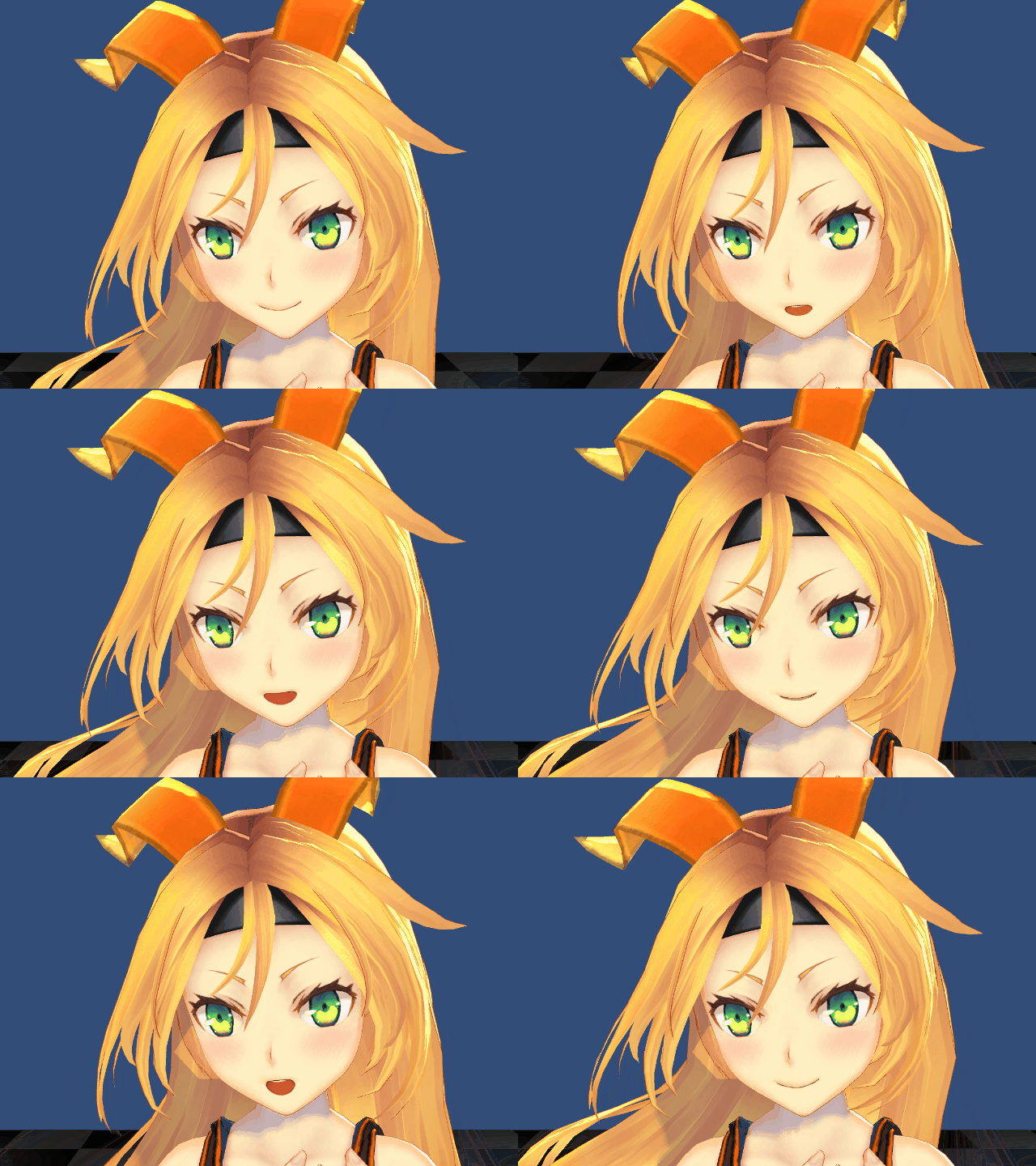
**uLipSync** is an Unity asset to do a realtime lipsync.
- Fast calculation using Job and Burst compiler
- No native plugin / No dependency (only official packages)
Demo
----
 Environment
-----------
- I've created this asset using Unity 2020.1.17f1 on Windows 10 (not tested with other versions and operation systems yet)
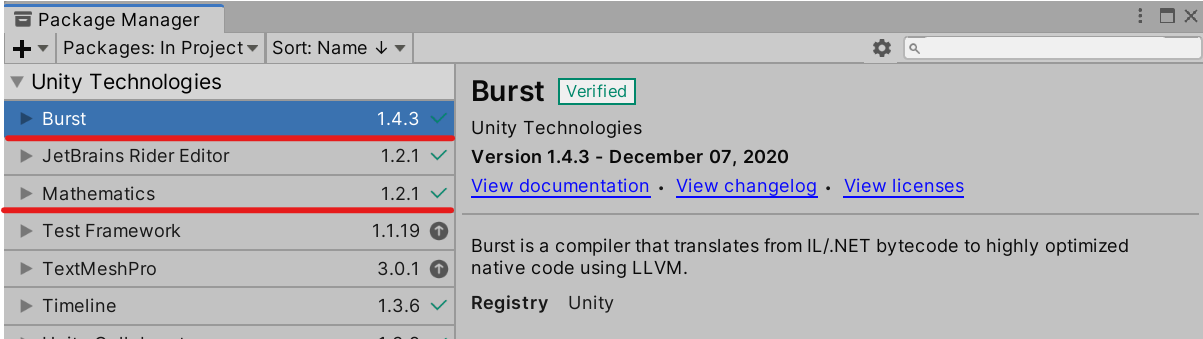
- **Burst** and **Mathematics** should be installed in the Package Manager
Environment
-----------
- I've created this asset using Unity 2020.1.17f1 on Windows 10 (not tested with other versions and operation systems yet)
- **Burst** and **Mathematics** should be installed in the Package Manager
 Get started
-----------
1. Download the latest package from the [Releases](https://github.com/hecomi/uLipSync/releases) page and add it to your project.
2. Attach `uLipSync` component to the GameObject that has `AudioSource` and plays voice sounds.
Get started
-----------
1. Download the latest package from the [Releases](https://github.com/hecomi/uLipSync/releases) page and add it to your project.
2. Attach `uLipSync` component to the GameObject that has `AudioSource` and plays voice sounds.
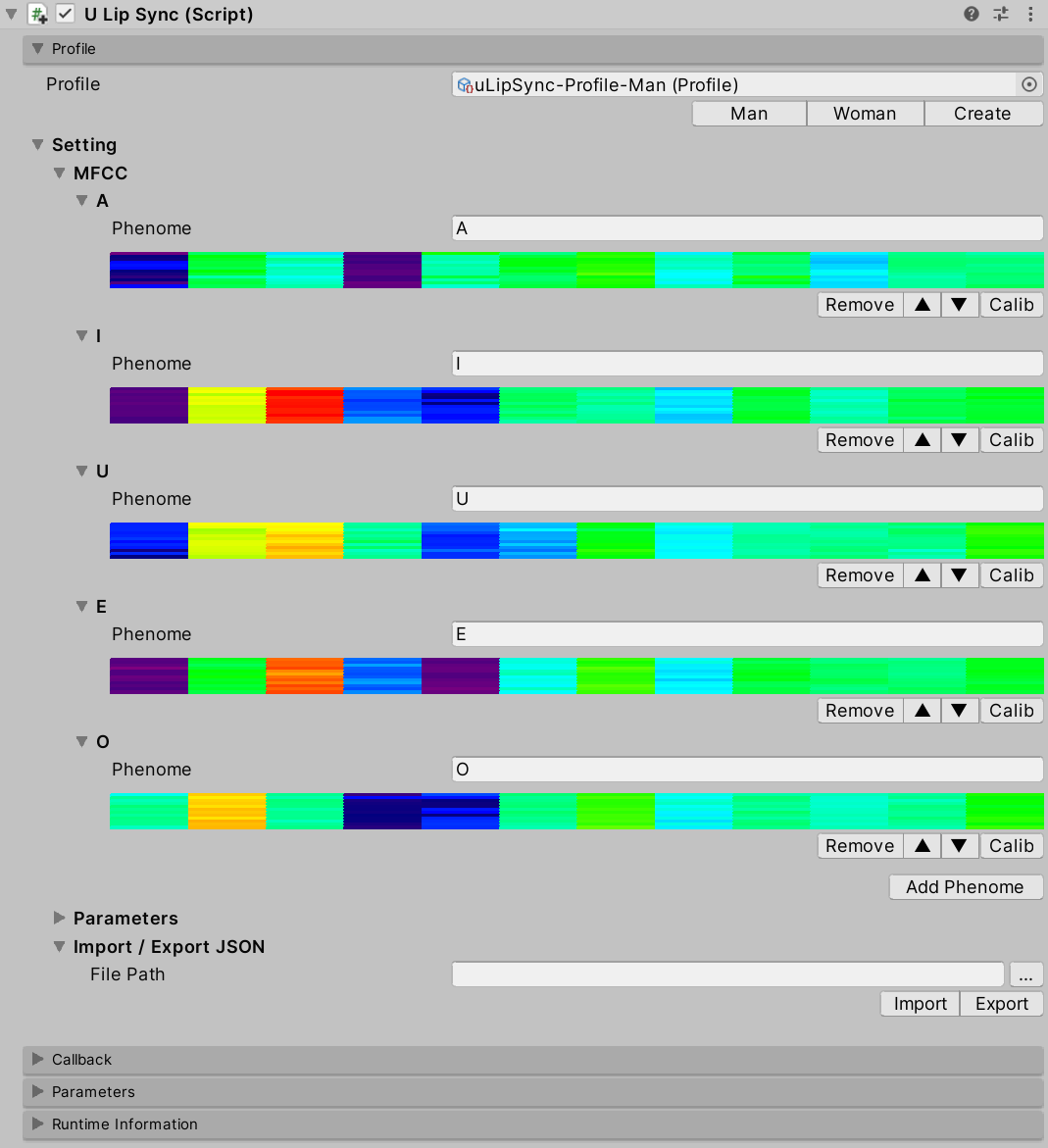
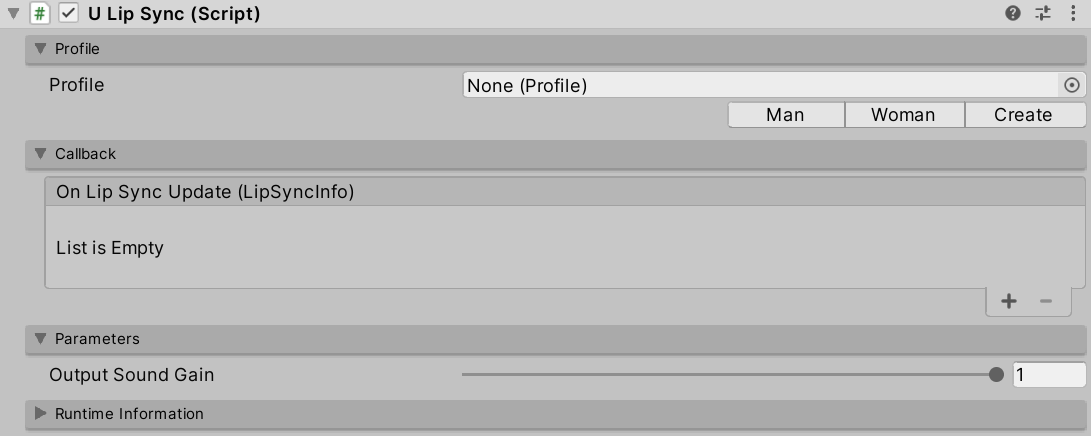 3. Select the Profile (how to create and calibrate a Profile is described later).
 4. Attach `uLipSyncBlendshape` component to the GameObject of your character and select target `SkinnedMeshRenderer`.
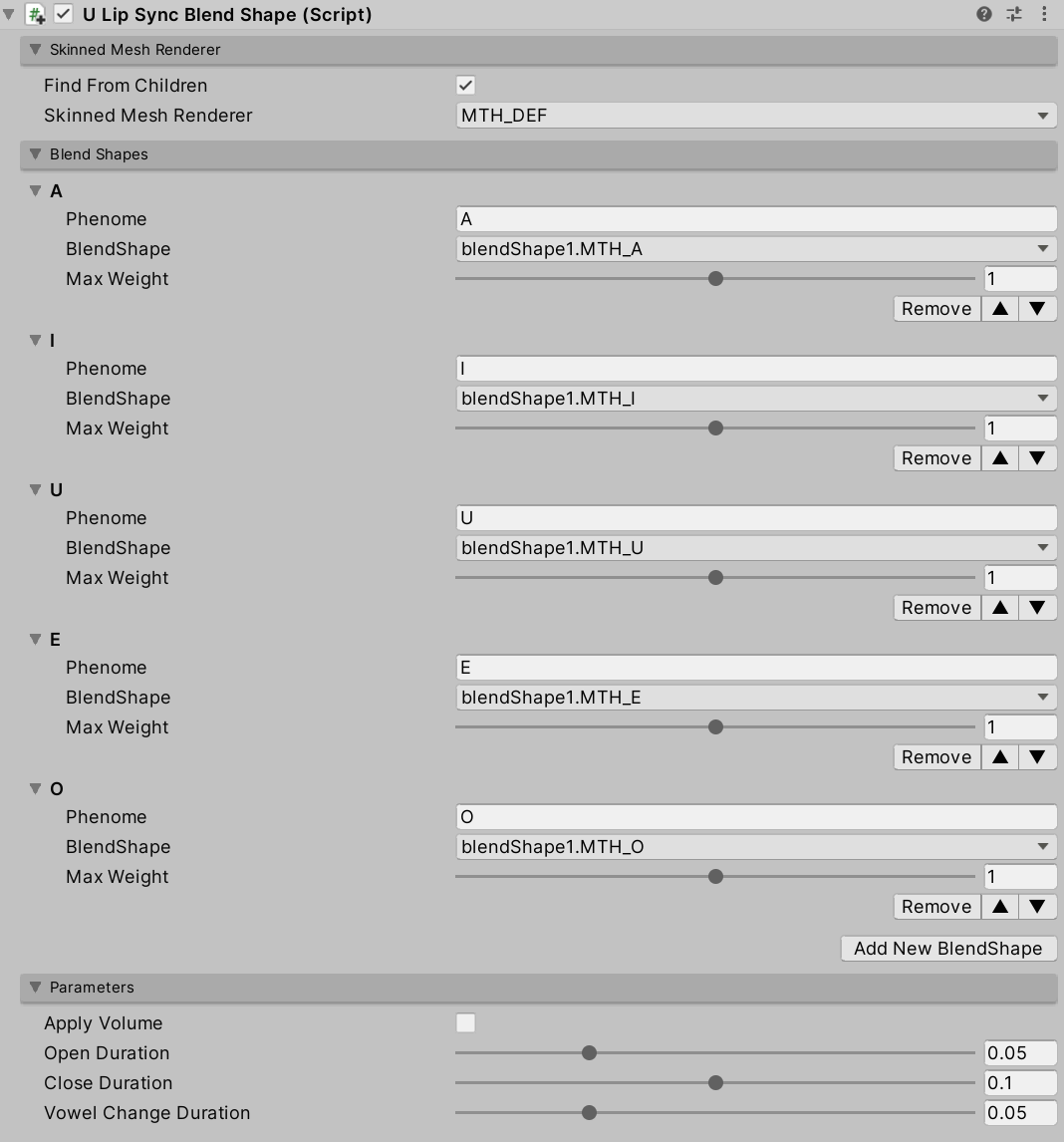
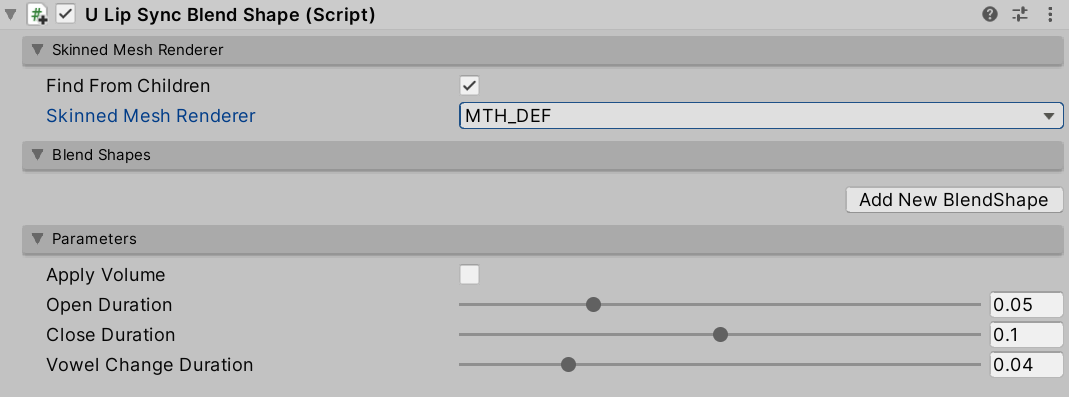 5. Click on the "Add New BlendShape" button to link the Phoneme and BlendShape corresponding to the recognition result.
 6. Register `uLipSyncBlendshape.OnLipSyncUpdate` to `uLipSync` in Callback section.
 7. If you want to use mic input, please attach `uLipSyncMicrophone`.
 8. Play!
Copmonents
----------
### `uLipSync`
This is the core component for calculating lip-sync. `uLipSync` gets the audio buffer from `MonoBehaviour.OnAudioFilterRead()`, so it needs to be attached to the same GameObject that plays the audio in `AudioSource`. This computation is done in a background thread and is optimized by JobSystem and Burst Compiler.
### `uLipSyncBlendShape`
This component is used to control the blendshape of the `SkinndeMeshRenderer`. By registering a blendshape that corresponds to the Phoneme registered in the `uLipSync` profile, the results of speech analysis will be reflected in the shape of the mouth.
### `uLipSyncMicrophone`
Create an `AudioClip` to play the microphone input and set it to `AudioSource`. Attach this component to a GameObject that has `uLipSync`. You can start/stop recording by calling `StartRecord()` / `StopRecord()` from the script. You can also change the input source by changing the `index`. To find the input you want to use, you can use `uLipSync.MicUtil.GetDeviceList()`.
Profile
-------
8. Play!
Copmonents
----------
### `uLipSync`
This is the core component for calculating lip-sync. `uLipSync` gets the audio buffer from `MonoBehaviour.OnAudioFilterRead()`, so it needs to be attached to the same GameObject that plays the audio in `AudioSource`. This computation is done in a background thread and is optimized by JobSystem and Burst Compiler.
### `uLipSyncBlendShape`
This component is used to control the blendshape of the `SkinndeMeshRenderer`. By registering a blendshape that corresponds to the Phoneme registered in the `uLipSync` profile, the results of speech analysis will be reflected in the shape of the mouth.
### `uLipSyncMicrophone`
Create an `AudioClip` to play the microphone input and set it to `AudioSource`. Attach this component to a GameObject that has `uLipSync`. You can start/stop recording by calling `StartRecord()` / `StopRecord()` from the script. You can also change the input source by changing the `index`. To find the input you want to use, you can use `uLipSync.MicUtil.GetDeviceList()`.
Profile
-------
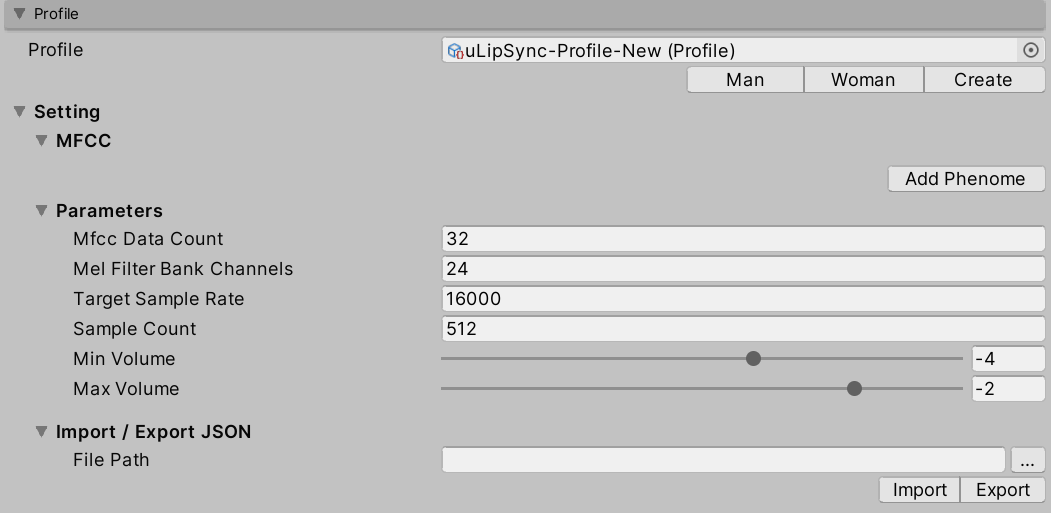
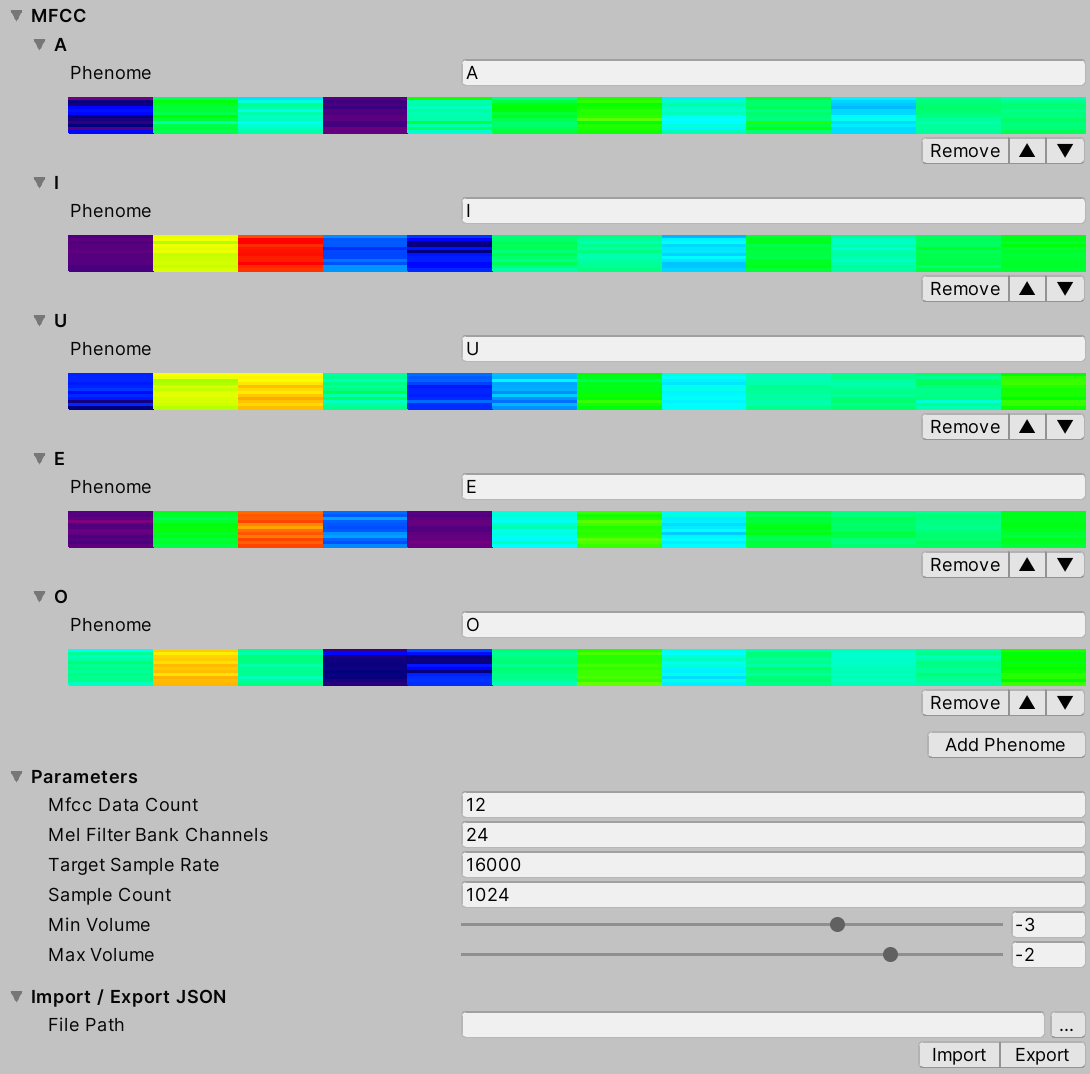 `uLipSync` extracts voice features called MFCCs from the currently playing sound in real time. This is one of the features that were used for speech recognition before the advent of deep learning. The `uLipSync` estimates which MFCCs of each phoneme the currently playing sound is close to, and issues a callback with the relevant information. The `uLipSyncBlendShape` uses the callback to smoothly move the blendshape of the `SkinnedMeshRenderer`.
An asset called `Profile` is used to register this MFCC and related calculation parameters.
- **MFCC**
- Press `Add Phoneme` to register a new phoneme. By registering the name of the phoneme (e.g. A, I, E, O, U) and the corresponding MFCC according to the calibration method described below, you can estimate the phoneme.
- **Parameters**
- **Mfcc Data Count**
- The number of MFCC data to be registered.
- **Mel Filter Bank Channels**
- The number of Mel Filter Bank channels needed in the process of calculating MFCCs.
- **Target Sample Rate**
- The frequency at which the input data is downsampled to lighten the calculation. For example, by default, 48000 Hz data is input to `OnAudioFilterRead()`, but by default it is downsampled by 1/3 to 16000 Hz.
- **Sample Count**
- The number of buffers of sound needed for MFCC calculations. The default is 1024 samples at 16000 Hz, so about 0.064 seconds (~4 frames) of data is used (the calculation itself is done every frame, overlapping).
- **Min Volume**
- This is the minimum value of the input volume (Log10 applied, 0.001 would be -3).
- **Max Volume**
- The maximum value of the input volume. The normalized volume in combination with `Min Volume` will be output as the volume for the callback (`OnLipSyncUpdate()`).
- **Import / Export JSON**
- You can output `Profile` to JSON and vice versa, or import it. See below for details.
Callback
--------
The registered callback will be issued at the time of `Update()` after the lip-sync calculation is finished. The `LipSyncInfo` structure passed as an argument looks like the following.
```cs
public struct LipSyncInfo
{
public int index;
public string phenome;
public float volume;
public float rawVolume;
public float distance;
}
```
- `index`
- Index of the recognized MFCC
- `phenome`
- Phoneme of the recognized MFCC (registered string)
- `volume`
- The volume normalized by `Min Volume` and `Max Volume`
- `rawVolume`
- Volume before normalization
- `distance`
- Error between the current input and the registered MFCC (the larger the error, the lower the confidence)
An example code is as follows:
```cs
using UnityEngine;
using uLipSync;
public class DebugPrintLipSyncInfo : MonoBehaviour
{
public void OnLipSyncUpdate(LipSyncInfo info)
{
Debug.LogFormat(
$"PHENOME: {info.phenome}, " +
$"VOL: {info.volume}, " +
$"DIST: {info.distance} ");
}
}
```
Parameters
----------
- **Output Sound Gain**
- Set it to 0 if you want lip-sync but don't want to output audio because if you set the volume of `AudioSource` to 0, the recognition itself will not be done.
Runtime Information
-------------------
`uLipSync` extracts voice features called MFCCs from the currently playing sound in real time. This is one of the features that were used for speech recognition before the advent of deep learning. The `uLipSync` estimates which MFCCs of each phoneme the currently playing sound is close to, and issues a callback with the relevant information. The `uLipSyncBlendShape` uses the callback to smoothly move the blendshape of the `SkinnedMeshRenderer`.
An asset called `Profile` is used to register this MFCC and related calculation parameters.
- **MFCC**
- Press `Add Phoneme` to register a new phoneme. By registering the name of the phoneme (e.g. A, I, E, O, U) and the corresponding MFCC according to the calibration method described below, you can estimate the phoneme.
- **Parameters**
- **Mfcc Data Count**
- The number of MFCC data to be registered.
- **Mel Filter Bank Channels**
- The number of Mel Filter Bank channels needed in the process of calculating MFCCs.
- **Target Sample Rate**
- The frequency at which the input data is downsampled to lighten the calculation. For example, by default, 48000 Hz data is input to `OnAudioFilterRead()`, but by default it is downsampled by 1/3 to 16000 Hz.
- **Sample Count**
- The number of buffers of sound needed for MFCC calculations. The default is 1024 samples at 16000 Hz, so about 0.064 seconds (~4 frames) of data is used (the calculation itself is done every frame, overlapping).
- **Min Volume**
- This is the minimum value of the input volume (Log10 applied, 0.001 would be -3).
- **Max Volume**
- The maximum value of the input volume. The normalized volume in combination with `Min Volume` will be output as the volume for the callback (`OnLipSyncUpdate()`).
- **Import / Export JSON**
- You can output `Profile` to JSON and vice versa, or import it. See below for details.
Callback
--------
The registered callback will be issued at the time of `Update()` after the lip-sync calculation is finished. The `LipSyncInfo` structure passed as an argument looks like the following.
```cs
public struct LipSyncInfo
{
public int index;
public string phenome;
public float volume;
public float rawVolume;
public float distance;
}
```
- `index`
- Index of the recognized MFCC
- `phenome`
- Phoneme of the recognized MFCC (registered string)
- `volume`
- The volume normalized by `Min Volume` and `Max Volume`
- `rawVolume`
- Volume before normalization
- `distance`
- Error between the current input and the registered MFCC (the larger the error, the lower the confidence)
An example code is as follows:
```cs
using UnityEngine;
using uLipSync;
public class DebugPrintLipSyncInfo : MonoBehaviour
{
public void OnLipSyncUpdate(LipSyncInfo info)
{
Debug.LogFormat(
$"PHENOME: {info.phenome}, " +
$"VOL: {info.volume}, " +
$"DIST: {info.distance} ");
}
}
```
Parameters
----------
- **Output Sound Gain**
- Set it to 0 if you want lip-sync but don't want to output audio because if you set the volume of `AudioSource` to 0, the recognition itself will not be done.
Runtime Information
-------------------
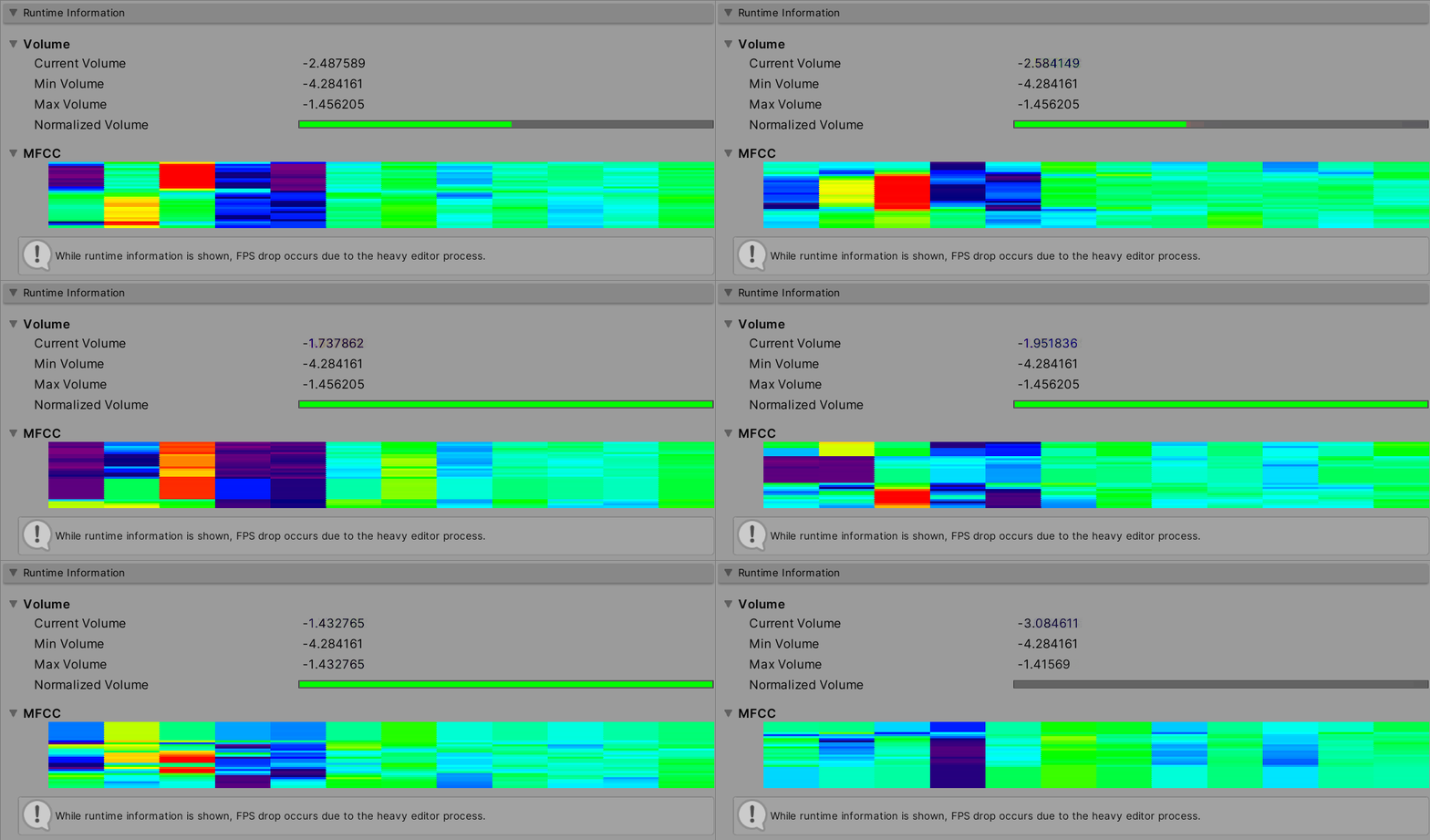 - **Volume**
- **Current Volume**
- Current raw volume
- **Min Volume**
- Minimum volume entered since startup to date.
- **Max Volume**
- Maximum volume entered since startup.
- **Normalized Volume**
- Volume normalized by the `Min Volume` and `Max Volume` registered in `Profile`.
- **MFCC**
- The MFCC for the current input, displayed in real time.
Opening this FoldOut will affect the performance of the game as it will cause the editor to draw every frame.
How to add phonemes / calibrate them
------------------------------------
### Using Microphone
First, click the Create button under Profile to create a new profile. The created profile asset will be automatically registered to the profile of `uLipSync`.
- **Volume**
- **Current Volume**
- Current raw volume
- **Min Volume**
- Minimum volume entered since startup to date.
- **Max Volume**
- Maximum volume entered since startup.
- **Normalized Volume**
- Volume normalized by the `Min Volume` and `Max Volume` registered in `Profile`.
- **MFCC**
- The MFCC for the current input, displayed in real time.
Opening this FoldOut will affect the performance of the game as it will cause the editor to draw every frame.
How to add phonemes / calibrate them
------------------------------------
### Using Microphone
First, click the Create button under Profile to create a new profile. The created profile asset will be automatically registered to the profile of `uLipSync`.
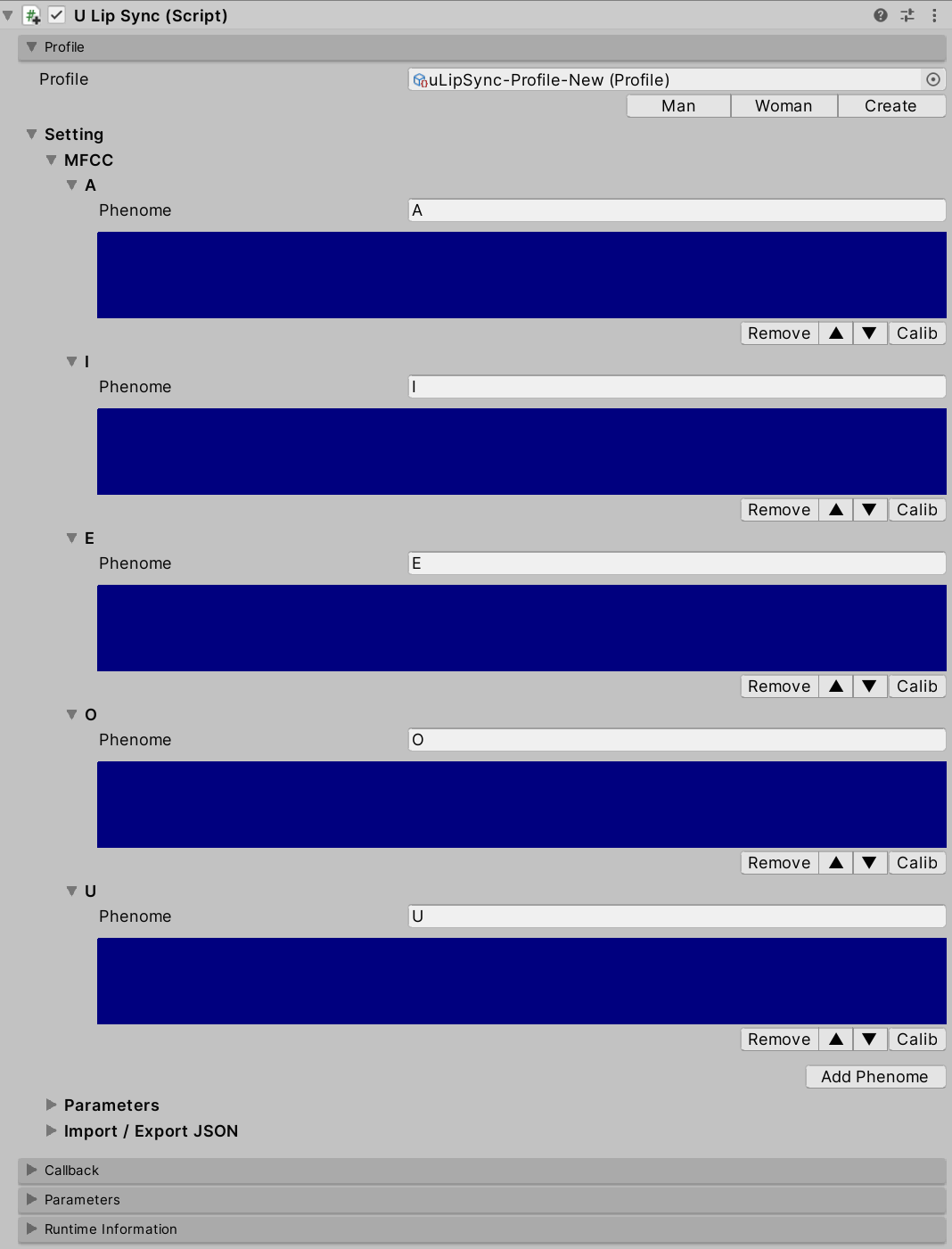
 Next, click the Add Phenome button to add a phoneme, such as A, I, E, O, U.
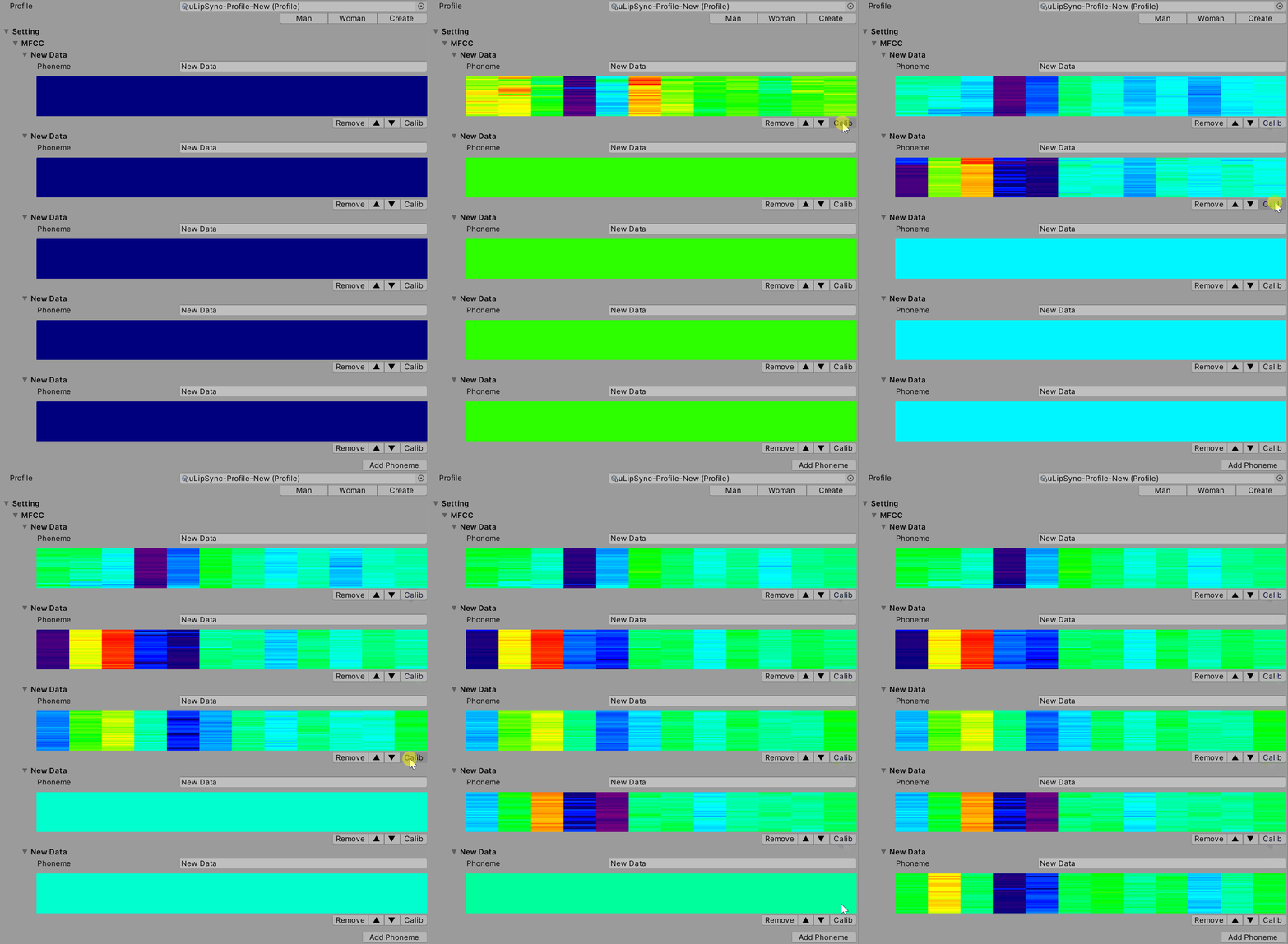
 Then start the game, and hold down the Calib button in A when it is talking "aaaaaaa". Likewise, continue to speak "iiiiiii" and press and hold the Calib button in I. Calibrate all the phonemes like this to register the MFCCs.
 ### Using AudioClip
Please prepare an AudioClip that is compatible with each Phoneme. While one of them is playing, press the corresponding Calib button as described above to reflect the result of the sound analysis into the profile.
### Script
You can also send calibration requests from scripts by calling the `uLipSync.RequestCalibration(int index)`. The sample `CalibrationByKeyboardInput.cs` shows how to calibrate with numeric keys like this:
```cs
lipSync = GetComponent();
for (int i = 0; i < lipSync.profile.mfccs.Count; ++i)
{
var key = (KeyCode)((int)(KeyCode.Alpha1) + i);
if (Input.GetKey(key)) lipSync.RequestCalibration(i);
}
```
Import / Export Json
--------------------
Since Profile is a ScriptableObject, changes are not saved in a build. Instead, it is possible to export and import the profile in Json format. From the script, do the following:
```cs
var lipSync = GetComponent();
var profile = lipSync.profile;
// Export
profile.Export(path);
// Import
profile.Import(path);
```
UnityChan
---------
Examples include Unity-chan assets (Release packages don't include them).
© Unity Technologies Japan/UCL
License
-------
The MIT License (MIT)
Copyright (c) 2021 hecomi
Permission is hereby granted, free of charge, to any person obtaining a copy of
this software and associated documentation files (the "Software"), to deal in
the Software without restriction, including without limitation the rights to
use, copy, modify, merge, publish, distribute, sublicense, and/or sell copies of
the Software, and to permit persons to whom the Software is furnished to do so,
subject to the following conditions:
The above copyright notice and this permission notice shall be included in all
copies or substantial portions of the Software.
THE SOFTWARE IS PROVIDED "AS IS", WITHOUT WARRANTY OF ANY KIND, EXPRESS OR
IMPLIED, INCLUDING BUT NOT LIMITED TO THE WARRANTIES OF MERCHANTABILITY, FITNESS
FOR A PARTICULAR PURPOSE AND NONINFRINGEMENT. IN NO EVENT SHALL THE AUTHORS OR
COPYRIGHT HOLDERS BE LIABLE FOR ANY CLAIM, DAMAGES OR OTHER LIABILITY, WHETHER
IN AN ACTION OF CONTRACT, TORT OR OTHERWISE, ARISING FROM, OUT OF OR IN
CONNECTION WITH THE SOFTWARE OR THE USE OR OTHER DEALINGS IN THE SOFTWARE.
### Using AudioClip
Please prepare an AudioClip that is compatible with each Phoneme. While one of them is playing, press the corresponding Calib button as described above to reflect the result of the sound analysis into the profile.
### Script
You can also send calibration requests from scripts by calling the `uLipSync.RequestCalibration(int index)`. The sample `CalibrationByKeyboardInput.cs` shows how to calibrate with numeric keys like this:
```cs
lipSync = GetComponent();
for (int i = 0; i < lipSync.profile.mfccs.Count; ++i)
{
var key = (KeyCode)((int)(KeyCode.Alpha1) + i);
if (Input.GetKey(key)) lipSync.RequestCalibration(i);
}
```
Import / Export Json
--------------------
Since Profile is a ScriptableObject, changes are not saved in a build. Instead, it is possible to export and import the profile in Json format. From the script, do the following:
```cs
var lipSync = GetComponent();
var profile = lipSync.profile;
// Export
profile.Export(path);
// Import
profile.Import(path);
```
UnityChan
---------
Examples include Unity-chan assets (Release packages don't include them).
© Unity Technologies Japan/UCL
License
-------
The MIT License (MIT)
Copyright (c) 2021 hecomi
Permission is hereby granted, free of charge, to any person obtaining a copy of
this software and associated documentation files (the "Software"), to deal in
the Software without restriction, including without limitation the rights to
use, copy, modify, merge, publish, distribute, sublicense, and/or sell copies of
the Software, and to permit persons to whom the Software is furnished to do so,
subject to the following conditions:
The above copyright notice and this permission notice shall be included in all
copies or substantial portions of the Software.
THE SOFTWARE IS PROVIDED "AS IS", WITHOUT WARRANTY OF ANY KIND, EXPRESS OR
IMPLIED, INCLUDING BUT NOT LIMITED TO THE WARRANTIES OF MERCHANTABILITY, FITNESS
FOR A PARTICULAR PURPOSE AND NONINFRINGEMENT. IN NO EVENT SHALL THE AUTHORS OR
COPYRIGHT HOLDERS BE LIABLE FOR ANY CLAIM, DAMAGES OR OTHER LIABILITY, WHETHER
IN AN ACTION OF CONTRACT, TORT OR OTHERWISE, ARISING FROM, OUT OF OR IN
CONNECTION WITH THE SOFTWARE OR THE USE OR OTHER DEALINGS IN THE SOFTWARE.