# Poly-Editor 类PPT拖拽排版编辑器
**Repository Path**: wu_fan_xin/polyeditor
## Basic Information
- **Project Name**: Poly-Editor 类PPT拖拽排版编辑器
- **Description**: Poly Editor是一个类ppt式操作,可拖拽,多组件,多页面的web端编辑器。支持结构化数据和二次拓展。
从聚汇排版翻译大师 PolyPrint Studio 中衍生的开源项目。我们将核心的可视化编辑功能开源,希望为社区提供一个强大、易用的编辑器基础框架。
PolyPrint Studio 试用地址: http://demo.jhu-ai.com/
欢迎大家试用产品,并支持开源项目的发展!
- **Primary Language**: TypeScript
- **License**: MIT
- **Default Branch**: main
- **Homepage**: http://demo.jhu-ai.com/
- **GVP Project**: No
## Statistics
- **Stars**: 11
- **Forks**: 3
- **Created**: 2026-02-27
- **Last Updated**: 2026-04-14
## Categories & Tags
**Categories**: doc-tools
**Tags**: 可视化编辑器, 拖拽编辑器, PPT编辑器, Web编辑器, 排版编辑
## README
# Poly Editor
[English](./README.en.md) | 简体中文
一个现代化的开源可视化编辑器,基于 Vue 3 + TypeScript 构建
[](LICENSE)
[](https://vuejs.org/)
[](https://www.typescriptlang.org/)
[在线演示](http://demo.jhu-ai.com/) | [快速开始](#-快速开始) | [文档](#-使用说明) | [贡献指南](CONTRIBUTING.md)
**GitHub**: [https://github.com/garlicwu/polyeditor](https://github.com/garlicwu/polyeditor)
**Gitee**: [https://gitee.com/wu_fan_xin/polyeditor](https://gitee.com/wu_fan_xin/polyeditor)
---
## 📖 项目介绍
Poly Editor 是从 **聚汇排版翻译大师 PolyPrint Studio** 中衍生的开源项目。我们将核心的可视化编辑功能开源,希望为社区提供一个强大、易用的编辑器基础框架。
### 功能概述
Poly Editor 是一个功能完整的可视化编辑器,提供类似 PowerPoint 的编辑体验,但更加灵活和可定制。主要功能包括:
- **多页面文档编辑**:支持创建、管理多个页面,每个页面可以独立设置尺寸和样式
- **丰富的组件类型**:文本、图片、图标、形状、表格、SVG 等多种组件,满足各种排版需求
- **专业的文本编辑**:基于 Quill 2.0 的富文本编辑器,支持字体、颜色、对齐、列表等完整的文本格式
- **精确的布局控制**:标尺、网格、吸附对齐、参考线等专业排版工具
- **强大的表格功能**:集成 ag-grid,支持复杂的表格编辑和数据展示
- **完整的编辑操作**:拖拽、缩放、旋转、翻转、图层管理、组合、撤销重做等
- **PDF 导入功能**:支持导入 PDF 文件并自动识别文本内容(基于智谱 AI OCR)
- **本地化存储**:所有数据保存在浏览器本地,无需后端服务器,保护数据隐私
- **数据导出**:支持导出为 JSON、标准 PDF 与印刷 PDF 文档
适用场景:文档排版、海报设计、报告制作、演示文稿、证书生成、表单设计等。
### 完整版产品
**PolyPrint Studio 试用地址**: [http://demo.jhu-ai.com/](http://demo.jhu-ai.com/)
完整版产品在开源版本基础上增加了:
- 多语言翻译功能
- 云端存储和协作
- 更多专业模板
- 高级排版功能
欢迎大家试用完整版产品,并支持开源项目的发展!
## 🎉 最新更新
### 2026-03-31 印刷 PDF 导出
**新功能**
- ✨ **印刷 PDF 导出**: 新增顶部工具栏 `印刷PDF` 按钮
- 支持 `启用 CMYK`、`嵌入 ICC`、`文字转曲` 3 个导出开关
- 导出时按图层写入 PDF:背景一层、其他图形一层、每张图片单独一层、每段文本单独一层
- 普通文本优先保证浏览器视觉一致性,开启“文字转曲”时会尝试真转曲
- 当字体不可下载、缺字或文本结构不受支持时,会自动回退为图像层,不中断导出
**使用方法**
1. 点击顶部工具栏 `印刷PDF`
2. 按需勾选 `启用 CMYK`、`嵌入 ICC`、`文字转曲`
3. 点击 `导出印刷PDF`
4. 等待导出完成并下载文件
**技术说明**
- 默认使用 `renderScale=2`
- 背景层和其他图形层主要使用 `html2canvas`
- 无旋转、无斜切的文本优先使用 `dom-to-image`,以减少导出排版偏差
- 文字转曲基于 `pdf-lib + @pdf-lib/fontkit`
- 默认 ICC Profile 为 `Coated FOGRA39`
### v1.1.0 (2026-03-02)
**新功能**
- ✨ **PDF 导入功能**: 支持导入 PDF 文件并自动识别文本内容
- 集成智谱 AI OCR API 进行文档解析
- 自动提取文本块的位置和内容
- 支持多页 PDF 文档导入
- 可配置默认字体和字号
- 导入的页面自动插入到当前页面后面
**使用方法**
1. 点击顶部工具栏"导入 PDF"按钮
2. 输入智谱 AI API Key(首次使用需要)
3. 选择 PDF 文件(支持 ≤50MB,最多 100 页)
4. 等待 OCR 识别完成
5. 调整导入配置(可选)
6. 点击"导入"按钮
**技术说明**
- 使用智谱 AI glm-ocr 模型进行文档解析
- 支持的文件格式:PDF
- 文件大小限制:≤50MB
- 页数限制:最多 100 页
- API 文档:[智谱 AI OCR 服务](https://docs.bigmodel.cn/api-reference/%E5%B7%A5%E5%85%B7-api/ocr-%E6%9C%8D%E5%8A%A1)
### 联系我们
- **邮箱**: 124005421@qq.com
- **微信**: melevenalk
如有任何问题、建议或合作意向,欢迎随时联系!
---
## ✨ 特性
### 核心功能
- 🎨 **可视化编辑** - 所见即所得的拖拽式编辑体验
- 📝 **富文本编辑** - 基于 Quill 2.0 的专业文本编辑器,支持多种格式
- 🖼️ **多媒体支持** - 图片、图标、形状、SVG 等多种组件类型
- 📊 **表格编辑** - 集成 ag-grid 35.0 的强大表格功能
- 📄 **多页面管理** - 支持创建、删除、排序多个页面
- 🎯 **精确定位** - 标尺、网格线、吸附对齐等辅助工具
### 编辑能力
- ↔️ **自由变换** - 拖拽移动、缩放、旋转、翻转
- 📐 **智能对齐** - 自动吸附、对齐线、分布排列
- 🔄 **撤销重做** - 完整的操作历史记录
- 📋 **剪贴板** - 复制、粘贴、剪切、删除
- 🎭 **图层管理** - 置顶、置底、上移、下移
- 🔗 **组合操作** - 组合、取消组合、批量选择
### 数据管理
- 💾 **本地存储** - 数据保存在浏览器 localStorage,无需后端
- 📤 **JSON 导出** - 导出完整的编辑数据为 JSON 格式
- 📥 **数据导入** - 支持导入之前导出的 JSON 数据
- 📄 **PDF 导入** - 导入 PDF 文件并自动识别文本内容(智谱 AI OCR)
- 📑 **PDF 导出** - 支持标准 PDF 与印刷 PDF 导出,包含 RGB/CMYK、ICC 和文字转曲回退能力
## 🚀 快速开始
### 环境要求
- Node.js 22.14.0 或更高版本(推荐使用 Volta 管理)
- pnpm 10.30.2 或更高版本
### 安装
```bash
# 克隆项目(GitHub)
git clone https://github.com/garlicwu/polyeditor.git
# 或者从 Gitee 克隆
# git clone https://gitee.com/wu_fan_xin/polyeditor.git
# 进入项目目录
cd polyeditor
# 安装依赖
pnpm install
```
### 开发
```bash
# 启动开发服务器
pnpm dev
# 访问 http://localhost:8081
```
### 构建
```bash
# 构建生产版本
pnpm build
# 预览生产构建
pnpm preview
# 类型检查
npx vue-tsc --noEmit
```
### 字体与印刷 PDF 配置
Poly Editor 当前的字体配置分成 4 层。理解这 4 层之间的关系后,再配置字体或排查“为什么没有真转曲”会容易很多。
#### 1. 字体下拉框来源
文件:
- `public/poly/config/font-server-list.csv`
作用:
- 控制编辑器字体下拉框里显示哪些字体名称
- 这里只决定“用户能不能选到这个字体”
- 这里的字体可以是系统字体名称,也可以是远程字体名称
注意:
- 出现在这里,并不代表这个字体一定有对应的字体文件可以下载
- 也不代表“印刷 PDF 的文字转曲”一定可用
例如:
```csv
Arial
Verdana
Tahoma
Trebuchet%20MS
Microsoft%20YaHei
```
#### 2. 可下载字体文件清单
文件:
- `src/assets/config/font-server-list.csv`
作用:
- 这是“真正可下载的字体文件索引”
- 编辑器运行时会根据字体名去这份文件里查找候选文件
- 印刷 PDF 真转曲时,也会根据这份文件去拿字体字节并交给 `fontkit`
请求规则:
- 实际下载地址 = `${VITE_FONT_URL}/${font-server-list.csv 中的文件名或相对路径}`
例如:
```csv
Arial.ttf
Arial%20Black.ttf
Poppins-Regular.otf
OPlusSans3-Regular.ttf
SourceHanSans-Regular.otf
思源黑体.ttf
```
如果你的 `VITE_FONT_URL` 是:
```bash
VITE_FONT_URL='https://your-cdn.example.com/fonts'
```
那么 `Poppins-Regular.otf` 的实际请求地址就是:
```text
https://your-cdn.example.com/fonts/Poppins-Regular.otf
```
#### 3. 启动时预加载的基础字体
文件:
- `src/assets/config/base-font-list.json`
作用:
- 控制编辑器启动时优先加载哪些字体
- 这些字体通常是项目中最常用、最推荐用于导出和排版的字体
当前默认示例:
```json
[
"Poppins-Regular",
"Future-Circle-Regular",
"Arial",
"Arial Rounded Bold",
"NotoSansDevanagari-Regular",
"OPlusSans3-Regular",
"SourceHanSans-Regular",
"思源黑体"
]
```
建议:
- 高频使用的字体放进这里
- 偶尔使用的字体不一定需要放进这里,只要能在运行时按需加载即可
#### 4. 文本样式与字体的映射关系
文件:
- `src/assets/config/lang-font-list.json`
- `src/assets/config/font-list.json`
作用:
- 控制不同语言、不同文本类型默认使用什么字体和字号
- 例如“正文”“一级标题”“目录标题”等语义文本,会从这里读取默认字体
典型用途:
- 英文正文默认用 `Poppins-Regular`
- 中文正文默认用 `思源黑体`
- 特定品牌模板可以把标题统一换成自己的品牌字体
#### 环境变量配置
文件:
- `.env.development`
- `.env.production`
关键变量:
```bash
VITE_FONT_URL='https://huishi-media.oss-cn-hangzhou.aliyuncs.com/translate/font'
```
说明:
- `VITE_FONT_URL` 必须指向一个可以通过 HTTP 访问字体文件的目录
- 这个目录下的文件名,需要和 `src/assets/config/font-server-list.csv` 保持一致
- 如果 `VITE_FONT_URL` 为空,编辑器仍然可以显示系统字体,但印刷 PDF 的真转曲无法保证
#### “能选中字体”和“能真转曲”不是一回事
这是当前项目最容易混淆的点。
情况 1:字体只在 `public/poly/config/font-server-list.csv` 中存在
- 编辑器字体下拉框可以看到
- 浏览器会尝试使用本机系统字体渲染
- 如果用户电脑安装了该字体,编辑器里通常能显示正常
- 但印刷 PDF 导出时,拿不到字体字节,`文字转曲` 会自动回退为图像层
情况 2:字体同时存在于以下位置
- `public/poly/config/font-server-list.csv`
- `src/assets/config/font-server-list.csv`
- `VITE_FONT_URL` 对应目录中也确实存在该字体文件
则:
- 编辑器可以选择这个字体
- 编辑器可以在运行时下载并加载该字体
- 印刷 PDF 在满足其他条件时,可以进行真转曲
#### 如何新增一个可真转曲的字体
以新增 `BrandSans-Regular` 为例:
1. 准备字体文件
- 建议准备 `ttf` 或 `otf`
- 确认许可证允许你在项目或 CDN 中使用和分发该字体
2. 上传字体文件到字体服务器或 CDN
例如上传到:
```text
https://your-cdn.example.com/fonts/BrandSans-Regular.ttf
```
3. 配置环境变量
在 `.env.development` 和 `.env.production` 中设置:
```bash
VITE_FONT_URL='https://your-cdn.example.com/fonts'
```
4. 注册可下载字体文件
在 `src/assets/config/font-server-list.csv` 中新增一行:
```csv
BrandSans-Regular.ttf
```
5. 注册字体下拉框显示名称
如果希望用户能在编辑器中手动选择它,在 `public/poly/config/font-server-list.csv` 中新增一行:
```csv
BrandSans-Regular
```
如果你只想让它作为模板默认字体使用,而不想开放给所有用户手动选择,这一步可以不做。
6. 配置默认预加载字体(可选)
如果这是常用字体,把它加入 `src/assets/config/base-font-list.json`:
```json
[
"BrandSans-Regular"
]
```
7. 配置语义文本默认映射
在 `src/assets/config/lang-font-list.json` 中把某个语言或文本类型的 `font` 改为:
```json
"font": "BrandSans-Regular"
```
8. 字体名和文件名不一致时,补别名映射
如果编辑器里保存的字体名和真实文件基名不同,需要在 `src/lib/util.ts` 中的 `fontFileAliasMap` 添加映射。
例如:
```ts
const fontFileAliasMap: Record = {
Arialr: 'Arial',
BrandSans: 'BrandSans-Regular',
}
```
9. 重启开发服务并验证
建议至少验证这几项:
- 编辑器字体下拉框是否能看到该字体
- 选择后页面中的文字是否能正确显示
- 浏览器网络面板中是否成功请求到字体文件
- 开启“印刷PDF -> 文字转曲”后,导出是否成功
- 控制台中是否出现 `outline succeeded` 或 `fallback to image` 日志
#### 如何判断印刷 PDF 的文字是否会真转曲
开启“文字转曲”后,只有同时满足以下条件,文本才会真正转为矢量路径:
- 字体名能解析到 `src/assets/config/font-server-list.csv` 中的某个文件
- 该字体文件能从 `VITE_FONT_URL` 对应地址成功下载
- 字体中包含当前文本需要的字形
- 文本结构没有超出当前转曲支持范围
当前不适合真转曲、会自动回退图像层的典型情况包括:
- 字体没有可下载文件
- 富文本中包含不支持的复杂节点
- 某些特殊样式无法安全转为路径
- 字体缺字
这类回退是预期行为,不会中断导出。
#### 推荐做法
- 如果某个字体只用于编辑器预览,可以只把它放进 `public/poly/config/font-server-list.csv`
- 如果某个字体要参与印刷 PDF 真转曲,必须同时配置:
- `public/poly/config/font-server-list.csv`
- `src/assets/config/font-server-list.csv`
- `VITE_FONT_URL`
- 必要时的 `fontFileAliasMap`
- 建议优先使用项目当前默认支持较好的字体,例如:
- `Poppins-Regular`
- `Future-Circle-Regular`
- `Arial`
- `OPlusSans3-Regular`
- `SourceHanSans-Regular`
- `思源黑体`
## 🛠️ 技术栈
### 核心框架
- **Vue 3.4** - 渐进式 JavaScript 框架
- **TypeScript 5.8** - 类型安全的 JavaScript 超集
- **Vite 5.3** - 下一代前端构建工具
### UI 和样式
- **PrimeVue 4.2** - 丰富的 Vue UI 组件库
- **Tailwind CSS 4.0** - 实用优先的 CSS 框架
- **@tailwindcss/vite** - Tailwind CSS Vite 插件
### 状态管理
- **Pinia 2.1** - Vue 的直观状态管理库(Composition API 风格)
### 编辑器组件
- **Quill 2.0.3** - 强大的富文本编辑器
- **ag-grid 35.0** - 企业级表格组件
- **simple-panzoom** - 画布缩放和平移
- **vue-draggable-plus** - 拖拽排序功能
### 工具库
- **Lodash** - JavaScript 实用工具库
- **Axios** - HTTP 客户端
- **Moment.js** - 日期时间处理
- **html2canvas + dom-to-image + jspdf + pdf-lib** - PDF 与印刷 PDF 导出功能
- **@vueuse/core** - Vue Composition API 工具集
## 📁 项目结构
```
poly-editor/
├── src/
│ ├── assets/ # 静态资源
│ │ ├── svg/ # SVG 图标
│ │ └── images/ # 图片资源
│ ├── export/ # 印刷 PDF 导出链路与离屏渲染视图
│ ├── lib/ # 工具库和配置
│ │ ├── mitt.ts # 事件总线
│ │ ├── storage.ts # localStorage 封装
│ │ ├── pdf-util.ts # PDF 共用辅助工具,含字体与图片加载
│ │ └── mockData.ts # 模拟数据
│ ├── net/ # 网络请求(保留但不依赖后端)
│ ├── router/ # 路由配置
│ ├── store/ # Pinia 状态管理
│ │ ├── editorStore.ts # 编辑器核心状态
│ │ ├── textEdiotrSotre.ts # 文本编辑器状态
│ │ ├── useAreaMoveStore.ts # 组件移动状态
│ │ ├── useTableStateStore.ts # 表格状态
│ │ └── useViewDraggerStore.ts # 拖拽状态
│ ├── style/ # 全局样式
│ ├── types/ # TypeScript 类型定义
│ └── view/ # 视图组件
│ ├── common/ # 通用组件
│ │ ├── drager/ # 拖拽组件系统
│ │ └── sketch-ruler/ # 标尺组件
│ └── editor/ # 编辑器核心
│ ├── component/ # 编辑器组件
│ │ ├── area-view.vue # 画布区域
│ │ ├── quill-text-view.vue # 富文本编辑
│ │ ├── image-view.vue # 图片组件
│ │ ├── table-view.vue # 表格组件
│ │ └── popover/ # 弹出式工具栏
│ ├── hooks/ # 组合式函数
│ │ ├── useActions.ts # 编辑操作
│ │ └── useArea.ts # 区域选择
│ ├── layout/ # 布局组件
│ │ ├── topLayout/ # 顶部工具栏
│ │ ├── leftLayout/ # 左侧面板
│ │ └── centerLayout/ # 中央画布
│ ├── tool/ # 工具函数
│ └── utils/ # 工具类
├── public/ # 公共资源
├── main/ # 构建输出目录
├── CLAUDE.md # AI 开发指南
├── CONTRIBUTING.md # 贡献指南
└── LICENSE # MIT 许可证
```
## 🎯 核心功能详解
### 1. 组件系统
#### 文本组件
- 基于 Quill 2.0.3 的富文本编辑器
- 支持字体、字号、颜色、粗体、斜体、下划线
- 支持对齐方式(左对齐、居中、右对齐、两端对齐)
- 支持行高、字间距调整
- 支持有序列表、无序列表
- 支持文本背景色
#### 图片组件
- 支持本地图片上传
- 支持图片缩放、裁剪
- 支持图片旋转、翻转
- 图片库管理(分类、搜索)
#### 图标组件
- 内置图标库
- 支持 SVG 图标
- 图标颜色自定义
- 图标大小调整
#### 形状组件
- 矩形、圆形、三角形等基础形状
- 支持填充色、边框色
- 支持边框宽度、样式调整
#### 表格组件
- 基于 ag-grid 35.0
- 支持单元格编辑
- 支持行列增删
- 支持表格样式自定义
- 支持数据排序、筛选
#### SVG 组件
- 支持 SVG 图形编辑
- 独立的 SVG 编辑器页面
- 支持路径编辑
### 2. 编辑功能
#### 选择和变换
- **单选**: 点击组件进行选择
- **多选**: Ctrl/Cmd + 点击多个组件
- **框选**: 拖拽选择多个组件
- **移动**: 拖拽组件或使用方向键(支持 Shift 加速)
- **缩放**: 拖拽控制点调整大小
- **旋转**: 拖拽旋转控制点
- **翻转**: 水平翻转、垂直翻转
#### 对齐和分布
- **对齐**: 左对齐、右对齐、顶部对齐、底部对齐、水平居中、垂直居中
- **分布**: 水平分布、垂直分布
- **吸附**: 自动吸附到其他组件或画布边缘
- **对齐线**: 实时显示对齐参考线
#### 图层管理
- **置顶**: 将组件移到最上层
- **置底**: 将组件移到最下层
- **上移一层**: 向上移动一层
- **下移一层**: 向下移动一层
- **组合**: 将多个组件组合为一个整体
- **取消组合**: 解散组合
#### 剪贴板操作
- **复制** (Ctrl/Cmd + C): 复制选中的组件
- **粘贴** (Ctrl/Cmd + V): 粘贴复制的组件
- **剪切** (Ctrl/Cmd + X): 剪切选中的组件
- **删除** (Delete): 删除选中的组件
- **全选** (Ctrl/Cmd + A): 选择当前页面所有组件
- **复制** (Ctrl/Cmd + D): 快速复制选中的组件
#### 撤销和重做
- **撤销** (Ctrl/Cmd + Z): 撤销上一步操作
- **重做** (Ctrl/Cmd + Y): 重做上一步操作
- 支持无限次撤销重做
- 操作历史记录
### 3. 页面管理
#### 页面操作
- **新建页面**: 创建新的空白页面
- **删除页面**: 删除当前页面
- **复制页面**: 复制当前页面及其所有组件
- **页面排序**: 拖拽调整页面顺序
- **页面预览**: 左侧面板实时预览所有页面
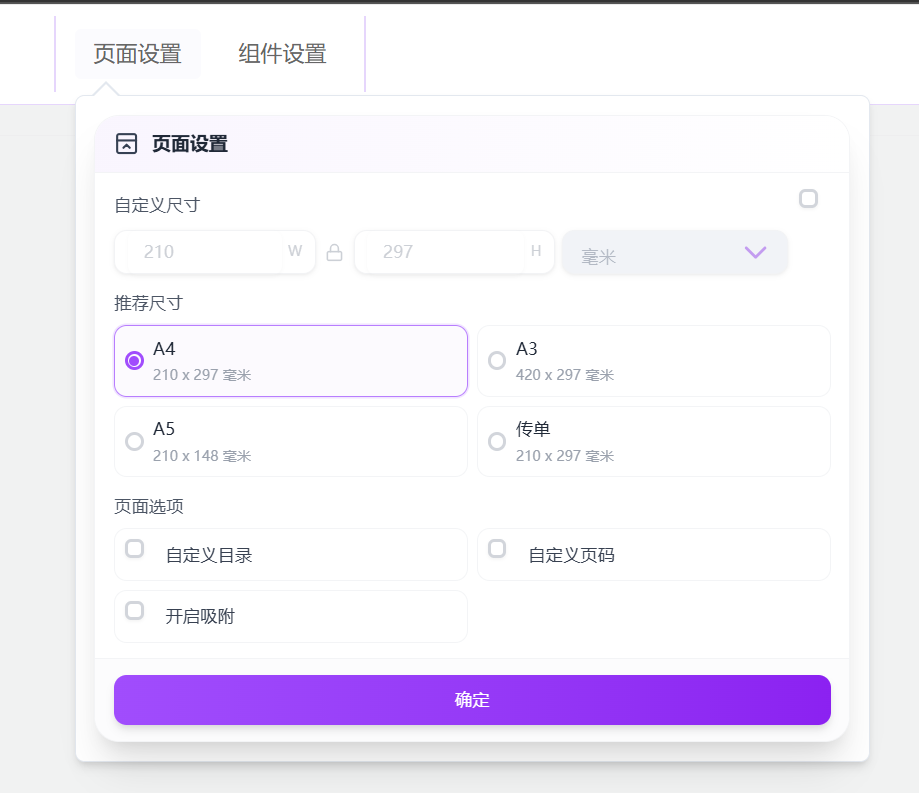
#### 页面设置
- **页面尺寸**: A4、A3、A5、Letter 等预设尺寸
- **自定义尺寸**: 支持自定义宽度和高度
- **DPI 设置**: 调整页面分辨率(72-300 DPI)
- **页面方向**: 横向、纵向
- **页码设置**: 自定义页码样式和位置
### 4. 画布功能
#### 视图控制
- **缩放**: 10% - 300% 缩放范围
- **平移**: 拖拽画布进行平移
- **适应窗口**: 自动调整缩放以适应窗口
- **实际大小**: 100% 显示
#### 辅助工具
- **标尺**: 显示水平和垂直标尺
- **网格**: 显示网格线辅助对齐
- **参考线**: 拖拽标尺创建参考线
- **吸附**: 自动吸附到网格、参考线、其他组件
### 5. 数据管理
#### 本地存储
- 所有编辑数据自动保存到浏览器 localStorage
- 无需后端服务器,完全离线可用
- 支持多个项目独立存储
#### 数据导出
- **JSON 导出**: 导出完整的编辑数据为 JSON 格式
- **复制到剪贴板**: 一键复制 JSON 数据
- **下载文件**: 下载 JSON 文件到本地
#### 数据导入
- **JSON 导入**: 导入之前导出的 JSON 数据
- **数据恢复**: 从备份恢复编辑数据
#### PDF 导出
- 将所有页面导出为 PDF 文档
- 支持自定义 PDF 尺寸和质量
- 显示导出进度
- 支持印刷 PDF 导出
- 顶部工具栏提供 `印刷PDF` 按钮和 `CMYK / ICC / 文字转曲` 开关
- 支持 RGB / CMYK、ICC、图层和文字转曲
- 文字转曲依赖真实字体文件;如果字体不可下载,会自动回退为图像层
## 📝 使用说明
### 基础操作
1. **创建新页面**
- 点击左侧面板底部的"+"按钮
- 或右键点击页面列表选择"新建页面"
2. **添加组件**
- 从左侧面板选择组件类型(文本、图片、图标、形状、表格)
- 拖拽到画布上
- 或点击组件后在画布上点击放置
3. **编辑组件**
- 点击选中组件
- 拖拽移动位置
- 拖拽控制点调整大小
- 拖拽旋转控制点旋转
- 右键打开上下文菜单进行更多操作
4. **文本编辑**
- 双击文本组件进入编辑模式
- 使用顶部工具栏调整文本样式
- 支持快捷键(Ctrl+B 粗体、Ctrl+I 斜体等)
5. **保存数据**
- 点击顶部"保存"按钮
- 数据自动保存到浏览器本地
- 弹出导出对话框,可选择复制或下载 JSON
### 印刷 PDF 导出
1. **打开导出面板**
- 点击顶部工具栏右侧 `印刷PDF` 按钮
- 在弹层中点击 `导出印刷PDF`
2. **配置导出选项**
- `启用 CMYK`: 使用 CMYK 图像管线写入 PDF;关闭时按 RGB 导出
- `嵌入 ICC`: 仅在启用 CMYK 时可用;会把默认 ICC 写入 PDF OutputIntent
- `文字转曲`: 对支持的文本尝试真转曲;失败会自动回退为图像层
3. **当前导出策略**
- 背景、图形、图片、文本会按独立图层写入 PDF
- 背景层与其他图形层主要通过 `html2canvas` 抓取
- 无旋转、无斜切文本优先通过 `dom-to-image` 抓取
- 默认导出缩放倍率为 `renderScale=2`
4. **字体注意事项**
- 如果需要真转曲,请同时参考上方“字体与印刷 PDF 配置”
- 只有字体可下载、字形存在且文本结构受支持时,才会输出为矢量路径
- 否则会记录调试日志并自动回退为图像层
### 快捷键
#### 编辑操作
- `Ctrl/Cmd + C` - 复制
- `Ctrl/Cmd + V` - 粘贴
- `Ctrl/Cmd + X` - 剪切
- `Ctrl/Cmd + D` - 快速复制
- `Ctrl/Cmd + A` - 全选
- `Delete` - 删除
- `Ctrl/Cmd + Z` - 撤销
- `Ctrl/Cmd + Y` - 重做
#### 移动和对齐
- `↑ ↓ ← →` - 移动组件(1px)
- `Shift + ↑ ↓ ← →` - 快速移动(10px)
- `Ctrl/Cmd + Shift + E` - 切换对齐线
- `Ctrl/Cmd + Shift + Y` - 删除所有参考线
- `Ctrl/Cmd + Shift + U` - 删除当前页面参考线
### 高级技巧
1. **批量编辑**
- 按住 Ctrl/Cmd 点击多个组件
- 或框选多个组件
- 统一调整位置、大小、样式
2. **精确定位**
- 使用标尺和参考线
- 开启网格吸附
- 使用对齐工具
3. **组件复用**
- 复制常用组件
- 使用组合功能创建模板
- 跨页面复制粘贴
4. **性能优化**
- 避免单页面组件过多(建议 < 100 个)
- 大图片建议压缩后使用
- 定期清理不需要的页面
## 🎨 自定义和扩展
### 添加自定义组件
1. 在 `src/view/editor/component/` 创建新组件
2. 在 `editorComponentInit.ts` 注册组件类型
3. 在 `EComponentType` 枚举中添加类型定义
### 自定义样式
项目使用 Tailwind CSS,可以在 `tailwind.config.js` 中自定义主题:
```js
export default {
theme: {
extend: {
colors: {
primary: '#your-color',
},
},
},
}
```
### 添加新的工具栏功能
1. 在 `src/view/editor/layout/topLayout/` 添加工具栏组件
2. 在 `useActions.ts` 中添加对应的操作函数
3. 在 `editorStore.ts` 中添加状态管理
## 📊 数据格式说明
Poly Editor 使用 JSON 格式存储所有编辑数据。数据保存在浏览器的 localStorage 中,也可以导出为 JSON 文件。
### 数据结构概览
```typescript
interface IEditorInfo {
id: string // 编辑器实例 ID
name: string // 项目名称
pageList: IEditorPageInfo[] // 页面列表
fontList: string[] // 使用的字体列表
dpi: number // DPI 设置
directoryType: string // 目录类型
footerType: string // 页脚类型
}
```
### 页面数据结构
每个页面包含以下信息:
```typescript
interface IEditorPageInfo {
pageId: string // 页面唯一 ID
pageName: string // 页面名称
pageSize: IPageSize // 页面尺寸配置
componentList: IComponentInfo[] // 组件列表
pageFooter?: IPageFooter // 页脚配置
pageDirectory?: IPageDirectory // 目录配置
}
```
### 页面尺寸配置
```typescript
interface IPageSize {
width: number // 宽度(毫米)
height: number // 高度(毫米)
sizeName: string // 尺寸名称(如 "A4")
type: EPageSizeType // 尺寸类型(毫米/像素)
isCustomize: boolean // 是否自定义尺寸
dpi: number // DPI 设置
pixelWidth: number // 像素宽度
pixelHeight: number // 像素高度
}
```
### 组件数据结构
所有组件共享的基础属性:
```typescript
interface IComponentInfo {
componentId: string // 组件唯一 ID
componentType: EComponentType // 组件类型
left: number // X 坐标
top: number // Y 坐标
width: number // 宽度
height: number // 高度
rotate: number // 旋转角度
selected: boolean // 是否选中
zIndex: number // 层级
lock: boolean // 是否锁定
// 可选属性(根据组件类型)
content?: string // 文本内容(文本组件)
imgUrl?: string // 图片 URL(图片/图标组件)
style?: IComponentStyle // 样式配置
// ... 其他特定属性
}
```
### 组件类型
```typescript
enum EComponentType {
Text = 'Text', // 文本组件
Image = 'Image', // 图片组件
Icon = 'Icon', // 图标组件
Shape = 'Shape', // 形状组件
Table = 'Table', // 表格组件
SVG = 'SVG', // SVG 组件
Group = 'Group', // 组合组件
}
```
### 文本组件详细结构
```typescript
interface ITextComponent extends IComponentInfo {
componentType: 'Text'
content: string // 富文本内容(Quill Delta 格式)
style: {
fontSize: number // 字号
fontFamily: string // 字体
color: string // 文字颜色
backgroundColor: string // 背景色
textAlign: string // 对齐方式
lineHeight: number // 行高
letterSpacing: number // 字间距
bold: boolean // 粗体
italic: boolean // 斜体
underline: boolean // 下划线
}
}
```
### 图片组件详细结构
```typescript
interface IImageComponent extends IComponentInfo {
componentType: 'Image'
imgUrl: string // 图片 URL 或 base64
originalWidth: number // 原始宽度
originalHeight: number // 原始高度
flipX: boolean // 水平翻转
flipY: boolean // 垂直翻转
opacity: number // 透明度 (0-1)
borderRadius: number // 圆角
}
```
### 表格组件详细结构
```typescript
interface ITableComponent extends IComponentInfo {
componentType: 'Table'
tableData: {
columnDefs: any[] // 列定义(ag-grid 格式)
rowData: any[] // 行数据
gridOptions: any // 表格配置
}
style: {
headerBgColor: string // 表头背景色
headerTextColor: string // 表头文字颜色
cellBgColor: string // 单元格背景色
cellTextColor: string // 单元格文字颜色
borderColor: string // 边框颜色
borderWidth: number // 边框宽度
}
}
```
### 完整数据示例
```json
{
"id": "project-123",
"name": "我的项目",
"dpi": 254,
"directoryType": "auto",
"footerType": "auto",
"fontList": ["Arial", "Microsoft YaHei"],
"pageList": [
{
"pageId": "page-1",
"pageName": "第 1 页",
"pageSize": {
"width": 210,
"height": 297,
"sizeName": "A4",
"type": "Millimetre",
"isCustomize": false,
"dpi": 254,
"pixelWidth": 2100,
"pixelHeight": 2970
},
"componentList": [
{
"componentId": "page-1C1234567890",
"componentType": "Text",
"left": 100,
"top": 100,
"width": 300,
"height": 100,
"rotate": 0,
"selected": false,
"zIndex": 1,
"lock": false,
"content": "Hello World
",
"style": {
"fontSize": 16,
"fontFamily": "Arial",
"color": "#000000",
"textAlign": "left"
}
},
{
"componentId": "page-1C1234567891",
"componentType": "Image",
"left": 100,
"top": 250,
"width": 200,
"height": 150,
"rotate": 0,
"selected": false,
"zIndex": 2,
"lock": false,
"imgUrl": "data:image/svg+xml,...",
"originalWidth": 200,
"originalHeight": 150,
"flipX": false,
"flipY": false,
"opacity": 1
}
]
}
]
}
```
### 数据导入导出
#### 导出数据
点击"保存"按钮后,会弹出导出对话框:
```javascript
// 导出的 JSON 数据
const exportData = {
version: "1.0.0", // 数据格式版本
exportTime: "2025-01-01", // 导出时间
editorInfo: { /* 完整的编辑器数据 */ }
}
```
#### 导入数据
导入 JSON 文件时,系统会验证数据格式:
```javascript
// 导入验证
if (data.editorInfo && data.editorInfo.pageList) {
// 加载数据到编辑器
editorStore.loadEditorInfo(data.editorInfo)
}
```
### LocalStorage 存储
数据存储在浏览器 localStorage 中:
```javascript
// 存储键
const STORAGE_KEY = 'poly-editor-data'
// 存储格式
localStorage.setItem(STORAGE_KEY, JSON.stringify(editorInfo))
// 读取数据
const data = JSON.parse(localStorage.getItem(STORAGE_KEY))
```
### 数据迁移和兼容性
如果数据格式发生变化,系统会自动进行数据迁移:
```javascript
// 版本检查和迁移
function migrateData(data: any) {
if (!data.version || data.version < "1.0.0") {
// 执行数据迁移
data = migrateToV1(data)
}
return data
}
```
### 注意事项
1. **数据大小限制**: localStorage 通常限制为 5-10MB,建议单个项目不超过 5MB
2. **图片存储**: 建议使用 base64 或外部 URL,避免存储过大的图片
3. **浏览器兼容性**: 需要浏览器支持 localStorage API
4. **数据备份**: 定期导出 JSON 文件作为备份
5. **隐私安全**: localStorage 数据存储在本地,不会上传到服务器
### 扩展数据格式
如果需要添加自定义字段:
```typescript
// 扩展组件数据
interface ICustomComponent extends IComponentInfo {
componentType: 'Custom'
customData: {
// 自定义字段
myField: string
myValue: number
}
}
// 在组件工厂中注册
EditorComponent.register('Custom', CustomComponentRenderer)
```
## 📋 开发路线图 (TODO)
### 🔥 高优先级
#### PDF 导入增强
- [ ] **PDF 图片提取与回显**
- 使用 PDF.js 提取 PDF 中的真实图片
- 替换当前的占位符为实际图片
- 支持图片压缩和优化
- 保持图片原始宽高比
- [ ] **LaTeX 公式渲染**
- 集成 MathJax 或 KaTeX 库
- 支持公式的可视化渲染
- 保留原始 LaTeX 代码可编辑
- 支持行内公式和显示公式
- [ ] **HTML 格式保留**
- 实现完整的 HTML 到 Quill DeltaOps 转换
- 保留粗体、斜体、下划线、颜色等格式
- 支持列表、链接等复杂格式
- 优化格式转换准确性
- [ ] **PDF 表格识别**
- 识别 PDF 中的表格结构
- 自动创建 ag-grid 表格组件
- 保留表格样式和数据
- 支持合并单元格
### 🎨 编辑器核心功能
- [ ] **图片编辑增强**
- 图片裁剪、滤镜、调整
- 图片压缩和格式转换
- 支持 WebP 等现代格式
- 批量图片处理
- [ ] **协作功能**
- 实时协作编辑(WebSocket)
- 版本历史和回滚
- 评论和批注
- 权限管理
- [ ] **模板系统**
- 预设模板库
- 自定义模板保存
- 模板分类和搜索
- 模板市场
- [ ] **快捷键增强**
- 自定义快捷键
- 快捷键冲突检测
- 快捷键帮助面板
- 导入/导出快捷键配置
### 🚀 性能优化
- [ ] **虚拟滚动**
- 大量组件场景优化
- 虚拟列表渲染
- 按需加载组件
- 内存管理优化
- [ ] **撤销重做优化**
- 增量存储策略
- 历史记录压缩
- 历史记录限制配置
- 大文档性能优化
- [ ] **导出性能**
- PDF 导出进度优化
- 分块导出大文档
- 导出队列管理
- 背景导出支持
### 📱 移动端支持
- [ ] **响应式设计**
- 移动端界面适配
- 触摸手势支持
- 移动端工具栏
- PWA 支持
- [ ] **移动端编辑**
- 简化的编辑模式
- 触摸拖拽优化
- 虚拟键盘适配
- 移动端预览
### 🔌 插件系统
- [ ] **插件架构**
- 插件 API 设计
- 插件生命周期
- 插件市场
- 官方插件示例
- [ ] **第三方集成**
- Google Fonts 集成
- Unsplash 图片库
- Iconify 图标库
- AI 辅助写作
### 🌐 国际化
- [ ] **多语言支持**
- 英文界面
- 日文界面
- 其他语言扩展
- RTL 语言支持
- [ ] **本地化**
- 日期时间格式
- 数字格式
- 货币格式
- 时区支持
### 🛠️ 开发体验
- [ ] **文档完善**
- API 文档
- 组件文档
- 使用示例
- 视频教程
- [ ] **测试覆盖**
- 单元测试
- 集成测试
- E2E 测试
- 性能测试
- [ ] **开发工具**
- 组件调试面板
- 性能分析工具
- 日志系统
- 错误追踪
### 💡 创新功能
- [ ] **AI 辅助**
- AI 自动排版
- AI 内容生成
- AI 图片描述
- AI 智能建议
- [ ] **智能对齐**
- 机器学习优化对齐算法
- 智能网格建议
- 自动分布优化
- 智能间距调整
- [ ] **版本控制**
- Git 集成
- 差异对比
- 分支管理
- 合并冲突解决
- [ ] **数据可视化**
- 图表组件集成 (ECharts/Chart.js)
- 数据源绑定
- 实时数据更新
- 交互式图表
### 🔐 安全与隐私
- [ ] **数据加密**
- 本地数据加密存储
- 导出文件加密
- 密码保护
- 权限验证
- [ ] **隐私保护**
- 隐私模式
- 敏感信息检测
- 水印支持
- 内容审核
### 📦 其他改进
- [ ] **导入支持**
- Word 文档导入
- PowerPoint 导入
- Markdown 导入
- HTML 导入
- [ ] **导出增强**
- 导出为图片 (PNG/JPG/SVG)
- 导出为视频 (MP4/GIF)
- 批量导出
- 自定义导出模板
- [ ] **云存储**
- 阿里云 OSS
- 腾讯云 COS
- AWS S3
- 自定义存储后端
---
### 🎯 如何贡献
如果您对以上任何功能感兴趣,欢迎:
1. **提交 Issue** - 讨论功能设计和实现方案
2. **Fork & PR** - 实现功能并提交 Pull Request
3. **反馈建议** - 提出新的功能需求和改进建议
4. **测试反馈** - 帮助测试新功能并报告问题
查看 [贡献指南](CONTRIBUTING.md) 了解更多详情。
## 🤝 贡献
我们欢迎所有形式的贡献!请查看 [贡献指南](CONTRIBUTING.md) 了解详情。
### 如何贡献
1. Fork 本仓库
2. 创建特性分支 (`git checkout -b feature/AmazingFeature`)
3. 提交更改 (`git commit -m 'Add some AmazingFeature'`)
4. 推送到分支 (`git push origin feature/AmazingFeature`)
5. 创建 Pull Request
### 开发规范
- 使用 TypeScript 编写代码
- 遵循 ESLint 和 Prettier 配置
- 编写清晰的提交信息
- 为新功能添加适当的注释
## 📄 许可证
本项目采用 [MIT License](LICENSE) 开源协议。
MIT 许可证是一个宽松的开源许可证,允许您:
- ✅ 商业使用
- ✅ 修改代码
- ✅ 分发
- ✅ 私人使用
唯一的要求是在所有副本中包含原始许可证和版权声明。
## 📮 联系方式
### 项目维护者
- **邮箱**: 124005421@qq.com
- **微信**: melevenalk
### 社区支持
- **Gitee 仓库**: [https://gitee.com/wu_fan_xin/polyeditor](https://gitee.com/wu_fan_xin/polyeditor)
- **提交 Issue**: [Gitee Issues](https://gitee.com/wu_fan_xin/polyeditor/issues)
- **完整版产品**: [PolyPrint Studio](http://demo.jhu-ai.com/)
欢迎通过以上方式与我们交流,无论是技术问题、功能建议还是商业合作!
## 🙏 致谢
本项目使用了以下优秀的开源项目:
- [Vue.js](https://vuejs.org/) - 渐进式 JavaScript 框架
- [Vite](https://vitejs.dev/) - 下一代前端构建工具
- [PrimeVue](https://primevue.org/) - Vue UI 组件库
- [Tailwind CSS](https://tailwindcss.com/) - CSS 框架
- [Quill](https://quilljs.com/) - 富文本编辑器
- [ag-grid](https://www.ag-grid.com/) - 表格组件
- [Pinia](https://pinia.vuejs.org/) - Vue 状态管理
- [VueUse](https://vueuse.org/) - Vue Composition API 工具集
- [drager](https://github.com/vangleer/es-drager) - A component for draggable, resizable, and rotatable elements based on vue3.x + CompositionAPI + TypeScript + Vite.
- [vue3-sketch-ruler](https://github.com/kakajun/vue3-sketch-ruler) - In using vue3, the zoom operation used for page presentation
感谢所有开源社区的贡献者!
## 🗺️ 产品截图
### 主界面
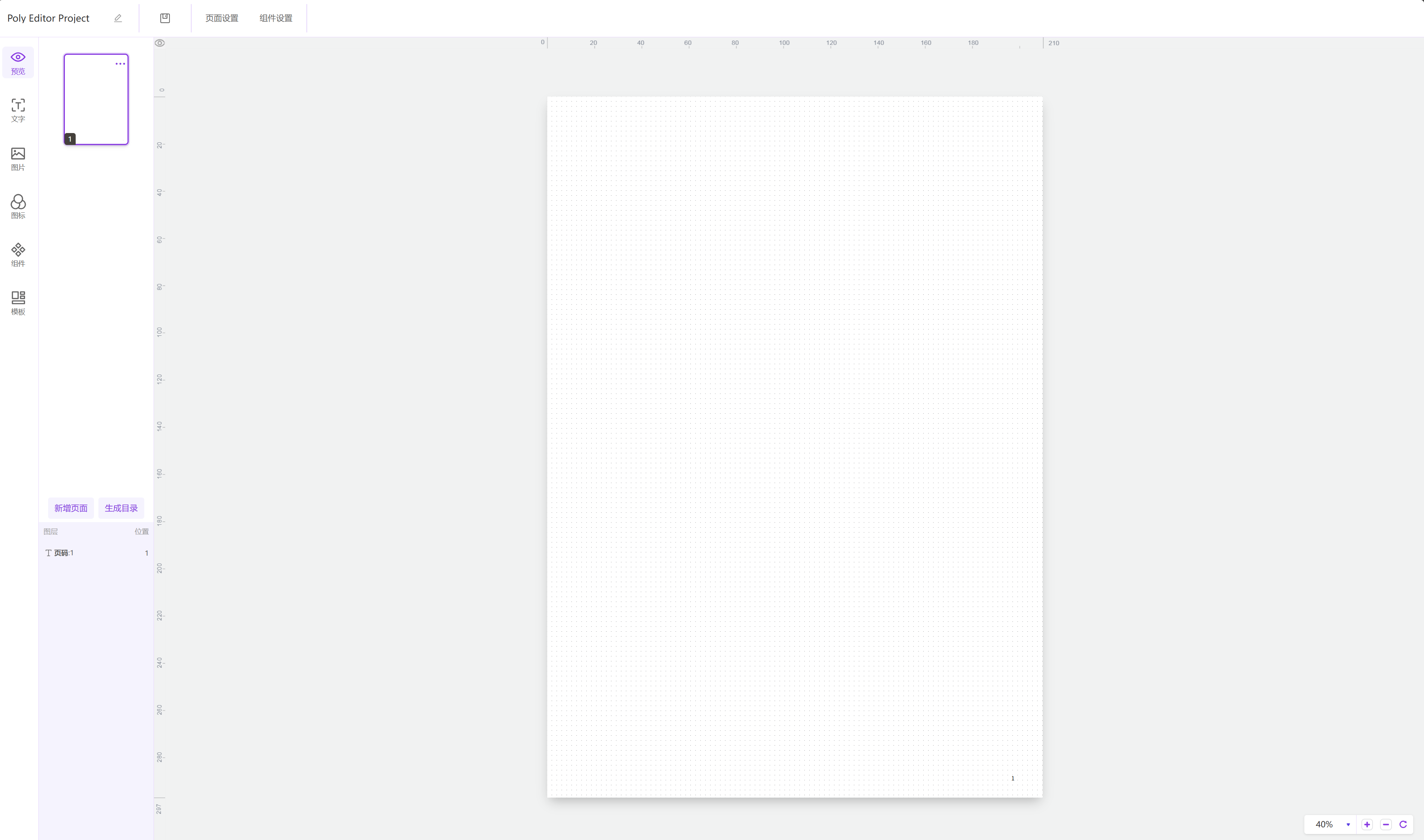
主编辑界面 - 支持多页面管理和实时预览
### 文本编辑
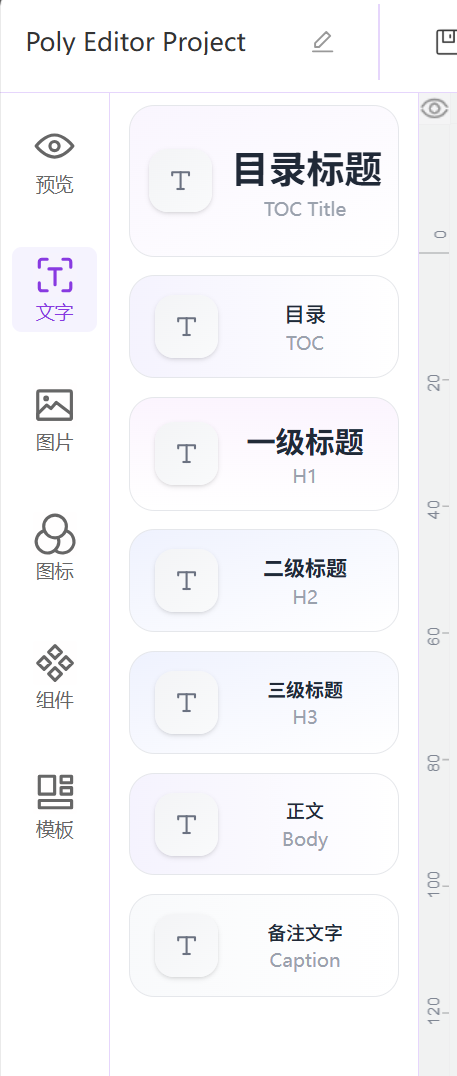
富文本编辑 - 支持多种文本格式和样式
### 组件库
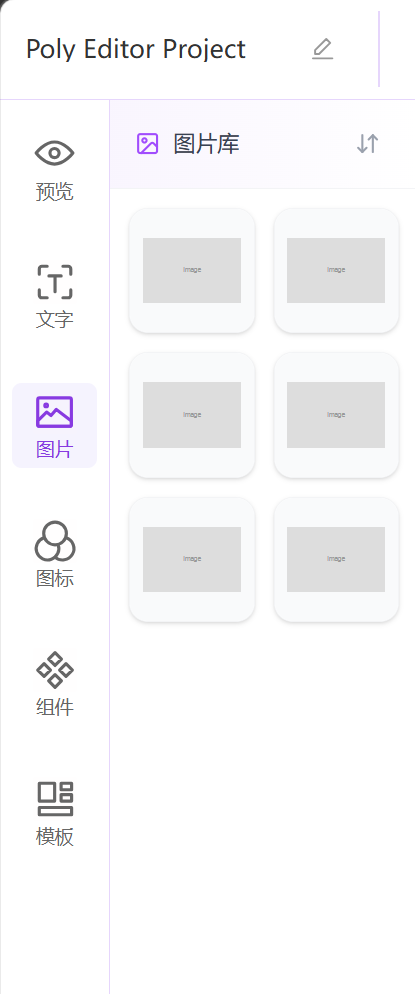
丰富的组件库 - 图片、图标、形状等
### 表格编辑
强大的表格功能 - 基于 ag-grid
### 精确对齐
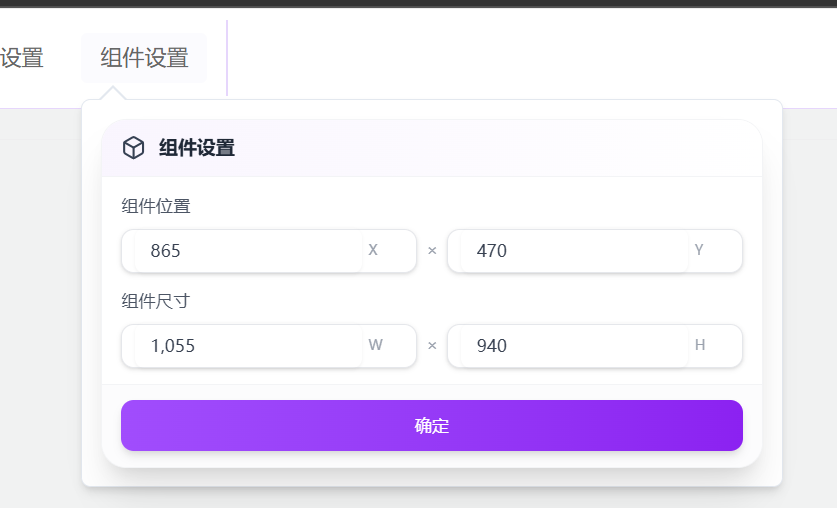
标尺和对齐线 - 专业的排版工具
### 图层管理
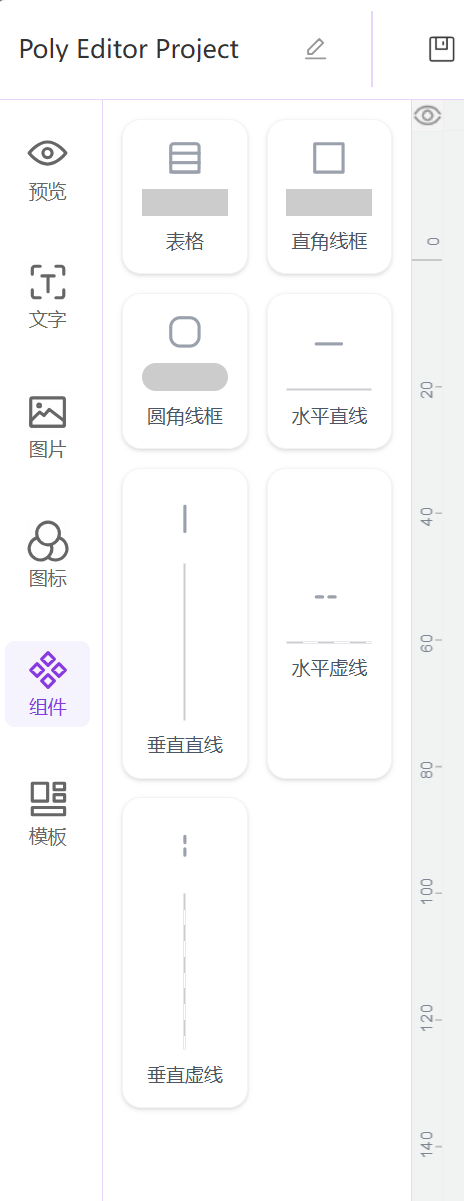
图层管理 - 轻松控制元素层级
### 页面设置
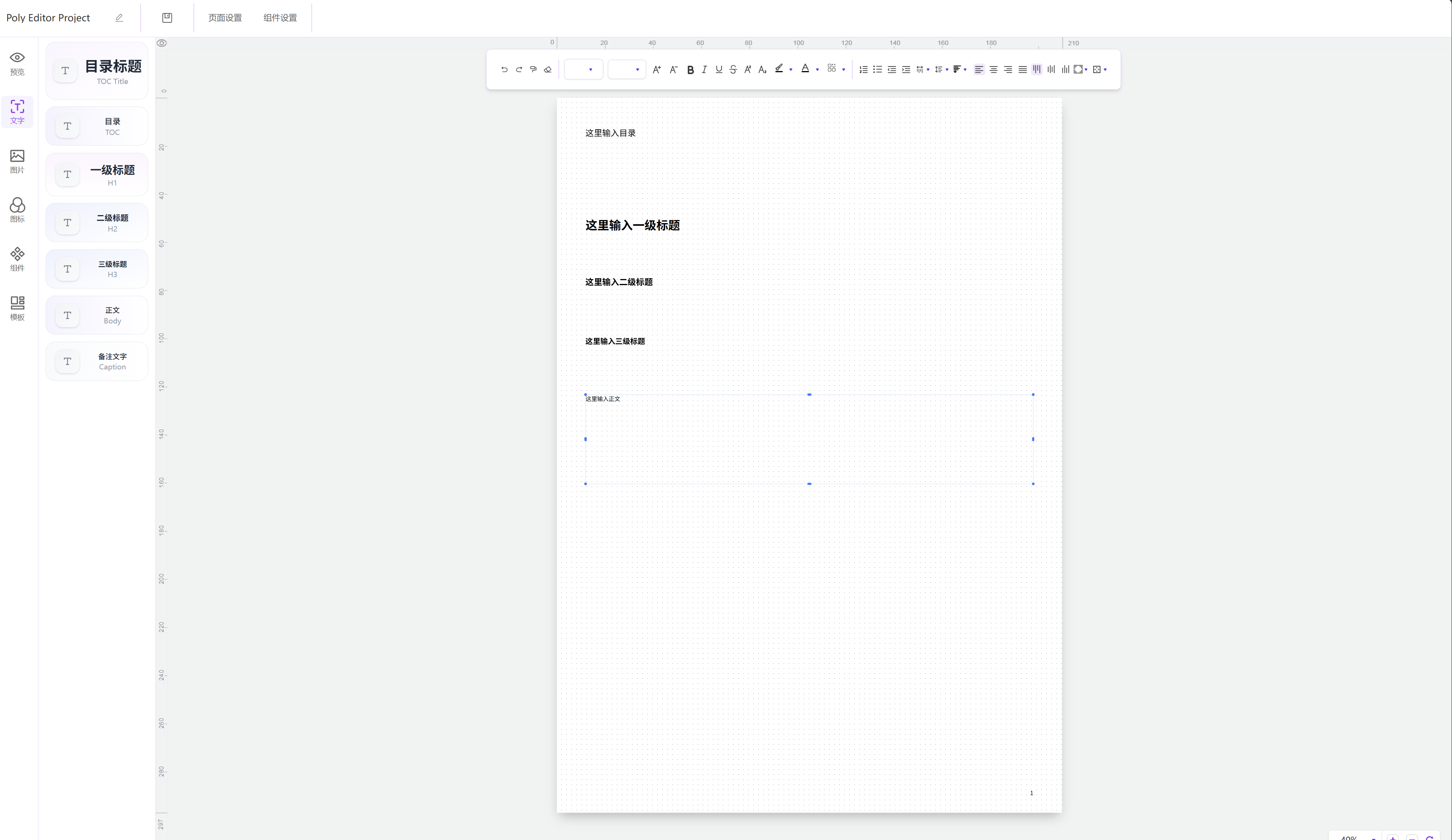
页面设置 - 自定义尺寸和 DPI
### 导出功能
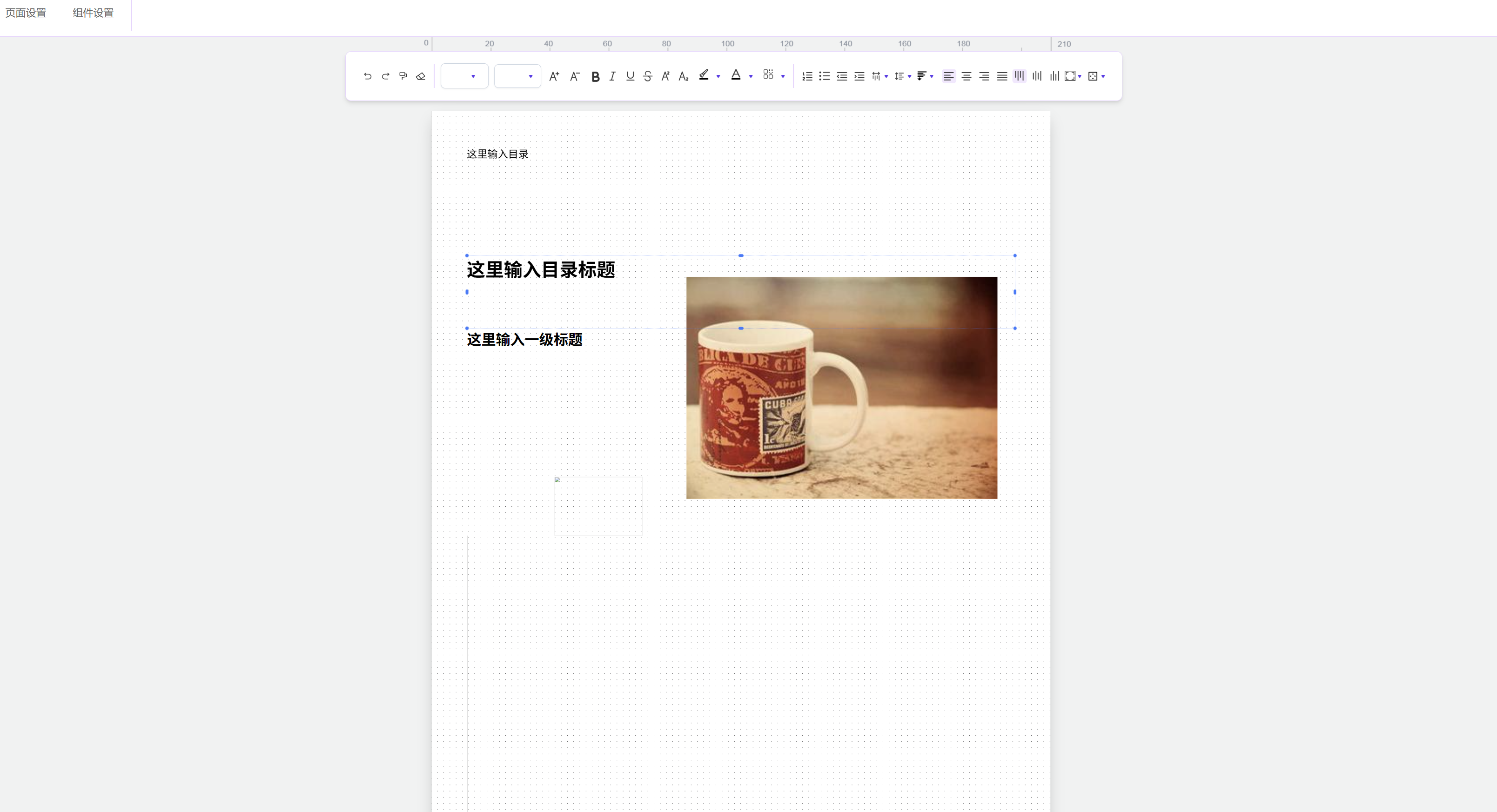
数据导出 - 支持 JSON 和 PDF 格式
---
Made with ❤️ by Poly Editor Contributors