# iosAppStabilityTest
**Repository Path**: www_rui/ios-app-stability-test
## Basic Information
- **Project Name**: iosAppStabilityTest
- **Description**: 用于iOS app稳定性测试的测试程序。
- **Primary Language**: Swift
- **License**: MIT
- **Default Branch**: master
- **Homepage**: None
- **GVP Project**: No
## Statistics
- **Stars**: 4
- **Forks**: 0
- **Created**: 2023-03-15
- **Last Updated**: 2024-01-11
## Categories & Tags
**Categories**: Uncategorized
**Tags**: None
## README
# iosAppStabilityTest
#### Description
Test program for iOS app stability testing.
#### Instructions
1. Clone or download the project locally, enter the "AppStability" directory, double-click "AppStability. xcodeproj" to open the project using Xcode, and wait for the project to load.
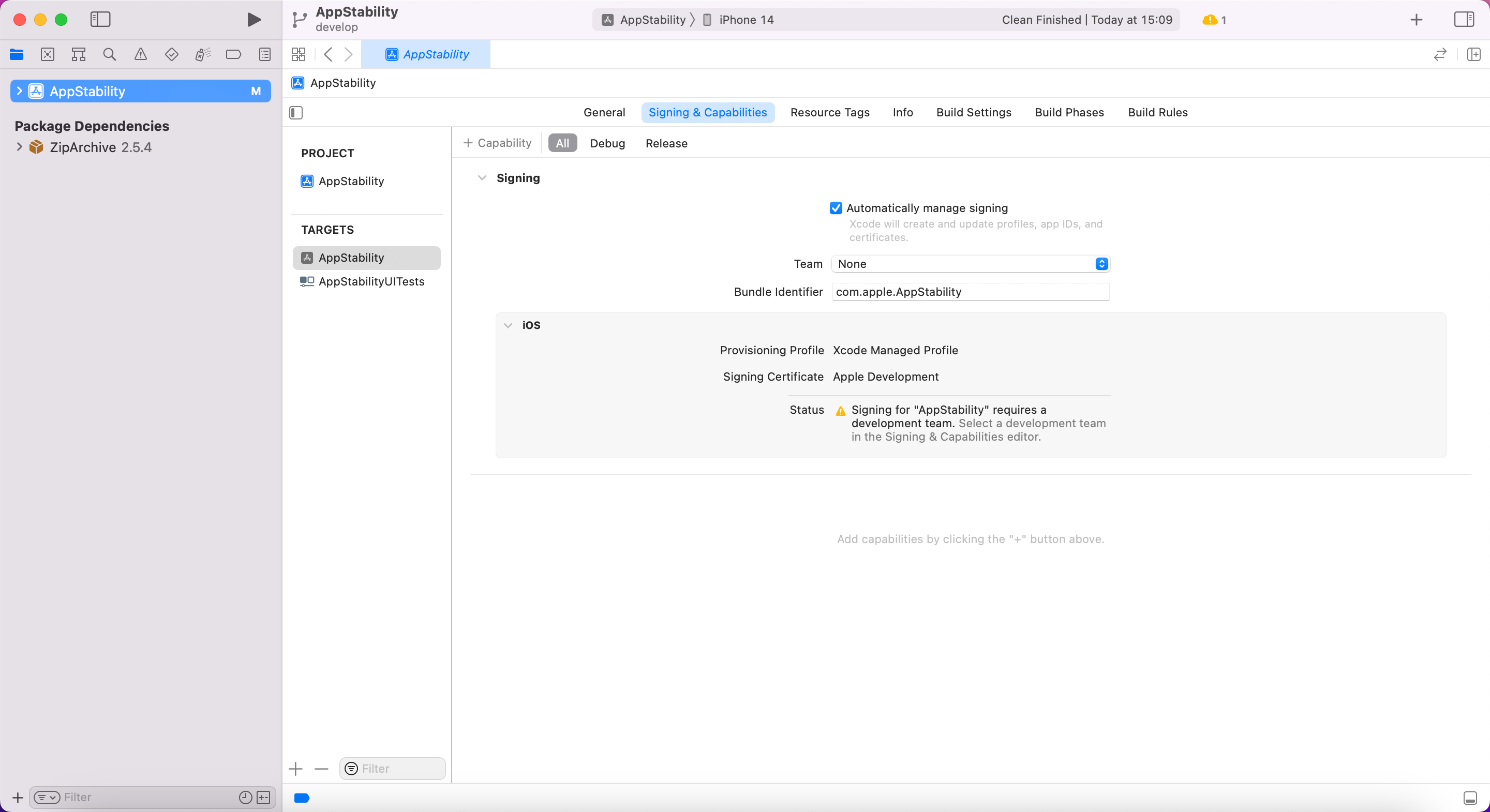
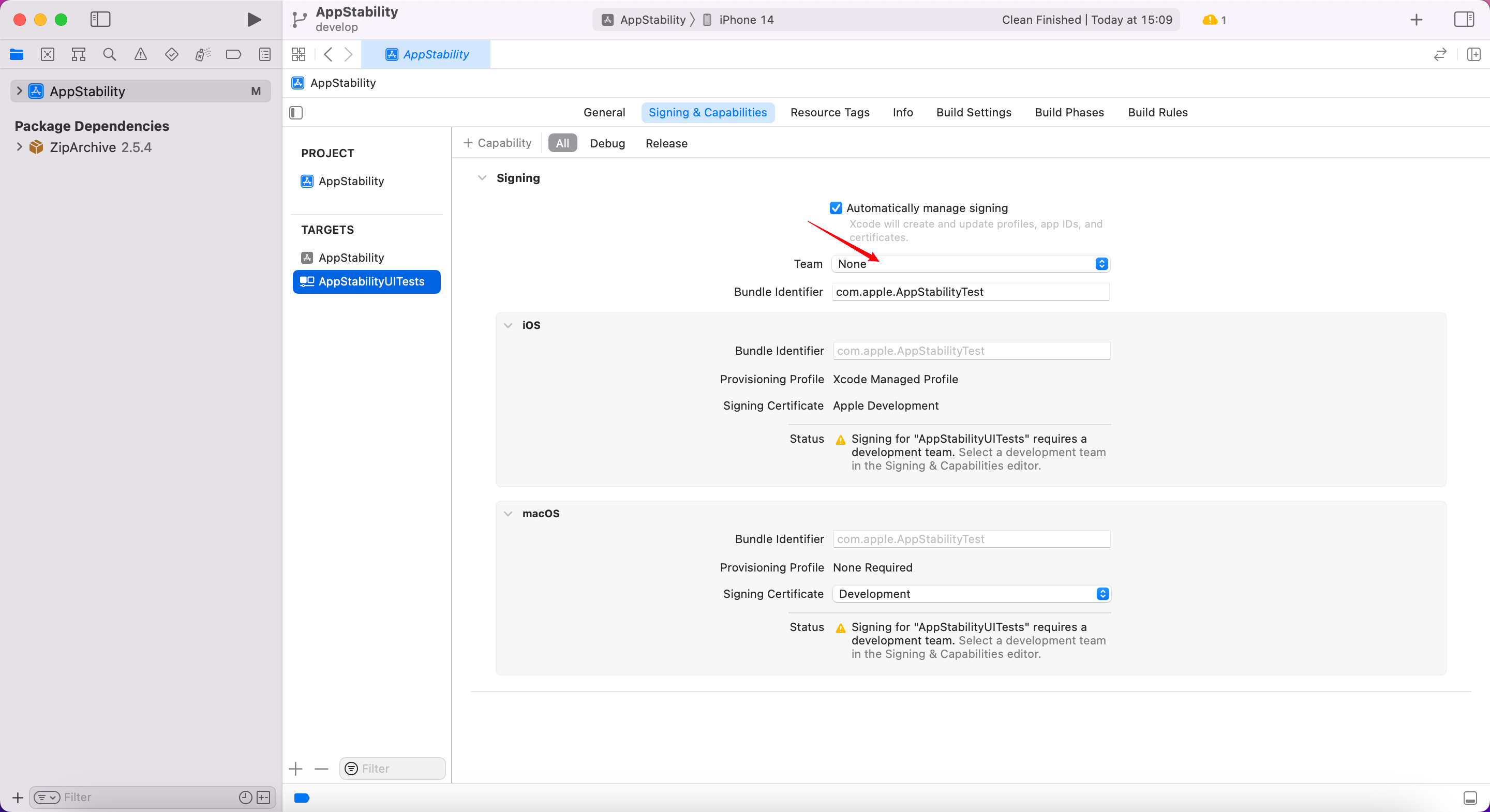
2. Select Target: AppStabilityUITests and select your developer account or team in "Signing&Capabilities".
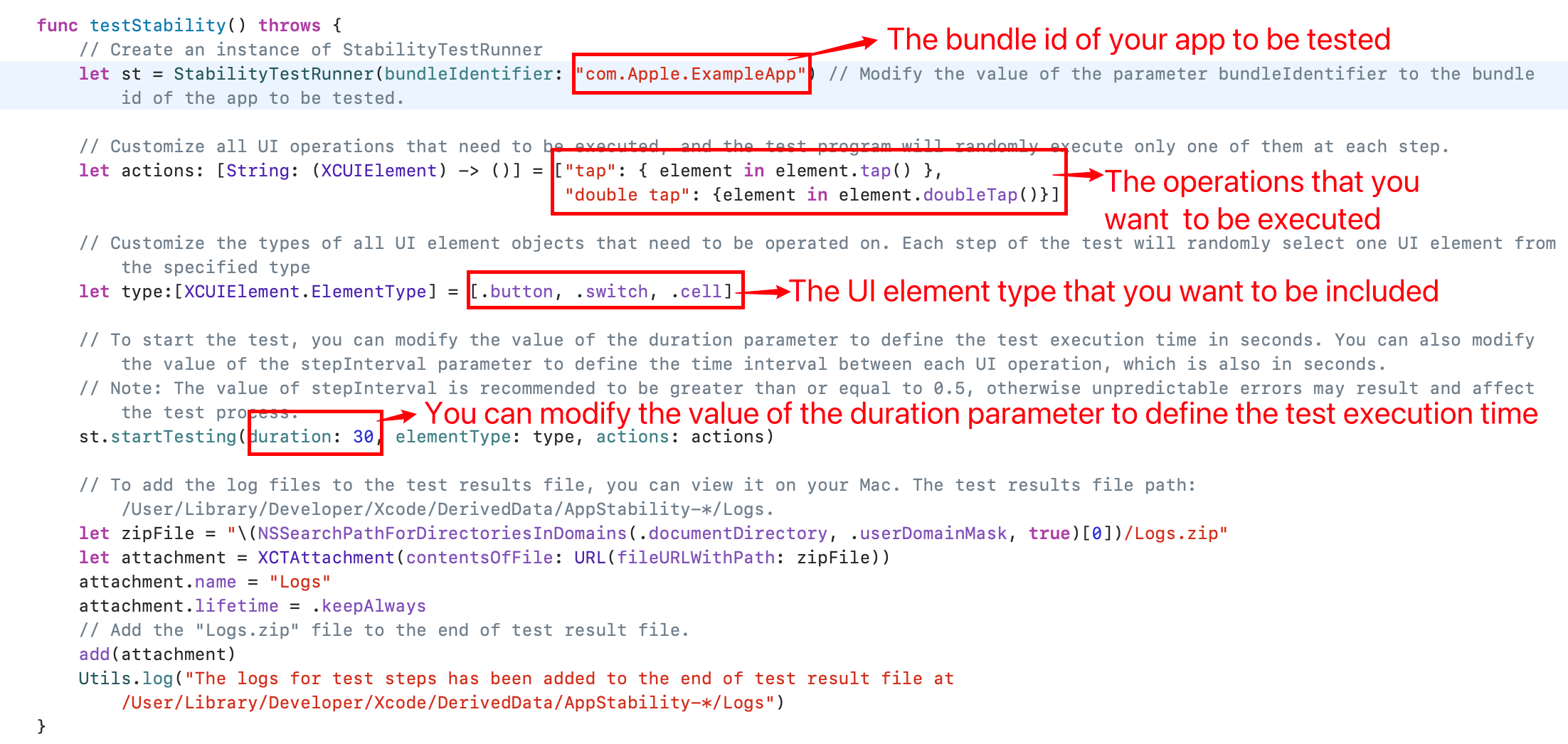
3. Open "AppStability>AppStabilityUITests>AppStabilityUITests>testStability()" and edit the relevant parameters.
Create a StabilityTestRunner instance:
```swift
// Parameter bundleIdentifier: The bundle ID of the app you want to test
let st = StabilityTestRunner(bundleIdentifier: "com.Apple.ExampleApp")
```
Customize all UI operations that need to be executed, and the test program randomly executes only one of these operations at each step:
```swift
// The elements in the array are dictionaries, the key of the dictionary is the description of the UI operation, and the value is the UI operation function that needs to be executed. During the testing process, one of these will be randomly selected
let actions: [String: (XCUIElement) -> ()] = ["tap": { element in element.tap() },
"double tap": {element in element.doubleTap()}]
```
Customize the types of all UI element objects that require action. Each step of the test will randomly select a UI element from the specified type:
```swift
// The element in the array is a type object of a UI element
let type:[XCUIElement.ElementType] = [.button, .switch, .cell]
```
Start testing:
```swift
// The parameter duration is the duration of the test, in seconds
// The parameter stepInterval is the time interval between each UI operation, in seconds. It defaults to 0.5. You can also customize it
st.startTesting(duration: 30, elementType: type, actions: actions, stepInterval: 0.5)
```
**Note: After a UI operation causes an app to crash, if you immediately perform the next operation, and there is not enough time to detect the status of the app and restart it, unpredictable errors may result. Therefore, the value of the parameter stepInterval cannot be too small. The app needs a certain reaction time after each UI operation. Suggestion: stepInterval>=0.5.**
Save the test log to view on the mac:
```swift
let zipFile = "\(NSSearchPathForDirectoriesInDomains(.documentDirectory, .userDomainMask, true)[0])/Logs.zip"
let attachment = XCTAttachment(contentsOfFile: URL(fileURLWithPath: zipFile))
attachment.name = "Logs"
attachment.lifetime = .keepAlways
// Add the "Logs.zip" file to the end of test result file.
add(attachment)
Utils.log("The logs for test steps has been added to the end of test result file at /User/Library/Developer/Xcode/DerivedData/AppStability-*/Logs")
```
Screenshot:
4. Perform Test
Method 1: Execute through Xcode Test Navigator. Before executing, you need to manually select the target device, such as iPhone 14
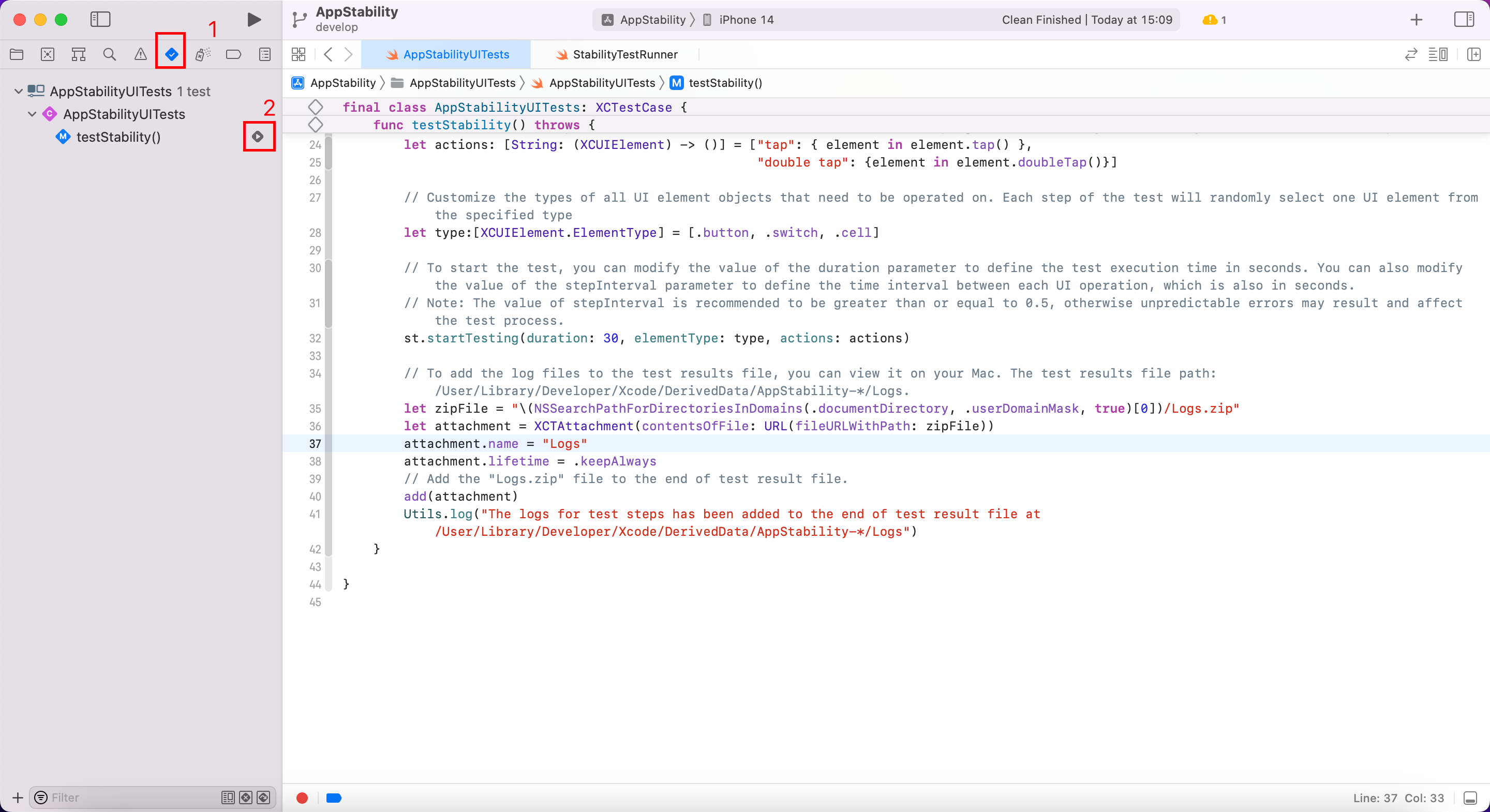
Method 2: Use the xcodebuild command-line tool to execute the following commands in the AppStability root directory:
```sh
xcodebuild test -scheme AppStability -destination 'platform=iOS,name='
```
5. View test results
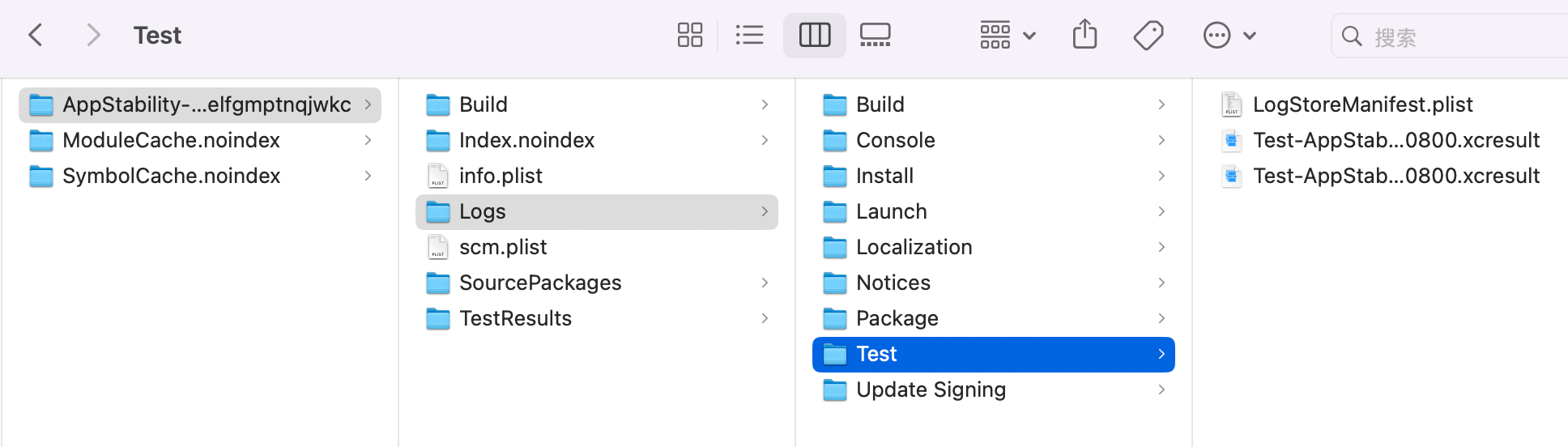
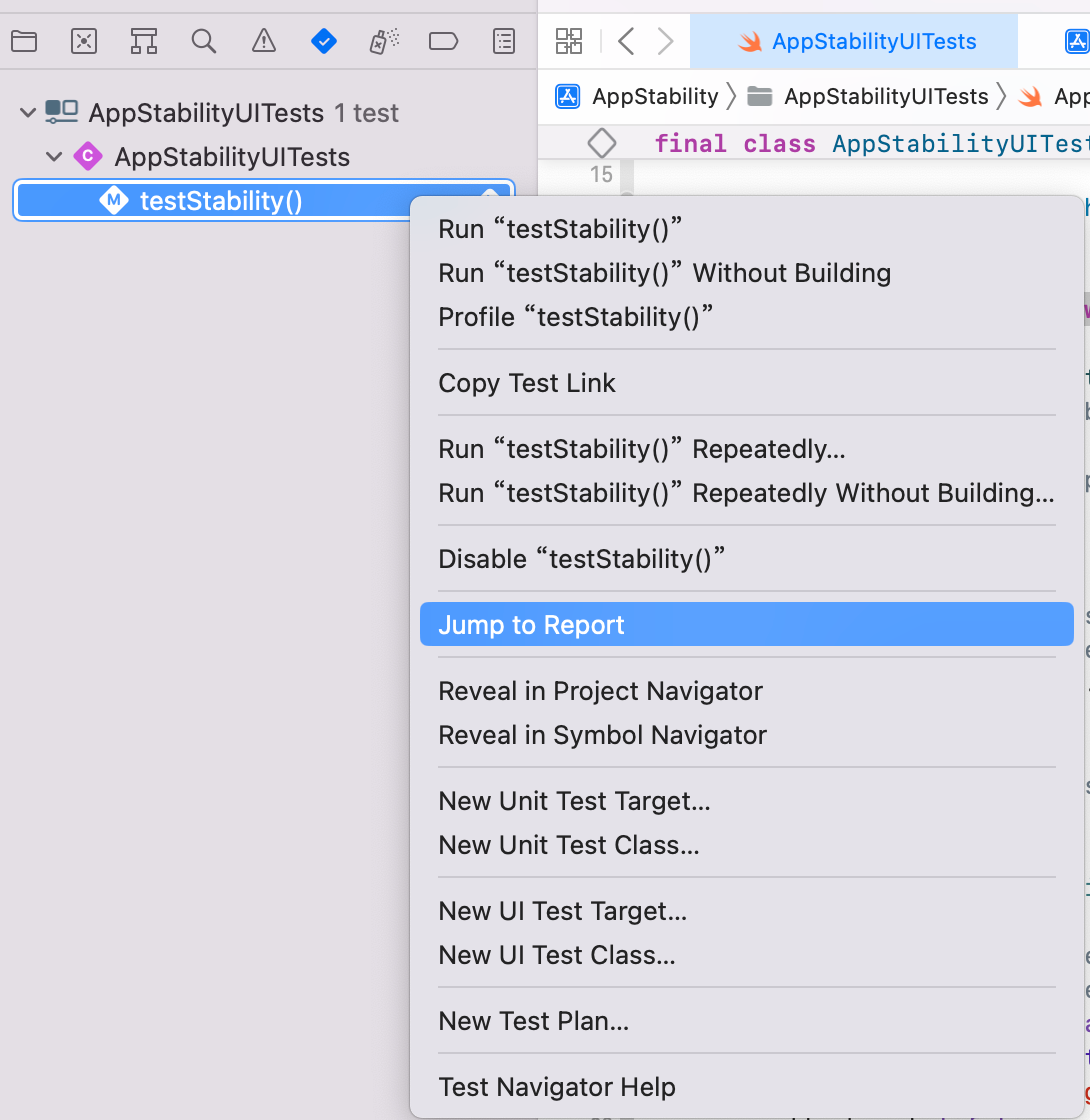
You can view the ". xcresult" test results file in the following directory:/User/Library/Developer/Xcode/DeliveredData/AppStability - */Logs. Double click to view it using Xcode
You can also open it directly in Xcode: Right click the testStability function in the Test Navigator and click "jump to report"
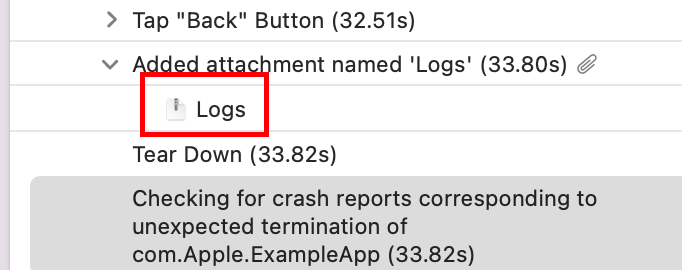
The content of the. xcresult result file contains detailed records of UI operations throughout the testing process. Most importantly, at the end of the content, there is a log file that summarizes all testing activities: "Logs.zip".
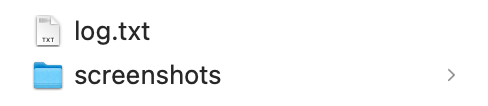
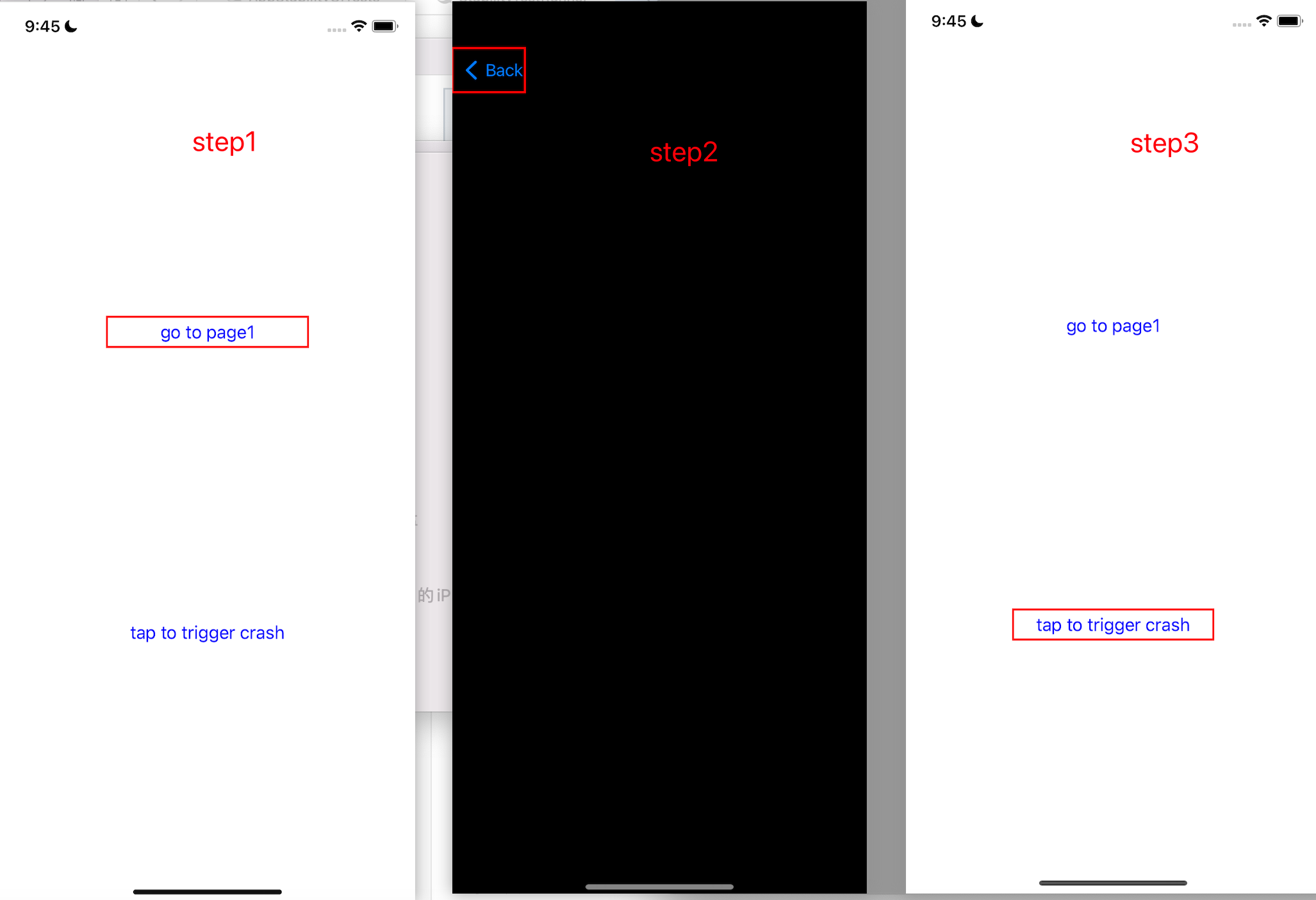
Logs.zip can be directly decompressed for viewing, and contains a "log. txt" that records all UI operations and screenshots of the first three UI operations at each crash point.
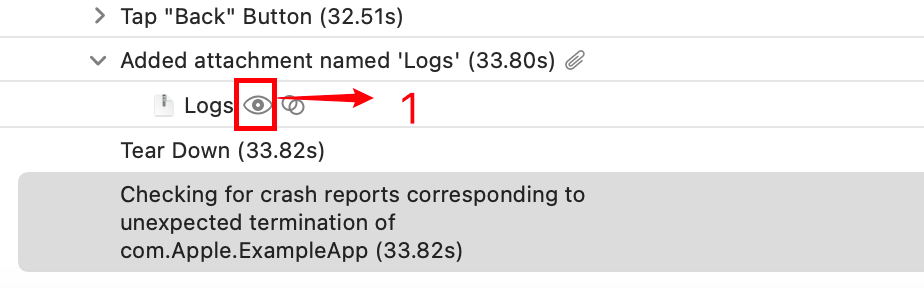
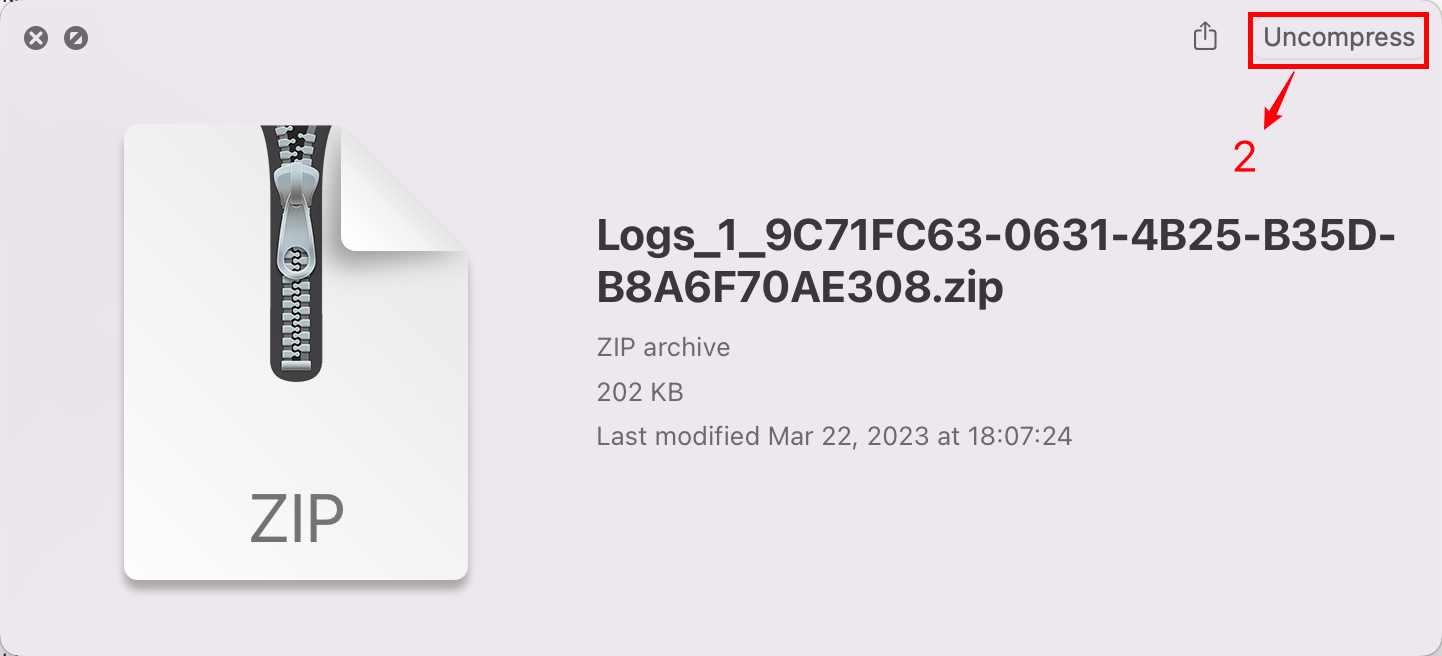
Decompressed Logs
log.txt:
```sh
2023-03-23 09:45:17 ******
2023-03-23 09:45:18 step1: tap "tap to trigger crash" Button
2023-03-23 09:45:20 The app crashed. The screenshot before the crash has been saved in the screenshot folder.
2023-03-23 09:45:21 step2: tap "go to page1" Button
2023-03-23 09:45:23 step3: double tap "Back" Button
2023-03-23 09:45:25 step4: tap "go to page1" Button
2023-03-23 09:45:27 step5: double tap "Back" Button
2023-03-23 09:45:29 step6: double tap "tap to trigger crash" Button
2023-03-23 09:45:31 The app crashed. The screenshot before the crash has been saved in the screenshot folder.
2023-03-23 09:45:32 step7: double tap "tap to trigger crash" Button
2023-03-23 09:45:34 The app crashed. The screenshot before the crash has been saved in the screenshot folder.
2023-03-23 09:45:35 step8: double tap "go to page1" Button
2023-03-23 09:45:37 step9: tap "Back" Button
2023-03-23 09:45:39 step10: double tap "go to page1" Button
2023-03-23 09:45:40 ******
```
Screenshot (The sequence of screenshots is the sequence of UI operations, and the elements to be executed will be identified by red boxes):
#### Usage example
There is a "tap to trigger crash" button in the "ExampleApp" that can trigger a crash. You can use this app to test the testing effect of the stability testing program.
1. Double click on "ExampleApp. xcodeproj" to open the project using Xcode
2. Select an available developer account
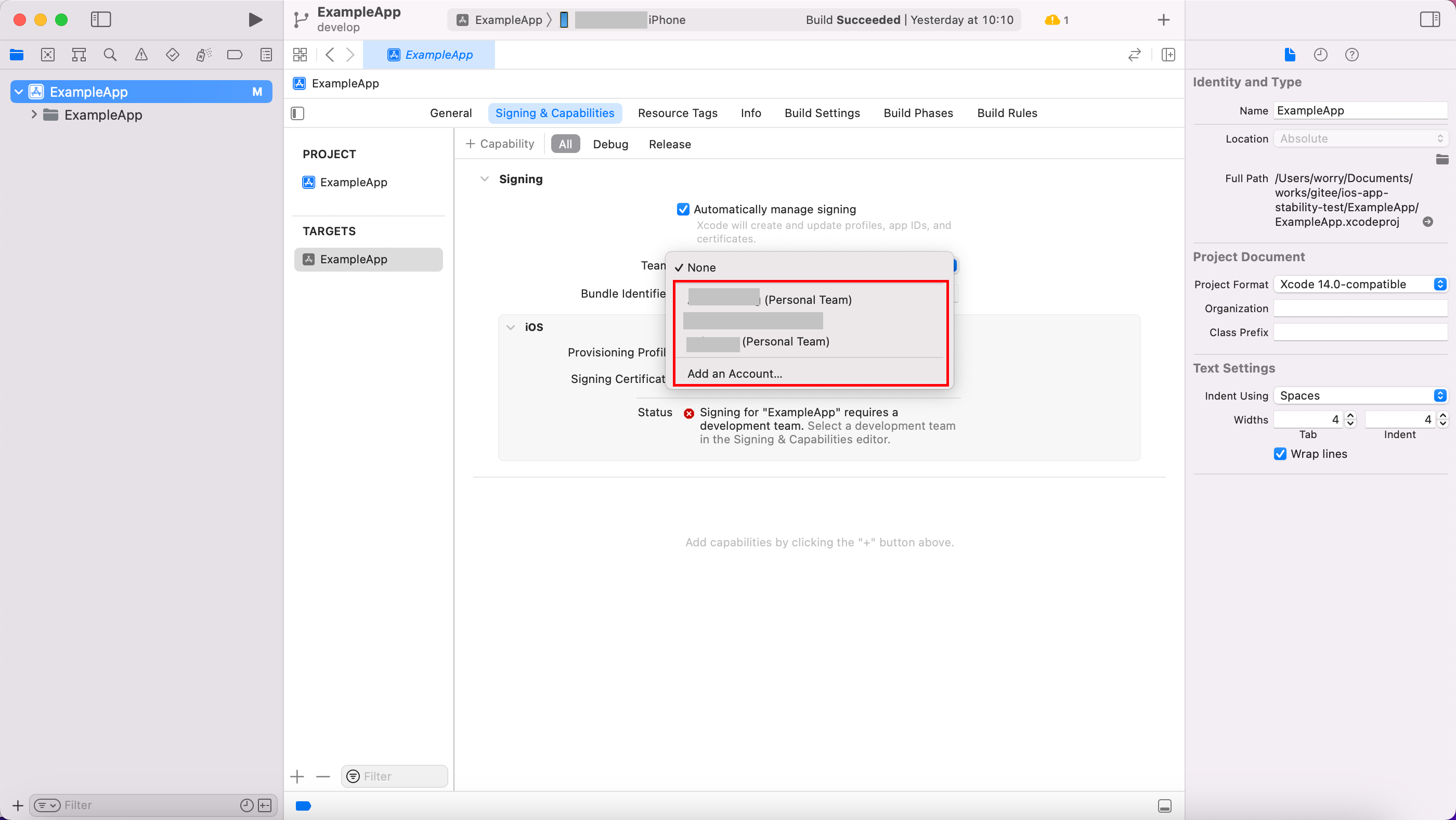
3. Select available ios devices
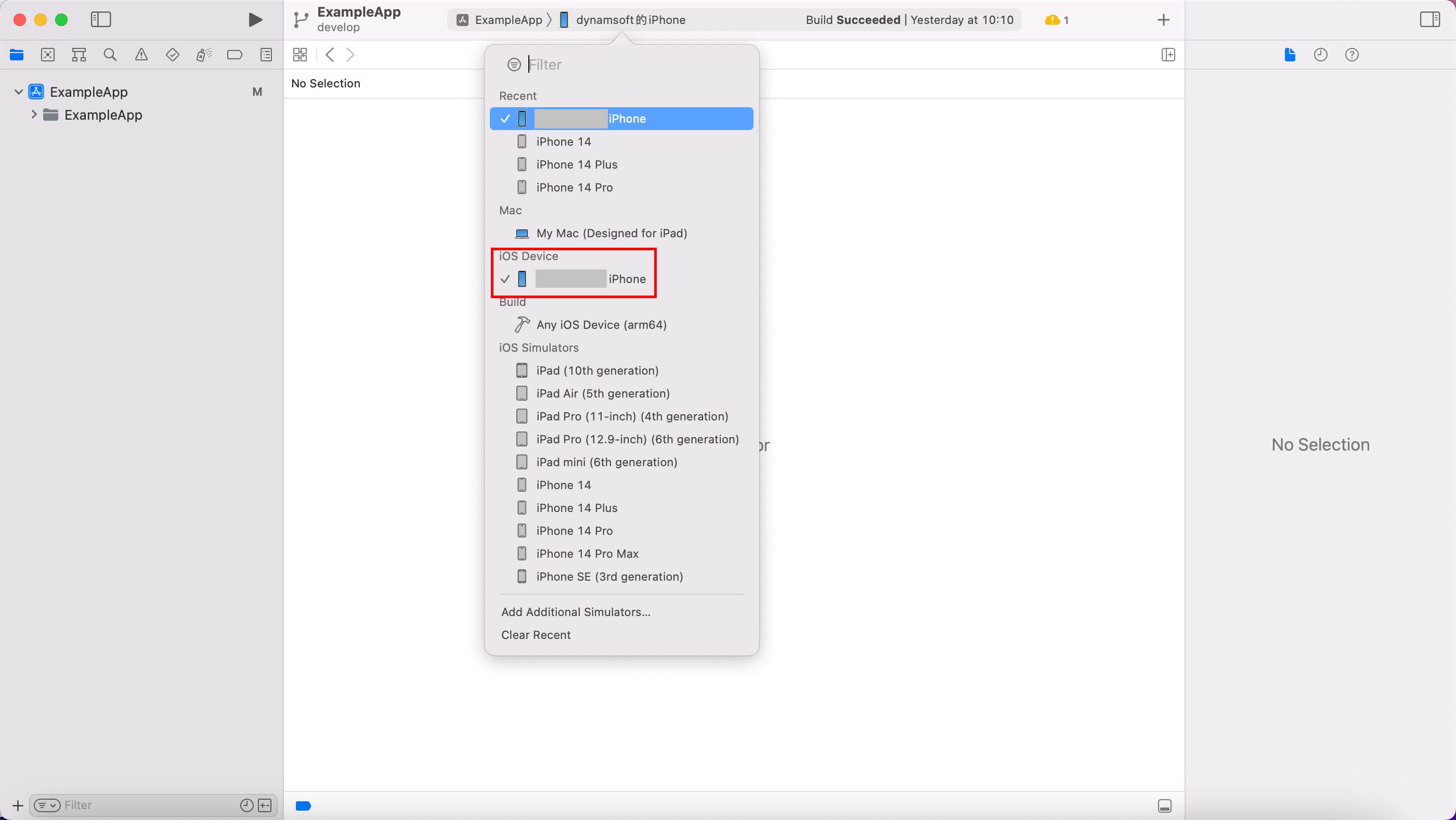
4. Install and run the app
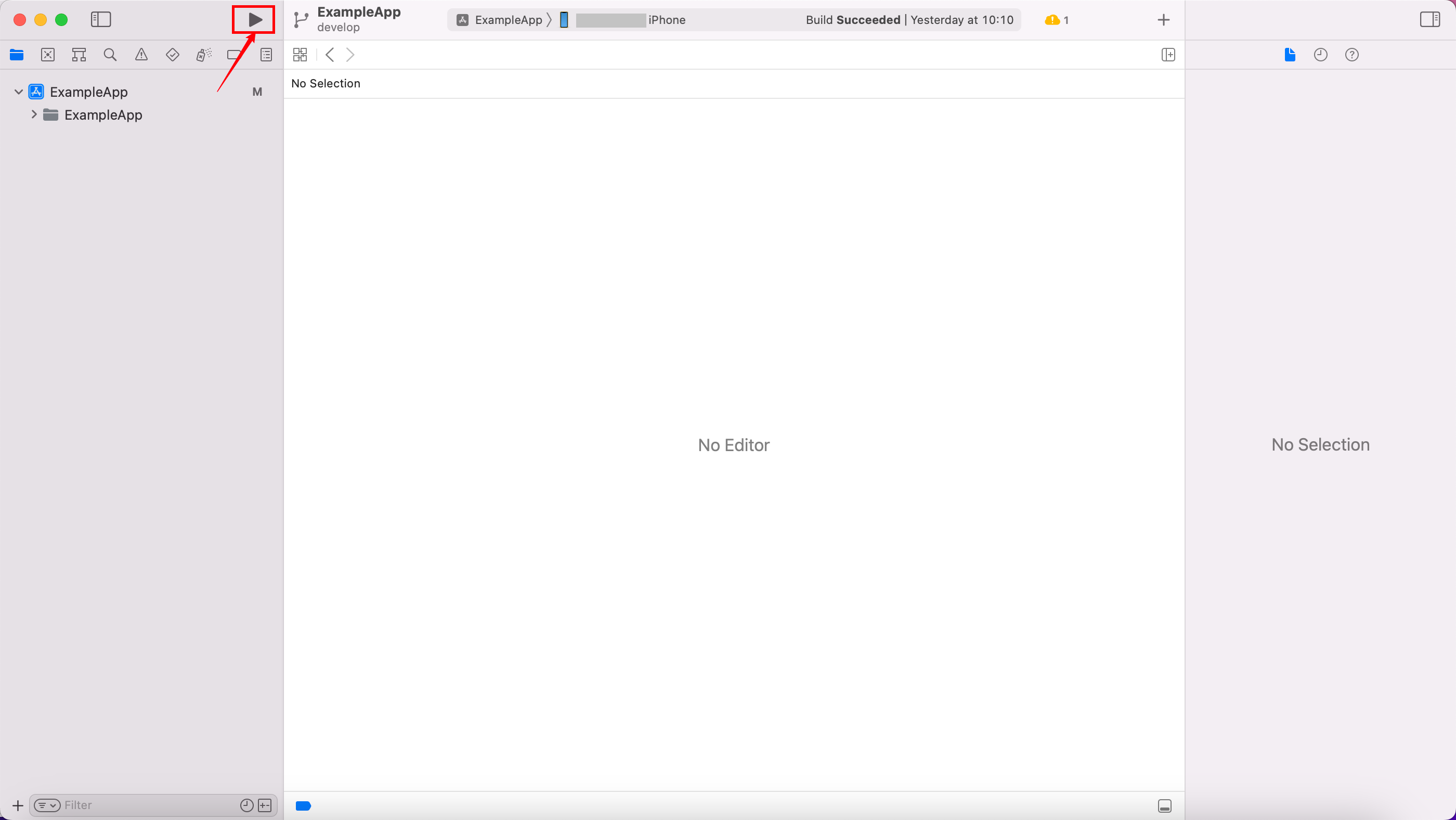
At this point, ExampleApp has been installed on your device. You can test the performance of the stability test program according to the detailed tutorials in the "Instructions".
#### Contribution
1. Fork the repository
2. Create Feat_xxx branch
3. Commit your code
4. Create Pull Request
#### Suggestions and feedback
Contact author: wang_wang164@163.com