
The web has evolved. Finally, web scraping has too.


🔗 Want to try it yourself? See the code behind these tests [here](https://github.com/omkarcloud/botasaurus/blob/master/bot_detection_tests.py) - Perform realistic, human-like mouse movements and say sayonara to detection 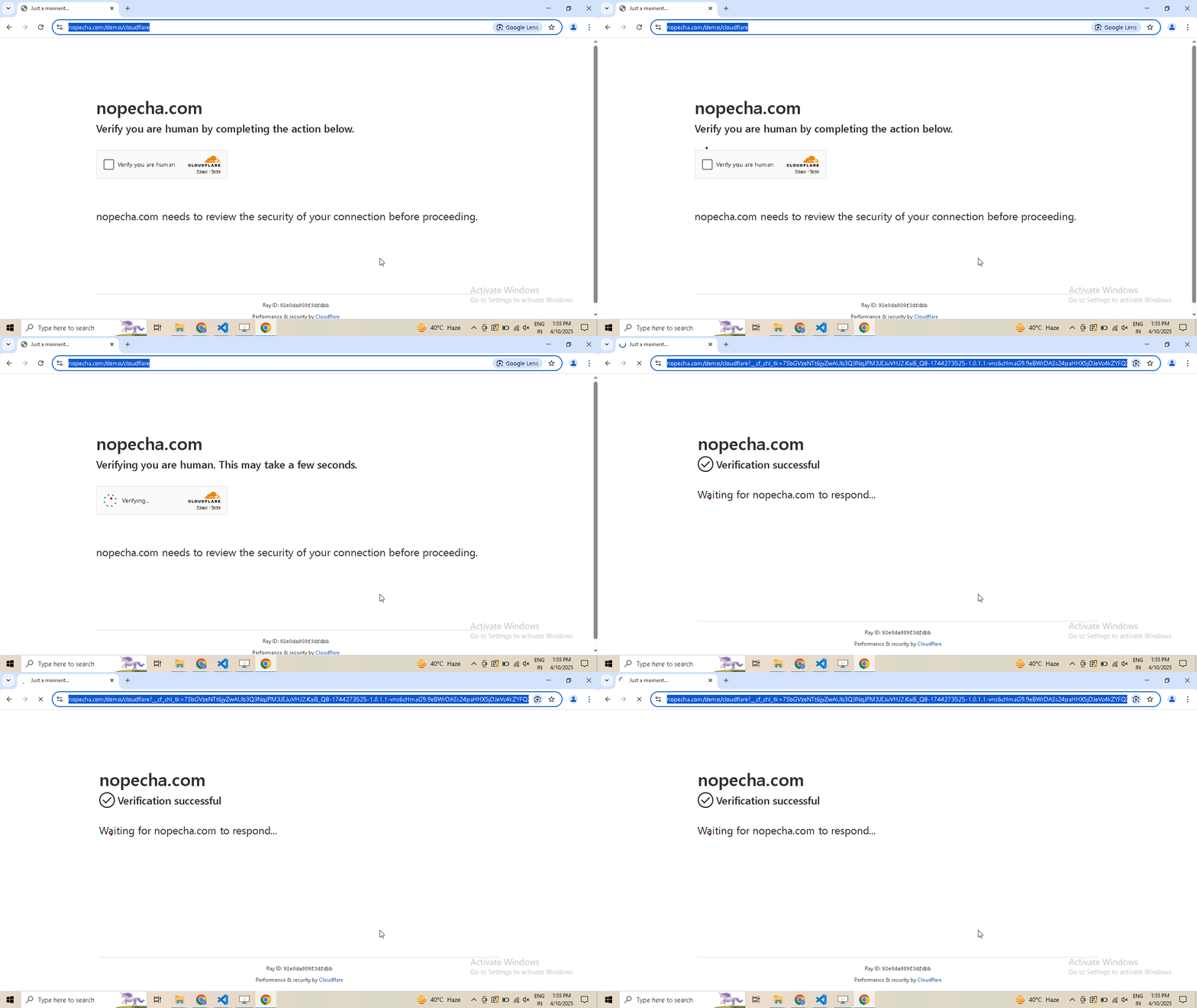 - Convert your scraper into a desktop app for Mac, Windows, and Linux in 1 day, so not only developers but everyone can use your web scraper. 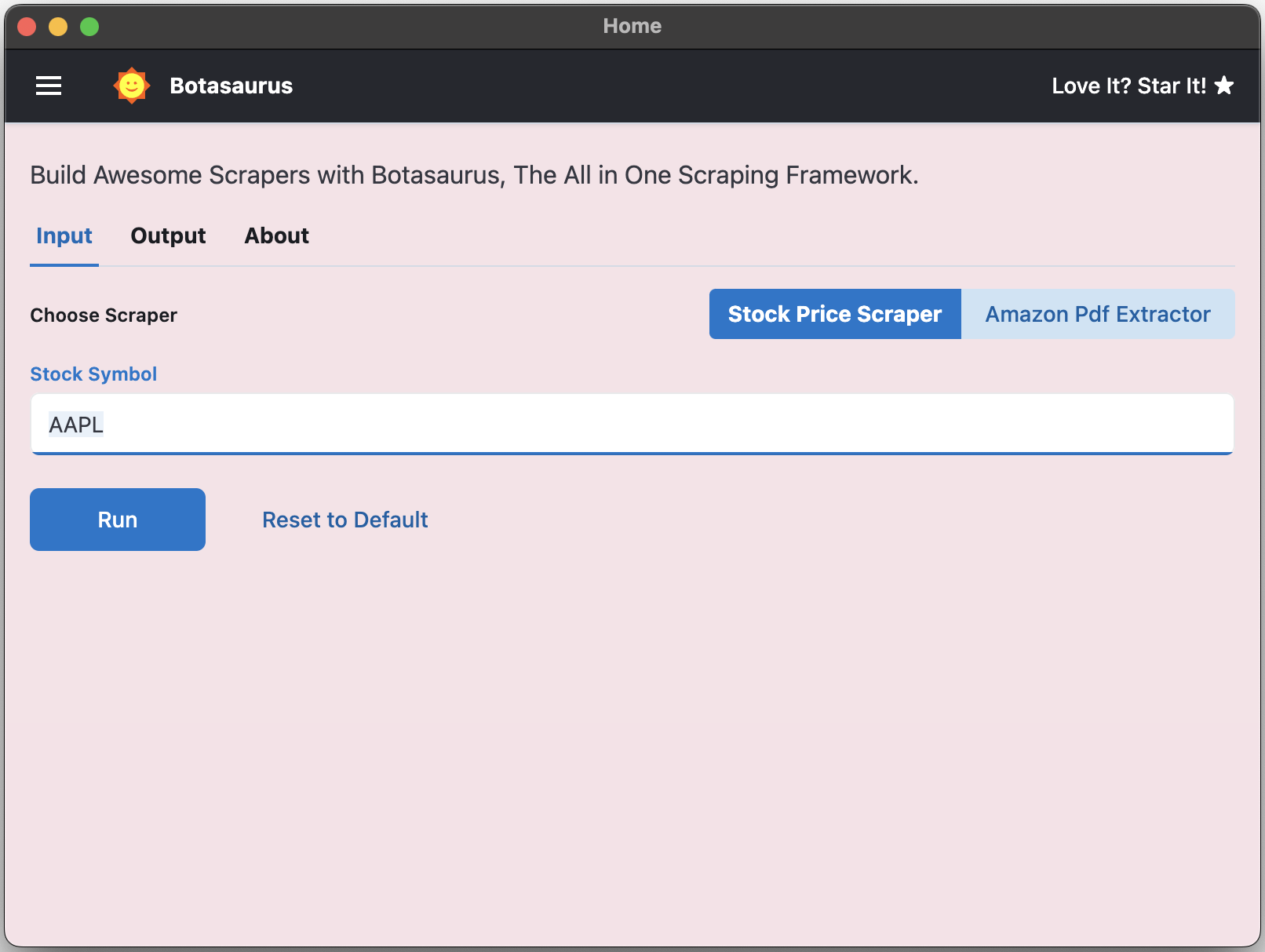 - Turn your scraper into a beautiful website, making it easy for your customers to use it from anywhere, anytime. 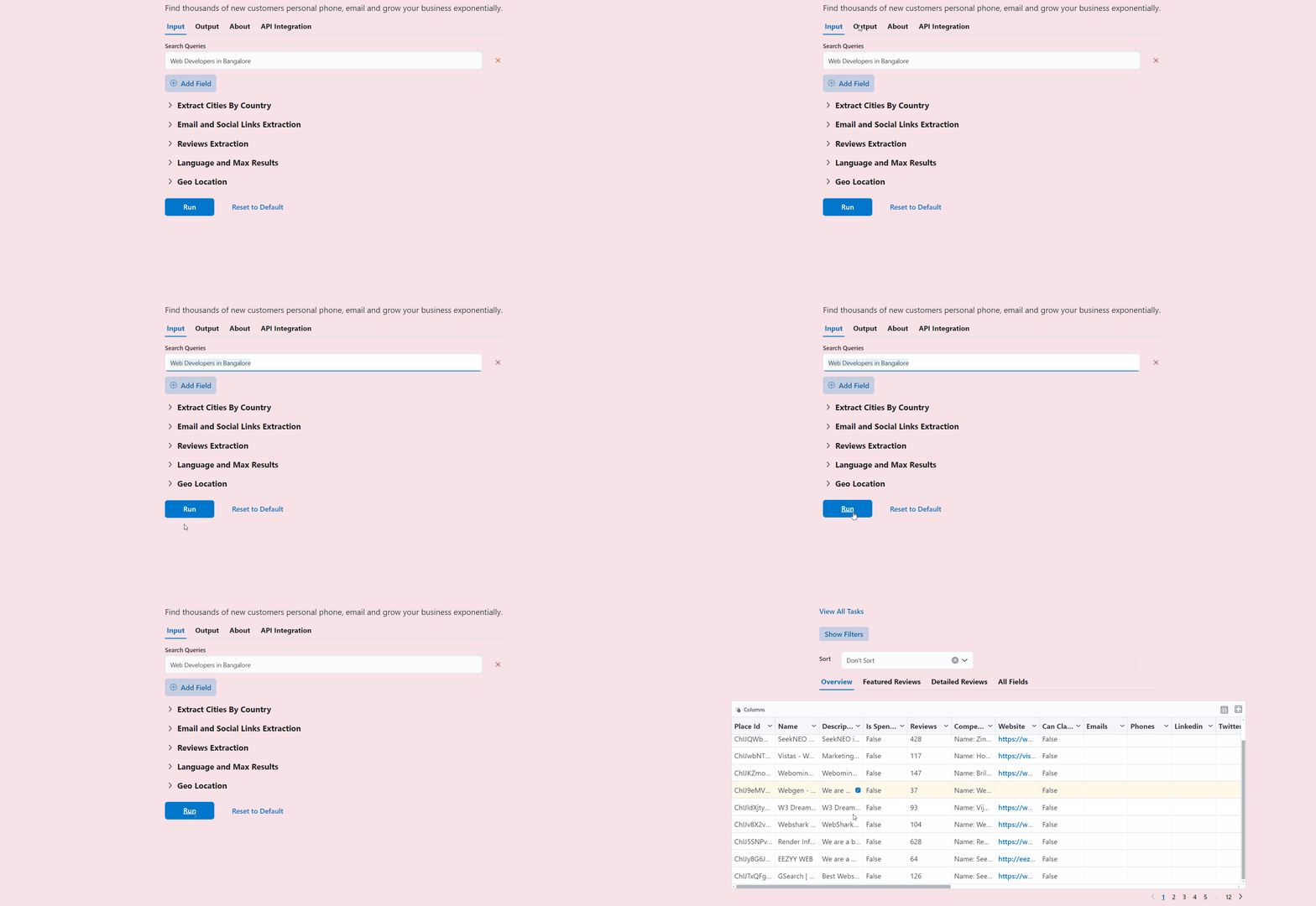 - Save up to 97%, yes 97%, on browser proxy costs by using [browser-based fetch requests.](https://github.com/omkarcloud/botasaurus#how-to-significantly-reduce-proxy-costs-when-scraping-at-scale) - Easily save hours of development time with easy parallelization, profiles, extensions, and proxy configuration. Botasaurus makes asynchronous, parallel scraping child's play. - Use caching, sitemap, data cleaning, and other utilities to save hours of time spent writing and debugging code. - Easily scale your scraper to multiple machines with Kubernetes, and get your data faster than ever. And those are just the highlights. I mean! There is so much more to Botasaurus that you will be amazed at how much time you will save with it. ## 🚀 Getting Started with Botasaurus Let's dive right in with a straightforward example to understand Botasaurus. In this example, we will go through the steps to scrape the heading text from [https://www.omkar.cloud/](https://www.omkar.cloud/). 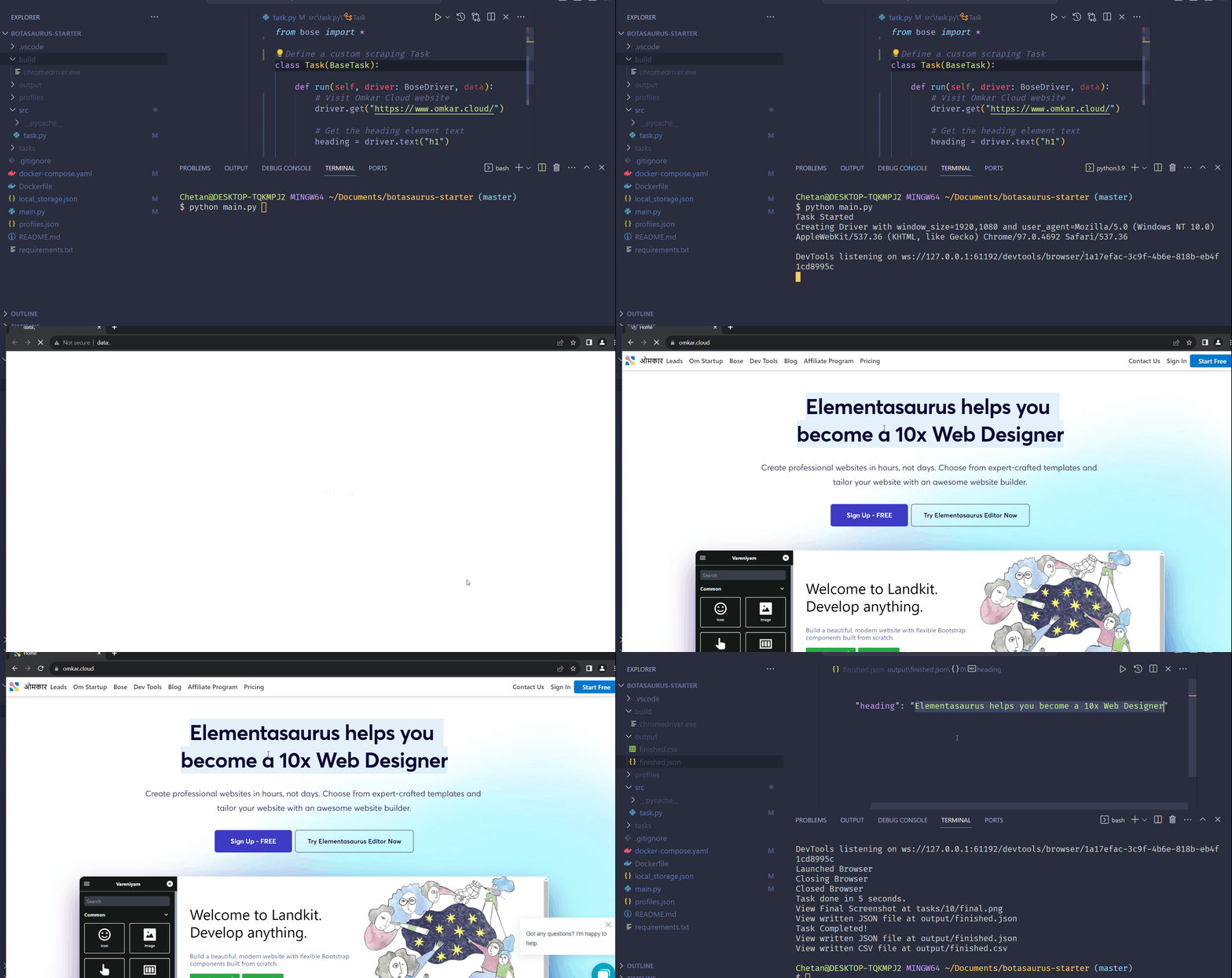 ### Step 1: Install Botasaurus First things first, you need to install Botasaurus. Run the following command in your terminal: ```shell python -m pip install --upgrade botasaurus ``` ### Step 2: Set Up Your Botasaurus Project Next, let's set up the project: 1. Create a directory for your Botasaurus project and navigate into it: ```shell mkdir my-botasaurus-project cd my-botasaurus-project code . # This will open the project in VSCode if you have it installed ``` ### Step 3: Write the Scraping Code Now, create a Python script named `main.py` in your project directory and paste the following code: ```python from botasaurus.browser import browser, Driver @browser def scrape_heading_task(driver: Driver, data): # Visit the Omkar Cloud website driver.get("https://www.omkar.cloud/") # Retrieve the heading element's text heading = driver.get_text("h1") # Save the data as a JSON file in output/scrape_heading_task.json return { "heading": heading } # Initiate the web scraping task scrape_heading_task() ``` Let's understand this code: - We define a custom scraping task, `scrape_heading_task`, decorated with `@browser`: ```python @browser def scrape_heading_task(driver: Driver, data): ``` - Botasaurus automatically provides a Humane Driver to our function: ```python def scrape_heading_task(driver: Driver, data): ``` - Inside the function, we: - Visit Omkar Cloud - Extract the heading text - Return the data to be automatically saved as `scrape_heading_task.json` by Botasaurus: ```python driver.get("https://www.omkar.cloud/") heading = driver.get_text("h1") return {"heading": heading} ``` - Finally, we initiate the scraping task: ```python # Initiate the web scraping task scrape_heading_task() ``` ### Step 4: Run the Scraping Task Time to run it: ```shell python main.py ``` After executing the script, it will: - Launch Google Chrome - Visit [omkar.cloud](https://www.omkar.cloud/) - Extract the heading text - Save it automatically as `output/scrape_heading_task.json`.  Now, let's explore another way to scrape the heading using the `request` module. Replace the previous code in `main.py` with the following: ```python from botasaurus.request import request, Request from botasaurus.soupify import soupify @request def scrape_heading_task(request: Request, data): # Visit the Omkar Cloud website response = request.get("https://www.omkar.cloud/") # Create a BeautifulSoup object soup = soupify(response) # Retrieve the heading element's text heading = soup.find('h1').get_text() # Save the data as a JSON file in output/scrape_heading_task.json return { "heading": heading } # Initiate the web scraping task scrape_heading_task() ``` In this code: - We scrape the HTML using `request`, which is specifically designed for making browser-like humane requests. - Next, we parse the HTML into a `BeautifulSoup` object using `soupify()` and extract the heading. ### Step 5: Run the Scraping Task (which makes Humane HTTP Requests) Finally, run it again: ```shell python main.py ``` This time, you will observe the exact same result as before, but instead of opening a whole browser, we are making browser-like humane HTTP requests. ## 💡 Understanding Botasaurus ### What is Botasaurus Driver, and why should I use it over Selenium and Playwright? Botasaurus Driver is a web automation driver like Selenium, and the single most important reason to use it is because it is truly humane. You will not, and I repeat NOT, have any issues accessing any website. Plus, it is super fast to launch and use, and the API is designed by and for web scrapers, and you will love it. ### How do I access Cloudflare-protected pages using Botasaurus? Cloudflare is the most popular protection system on the web. So, let's see how Botasaurus can help you solve various Cloudflare challenges. **Connection Challenge** This is the single most popular challenge and requires making a browser-like connection with appropriate headers. It's commonly used for: - Product Pages - Blog Pages - Search Result Pages #### What Works? - Visiting the website via Google Referrer (which makes it seem as if the user has arrived from a Google search). ```python from botasaurus.browser import browser, Driver @browser def scrape_heading_task(driver: Driver, data): # Visit the website via Google Referrer driver.google_get("https://www.cloudflare.com/en-in/") driver.prompt() heading = driver.get_text('h1') return heading scrape_heading_task() ``` - Use the request module. The Request Object is smart and, by default, visits any link with a Google Referrer. Although it works, you will need to use retries. ```python from botasaurus.request import request, Request @request(max_retry=10) def scrape_heading_task(request: Request, data): response = request.get("https://www.cloudflare.com/en-in/") print(response.status_code) response.raise_for_status() return response.text scrape_heading_task() ``` **JS with Captcha Challenge** This challenge requires performing JS computations that differentiate a Chrome controlled by Selenium/Puppeteer/Playwright from a real Chrome. It also involves solving a Captcha. It's used to for pages which are rarely but sometimes visited by people, like: - 5th Review page - Auth pages Example Page: https://nopecha.com/demo/cloudflare #### What Does Not Work? Using `@request` does not work because although it can make browser-like HTTP requests, it cannot run JavaScript to solve the challenge. #### What Works? Pass the `bypass_cloudflare=True` argument to the `google_get` method. ```python from botasaurus.browser import browser, Driver @browser def scrape_heading_task(driver: Driver, data): driver.google_get("https://nopecha.com/demo/cloudflare", bypass_cloudflare=True) driver.prompt() scrape_heading_task() ``` 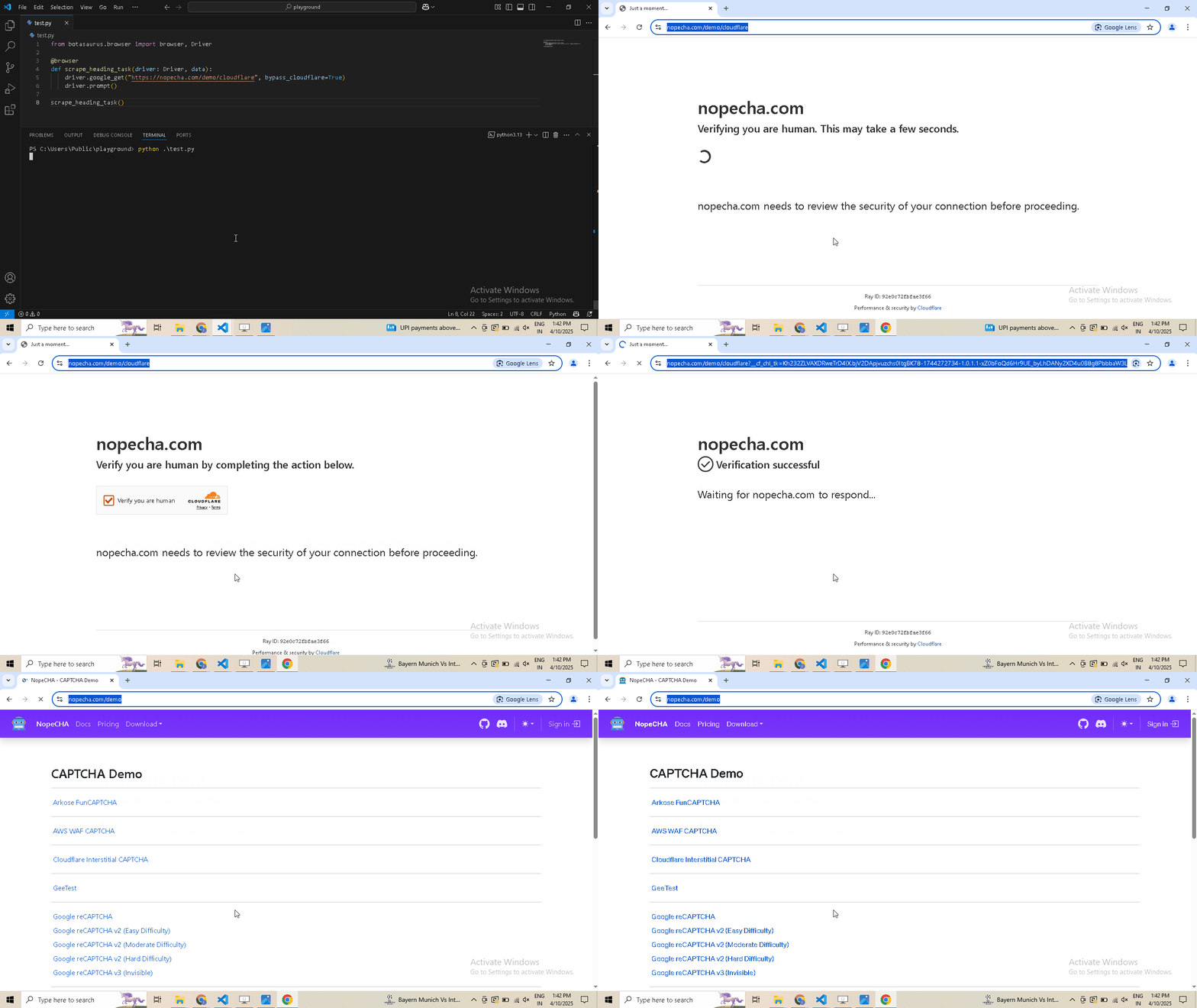 ### What are the benefits of a UI scraper? Here are some benefits of creating a scraper with a user interface: - Simplify your scraper usage for customers, eliminating the need to teach them how to modify and run your code. - Protect your code by hosting the scraper on the web and offering a monthly subscription, rather than providing full access to your code. This approach: - Safeguards your Python code from being copied and reused, increasing your customer's lifetime value. - Generate monthly recurring revenue via subscription from your customers, surpassing a one-time payment. - Enable sorting, filtering, and downloading of data in various formats (JSON, Excel, CSV, etc.). - Provide access via a REST API for seamless integration. - Create a polished frontend, backend, and API integration with minimal code. ### How to run a UI-based scraper? Let's run the Botasaurus Starter Template (the recommended template for greenfield Botasaurus projects), which scrapes the heading of the provided link by following these steps: 1. Clone the Starter Template: ``` git clone https://github.com/omkarcloud/botasaurus-starter my-botasaurus-project cd my-botasaurus-project ``` 2. Install dependencies (will take a few minutes): ``` python -m pip install -r requirements.txt python run.py install ``` 3. Run the scraper: ``` python run.py ``` Your browser will automatically open up at http://localhost:3000/. Then, enter the link you want to scrape (e.g., https://www.omkar.cloud/) and click on the Run Button. 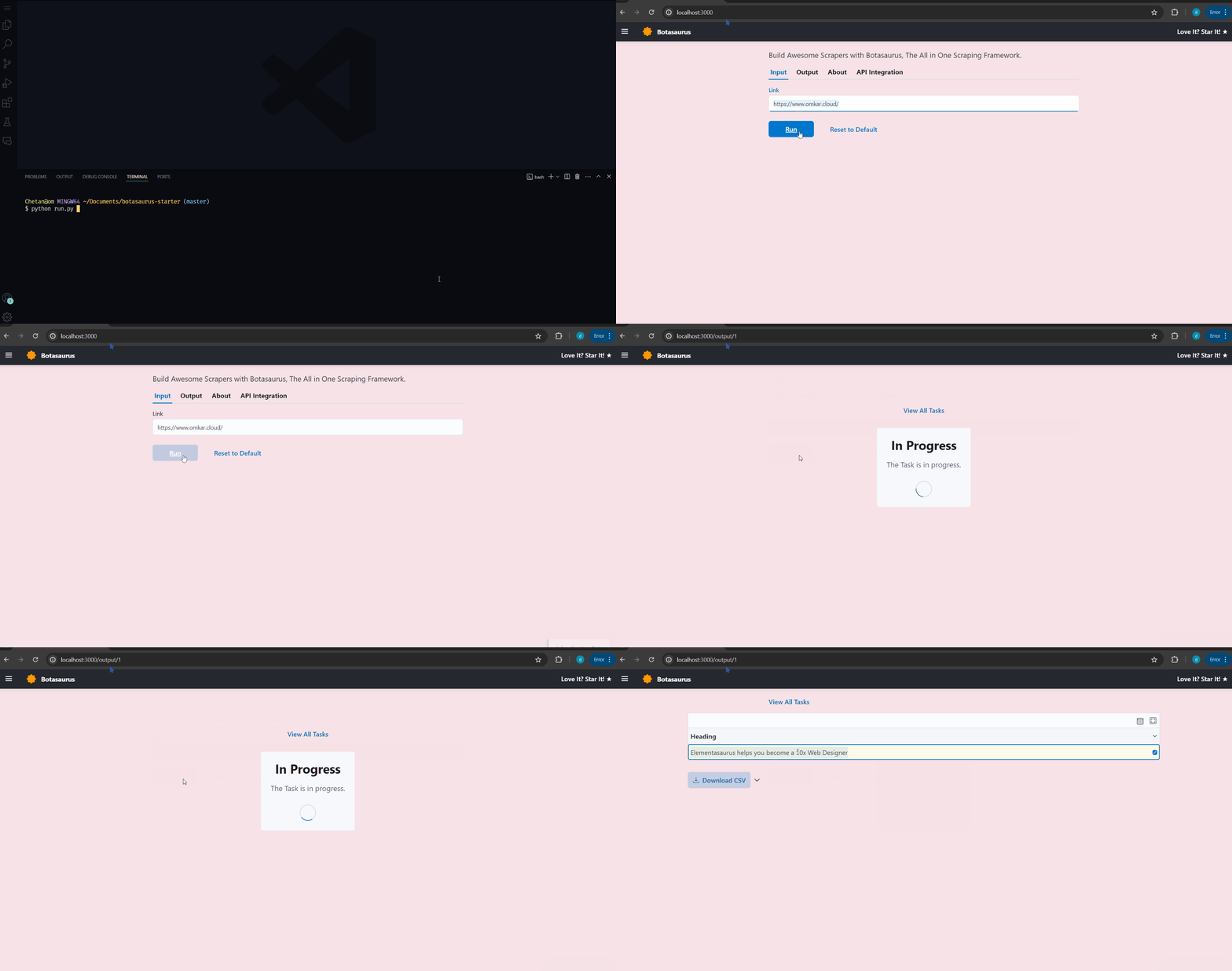 After some seconds, the data will be scraped. 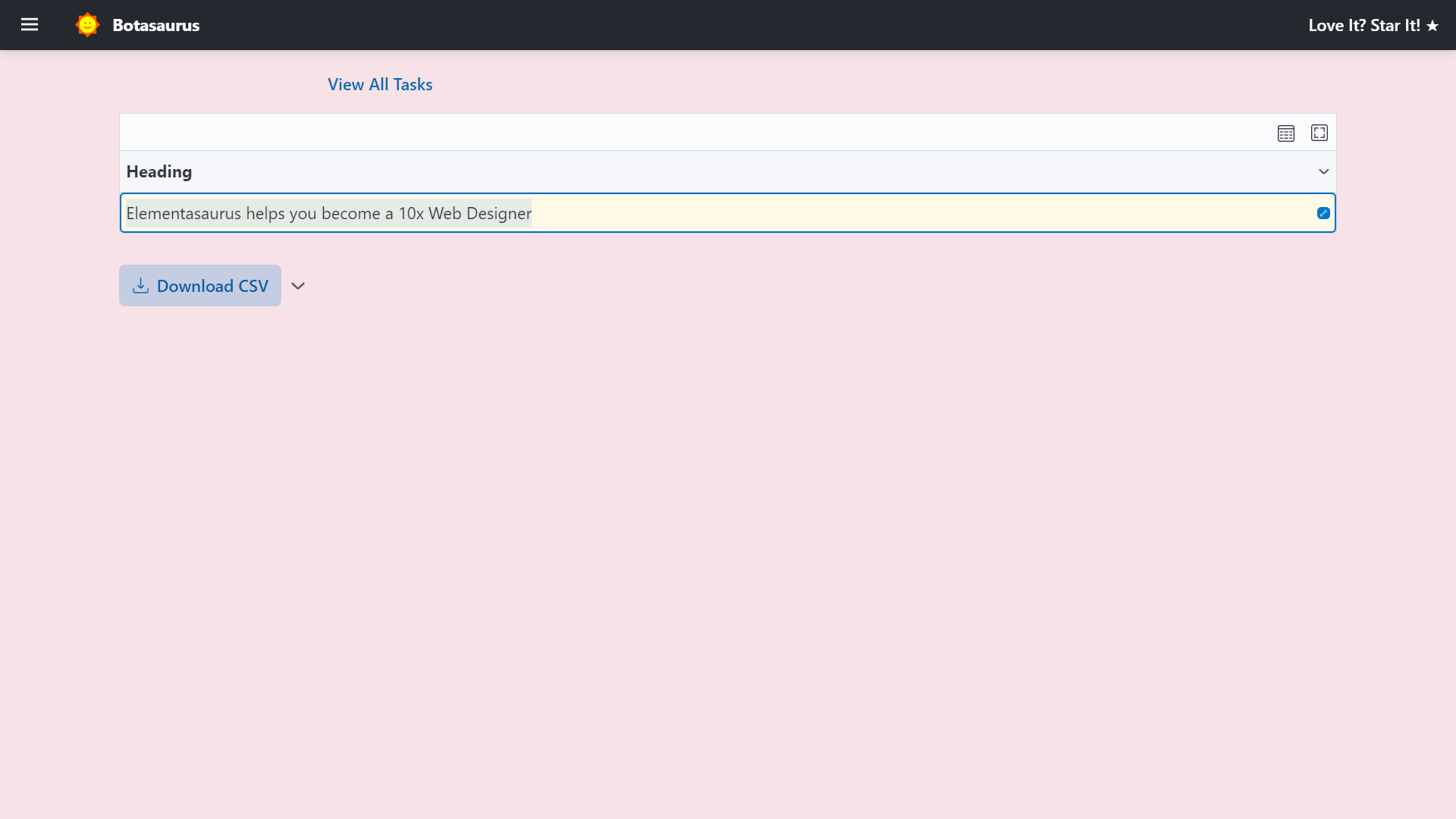 Visit http://localhost:3000/output to see all the tasks you have started. 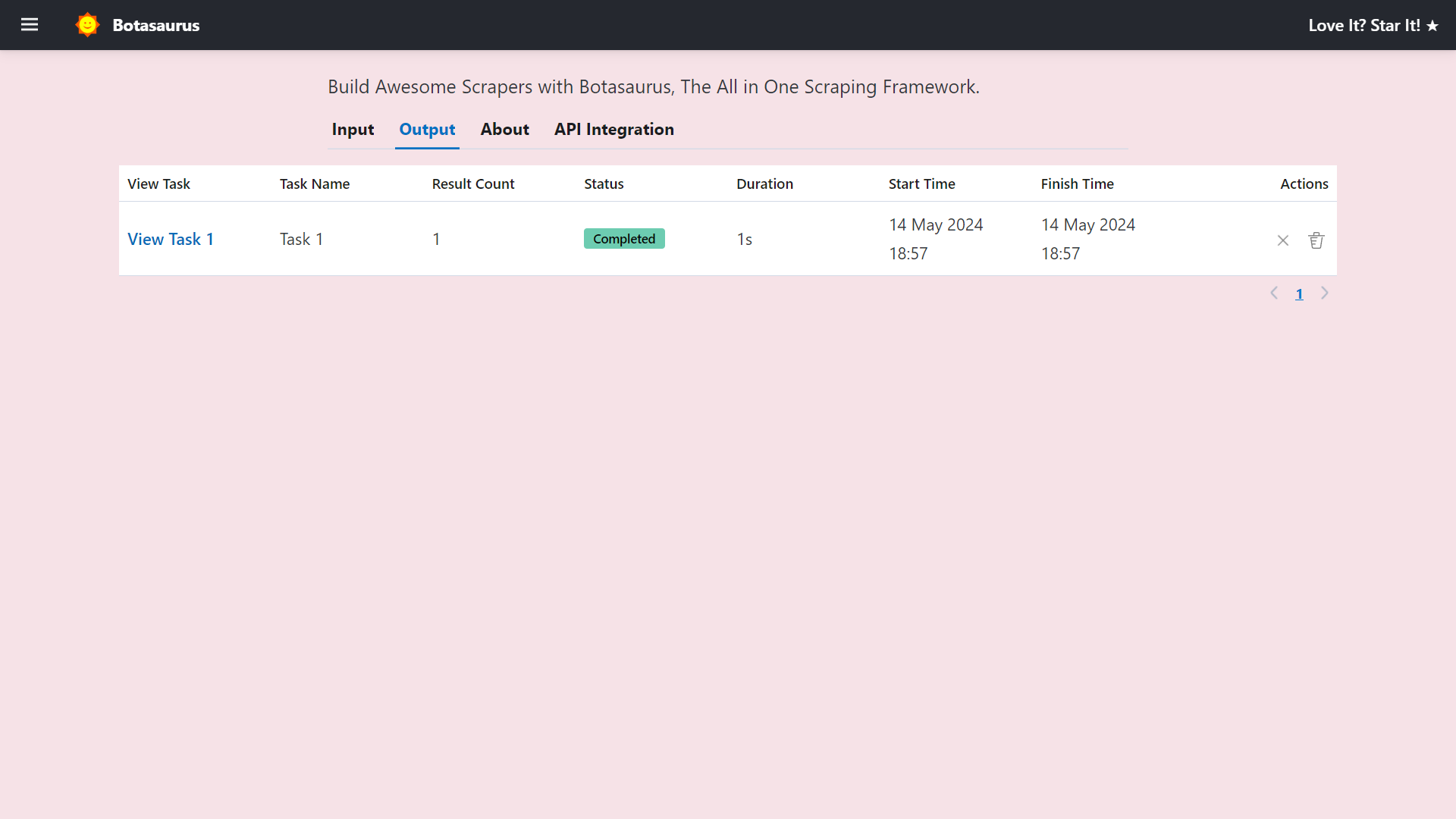 Go to http://localhost:3000/about to see the rendered README.md file of the project. 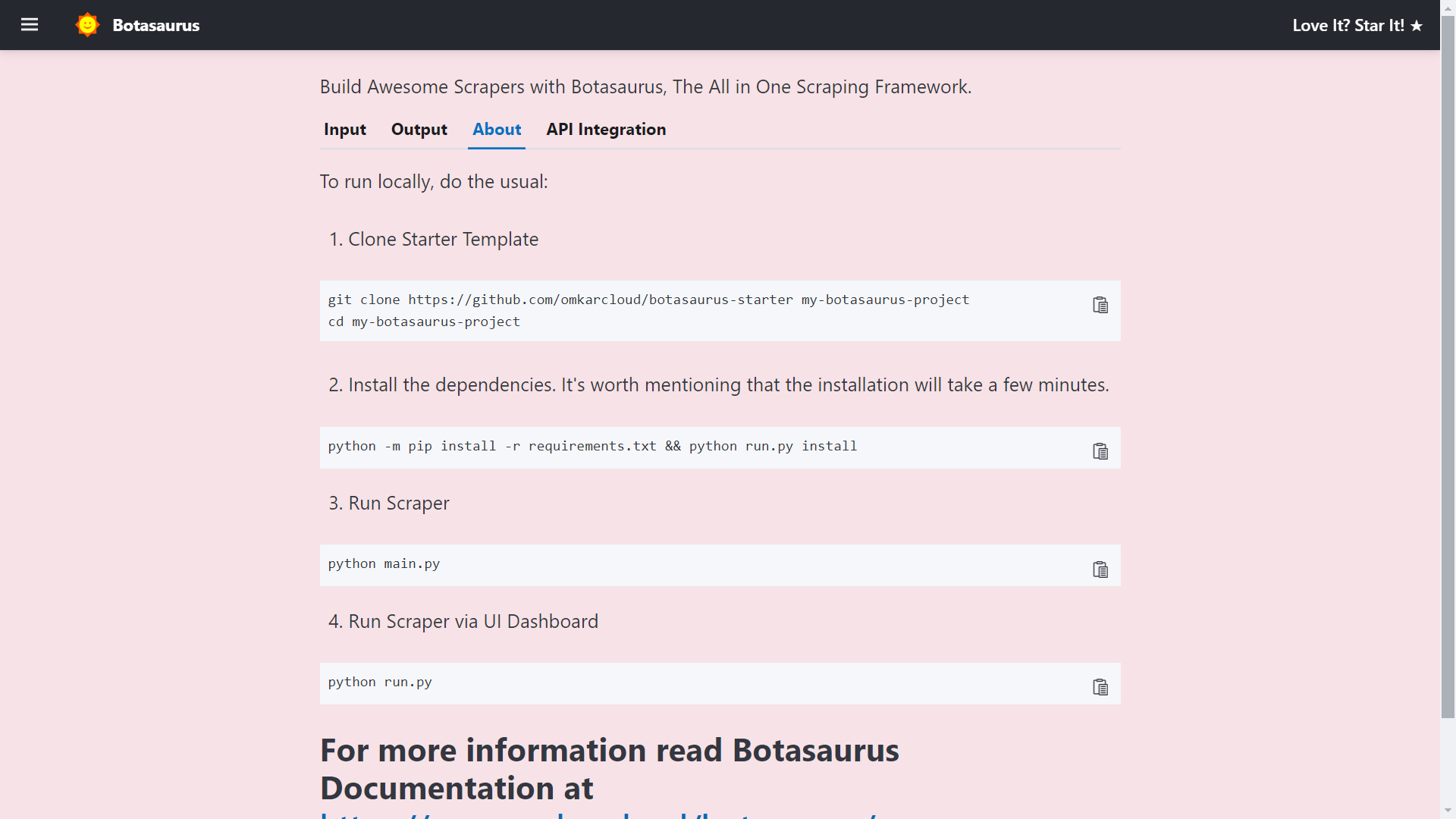 Finally, visit http://localhost:3000/api-integration to see how to access the scraper via API. 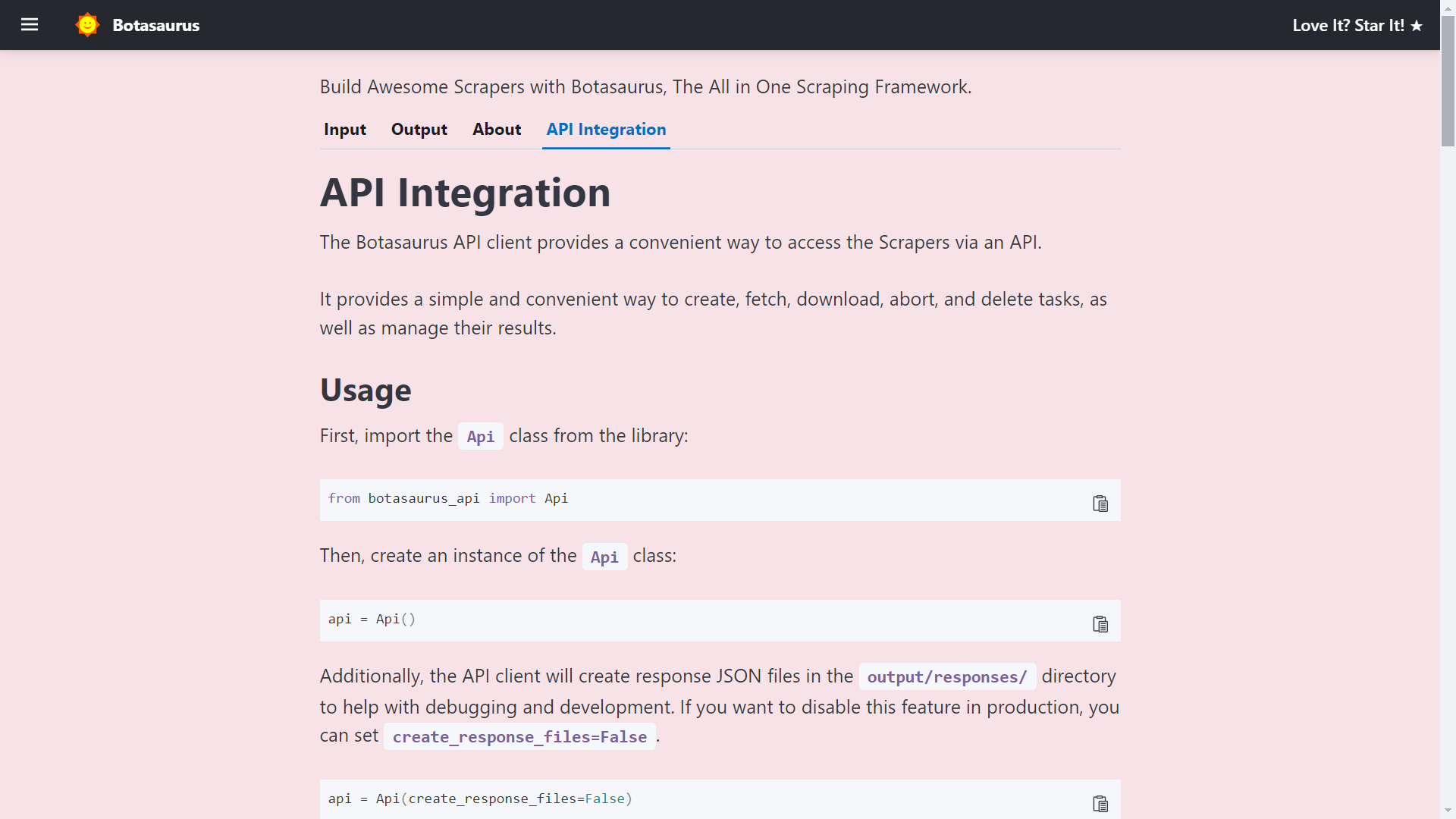 The API documentation is generated dynamically based on your scraper's inputs, sorts, filters, etc., and is unique to your scraper. So, whenever you need to run the scraper via API, visit this tab and copy the code specific to your scraper. ### How to create a UI scraper using Botasaurus? Creating a UI scraper with Botasaurus is a simple 3-step process: 1. Create your scraper function 2. Add the scraper to the server using 1 line of code 3. Define the input controls for the scraper To understand these steps, let's go through the code of the Botasaurus Starter Template that you just ran. #### Step 1: Create the Scraper Function In `src/scrape_heading_task.py`, we define a scraping function that basically does the following: 1. Receives a `data` object and extracts the "link". 2. Retrieves the HTML content of the webpage using the "link". 3. Converts the HTML into a BeautifulSoup object. 4. Locates the heading element, extracts its text content, and returns it. ```python from botasaurus.request import request, Request from botasaurus.soupify import soupify @request def scrape_heading_task(request: Request, data): # Visit the Link response = request.get(data["link"]) # Create a BeautifulSoup object soup = soupify(response) # Retrieve the heading element's text heading = soup.find('h1').get_text() # Save the data as a JSON file in output/scrape_heading_task.json return { "heading": heading } ``` #### Step 2: Add the Scraper to the Server In `backend/scrapers.py`, we: - Import our scraping function - Use `Server.add_scraper()` to register the scraper ```python from botasaurus_server.server import Server from src.scrape_heading_task import scrape_heading_task # Add the scraper to the server Server.add_scraper(scrape_heading_task) ``` #### Step 3: Define the Input Controls In `backend/inputs/scrape_heading_task.js`, we: - Define a `getInput` function that takes the controls parameter - Add a link input control to it - Use JSDoc comments to enable IntelliSense Code Completion in VSCode as you won't be able to remember all the controls in botasaurus. ```js /** * @typedef {import('../../frontend/node_modules/botasaurus-controls/dist/index').Controls} Controls */ /** * @param {Controls} controls */ function getInput(controls) { controls // Render a Link Input, which is required, defaults to "https://stackoverflow.blog/open-source". .link('link', { isRequired: true, defaultValue: "https://stackoverflow.blog/open-source" }) } ``` Above was a simple example; below is a real-world example with multi-text, number, switch, select, section, and other controls. ```js /** * @typedef {import('../../frontend/node_modules/botasaurus-controls/dist/index').Controls} Controls */ /** * @param {Controls} controls */ function getInput(controls) { controls .listOfTexts('queries', { defaultValue: ["Web Developers in Bangalore"], placeholder: "Web Developers in Bangalore", label: 'Search Queries', isRequired: true }) .section("Email and Social Links Extraction", (section) => { section.text('api_key', { placeholder: "2e5d346ap4db8mce4fj7fc112s9h26s61e1192b6a526af51n9", label: 'Email and Social Links Extraction API Key', helpText: 'Enter your API key to extract email addresses and social media links.', }) }) .section("Reviews Extraction", (section) => { section .switch('enable_reviews_extraction', { label: "Enable Reviews Extraction" }) .numberGreaterThanOrEqualToZero('max_reviews', { label: 'Max Reviews per Place (Leave empty to extract all reviews)', placeholder: 20, isShown: (data) => data['enable_reviews_extraction'], defaultValue: 20, }) .choose('reviews_sort', { label: "Sort Reviews By", isRequired: true, isShown: (data) => data['enable_reviews_extraction'], defaultValue: 'newest', options: [{ value: 'newest', label: 'Newest' }, { value: 'most_relevant', label: 'Most Relevant' }, { value: 'highest_rating', label: 'Highest Rating' }, { value: 'lowest_rating', label: 'Lowest Rating' }] }) }) .section("Language and Max Results", (section) => { section .addLangSelect() .numberGreaterThanOrEqualToOne('max_results', { placeholder: 100, label: 'Max Results per Search Query (Leave empty to extract all places)' }) }) .section("Geo Location", (section) => { section .text('coordinates', { placeholder: '12.900490, 77.571466' }) .numberGreaterThanOrEqualToOne('zoom_level', { label: 'Zoom Level (1-21)', defaultValue: 14, placeholder: 14 }) }) } ``` I encourage you to paste the above code into `backend/inputs/scrape_heading_task.js` and reload the page, and you will see a complex set of input controls like the image shown. 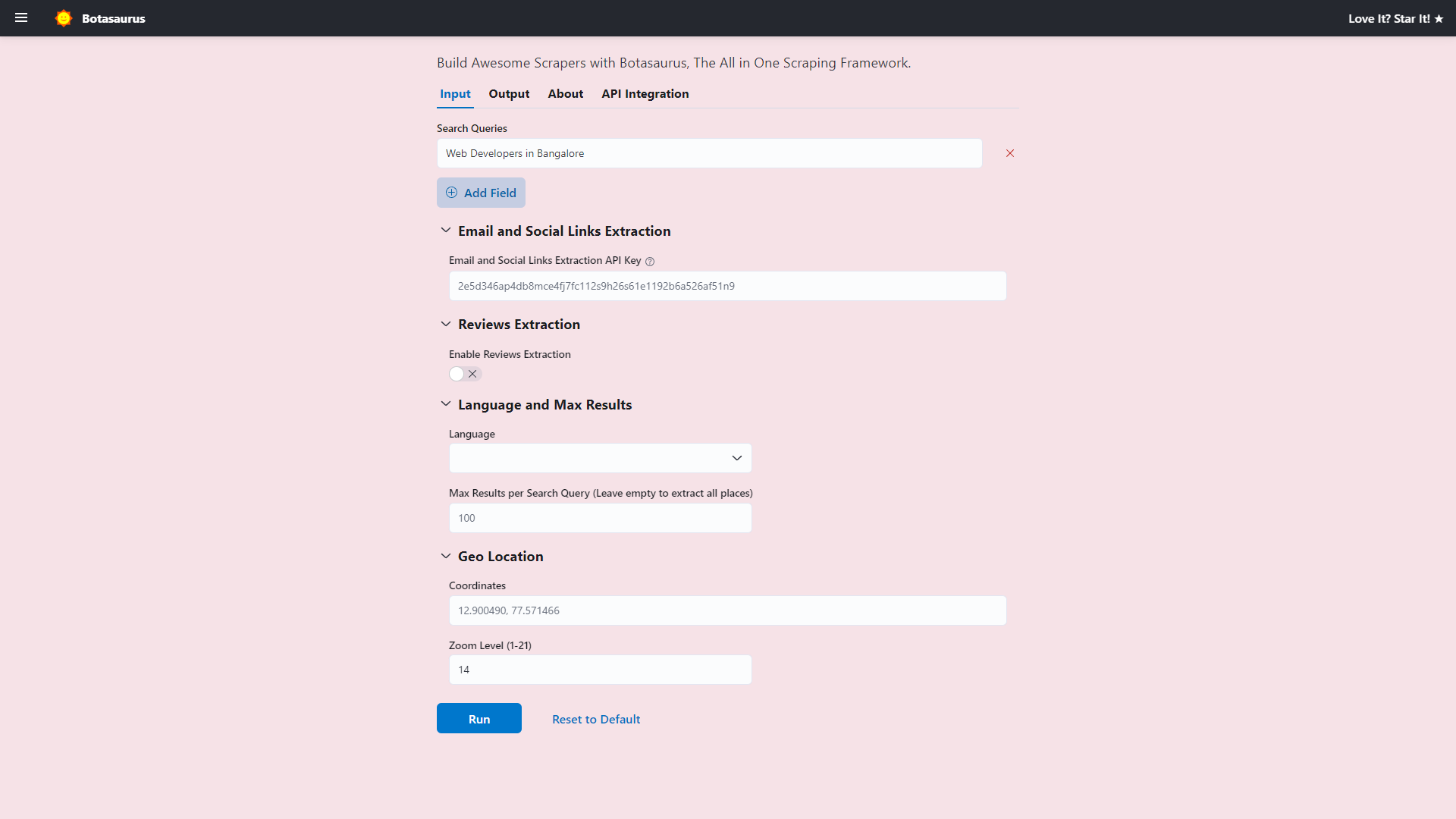 Now, to use the Botasaurus UI for adding new scrapers, remember these points: 1. Create a `backend/inputs/{your_scraping_function_name}.js` file for each scraping function. 2. Define the `getInput` function in the file with the necessary controls. 3. Use JSDoc comments to enable IntelliSense code completion in VSCode, as you won't be able to remember all the controls in Botasaurus. Use this template as a starting point for new scraping function's input controls js file: ```js /** * @typedef {import('../../frontend/node_modules/botasaurus-controls/dist/index').Controls} Controls */ /** * @param {Controls} controls */ function getInput(controls) { // Define your controls here. } ``` That's it! With these simple steps, you can create a fully functional UI scraper using Botasaurus. Later, you will learn how to add sorts and filters to make your UI scraper even more powerful and user-friendly. 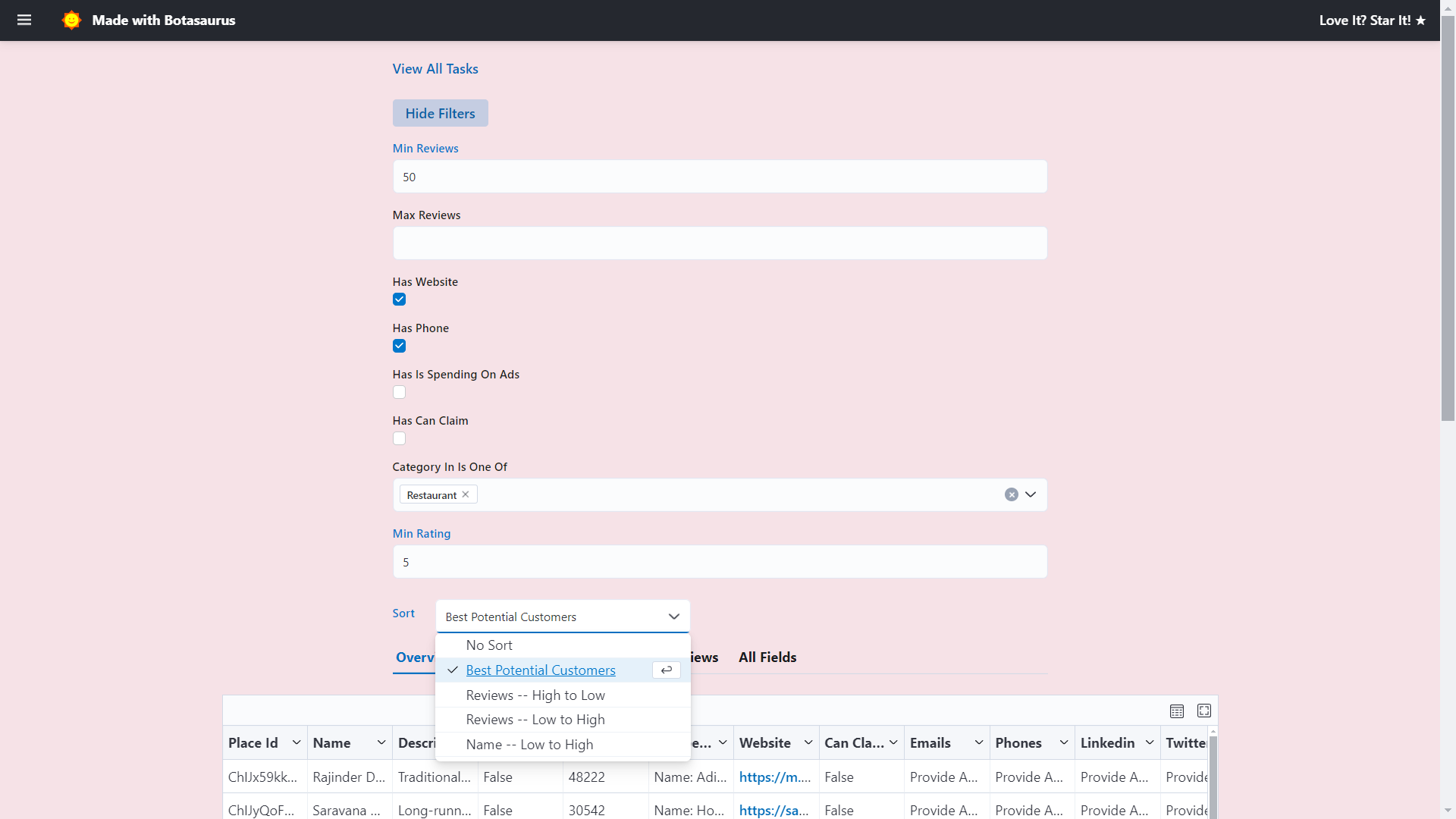 ### What is a Desktop Extractor? A **Desktop Extractor** is a standalone application that runs on your computer and extracts specific data from websites, PDFs, Excel files, and other documents. Unlike web-based tools, desktop extractors run locally, giving **faster performance** and **zero cloud costs**.  ### What advantages do Desktop Scrapers have over web-based scrapers? **Desktop Scrapers** offer key advantages over web-based scraper solutions like Outscraper: - **Zero Infrastructure Costs**: - Runs on the user's machine, eliminating expensive cloud computing fees. - Lower cloud costs allow you to offer lower pricing, attracting more customers and increasing revenue. - **Faster Execution**: - Instant execution, no delays for cloud resource allocation. - Uses the user's system, which is much faster than shared cloud servers. - **Increased Customer Engagement**: The app sits right on the user's desktop, encouraging frequent use compared to web tools they must actively visit via browser. - **Cross-Platform Deployment in 1 Day**: With **Botasaurus**, you can launch a desktop scraper for **Windows, macOS, and Linux** within a day. No need to build a website, manage servers, or handle scaling issues. Bota Desktop includes built-in features such as: - Task management - Data Table - Data export (Excel, CSV, etc.) - Sorting & Filtering - Caching and many more With zero usage costs, faster performance, and easier development, Desktop Scrapers outperform web-based alternatives. ### How to Build a Desktop Extractor Creating Desktop Extractors is easier than you think! All you need is a basic understanding of JavaScript. Once you're ready, read the [Desktop Extraction Tutorial](https://www.omkar.cloud/botasaurus/docs/botasaurus-desktop/quick-start), where we'll guide you through building two practical extractors: - **Yahoo Finance Stock Scraper** – Extracts real-time stock prices from Yahoo Finance. 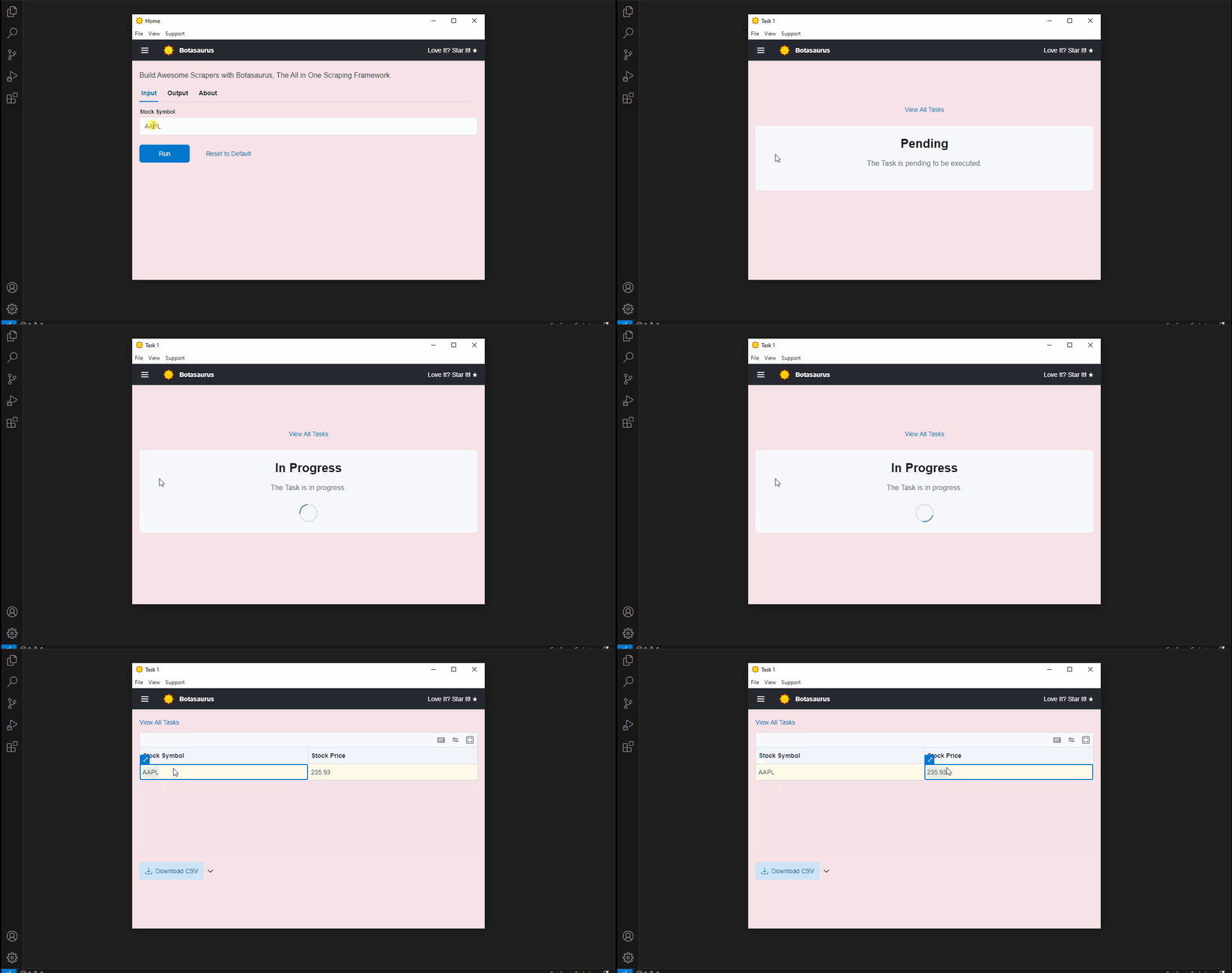 - **Amazon Invoice PDF Extractor** – Automates the extraction of key invoice data like Document Number, Document Date, and Place of Supply from Amazon PDFs. 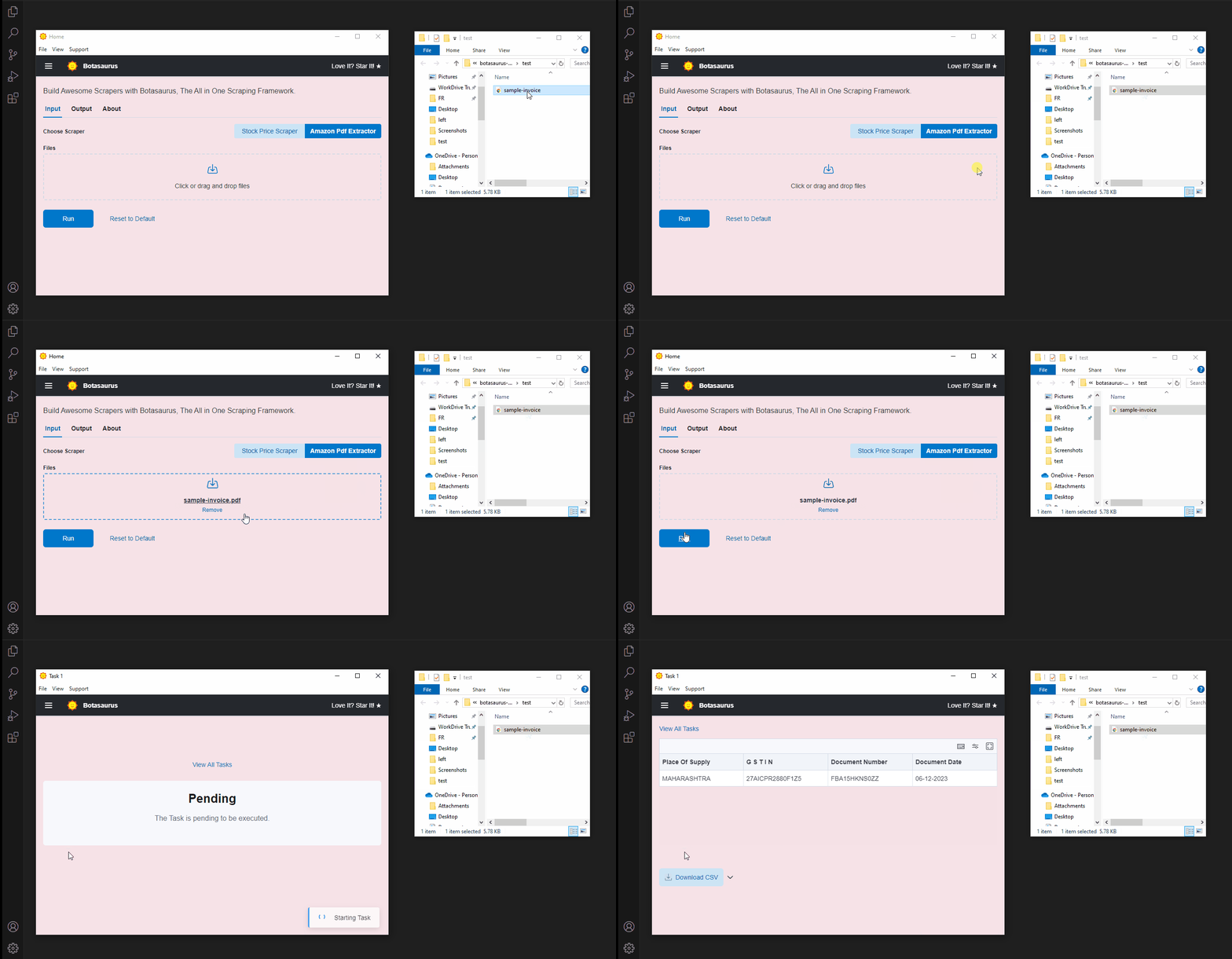 As a web scraper, you might naturally want to focus on web scraping. Still, I want you to create the **Amazon Invoice PDF Extractor** project. Why? Because many developers overlook the immense potential of extracting data from PDFs, Excel files, and other documents. **Document Data Extraction is a large untapped market.** For example, even in most developed countries, accountants often spend hundreds of hours manually entering invoice data for tax filings. A desktop extractor can transform this tedious, error-prone process into a task that takes just minutes, delivering 100% accurate results. Please read the step-by-step tutorial [here](https://www.omkar.cloud/botasaurus/docs/botasaurus-desktop/quick-start). By the end of this short guide, you'll be able to create powerful desktop extractors in very little time. ### What is Botasaurus, and what are its main features? Botasaurus is an all-in-one web scraping framework designed to achieve three main goals: 1. Provide essential web scraping utilities to streamline the scraping process. To accomplish these goals, Botasaurus gives you 3 decorators: - `@browser`: For scraping web pages using a humane browser. - `@request`: For scraping web pages using lightweight and humane HTTP requests. - `@task`: - For scraping web pages using third-party libraries like `playwright` or `selenium`. - or, For running non-web scraping tasks, such as data processing (e.g., converting video to audio). Botasaurus is not limited to web scraping tasks; any Python function can be made accessible with a stunning UI and user-friendly API. In practice, while developing with Botasaurus, you will spend most of your time in the following areas: - Configuring your scrapers via decorators with settings like: - Which proxy to use - How many scrapers to run in parallel, etc. - Writing your core web scraping logic using BeautifulSoup (bs4) or the Botasaurus Driver. Additionally, you will utilize the following Botasaurus utilities for debugging and development: - `bt`: Mainly for writing JSON, EXCEL, and HTML temporary files, and for data cleaning. - `Sitemap`: For accessing the website's links and sitemap. - Minor utilities like: - `LocalStorage`: For storing scraper state. - `soupify`: For creating BeautifulSoup objects from Driver, Requests response, Driver Element, or HTML string. - `IPUtils`: For obtaining information (IP, country, etc.) about the current IP address. - `Cache`: For managing the cache. By simply configuring these three decorators (`@browser`, `@request`, and `@task`) with arguments, you can easily create `real-time scrapers` and `large-scale datasets`, thus saving you countless hours that would otherwise be spent writing and debugging code from scratch. 2. Offering a Python-based UI scraper that allows non-technical users to run scrapers online by simply visiting a website link. (As described in the previous FAQ) 3. Make it easy to create desktop applications for Mac, Windows, and Linux, using JavaScript. More details can be found in the [Botasaurus Desktop Documentation here](https://www.omkar.cloud/botasaurus/docs/botasaurus-desktop/introduction). ### How to use decorators in Botasaurus? Decorators are the heart of Botasaurus. To use a decorator function, you can call it with: - A single item - A list of items If a scraping function is given a list of items, it will sequentially call the scraping function for each data item. For example, if you pass a list of three links to the `scrape_heading_task` function: ```python from botasaurus.browser import browser, Driver @browser def scrape_heading_task(driver: Driver, link): driver.get(link) heading = driver.get_text("h1") return heading scrape_heading_task(["https://www.omkar.cloud/", "https://www.omkar.cloud/blog/", "https://stackoverflow.com/"]) # <-- list of items ``` Then, Botasaurus will launch a new browser instance for each item, and the final results will be stored in `output/scrape_heading_task.json`. 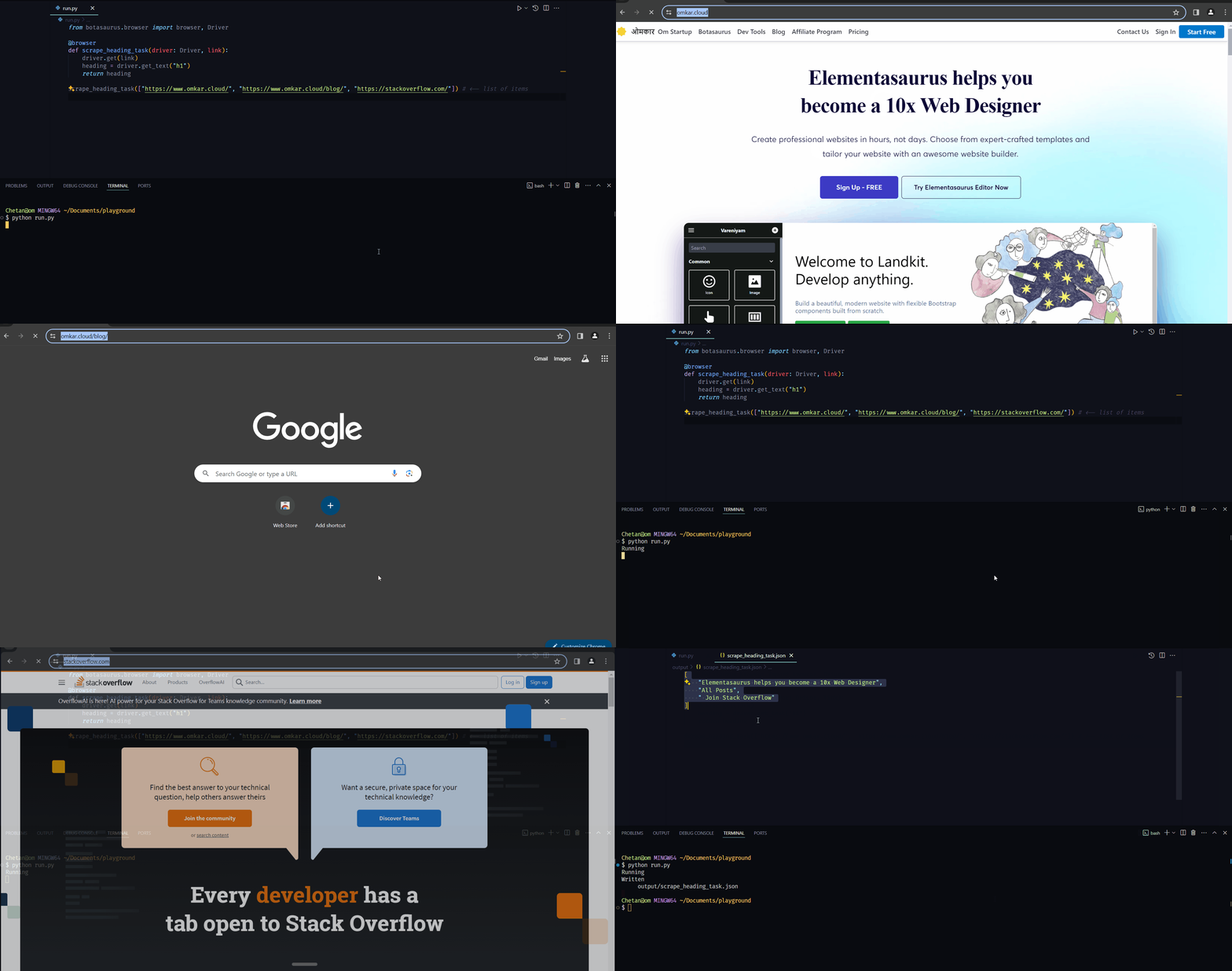 ### How does Botasaurus help me in debugging? Botasaurus helps you in debugging by: - Easily viewing the result of the scraping function, as it is saved in `output/{your_scraping_function_name}.json`. Say goodbye to print statements. 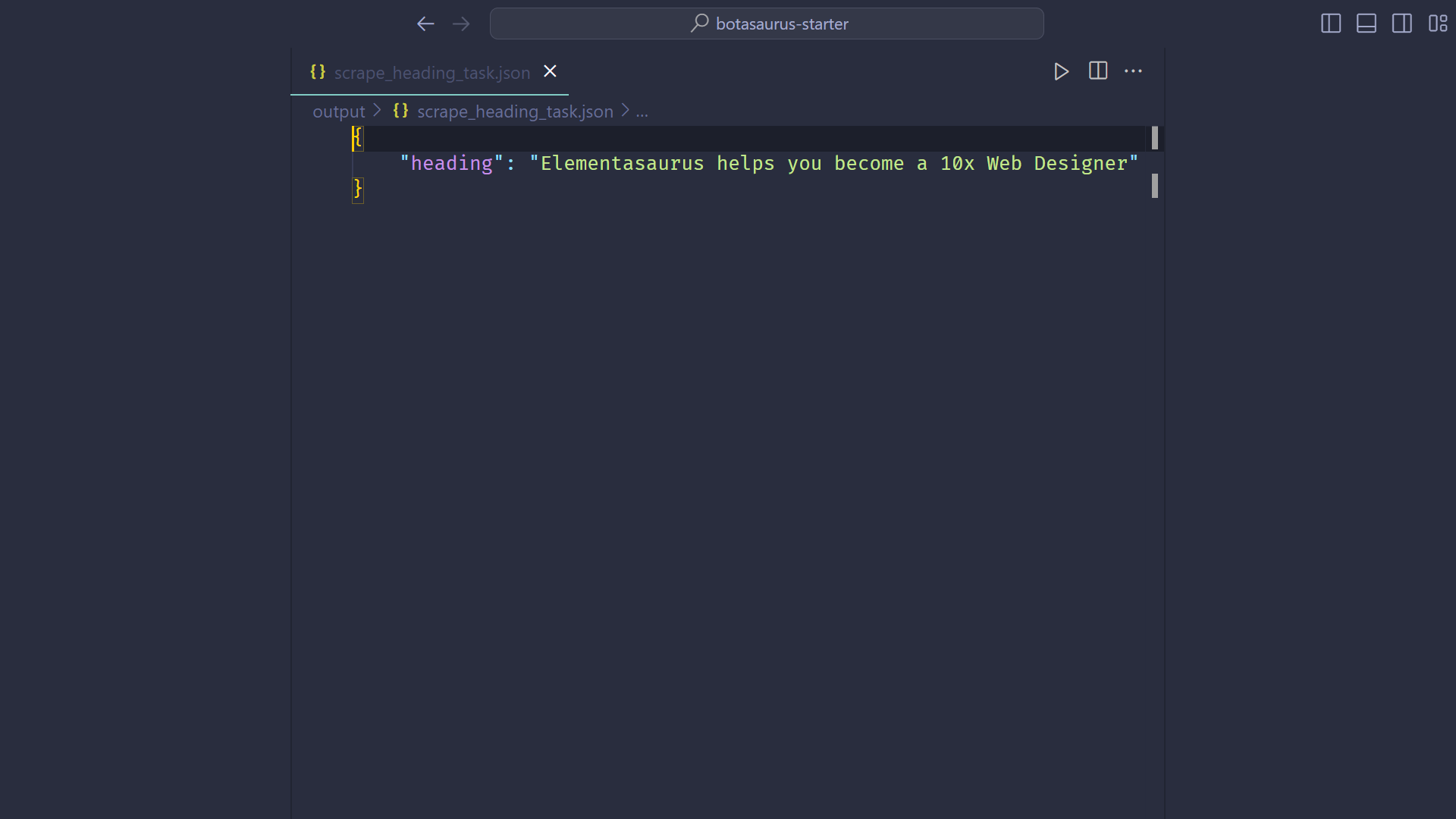 - Bringing your attention to errors in browser mode with a beep sound and pausing the browser, allowing you to debug the error on the spot. 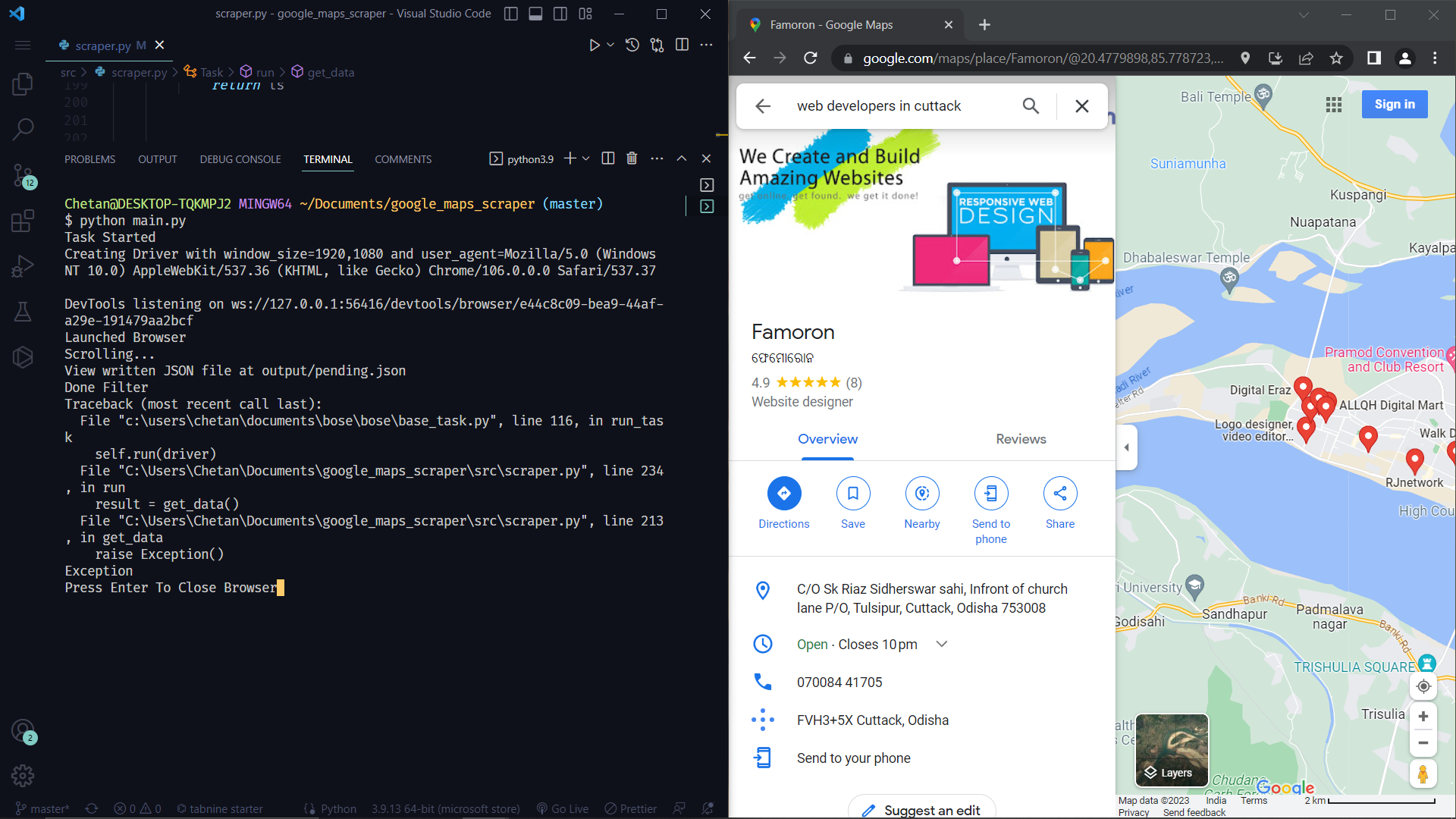 - Even if an exception is raised in headless mode, it will still open the website in your default browser, making it easier to debug code in a headless browser. (Isn't it cool?) 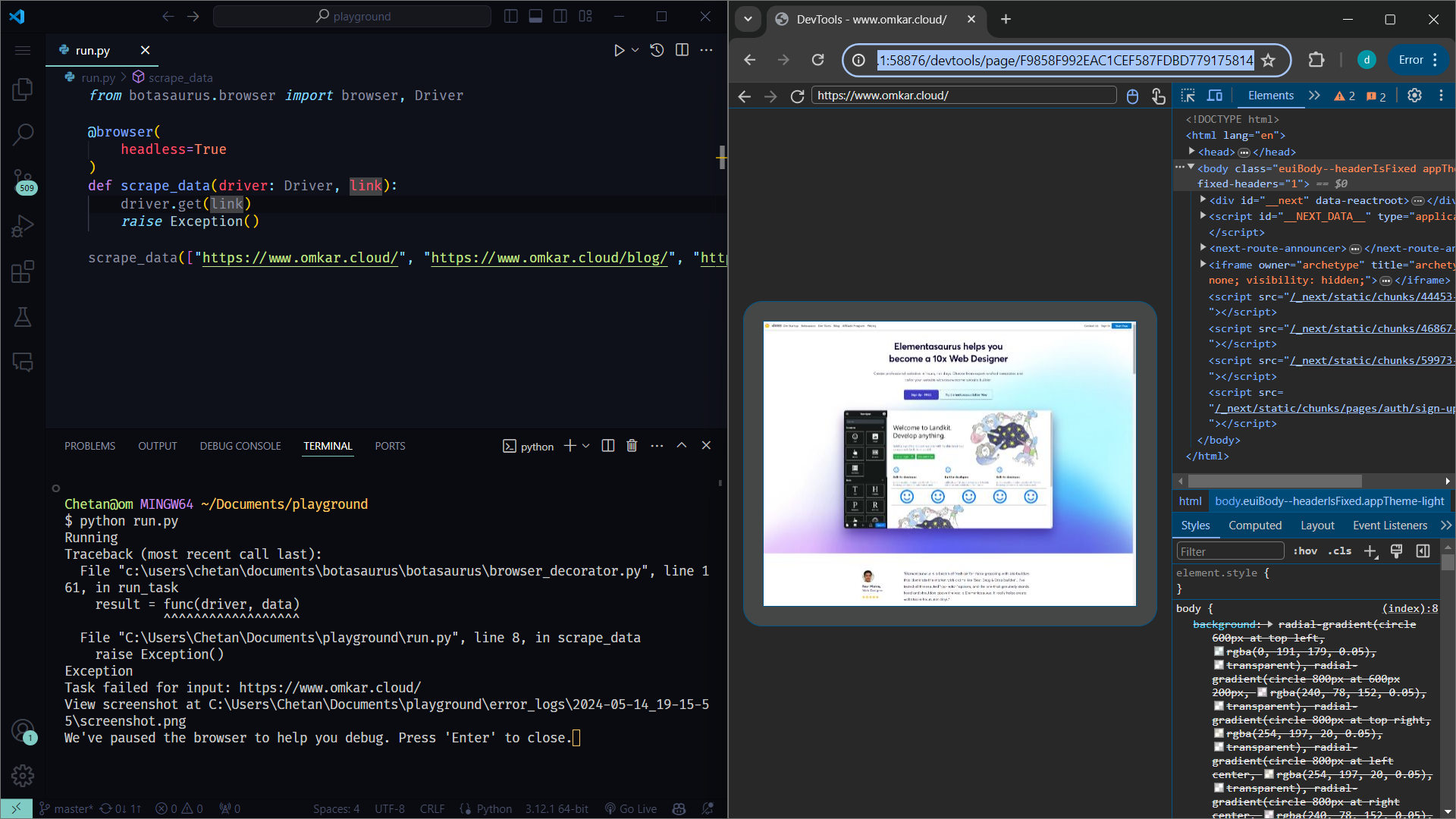 ### How to configure the Browser Decorator? The Browser Decorator allows you to easily configure various aspects of the browser, such as: - Blocking images and CSS - Setting up proxies - Specifying profiles - Enabling headless mode - Using Chrome extensions - Captcha Solving - Selecting language - Passing Arguments to Chrome #### Blocking Images and CSS Blocking images is one of the most important configurations when scraping at scale. Blocking images can significantly: - Speed up your web scraping tasks - Reduce bandwidth usage - And save money on proxies. (Best of All!) For example, a page that originally takes 4 seconds and 12 MB to load might only take one second and 100 KB after blocking images and CSS. To block images, use the `block_images` parameter: ```python @browser( block_images=True, ) ``` To block both images and CSS, use `block_images_and_css`: ```python @browser( block_images_and_css=True, ) ``` #### Proxies To use proxies, simply specify the `proxy` parameter: ```python @browser( proxy="http://username:password@proxy-provider-domain:port" ) def visit_what_is_my_ip(driver: Driver, data): driver.get("https://whatismyipaddress.com/") driver.prompt() visit_what_is_my_ip() ``` You can also pass a list of proxies, and the proxy will be automatically rotated: ```python @browser( proxy=[ "http://username:password@proxy-provider-domain:port", "http://username2:password2@proxy-provider-domain:port" ] ) def visit_what_is_my_ip(driver: Driver, data): driver.get("https://whatismyipaddress.com/") driver.prompt() visit_what_is_my_ip() ``` #### Profile Easily specify the Chrome profile using the `profile` option: ```python @browser( profile="pikachu" ) ``` However, each Chrome profile can become very large (e.g., 100 MB) and can eat up all your computer storage. To solve this problem, use the `tiny_profile` option, which is a lightweight alternative to Chrome profiles. When creating hundreds of Chrome profiles, it is highly recommended to use the `tiny_profile` option because: - Creating 1000 Chrome profiles will take at least 100 GB, whereas 1000 tiny profiles will take up only 1 MB of storage, making tiny profiles easy to store and back up. - Tiny profiles are cross-platform, meaning you can create profiles on a Linux server, copy the `./profiles` folder to a Windows PC, and easily run them. Under the hood, tiny profiles persist cookies from visited websites, making them extremely lightweight (around 1 KB) while providing the same session persistence. Here's how to use the tiny profile: ```python @browser( tiny_profile=True, profile="pikachu", ) ``` #### Headless Mode Enable headless mode with `headless=True`: ```python @browser( headless=True ) ``` Note that if you use headless mode, you will surely be identified by services like Cloudflare and Datadome. Therefore, use headless mode only when scraping websites that don't use such services. #### Chrome Extensions Botasaurus allows the use of ANY Chrome Extension with just 1 line of code. The example below shows how to use the Mouse Coordinates Chrome Extension to show current mouse X and Y coordinates on web pages: ```python from botasaurus.browser import browser, Driver from chrome_extension_python import Extension @browser( extensions=[ Extension( "https://chromewebstore.google.com/detail/mouse-coordinates/mfohnjojhopfcahiddmeljeholnciakl" ) ], ) def scrape_while_blocking_ads(driver: Driver, data): driver.get("https://example.com/") driver.prompt() scrape_while_blocking_ads() ``` In some cases, an extension may require additional configuration, such as API keys or credentials. For such scenarios, you can create a custom extension. Learn more about creating and configuring custom extensions [here](https://github.com/omkarcloud/chrome-extension-python). #### Captcha Solving Encountering captchas is common in web scraping. You can use the [capsolver_extension_python](https://github.com/omkarcloud/capsolver-extension-python?tab=readme-ov-file#installation) package to automatically solve CAPTCHAs with Capsolver. To use it, first install the package: ```bash python -m pip install capsolver_extension_python ``` Then, integrate it into your code as follows: ```python from botasaurus.browser import browser, Driver from capsolver_extension_python import Capsolver # Replace "CAP-MY_KEY" with your actual CapSolver API key @browser(extensions=[Capsolver(api_key="CAP-MY_KEY")]) def solve_captcha(driver: Driver, data): driver.get("https://recaptcha-demo.appspot.com/recaptcha-v2-checkbox.php") driver.prompt() solve_captcha() ``` #### Language Specify the language using the `lang` option: ```python from botasaurus.lang import Lang @browser( lang=Lang.Hindi, ) ``` #### User Agent and Window Size To make the browser really humane, Botasaurus does not change browser fingerprints by default, because using fingerprints makes the browser easily identifiable by running CSS tests to find mismatches between the provided user agent and the actual user agent. However, if you need fingerprinting, use the `user_agent` and `window_size` options: ```python from botasaurus.browser import browser, Driver from botasaurus.user_agent import UserAgent from botasaurus.window_size import WindowSize @browser( user_agent=UserAgent.RANDOM, window_size=WindowSize.RANDOM, ) def visit_whatsmyua(driver: Driver, data): driver.get("https://www.whatsmyua.info/") driver.prompt() visit_whatsmyua() ``` When working with profiles, you want the fingerprints to remain consistent. You don't want the user's user agent to be Chrome 106 on the first visit and then become Chrome 102 on the second visit. So, when using profiles, use the `HASHED` option to generate a consistent user agent and window size based on the profile's hash: ```python from botasaurus.browser import browser, Driver from botasaurus.user_agent import UserAgent from botasaurus.window_size import WindowSize @browser( profile="pikachu", user_agent=UserAgent.HASHED, window_size=WindowSize.HASHED, ) def visit_whatsmyua(driver: Driver, data): driver.get("https://www.whatsmyua.info/") driver.prompt() visit_whatsmyua() # Everytime Same UserAgent and WindowSize visit_whatsmyua() ``` #### Passing Arguments to Chrome To pass arguments to Chrome, use the `add_arguments` option: ```python @browser( add_arguments=['--headless=new'], ) ``` To dynamically generate arguments based on the `data` parameter, pass a function: ```python def get_arguments(data): return ['--headless=new'] @browser( add_arguments=get_arguments, ) ``` #### Wait for Complete Page Load By default, Botasaurus waits for all page resources (DOM, JavaScript, CSS, images, etc.) to load before calling your scraping function with the driver. However, sometimes the DOM is ready, but JavaScript, images, etc., take forever to load. In such cases, you can set `wait_for_complete_page_load` to `False` to interact with the DOM as soon as the HTML is parsed and the DOM is ready: ```python @browser( wait_for_complete_page_load=False, ) ``` #### Reuse Driver Consider the following example: ```python from botasaurus.browser import browser, Driver @browser def scrape_data(driver: Driver, link): driver.get(link) scrape_data(["https://www.omkar.cloud/", "https://www.omkar.cloud/blog/", "https://stackoverflow.com/"]) ``` If you run this code, the browser will be recreated on each page visit, which is inefficient.  To solve this problem, use the `reuse_driver` option which is great for cases like: - Scraping a large number of links and reusing the same browser instance for all page visits. - Running your scraper in a cloud server to scrape data on demand, without recreating Chrome on each request. Here's how to use `reuse_driver` which will reuse the same Chrome instance for visiting each link. ```python from botasaurus.browser import browser, Driver @browser( reuse_driver=True ) def scrape_data(driver: Driver, link): driver.get(link) scrape_data(["https://www.omkar.cloud/", "https://www.omkar.cloud/blog/", "https://stackoverflow.com/"]) ``` **Result** 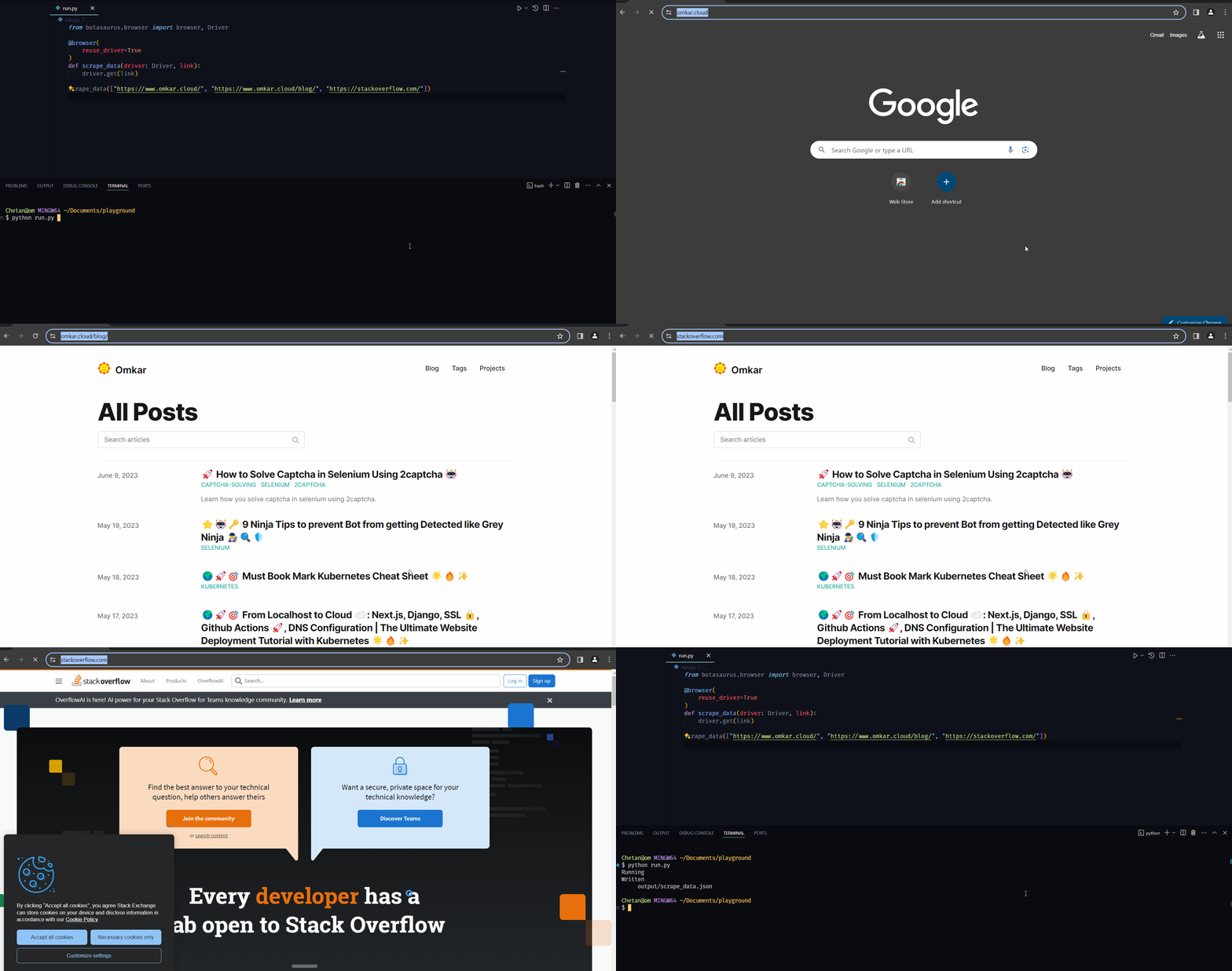 --- Also, by default, whenever the program ends or is canceled, Botasaurus smartly closes any open Chrome instances, leaving no instances running in the background. In rare cases, you may want to explicitly close the Chrome instance. For such scenarios, you can use the `.close()` method on the scraping function: ```python scrape_data.close() ``` This will close any Chrome instances that remain open after the scraping function ends. ### How to Significantly Reduce Proxy Costs When Scraping at Scale? Recently, we had a project requiring access to around 100,000 pages from a well-protected website, necessitating the use of Residential Proxies. Even after blocking images, we still required 250GB of proxy bandwidth, costing approximately $1050 (at $4.2 per GB with IP Royal). This was beyond our budget :( To solve this, we implemented a smart strategy: - We first visited the website normally. - We then made requests for subsequent pages using the browser's `fetch` API. Since we were only requesting the HTML, which was well compressed by the browser, we reduced our proxy bandwidth needs to just 5GB, costing only $30. This resulted in savings of around $1000! Here's an example of how you can do something similar in Botasaurus: ```python from botasaurus.browser import browser, Driver from botasaurus.soupify import soupify @browser( reuse_driver=True, # Reuse the browser max_retry=5, # Retry up to 5 times on failure ) def scrape_data(driver: Driver, link): # If the browser is newly opened, first visit the link if driver.config.is_new: driver.google_get(link) # Make requests using the browser fetch API response = driver.requests.get(link) response.raise_for_status() # Ensure the request was successful html = response.text # Parse the HTML to extract the desired data soup = soupify(html) stock_name = soup.select_one('[data-testid="quote-hdr"] h1').get_text() stock_price = soup.select_one('[data-testid="qsp-price"]').get_text() return { "stock_name": stock_name, "stock_price": stock_price, } # List of URLs to scrape links = [ "https://finance.yahoo.com/quote/AAPL/", "https://finance.yahoo.com/quote/GOOG/", "https://finance.yahoo.com/quote/MSFT/", ] # Execute the scraping function for the list of links scrape_data(links) ``` Note: 1. **Dealing with 429 (Too Many Requests) Errors** If you encounter a 429 error, add a delay before making another request. Most websites using Nginx, setting a rate limit of 1 request per second. To respect this limit, a delay of 1.13 seconds is recommended. ```python driver.sleep(1.13) # Delay to respect the rate limit response = driver.requests.get(link) ``` 2. **Handling 400 Errors Due to Large Cookies** If you encounter a 400 error with a "cookie too large" message, delete the cookies and retry the request. ```python response = driver.requests.get(link) if response.status_code == 400: driver.delete_cookies() # Delete cookies to resolve the error driver.short_random_sleep() # Short delay before retrying response = driver.requests.get(link) ``` 3. You can also use `driver.requests.get_mank(links)` to make multiple requests in parallel, which is faster than making them sequentially. ### How to Configure the Browser's Chrome Profile, Language, and Proxy Dynamically Based on Data Parameters? The decorators in Botasaurus are really flexible, allowing you to pass a function that can derive the browser configuration based on the data item parameter. This is particularly useful when working with multiple Chrome profiles. You can dynamically configure the browser's Chrome profile and proxy using decorators in two ways: 1. Using functions to extract configuration values from data: - Define functions to extract the desired configuration values from the `data` parameter. - Pass these functions as arguments to the `@browser` decorator. Example: ```python from botasaurus.browser import browser, Driver def get_profile(data): return data["profile"] def get_proxy(data): return data["proxy"] @browser(profile=get_profile, proxy=get_proxy) def scrape_heading_task(driver: Driver, data): profile, proxy = driver.config.profile, driver.config.proxy print(profile, proxy) return profile, proxy data = [ {"profile": "pikachu", "proxy": "http://142.250.77.228:8000"}, {"profile": "greyninja", "proxy": "http://142.250.77.229:8000"}, ] scrape_heading_task(data) ``` 2. Directly passing configuration values when calling the decorated function: - Pass the profile and proxy values directly as arguments to the decorated function when calling it. Example: ```python from botasaurus.browser import browser, Driver @browser def scrape_heading_task(driver: Driver, data): profile, proxy = driver.config.profile, driver.config.proxy print(profile, proxy) return profile, proxy scrape_heading_task( profile='pikachu', # Directly pass the profile proxy="http://142.250.77.228:8000", # Directly pass the proxy ) ``` PS: Most Botasaurus decorators allow passing functions to derive configurations from data parameters. Check the decorator's argument type hint to see if it supports this functionality. ### What is the best way to manage profile-specific data like name, age across multiple profiles? To store data related to the active profile, use `driver.profile`. Here's an example: ```python from botasaurus.browser import browser, Driver def get_profile(data): return data["profile"] @browser(profile=get_profile) def run_profile_task(driver: Driver, data): # Set profile data driver.profile = { 'name': 'Amit Sharma', 'age': 30 } # Update the name in the profile driver.profile['name'] = 'Amit Verma' # Delete the age from the profile del driver.profile['age'] # Print the updated profile print(driver.profile) # Output: {'name': 'Amit Verma'} # Delete the entire profile driver.profile = None run_profile_task([{"profile": "amit"}]) ``` For managing all profiles, use the `Profiles` utility. Here's an example: ```python from botasaurus.profiles import Profiles # Set profiles Profiles.set_profile('amit', {'name': 'Amit Sharma', 'age': 30}) Profiles.set_profile('rahul', {'name': 'Rahul Verma', 'age': 30}) # Get a profile profile = Profiles.get_profile('amit') print(profile) # Output: {'name': 'Amit Sharma', 'age': 30} # Get all profiles all_profiles = Profiles.get_profiles() print(all_profiles) # Output: [{'name': 'Amit Sharma', 'age': 30}, {'name': 'Rahul Verma', 'age': 30}] # Get all profiles in random order random_profiles = Profiles.get_profiles(random=True) print(random_profiles) # Output: [{'name': 'Rahul Verma', 'age': 30}, {'name': 'Amit Sharma', 'age': 30}] in random order # Delete a profile Profiles.delete_profile('amit') ``` Note: All profile data is stored in the `profiles.json` file in the current working directory. 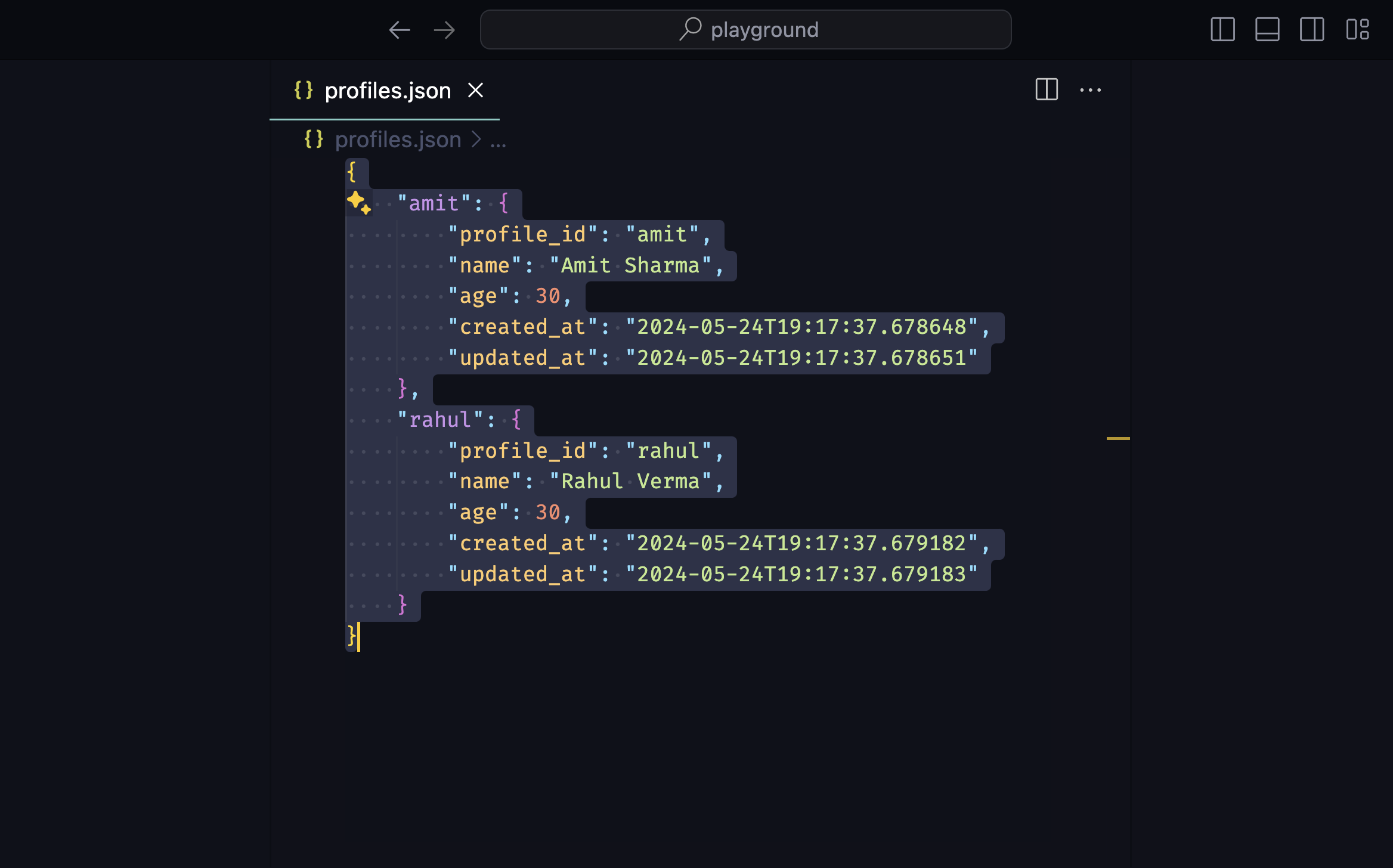 ### What are some common methods in Botasaurus Driver? Botasaurus Driver provides several handy methods for web automation tasks, such as: - Visiting URLs: ```python driver.get("https://www.example.com") driver.google_get("https://www.example.com") # Use Google as the referer [Recommended] driver.get_via("https://www.example.com", referer="https://duckduckgo.com/") # Use custom referer driver.get_via_this_page("https://www.example.com") # Use current page as referer ``` - Finding elements: ```python from botasaurus.browser import Wait search_results = driver.select(".search-results", wait=Wait.SHORT) # Wait for up to 4 seconds for the element to be present, return None if not found all_links = driver.select_all("a") # Get all elements matching the selector search_results = driver.wait_for_element(".search-results", wait=Wait.LONG) # Wait for up to 8 seconds for the element to be present, raise exception if not found hello_mom = driver.get_element_with_exact_text("Hello Mom", wait=Wait.VERY_LONG) # Wait for up to 16 seconds for an element having the exact text "Hello Mom" ``` - Interacting with elements: ```python driver.type("input[name='username']", "john_doe") # Type into an input field driver.click("button.submit") # Click an element element = driver.select("button.submit") element.click() # Click on an element element.select_option("select#fruits", index=2) # Select an option ``` - Retrieving element properties: ```python header_text = driver.get_text("h1") # Get text content error_message = driver.get_element_containing_text("Error: Invalid input") image_url = driver.select("img.logo").get_attribute("src") # Get attribute value ``` - Working with parent-child elements: ```python parent_element = driver.select(".parent") child_element = parent_element.select(".child") child_element.click() # Click child element ``` - Executing JavaScript: ```python result = driver.run_js("script.js") # Run a JavaScript file located in the current working directory. result = driver.run_js("return document.title") pikachu = driver.run_js("return args.pokemon", {"pokemon": 'pikachu'}) # args can be a dictionary, list, string, etc. text_content = driver.select("body").run_js("(el) => el.textContent") ``` - Enable human mode to perform, human-like mouse movements and say sayonara to detection: ```python # Navigate to Cloudflare's Turnstile Captcha demo driver.get( "https://nopecha.com/demo/cloudflare", ) # Wait for page to fully load driver.long_random_sleep() # Locate iframe containing the Cloudflare challenge iframe = driver.get_element_at_point(160, 290) # Find checkbox element within the iframe checkbox = iframe.get_element_at_point(30, 30) # Enable human mode for realistic, human-like mouse movements driver.enable_human_mode() # Click the checkbox to solve the challenge checkbox.click() # (Optional) Disable human mode if no longer needed driver.disable_human_mode() # Pause execution, for inspection driver.prompt() ```  - Drag and Drop: ```python # Open React DnD tutorial driver.get("https://react-dnd.github.io/react-dnd/examples/tutorial") # Select draggable and droppable elements draggable = driver.select('[draggable="true"]') droppable = driver.select('[data-testid="(3,6)"]') # Perform drag-and-drop draggable.drag_and_drop_to(droppable) # Pause execution, for inspection driver.prompt() ``` 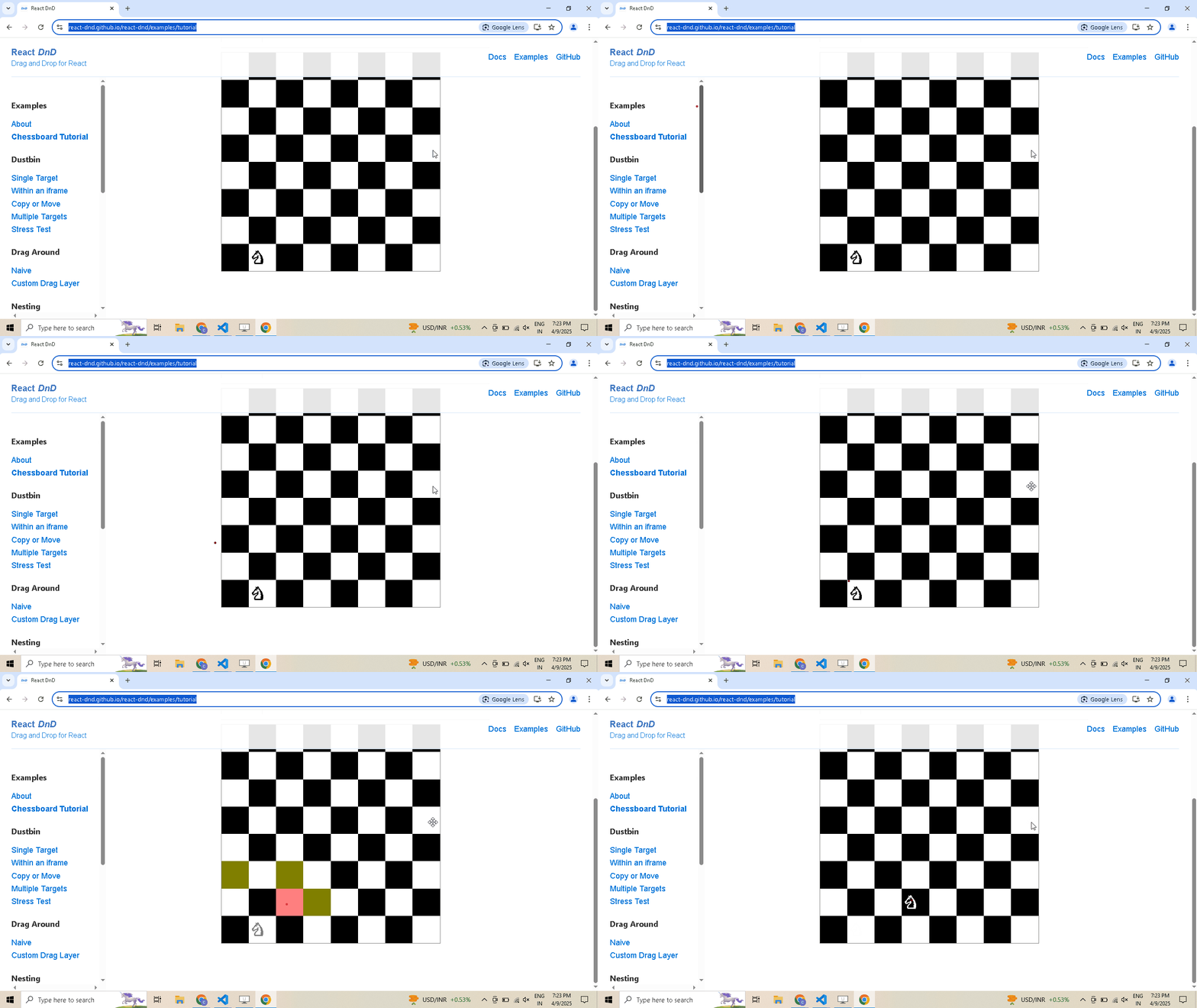 - Selecting Shadow Root Elements: ```python # Visit the website driver.get("https://nopecha.com/demo/cloudflare") # Wait for page to fully load driver.long_random_sleep() # Locate the element containing shadow root shadow_root_element = driver.select('[name="cf-turnstile-response"]').parent # Access the iframe iframe = shadow_root_element.get_shadow_root() # Access the nested shadow DOM inside the iframe content = iframe.get_shadow_root() # print the text content of the "label" element. print(content.select("label", wait = 8).text) # Pause execution, for inspection driver.prompt() ``` 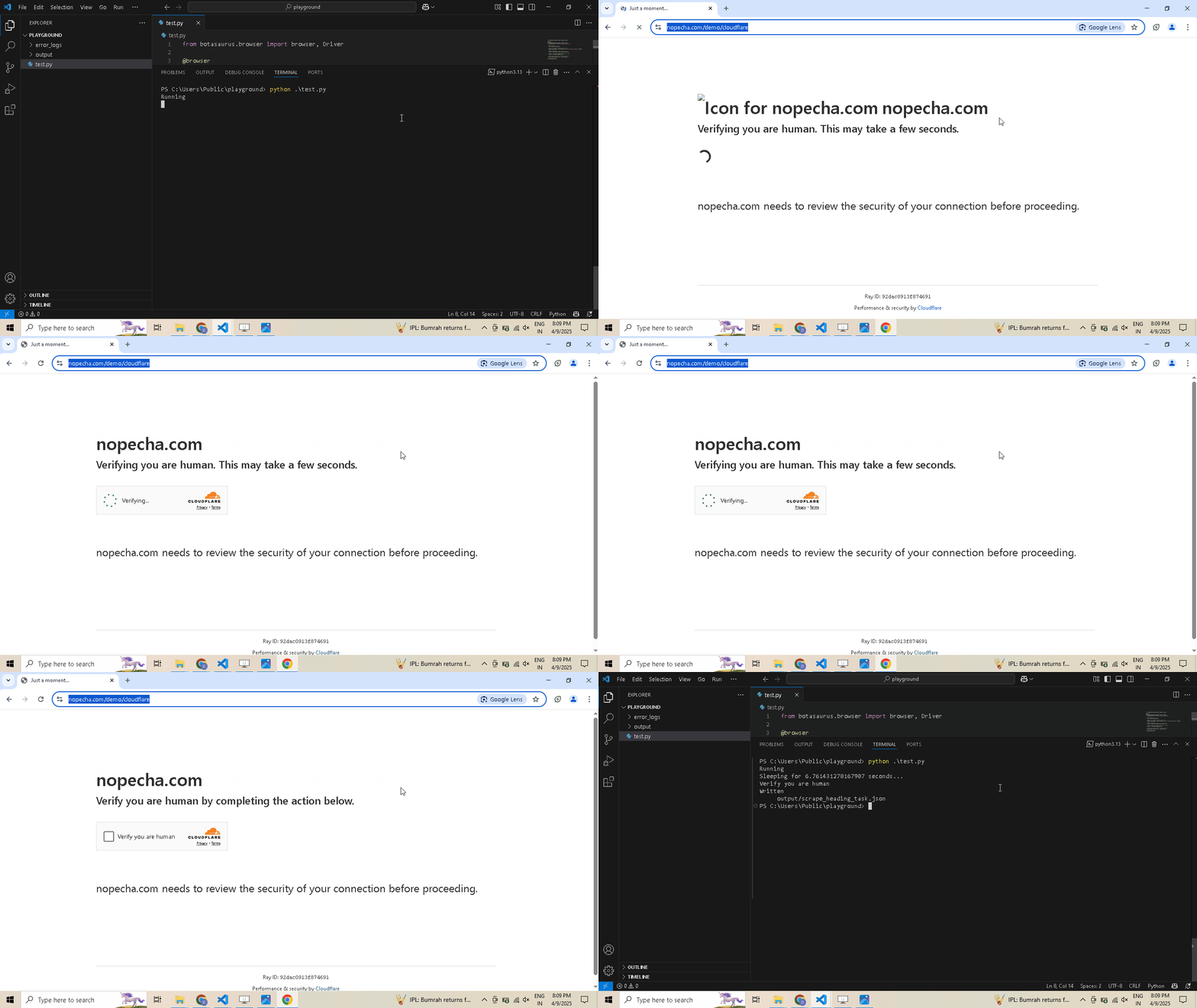 - Monitoring requests: ```python from botasaurus.browser import browser, Driver, cdp @browser() def scrape_responses_task(driver: Driver, data): # Define a handler function that will be called after a response is received def after_response_handler( request_id: str, response: cdp.network.Response, event: cdp.network.ResponseReceived, ): # Extract URL, status, and headers from the response url = response.url status = response.status headers = response.headers # Print the response details print( "after_response_handler", { "request_id": request_id, "url": url, "status": status, "headers": headers, }, ) # Append the request ID to the driver's responses list driver.responses.append(request_id) # Register the after_response_handler to be called after each response is received driver.after_response_received(after_response_handler) # Navigate to the specified URL driver.get("https://example.com/") # Collect all the responses that were appended during the navigation collected_responses = driver.responses.collect() # Save it in output/scrape_responses_task.json return collected_responses # Execute the scraping task scrape_responses_task() ``` - Working with iframes: ```python driver.get("https://www.freecodecamp.org/news/using-entity-framework-core-with-mongodb/") iframe = driver.get_iframe_by_link("www.youtube.com/embed") # OR the following works as well # iframe = driver.select_iframe(".embed-wrapper iframe") freecodecamp_youtube_subscribers_count = iframe.select(".ytp-title-expanded-subtitle").text print(freecodecamp_youtube_subscribers_count) ``` - Executing CDP Command: ```python from botasaurus.browser import browser, Driver, cdp driver.run_cdp_command(cdp.page.navigate(url='https://stackoverflow.blog/open-source')) ``` - Miscellaneous: ```python form.type("input[name='password']", "secret_password") # Type into a form field container.is_element_present(".button") # Check element presence page_html = driver.page_html # Current page HTML driver.select(".footer").scroll_into_view() # Scroll element into view driver.close() # Close the browser ``` ### How Can I Pause the Browser to Inspect Website when Developing the Scraper? To pause the scraper and wait for user input before proceeding, use `driver.prompt()`: ```python driver.prompt() ``` ### How do I configure authenticated proxies with SSL in Botasaurus? Proxy providers like BrightData, IPRoyal, and others typically provide authenticated proxies in the format "http://username:password@proxy-provider-domain:port". For example, "http://greyninja:awesomepassword@geo.iproyal.com:12321". However, if you use an authenticated proxy with a library like seleniumwire to visit a website using Cloudflare, or Datadome, you are GUARANTEED to be identified because you are using a non-SSL connection. To verify this, run the following code: First, install the necessary packages: ```bash python -m pip install selenium_wire ``` Then, execute this Python script: ```python from seleniumwire import webdriver # Import from seleniumwire # Define the proxy proxy_options = { 'proxy': { 'http': 'http://username:password@proxy-provider-domain:port', # TODO: Replace with your own proxy 'https': 'http://username:password@proxy-provider-domain:port', # TODO: Replace with your own proxy } } # Install and set up the driver driver = webdriver.Chrome(seleniumwire_options=proxy_options) # Visit the desired URL link = 'https://fingerprint.com/products/bot-detection/' driver.get("https://www.google.com/") driver.execute_script(f'window.location.href = "{link}"') # Prompt for user input input("Press Enter to exit...") # Clean up driver.quit() ``` You will SURELY be identified: 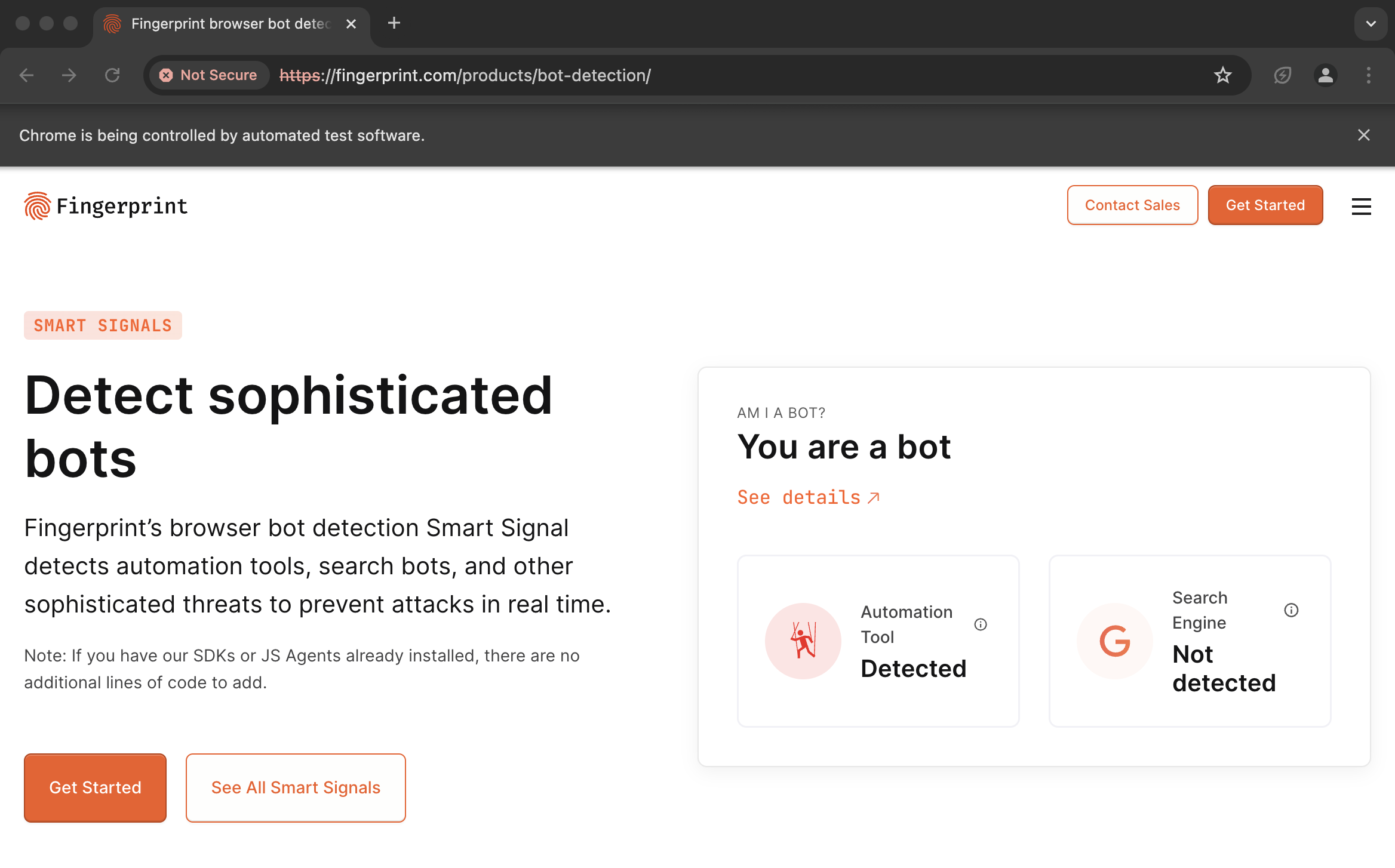 However, using proxies with Botasaurus solves this issue. See the difference by running the following code: ```python from botasaurus.browser import browser, Driver @browser(proxy="http://username:password@proxy-provider-domain:port") # TODO: Replace with your own proxy def scrape_heading_task(driver: Driver, data): driver.google_get("https://fingerprint.com/products/bot-detection/") driver.prompt() scrape_heading_task() ``` Result: 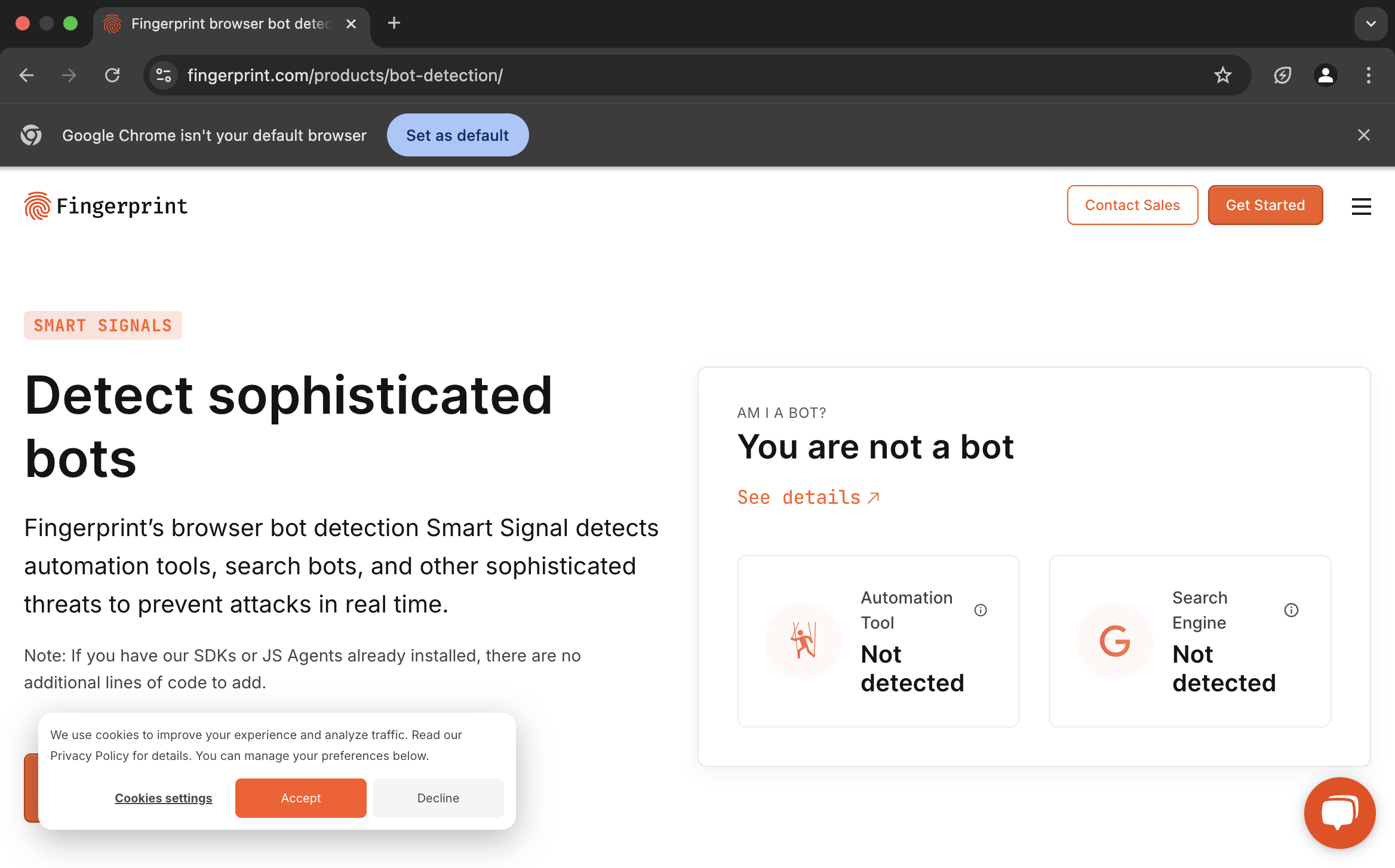 Important Note: To run the code above, you will need [Node.js](https://nodejs.org/en) installed. ### Why am I getting a socket connection error when using a proxy to access a website? Certain proxy providers like BrightData will block access to specific websites. To determine if this is the case, run the following code: ```python from botasaurus.browser import browser, Driver @browser(proxy="http://username:password@proxy-provider-domain:port") # TODO: Replace with your own proxy def visit_what_is_my_ip(driver: Driver, data): driver.get("https://whatismyipaddress.com/") driver.prompt() visit_what_is_my_ip() ``` If you can successfully access [whatismyipaddress.com](https://whatismyipaddress.com/) but not the website you're attempting to scrape, it means the proxy provider is blocking access to that particular website. In such situations, the only solution is to switch to a different proxy provider. Some good proxy providers we personally use are: - For Rotating Datacenter Proxies: - **[requests-ip-rotator](https://pypi.org/project/requests-ip-rotator/):** Routes your API requests through AWS API Gateway, leveraging AWS’s large IP pool to automatically rotate IPs. The cost is negligible even for large-scale scraping (millions of pages). **Highly recommended** — this should be your default choice for datacenter proxy rotation. - **BrightData Datacenter Proxies:** Paid alternative costing around **$0.6 per GB** (pay-as-you-go). Offers a smaller proxy pool compared to AWS. - For Rotating Residential Proxies: **IPRoyal Royal Residential Proxies**, which cost around $7 per GB on a pay-as-you-go basis. No KYC is required. As always, nothing good in life comes free. Proxies are expensive, and will take up almost all of your scraping costs. So, use proxies only when you need them, and prefer request-based scrapers over browser-based scrapers to save bandwidth. Note: BrightData and IPRoyal have not paid us. We are recommending them based on our personal experience. ### Which country should I choose when using proxies for web scraping? The United States is often the best choice because: - The United States has a highly developed internet infrastructure and is home to numerous data centers, ensuring faster internet speeds. - Most global companies host their websites in the US, so using a US proxy will result in faster scraping speeds. ### Should I use a proxy for web scraping? ONLY IF you encounter IP blocks. Sadly, most scrapers unnecessarily use proxies, even when they are not needed. Everything seems like a nail when you have a hammer. We have seen scrapers which can easily access hundreds of thousands of protected pages using the @browser module on home Wi-Fi without any issues. So, as a best practice scrape using the @browser module on your home Wi-Fi first. Only resort to proxies when you encounter IP blocks. This practice will save you a considerable amount of time (as proxies are really slow) and money (as proxies are expensive as well). ### How to configure the Request Decorator? The Request Decorator is used to make humane requests. Under the hood, it uses botasaurus-requests, a library based on hrequests, which incorporates important features like: - Using browser-like headers in the correct order. - Makes a browser-like connection with correct ciphers. - Uses `google.com` referer by default to make it appear as if the user has arrived from google search. Also, The Request Decorator allows you to configure proxy as follows: ```python @request( proxy="http://username:password@proxy-provider-domain:port" ) ``` ### What Options Can I Configure in all 3 Decorators? All 3 decorators allow you to configure the following options: - Parallel Execution: - Caching Results - Passing Common Metadata - Asynchronous Queues - Asynchronous Execution - Handling Crashes - Configuring Output - Exception Handling Let's dive into each of these options and in later sections we will see their real-world applications. #### `parallel` The `parallel` option allows you to scrape data in parallel by launching multiple browser/request/task instances simultaneously. This can significantly speed up the scraping process. Run the example below to see parallelization in action: ```python from botasaurus.browser import browser, Driver @browser(parallel=3, data=["https://stackoverflow.blog/open-source", "https://stackoverflow.blog/ai", "https://stackoverflow.blog/productivity",]) def scrape_heading_task(driver: Driver, link): driver.get(link) heading = driver.get_text('h1') return heading scrape_heading_task() ``` #### `cache` The `cache` option enables caching of web scraping results to avoid re-scraping the same data. This can significantly improve performance and reduce redundant requests. Run the example below to see how caching works: ```python from botasaurus.browser import browser, Driver @browser(cache=True, data=["https://stackoverflow.blog/open-source", "https://stackoverflow.blog/ai", "https://stackoverflow.blog/productivity",]) def scrape_heading_task(driver: Driver, link): driver.get(link) heading = driver.get_text('h1') return heading print(scrape_heading_task()) print(scrape_heading_task()) # Data will be fetched from cache immediately ``` Note: Caching is one of the most important features of Botasaurus. #### `metadata` The metadata option allows you to pass common information shared across all data items. This can include things like API keys, browser cookies, or any other data that remains constant throughout the scraping process. It is commonly used with caching to exclude details like API keys and browser cookies from the cache key. Here's an example of how to use the `metadata` option: ```python from botasaurus.task import task @task() def scrape_heading_task(data, metadata): print("metadata:", metadata) print("data:", data) data = [ {"profile": "pikachu", "proxy": "http://142.250.77.228:8000"}, {"profile": "greyninja", "proxy": "http://142.250.77.229:8000"}, ] scrape_heading_task( data, metadata={"api_key": "BDEC26..."} ) ``` #### `async_queue` In the world of web scraping, there are only two types of scrapers: 1. Dataset Scrapers: These extract data from websites and store it as datasets. Companies like Bright Data use them to build datasets for Crunchbase, Indeed, etc. 2. Real-time Scrapers: These fetch data from sources in real-time, like SERP APIs that provide Google and DuckDuckGo search results. When building real-time scrapers, speed is paramount because customers are waiting for requests to complete. The `async_queue` feature is incredibly useful in such cases. `async_queue` allows you to run scraping tasks asynchronously in a queue and gather the results using the `.get()` method. A great use case for `async_queue` is scraping Google Maps. Instead of scrolling through the list of places and then scraping the details of each place sequentially, you can use `async_queue` to: 1. Scroll through the list of places. 2. Simultaneously make HTTP requests to scrape the details of each place in the background. By executing the scrolling and requesting tasks concurrently, you can significantly speed up the scraper. Run the code below to see browser scrolling and request scraping happening concurrently (really cool, must try!): ```python from botasaurus.browser import browser, Driver, AsyncQueueResult from botasaurus.request import request, Request import json def extract_title(html): return json.loads( html.split(";window.APP_INITIALIZATION_STATE=")[1].split(";window.APP_FLAGS")[0] )[5][3][2][1] @request( parallel=5, async_queue=True, max_retry=5, ) def scrape_place_title(request: Request, link, metadata): cookies = metadata["cookies"] html = request.get(link, cookies=cookies, timeout=12).text title = extract_title(html) print("Title:", title) return title def has_reached_end(driver): return driver.select('p.fontBodyMedium > span > span') is not None def extract_links(driver): return driver.get_all_links('[role="feed"] > div > div > a') @browser() def scrape_google_maps(driver: Driver, link): driver.google_get(link, accept_google_cookies=True) # accepts google cookies popup scrape_place_obj: AsyncQueueResult = scrape_place_title() # initialize the async queue for scraping places cookies = driver.get_cookies_dict() # get the cookies from the driver while True: links = extract_links(driver) # get the links to places scrape_place_obj.put(links, metadata={"cookies": cookies}) # add the links to the async queue for scraping print("scrolling") driver.scroll_to_bottom('[role="feed"]') # scroll to the bottom of the feed if has_reached_end(driver): # we have reached the end, let's break buddy break results = scrape_place_obj.get() # get the scraped results from the async queue return results scrape_google_maps("https://www.google.com/maps/search/web+developers+in+bangalore") ``` #### `run_async` Similarly, the `run_async` option allows you to execute scraping tasks asynchronously, enabling concurrent execution. Similar to `async_queue`, you can use the `.get()` method to retrieve the results of an asynchronous task. Code Example: ```python from botasaurus.browser import browser, Driver from time import sleep @browser(run_async=True) def scrape_heading(driver: Driver, data): sleep(5) return {} if __name__ == "__main__": result1 = scrape_heading() # Launches asynchronously result2 = scrape_heading() # Launches asynchronously result1.get() # Wait for the first result result2.get() # Wait for the second result ``` #### `close_on_crash` The `close_on_crash` option determines the behavior of the scraper when an exception occurs: - If set to `False` (default): - The scraper will make a beep sound and pause the browser. - This makes debugging easier by keeping the browser open at the point of the crash. - Use this setting during development and testing. - If set to `True`: - The scraper will close the browser and continue with the rest of the data items. - This is suitable for production environments when you are confident that your scraper is robust. - Use this setting to avoid interruptions and ensure the scraper processes all data items. ```python from botasaurus.browser import browser, Driver @browser( close_on_crash=False # Determines whether the browser is paused (default: False) or closed when an error occurs ) def scrape_heading_task(driver: Driver, data): raise Exception("An error occurred during scraping.") scrape_heading_task() ``` #### `output` and `output_formats` By default, Botasaurus saves the result of scraping in the `output/{your_scraping_function_name}.json` file. Let's learn about various ways to configure the output. 1. **Change Output Filename**: Use the `output` parameter in the decorator to specify a custom filename for the output. ```python from botasaurus.task import task @task(output="my-output") def scrape_heading_task(data): return {"heading": "Hello, Mom!"} scrape_heading_task() ``` 2. **Disable Output**: If you don't want any output to be saved, set `output` to `None`. ```python from botasaurus.task import task @task(output=None) def scrape_heading_task(data): return {"heading": "Hello, Mom!"} scrape_heading_task() ``` 3. **Dynamically Write Output**: To dynamically write output based on data and result, pass a function to the `output` parameter: ```python from botasaurus.task import task from botasaurus import bt def write_output(data, result): json_filename = bt.write_json(result, 'data') excel_filename = bt.write_excel(result, 'data') bt.zip_files([json_filename, excel_filename]) # Zip the JSON and Excel files for easy delivery to the customer @task(output=write_output) def scrape_heading_task(data): return {"heading": "Hello, Mom!"} scrape_heading_task() ``` 4. **Upload File to S3**: Use `bt.upload_to_s3` to upload file to S3 bucket. ```python from botasaurus.task import task from botasaurus import bt def write_output(data, result): json_filename = bt.write_json(result, 'data') bt.upload_to_s3(json_filename, 'my-magical-bucket', "AWS_ACCESS_KEY", "AWS_SECRET_KEY") @task(output=write_output) def scrape_heading_task(data): return {"heading": "Hello, Mom!"} scrape_heading_task() ``` 5.**Save Outputs in Multiple Formats**: Use the `output_formats` parameter to save outputs in different formats like JSON and EXCEL. ```python from botasaurus.task import task @task(output_formats=[bt.Formats.JSON, bt.Formats.EXCEL]) def scrape_heading_task(data): return {"heading": "Hello, Mom!"} scrape_heading_task() ``` PRO TIP: When delivering data to customers, provide the dataset in JSON and Excel formats. Avoid CSV unless the customer asks, because Microsoft Excel has a hard time rendering CSV files with nested JSON. **CSV vs Excel** 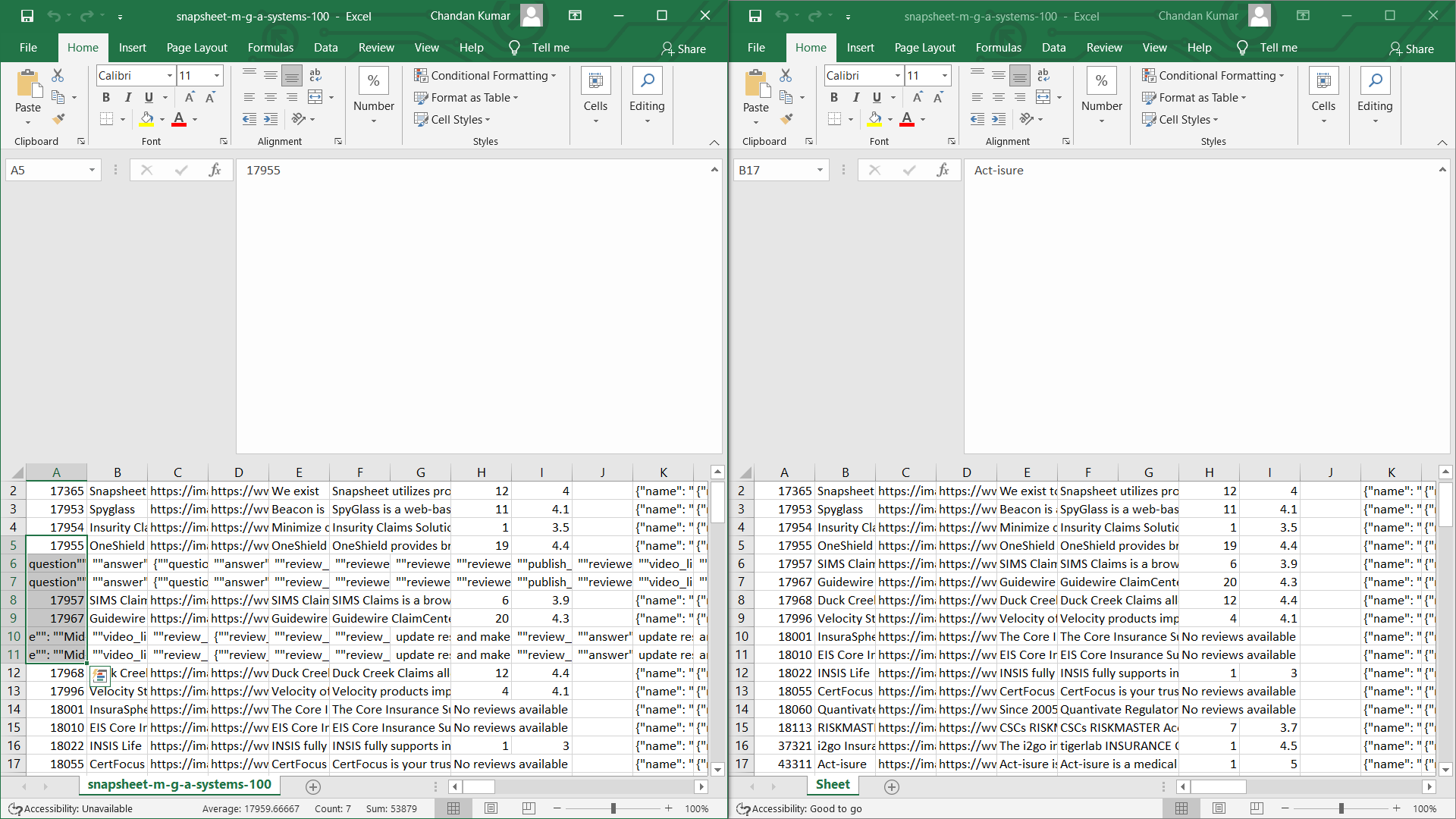 #### Exception Handling Options Botasaurus provides various exception handling options to make your scrapers more robust: - `max_retry`: By default, any failed task is not retried. You can specify the maximum number of times to retry scraping when an error occurs using the `max_retry` option. - `retry_wait`: Specifies the waiting time between retries. - `raise_exception`: By default, Botasaurus does not raise an exception when an error occurs during scraping, because let's say you are keeping your PC running overnight to scrape 10,000 links. If one link fails, you really don't want to stop the entire scraping process, and ruin your morning by seeing an unfinished dataset. - `must_raise_exceptions`: Specifies exceptions that must be raised, even if `raise_exception` is set to `False`. - `create_error_logs`: Determines whether error logs should be created when exceptions occur. In production, when scraping hundreds of thousands of links, it's recommended to set `create_error_logs` to `False` to avoid using computational resources for creating error logs. ```python @browser( raise_exception=True, # Raise an exception and halt the scraping process when an error occurs max_retry=5, # Retry scraping a failed task a maximum of 5 times retry_wait=10, # Wait for 10 seconds before retrying a failed task must_raise_exceptions=[CustomException], # Definitely raise CustomException, even if raise_exception is set to False create_error_logs=False # Disable the creation of error logs to optimize scraper performance ) def scrape_heading_task(driver: Driver, data): # ... ``` ### What are some examples of common web scraping utilities provided by Botasaurus that make scraping easier? #### bt Utility The `bt` utility provides helper functions for: - Writing and reading JSON, EXCEL, and CSV files - Data cleaning Some key functions are: - `bt.write_json` and `bt.read_json`: Easily write and read JSON files. ```python from botasaurus import bt data = {"name": "pikachu", "power": 101} bt.write_json(data, "output") loaded_data = bt.read_json("output") ``` - `bt.write_excel` and `bt.read_excel`: Easily write and read EXCEL files. ```python from botasaurus import bt data = {"name": "pikachu", "power": 101} bt.write_excel(data, "output") loaded_data = bt.read_excel("output") ``` - `bt.write_csv` and `bt.read_csv`: Easily write and read CSV files. ```python from botasaurus import bt data = {"name": "pikachu", "power": 101} bt.write_csv(data, "output") loaded_data = bt.read_csv("output") ``` - `bt.write_html` and `bt.read_html`: Write HTML content to a file. ```python from botasaurus import bt html_content = "